2023 HYUNDAI IONIQ 6 audio
[x] Cancel search: audioPage 372 of 582
Driver Assistance System
7-28
Lane Keeping Assist Settings
Lane Safety
B7001001
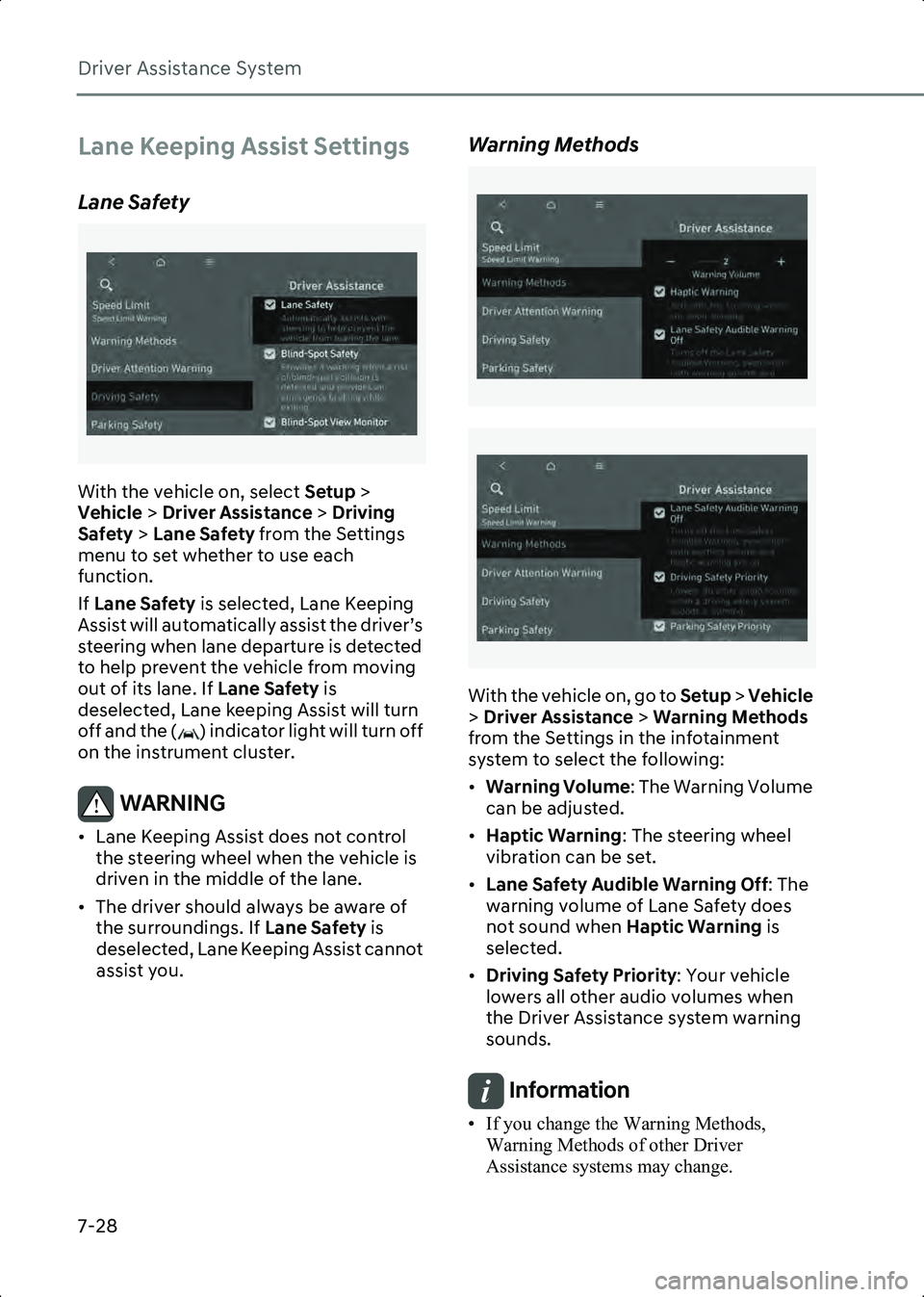
With the vehicle on, select Setup >
Vehicle > Driver Assistance > Driving
Safety > Lane Safety from the Settings
menu to set whether to use each
function.
If Lane Safety is selected, Lane Keeping
Assist will automatically assist the driver’s
steering when lane departure is detected
to help prevent the vehicle from moving
out of its lane. If Lane Safety is
deselected, Lane keeping Assist will turn
off and the ( ) indicator light will turn off
on the instrument cluster.
WARNING • Lane Keeping Assist does not control the steering wheel when the vehicle is
driven in the middle of the lane.
• The driver should always be aware of the surroundings. If Lane Safety is
deselected, Lane Keeping Assist cannot
assist you.
Warning Methods
B7000205_2
B7000205_3
With the vehicle on, go to Setup > Vehicle
> Driver Assistance > Warning Methods
from the Settings in the infotainment
system to select the following:
• Warning Volume : The Warning Volume
can be adjusted.
• Haptic Warning : The steering wheel
vibration can be set.
• Lane Safety Audible Warning Off : The
warning volume of Lane Safety does
not sound when Haptic Warning is
selected.
• Driving Safety Priority : Your vehicle
lowers all other audio volumes when
the Driver Assistance system warning
sounds.
Information • If you change the Warning Methods, Warning Methods of other Driver
Assistance systems may change.
Hyundai_CE_en_US.book Page 28
Page 380 of 582
Driver Assistance System
7-36
Warning Methods
B7000205
B7000205_1
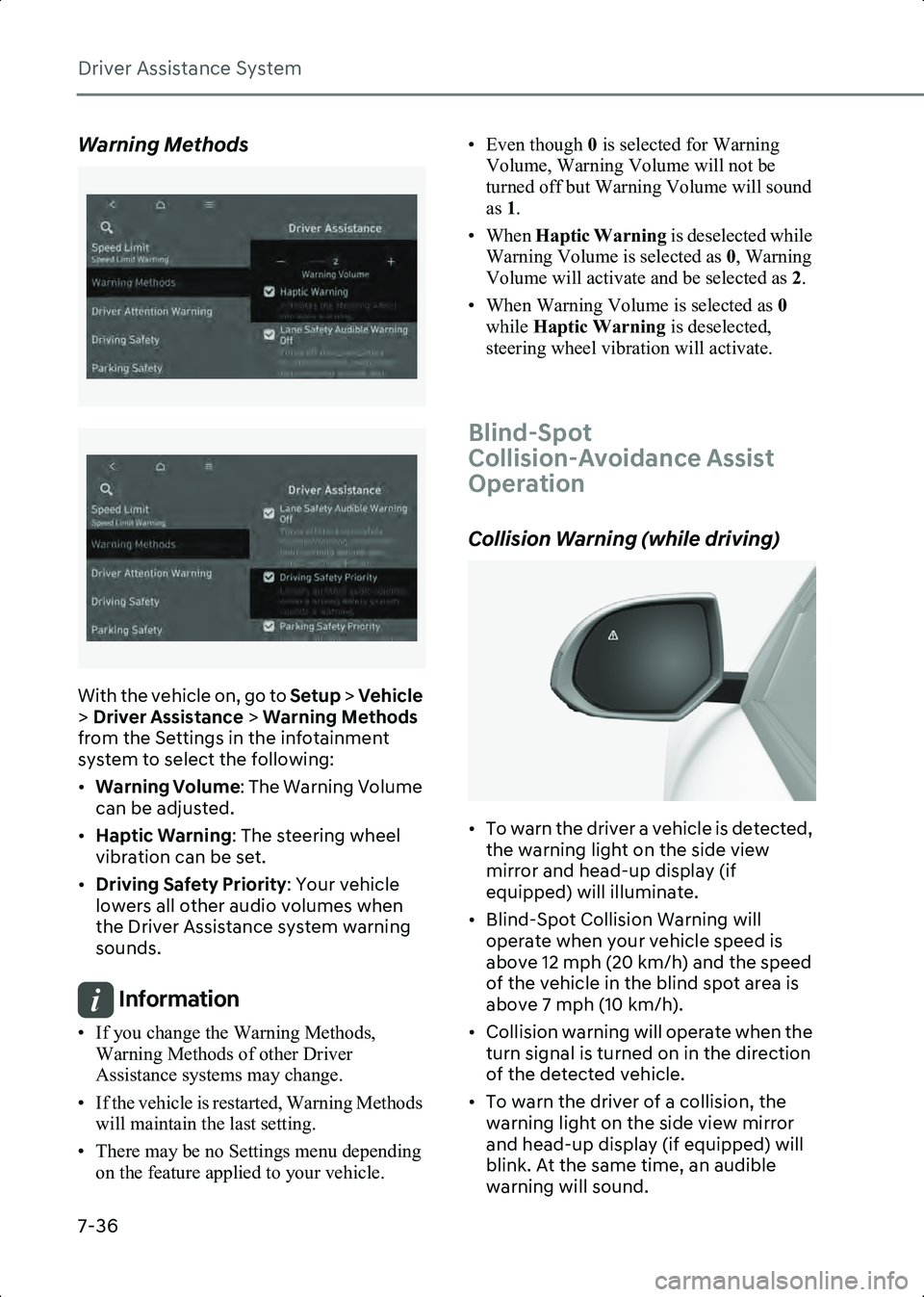
With the vehicle on, go to Setup > Vehicle
> Driver Assistance > Warning Methods
from the Settings in the infotainment
system to select the following:
• Warning Volume : The Warning Volume
can be adjusted.
• Haptic Warning : The steering wheel
vibration can be set.
• Driving Safety Priority : Your vehicle
lowers all other audio volumes when
the Driver Assistance system warning
sounds.
Information • If you change the Warning Methods, Warning Methods of other Driver
Assistance systems may change.
• If the vehicle is restarted, Warning Methods will maintain the last setting.
• There may be no Settings menu depending on the feature applied to your vehicle. • Even though
0 is selected for Warning
Volume, Warning Volume will not be
turned off but Warning Volume will sound
as 1.
• When Haptic Warning is deselected while
Warning Volume is selected as 0, Warning
Volume will activate and be selected as 2.
• When Warning Volume is selected as 0
while Haptic Warning is deselected,
steering wheel vibration will activate.
Blind-Spot
Collision-Avoidance Assist
Operation
Collision Warning (while driving)
B7001501
• To warn the driver a vehicle is detected, the warning light on the side view
mirror and head-up display (if
equipped) will illuminate.
• Blind-Spot Collision Warning will operate when your vehicle speed is
above 12 mph (20 km/h) and the speed
of the vehicle in the blind spot area is
above 7 mph (10 km/h).
• Collision warning will operate when the turn signal is turned on in the direction
of the detected vehicle.
• To warn the driver of a collision, the warning light on the side view mirror
and head-up display (if equipped) will
blink. At the same time, an audible
warning will sound.
Hyundai_CE_en_US.book Page 36
Page 388 of 582
Driver Assistance System
7-44
Warning Methods
B7001902
B7001902_1
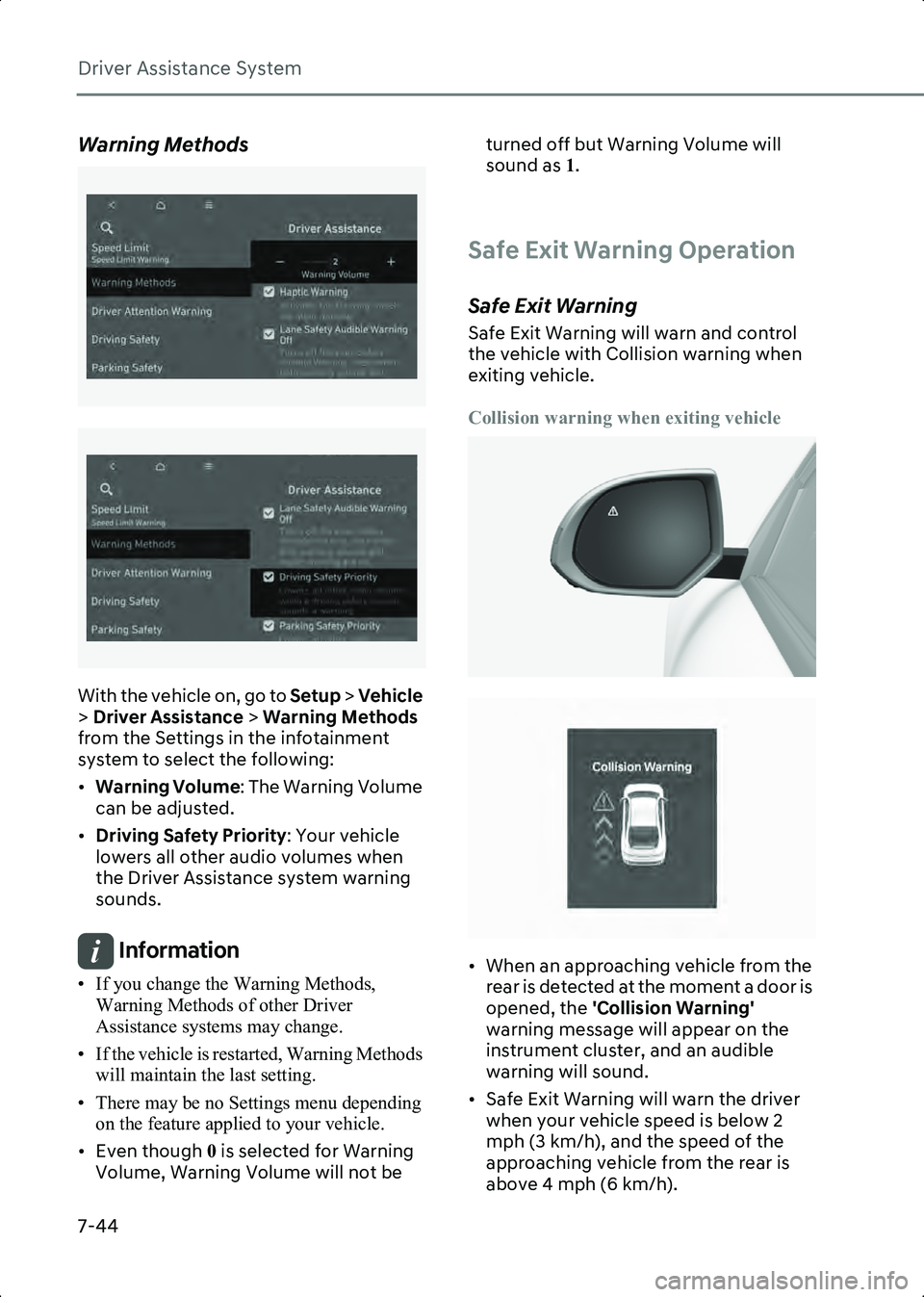
With the vehicle on, go to Setup > Vehicle
> Driver Assistance > Warning Methods
from the Settings in the infotainment
system to select the following:
• Warning Volume : The Warning Volume
can be adjusted.
• Driving Safety Priority : Your vehicle
lowers all other audio volumes when
the Driver Assistance system warning
sounds.
Information • If you change the Warning Methods, Warning Methods of other Driver
Assistance systems may change.
• If the vehicle is restarted, Warning Methods will maintain the last setting.
• There may be no Settings menu depending on the feature applied to your vehicle.
• Even though 0 is selected for Warning
Volume, Warning Volume will not be turned off but Warning Volume will
sound as
1.
Safe Exit Warning Operation
Safe Exit Warning
Safe Exit Warning will warn and control
the vehicle with Collision warning when
exiting vehicle.
Collision warning when exiting vehicle
B7002001
B7002003
• When an approaching vehicle from the rear is detected at the moment a door is
opened, the 'Collision Warning'
warning message will appear on the
instrument cluster, and an audible
warning will sound.
• Safe Exit Warning will warn the driver when your vehicle speed is below 2
mph (3 km/h), and the speed of the
approaching vehicle from the rear is
above 4 mph (6 km/h).
Hyundai_CE_en_US.book Page 44
Page 407 of 582
7
7-63
Warning Methods
B7000205
B7000205_1
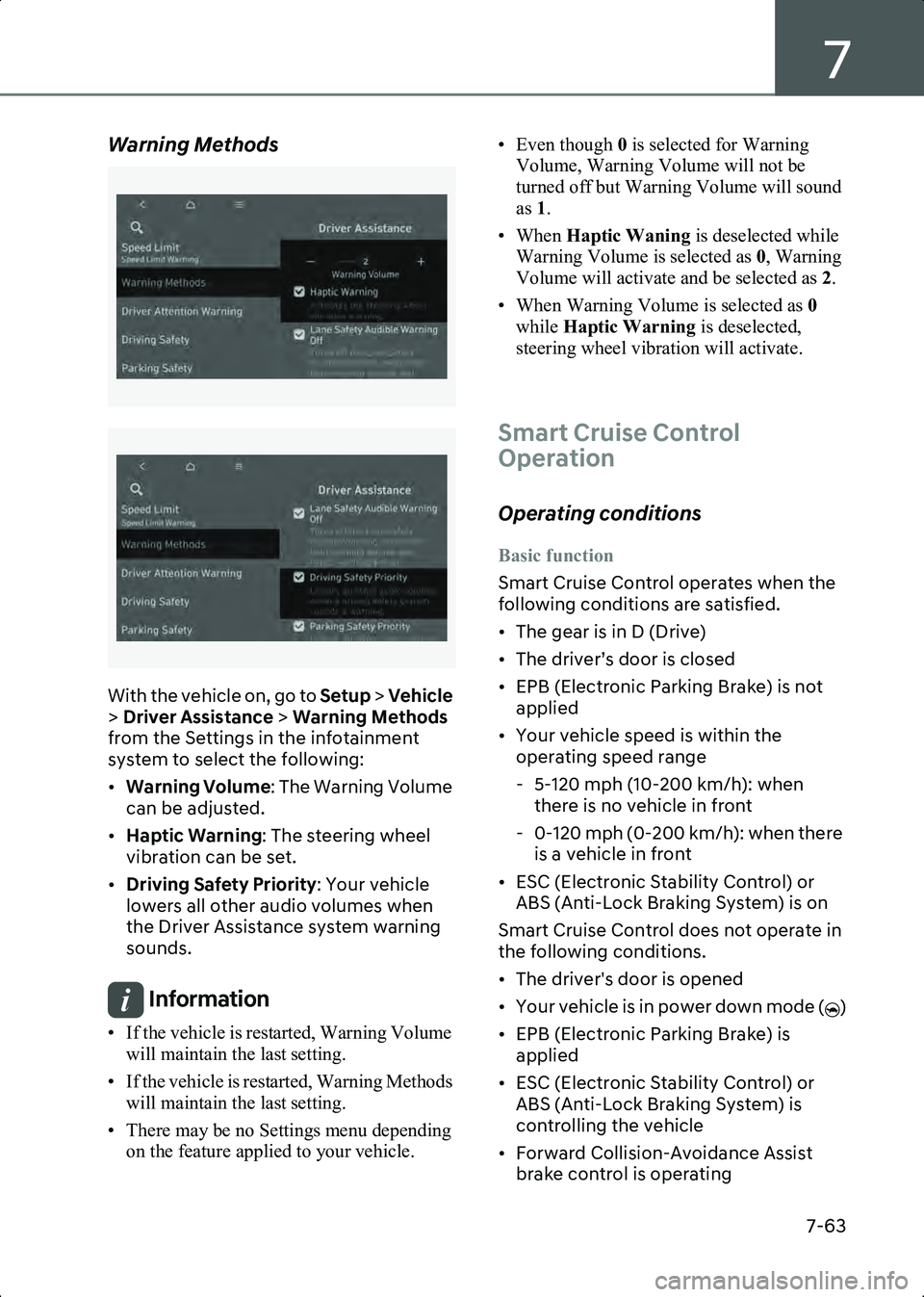
With the vehicle on, go to Setup > Vehicle
> Driver Assistance > Warning Methods
from the Settings in the infotainment
system to select the following:
• Warning Volume : The Warning Volume
can be adjusted.
• Haptic Warning : The steering wheel
vibration can be set.
• Driving Safety Priority : Your vehicle
lowers all other audio volumes when
the Driver Assistance system warning
sounds.
Information • If the vehicle is restarted, Warning Volume will maintain the last setting.
• If the vehicle is restarted, Warning Methods will maintain the last setting.
• There may be no Settings menu depending on the feature applied to your vehicle. • Even though
0 is selected for Warning
Volume, Warning Volume will not be
turned off but Warning Volume will sound
as 1.
• When Haptic Waning is deselected while
Warning Volume is selected as 0, Warning
Volume will activate and be selected as 2.
• When Warning Volume is selected as 0
while Haptic Warning is deselected,
steering wheel vibration will activate.
Smart Cruise Control
Operation
Operating conditions
Basic function
Smart Cruise Control operates when the
following conditions are satisfied.
• The gear is in D (Drive)
• The driver’s door is closed
• EPB (Electronic Parking Brake) is not applied
• Your vehicle speed is within the operating speed range
- 5-120 mph (10-200 km/h): when there is no vehicle in front
- 0-120 mph (0-200 km/h): when there is a vehicle in front
• ESC (Electronic Stability Control) or ABS (Anti-Lock Braking System) is on
Smart Cruise Control does not operate in
the following conditions.
• The driver's door is opened
• Your vehicle is in power down mode ( )
• EPB (Electronic Parking Brake) is applied
• ESC (Electronic Stability Control) or ABS (Anti-Lock Braking System) is
controlling the vehicle
• Forward Collision-Avoidance Assist brake control is operating
Hyundai_CE_en_US.book Page 63
Page 426 of 582
Driver Assistance System
7-82
Lane Following Assist
(LFA)
Lane Following Assist detects lane
markings and/or a vehicle ahead on the
road, and center your vehicle in the lane.
Detecting sensor
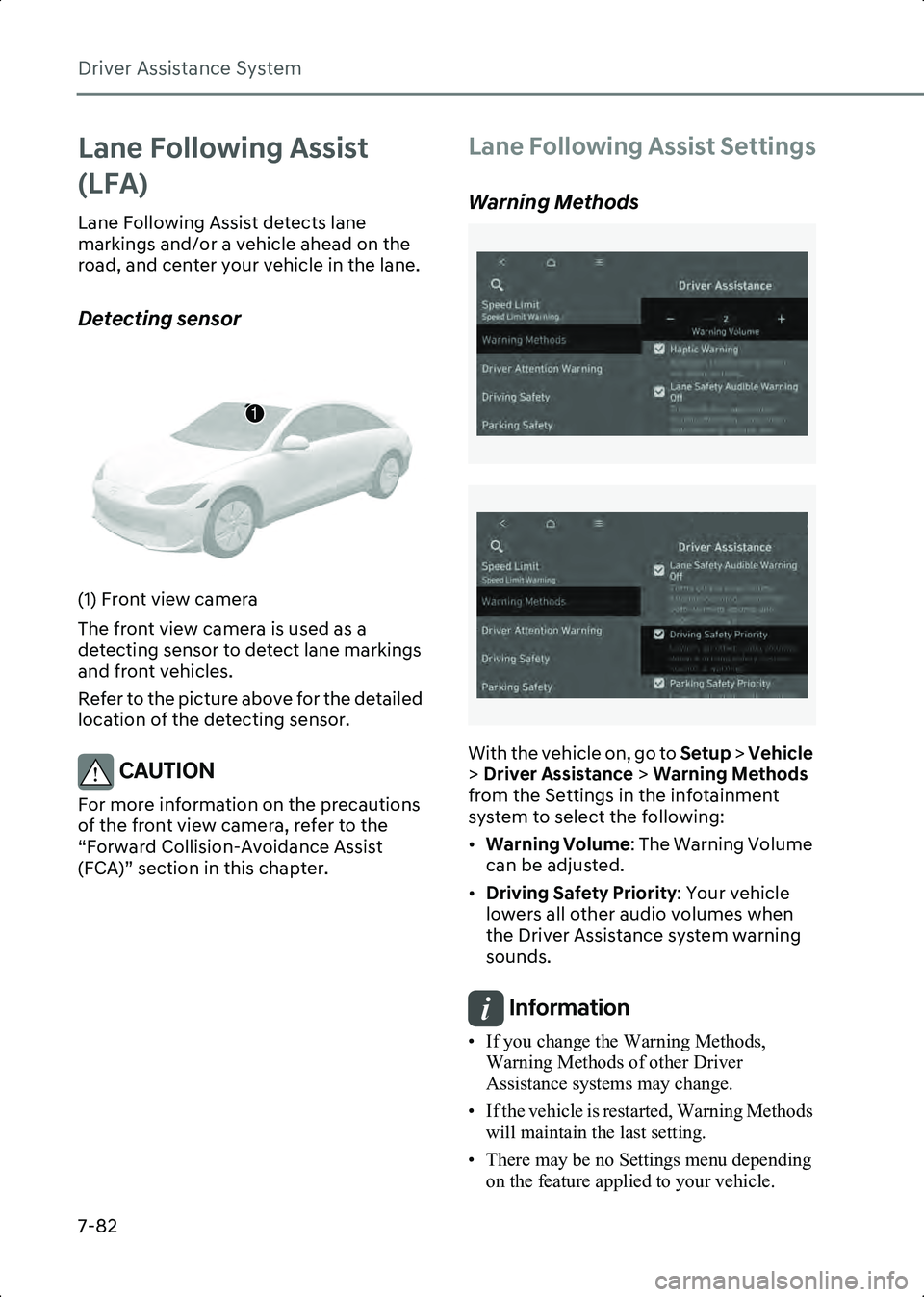
B7004901(1) Front view camera
The front view camera is used as a
detecting sensor to detect lane markings
and front vehicles.
Refer to the picture above for the detailed
location of the detecting sensor.
CAUTION For more information on the precautions
of the front view camera, refer to the
“Forward Collision-Avoidance Assist
(FCA)” section in this chapter.
Lane Following Assist Settings
Warning Methods
B7001902
B7001902_1
With the vehicle on, go to Setup > Vehicle
> Driver Assistance > Warning Methods
from the Settings in the infotainment
system to select the following:
• Warning Volume : The Warning Volume
can be adjusted.
• Driving Safety Priority : Your vehicle
lowers all other audio volumes when
the Driver Assistance system warning
sounds.
Information • If you change the Warning Methods, Warning Methods of other Driver
Assistance systems may change.
• If the vehicle is restarted, Warning Methods will maintain the last setting.
• There may be no Settings menu depending on the feature applied to your vehicle.
1
Hyundai_CE_en_US.book Page 82
Page 431 of 582
7
7-87
CAUTION For more information on the precautions
of the detecting sensors, refer to the
“Forward Collision-Avoidance Assist
(FCA)” section in this chapter.
Highway Driving Assist
Settings
B7005401
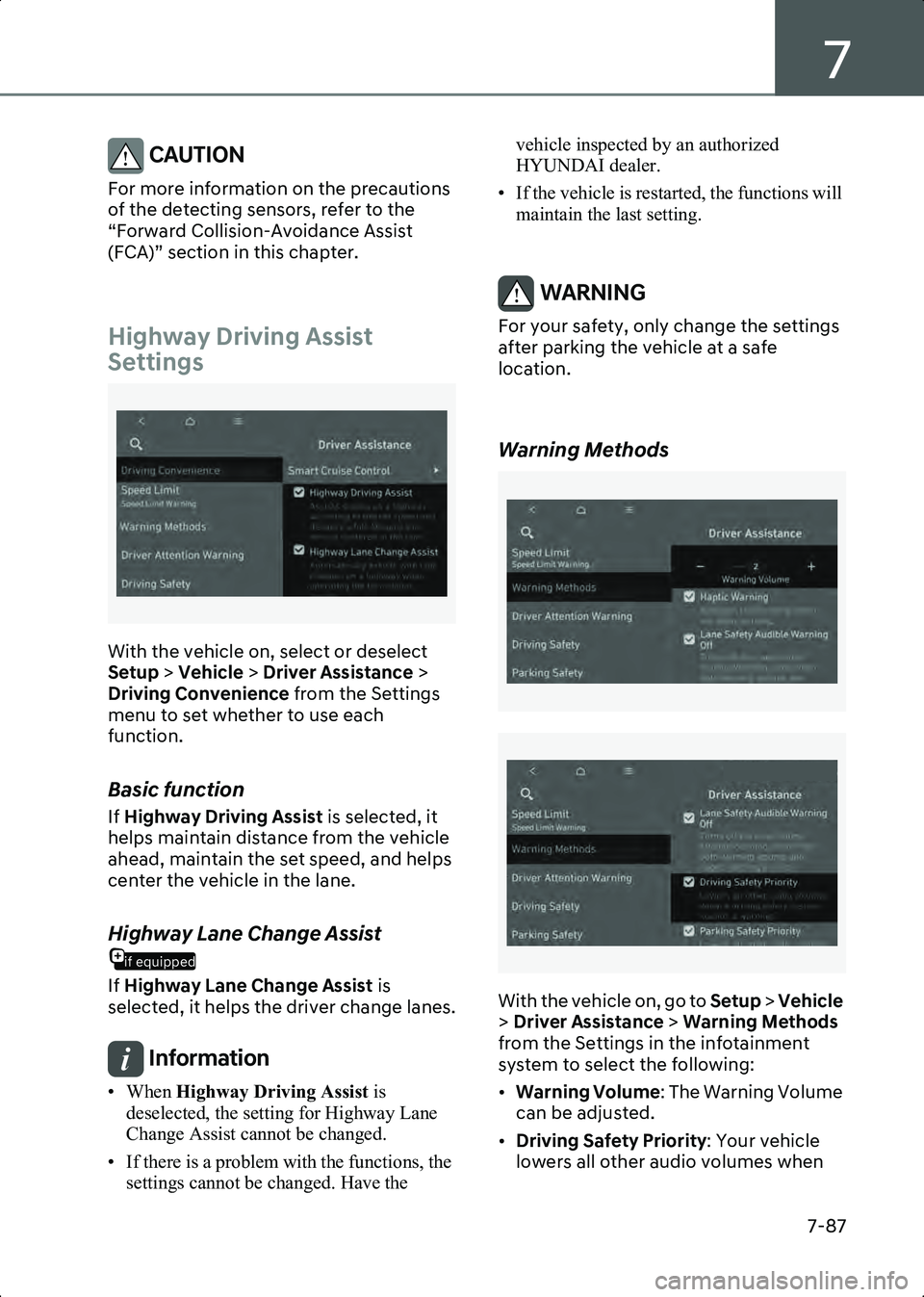
With the vehicle on, select or deselect
Setup > Vehicle > Driver Assistance >
Driving Convenience from the Settings
menu to set whether to use each
function.
Basic function
If Highway Driving Assist is selected, it
helps maintain distance from the vehicle
ahead, maintain the set speed, and helps
center the vehicle in the lane.
if equipped
Highway Lane Change Assist
If Highway Lane Change Assist is
selected, it helps the driver change lanes.
Information • When Highway Driving Assist is
deselected, the setting for Highway Lane
Change Assist cannot be changed.
• If there is a problem with the functions, the settings cannot be changed. Have the vehicle inspected by an authorized
HYUNDAI dealer.
• If the vehicle is restarted, the functions will maintain the last setting.
WARNING For your safety, only change the settings
after parking the vehicle at a safe
location.
Warning Methods
B7001902
B7001902_1
With the vehicle on, go to Setup > Vehicle
> Driver Assistance > Warning Methods
from the Settings in the infotainment
system to select the following:
• Warning Volume : The Warning Volume
can be adjusted.
• Driving Safety Priority : Your vehicle
lowers all other audio volumes when
Hyundai_CE_en_US.book Page 87
Page 439 of 582
7
7-95
Information For more information on the limitations of the
front view camera, front radar, front corner
radar and rear corner radar, refer to the
“Forward Collision-Avoidance Assist (FCA)”
section in this chapter.
Information This device complies with Part 15 of the FCC
rules.
Operation is subject to the following three
conditions:
1. This device may not cause harmful interference, and
2. This device must accept any interference received, including interference that may
cause undesired operation.
3. Changes or modifications not expressly approved by the party responsible for
compliance could void the user’s authority
to operate the device.
Information Radio frequency radiation exposure
information:
This equipment complies with FCC radiation
exposure limits set forth for an uncontrolled
environment.
This equipment should be installed and
operated with minimum distance of 8 in. (20
cm) between the radiator (antenna) and your
body.
This transmitter must not be co-located or
operating in conjunction with any other
antenna or transmitter.
if equipped
Rear View Monitor (RVM)
Rear View Monitor displays the area
behind your vehicle to help with safe
parking or driving.
Detecting sensor
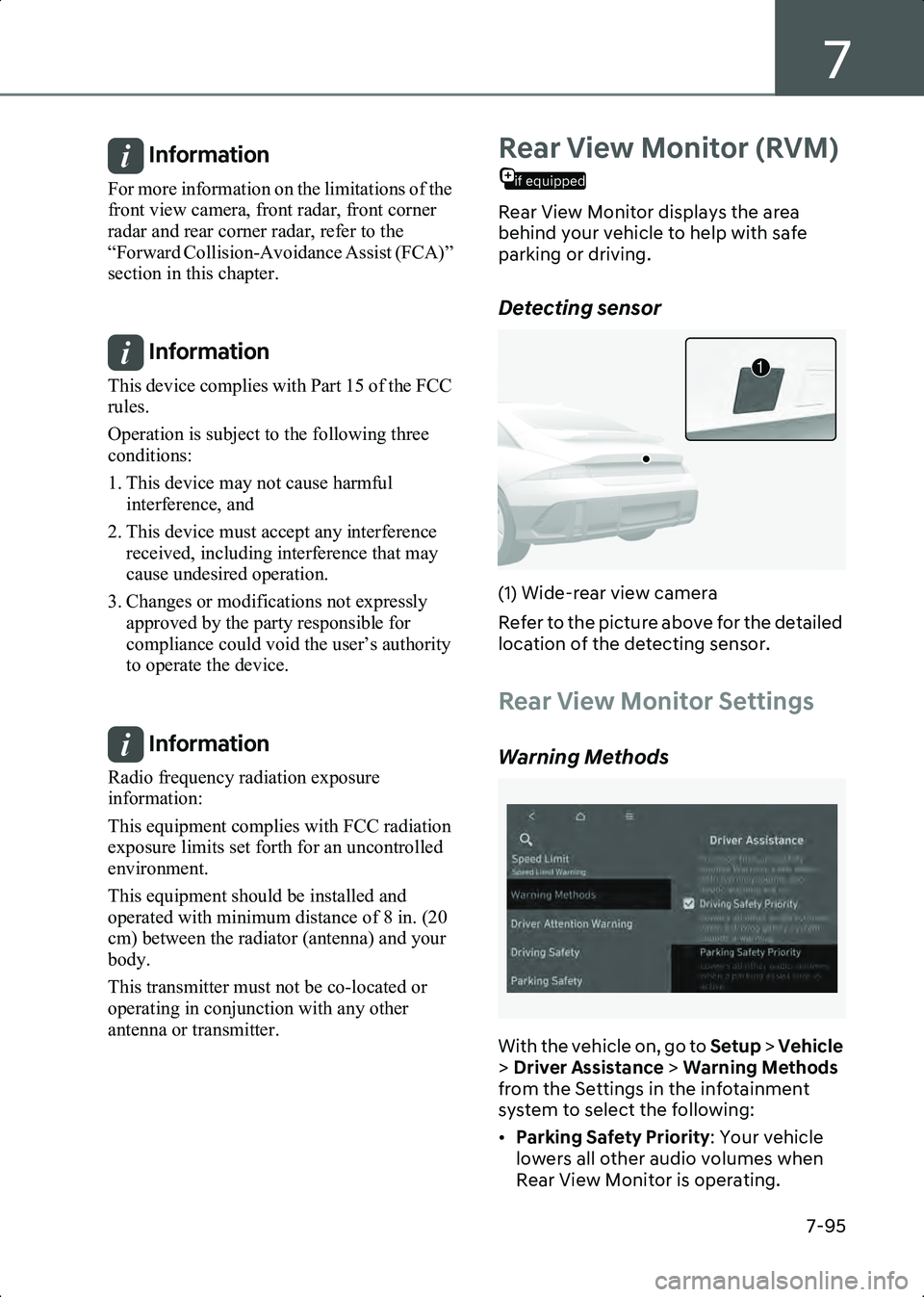
B7005801(1) Wide-rear view camera
Refer to the picture above for the detailed
location of the detecting sensor.
Rear View Monitor Settings
Warning Methods
B7005901
With the vehicle on, go to Setup > Vehicle
> Driver Assistance > Warning Methods
from the Settings in the infotainment
system to select the following:
• Parking Safety Priority : Your vehicle
lowers all other audio volumes when
Rear View Monitor is operating.
1
Hyundai_CE_en_US.book Page 95
Page 443 of 582
7
7-99
Surround View Monitor
Settings
Warning Methods
B7005901
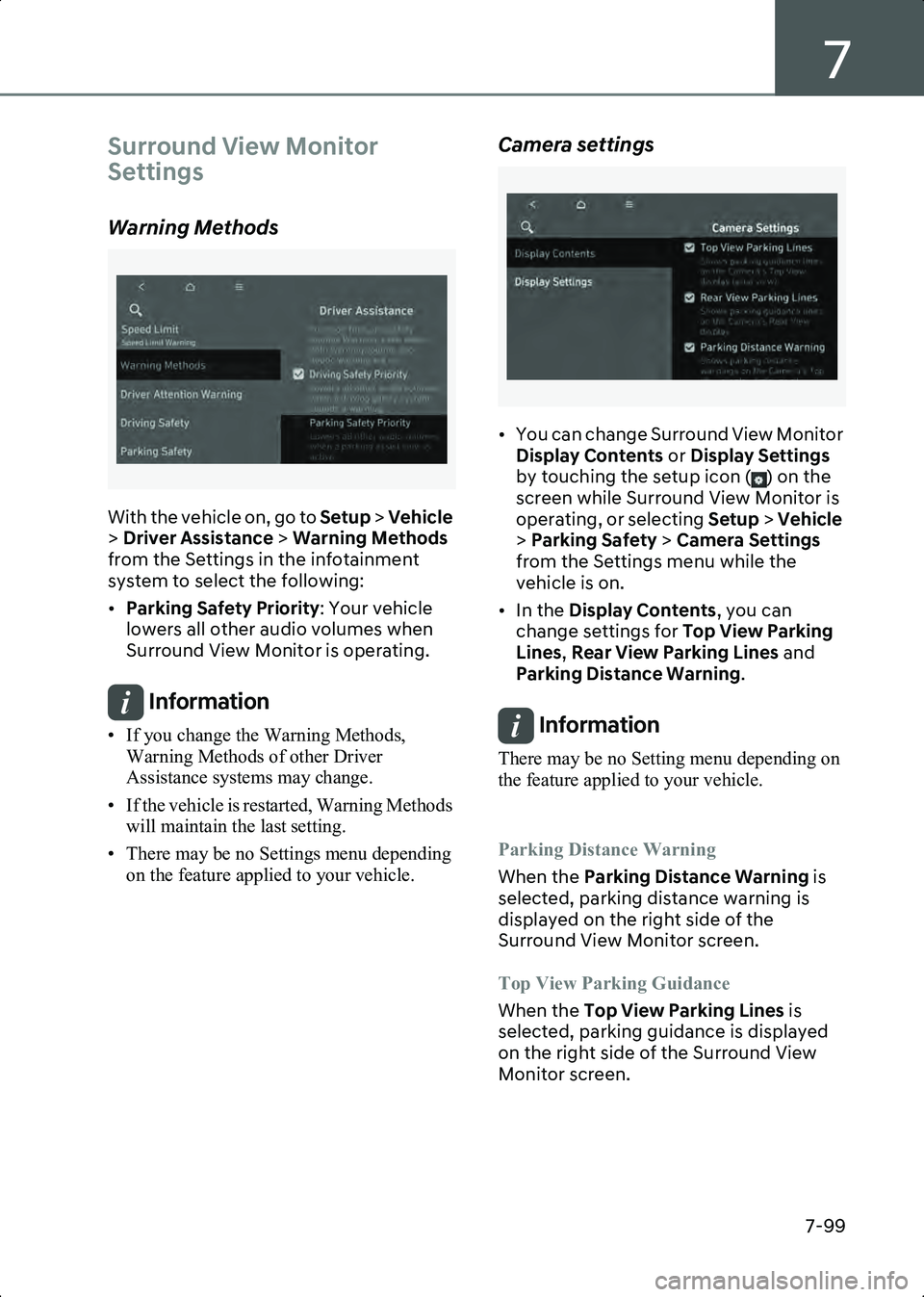
With the vehicle on, go to Setup > Vehicle
> Driver Assistance > Warning Methods
from the Settings in the infotainment
system to select the following:
• Parking Safety Priority : Your vehicle
lowers all other audio volumes when
Surround View Monitor is operating.
Information • If you change the Warning Methods, Warning Methods of other Driver
Assistance systems may change.
• If the vehicle is restarted, Warning Methods will maintain the last setting.
• There may be no Settings menu depending on the feature applied to your vehicle.
Camera settings
B7006303
• You can change Surround View Monitor Display Contents or Display Settings
by touching the setup icon ( ) on the
screen while Surround View Monitor is
operating, or selecting Setup > Vehicle
> Parking Safety > Camera Settings
from the Settings menu while the
vehicle is on.
• In the Display Contents , you can
change settings for Top View Parking
Lines , Rear View Parking Lines and
Parking Distance Warning .
Information There may be no Setting menu depending on
the feature applied to your vehicle.
Parking Distance Warning
When the Parking Distance Warning is
selected, parking distance warning is
displayed on the right side of the
Surround View Monitor screen.
Top View Parking Guidance
When the Top View Parking Lines is
selected, parking guidance is displayed
on the right side of the Surround View
Monitor screen.
Hyundai_CE_en_US.book Page 99