2023 FORD EXPLORER display
[x] Cancel search: displayPage 447 of 573

FunctionButton
For MP3 CDs, this button allows you to toggle through repeatoff, repeat one track (a small number one displays), and repeatcurrent folder (a small folder displays).
Select the shuffle symbol to have the audio on the disk playin random order.Shuffle
You can use the forward, reverse, pause orplay buttons to control the audio playback.Bluetooth® Stereo or USB
Bluetooth® Stereo and USB allow you toaccess media that you store on yourBluetooth® device or USB device such asmusic, audio books or podcasts.
The following buttons are available for Bluetooth® and USB:
FunctionButton
Pressing the repeat button toggles the repeat setting throughthree modes: repeat off (button not highlighted), repeat all(button highlighted) and repeat track (button highlighted witha small number one).
Repeat
Play the tracks in random order.Shuffle
You can use the forward, reverse, pause orplay buttons to control the audio playback.
To get more information about thecurrently playing track, press the cover artor Info button.
For some devices, SYNC 3 is able toprovide 30-second skip buttons when youlisten to audio books or podcasts. Thesebuttons allow you to skip forward orbackward within a track.
While playing audio from a USB device youcan look for certain music by selecting thefollowing:
FunctionButton
If available, displays the list of tracks in theNow Playing playlist.Browse
This option, which is available underbrowse, allows you to play all tracks or tofilter the available media into one of thebelow categories.
New Search
Play All
443
2023 Explorer (CTW) Canada/United States of America, enUSA, Edition date: 202209, First-PrintingSYNC™ 3
Page 449 of 573

Supported USB file systems include: FAT,exFAT, and NTFS.
SYNC 3 is also able to organize the mediafrom your USB device by metadata tags.Metadata tags, which are descriptivesoftware identifiers embedded in themedia files, provide information about thefile.
If your indexed media files contain noinformation embedded in these metadatatags, SYNC 3 may classify the emptymetadata tags as unknown.
SYNC 3 is capable of indexing up to50,000 songs per USB device, for up to 10devices.
CLIMATE
Touch the climate button on thetouchscreen to access the climate controlfeatures.
Note:You can switch temperature unitsbetween Fahrenheit and Celsius. SeeSettings (page 458).
Accessing the Climate ControlMenu
Touch the button to accessadditional controls for the frontclimate system.
Directing the Airflow
Touch the button to directairflow to the windshield airvents and de-mister.
Touch the button to directairflow to the instrument panelair vents.
Touch the button to directairflow to the footwell air vents.
You can direct air through any combinationof these air vents.
Setting the Blower Motor Speed
Touch up or down to increase ordecrease the volume of air thatcirculates in your vehicle.
Setting the Temperature
Touch up or down on the left-handtemperature control to set the left-handtemperature.
Note:This control also adjusts theright-hand side temperature when youswitch off dual zone mode.
Touch up or down on the right-handtemperature control to set the right-handtemperature.
Switching Auto Mode On and Off
Touch the button to switch onautomatic operation, then setthe temperature.
The system adjusts the blower motorspeed, air distribution, air conditioningoperation, and outside or recirculated airto reach and maintain the temperature youhave set.
Switching the Air Conditioning Onand Off
A pop-up appears on the screento display the air conditioningoptions.
MAX A/C: Touch the button to activateand maximize cooling. The driver andpassenger temperatures are set to LO,recirculated air flows through theinstrument panel vents, air conditioningautomatically turns on and the fanautomatically adjusts to the highest speed.
445
2023 Explorer (CTW) Canada/United States of America, enUSA, Edition date: 202209, First-PrintingSYNC™ 3E265038 E244097 E244098
Page 452 of 573
Note:The touchscreen indicates that youhave successfully paired your cell phone.
4.Download the phonebook from yourcell phone when you are prompted.
Note:If you pair more than one cell phone,use the phone settings to specify theprimary phone. You can change this settingat any time.
Using Your Cell Phone (If Equipped)
Recent Call List
Display and select an entry from a list ofprevious calls.
Contacts
Display a smart search form to look up yourcontacts. Use the List button toalphabetically sort your contacts.
Change Phone
Display the list of paired or connecteddevices that you can select.
Phone Settings
Change ring tones, alerts or pair anotherphone.
Do Not Disturb
Reject incoming calls and switch ring tonesand alerts off.
Phone Keypad
Directly dial a number.
Mute
Mute the microphone when in a call.
Phone Voice Assistant
Say a command to use the Google or Sirivoice assistant available on yourconnected phone to access supportedfeatures.
Text Messaging
Setting Text Message Notification
iOS
1.Go to the settings menu on your cellphone.
2.Select Bluetooth®.
3.Select the information icon to the rightof your vehicle.
4.Switch text message notification on.
Android
1.Go to the settings menu on your cellphone.
2.Select Bluetooth®.
3.Select the profiles option.
4.Select the phone profile.
5.Switch text message notification on.
Using Text Messaging
DescriptionMenu Item
Hear the text message.Hear It
View the text message.View
Call the sender.Call
Reply to the text message with a standard text message.Reply
448
2023 Explorer (CTW) Canada/United States of America, enUSA, Edition date: 202209, First-PrintingSYNC™ 3
Page 454 of 573
Setting a Destination
Destination Entry Menu
DescriptionItem
Enter a destination address.Search
Display and select from a list of previous destinations.Previous Destinations
Set your saved home address as your destinationHome
Set your saved place of work as your destination.Work
Display and select from a list of favorite destinations.Favorites
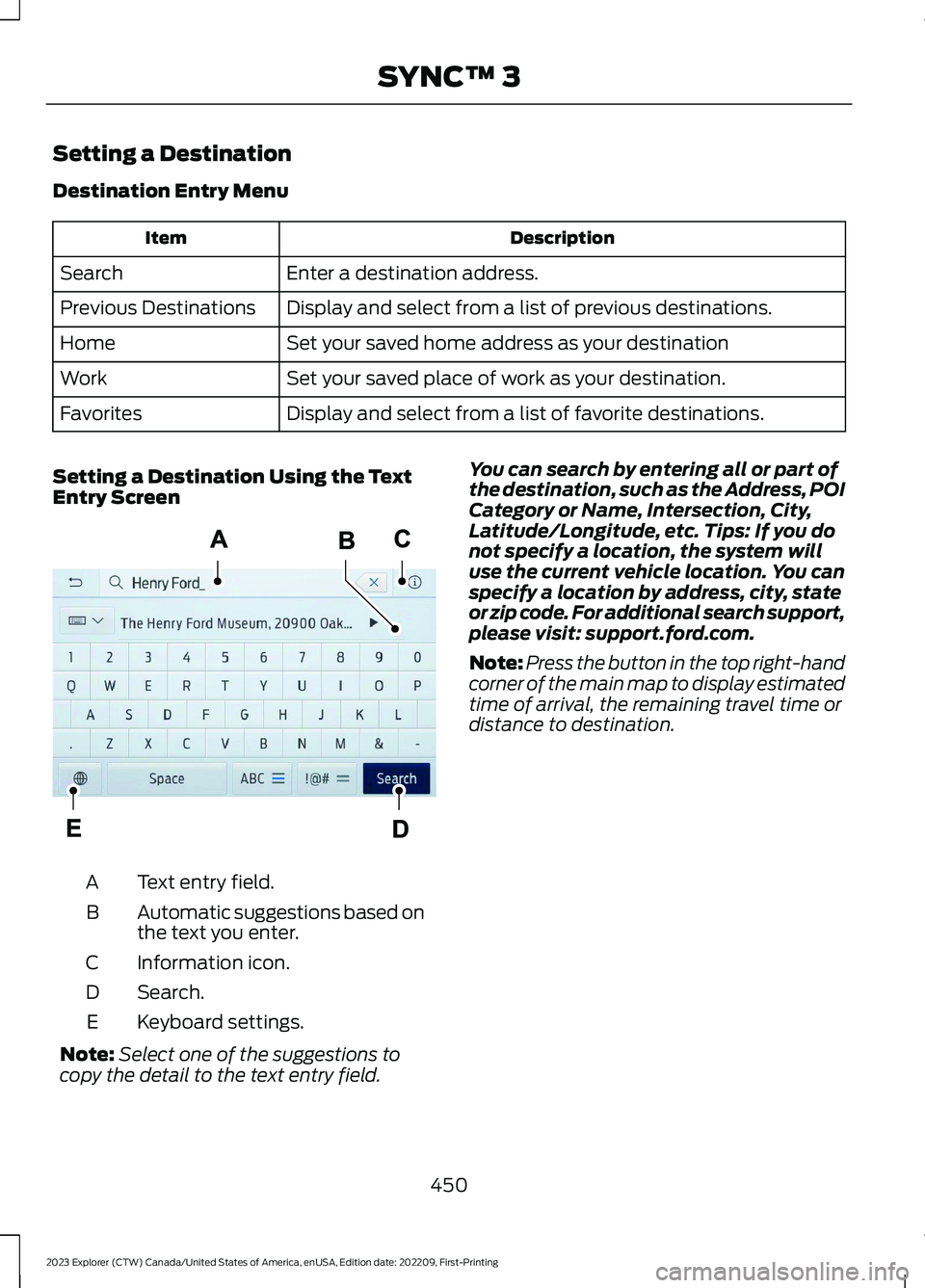
Setting a Destination Using the TextEntry Screen
Text entry field.A
Automatic suggestions based onthe text you enter.B
Information icon.C
Search.D
Keyboard settings.E
Note:Select one of the suggestions tocopy the detail to the text entry field.
You can search by entering all or part ofthe destination, such as the Address, POICategory or Name, Intersection, City,Latitude/Longitude, etc. Tips: If you donot specify a location, the system willuse the current vehicle location. You canspecify a location by address, city, stateor zip code. For additional search support,please visit: support.ford.com.
Note:Press the button in the top right-handcorner of the main map to display estimatedtime of arrival, the remaining travel time ordistance to destination.
450
2023 Explorer (CTW) Canada/United States of America, enUSA, Edition date: 202209, First-PrintingSYNC™ 3E297558
Page 455 of 573
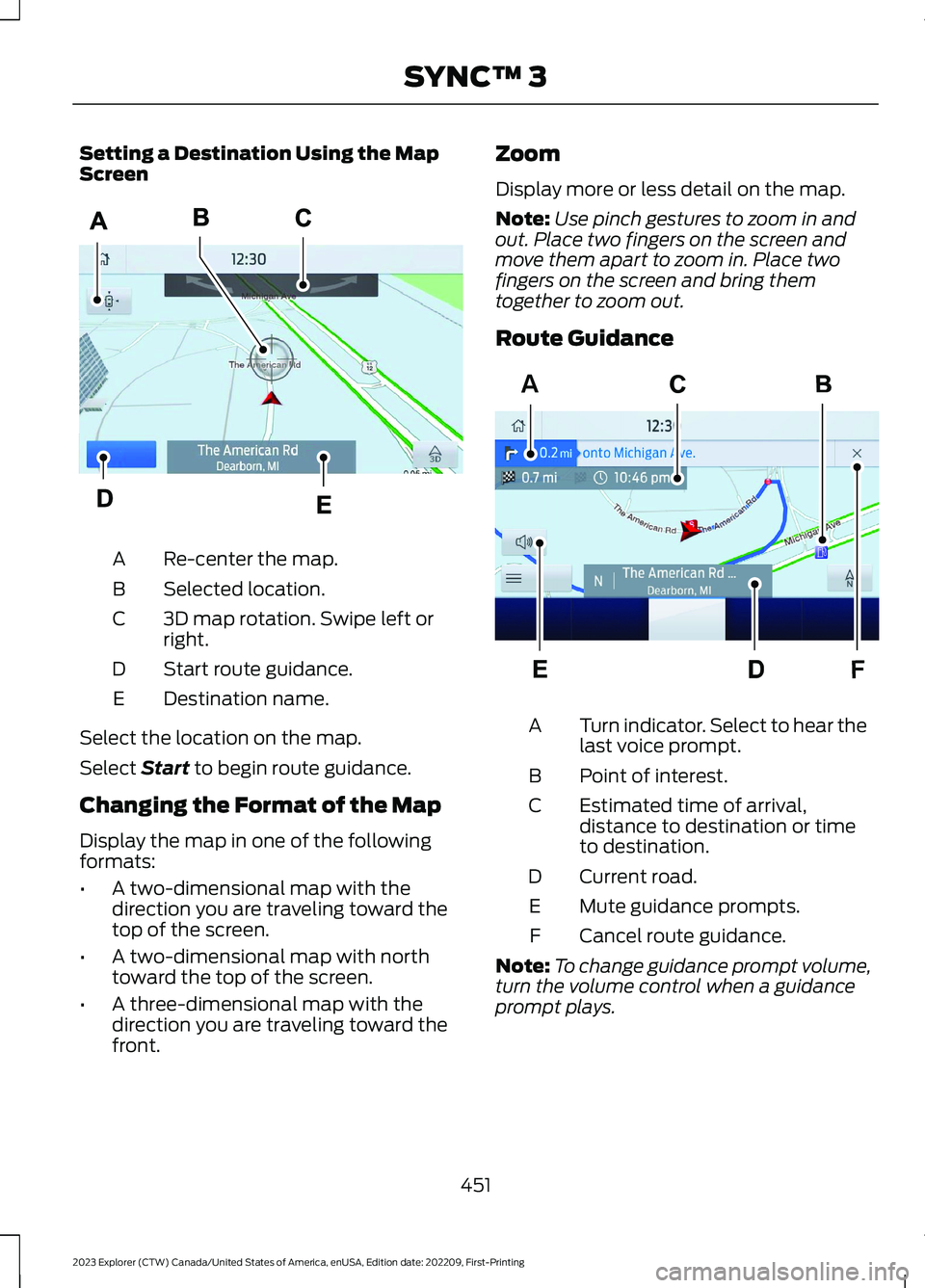
Setting a Destination Using the MapScreen
Re-center the map.A
Selected location.B
3D map rotation. Swipe left orright.C
Start route guidance.D
Destination name.E
Select the location on the map.
Select Start to begin route guidance.
Changing the Format of the Map
Display the map in one of the followingformats:
•A two-dimensional map with thedirection you are traveling toward thetop of the screen.
•A two-dimensional map with northtoward the top of the screen.
•A three-dimensional map with thedirection you are traveling toward thefront.
Zoom
Display more or less detail on the map.
Note:Use pinch gestures to zoom in andout. Place two fingers on the screen andmove them apart to zoom in. Place twofingers on the screen and bring themtogether to zoom out.
Route Guidance
Turn indicator. Select to hear thelast voice prompt.A
Point of interest.B
Estimated time of arrival,distance to destination or timeto destination.
C
Current road.D
Mute guidance prompts.E
Cancel route guidance.F
Note:To change guidance prompt volume,turn the volume control when a guidanceprompt plays.
451
2023 Explorer (CTW) Canada/United States of America, enUSA, Edition date: 202209, First-PrintingSYNC™ 3E297559 FAE297560
Page 456 of 573
Route Guidance Menu
DescriptionMenu Item
Adjust your map preferences for when route guidance is active.Screen View
View a full-screen map when route guidance is active.Full Map
View highway exit information for your current route.Highway Exit Info
View the turn list for your current route. Select a road to avoidit.Turn List
You can find the SiriusXM Traffic and Travel Link informationby pressing this button. This information requires an activesubscription to SiriusXM Traffic and Travel Link. When a routeis not active, a list of nearby traffic incidents displays. When aroute is active, you can choose to display a list of traffic nearbyor on the route.
Traffic List
Adjust navigation settings. See Settings (page 458).Navigation Settings
View information about your current location.Where Am I?
Cancel route guidance.Cancel Route
View the entire current route on the map.View Route
View an alternative route compared to your current one.Detour
Change the order or remove waypoints.Edit Waypoints
The system determines the order of waypoints for you.Optimize Order
Go to the next screen and start the new route.Go
Adjusting the Guidance PromptVolume
Turn the volume control when a guidanceprompt plays to adjust the volume.
Note:If you have inadvertently adjustedthe volume to zero, press the turn indicatorbutton to play the last voice prompt andthen adjust the volume to the desired level.
Muting Guidance Prompts
Select the mute option on thescreen to mute guidanceprompts.
Note:The system mutes the next and allfuture guidance prompts.
Adding Waypoints
You can add a waypoint to a navigationroute as a destination along your route.You can add up to five waypoints.
1.Select the search option on the map.
2.Set a destination.
3.Select Add Waypoint.
4.Select Go.
452
2023 Explorer (CTW) Canada/United States of America, enUSA, Edition date: 202209, First-PrintingSYNC™ 3
Page 457 of 573
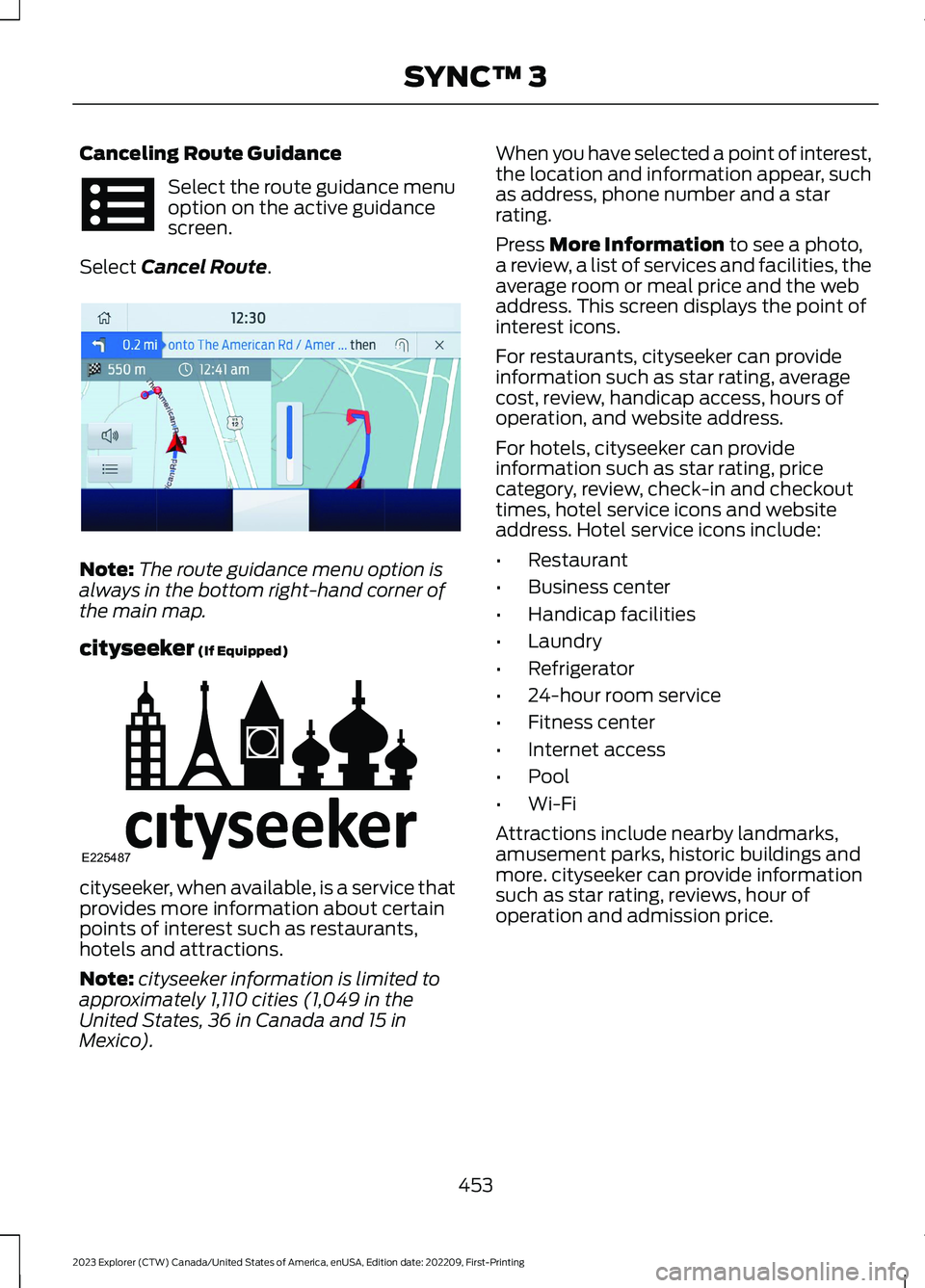
Canceling Route Guidance
Select the route guidance menuoption on the active guidancescreen.
Select Cancel Route.
Note:The route guidance menu option isalways in the bottom right-hand corner ofthe main map.
cityseeker (If Equipped)
cityseeker, when available, is a service thatprovides more information about certainpoints of interest such as restaurants,hotels and attractions.
Note:cityseeker information is limited toapproximately 1,110 cities (1,049 in theUnited States, 36 in Canada and 15 inMexico).
When you have selected a point of interest,the location and information appear, suchas address, phone number and a starrating.
Press More Information to see a photo,a review, a list of services and facilities, theaverage room or meal price and the webaddress. This screen displays the point ofinterest icons.
For restaurants, cityseeker can provideinformation such as star rating, averagecost, review, handicap access, hours ofoperation, and website address.
For hotels, cityseeker can provideinformation such as star rating, pricecategory, review, check-in and checkouttimes, hotel service icons and websiteaddress. Hotel service icons include:
•Restaurant
•Business center
•Handicap facilities
•Laundry
•Refrigerator
•24-hour room service
•Fitness center
•Internet access
•Pool
•Wi-Fi
Attractions include nearby landmarks,amusement parks, historic buildings andmore. cityseeker can provide informationsuch as star rating, reviews, hour ofoperation and admission price.
453
2023 Explorer (CTW) Canada/United States of America, enUSA, Edition date: 202209, First-PrintingSYNC™ 3 E294817 E225487
Page 458 of 573
SiriusXM Traffic and Travel Link (If
Equipped)
SiriusXM Traffic and Travel Link is availableon vehicles equipped with navigation andonly in select markets. You must activateand subscribe to receive SiriusXM Trafficand Travel Link information. It helps youlocate the best gas prices, find movielistings, get current traffic alerts, view theweather map, get accurate ski conditionsand see current sports scores.
The system calculates a reasonableefficient route based on available speedlimits, traffic, and road conditions. You mayknow a local shortcut that is more efficientat a given time than the route provided bySYNC 3, but you should expect a slightdifference in minutes or miles with theSYNC 3 route.
Michelin Travel Guide (If Equipped)
The Michelin travel guide is a service thatprovides additional information aboutcertain places of interest, for examplerestaurants, hotels and tourist sites. Pointsof interest that have Michelin travel guideinformation display a button to show youmore information. Push the button to seethe additional information. If you havepaired your phone with the system, youcan press the phone button to directlyestablish a call with the selected point ofinterest.
Navigation Map Accuracy andUpdates
HERE is the digital map provider for thenavigation application. If you find map dataerrors, you may report them directly toHERE by going to www.here.com. HEREevaluates all reported map errors andresponds with the result of theirinvestigation by e-mail.
The navigation system map data maycontain inaccurate or incompleteinformation due to the passage of time,changing circumstances, sources used andthe nature of collecting comprehensivegeographic data, any of which may lead toincorrect results. Inaccurate speed limitinformation, turn restrictions and otherroad attributes may affect the determinedroute and associated guidance
Annual navigation map updates areavailable for purchase through yourdealership. Depending on your purchaseagreement, you might be eligible for a freemap update. You can choose to downloadthe map data update onto a USB, order aUSB, or use Wi-Fi to deliver automaticupdates. To update your map data overWi-Fi, your vehicle must be connected toa Wi-Fi access point. Map data files arelarge, so it is highly recommended toperform the update when free Wi-Fi isavailable otherwise high data rates mayapply. For USB updates, free map updateeligibility, and other details, contactdealers at 1-866-462-8837 in the UnitedStates and Canada or 800-557-5539 inMexico or visit our local website for moreinformation.
ELECTRIC VEHICLE
INFORMATION
Power Flow
The power flow information foryour hybrid vehicle is availablethrough the home screen orunder Apps.
Vehicle Operational States
Power flows to or from the front and rearwheels depending on the operational stateand the drive conditions.
454
2023 Explorer (CTW) Canada/United States of America, enUSA, Edition date: 202209, First-PrintingSYNC™ 3E260071