2022 TOYOTA COROLLA CROSS USB
[x] Cancel search: USBPage 349 of 612

3495-9. Audio settings
5
Audio
5-9.Audio settings
1Press the “MENU” button.
2 Select “Setup”.
3 Select “Audio”.
4 Select the desired items to
be set.
Select to set the common
settings. ( P.349)
Select to set the radio set-
tings. ( P.349) 1
Display the audio settings
screen. ( P.349)
2 Select “Common”.
3 Select the desired items to
be set.
Select to set the cover art
display on/off.
Select to prioritize the display
of information from the Gra-
cenote database.
Select to change the screen
size.
* ( P.329)
Select to display the image
quality adjustment screen.
*
( P.330)
*: Only in USB video mode
1Display the audio settings
screen. ( P.349)
2 Select “Radio”.
3 Select the desired number of
preset radio stations dis-
played on the screen.
Setup
Detailed audio settings can
be programmed.
Displaying the audio set-
tings screen
Audio settings screen
Common settings
Radio settings
Page 351 of 612
3515-10. Tips for operating the audio/visual system
5
Audio
Station interference: When a
reflected signal and a signal
received directly from a radio
station are very nearly the same
frequency, they can interfere
with each other, making it diffi-
cult to hear the broadcast.
Static: AM is easily affected by
external sources of electrical
noise, such as high tension
power lines, lightening or electri-
cal motors. This results in static.
■SiriusXM
Cargo loaded on the roof lug-
gage carrier, especially metal
objects, may adversely affect
the reception of SiriusXM Sat-
ellite Radio.
Alternation or modifications
carried out without appropri-
ate authorization may invali-
date the user’s right to
operate the equipment.
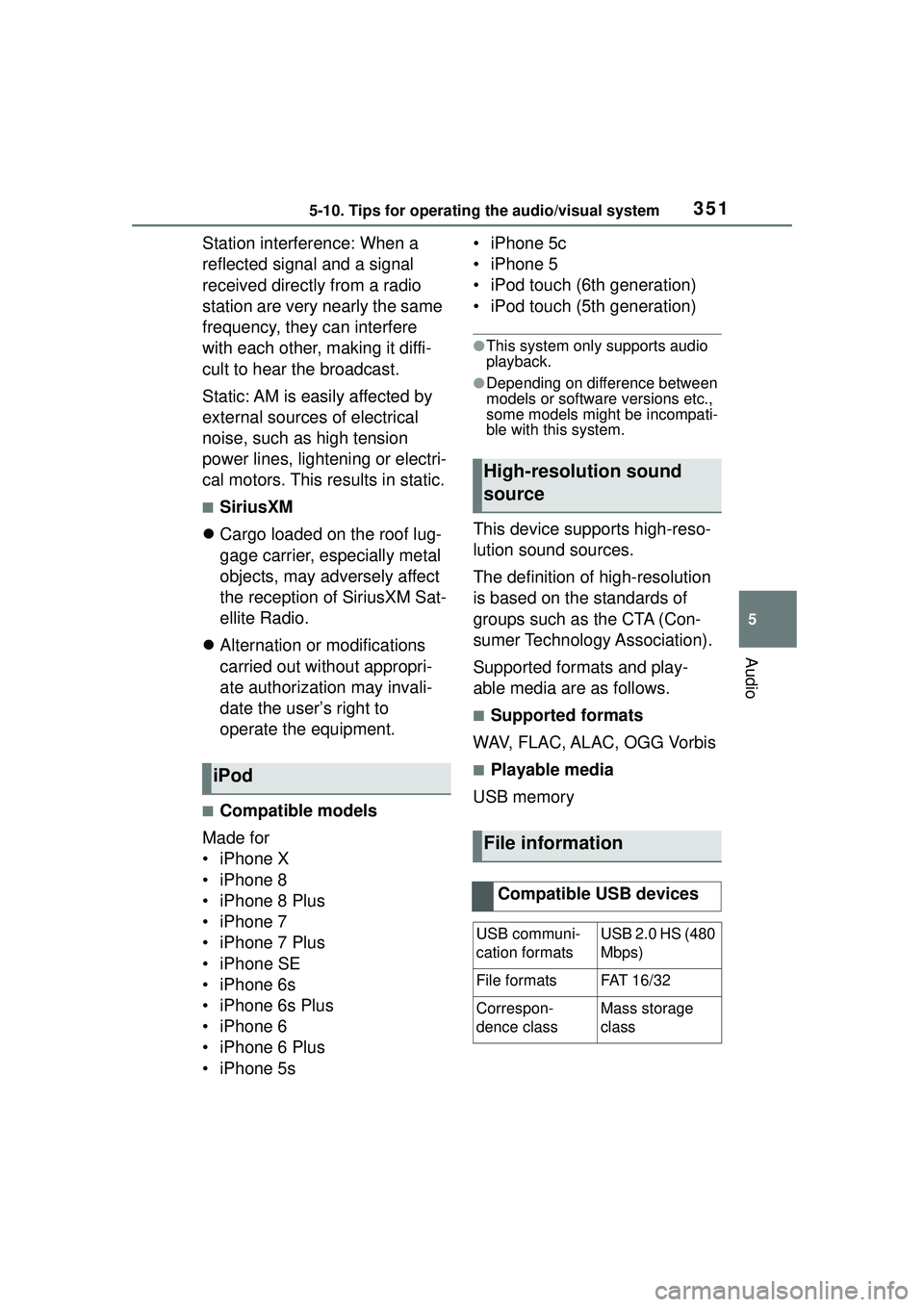
■Compatible models
Made for
• iPhone X
• iPhone 8
• iPhone 8 Plus
• iPhone 7
• iPhone 7 Plus
• iPhone SE
• iPhone 6s
• iPhone 6s Plus
• iPhone 6
• iPhone 6 Plus
• iPhone 5s • iPhone 5c
• iPhone 5
• iPod touch (6th generation)
• iPod touch (5th generation)
●This system only supports audio
playback.
●Depending on difference between
models or software versions etc.,
some models might be incompati-
ble with this system.
This device supports high-reso-
lution sound sources.
The definition of high-resolution
is based on the standards of
groups such as the CTA (Con-
sumer Technology Association).
Supported formats and play-
able media are as follows.
■Supported formats
WAV, FLAC, ALAC, OGG Vorbis
■Playable media
USB memoryiPod
High-resolution sound
source
File information
Compatible USB devices
USB communi-
cation formatsUSB 2.0 HS (480
Mbps)
File formatsFAT 16 /3 2
Correspon-
dence classMass storage
class
Page 352 of 612
3525-10. Tips for operating the audio/visual system
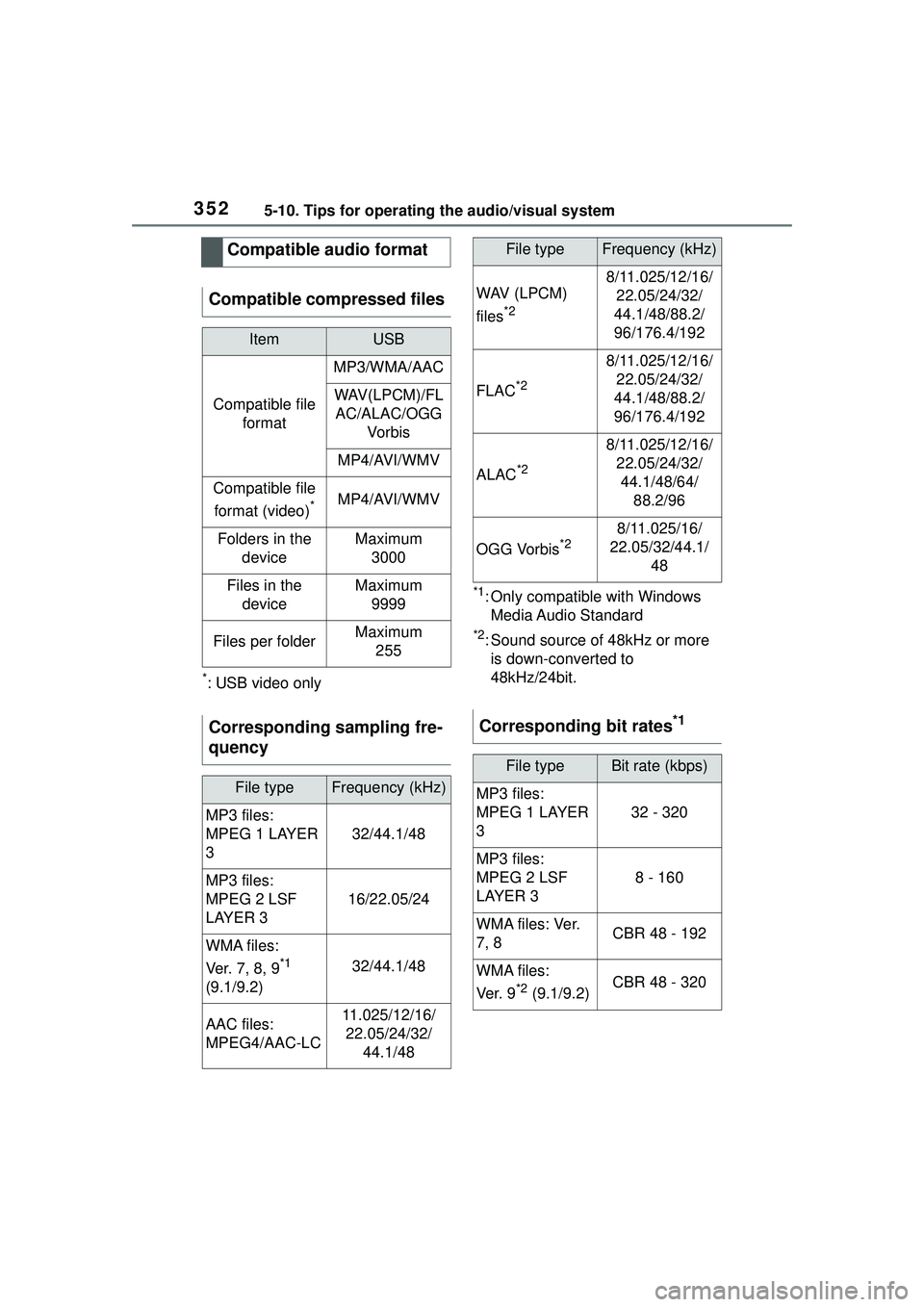
*: USB video only
*1: Only compatible with Windows Media Audio Standard
*2: Sound source of 48kHz or more is down-converted to
48kHz/24bit.
Compatible audio format
Compatible compressed files
ItemUSB
Compatible file format
MP3/WMA/AAC
WAV(LPCM)/FLAC/ALAC/OGG Vo r b is
MP4/AVI/WMV
Compatible file
format (video)
*MP4/AVI/WMV
Folders in the deviceMaximum3000
Files in the deviceMaximum 9999
Files per folderMaximum 255
Corresponding sampling fre-
quency
File typeFrequency (kHz)
MP3 files:
MPEG 1 LAYER
3
32/44.1/48
MP3 files:
MPEG 2 LSF
LAYER 3
16/22.05/24
WMA files:
Ver. 7 , 8, 9
*1
(9.1/9.2)32/44.1/48
AAC files:
MPEG4/AAC-LC11.025/12/16/ 22.05/24/32/ 44.1/48
WAV (LPCM)
files
*2
8/11.025/12/16/22.05/24/32/
44.1/48/88.2/
96/176.4/192
FLAC*2
8/11.025/12/16/ 22.05/24/32/
44.1/48/88.2/
96/176.4/192
ALAC*2
8/11.025/12/16/ 22.05/24/32/44.1/48/64/ 88.2/96
OGG Vorbis*28/11.025/16/
22.05/32/44.1/ 48
Corresponding bit rates*1
File typeBit rate (kbps)
MP3 files:
MPEG 1 LAYER
3
32 - 320
MP3 files:
MPEG 2 LSF
LAYER 3
8 - 160
W M A f i l e s : Ve r.
7, 8CBR 48 - 192
WMA files:
Ve r. 9
*2 (9.1/9.2)CBR 48 - 320
File typeFrequency (kHz)
Page 353 of 612
3535-10. Tips for operating the audio/visual system
5
Audio
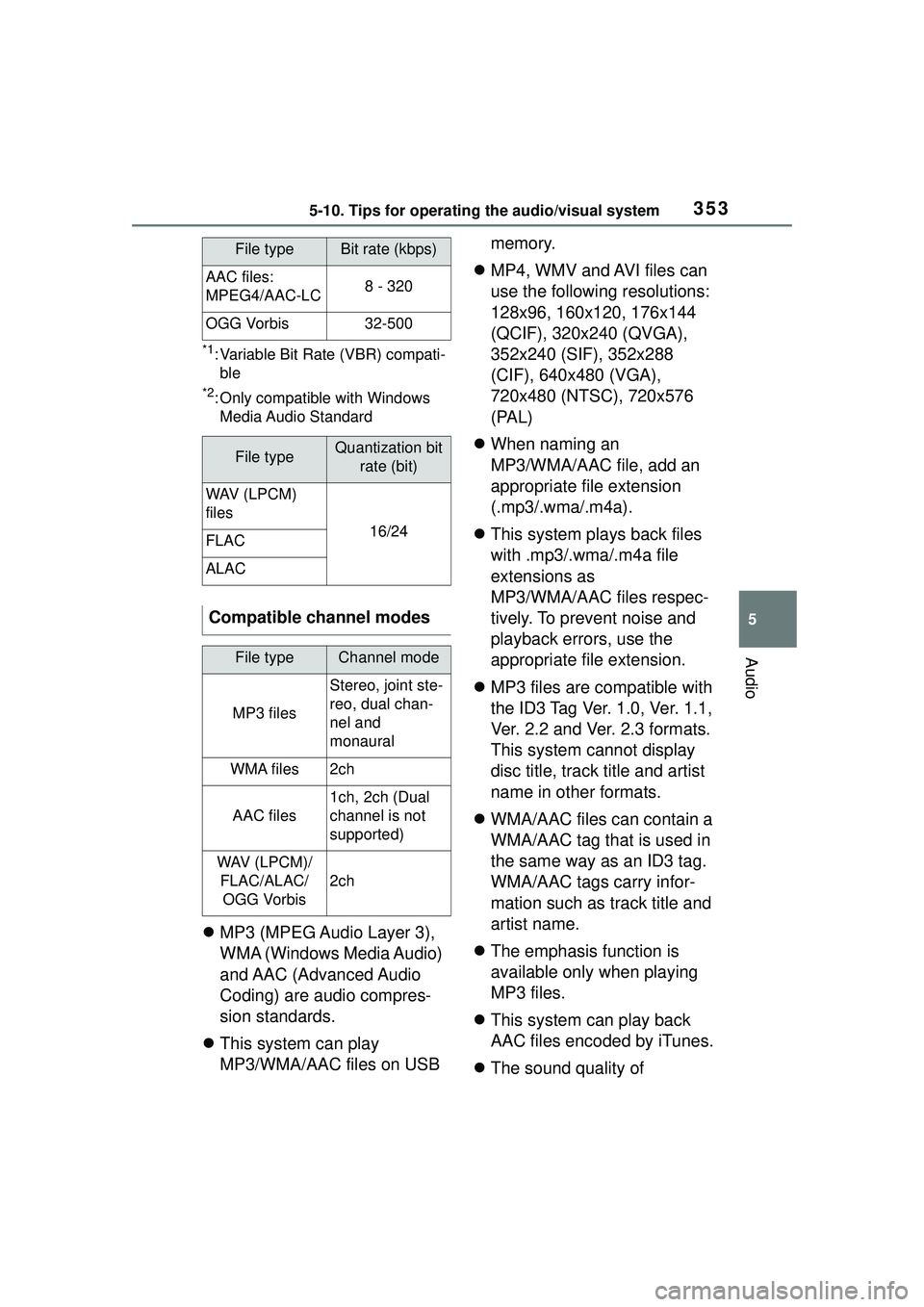
*1: Variable Bit Rate (VBR) compati-ble
*2: Only compatible with Windows Media Audio Standard
MP3 (MPEG Audio Layer 3),
WMA (Windows Media Audio)
and AAC (Advanced Audio
Coding) are audio compres-
sion standards.
This system can play
MP3/WMA/AAC files on USB memory.
MP4, WMV and AVI files can
use the following resolutions:
128x96, 160x120, 176x144
(QCIF), 320x240 (QVGA),
352x240 (SIF), 352x288
(CIF), 640x480 (VGA),
720x480 (NTSC), 720x576
(PAL)
When naming an
MP3/WMA/AAC file, add an
appropriate file extension
(.mp3/.wma/.m4a).
This system plays back files
with .mp3/.wma/.m4a file
extensions as
MP3/WMA/AAC files respec-
tively. To prevent noise and
playback errors, use the
appropriate file extension.
MP3 files are compatible with
the ID3 Tag Ver. 1.0, Ver. 1.1,
Ver. 2.2 and Ver. 2.3 formats.
This system cannot display
disc title, track title and artist
name in other formats.
WMA/AAC files can contain a
WMA/AAC tag that is used in
the same way as an ID3 tag.
WMA/AAC tags carry infor-
mation such as track title and
artist name.
The emphasis function is
available only when playing
MP3 files.
This system can play back
AAC files encoded by iTunes.
The sound quality of
AAC files:
MPEG4/AAC-LC8 - 320
OGG Vorbis32-500
File typeQuantization bit
rate (bit)
WAV (LPCM)
files
16/24FLAC
ALAC
Compatible channel modes
File typeChannel mode
MP3 files
Stereo, joint ste-
reo, dual chan-
nel and
monaural
WMA files2ch
AAC files
1ch, 2ch (Dual
channel is not
supported)
WAV (LPCM)/FLAC/ALAC/OGG Vorbis
2ch
File typeBit rate (kbps)
Page 354 of 612

3545-10. Tips for operating the audio/visual system
MP3/WMA files generally
improves with higher bit rates.
m3u playlists are not compati-
ble with the audio player.
MP3i (MP3 interactive) and
MP3PRO formats are not
compatible with the audio
player.
The player is compatible with
VBR (Variable Bit Rate).
When playing back files
recorded as VBR (Variable Bit
Rate) files, the play time will
not be correctly displayed if
the fast forward or reverse
operations are used.
It is not possible to check fold-
ers that do not include
MP3/WMA/AAC files.
MP3/WMA/AAC files in fold-
ers up to 8 levels deep can be
played. However, the start of
playback may be delayed
when using USB memory
containing numerous levels of
folders. For this reason, we
recommend creating USB
memory with no more than 2
levels of folders.
The play order of the USB
memory with the structure
shown above is as follows:
The order changes depending
on the personal computer and
MP3/WMA/AAC encoding
software you use.
Page 356 of 612

3565-10. Tips for operating the audio/visual system
track-related information in an
MP3 file. This embedded infor-
mation can include the track
number, track title, the artist’s
name, the album title, the music
genre, the year of production,
comments, cover art and other
data. The contents can be freely
edited using software with ID3
tag editing functions. Although
the tags are restricted to a num-
ber of characters, the informa-
tion can be viewed when the
track is played back.
■WMA tag
WMA files can contain a WMA
tag that is used in the same way
as an ID3 tag. WMA tags carry
information such as track title
and artist name.
■MP3
MP3 is an audio compression
standard determined by a work-
ing group (MPEG) of the ISO
(International Standard Organi-
zation). MP3 compresses audio
data to about 1/10 the size of
that on conventional discs.
■WMA
WMA (Windows Media Audio)
is an audio compression for-
mat developed by Microsoft
®.
It compresses files into a size
smaller than that of MP3 files.
The decoding formats for
WMA files are Ver. 7, 8 and 9.
This product includes technol-
ogy owned by Microsoft Cor- poration and cannot be used
or distributed without a
license from Microsoft Licens-
ing, Inc.
■AAC
AAC is short for Advanced
Audio Coding and refers to an
audio compression technology
standard used with MPEG2 and
MPEG4.
■USB
Error messages
MessageExplanation
“USB Error”
This indicates a
problem in the
USB memory or
its connection.
“No music files
found.”
This indicates
that no
MP3/WMA/AAC
files are included
in the USB mem-
ory.
“No video files
found.”
This indicates
that no video
files are included
in the USB mem-
ory.
Page 363 of 612
3635-11. Voice command system operation
5
Audio
commands will be unavailable.
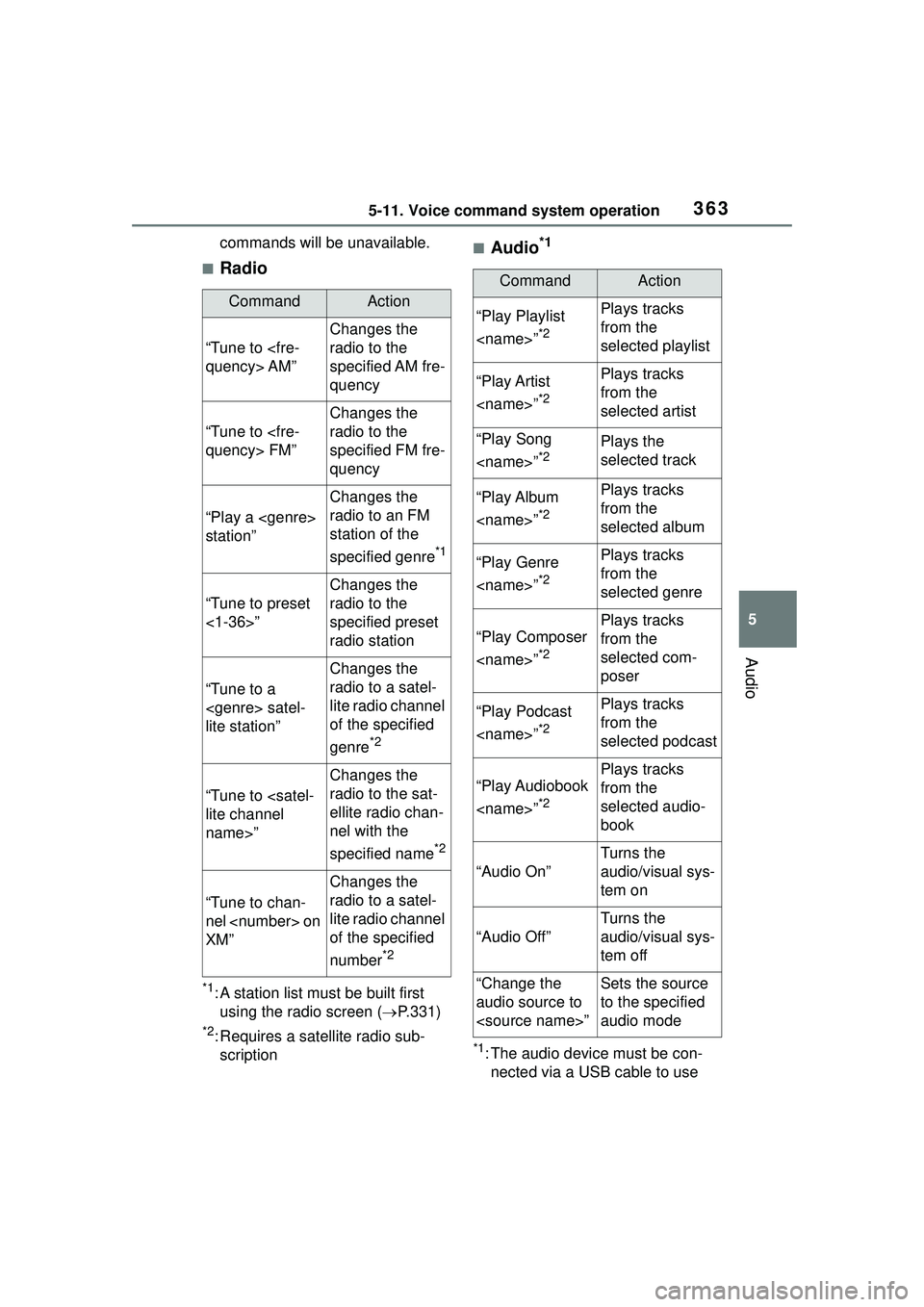
■Radio
*1: A station list must be built first using the radio screen ( P.331)
*2: Requires a satellite radio sub-
scription
■Audio*1
*1: The audio device must be con-nected via a USB cable to use
CommandAction
“Tune to
Changes the
radio to the
specified AM fre-
quency
“Tune to
Changes the
radio to the
specified FM fre-
quency
“Play a
station”
Changes the
radio to an FM
station of the
specified genre
*1
“Tune to preset
<1-36>”
Changes the
radio to the
specified preset
radio station
“Tune to a
lite station”
Changes the
radio to a satel-
lite radio channel
of the specified
genre
*2
“Tune to
name>”
Changes the
radio to the sat-
ellite radio chan-
nel with the
specified name
*2
“Tune to chan-
nel
XM”
Changes the
radio to a satel-
lite radio channel
of the specified
number
*2
CommandAction
“Play Playlist
*2
Plays tracks
from the
selected playlist
“Play Artist
*2
Plays tracks
from the
selected artist
“Play Song
*2Plays the
selected track
“Play Album
*2
Plays tracks
from the
selected album
“Play Genre
*2
Plays tracks
from the
selected genre
“Play Composer
*2
Plays tracks
from the
selected com-
poser
“Play Podcast
*2
Plays tracks
from the
selected podcast
“Play Audiobook
*2
Plays tracks
from the
selected audio-
book
“Audio On”
Turns the
audio/visual sys-
tem on
“Audio Off”
Turns the
audio/visual sys-
tem off
“Change the
audio source to
to the specified
audio mode
Page 374 of 612

3745-13. Phone operation (Hands-free system for cellular phones)
2Check that a confirmation
screen is displayed when the
operation is complete.
■For PBAP incompatible but
OPP compatible Blue-
tooth
® phones
1 Select the desired item.
Select to transfer the con-
tacts from the connected cel-
lular phone.
Transfer the contact data to
the system using a Blue-
tooth
® phone.
Select to add a new contact
manually.
Follow the steps in “Register-
ing a new contact to the con-
tacts list” from step 2.
( P.387)
Select to cancel transferring.
●If your cellular phone is neither
PBAP nor OPP compatible, the
contacts cannot be transferred
using Bluetooth
®. But the contacts
can be transferred from USB
device. ( P.387)
●Depending on the type of Blue-
tooth® phone:
• It may be necessa ry to perform
additional steps on the phone
when transferring contact data.
• The registered image in the con- tact list may not transfer depend-
ing on the type of Bluetooth
®
phone connected.
1 Display the phone top
screen. ( P.367)
2 Select “Keypad” and enter
the phone number.
3 Select or press the
switch on the steering wheel.
4 Check that the dialing screen
is displayed.
Depending on the type of Blue-
tooth® phone being connected, it
may be necessary to perform addi-
tional steps on the phone.
1 Display the home screen.
( P.290)
2 Select the desired contact.
3 Check that the dialing screen
is displayed.
■Registering a new contact
1 Select and hold the screen
button to add a contact.
2 Select the desired contact.
3 Select the desired number.
●If there is no contact in the con-
tacts list, the contacts cannot be
registered at the home screen.
●The contact cannot be registered
at the home screen while driving.
By keypad
By home screen