Page 326 of 612
3265-5. Using the audio/visual system
5-5.Using the audio/visual system
The audio control screen can be reached by the following methods:
From the “AUDIO” button
Press the “AUDIO” button.
From the “MENU” button
Press the “MENU” button, then select “Audio”.
• Using the radio ( P.331)
• Playing a USB memory ( P.337)
• Playing an iPod/iPhone (Apple CarPlay
*) ( P.339)
• Using the Android Auto
* ( P.342)
• Playing a Bluetooth
® device ( P.343)
• Using the steering wheel audio switches ( P.347)
• Audio system settings ( P.349)
*: This function is not made availa ble in some countries or areas.
Quick reference
Functional overview
Page 327 of 612
3275-5. Using the audio/visual system
5
Audio
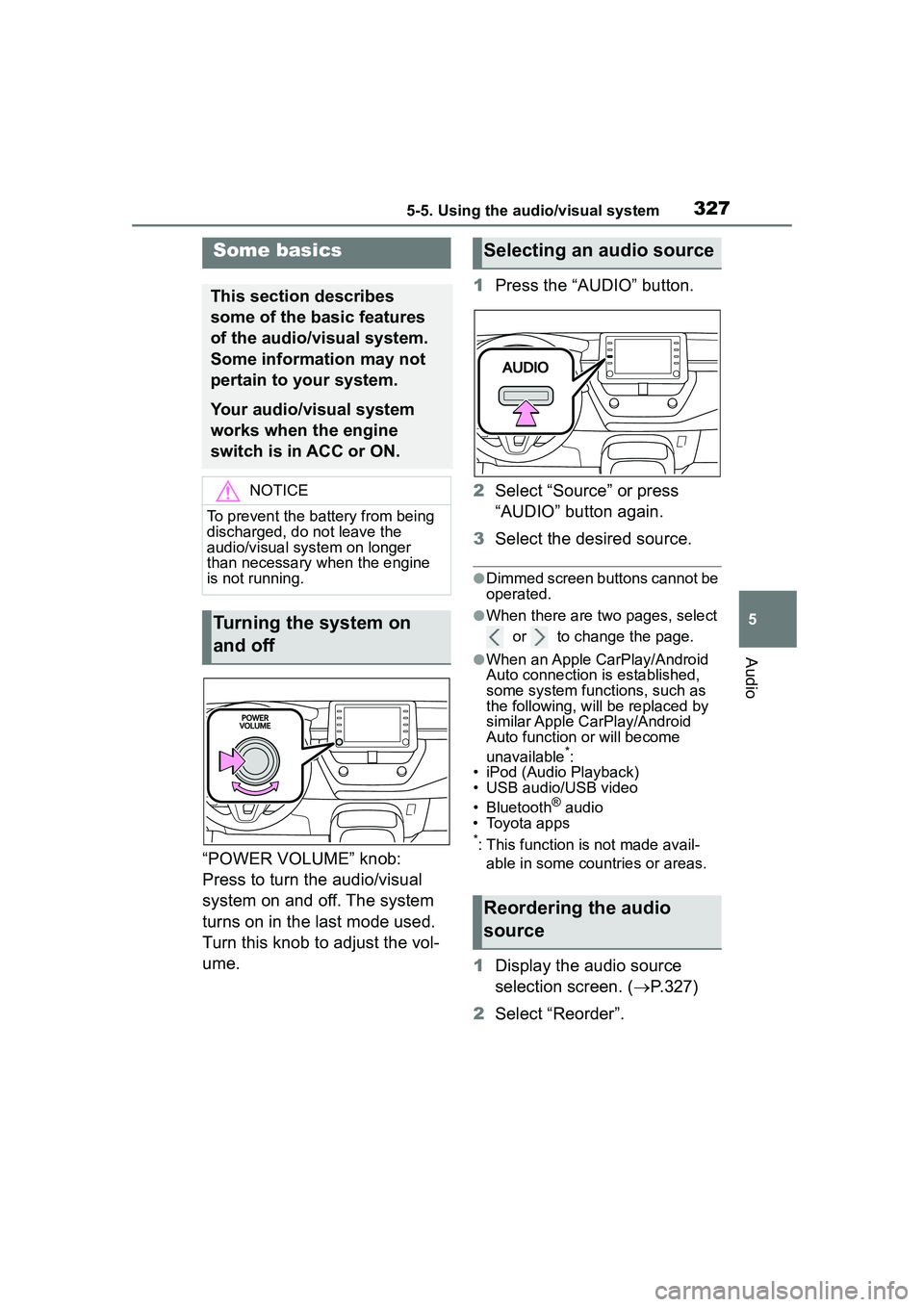
“POWER VOLUME” knob:
Press to turn the audio/visual
system on and off. The system
turns on in the last mode used.
Turn this knob to adjust the vol-
ume.1
Press the “AUDIO” button.
2 Select “Source” or press
“AUDIO” button again.
3 Select the desired source.
●Dimmed screen buttons cannot be
operated.
●When there are two pages, select
or to change the page.
●When an Apple CarPlay/Android
Auto connection is established,
some system functions, such as
the following, will be replaced by
similar Apple CarPlay/Android
Auto function or will become
unavailable
*:
• iPod (Audio Playback)
• USB audio/USB video
• Bluetooth
® audio
• Toyota apps
*: This function is not made avail-
able in some countries or areas.
1 Display the audio source
selection screen. ( P.327)
2 Select “Reorder”.
Some basics
This section describes
some of the basic features
of the audio/visual system.
Some information may not
pertain to your system.
Your audio/visual system
works when the engine
switch is in ACC or ON.
NOTICE
To prevent the battery from being
discharged, do not leave the
audio/visual system on longer
than necessary when the engine
is not running.
Turning the system on
and off
Selecting an audio source
Reordering the audio
source
Page 328 of 612

3285-5. Using the audio/visual system
3Select the desired audio
source then or to reor-
der.
4 Select “OK”.
Connect a device.
Turn on the power of the device if it
is not turned on.
●If a USB hub is plugged-in, two
devices can be connected at a
time.
●Even if a USB hub is used to con-
nect more than two USB devices,
only the first two connected
devices will be recognized.
●If a USB hub that has more than
two ports is connected to the USB
port, devices connected to the
USB hub may not charge or be
inoperable, as the supply of cur-
rent may be insufficient.
1 Display the audio control
screen. ( P.327)
2 Select “Sound”. 3
Select the desired item to be
set.
Select to set the tre-
ble/mid/bass. ( P.328)
Select to set the fader/bal-
ance. ( P.329)
Select to set the automatic
sound levelizer. ( P.329)
■Treble/Mid/Bass
How good an audio program
sounds is largely determined by
the mix of the treble, mid and
bass levels. In fact, different
kinds of music and vocal pro-
grams usually sound better with
different mixes of treble, mid
and bass.
1 Select “Treble/Mid/Bass”.
2 Select the desired screen
button.
Select “+” or “-” to adjust
high-pitched tones.
USB port
Sound settings
Page 329 of 612

3295-5. Using the audio/visual system
5
Audio
Select “+” or “-” to adjust
mid-pitched tones.
Select “+” or “-” to adjust
low-pitched tones.
■Fader/Balance
A good balance of the left and
right stereo channels and of the
front and rear sound levels is
also important.
Keep in mind that when listening
to a stereo recording or broad-
cast, changing the right/left bal-
ance will increase the volume of
1 group of sounds while
decreasing the volume of
another.
1 Select “Fader/Balance”.
2 Select the desired screen
button.
Select to adjust the sound
balance between the front
and rear speakers.
Select to adjust the sound
balance between the left and
right speakers.
■Automatic sound levelizer
(ASL)
The system adjusts to the opti-
mum volume and tone quality according to vehicle speed to
compensate for increased road
noise, wind noise, or other
noises while driving.
1
Select “Automatic Sound
Levelizer”.
2 Select “High”, “Mid”, “Low” or
“Off”.
■Screen format settings
The screen format can be
selected for USB video.
1 Press the “MENU” button.
2 Select “Setup”.
3 Select “Audio”.
4 Select “Common”.
5 Select “Screen Format”.
6 Select the desired item to be
adjusted.
Select to display a 4 : 3
screen, with either side in
black.
Select to enlarge the image
horizontally and vertically to
full screen.
Select to enlarge the image
by the same ratio horizontally
Audio screen adjustment
Page 337 of 612
3375-7. Media operation
5
Audio
5-7.Media operation
The USB memory operation
screen can be reached by the
following methods: P.327
Connecting a USB memory
( P.328)
When an Apple CarPlay/Android
Auto connection is established,
this function will be unavailable
*.
*: This function is not made avail- able in some countries or areas.
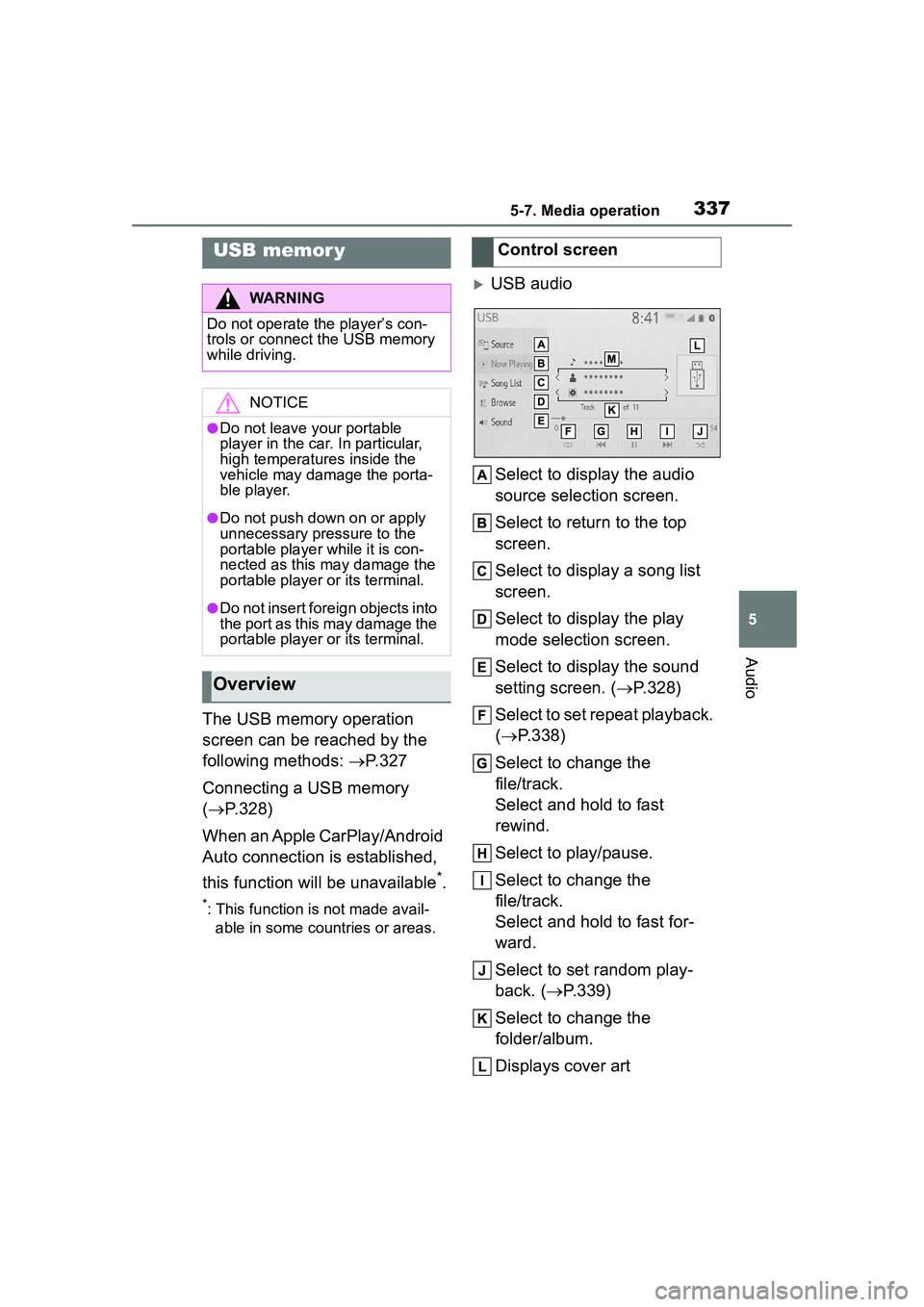
USB audio
Select to display the audio
source selection screen.
Select to return to the top
screen.
Select to display a song list
screen.
Select to display the play
mode selection screen.
Select to display the sound
setting screen. ( P.328)
Select to set repeat playback.
( P.338)
Select to change the
file/track.
Select and hold to fast
rewind.
Select to play/pause.
Select to change the
file/track.
Select and hold to fast for-
ward.
Select to set random play-
back. (P.339)
Select to change the
folder/album.
Displays cover art
USB memor y
WARNING
Do not operate the player’s con-
trols or connect the USB memory
while driving.
NOTICE
●Do not leave your portable
player in the car. In particular,
high temperatures inside the
vehicle may damage the porta-
ble player.
●Do not push down on or apply
unnecessary pressure to the
portable player while it is con-
nected as this may damage the
portable player or its terminal.
●Do not insert foreign objects into
the port as this may damage the
portable player or its terminal.
Overview
Control screen
Page 338 of 612
3385-7. Media operation
Select to change the artist.
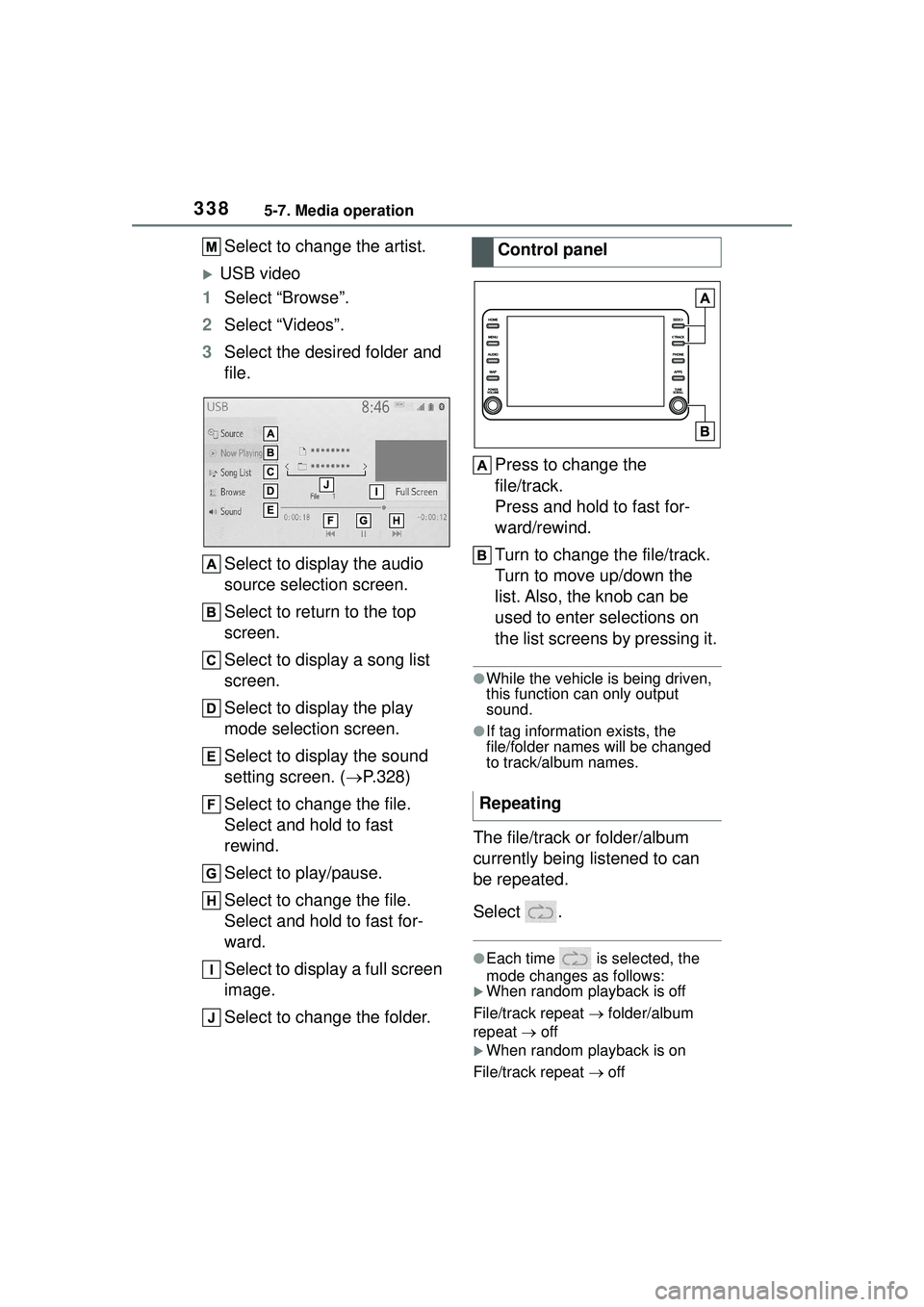
USB video
1 Select “Browse”.
2 Select “Videos”.
3 Select the desired folder and
file.
Select to display the audio
source selection screen.
Select to return to the top
screen.
Select to display a song list
screen.
Select to display the play
mode selection screen.
Select to display the sound
setting screen. ( P.328)
Select to change the file.
Select and hold to fast
rewind.
Select to play/pause.
Select to change the file.
Select and hold to fast for-
ward.
Select to display a full screen
image.
Select to change the folder. Press to change the
file/track.
Press and hold to fast for-
ward/rewind.
Turn to change the file/track.
Turn to move up/down the
list. Also, the knob can be
used to enter selections on
the list screens by pressing it.
●While the vehicle is being driven,
this function can only output
sound.
●If tag information exists, the
file/folder names will be changed
to track/album names.
The file/track or folder/album
currently being listened to can
be repeated.
Select .
●Each time is selected, the
mode changes as follows:
When random playback is off
File/track repeat folder/album
repeat off
When random playback is on
File/track repeat off
Control panel
Repeating
Page 347 of 612
3475-8. Audio/visual remote controls
5
Audio
5-8.Audio/visual remote controls
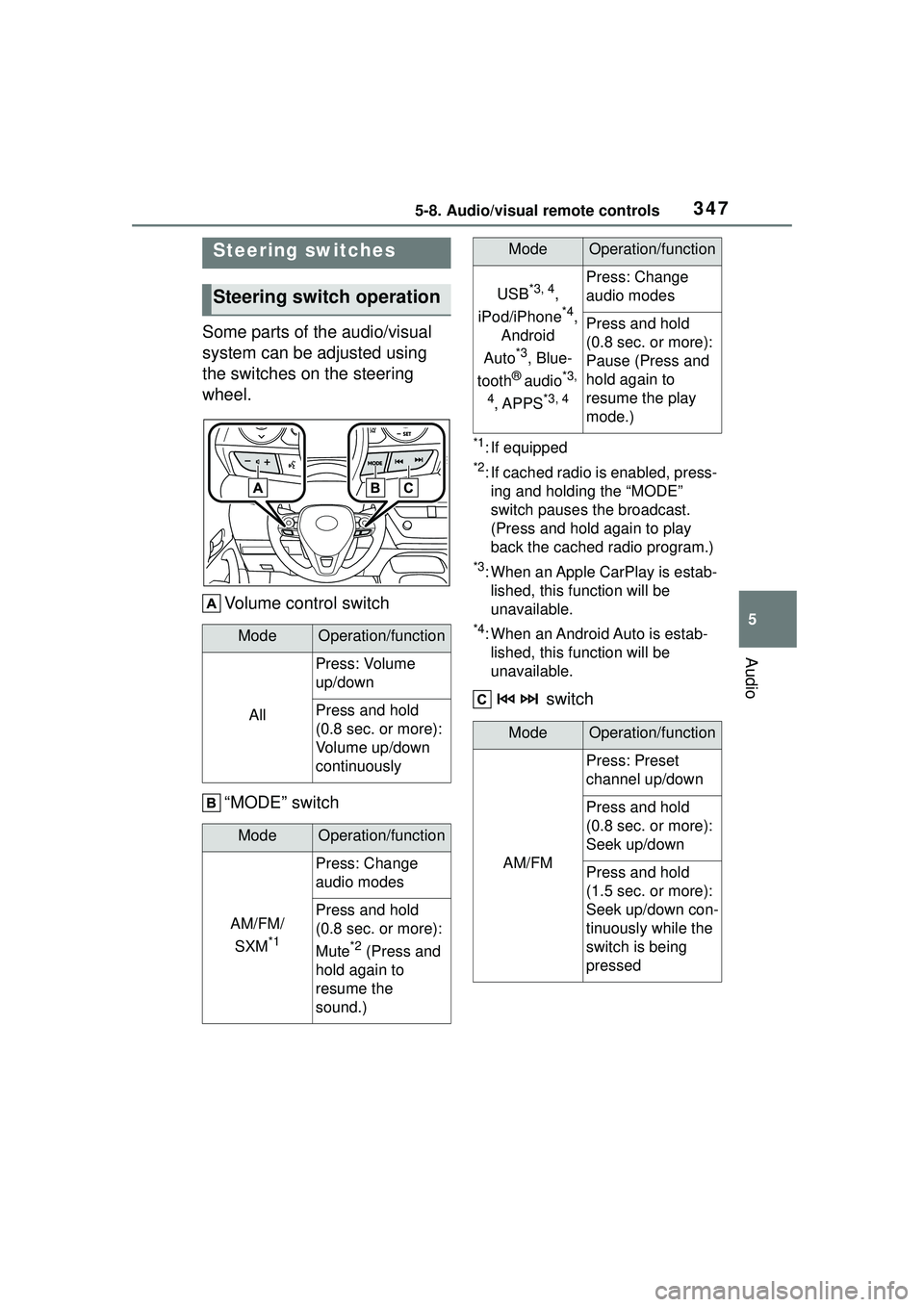
Some parts of the audio/visual
system can be adjusted using
the switches on the steering
wheel.Volume control switch
“MODE” switch
*1: If equipped
*2: If cached radio is enabled, press-ing and holding the “MODE”
switch pauses the broadcast.
(Press and hold again to play
back the cached radio program.)
*3: When an Apple CarPlay is estab-lished, this function will be
unavailable.
*4: When an Android Auto is estab-lished, this function will be
unavailable.
switch
Steering switches
Steering switch operation
ModeOperation/function
All
Press: Volume
up/down
Press and hold
(0.8 sec. or more):
Volume up/down
continuously
ModeOperation/function
AM/FM/
SXM
*1
Press: Change
audio modes
Press and hold
(0.8 sec. or more):
Mute
*2 (Press and
hold again to
resume the
sound.)
USB*3, 4,
iPod/iPhone
*4,
Android
Auto
*3, Blue-
tooth
® audio*3,
4
, APPS*3, 4
Press: Change
audio modes
Press and hold
(0.8 sec. or more):
Pause (Press and
hold again to
resume the play
mode.)
ModeOperation/function
AM/FM
Press: Preset
channel up/down
Press and hold
(0.8 sec. or more):
Seek up/down
Press and hold
(1.5 sec. or more):
Seek up/down con-
tinuously while the
switch is being
pressed
ModeOperation/function
Page 348 of 612
3485-8. Audio/visual remote controls
*1: If equipped
*2: When an Apple CarPlay is estab-lished, this function will be
unavailable.
*3: When an Android Auto is estab-lished, this function will be
unavailable.
In the APPS mode, some operation
may be done on the screen depend
on the selected APPS.
SXM*1
Press: Preset
channel up/down
Press and hold
(0.8 sec. or more):
Seek for stations in
the relevant pro-
gram type/channel
category
Press and hold
(1.5 sec. or more):
Fast channel
up/down
USB*2, 3,
iPod/iPhone
*3,
Bluetooth
®
audio
*2, 3
Press: Track/file
up/down
Press and hold
(0.8 sec. or more):
Fast for-
ward/rewind
Android Auto*2Press: Track
up/down
ModeOperation/function

