Page 74 of 148
Presets
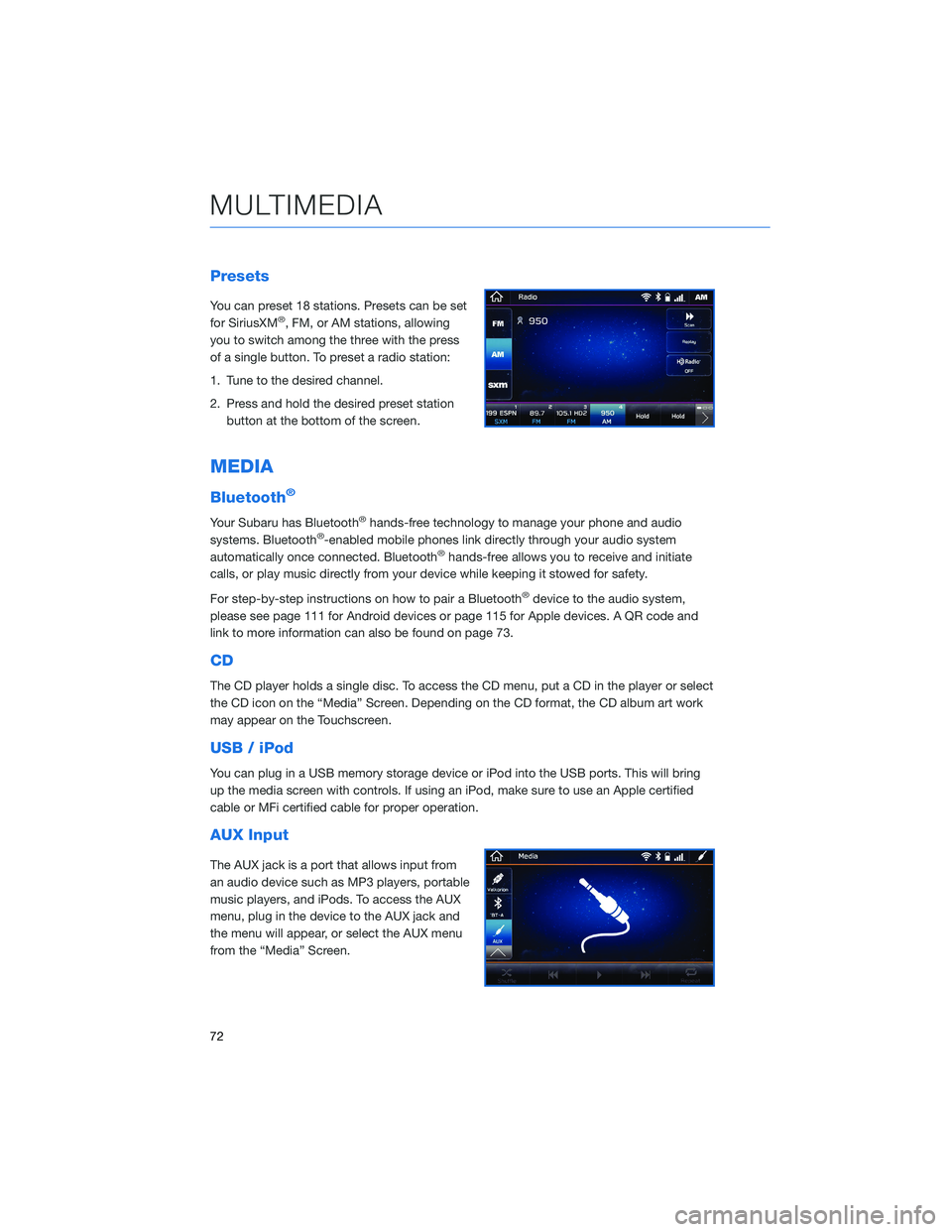
You can preset 18 stations. Presets can be set
for SiriusXM®, FM, or AM stations, allowing
you to switch among the three with the press
of a single button. To preset a radio station:
1. Tune to the desired channel.
2. Press and hold the desired preset station
button at the bottom of the screen.
MEDIA
Bluetooth®
Your Subaru has Bluetooth®hands-free technology to manage your phone and audio
systems. Bluetooth®-enabled mobile phones link directly through your audio system
automatically once connected. Bluetooth®hands-free allows you to receive and initiate
calls, or play music directly from your device while keeping it stowed for safety.
For step-by-step instructions on how to pair a Bluetooth
®device to the audio system,
please see page 111 for Android devices or page 115 for Apple devices. A QR code and
link to more information can also be found on page 73.
CD
The CD player holds a single disc. To access the CD menu, put a CD in the player or select
the CD icon on the “Media” Screen. Depending on the CD format, the CD album art work
may appear on the Touchscreen.
USB / iPod
You can plug in a USB memory storage device or iPod into the USB ports. This will bring
up the media screen with controls. If using an iPod, make sure to use an Apple certified
cable or MFi certified cable for proper operation.
AUX Input
The AUX jack is a port that allows input from
an audio device such as MP3 players, portable
music players, and iPods. To access the AUX
menu, plug in the device to the AUX jack and
the menu will appear, or select the AUX menu
from the “Media” Screen.
MULTIMEDIA
72
Page 75 of 148
PAIRING A PHONE
To begin using your Bluetooth®hands-free device you must first
pair your phone with the system. Phone pairing provides access to
the contact list on your phone and allows you to use the voice
recognition system to make and receive calls. The system can also
read incoming text messages, as well as allowing you send short
messages to reply to texts. The system automatically reconnects to
your Bluetooth
®device and will remember your driver profile.
Visitwww.subaru.com/engineering/starlink/multimedia.htmlfor
more information on what is available by connecting a phone to the
Touchscreen.
For instructions on how to pair your phone to the Touchscreen, see page 111 for
Android devices or page 115 for Apple devices.
MAKING A CALL
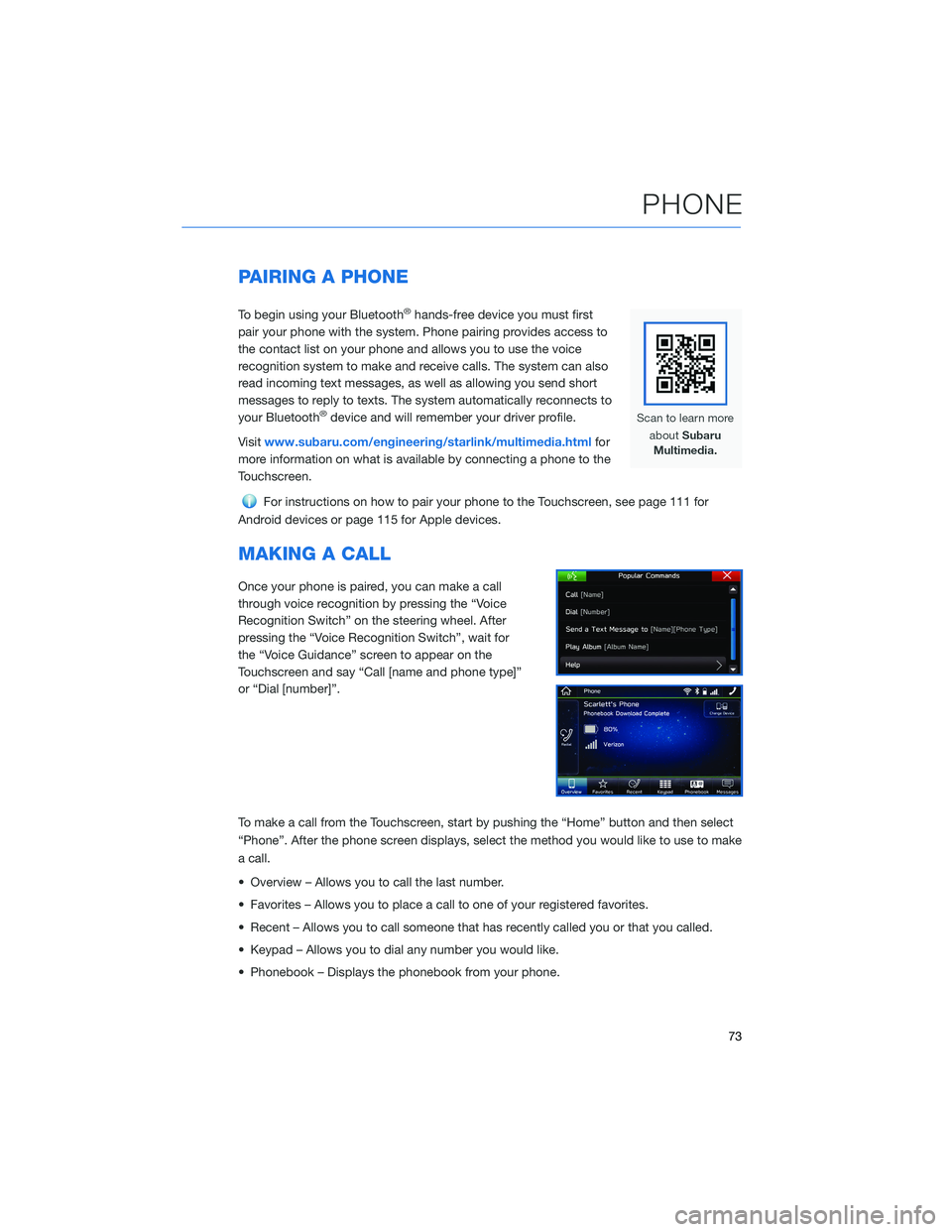
Once your phone is paired, you can make a call
through voice recognition by pressing the “Voice
Recognition Switch” on the steering wheel. After
pressing the “Voice Recognition Switch”, wait for
the “Voice Guidance” screen to appear on the
Touchscreen and say “Call [name and phone type]”
or “Dial [number]”.
To make a call from the Touchscreen, start by pushing the “Home” button and then select
“Phone”. After the phone screen displays, select the method you would like to use to make
a call.
• Overview – Allows you to call the last number.
• Favorites – Allows you to place a call to one of your registered favorites.
• Recent – Allows you to call someone that has recently called you or that you called.
• Keypad – Allows you to dial any number you would like.
• Phonebook – Displays the phonebook from your phone.
PHONE
73
Page 77 of 148
TEXT MESSAGES
Received messages can be forwarded from
the connected Bluetooth®phone, enabling
checking and replying using the system.
To use this function, it is necessary to set the
phonebook download function to ON.
When a Short Message Service (SMS)/
Multimedia Messaging Service (MMS) is
received, the incoming message screen pops
up with sound and is ready to be retrieved
using the Touchscreen. Select “Play” to listen
to the message.
If there is more than one unread message, a
screen will appear allowing you to either view
your inbox or ignore the message.
Depending on the Bluetooth
®phone type,
messages may not be transferred to the inbox, the screen display may differ, and it may
not be possible to use certain functions.
PHONE
75
Page 78 of 148
SUBARU STARLINK®IN-VEHICLE APPS
SUBARU STARLINK®Multimedia offers advanced connectivity
through Apple CarPlay®, Android Auto™, aha®and Pandora®apps.
Wireless pairing and hands-free smartphone operation allow for
safe and easy connection to your favorite apps and content. You
can access news, navigation, music, podcasts, and more through
the available SUBARU STARLINK
®app.
For a complete list of all the apps available, visit
www.subaru.com/engineering/starlink/multimedia.html
aha®by HARMAN
aha is a cloud-based application that connects to the system and
gives you access to your favorite web content safely and easily.
There are thousands of available stations spanning internet radio,
personalized music, audiobooks, Facebook, Twitter, restaurant and
hotel searches, weather and more.
To use the aha application, connect your iPhone or Android device
via Bluetooth
®. When connecting an iPhone or Android device with
the aha application installed, you can control, view, and hear aha
content through the system.
With the 8.0-inch Multimedia Navigation function, you may also
display Points Of Interest (POI) information from the aha application on the map screen
and route to these POIs.
Pandora®
Pandora is a free, personalized radio that offers effortless and endless music enjoyment.
To use the Pandora application, first install the Pandora application on your smartphone.
Then connect your iPhone or Android device via Bluetooth
®.
NOTE: Some vehicles might be incompatible with this app depending on difference
between models and software version.
APPS
76
Page 79 of 148
Android Auto™
Android Auto can be used to view maps, play music,
and place calls by connecting your Android device to
the system. You can also run supported applications.
To use the Android Auto application, connect your
Android device to the USB port.
For details on services or operations, visit the
Android Auto sites:www.android.com/auto/or
www.support.google.com/androidauto/
For more information on connecting your phone,
please refer to page 119 in this Getting Started Guide.
Apple CarPlay®
Apple CarPlay can be used to view maps, play music, and place
calls by connecting your iPhone to the system. You can also run
supported applications. To use the Apple CarPlay application,
connect your iPhone to the USB port.
For more information on connecting your iPhone, please refer
to page 121 in this Getting Started Guide.
For details on services or operations, check the Apple CarPlay site:
www.apple.com/ios/carplay/
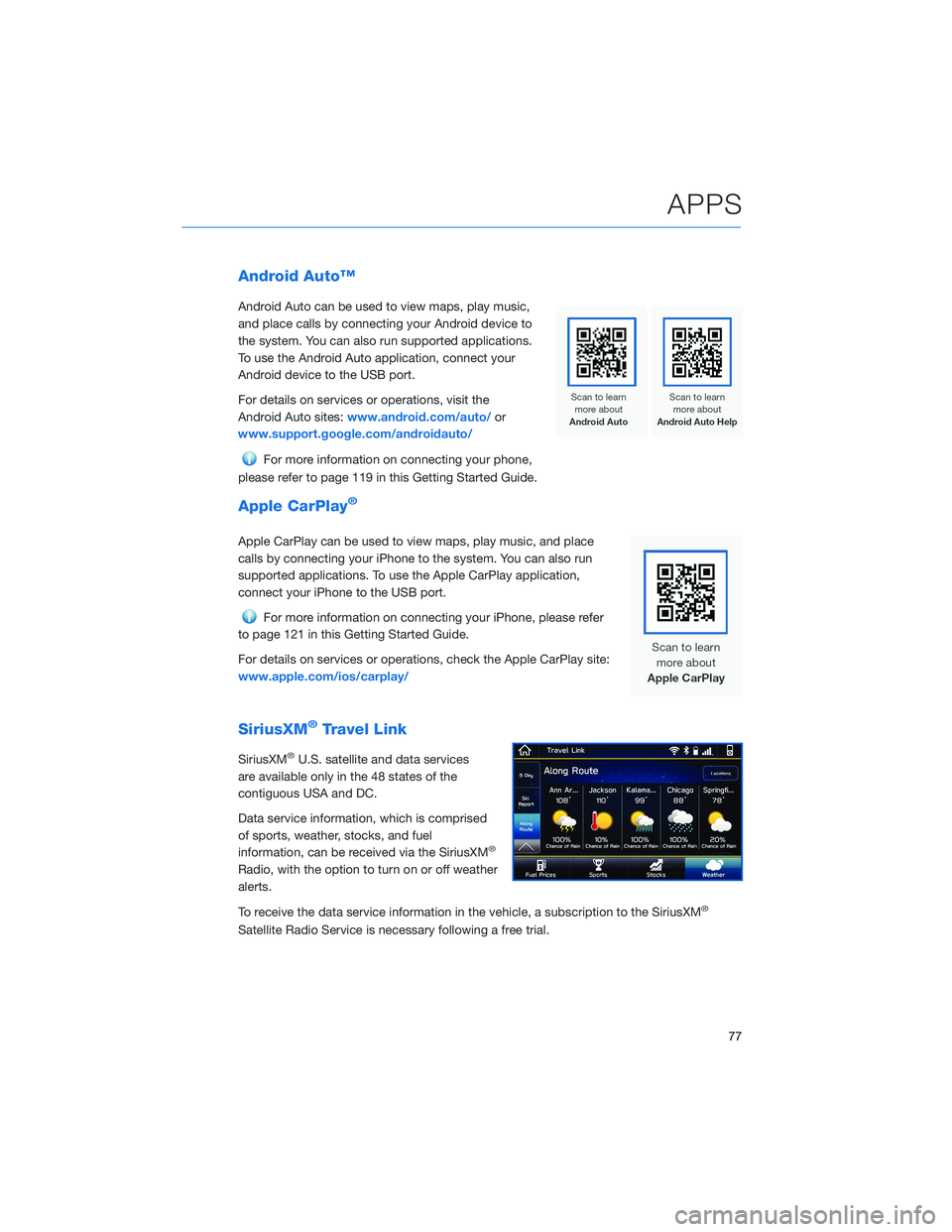
SiriusXM®Travel Link
SiriusXM®U.S. satellite and data services
are available only in the 48 states of the
contiguous USA and DC.
Data service information, which is comprised
of sports, weather, stocks, and fuel
information, can be received via the SiriusXM
®
Radio, with the option to turn on or off weather
alerts.
To receive the data service information in the vehicle, a subscription to the SiriusXM
®
Satellite Radio Service is necessary following a free trial.
APPS
77
Page 82 of 148
MAPS OVERVIEW
Your new SUBARU STARLINK®comes equipped with an integrated navigation system,
powered by TomTom. We hope you enjoy the state-of-the-art navigation technology and
optimized mapping routes to guide you on safer, better, and more enjoyable journeys.
With your integrated navigation system, you can find destinations by address or search by
points of interest, as well as save destinations in the system as favorites. You can also
customize route options and settings and find the nearest gas station along your route with
the touch of a button.
For more information and step by step directions on using your navigation system,
please refer to page 125 in this Getting Started Guide or “Navigation System (8-inch with
Navi system only)” in your STARLINK
®Owner’s Manual.
CREATING HOME AND WORK PROFILES
Creating a driver profile allows you to save your home address and work address in the
navigation system for ease of use.
For step by step instructions on creating a driver profile, please refer to page 69.
MAPS (if equipped)
80
Page 84 of 148
ENROLLMENT
To enroll in SUBARU STARLINK®and access remote services, a MySubaru account is
required. MySubaru is the Subaru owner website that allows you to access vehicle remote
services, user preferences, diagnostic alerts and other useful features enabled by your
STARLINK
®Safety Plus, STARLINK®Security Plus and STARLINK®Concierge
subscription.
Your retailer may have created an account for you during the delivery process. However,
you can also create a MySubaru account atwww.mysubaru.com.
Enrollment in SUBARU STARLINK
®can be done online at MySubaru.com, through the
MySubaru Mobile App, at your Subaru retailer or by calling a STARLINK®Customer Care
Representative at: 1-855-753-2495
NOTE: Please have your Vehicle Identification Number (VIN) available, as you will need it
to complete this step. After the enrollment process, you will learn more about the features
in detail at MySubaru.com.
MYSUBARU INTEGRATION
The connection between you and your Subaru has never been simpler, and the MySubaru
website (MySubaru.com) and MySubaru Mobile Application are the best ways to stay in
touch with your Subaru vehicle. From MySubaru, you can access the following information
and STARLINK
®Safety and Security services*:
• Remote Services
• Vehicle Health
• Usage Reports
• Service Appointment Scheduler
• Vehicle Maintenance Schedules
• Destination to Vehicle
• Service History
• Support Resources
* Activation with subscription required. Features and availability vary by vehicle and trim level. See your
retailer for details.
STARLINK SAFETY AND SECURITY
82
Page 86 of 148
SETTINGS AND UPDATES OVERVIEW
Many settings can be customized for different features in your Subaru. In this section you
will find examples and instructions for some of the settings you can tailor to fit your
preferences, as well as ways to keep your system updated.
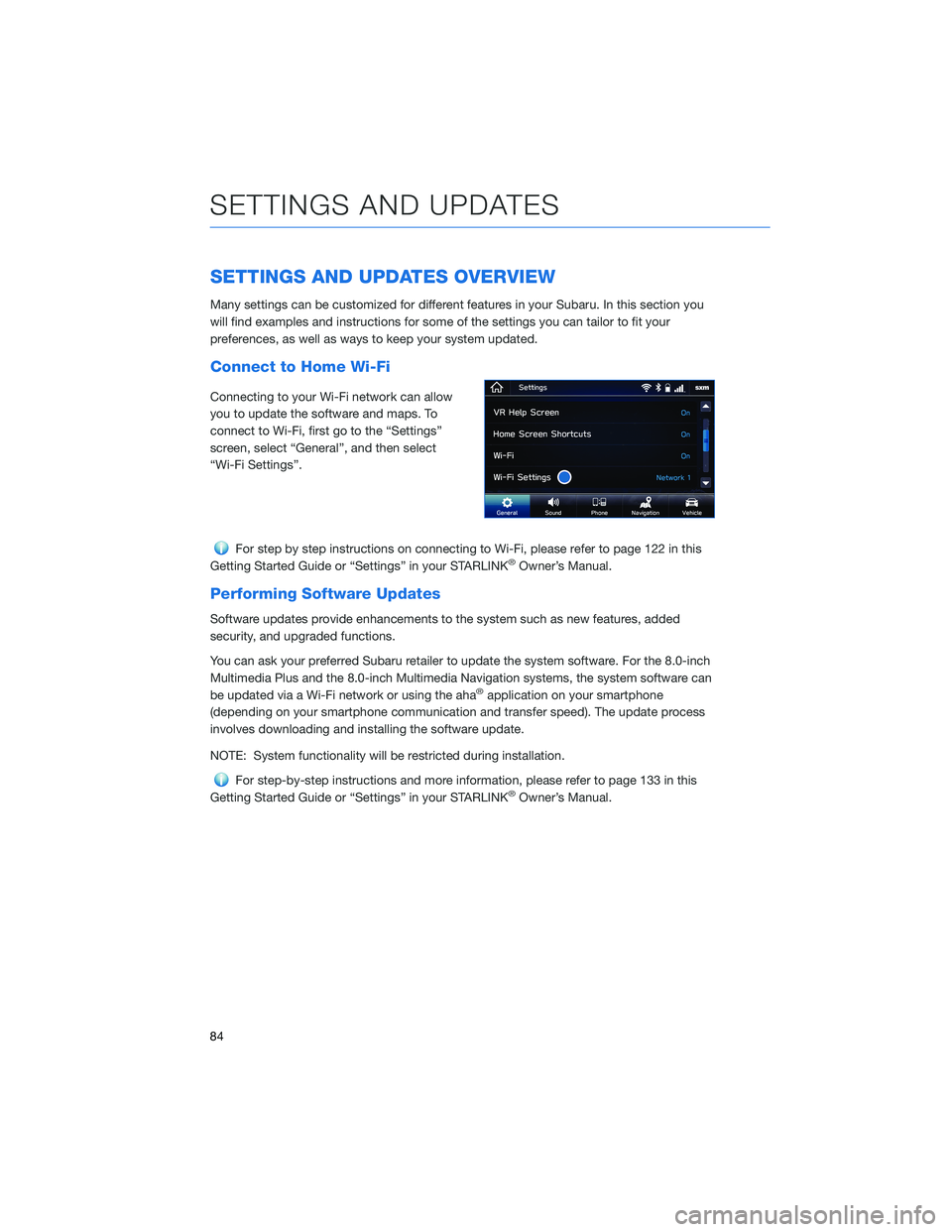
Connect to Home Wi-Fi
Connecting to your Wi-Fi network can allow
you to update the software and maps. To
connect to Wi-Fi, first go to the “Settings”
screen, select “General”, and then select
“Wi-Fi Settings”.
For step by step instructions on connecting to Wi-Fi, please refer to page 122 in this
Getting Started Guide or “Settings” in your STARLINK®Owner’s Manual.
Performing Software Updates
Software updates provide enhancements to the system such as new features, added
security, and upgraded functions.
You can ask your preferred Subaru retailer to update the system software. For the 8.0-inch
Multimedia Plus and the 8.0-inch Multimedia Navigation systems, the system software can
be updated via a Wi-Fi network or using the aha
®application on your smartphone
(depending on your smartphone communication and transfer speed). The update process
involves downloading and installing the software update.
NOTE: System functionality will be restricted during installation.
For step-by-step instructions and more information, please refer to page 133 in this
Getting Started Guide or “Settings” in your STARLINK®Owner’s Manual.
SETTINGS AND UPDATES
84
