Page 69 of 244
3-9
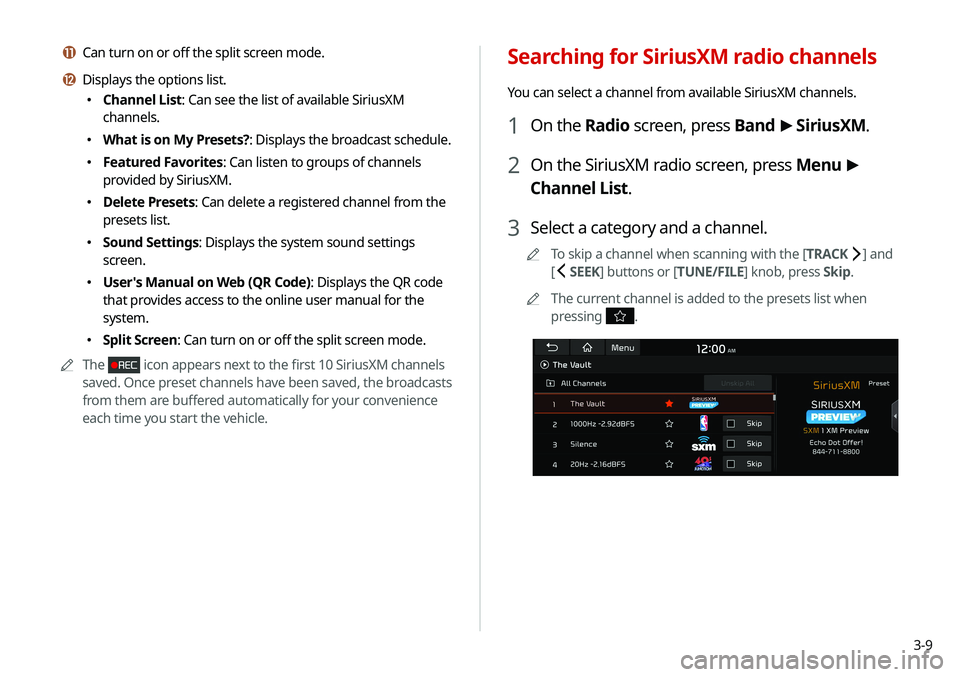
Searching for SiriusXM radio channels
You can select a channel from available SiriusXM channels.
1 On the Radio screen, press Band >
SiriusXM.
2 On the SiriusXM radio screen, press Menu >
Channel List.
3 Select a category and a channel.
A
A
To skip a channel when scanning with the [ TRACK ] and
[
SEEK] buttons or [TUNE/FILE] knob, press Skip.
A
A
The current channel is added to the presets list when
pressing
.
k Can turn on or off the split screen mode.
l Displays the options list.
�Channel List: Can see the list of available SiriusXM
channels.
�What is on My Presets?: Displays the broadcast schedule.
�Featured Favorites: Can listen to groups of channels
provided by SiriusXM.
�Delete Presets: Can delete a registered channel from the
presets list.
�Sound Settings: Displays the system sound settings
screen.
�User's Manual on Web (QR Code): Displays the QR code
that provides access to the online user manual for the
system.
�Split Screen: Can turn on or off the split screen mode.
A
A
The
icon appears next to the first 10 SiriusXM channels
saved. Once preset channels have been saved, the broadcasts
from them are buffered automatically for your convenience
each time you start the vehicle.
Page 70 of 244
3-10
Seeing the program schedule
You can see the program schedule and information for the
channels saved in your preset list.
1 On the Radio screen, press Band >
SiriusXM.
2 On the SiriusXM radio screen, press Menu >
What is on My Presets?.
3 Set the date and time on the top line of the
screen.
A
A
To select a date, press the date display field at the top left
of the preset list and select the date and time zone.
A
A
To select a time, press
or .
4 Select a channel and a program to see its detailed
information.
A
A
If any hidden information, an arrow appears next to the
program. Press the arrow to see the hidden information.
Selecting channels by using channel
numbers
When you know the exact channel number, you can enter it to
select the channel directly.
1 On the Radio screen, press Band >
SiriusXM.
2 On the SiriusXM radio screen, press Enter
Channel.
3 Enter a channel number and press OK.
Page 71 of 244
3-11
Listening to Featured Favorites
channels
You can listen to Featured Favorites channels on the SiriusXM
radio. Multiple sets of channels can be broadcast and can be
changed by SiriusXM.
1 On the Radio screen, press Band >
SiriusXM.
2 On the SiriusXM radio screen, press Menu >
Featured Favorites.
3 Select a channel.
Page 75 of 244
4-3
ÝWarning
Driving while distracted can result in a loss of vehicle control that
may lead to an accident, severe bodily injury, or death. The driver's
primary responsibility is the safe and legal operation of the
vehicle, and the use of any vehicle systems, including the touch
screen and steering wheel controls, which take the driver's eyes,
attention, and focus away from the safe operation of the vehicle,
or which are not permissible by law, should never be used during
the operation of the vehicle.
Pause/Resume
You can pause or resume playback of a USB music file.
On the USB music playback screen, press or .
Rewind
By using the rewind function, you can listen to music in the USB
device from the desired point during playback.
Perform any of the following methods:
�On the USB music playback screen, press and hold .
�On the control panel, press and hold the [
SEEK] button.
A
A
You can also run the function by using the Move lever/button
on the steering wheel.
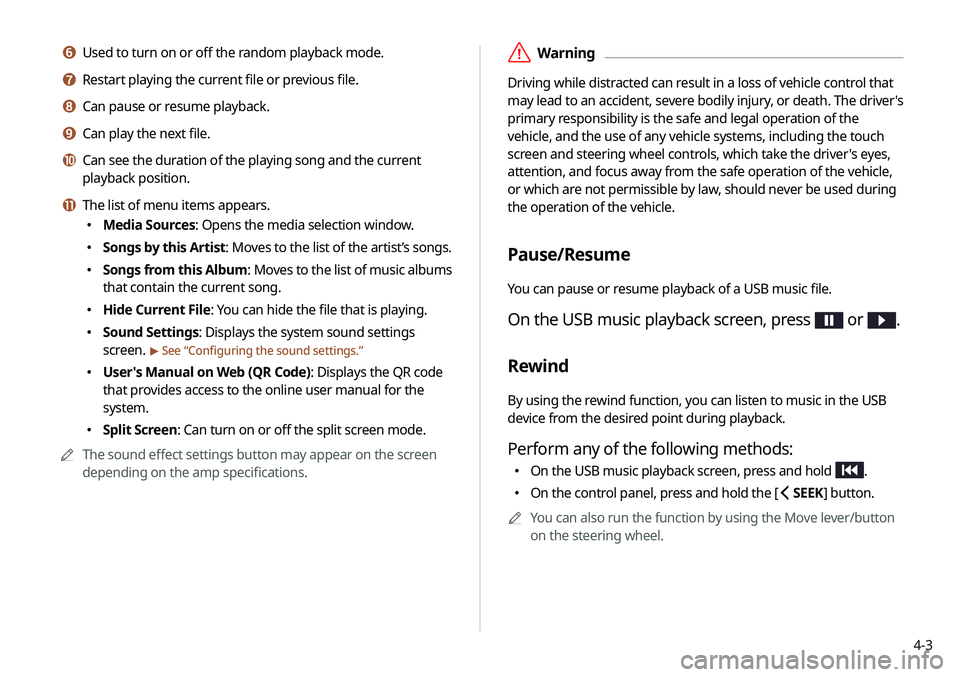
f Used to turn on or off the random playback mode.
g Restart playing the current file or previous file.
h Can pause or resume playback.
i Can play the next file.
j Can see the duration of the playing song and the current
playback position.
k The list of menu items appears.
�Media Sources: Opens the media selection window.
�Songs by this Artist: Moves to the list of the artist’s songs.
�Songs from this Album
: Moves to the list of music albums
that contain the current song.
� Hide Current File: You can hide the file that is playing.
�Sound Settings: Displays the system sound settings
screen.
> See “
Configuring the sound settings.”
� User's Manual on Web (QR Code): Displays the QR code
that provides access to the online user manual for the
system.
�Split Screen: Can turn on or off the split screen mode.
A
A
The sound effect settings button may appear on the screen
depending on the amp specifications.
Page 78 of 244
4-6
f The list of menu items appears.
�Media Sources: Opens the media selection window.
�Now Playing: You can return to the folder of the playing
file while searching in the list.
�Split Screen: Can turn on or off the split screen mode.
A
A
The sound effect settings button may appear on the screen
depending on the amp specifications.
ÜCaution
�Be sure to start the vehicle before connecting a USB device.
When you start the vehicle after connecting a USB device, the
USB device may get damaged.
�Be careful of static electricity when connecting or removing a
USB device. It may cause a system failure.
�Be careful and avoid your body or any object coming into
contact with the USB port on the vehicle. It may cause an
accident or system failures.
�Do not repeatedly connect and remove the USB connector
within a short time. It may cause device errors or system
failures.
�Do not use a USB device for purposes other than playback.
When you connect a USB for charging or heating, the system
performance may decrease or it may cause system failures.
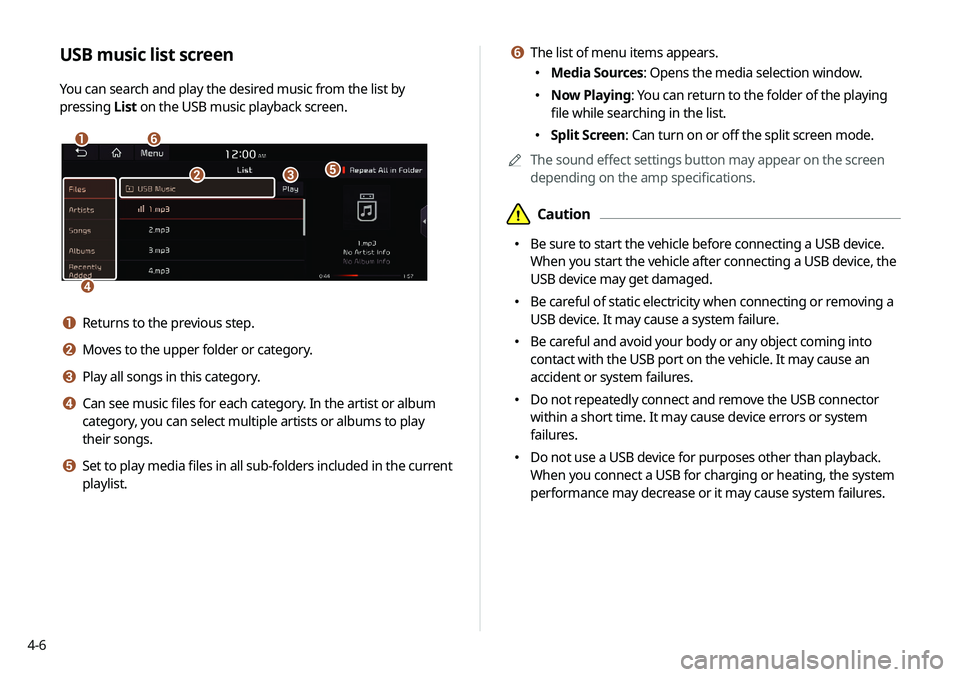
USB music list screen
You can search and play the desired music from the list by
pressing
List on the USB music playback screen.
af
e
d
bc
a Returns to the previous step.
b Moves to the upper folder or category.
c Play all songs in this category.
d Can see music files for each category. In the artist or album
category, you can select multiple artists or albums to play
their songs.
e Set to play media files in all sub-folders included in the current
playlist.
Page 80 of 244

4-8
j Displays the sequence number of the current file and the total
number of files for playback.
k Moves to the music list screen.A
A
The list of Bluetooth audio files may not appear
depending on the connected device or app.
l The list of menu items appears.
�Media Sources: Opens the media selection window.
�Change Device: Find and connect other Bluetooth
devices.
�Sound Settings: Displays the system sound settings
screen.
> See “
Configuring the sound settings.”
� User's Manual on Web (QR Code): Displays the QR code
that provides access to the online user manual for the
system.
�Split Screen: Can turn on or off the split screen mode.
A
A
The screen may differ depending on the vehicle model and
specifications.
A
A
The sound effect settings button may appear on the screen
depending on the amp specifications.
Bluetooth audio playback screen
The media player runs when you play a music file from a
connected audio device via Bluetooth.
a
kc
l
d
efg
j
h
i
b
a Returns to the previous step.
b Name of the connected Bluetooth device
c When two Bluetooth audio devices are connected to the
system, select a device to play music.
d Displays the information of the current music.
e Restart playing the current file or play the previous file.
f Can pause or resume playback.
g Can play the next file.
h Can see the duration of the playing song and the current
playback position.
i Find and connect other Bluetooth devices.
Page 84 of 244
5-2
Navigation functions
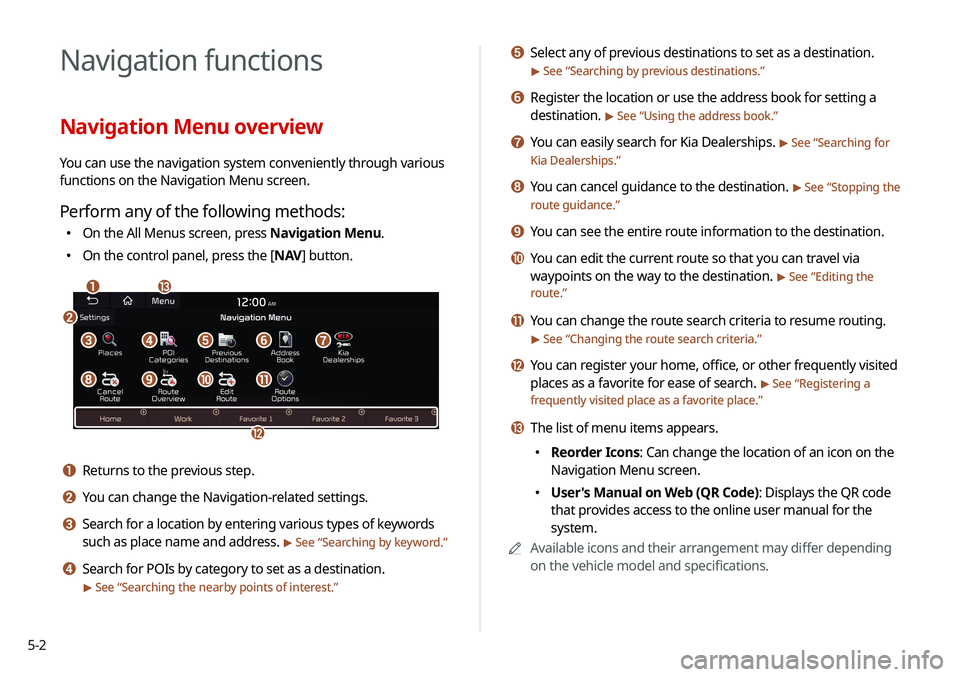
Navigation Menu overview
You can use the navigation system conveniently through various
functions on the Navigation Menu screen.
Perform any of the following methods:
�On the All Menus screen, press Navigation Menu.
�On the control panel, press the [
NAV] button.
am
c
l
defg
hijk
b
a Returns to the previous step.
b You can change the Navigation-related settings.
c Search for a location by entering various types of keywords
such as place name and address.
> See “ Searching by keyword.”
d Search for POIs by category to set as a destination.
> See “Searching the nearby points of interest.”
e Select any of previous destinations to set as a destination.
> See “Searching by previous destinations.”
f Register the location or use the address book for setting a
destination.
> See “Using the address book.”
g You can easily search for Kia Dealerships. > See “Searching for
Kia Dealerships.”
h You can cancel guidance to the destination. > See “ Stopping the
route guidance.”
i You can see the entire route information to the destination.
j You can edit the current route so that you can travel via
waypoints on the way to the destination.
> See “ Editing the
route.”
k You can change the route search criteria to resume routing.
> See “ Changing the route search criteria.”
l You can register your home, office, or other frequently visited
places as a favorite for ease of search.
> See “Registering a
frequently visited place as a favorite place.”
m The list of menu items appears.
� Reorder Icons: Can change the location of an icon on the
Navigation Menu screen.
�User's Manual on Web (QR Code): Displays the QR code
that provides access to the online user manual for the
system.
A
A
Available icons and their arrangement may differ depending
on the vehicle model and specifications.
Page 86 of 244

5-4
ÜCaution
�Distracted driving or negligence in keeping your eyes forward
may cause a loss of vehicle control. Never use any devices or
systems that take the driver’s attention away from driving.
�The information on the map may differ from actual road
conditions, depending on the location or driving conditions.
Digitalized roads may not be identical to the actual roads.
When guidance does not match the actual route, drive the
vehicle according to actual road conditions.
The system may provide guidance that differs from the
actual route due to a change in road conditions. When
guidance does not match the actual route, drive the vehicle
according to road conditions with observing the traffic
regulations. When the vehicle reaches a zone that matches
the actual route, the system guides the route correctly.
A
A
Vehicle location may not be displayed correctly if:
The vehicle is driving on a Y-shaped or winding road with
narrow angles.
The vehicle is driving closely to another road.
The vehicle is driving on a road where there are many tall
buildings in the vicinity.
The vehicle is driving on a new road or a road under
construction.
The vehicle is transported by a ferry or heavy-duty transport
vehicle.
4 Check the location of the destination and then
press Set as Destination.
AA
If you press Parking at the bottom right of the screen, the
map screen displays the parking lot icon.
5 Select the desired route from the searched ones
and press Start Guidance.

