Page 55 of 244
2-17
Playing Sounds of Nature
Listen to the calming sound of rain, waves, and more to relax
while driving by turning on a Sounds of Nature.
1 On the All Menus screen, press Sounds of
Nature.
2 Select from the Sounds of Nature list to play.
cde
ha
b
f
g
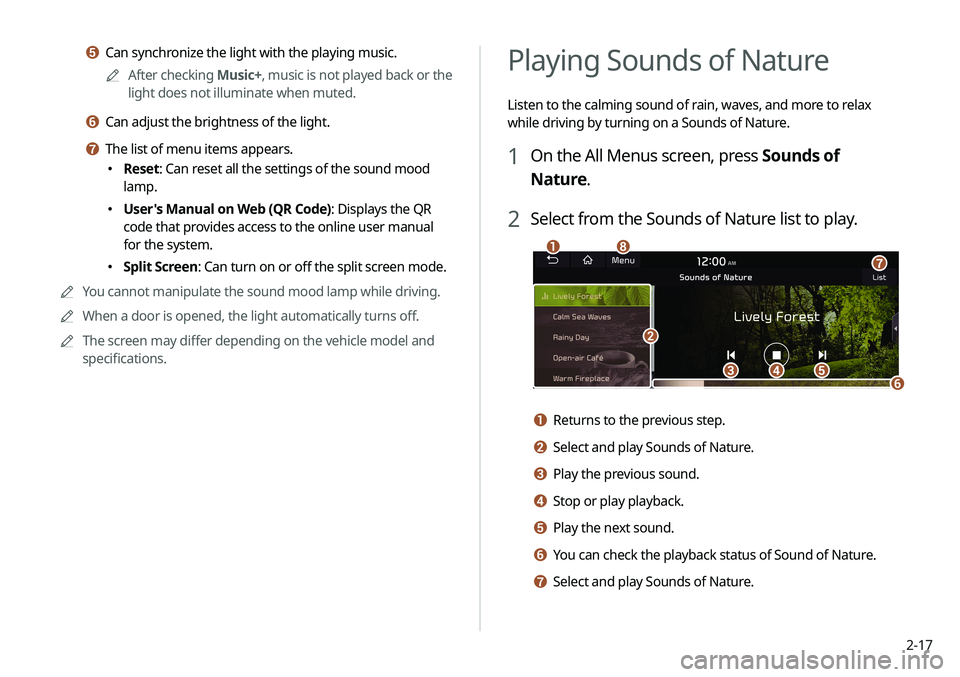
a Returns to the previous step.
b Select and play Sounds of Nature.
c Play the previous sound.
d Stop or play playback.
e Play the next sound.
f You can check the playback status of Sound of Nature.
g Select and play Sounds of Nature.
e Can synchronize the light with the playing music.A
A
After checking Music+, music is not played back or the
light does not illuminate when muted.
f Can adjust the brightness of the light.
g The list of menu items appears.
� Reset: Can reset all the settings of the sound mood
lamp.
�User's Manual on Web (QR Code): Displays the QR
code that provides access to the online user manual
for the system.
�Split Screen: Can turn on or off the split screen mode.
A
A
You cannot manipulate the sound mood lamp while driving.
A
A
When a door is opened, the light automatically turns off.
A
A
The screen may differ depending on the vehicle model and
specifications.
Page 56 of 244
2-18
Using the HD Radio Data
You can access an array of information with HD radio data such
as HD Radio™.A
A
HD radio data are available only in metropolitan areas.
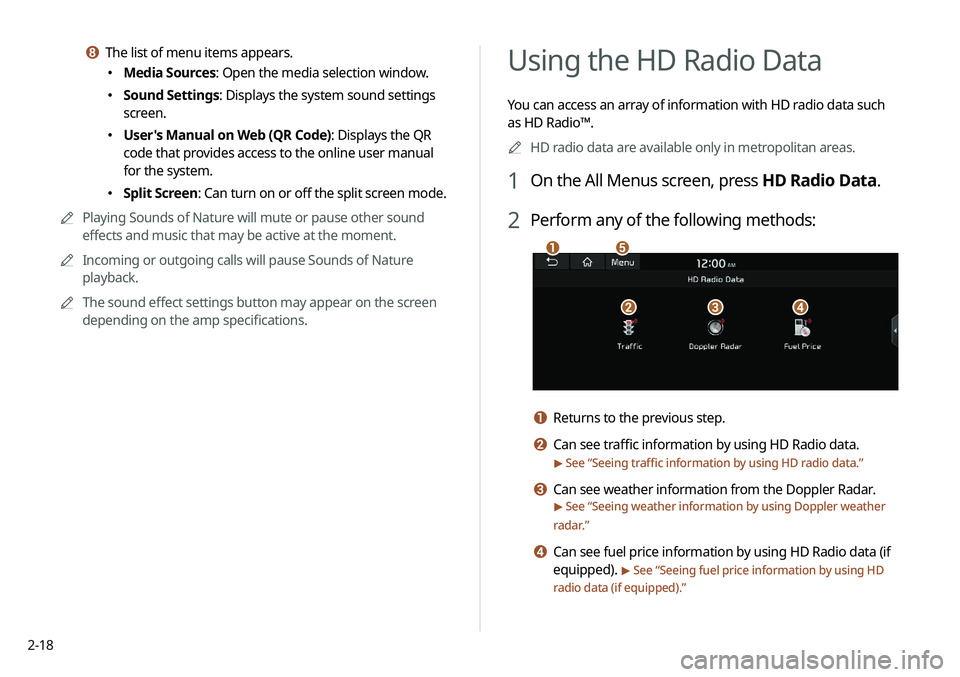
1 On the All Menus screen, press HD Radio Data.
2 Perform any of the following methods:
a
bcd
e
a Returns to the previous step.
b Can see traffic information by using HD Radio data.
> See “Seeing traffic information by using HD radio data.”
c Can see weather information from the Doppler Radar.
> See “Seeing weather information by using Doppler weather
radar .”
d Can see fuel price information by using HD Radio data (if
equipped).
> See “Seeing fuel price information by using HD
radio data (if equipped).”
h The list of menu items appears.
� Media Sources: Open the media selection window.
�Sound Settings: Displays the system sound settings
screen.
�User's Manual on Web (QR Code): Displays the QR
code that provides access to the online user manual
for the system.
�Split Screen: Can turn on or off the split screen mode.
A
A
Playing Sounds of Nature will mute or pause other sound
effects and music that may be active at the moment.
A
A
Incoming or outgoing calls will pause Sounds of Nature
playback.
A
A
The sound effect settings button may appear on the screen
depending on the amp specifications.
Page 60 of 244
2-22
c The list of menu items appears.
�Notification Popup: Set to display notifications upon
receipt in a pop-up.
�User's Manual on Web (QR Code): Displays the QR
code that provides access to the online user manual
for the system.
�Split Screen: Can turn on or off the split screen mode.
Page 62 of 244
3-2
Listening to the radio
You can scan radio channels by using various options. Save your
favorite channels to the presets list.
Perform any of the following methods:
�On the All Menus screen, press Radio.
�On the control panel, press the [
RADIO] button.
Radio screen
The radio screen provides various functions while listening to
radio broadcasts.
a
bc
i
gh
e
d
f
j
a Returns to the previous step.
b Can change the radio mode.
c Activate the HD Radio mode.
d You can change radio channels by using voice commands.
> See “Changing the channel by using voice commands.”
e Presets list
f Radio broadcast information
g You can delete or save the current frequency to the presets
list.
> See “Saving radio channels.”
h Can turn on or off the split screen mode.
i You can listen to each radio channel for a short time and
select the desired channel.
> See “Using the scan function.”
Page 63 of 244
3-3
ÝWarning
Driving while distracted can result in a loss of vehicle control
that may lead to an accident, severe bodily injury, or death. The
driver's primary responsibility is the safe and legal operation of
the vehicle, and the use of any vehicle systems, including the
touch screen and steering wheel controls, which take the driver's
eyes, attention, and focus away from the safe operation of the
vehicle, or which are not permissible by law, should never be used
during the operation of the vehicle.
j The list of menu items appears.
�Enter Station: Can select or directly enter the desired
radio frequency.
�Station List: Can see the list of available radio stations.
�FM Radio Noise Control: Customise sound quality when
listening to FM radio by adjusting background noise of the
original sound.
�Info: Turns the Radio text information transmitted from
the broadcasting station on and off.
�Delete Presets: Can delete a registered channel from the
presets list.
> See “
Deleting a registered channel.”
� Sound Settings: Displays the system sound settings
screen.
> See “
Configuring the sound settings.”
� User's Manual on Web (QR Code): Displays the QR code
that provides access to the online user manual for the
system.
�Split Screen: Can turn on or off the split screen mode.
A
A
The broadcast station names and local information are
displayed using GPS data. Those information may not appear
when there is no GPS data received.
A
A
The displayed broadcast station names may not match the
actual ones.
Page 64 of 244
3-4
Changing the radio channel
Perform any of the following methods:
�On the Radio screen, press the desired channel from the
presets list.
A
A
You can also change the channel by using the Move lever/
button on the steering wheel.
�On the control panel, press the
[ SEEK ] or [TRACK ] button.
You can move to the previous or next channel with good
reception.
� When you know an accurate frequency, turn the [TUNE/FILE]
knob on the control panel to change the frequency.
You can listen to the changed radio broadcast.
Changing the channel by using voice
commands
You can change the radio channel by using voice commands.
1 On the Radio screen, press .
2 When a guiding beep is heard, say the desired
radio station channel.
Changing the radio mode
Perform any of the following methods:
� On the Radio screen, press Band.
�On the control panel, press the [
RADIO] button repeatedly.
Page 65 of 244
3-5
Saving radio channels
You can save a specific radio station’s channel and easily access
the channel.
While listening to a broadcast, press in the
middle of the screen.
The current channel is added to the presets list.A
A
Alternatively, on the Radio screen, select Menu >
Station List
and press
of the channel you want to save. The channel
is saved to the preset list.
A
A
You can register up to 40 channels.
Using the scan function
You can listen to each broadcast briefly and select a desired one.
1 On the Radio screen, press SCAN.
Only the channels with good reception can be listened for 5
seconds in turn.
2 When you find the desired broadcast, press SCAN.
You can continue listening to the scanned channel.
Page 66 of 244
3-6
Listening to HD Radio™
You can listen to radio from HD radio stations when they are
available.
On the Radio screen, press .
When HD Radio signals are received, the radio switches from the
analog mode to the HD mode.
AAIn HD mode, the buttons for HD Radio stations appear at the
top of the radio screen. Press a button to select any available
HD radio station.
A
A
HD radio is available only in metropolitan areas.
Editing the radio channel list
Deleting a registered channel
1 At the upper left of the Radio screen, press Menu
>
Delete Presets.
2 Select the channel to delete and press Delete >
Yes .
The channel is deleted and the preset number is emptied.
A
A
When the current channel is already assigned to the presets
list, press the
icon to remove the channel from the list.


