Page 35 of 244
1-11
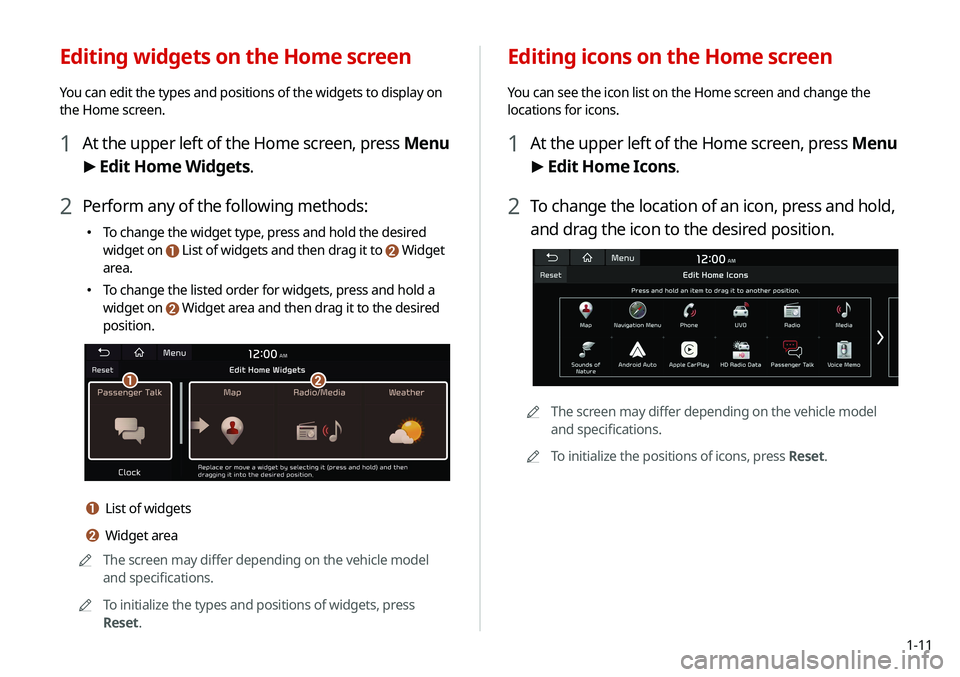
Editing icons on the Home screen
You can see the icon list on the Home screen and change the
locations for icons.
1 At the upper left of the Home screen, press Menu
> Edit Home Icons.
2 To change the location of an icon, press and hold,
and drag the icon to the desired position.
A
A
The screen may differ depending on the vehicle model
and specifications.
A
A
To initialize the positions of icons, press Reset.
Editing widgets on the Home screen
You can edit the types and positions of the widgets to display on
the Home screen.
1 At the upper left of the Home screen, press Menu
>
Edit Home Widgets.
2 Perform any of the following methods:
� To change the widget type, press and hold the desired
widget on
List of widgets and then drag it to Widget
area.
�To change the listed order for widgets, press and hold a
widget on
Widget area and then drag it to the desired
position.
ab
a List of widgets
b Widget area
A
A
The screen may differ depending on the vehicle model
and specifications.
A
A
To initialize the types and positions of widgets, press
Reset.
Page 36 of 244
1-12
Using the split screen (if equipped)
You can set to display various information such as map, Radio/
Media info, driving info, and clock on the split system screen.
Opening the split screen
Press the split screen button.
The split screen appears on the right.
AAWhen the Menu button exists at the top of the screen, you
can open the split screen by pressing Menu >
Split Screen.
Seeing the all menus screen
You can see all menus on the Home screen.
Press and gently swipe the Home screen to the left
as shown below.
The all menus screen appears. You can see the list of all functions
of the system.
AA
The screen may differ depending on the vehicle model and
specifications.
Page 39 of 244
Useful functions
Using the First Run Setup
Using the phone projection function Using the driving assist display
Using the climate control system
Using the rear-seat climate control system
Using the Passenger Talk mode in the rear seat Using the Quiet mode in the rear seatUsing the sound mood lampPlaying Sounds of NatureUsing the HD Radio Data
Seeing the driving information Seeing notifications
02
Page 40 of 244
2-2
2 When the First Run Setup screen appears, press
Start.
A
A
To use the default settings without changing the
environment, press Skip.
3 Set the language to display on the screen and
then press Next.
Using the First Run Setup
(if equipped)
You can configure the system settings for each driver when
multiple people are using the vehicle.
In First Run Setup, you can configure the values to display on the
screen such as user name, language, and map display method.
1 When a safety warning message appears, read it,
select the driver image, and then press Confirm.
AAWhen you log in as guest, you cannot configure the profile
settings. To set a different profile, select another user.
A
A
You can register up to 2 users.
Page 41 of 244
2-3
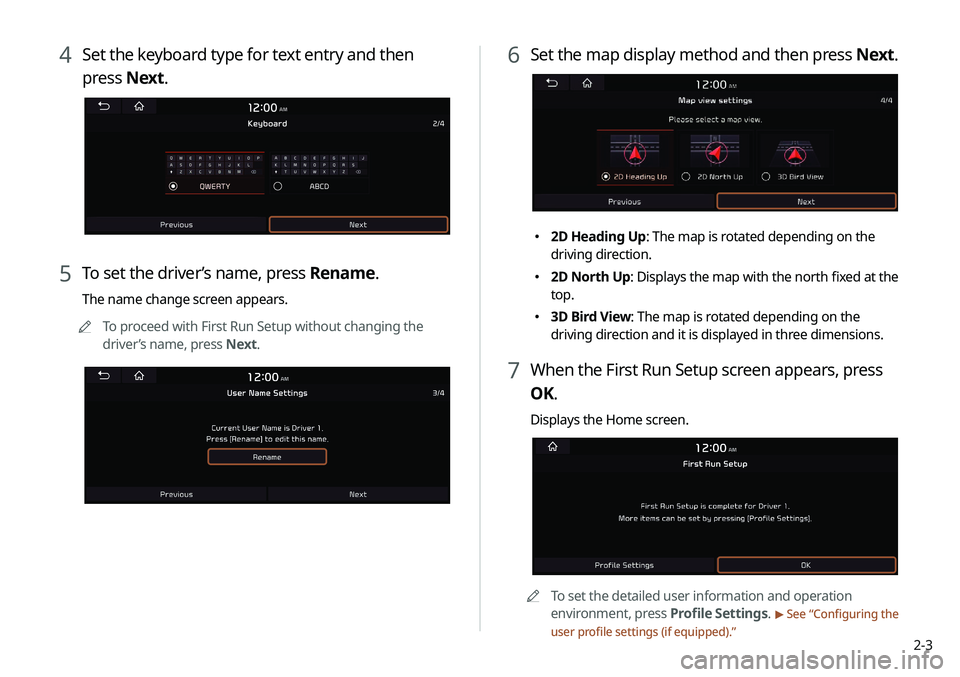
4 Set the keyboard type for text entry and then
press Next.
5 To set the driver’s name, press Rename.
The name change screen appears.
A
A
To proceed with First Run Setup without changing the
driver’s name, press Next.
6 Set the map display method and then press Next.
�2D Heading Up: The map is rotated depending on the
driving direction.
�2D North Up: Displays the map with the north fixed at the
top.
�3D Bird View: The map is rotated depending on the
driving direction and it is displayed in three dimensions.
7 When the First Run Setup screen appears, press
OK.
Displays the Home screen.
AA
To set the detailed user information and operation
environment, press Profile Settings.
> See “Configuring the
user profile settings (if equipped).”
Page 42 of 244
2-4
Using the phone projection
function
When you connect an Android smartphone or iPhone to the
vehicle with a USB cable, you can run and control applications
on the phone through the widescreen using its user-friendly
interface.
ÝWarning
Do not adjust or set up any phone settings while driving. You may
lose your steering control which could cause an accident and
severe bodily injuries.
ÜCaution
Using an approved USB cable provided by your smartphone
manufacturer is recommended. Using unapproved USB cables
may cause a phone projection error or a system malfunction.
Pairing to an Android smartphone via
Android Auto
When you connect an Android smartphone to the vehicle with
Android Auto, you can run and control applications on the phone
through the widescreen using its user-friendly interface.
1 To use Android Auto, first check the following.
�Visit the Android Auto website at https://www.android.
com/auto to check the list of countries, device types, and
models that support Android Auto.
�Download and install the Android Auto application from
Google Play Store. It is not possible to install Android Auto
in countries that do not support the feature.
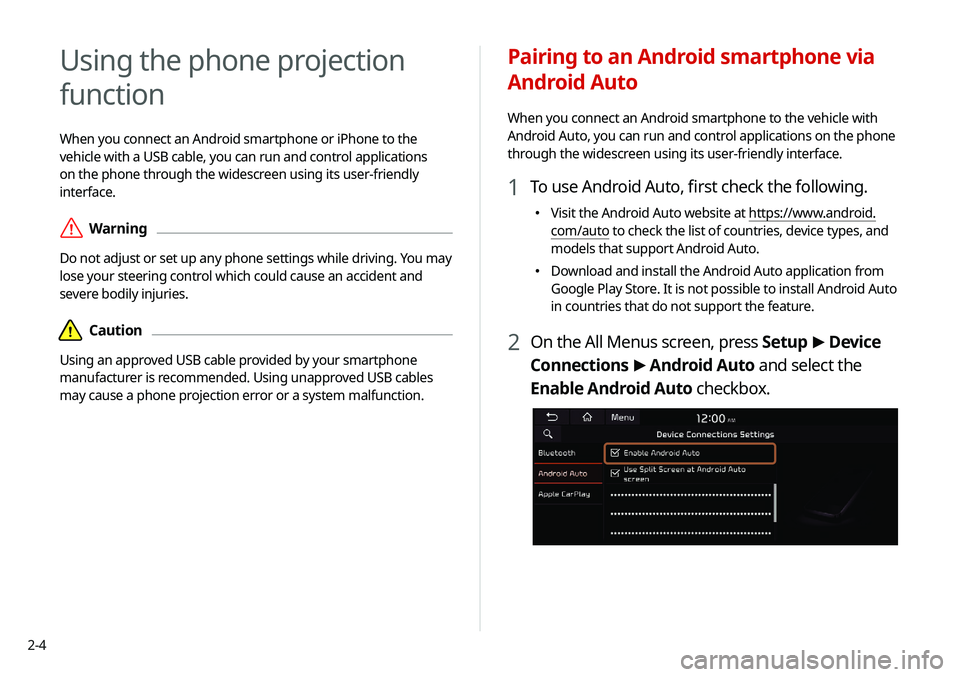
2 On the All Menus screen, press Setup
>
Device
Connections >
Android Auto and select the
Enable Android Auto checkbox.
Page 43 of 244
2-5
Using the Android Auto
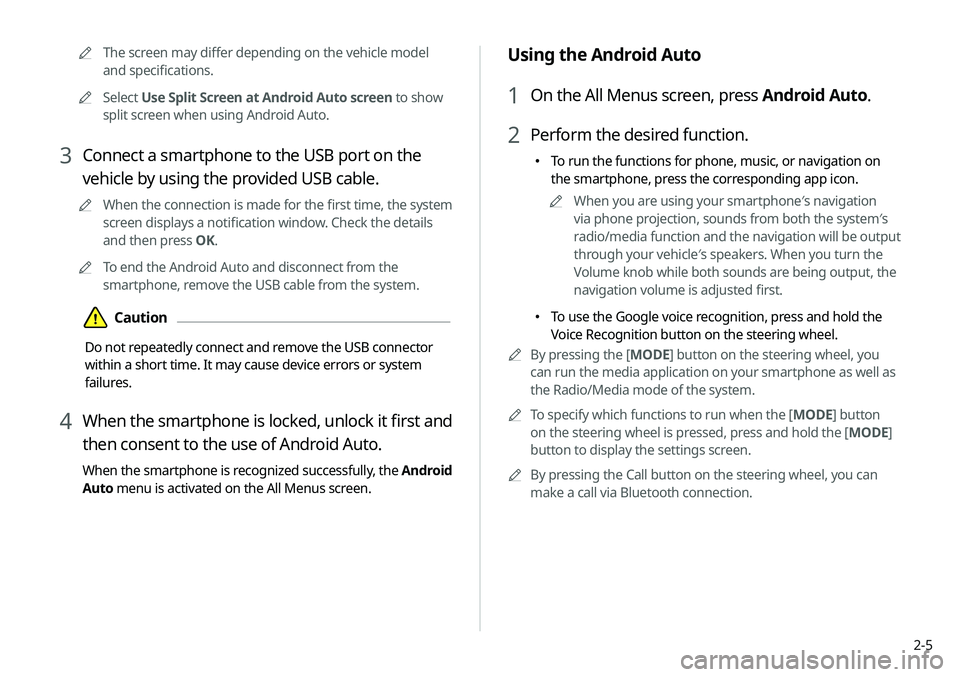
1 On the All Menus screen, press Android Auto.
2 Perform the desired function.
�To run the functions for phone, music, or navigation on
the smartphone, press the corresponding app icon.
A
A
When you are using your smartphone′s navigation
via phone projection, sounds from both the system′s
radio/media function and the navigation will be output
through your vehicle′s speakers. When you turn the
Volume knob while both sounds are being output, the
navigation volume is adjusted first.
�To use the Google voice recognition, press and hold the
Voice Recognition button on the steering wheel.
A
A
By pressing the [ MODE] button on the steering wheel, you
can run the media application on your smartphone as well as
the Radio/Media mode of the system.
A
A
To specify which functions to run when the [ MODE] button
on the steering wheel is pressed, press and hold the [ MODE]
button to display the settings screen.
A
A
By pressing the Call button on the steering wheel, you can
make a call via Bluetooth connection.
A
A
The screen may differ depending on the vehicle model
and specifications.
A
A
Select Use Split Screen at Android Auto screen to show
split screen when using Android Auto.
3 Connect a smartphone to the USB port on the
vehicle by using the provided USB cable.
A
A
When the connection is made for the first time, the system
screen displays a notification window. Check the details
and then press OK.
A
A
To end the Android Auto and disconnect from the
smartphone, remove the USB cable from the system.
ÜCaution
Do not repeatedly connect and remove the USB connector
within a short time. It may cause device errors or system
failures.
4 When the smartphone is locked, unlock it first and
then consent to the use of Android Auto.
When the smartphone is recognized successfully, the Android
Auto menu is activated on the All Menus screen.
Page 44 of 244

2-6
Pairing to an iPhone via Apple CarPlay
After you connect an iPhone to the vehicle with Apple CarPlay,
you can run and control applications on the phone through the
system screen.
1 To use Apple CarPlay, first check the following:
�For iPhone models that support Apple CarPlay, visit the
Apple website at https://www.apple.com/ios/carplay
.
�Make sure Apple CarPlay and Siri are enabled in your
iPhone settings. If you do not see options for Apple
CarPlay or Siri, update to the latest iOS version.
2 On the All Menus screen, press Setup
>
Device
Connections >
Apple CarPlay and then check
Enable Apple CarPlay.
AA The screen may differ depending on the vehicle model
and specifications.
A
A
Select Use Split Screen at Apple CarPlay screen to show
split screen when using Apple CarPlay.
A
A
When phone projection is active, you cannot change the
phone projection settings. To change the settings, remove the
USB cable from your system.
A
A
The icons on the screen are subject to change according to
the policy of Google Corporation.
A
A
Applications or functions used through Android Auto
are subject to change according to the policy of Google
Corporation. For supportable functions, visit the Android
website at https://www.android.com/auto.
A
A
To use the functions on your smartphone with the minimized
system settings, update the smartphone OS to the latest
version.
A
A
The recognition time may differ depending on the device
type, firmware, and OS version.
A
A
Charges may apply for any mobile data used while Android
Auto is running.
A
A
Some functions may not work properly depending on the
network signal strength.
A
A
Avoid interacting with the smartphone while using Android
Auto.
A
A
You cannot use the following functions when Android Auto is
in use.
USB mode
Apple CarPlay
Searches using the control panel or the steering wheel
remote control