Page 332 of 672
3325-2. Setup
SIENNA_OM_OM08007U_(U)
Display the “General Settings” screen. (P. 331)
Operations up to this point can also be performed by select the clock dis-
play at the top of most screens.
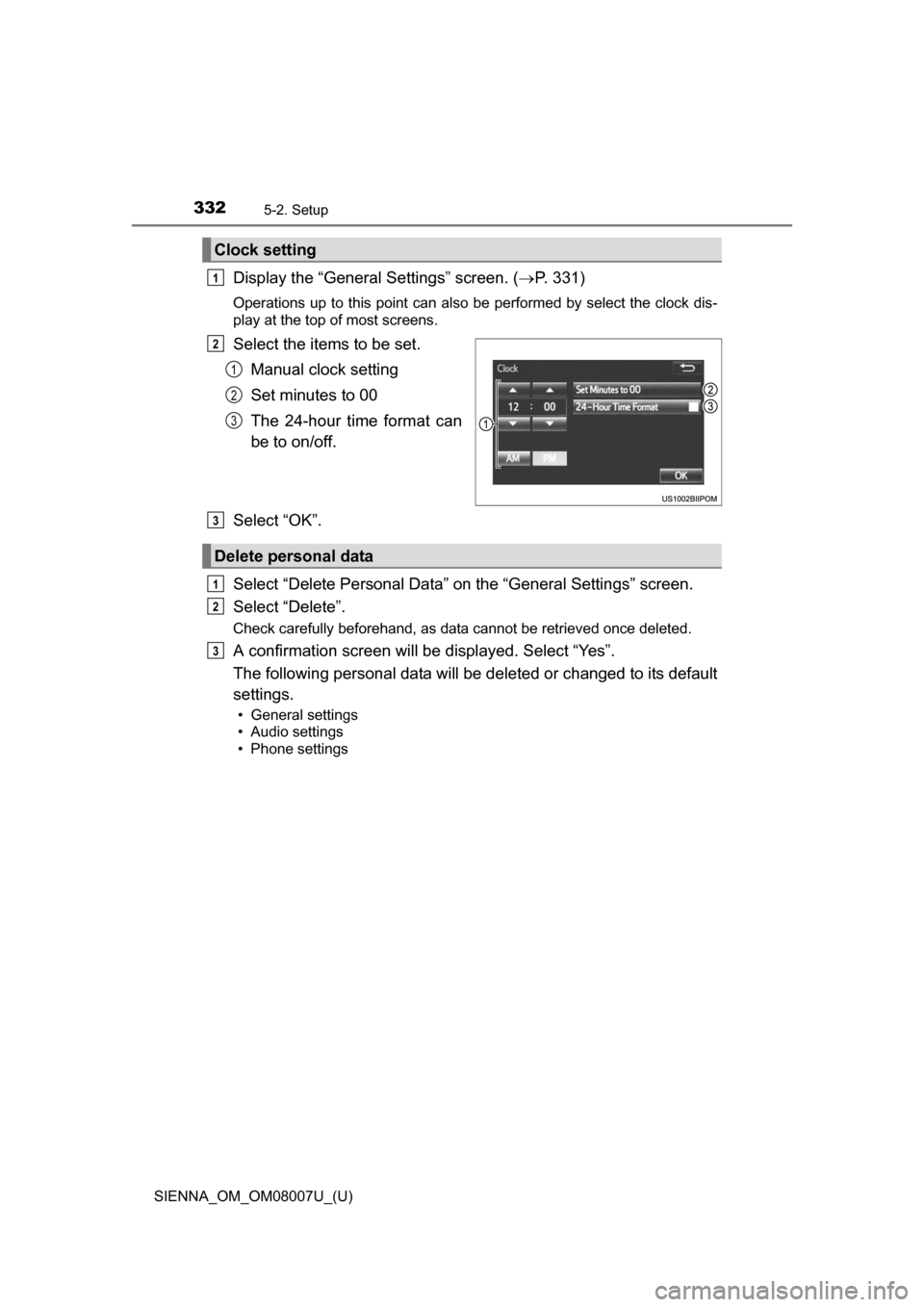
Select the items to be set.
Manual clock setting
Set minutes to 00
The 24-hour time format can
be to on/off.
Select “OK”.
Select “Delete Personal Data” on the “General Settings” screen.
Select “Delete”.
Check carefully beforehand, as data cannot be retrieved once deleted.
A confirmation screen will be displayed. Select “Yes”.
The following personal data will be deleted or changed to its default
settings.
• General settings
• Audio settings
• Phone settings
Clock setting
1
2
1
2
3
Delete personal data
3
1
2
3
Page 333 of 672
333
SIENNA_OM_OM08007U_(U)
5-2. Setup
5
Audio system
Audio settings
Press the “SETUP” button.
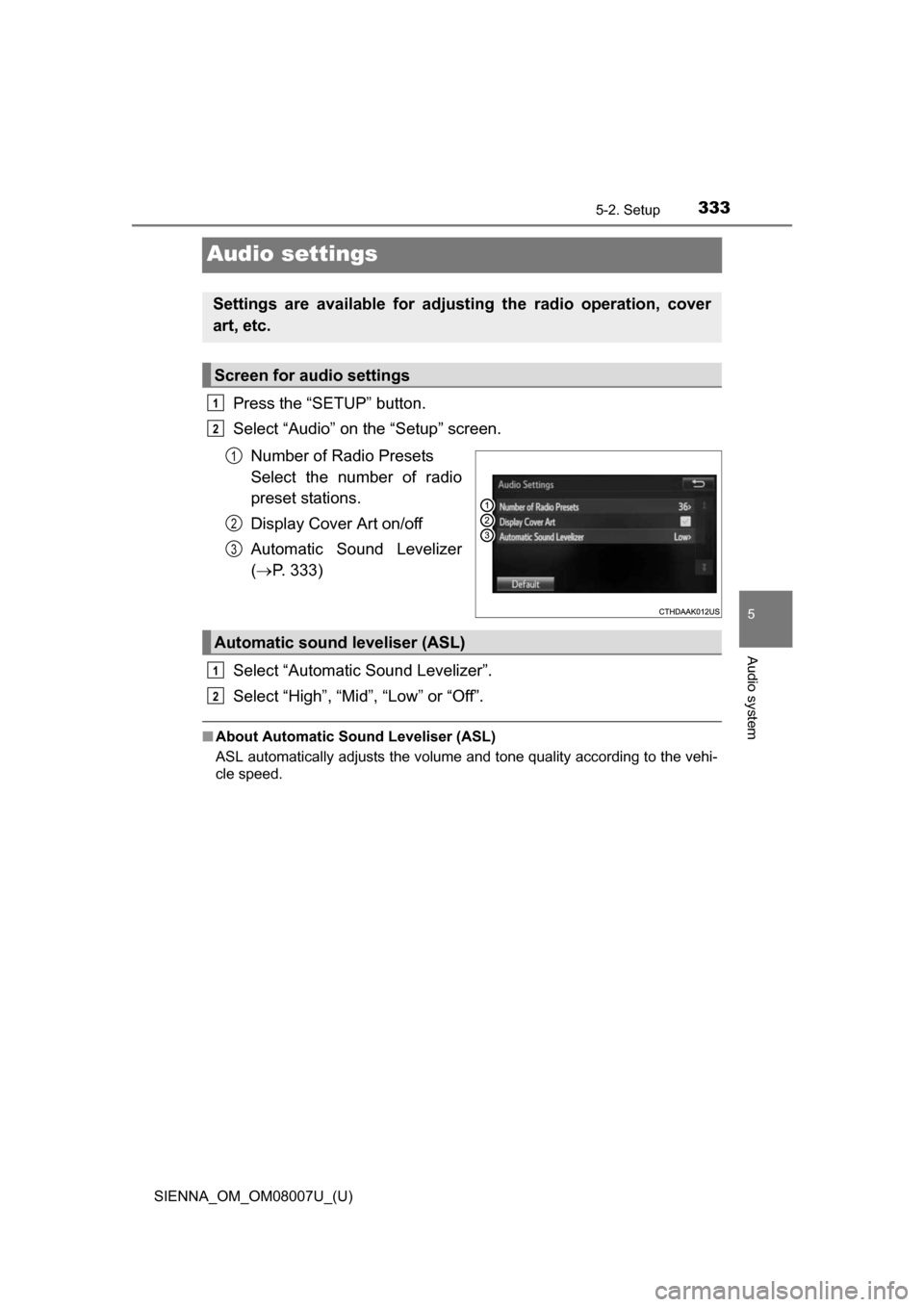
Select “Audio” on the “Setup” screen.Number of Radio Presets
Select the number of radio
preset stations.
Display Cover Art on/off
Automatic Sound Levelizer
( P. 333)
Select “Automatic Sound Levelizer”.
Select “High”, “Mid”, “Low” or “Off”.
■ About Automatic Sou nd Leveliser (ASL)
ASL automatically adjusts the volume and tone quality according to the vehi-
cle speed.
Settings are available for adjusting the radio operation, cover
art, etc.
Screen for audio settings
1
2
1
2
3
Automatic sound leveliser (ASL)
1
2
Page 334 of 672
334
SIENNA_OM_OM08007U_(U)
5-2. Setup
Display settings
Press the “SETUP” button.
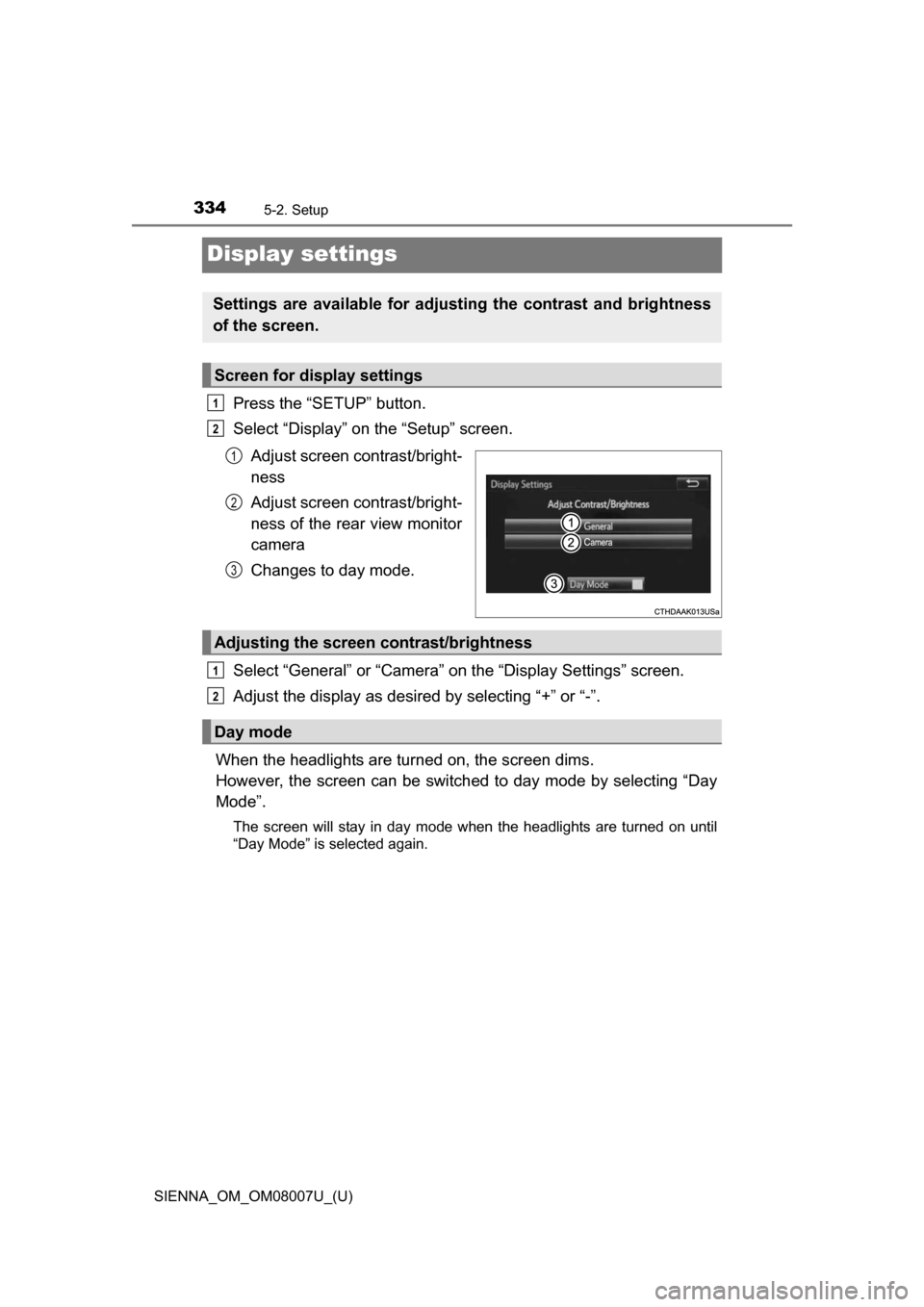
Select “Display” on the “Setup” screen.Adjust screen contrast/bright-
ness
Adjust screen contrast/bright-
ness of the rear view monitor
camera
Changes to day mode.
Select “General” or “Camera” on the “Display Settings” screen.
Adjust the display as desired by selecting “+” or “-”.
When the headlights are turned on, the screen dims.
However, the screen can be switch ed to day mode by selecting “Day
Mode”.
The screen will stay in day mode when the headlights are turned on until
“Day Mode” is selected again.
Settings are available for adjusting the contrast and brightness
of the screen.
Screen for display settings
1
2
1
2
3
Adjusting the screen contrast/brightness
Day mode
1
2
Page 336 of 672
336
SIENNA_OM_OM08007U_(U)
5-3. Using the Multimedia system
Selecting the audio source
Press the “AUDIO” button to display the audio source selection
screen.
If the audio source selection screen is not displayed, press the “AUDIO”
button again.
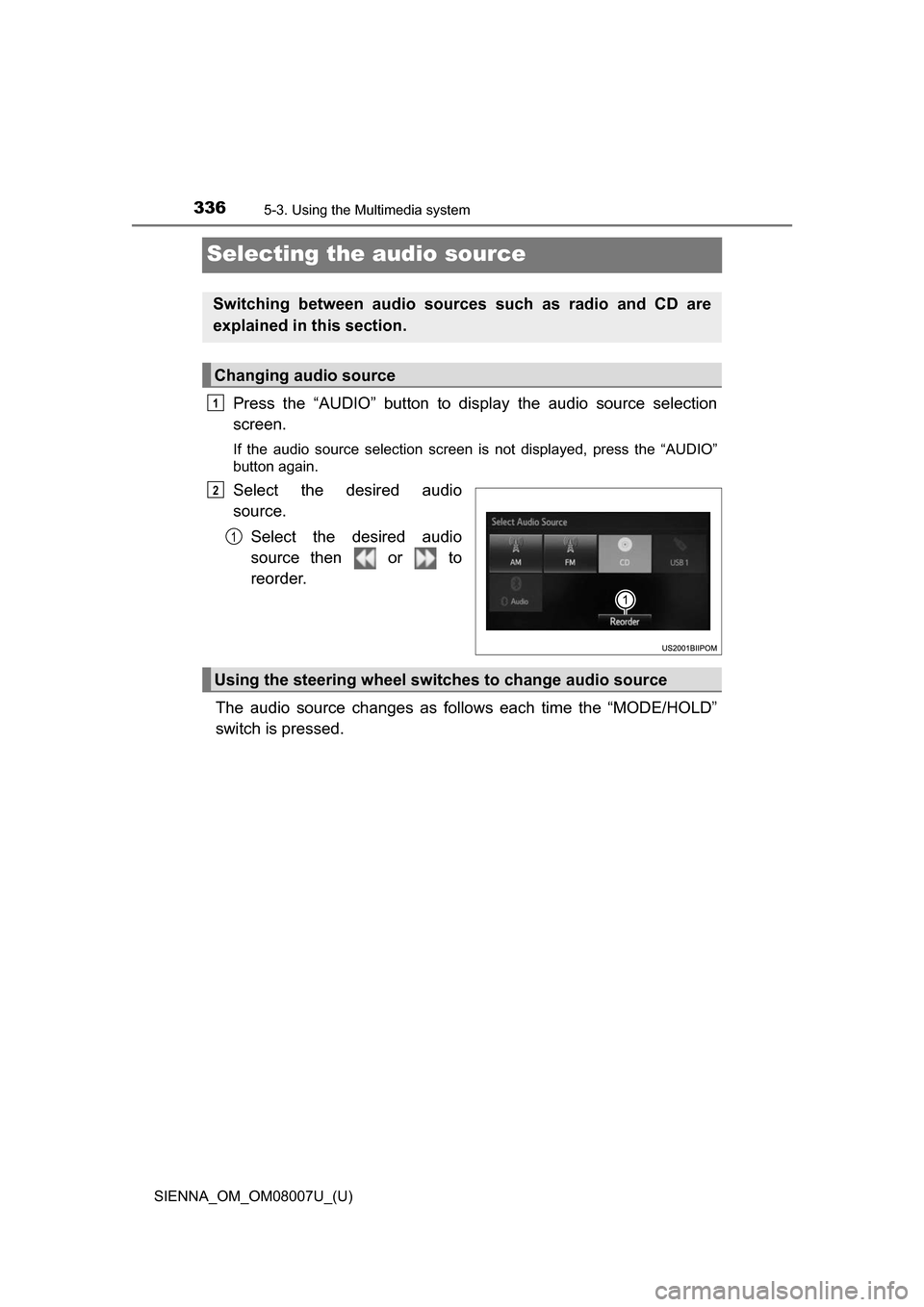
Select the desired audio
source.
Select the desired audio
source then or to
reorder.
The audio source changes as follows each time the “MODE/HOLD”
switch is pressed.
Switching between audio sources such as radio and CD are
explained in this section.
Changing audio source
1
2
1
Using the steering wheel switches to change audio source
Page 337 of 672
337
SIENNA_OM_OM08007U_(U)
5-3. Using the Multimedia system
5
Audio system
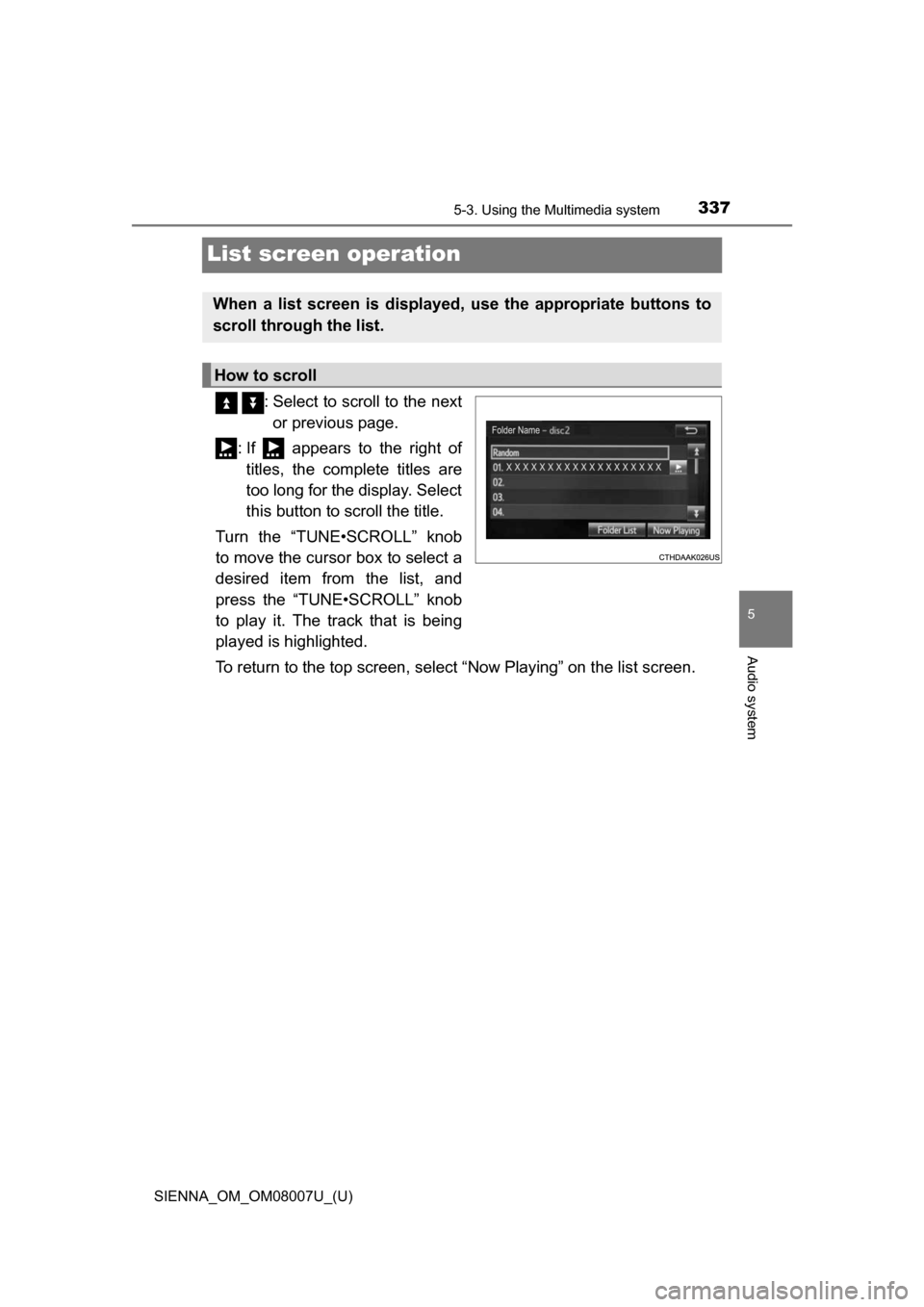
List screen operation
: Select to scroll to the next
or previous page.
: If appears to the right of titles, the complete titles are
too long for the display. Select
this button to scroll the title.
Turn the “TUNE•SCROLL” knob
to move the cursor box to select a
desired item from the list, and
press the “TUNE•SCROLL” knob
to play it. The track that is being
played is highlighted.
To return to the top screen, select “Now Playing” on the list screen.
When a list screen is displayed, use the appropriate buttons to
scroll through the list.
How to scroll
Page 338 of 672
3385-3. Using the Multimedia system
SIENNA_OM_OM08007U_(U)■
Selecting a track/file/song
Press the “
” or “” button on “SEEK•TRACK” or turn the
“TUNE•SCROLL” knob to select the desired track/file/song number.
To fast-forward or reverse, press and hold the “ ” or “” button on
“SEEK•TRACK”.
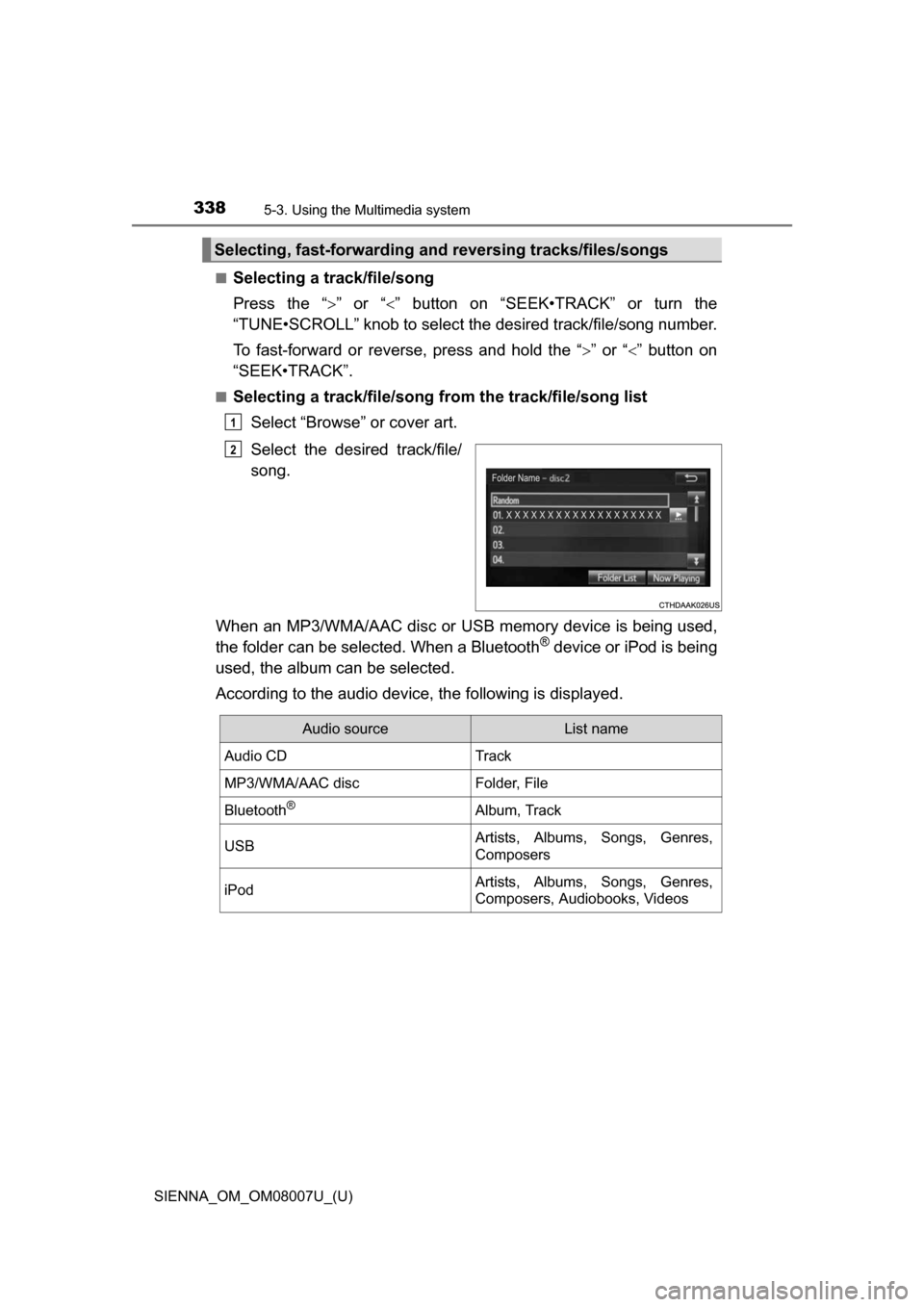
■Selecting a track/file/song from the track/file/song list
Select “Browse” or cover art.
Select the desired track/file/
song.
When an MP3/WMA/AAC disc or USB memory device is being used,
the folder can be selected. When a Bluetooth
® device or iPod is being
used, the album can be selected.
According to the audio device, the following is displayed.
Selecting, fast-forwarding a nd reversing tracks/files/songs
1
2
Audio sourceList name
Audio CDTrack
MP3/WMA/AAC discFolder, File
Bluetooth®Album, Track
USBArtists, Albums, Songs, Genres,
Composers
iPodArtists, Albums, Songs, Genres,
Composers, Audiobooks, Videos
Page 340 of 672
340
SIENNA_OM_OM08007U_(U)
5-4. Using the radio
Radio operation
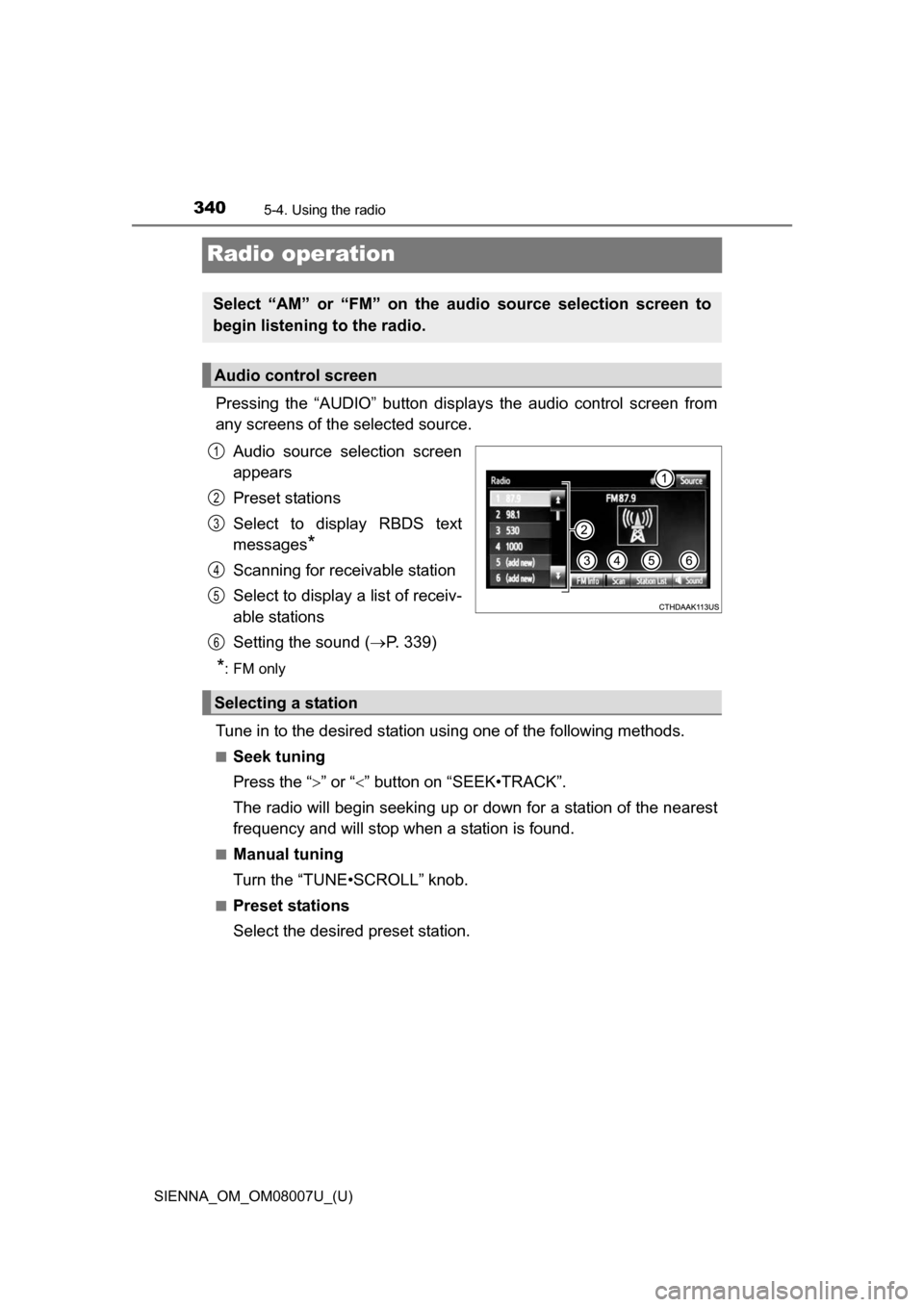
Pressing the “AUDIO” button displays the audio control screen from
any screens of the selected source.
Audio source selection screen
appears
Preset stations
Select to display RBDS text
messages
*
Scanning for receivable station
Select to display a list of receiv-
able stations
Setting the sound ( P. 339)
*:FM only
Tune in to the desired station using one of the following methods.
■Seek tuning
Press the “ ” or “” button on “SEEK•TRACK”.
The radio will begin seeking up or down for a station of the nearest
frequency and will stop when a station is found.
■Manual tuning
Turn the “TUNE•SCROLL” knob.
■Preset stations
Select the desired preset station.
Select “AM” or “FM” on the audio source selection screen to
begin listening to the radio.
Audio control screen
1
2
3
4
5
6
Selecting a station
Page 342 of 672
342
SIENNA_OM_OM08007U_(U)
5-5. Playing an audio CD and MP3/WMA/AAC discs
CD player operation
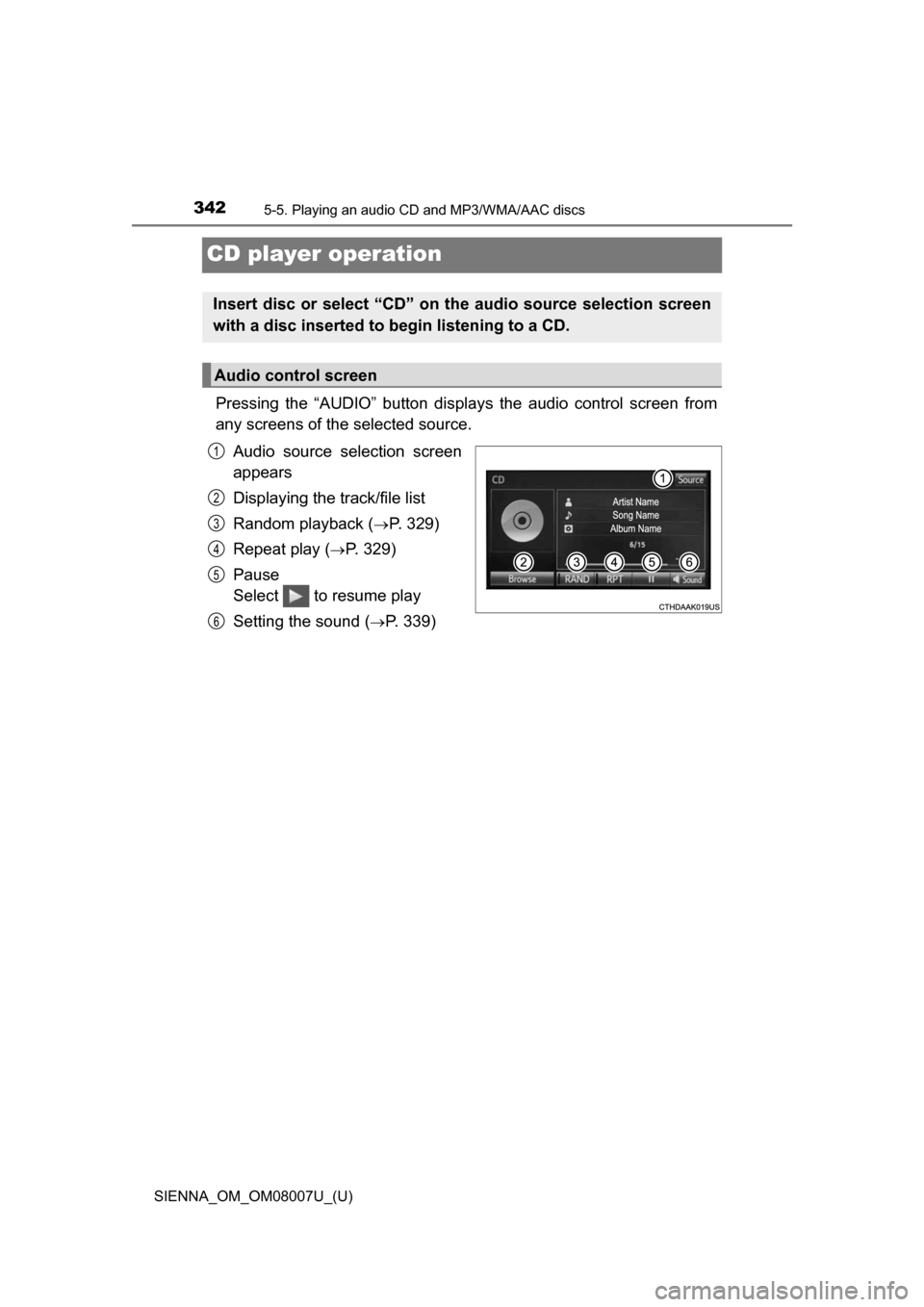
Pressing the “AUDIO” button displays the audio control screen from
any screens of the selected source.
Audio source selection screen
appears
Displaying the track/file list
Random playback (
P. 329)
Repeat play (
P. 329)
Pause
Select to resume play
Setting the sound (
P. 339)
Insert disc or select “CD” on the audio source selection screen
with a disc inserted to begin listening to a CD.
Audio control screen
1
2
3
4
5
6