Page 320 of 672
320
SIENNA_OM_OM08007U_(U)
5-1. Basic OperationsAudio system types ........... 322
Audio system .................... 323
Steering wheel audio switches .......................... 325
AUX Port/USB Port ........... 327
Basic audio operations...... 328
5-2. Setup Setup menu....................... 330
General settings ................ 331
Audio settings ................... 333
Display settings ................. 334
Voice settings.................... 335
5-3. Using the Multimedia system
Selecting the audio source ............................. 336
List screen operation......... 337
Optimal use of the audio system ............................ 339
5-4. Using the radio Radio operation................. 340
5Audio system
Page 321 of 672
321
SIENNA_OM_OM08007U_(U)
5Audio system
5-5. Playing an audio CD and MP3/WMA/AAC discs
CD player operation .......... 342
5-6. Using an external device Listening to an iPod .......... 348
Listening to a USB memory device ....... 352
Using the AUX port ........... 357
5-7. Connecting Bluetooth
®
Preparations to use wireless
communication ................ 358
Registering a Bluetooth
®
audio player for the
first time .......................... 361
Registering a Bluetooth
®
phone for the
first time .......................... 362
Registering a Bluetooth
®
device.............................. 363
Connecting a Bluetooth
®
device.............................. 365
Displaying a Bluetooth
®
device details .................. 367
Detailed Bluetooth
®
system settings ............... 368 5-8. Bluetooth
® Audio
Listening to Bluetooth®
Audio ............................... 369
5-9. Bluetooth
® phone
Using a Bluetooth®
Phone ............................. 371
Making a call ..................... 373
Receiving a call ................. 376
Speaking on the phone ..... 377
Bluetooth
® phone
message function ............ 380
Using the steering wheel switches ................ 384
Bluetooth
® phone
settings ........................... 385
Contact/Call History Settings ........................... 386
What to do if... (Troubleshooting) ............ 395
5-10. Bluetooth
®
Bluetooth®......................... 399
5-11. Using the voice command system
Voice command system .... 405
Page 323 of 672
323
SIENNA_OM_OM08007U_(U)
5-1. Basic Operations
5
Audio system
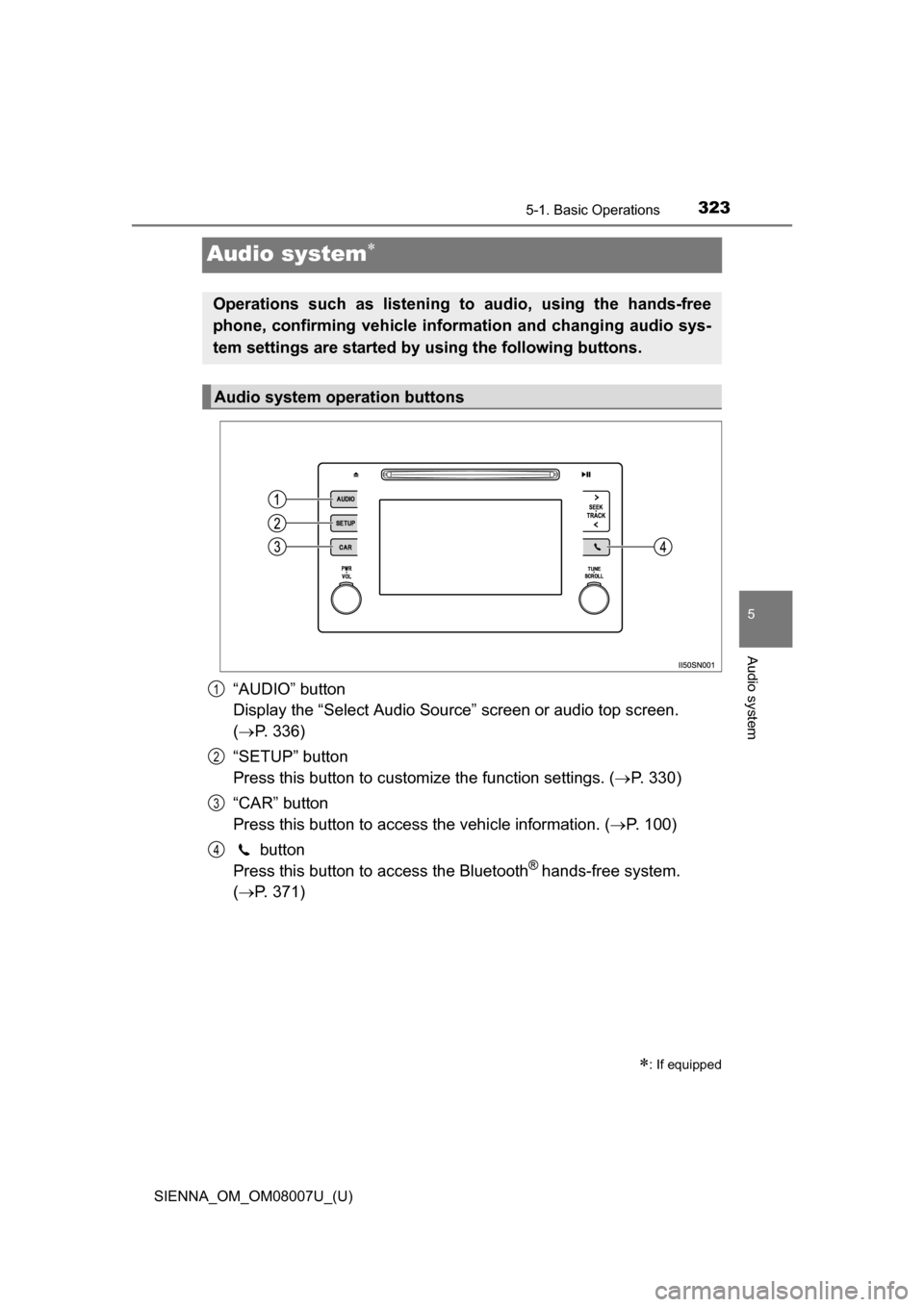
Audio system
“AUDIO” button
Display the “Select Audio Source” screen or audio top screen.
( P. 336)
“SETUP” button
Press this button to customize the function settings. ( P. 330)
“CAR” button
Press this button to access the vehicle information. ( P. 100)
button
Press this button to access the Bluetooth
® hands-free system.
( P. 371)
: If equipped
Operations such as listening to audio, using the hands-free
phone, confirming vehicle inform ation and changing audio sys-
tem settings are started by using the following buttons.
Audio system operation buttons
1
2
3
4
Page 324 of 672
3245-1. Basic Operations
SIENNA_OM_OM08007U_(U)
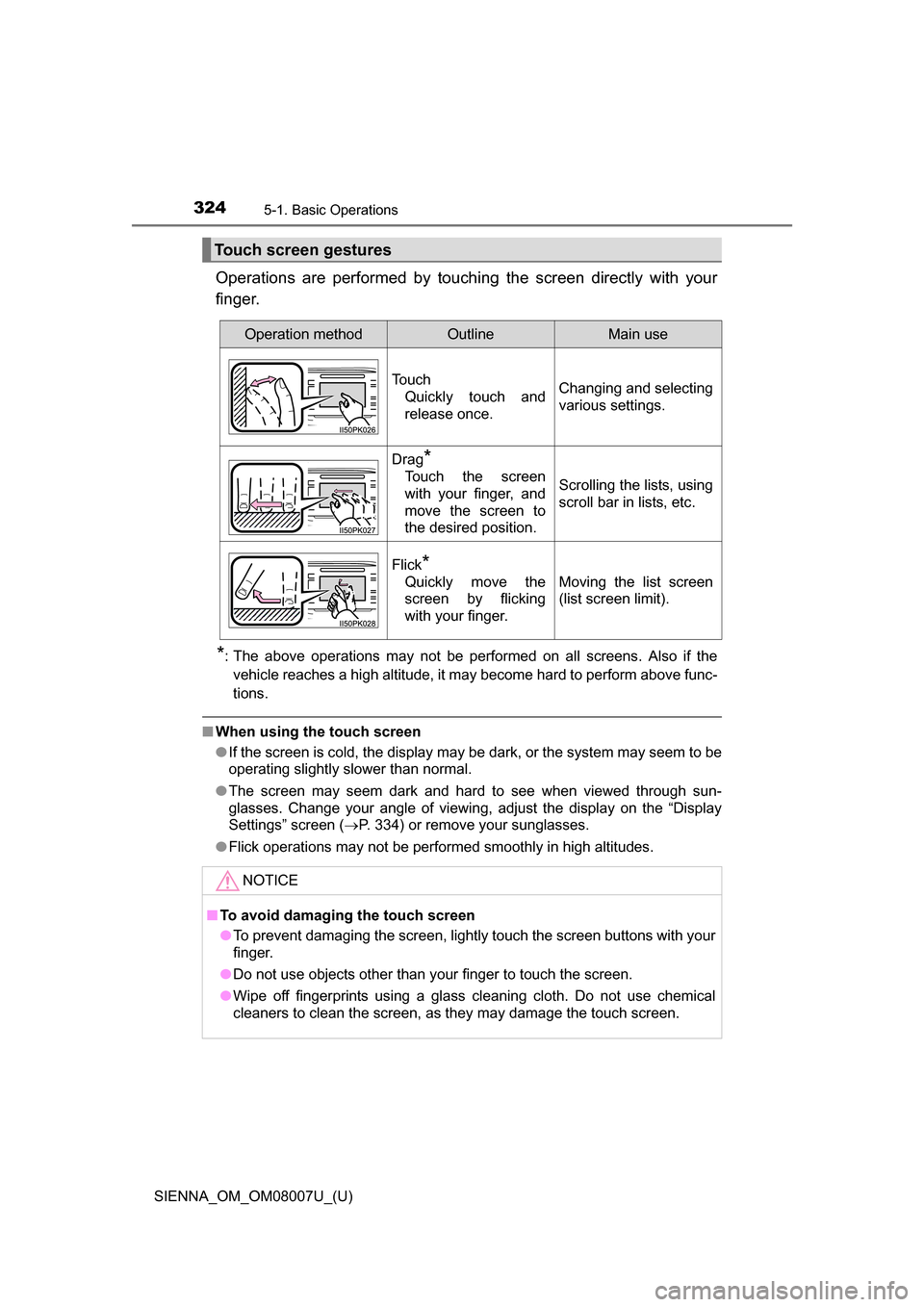
Operations are performed by touching the screen directly with your
finger.
*: The above operations may not be performed on all screens. Also if the vehicle reaches a high altitude, it may become hard to perform above func-
tions.
■ When using the touch screen
●If the screen is cold, the display may be dark, or the system may seem to be
operating slightly slower than normal.
● The screen may seem dark and hard to see when viewed through sun-
glasses. Change your angle of viewing, adjust the display on the “Display
Settings” screen ( P. 334) or remove your sunglasses.
● Flick operations may not be performed smoothly in high altitudes.
Touch screen gestures
Operation methodOutlineMain use
Touch
Quickly touch and
release once.Changing and selecting
various settings.
Drag*
Touch the screen
with your finger, and
move the screen to
the desired position.Scrolling the lists, using
scroll bar in lists, etc.
Flick*
Quickly move the
screen by flicking
with your finger.Moving the list screen
(list screen limit).
NOTICE
■ To avoid damaging the touch screen
●To prevent damaging the screen, lightly touch the screen buttons with your
finger.
● Do not use objects other than your finger to touch the screen.
● Wipe off fingerprints using a glass cleaning cloth. Do not use chemical
cleaners to clean the screen, as they may damage the touch screen.
Page 325 of 672
325
SIENNA_OM_OM08007U_(U)
5-1. Basic Operations
5
Audio system
Steering wheel audio switches
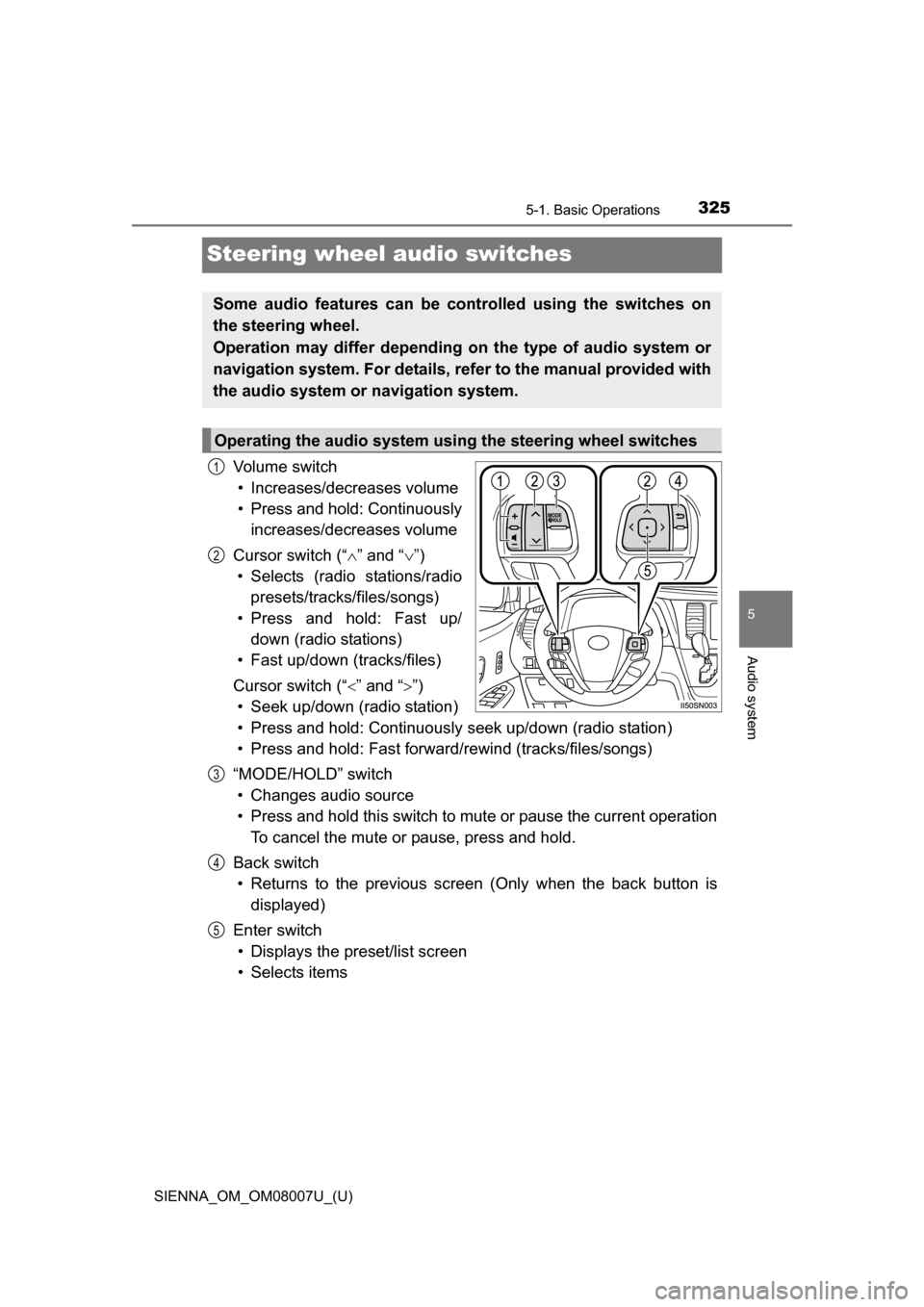
Vo l u m e s w i t c h• Increases/decreases volume
• Press and hold: Continuously increases/decreases volume
Cursor switch (“ ” and “ ”)
• Selects (radio stations/radio presets/tracks/files/songs)
• Press and hold: Fast up/ down (radio stations)
• Fast up/down (tracks/files)
Cursor switch (“ ” and “”)
• Seek up/down (radio station)
• Press and hold: Continuously seek up/down (radio station)
• Press and hold: Fast forwar d/rewind (tracks/files/songs)
“MODE/HOLD” switch • Changes audio source
• Press and hold this switch to mute or pause the current operation To cancel the mute or pause, press and hold.
Back switch • Returns to the previous scr een (Only when the back button is
displayed)
Enter switch • Displays the preset/list screen
• Selects items
Some audio features can be c ontrolled using the switches on
the steering wheel.
Operation may differ depending on the type of audio system or
navigation system. For details, refer to the manual provided with
the audio system or navigation system.
Operating the audio system using the steering wheel switches
1
2
3
4
5
Page 328 of 672
328
SIENNA_OM_OM08007U_(U)
5-1. Basic Operations
Basic audio operations
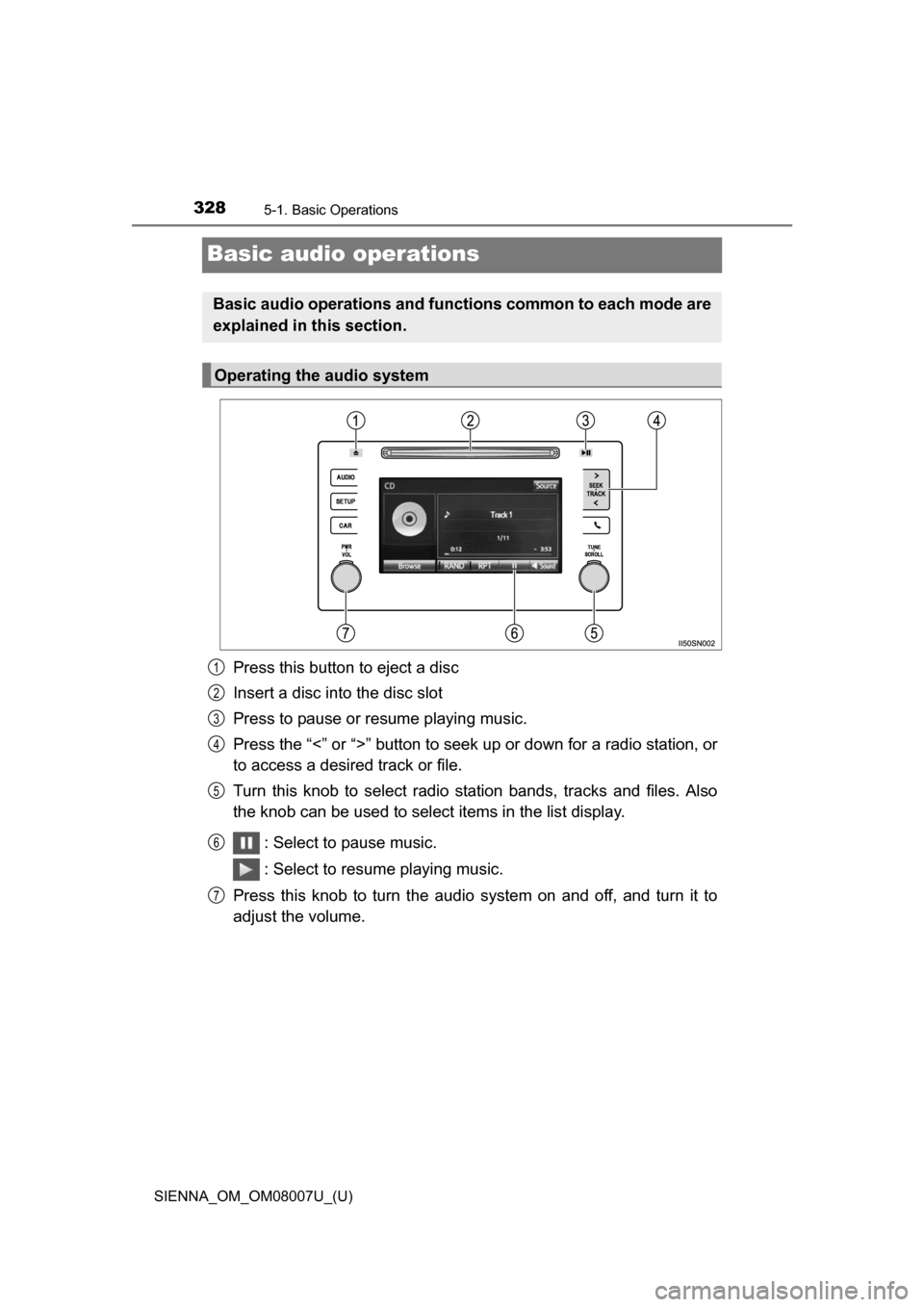
Press this button to eject a disc
Insert a disc into the disc slot
Press to pause or resume playing music.
Press the “<” or “>” button to seek up or down for a radio station, or
to access a desired track or file.
Turn this knob to select radio station bands, tracks and files. Also
the knob can be used to select items in the list display.
: Select to pause music.
: Select to resume playing music.
Press this knob to turn the audio system on and off, and turn it to
adjust the volume.
Basic audio operations and functi ons common to each mode are
explained in this section.
Operating the audio system
1
2
3
4
5
6
7
Page 330 of 672
330
SIENNA_OM_OM08007U_(U)
5-2. Setup
Setup menu
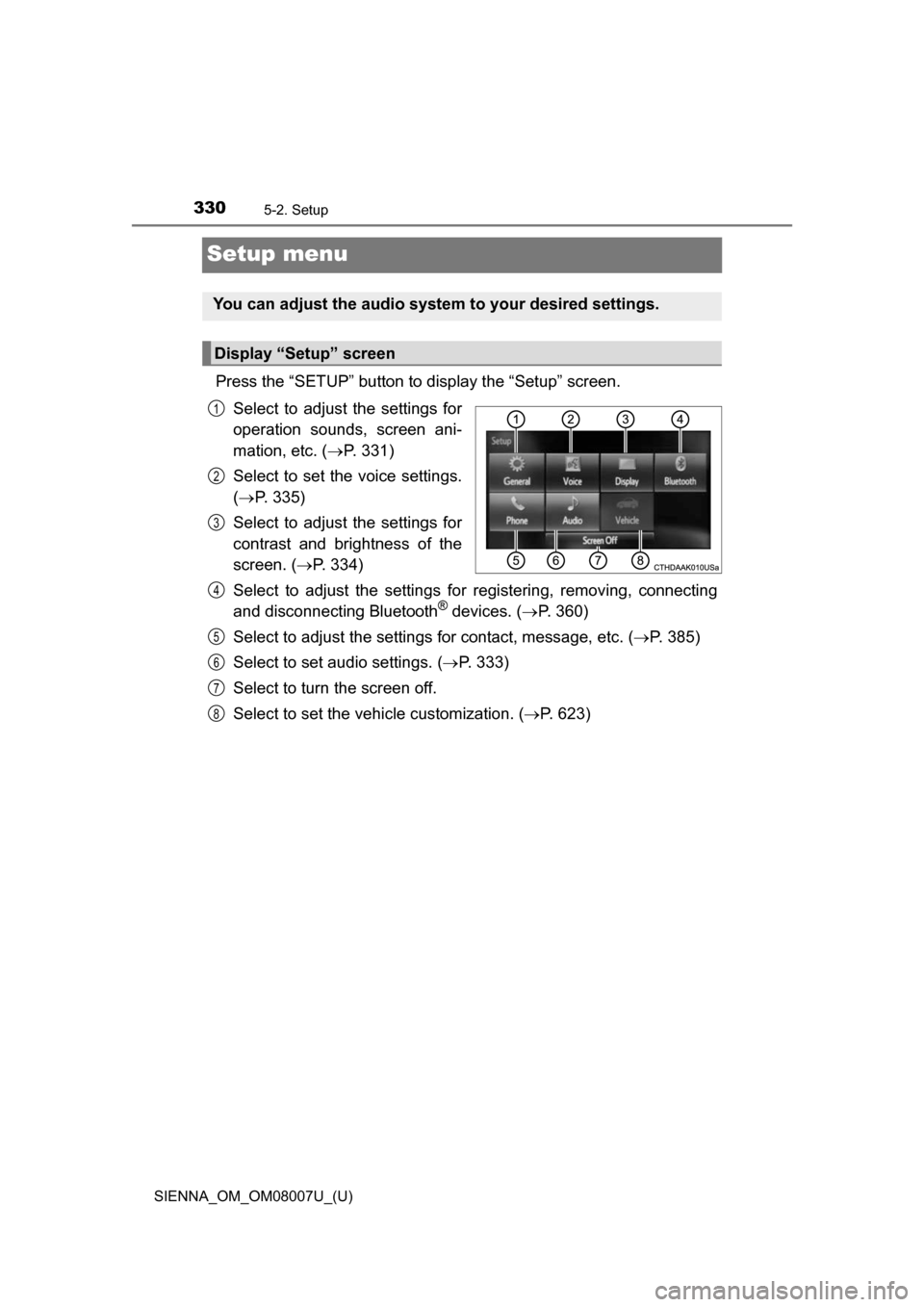
Press the “SETUP” button to display the “Setup” screen.Select to adjust the settings for
operation sounds, screen ani-
mation, etc. ( P. 331)
Select to set the voice settings.
( P. 335)
Select to adjust the settings for
contrast and brightness of the
screen. ( P. 334)
Select to adjust the settings for registering, removing, connecting
and disconnecting Bluetooth
® devices. ( P. 360)
Select to adjust the settings for contact, message, etc. (P. 385)
Select to set audio settings. ( P. 333)
Select to turn the screen off.
Select to set the vehicle customization. ( P. 623)
You can adjust the audio system to your desired settings.
Display “Setup” screen
1
2
3
4
5
6
7
8
Page 331 of 672
331
SIENNA_OM_OM08007U_(U)
5-2. Setup
5
Audio system
General settings
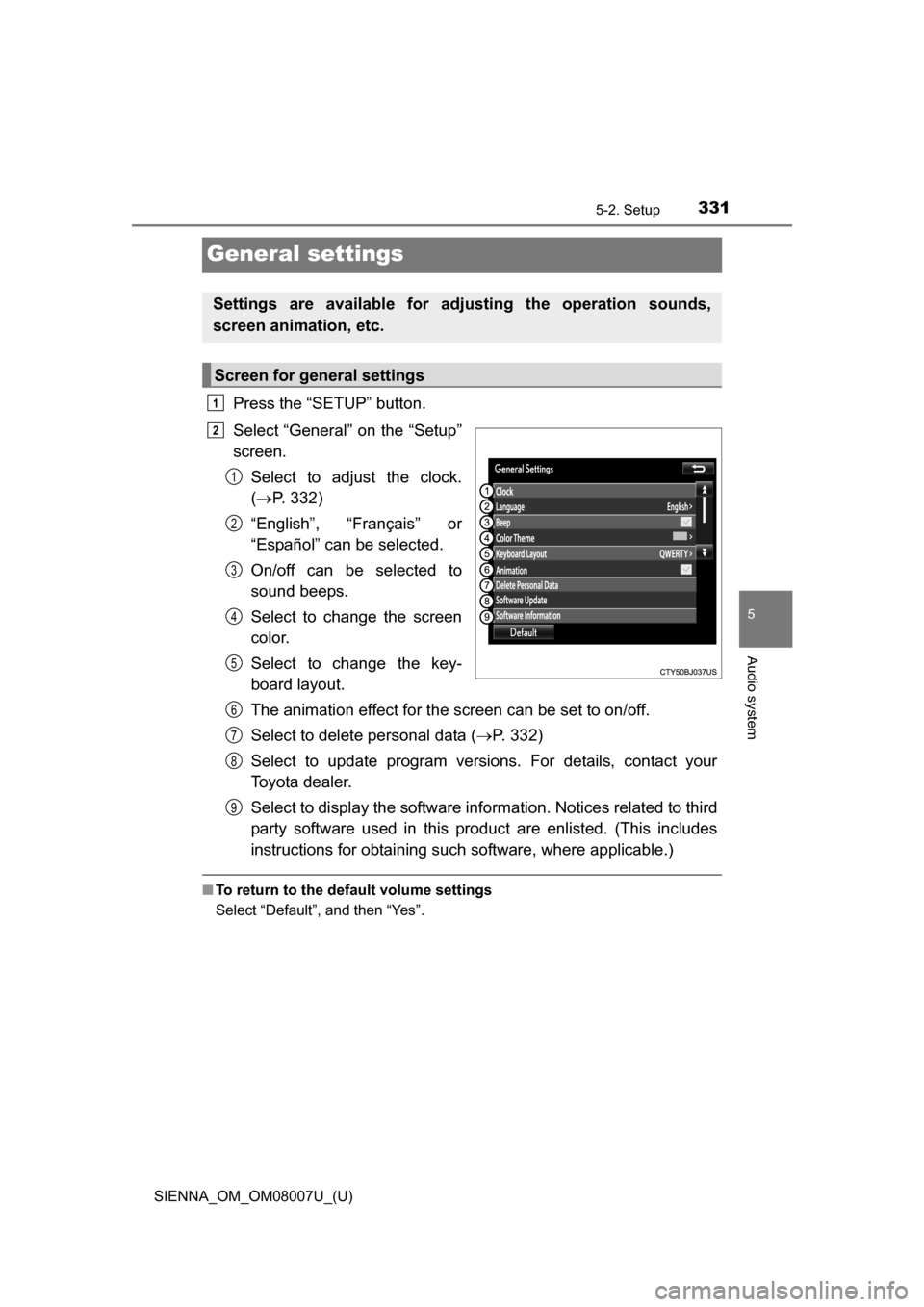
Press the “SETUP” button.
Select “General” on the “Setup”
screen.Select to adjust the clock.
( P. 332)
“English”, “Français” or
“Español” can be selected.
On/off can be selected to
sound beeps.
Select to change the screen
color.
Select to change the key-
board layout.
The animation effect for the screen can be set to on/off.
Select to delete personal data ( P. 332)
Select to update program versions. For details, contact your
Toyota dealer.
Select to display the software info rmation. Notices related to third
party software used in this pr oduct are enlisted. (This includes
instructions for obtaining such software, where applicable.)
■ To return to the default volume settings
Select “Default”, and then “Yes”.
Settings are available for adjusting the operation sounds,
screen animation, etc.
Screen for general settings
1
2
1
2
3
4
5
6
7
8
9