2017 AUDI TT ROADSTER infotainment
[x] Cancel search: infotainmentPage 84 of 314
Parking systems
Parking systems
General information
A ppl ies to: ve hicles w ith rear pa rk in g sys te m /p ark in g system
p lus
Depending on your vehicle's equipment , various
parking aids will help you when parking and ma
neuvering.
The
rear park ing system is an audible parking aid
that warns you of obstacles
behind the vehicle
c:> poge 83.
The parking system plus assists you when park
ing by audibly and visually indicating objects de
tected
in front of and behind the veh icle
c:> poge83.
The rearview camera shows the area behind the
vehicle in the Infotainment system display . The
lines in the rearview camera image help you to
park or maneuver
c:> page 84. The parking sys
tem plus functions are also available
c:> page83.
& WARNING
-Always look for traffic and check the area
around your vehicle by looking at it directly
as well. The parking system cannot replace
the driver's attention. The driver is always
responsible when entering or leaving a park
ing space and during similar maneuvers .
- Please note that some surfaces , such as
clothing, are not detected by the system .
- Sensors and cameras have blind spots in
which people and objects cannot be detect
ed . Be especially cautious of small children
and animals .
- The sensors can be displaced by impacts or
damage to the radiator gr ille, bumper,
wheel housing and the underbody . The park
ing system may be impaired as a result.
Have an authorized Audi dealer or author
ized Audi Service Facility check their func
tion .
- Make sure the sensors are not obstructed by
stickers, deposits or other materials. If they
are, the sensor function could be impaired.
For additional information on cleaning, see
c:> page266.
82
(D Note
-Some objects are not detected or displayed
by the system under certain circumstances:
- Objects such as barrier chains, trailer draw
bars, vertical poles or fences
- Objects above the sensors such as wall ex
tensions
- Objects with certain surfaces or structures
such as chain link fences or powder snow
- If you continue driving closer to a low ob
ject, it may disappear from the sensor range. Note that you will no longer be
warned about th is obstacle.
- Keep enough distance from the curb to re
duce the risk of damage to the rims .
@ Tips
-The system may provide a warning even
though there are no obstacles in the cover
age area in some situations, such as :
- certain road surfaces or when there is tall
grass.
- external ultrasonic sources such as from
cleaning vehicles .
- in heavy rain, snow, or thick vehicle ex
haust.
- We recommend that you practice parking in
a traffic -free location or parking lot to be
come familiar with the system . When doing
this, there should be good light and weath
er conditions.
- You can change the volume of the signals.
- What appears in the display is slightly de-
layed.
- The sensors must be kept clean and free of
snow and ice for park aid to operate .
Page 87 of 314
CD
CD
.... N
" N .... 0 r--. V, co
General information
Applies to: vehicles with rearview camera
Fig. 9 1 Are a co vered (!) and a rea not cove red @ bythe
r earv iew ca mera.
~
~ ;..------ ::.·~- ,.,.~ _.,- ,,,_-------- g
(Jo00oD ~
Fig. 92 Luggage compartme nt lid: locat io n of t he rear
view c amera
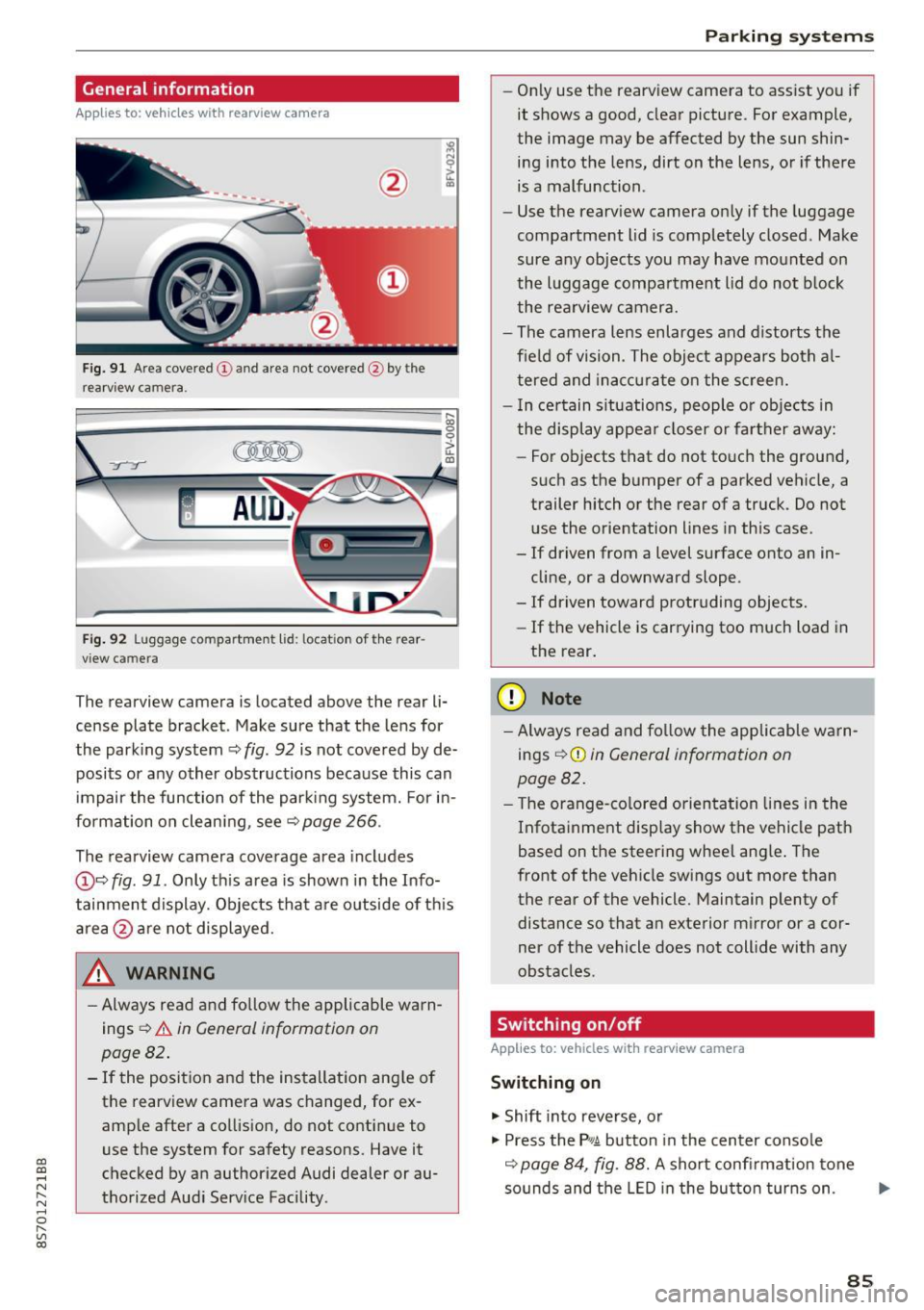
The rearview camera is located above the rear li
cense plate bracket. Make sure that the lens for
the park ing system ~
fig. 92 is not covered by de
posits or any other obstructions because this can
i mpair the function of the par king system. For in
formation on clean ing, see ~
page 266 .
The rearview camera coverage area includes
@ ~ fig . 91 . Only th is area is shown in the Info
tainment display. Objects tha t are outside of th is
area @are no t displayed.
A WARNING
- Always read and fo llow the applicable warn
ings
~ A in General information on
page 82 .
- If the position and the installation ang le of
the rearview camera was changed, for ex
amp le after a collision , do not continue to
use the system for safety reasons. Have it
checked by an authorized Audi dealer or au
thorized Aud i Serv ice Facility .
Parking systems
-On ly use the rearv iew camera to ass ist you if
it shows a good, clear pictu re. For example,
the image may be affected by the sun shin
ing i nto the lens, dirt on the lens, or if there
is a malfunction .
- Use the rearv iew camera on ly if the luggage
compa rtment lid is completely closed . Make
sure any objects you may have mounted on
the l uggage compa rtment lid do not b lock
the rea rview camera.
- The camera lens enlarges and d istorts the
field of vision. The object appears both a l
t ered and ina ccur ate on the s creen.
- I n ce rtain s itu ations, people or objects in
the display appea r closer or fa rther away:
- For objects t hat do not touc h the grou nd,
such as the bumper of a parked vehicle, a
trailer hitch or the rear of a truck . Do not
u se the orie ntation lines in this case .
- If driven from a level s urface onto an in
cline, or a downward slope .
- If driven toward protruding objects.
- If the vehicle is carrying too much load in
the rear.
(D Note
-Alw ays read and fo llow the applicable w arn
ings
¢ (D in General information on
page 82 .
- The orange-co lored orientation lines in the
Infotainment display show the vehicle path
based on the steering wheel ang le . The
front o f the vehicle swings out more than
the rear of the vehicle. Maintain plenty of distance so that a n exterior m irror or a cor
ner of the vehicle does not coll ide with any
obstacles.
Switching on/off
Applies to: vehicles with rearview camera
Switching on
.. Shift into reverse, or
.. Press the
P,qA button in the center console
~ page 84, fig. 88. A short confi rmation tone
so unds and the LED in the bu tton tur ns on . ...
85
Page 88 of 314
Parking systems
Switching off
.. Drive faster than 6 mph (10 km/h), or
.. Press the
P"1A button, or
.. Switch the ignition
off.
(D) Tips
- The visual display in the left part of the dis
play should help you detect the critical vehi
cle areas .
- You can change the volume of the sig nals
and the display
¢page 86.
Perpendicular parking
Appl ies to: ve hicles with rea rview ca mera
This view may be used when parking in a garage
or in a parking space.
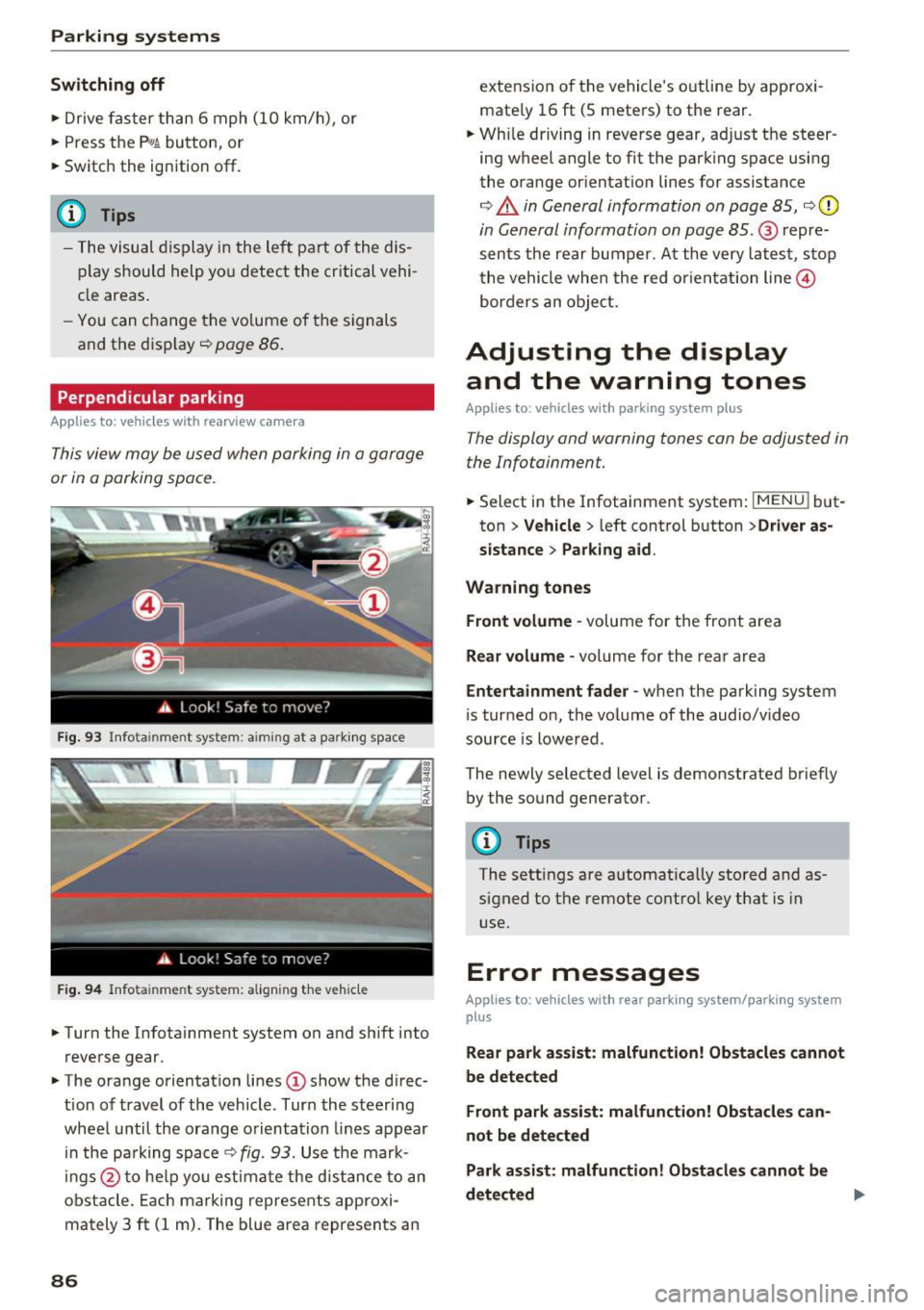
Fig. 93 Info ta inment syste m: aim ing at a pa rking space
Fig. 94 Infota inme nt sys tem: aligning the vehicle
.. Turn the Infotainment system on and shift into
reverse gear.
.. The orange orientation lines
(I) show the direc
tion of travel of the vehicle . Turn the steering
wheel until the orange orientation lines appear
in the pa rking space
c:!;> fig. 93. Use the mark
ings @to help you estimate the d istance to an
obstacle. Each marking represents approxi
mately 3
ft (1 m). The blue area represents an
86
extension of the vehicle 's outline by approxi
mate ly 16
ft (5 meters) to the rear .
.. Wh ile driving in reverse gear, adjust the steer
ing wheel angle to fit the parking space using
the orange orientation lines for assistance
¢ &. in General information on page 85, ¢(D
in General information on page 85. @ repre
sents the rear bumper. At the very latest, stop
the vehicle when the red or ientation line@
borders an object.
Adjusting the display
and the warning tones
Applies to: vehicles with parkin g sys tem plus
The display and warning tones can be adjusted in
the Infotainment.
.. Select in the Infotainment system : IMENUj but
ton
> Vehicle > left control button >Driver as
sistance> Parking aid .
Warning tones Front volume -
volume for the front area
Rear volume -volume for the rear area
Entertainment fader -when the parking system
is turned on, the volume of the audio/video
source is lowered .
The newly selected level is demonstrated briefly by the sound generator.
{!) Tips
The settings are automat ically stored and as
signed to the remote control key that is in
use.
Error messages
App lies to : vehicles wit h rear parking system/parking system
plus
Rear park assist: malfunction! Obstacles cannot
be detected
Front park assist: malfunction! Obstacles can
not be detected
Park assist: malfunction! Obstacles cannot be
detected ..,._
Page 89 of 314
co
co
.... N
" N .... 0
" "' c:o
There is a system malfunct ion if the L ED in the
p,g! button blinks when switching on the system .
If the error is not corrected before yo u switch off
the ignition, the L ED in the
P' #A button will blink
the next time you switc h on the parking system
by shifting into reve rse . As long as the error is ac
tive, you can display the error messages in the
second tab of the dr iver information system .
Parking system plus*
If a sensor or speaker is faulty, the .IM symbol
will appear in front of/behind the vehicle i n the
Infotainment d isplay . If a rear sensor is faulty,
only obstacles that are in areas
(D and
@<=:> page 83, fig . 87 are shown . If a front sensor
i s faulty , on ly obsta cles that are in areas @ and
@ are show n.
Drive to an authorized Aud i dealer o r a uthorized
Aud i Service Fac ility immediately to have the
malfunct ion corre cted.
Parking system s
87
Page 100 of 314
Multi Media Interface
Opening the selection/options menu with
the control buttons
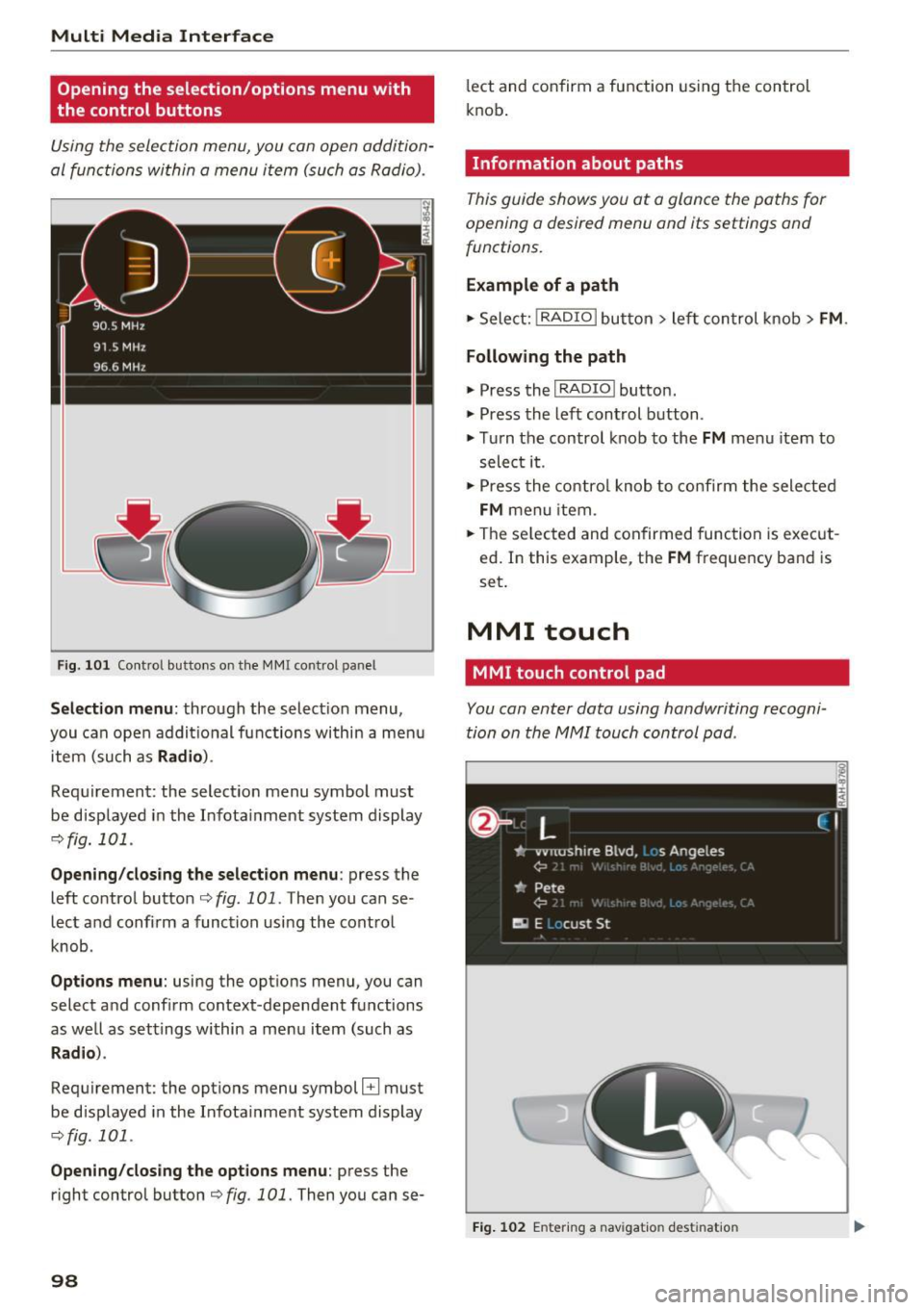
Using the selection menu, you con open addition
al functions within a menu item (such as Radio).
F ig. 101 Control buttons on the MMI control panel
Selection menu : through the select ion menu,
you can open additional functions within a menu
item (such as
Radio ).
Requirement: the select ion menu symbol must
be displayed in the Infotainment system display
¢fig. 101 .
Opening/closing the selection menu: press the
left contro l button ¢
fig. 101. Then you can se
lect and confirm a function using the control
knob.
Options menu: using the options menu, you can
select and confirm context-dependent functions
as well as settings within a menu item (such as
Rad io).
Requirement: the options menu symbol B must
be displayed in the Infotainment system display
¢fig. 101 .
Opening/closing the options menu : press the
right control button¢
fig. 101. Then you can se-
98
lect and confirm a function using the control
knob .
Information about paths
This guide shows you at a glance the paths for
opening a desired menu and its settings and
functions.
Example of a path
1-Select: ! RADIO I button> left con trol knob > FM.
Following the path
" Press the I RADIO I button.
" Press the left control button .
.. Turn the control knob to the
FM menu item to
select it .
" Press the control knob to confirm the selected
FM menu item.
" The selected and confirmed function is execut
ed. In this example, the
FM frequency band is
set.
MMI touch
MMI touch control pad
You con enter data using handwriting recogni
tion on the MMI touch control pad .
Fig. 102 En tering a nav igatio n dest ination
Page 101 of 314
CD
CD
.... N
" N ...... 0 r--. V, co
The MMI touch control pad@q page 96, fig. 97
is located on the control knob
(I)¢ page 96,
fig. 97.
Entering letters, numbers and symbols
Applies to: veh icles with MMI touch
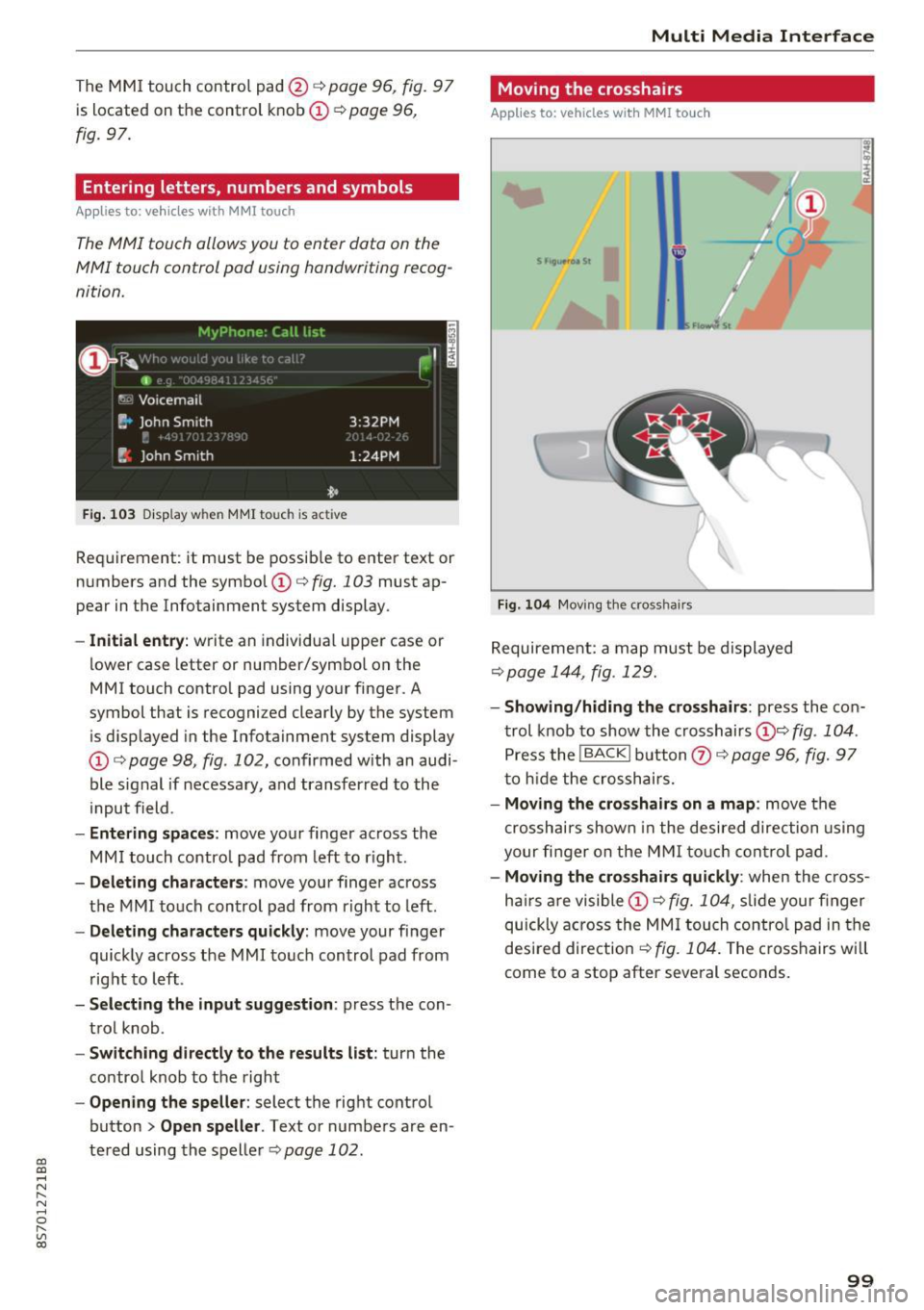
The MMI touch allows you to enter data on the
MMI touch control pad using handwriting recog
nition.
F ig. 103 Disp lay w hen MMI touch is ac tive
Requirement : it must be possible to enter text or
numbers and the symbol
(I) q fig. 103 must ap
pear in the Infotainment system display.
- Initial entry : write an individual upper case or
lower case letter or number/symbol on the
MMI touch control pad using your finger . A
symbol that is recognized clearly by the system
is d isplayed in the Infotainment system display
(I) ¢ page 98, fig . 102, confirmed with an audi
ble signal if necessary, and transferred to the
input field .
-Entering spaces: move your finge r across the
MM I touch contro l pad from left to right.
- Deleting characters : move your finger across
t h e MMI touch control pad from right to left.
-Deleting characters quickly: move your finger
quickly across the MMI touch control pad from
right to left .
-Selecting the input suggestion: press the con
trol knob .
-Switching directly to the results list: turn the
contro l knob to the right
-Opening the speller : select the right control
button
> Open speller . Text or numbers are en
tered using the speller
q page 102.
Multi Media Interface
Moving the crosshairs
Applies to: vehicles with MMI touch
Fig. 104 Moving the cross hair s
Requirement: a map must be displayed
¢page 144, fig . 129.
- Showing/hiding the crosshairs: press the con
trol knob to show the crosshairs
(!)¢ fig . 104 .
Press the !BACKI button Q) ¢ page 96, fig. 97
to hid e the crosshairs.
- Moving the crosshairs on a map : move the
crosshai rs shown in the desired direction using
your fi nger on the MMI touch control pad.
-Moving the crosshairs quickly : when the cross
ha irs are visible
(I)¢ fig. 104, slide your finger
quickly across the MMI touch control pad in the
desired direction
¢ fig. 104. The crosshairs w ill
come to a stop after several seconds.
99
Page 110 of 314

Voice recognition system
Voice recognition system Operating
Applies to: vehicles with vo ice recognition system
You con operate many Infotainment functions
conveniently by speaking.
Req uirement: the ignition and the MMI must be
sw itched on, there m ust be no p hone call in p rog
ress and the park ing system must not be active .
... Switching on : briefly press the~ but ton @
¢page 21, fig. 10 on the mu ltifunction stee r
ing whee l an d say the desired command after
the
Beep .
... Switching off :
press and hold the l2!J button.
Or: say the command C ancel.
.., Pause :
say the command Pause . To resume,
press the
l2!I button .
... Corre cting : press the ~ button one t ime
@ ¢
page 20, fig. 8. Or: say the command Cor
r ec tion .
Input assistance
The system gu ides you through the input with
visual and audio feedback .
-Visual input assistance : after switching on
vo ice recognit ion, a display with a se lection of
poss ible commands appea rs. The command
display can be sw itched on/off under
I M ENU !>
Setting s> left control bu tton > MMI setting s>
Speech dialog sy stem .
-Audio input as sistance :
to have the poss ible
comma nds read, press the
10, I button on the
mul tifunction steering wheel briefly and say
Help .
For the syst em to understand you:
Speak clearly and dist inctly at a normal volume .
Speak louder when d riving faster .
Emphasize the words in the commands evenly
and do not leave long pauses .
Do not speak a command when the voice recogni
tion system is making an announcement .
Close the doors, the windows and the sunroof* to reduce bac kground noise. Make sure t hat passen-
108
gers are not speaking when you are giv ing a voice
command .
Do no t direc t the air ve nts toward the handsfree
micropho ne, which is nea r the fron t interior
li ghts on the roof headliner/on thedriver's safety
belt*. For additional information on the safety
belt m icrophone, see ¢
page 125.
Only use the system from the dr ive r's seat be
ca use the hands free microphone is directed to
ward that seat .
Additional settings
See ¢ page 180, Voice recognition system.
.&_ WARNING
-Dire ct yo ur full attention to dr iv ing . As the
driver, you have complete responsibility fo r
safety in traffic. Only use the functions in
such a way that yo u always maintain com
plete contro l over your vehicle in a ll traffic
situations.
- Do not use the voice recognition system in
emergencies beca use your voice may change
in stressful s ituations. It may take longer to
dia l the number or the system may not be
ab le to dial it at all. Dial the emergency
number manually .
(D Tips
-The d ialog pauses when there is an incom
ing phone call and will continue if you ig
nore the call. The dia log ends if you answer
the ca ll.
- There are no navigation prompts* when a di alog is act ive .
- You can select an item in the list using ei
ther the vo ice recognit ion system or the
control knob .
Command overview
information
Appl ies to: vehicles with voice recognition system
The following overv iews describe the comma nds
that can be used to operate the MMI using the
voice recognition system. ..,.
Page 116 of 314
Telephone
Telephone Introduction
Applies to: vehicles with telephone
To make phone coils in your vehicle using the
/11/111, connect your cell phone to the /11/111 via
Bluetooth.
Hand sfree
Afte r you have connected you r ce ll phone to the
MMI via Bluetooth , you can use the handsfree
system and operate telephone functions through
your MMI. You can make calls using the antenna
on your cell phone.
A WARNING
-Med ical experts warn that cell phones can
interfere w ith the funct ion of pacemakers .
Always mainta in a m inimum d istance of 20
c ent imeters between the cell phone anten
na and the pacemaker.
- Do not carry the cell phone in a pocket di
rectly over the pacemaker when the phone
is switched on.
- Sw itch the cell phone off immediately if
you suspect it may be interfering w ith the
pacemaker.
- Do not use the vo ice recognit ion sys-
tem* c>
page 108 in emergenc ies because
your vo ice may change in stressful situa
t ions. It may take longe r to dial the number
o r the system may not be able to dial it at
all. Dial the emergency n umbe r manually .
- Switch your cell phone off in areas where
there is a risk of an exp losion . These loca
tions are not always clea rly mar ked. This
may include gas stations, fuel and chemical
storage facilities or transport vehicles, or lo cations where fue l vapors (such as propane
or gaso line vapor in vehicles or bui ld ings),
chemicals or large quantities of dust parti
cles (such as flour, sawdust or metal) may
be present in the air. This also applies to all
other locations where you would normally
turn yo ur vehicle engine off .
- The demands of traffic requ ire yo ur full at
tent ion. Always read the chapter c>
page 96,
Traffic safety information.
114
-
(D Tips
- To learn which Bluetooth connections and
wh ich of the funct ions in your cell phone are
supported, check with your cell phone serv
ice provider or the database for mobile devi
ces at
www .audiu sa.com /bluetooth .
-The Bluetooth connection range is limited
to inside the vehicle . It can also be affected
by local condit ions and interference with
other devices .
Setup
Connecting a cell phone using Bluetooth
Applies to: vehicles with telephone
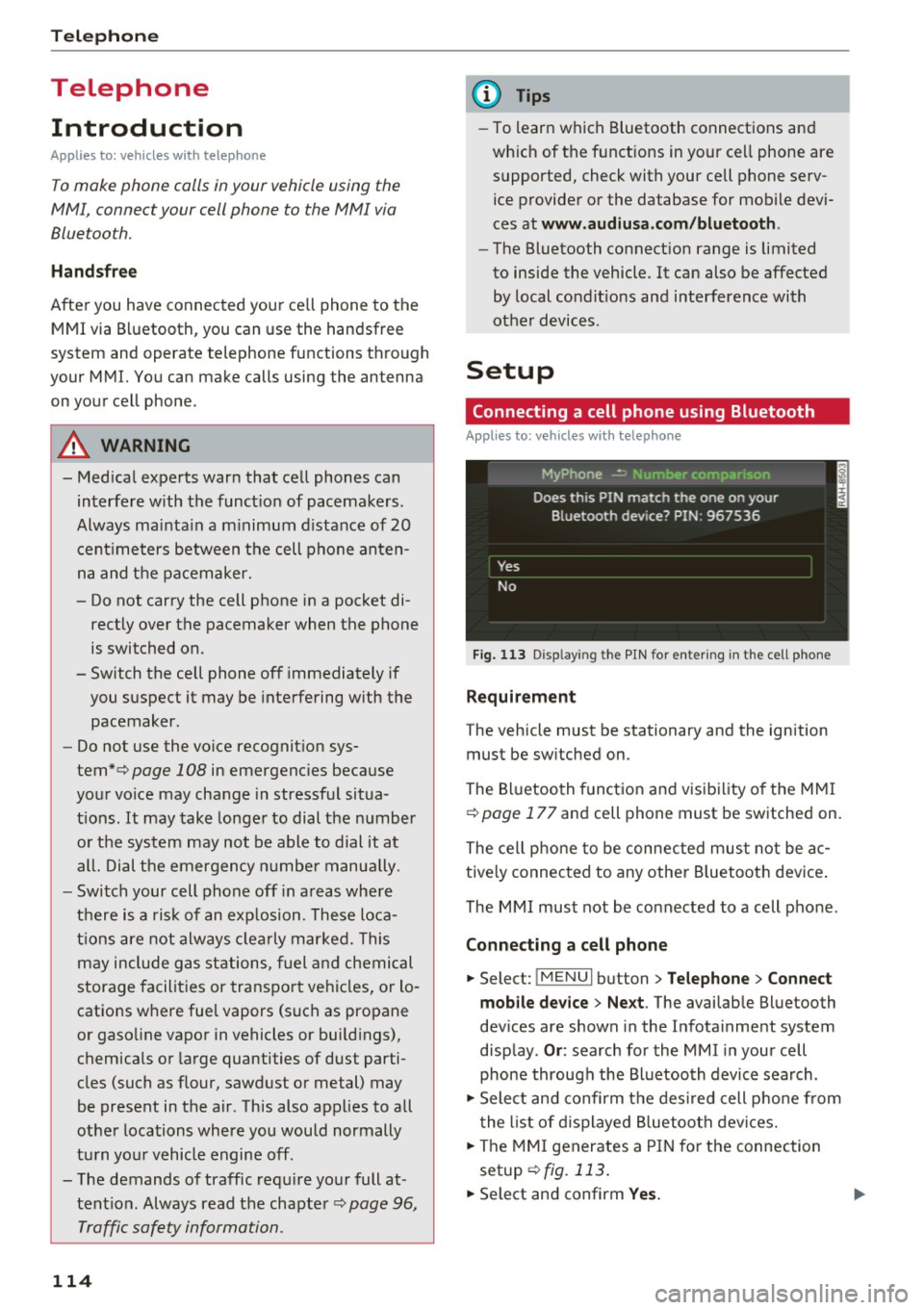
Fig. 11 3 Disp laying the PIN for entering in the cell phone
Requirement
The vehicle must be stationary and the ignition
must be sw itched on.
The Bluetooth funct ion and visibility of the MMI
c>
page 177 and cell phone must be switched on.
The cell phone to be connected must not be ac
tive ly connected to any othe r Bluetoot h dev ice .
The MMI must not be connected to a cell phone.
Connecting a cell phone
... Select: !MENUI button> Tel ephone > Connect
mob ile d ev ice > Ne xt .
The available Bluetooth
dev ices are shown in the Infotainment system
disp lay .
Or : search for the MMI in your cell
phone through the Bluetooth device search .
... Sele ct and confirm the des ired cell p hone from
the list of d isplayed B luetooth devices.
... The MMI generates a PIN for the connection
setup
c> fig. 113.
... Select and confirm Yes. .,..