2017 AUDI A3 SEDAN ac setting
[x] Cancel search: ac settingPage 210 of 400

Navigation
Alternative routes
Applies to: ve hicles w ith navigation sys tem
F ig. 191 Alternat ive ro ute disp lay in t he overv iew map
Requirement : a destination must be entered and
the route guidance must be started.
.. P ress the I N AV/MAPI button repeated ly un til
the
Enter destination menu is displayed
r=;, page 2 00, fig. 185 .
.. Select : right contro l button > Navigat ion set-
t ings > Show alternative routes .
Three routes are shown in the overview map
¢fig. 191.
.. Select and confirm the desired route that yo u
would like to use for route guidance.
Up to three route suggestions and their proper
ties are displayed on the overview map when the
function is switched
on~ r=;, fig. 191.
I f available, the following information will ap
pear on the route s uggestions:
- Ro ute type
(fast @, fast a lter nat ive @, eco
nomic
r oute @)
-Dista nce to the des tin ation and t he ca lculated
a rrival time
- T raffic congestion along t he ro ute including
t ime delays
The route that was calculated according to the
ro ute criteria you selected is show n on the over
view map . The special p rope rt ies of t he ro ute are
al so
displayed @¢ fig. 191 and given as a spo
ken message .
Using the contro l knob, you can se lect the possi
b le rou ting for the alte rnative routes and show
t hem on m ap Selec t and confi rm the desire d
route tha t you woul d like to use for route guid
ance .
208
Additional settings
Navigation settings
App lies to: vehicles with navigation sys te m
.. Press the I NAV/MAPI b utton repeatedly u nti l
t he
Enter de stinat ion me nu i s displaye d
¢page 200, fig.18 5 .
.. Sele ct: right con trol b utton> Navigat ion set-
tings .
Depend ing o n the selected fu nction, the follow
i ng settings c an be sele cte d:
Show alternative routes
Up to three suggested routes a re shown o n the
map when th is fu nction is sw itched
on~
r=;, page 208, Alternative routes.
Low fuel warning
A message is d is p layed if the fuel gauge goes be
low the rese rve marking when this function is
swi tched
on~ -Confirming this message displays
a list of gas stations in the a rea . When a gas sta
t ion is se lected, route guida nce from the cur rent
vehicle position is c alcula ted.
Trailer mode*
Tra ile r mode is switched off at the factory .
When the funct ion is switched
on ~-the max i
mum perm itted speed for vehicles with trailers is
incorporated into the route guidance and the cal
cu lated arriva l t ime is adjusted accord ingly . Trai l
er mode is displayed using symbols
-r.'11 in the s ide
m enu on the map .
Personal route assistance*
Personal route assistance is switc hed off at the
factory.
You r trips a re recorded and destinations are sug
gested by the MMI when th is function is sw itched
o n ~ r=;, page 206.
Notificat ion when nearby*
The no tifica tion when nearby is switched off at
the factory .
The M MI no tifies you w hen y ou are a pproachi ng
selected points of interest w hen th is fu nction is
...
Page 213 of 400

CXl CXl .... N r--N .... 0 N > 00
POis alon g the route
Requirement: route gu idance must be active .
Search ing for points of interest along your cur
rent route For addit iona l info rmation, see
¢page 203.
Additional options on the map
Applies to: vehicles with navigation system
.,. Press the I NAV/MAPI but ton repeated ly un til
the map is displayed
¢ page 209, fig. 193 .
.. Press the right contro l button .
D epending on the f unction selec ted, the follow
i ng options can a lso be se lected under the
Map
menu :
Cancel rout e guidan ce : see ¢ page 205.
Adju st po sition : you can manua lly move the vehi
cle pos ition on the map to change the route .
Map setting s: see ¢page 211.
Route criteria : see¢ page 209 .
Voice guidance : see ¢ page 209.
Navigation setting s: see¢ page 208.
Show alt ernati ve ro u tes : see ¢ page 208.
Parking along the route *: parking options near
the vehicle are disp layed .
Save current po sition *: you can save you r cu rrent
ve hicle position as a
favor ite¢ page 207 o r save
it as a contact in the
d irecto ry ¢ page 207 .
Audi connect at th is locat ion *: allows yo u to
sea rch fo r
Travel information at the entered lo
cation (events, weather a t the destination, etc.) .
Online traffic data*: you ca n sw itch the on line
traffic data on o r
off~.
Country inform ation : see¢ page 205.
Avoid route* : when route guidance is active, the
calculated route wi ll avoid the area you have
specif ied (max imum: 12 mi (20 km)), if possible .
The navigation system ca lculates an alternat ive
route. The route to be avoided that you have en
tered applies only to the c urrent route and must
be set again, if needed. The a reas yo u have se-
Na vigation
lected to avoid w ill appear with red and white
shading on the map.
Mov e rout e*: move your f inger over the MMI
touch co ntro l pad* o r use the contro l knob to ad
just the route on the overview map.
Map settings
Appl ies to : vehicles with navigat ion system
.. Press the I NAV/MAPI button repeatedly unti l
the map is displayed.
.,. Select: r ight control button > Map settings .
Depending on the selected function, the follow
ing settings can be selected :
Map colors
Day /Night :
the map is disp layed w ith a light/
dark backgrou nd.
Automatic: the map disp lay adapts to the light
i ng cond it io ns (for examp le, chang ing from
Day
to Night when dr iving through a t unnel).
Map display
Standard :
see c>page 209 , fig. 194.
Online map view : see c>page 212.
Ele ctric range : Refer to ¢ page 216.
Map orientation
Destination :
the map indicates the destination
and is or iented to the no rth.
2D head ing up map /2D no rth up map : the cur
rent vehicle pos ition is displayed . The map is ori
ented in the di rect ion of t ravel o r to the north .
3D posit ion map *: the current vehicle position is
shown on a three-dimens ional map and is aligned
to the direction of travel. At a scale of 62 mi
(100 km) and larger, the map or ientat io n is to
the north.
O ver vie w: the entire route from the vehicle pos i
t ion to the destination or the next stopover is d is
played on the map . The map scale depends on
the length of the route and adapts automatically.
T he map is orie nted to the north.
..,.
211
Page 214 of 400

Navigation
Route information
The display of route information, such as t he cur
ren t street be ing drive n on or po ints o f in terest
a long the c urrent route, can be switched on/off
or can be min imized on the display of upcomi ng
maneuvers.
Automatic zoom
On : the map scale is adap ted automatica lly de
pending on the type o f road being trave led (e x
p ressway, highway, other roads) so that you al
ways have an optimal overv iew o f the road a head .
The sca le is a lso automatica lly adapted when
there a re upcoming maneuvers to p rovide a bet
ter deta iled view.
Intersection : when route gu idance is active , the
map tempora rily zooms in to a detailed scale
when there are upcom ing mane uvers so that you
can see t he street or t urn better.
Off : the map scale yo u have chosen is main
tained .
Map content
Map content s uch as weather, tra ffic infor mation
or favorites can be displayed or hidden.
T he weather fo recas t* is d isp layed o n a 3 m i (5
k m ) s cale on the m ap
¢ page 208, f ig. 191 .
Online map display
Applies to: vehicles with navigation system and Audi connect
(Infotainment)
With the onlin e map view, you can display the
map with satellite images.
F ig . 19 5 Online map v iew
212
Fig. 196 M ap view w ith o nline St reet View
Requireme nt: The requirements for Audi co nnect
(Infotainment) must be met
¢ page 190.
.,.. Press the I NAV/MAP I button repeatedly u nti l
the map is displayed.
.,.. Select: right control b utton> Map settings >
Map display > Google Earth .
The map dis pl ay is based on da ta packets re
ce ived from the Inte rnet in the form of satellite
images, w hich are then combined with the road
ways from the
Standard map v iew. There a re two
gigabytes of memory space in the MMI memory
that can be used to tempora rily store the map or
navigation da ta that was rece ived . This is roughly
the amo unt requir ed fo r th e map/naviga tion data
fo r a 2, 485 mile (4,0 0 0 k m) ro ute. As lo ng as the
s ate llite ima ges l oaded for route guid ance are
stored, you can use them wi thout h avi ng an ac
tive data connect ion .
Street View
With Stree t View, you can explo re ma ny p lac es in
th e wo rld thr ough t he eyes of a pedes tria n.
S tree t View is availa ble w hen the
sy mb ol(!)
¢ fig. 195 is displayed in t he cross ha irs mode.
Activating street view : turn t he con trol knob to a
s c a le le ss th an 32 yar ds (3 0 m) .
The following functions a re then available :
-Exploring an area step-by-step : press the con
trol knob when t he
symbol @¢ fig. 196 is dis
played.
- Zooming in or out on the current view in four
stages :
turn the control knob to the left or to
the rig ht ®
c:> fig . 196 .
-Navigating in street view : move your finger in
the desired direction on the MMI touch contro l
pad*.
Page 215 of 400

a, a, ..... N
" N ..... 0 N > 00
Additional information
Showing additional informat ion in the Infotain
ment system disp lay can be switched on in the
Map content menu ¢page 212. To display any
applicable additional information, move the
crosshairs onto an item on the map and press the
control knob.
(D Tips
- The stored online map view data can be de
leted in
Factory sett ings > Navigation and
on line memory
¢ page 242.
- The online map view is an Audi connect In
fotainment service and is regu larly updated
when the function is opened. The process
may take several seconds.
- When the on line map view is switched on
using the 30 position map, the MMI display
a utomat ically switches to the 20 map orien
tation when driving through tunnels.
- For safety reasons, the Street View func
tions can o nly be used when the vehicle is
stationary .
- Always read the chapter
¢ page 196, Audi
connect (Infotainment) general informa tion.
- Additional informat ion can be found under
www.audiusa.com /audiconnect .
Map update
Introduction
Applies to: vehicles with navigation system
There are multiple options available for updating
your map mater ial:
- Map updates through the
on line map update*
¢page 213.
-Import map updates from the SD card to you r
MMI. You can find add itional information on
line at
my.audiusa.com.
-Map update at an authorized Audi dealer or au
thorized Audi Service Facility. This can result in
additional costs.
Navigation
Online map update
Applies to: vehicles with navigation system and Audi connect
(Infota inmen t)
Using the online map update, you con update
the map material in your navigation system di
rectly from your vehicle.
Fig. 197 Example: display of a new on lin e m ap update
Fig. 198 Example: selection of a country package
Requirement:
The requirements for Audi connect Infota inment
services must be
met¢ page 190.
You must have a myAudi account and have as
signed your vehicle to it.
Using your vehicle position, the MMI identif ies
regions which you are frequently in. Based on
this, the MMI suggests update packages for
these regions, if they are available .
.. Select(!) Start download ¢ fig. 197 if the mes
sage for a new map update appears in the Info
tainment system display.
Or :
.. Select iMENU ! button> Settings> left control
button >
System maintenance > System up
date
> Online update.
A selection with the available update packages
appears in the Infota inment system display
¢ fig . 198 .
213
Page 218 of 400

Navigation
reports of traffic situations as well as traffic
forecasting. Your vehicle transmits and
processes its anonymous, encrypted posi
tion information at regular intervals to the
traffic data provider. If you do not want to use this, you can switch off the
on line traf
fic information
function at any time .
- The
online traffic information network is
currently not available in all countries, and
the coverage is not nationwide. Additional
in format ion can be found unde r
www.audiusa.com/audiconnect .
e-tron navigation
functions
Electric range
Applies to: ve hicles w ith p lug -in hybr id drive
The electric range shows the maximum distance
that can be driven using electric power. Informa
tion such as the type of road, speeds, and alti
tude will be taken into account.
F ig. 200 Example: elect ric range d isp lay
Troubleshooting
A pplies to: ve hicles with navigat ion system
Problem Solution
.,. Press the I NAV/MAPI button repeatedly until
the map is
displayed ¢ page 209, fig. 194.
.,. Select: right control button> Map settings>
Map display > Electric range .
.,. Press the I BACKI button to return to the map
view.
You can read the electric range of your vehicle
based on the white border
(D ¢ fig. 200.
The map scale will automatically adjust to the
range.
Finding the nearest charging station
App lies to: vehicles wit h pl ug -in hyb rid drive
You can display the nearest charging stations at
any time using the point of interest search
<:!> page 203 .
Requirement: Route guidance must be active and
the map must be d isplayed .
.,. Select: left control button > POis along the
route > Charging station.
All charging stations in the selected search area
are displayed. You can find additional in forma
tion about charging your veh icle
in ¢ page 106,
Charging.
Free text search: the desired des- The destination might not be entered in the navigation database.
ti nat ion cannot be found .
Or: check the spelling of the search term and if the right country/
state was selected using for the free text search using the
Coun-
try/state selection
c::;,page 205 .
216
Page 219 of 400
Radio
Opening the radio
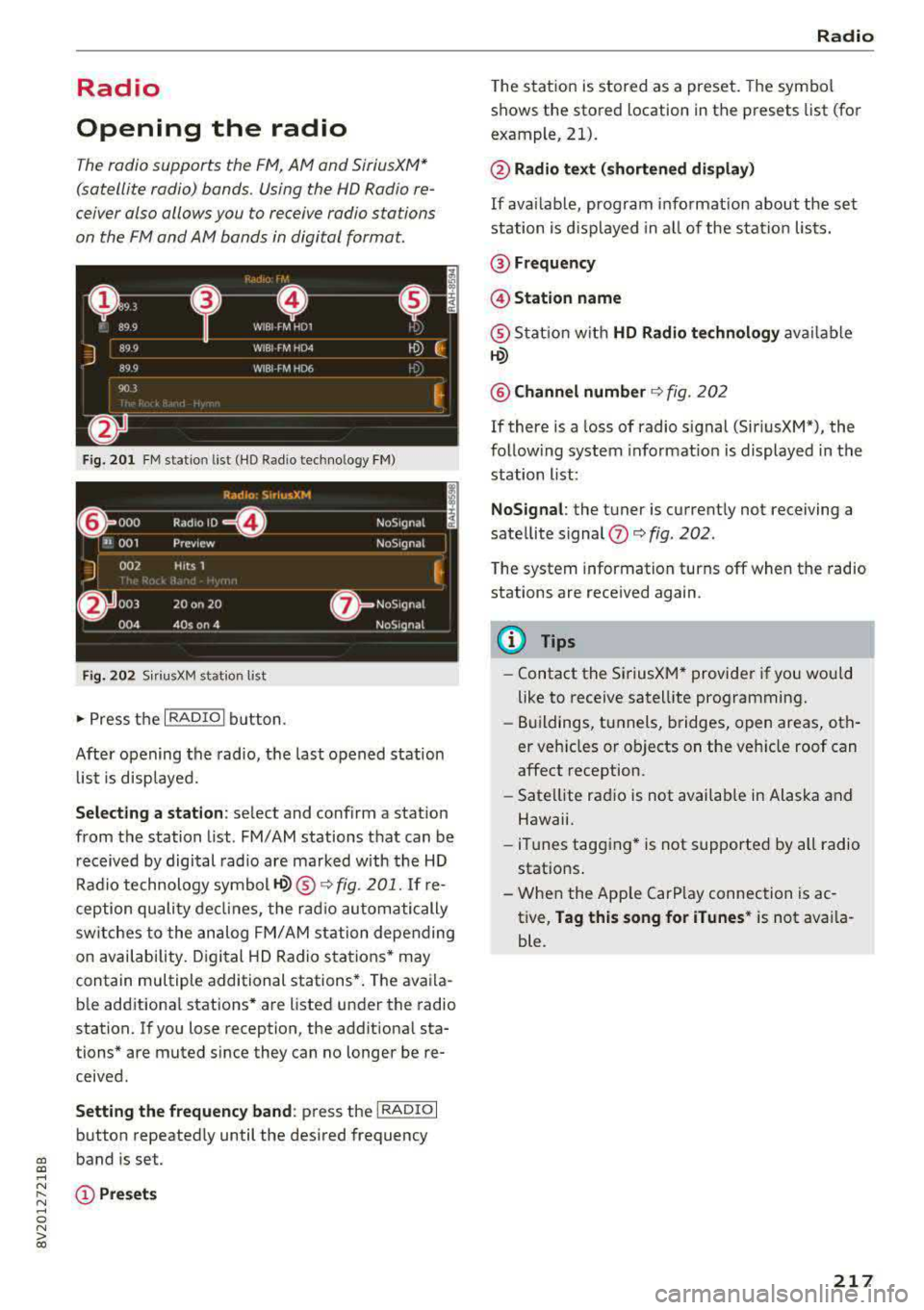
The radio supports the F M , AM and SiriusXM *
(satellite radio) bands. Using the HO Radio re
ceiver also allows you to receive radio stations
on the FM and AM bands in digital format.
Fig . 201 FM stat ion list ( HO Ra dio tec hn ology FM)
Radio: SiriusXM
~ 000 Rad,olD e· N oS,gnal
'JI 001 Prev iew N oS,gnal
J 002 H tts 1
~
f) 003 20 on 20
NoStgna l
004 40s on 4 NoS,gnal
F ig. 202 Siri usXM station list
.. P ress the I RAD IO I bu tton.
Afte r opening the rad io, t he last opened station
lis t is disp laye d.
.
I
Selecting a station : select and confirm a stat io n
from the station list . FM/ AM stations t hat can be
received by digital rad io are ma rked w ith the HD
R adio technology symbol
tQ) ® ¢fig. 201. If re
ception quality decl ines, the r adio automatically
switches to the analog FM/AM station depe nding
on availability , D igi tal HD Radio s ta tions * may
contain multiple additional stations* . The ava ila
b le add itiona l stations* are listed under the radio
station. I f you lose reception, the add it iona l sta
tions* are muted since they can no longer be re
ceived.
Setting the frequency band : press the I RADIO I
button repeated ly until the desired frequency
a, band is set. a, ....
~ (D Pre sets
.... 0 N > 00
Radio
T he s tation is stored as a preset . The symbol
shows the stored location in the presets list (for
example, 21).
@ Radio text (shortened display )
If availab le, program i nfo rmat ion about the set
station is d isplayed in a ll of the station lists.
@ Frequency
@ Station name
® Stat ion w it h HD Radio te chnology av aila ble
tQ)
@ Channel number ¢ fig. 202
If there is a loss of radio s ignal (Sir iusXM*), the
follow ing system informat io n is displayed in the
station list:
NoSignal : the tu ner is current ly not receiving a
sate llite signal
(fJ ¢ fig. 202 .
The system information turns off when the radio
stations are received again.
(D Tips
-Contact the Si riusXM* provider if you wou ld
like to receive satell ite programming .
- Buildings, tu nnels, b ridges, open areas, oth
er veh icles or objects on the veh icle roof can
affect reception.
- Sate llite rad io is not availab le in Alaska and
Hawaii.
- iTun es tagging * is not supported by all radio
statio ns.
- When the App le CarPlay connection is ac
tive,
Tag this song for iTunes * is not ava ila
ble.
217
Page 220 of 400

Radio
Radio functions
Free text search
App lies to: ve hicles w ith free text search
Using the free text search, you can select the or
der that the search terms are entered in the in
put field. Search in all frequency bands for a sta tion name or program type such as
News ).
Fig. 203 Input field and results list fo r free text sea rch
- Opening the free text search : when in a s ta tion
list, keep turning the control knob to the left
u nt il the
free text search input fie ld is dis
played .
-Using the free text search: see c::> page 166,
Free text search.
You can a lso search for frequencies.
Stat ions from the presets @ are disp layed in the
results list
(D c::> fig. 203. The symbo l@ indicates
which station list you sw itched to based on the
station selection.
Additional options
.,. Se lect: I RADIO I button > r ight contro l button.
The follow ing options are ava ilable depending on
the frequency band:
- Sound settings : see c::> page 245.
-Store as favorite : see c::> page 220, Presets.
-Tag this song for iTunes*1>: connect your Apple
device to the Audi music interface* on yo ur
MM I. Select and confi rm
Tag this song for
iTunes.
The track that is currently p laying is
stored on your App le device. Synchronize your
Apple device with iTunes. The tagged track w ill
display the next time you open your iTunes me-
1> I n preparation at the t ime of pr inting.
218
dia center . If the re is no Apple device connect
ed, the tagged tracks are stored temporarily in
the MMI (max imum of 50 tracks) . Once you
connect your Apple dev ice to the Audi music in
terface, the tags are stored on the device.
- Manage SiriusXM alerts : see c::> page 219, Sir
iusXM alerts .
-Store artist as favorite /Store track as favorite :
see c::> page 219, SiriusXM alerts.
-Manual tuner : the freq uency bars are dis
played . Select and confirm the desired frequen
cy.
- Seek: the radio tunes to the previous or next re
ceivab le station .
-Scan : all stations are played for severa l seconds
each.
- Radio settings: see c::> page 221.
Radio text
.,. Select: I RADIO I button > left control button > a
frequency band (such as
FM ) > a station.
.,. Select: r ight control button> Radio text .
Information that accompanies the program (such
as artist, composer, t rack) is displayed.
Browsing through radio text entries: turn the
contro l knob to the left o r right.
Requirement: a radio text entry must be d is
played and the station must be broadcast ing a
phone number, a navigation destination or a text
message number as Radio Text Plus information .
If a location, a phone number or a text message
number is included with a radio text entry, the
radio text will be shown with a colored borde r.
You have the following options:
Call* /Start route guidance* /Write text mes
sage* :
-Select a radio text entry with Radio Text Plus in
formation and press the control knob.
- Select and confirm
Call* /Start route guid
ance* /Write text message* . Or :
press the
I BACK I button to cancel.
Page 222 of 400
Radio
Radio text is availab le for the selected stat ion.
Ref er to
~ page 218.
@ iTunes tagging
The Tag this song for iTunes option is available
for the set station . Refer
to ~ page 218 , Addi
tional options.
@ FM HD Radio technology
The station is received through FM HD Radio
technology.
@ Screen view
Display Cover art or Station logo. Refer to
~ page 221, Preferred picture view *.
Displaying the station list:
Turn the control knob. Or: press the !BACK ! but
ton .
Radio menu
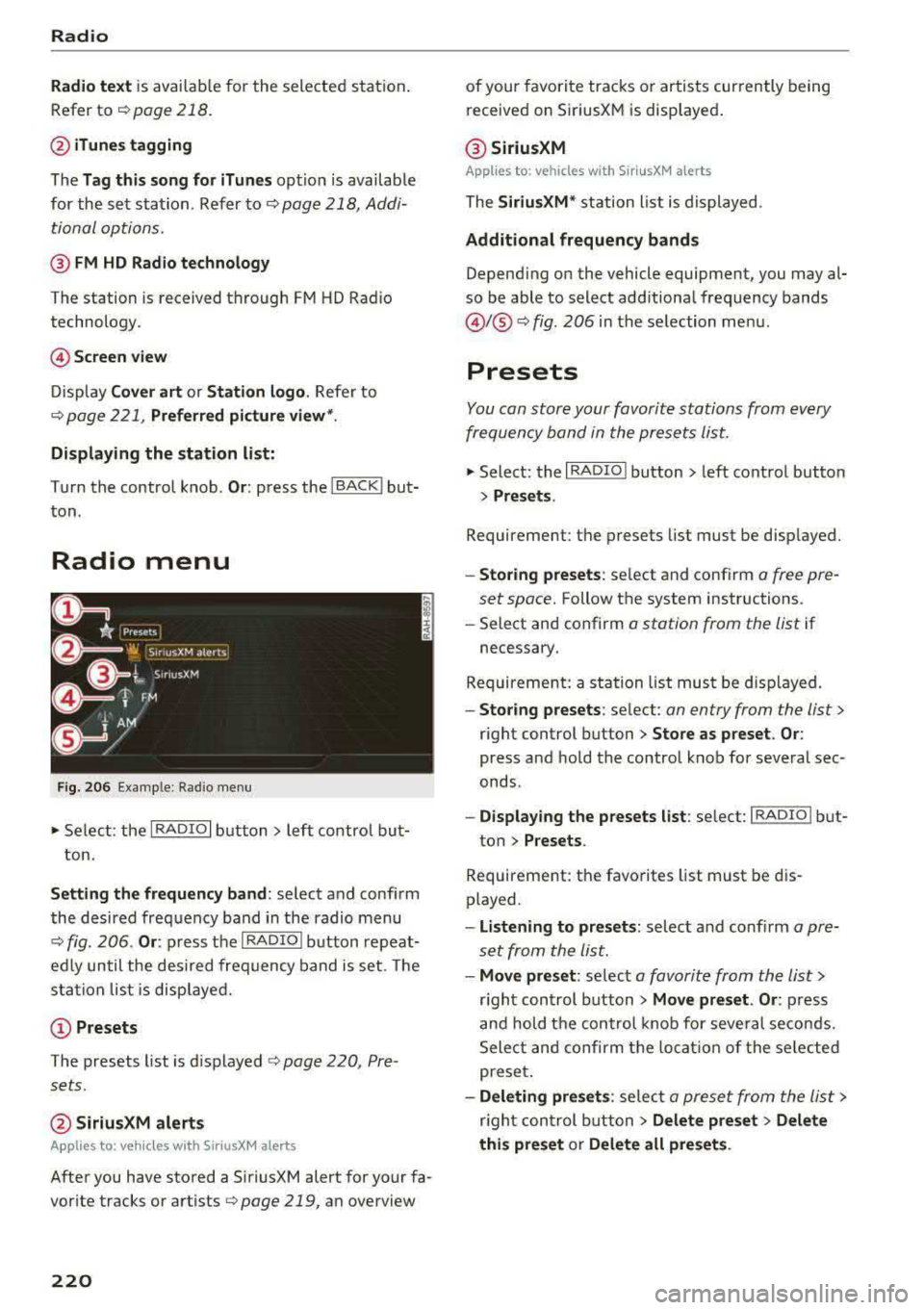
Fig. 206 Example : Rad io menu
~ Select: the I RADIO I button> left control but
ton.
Setting the frequency band : select and confirm
the desired frequency band in the radio menu
~ fig . 206 . Or: press the I RADIO I button repeat
edly until the desired frequency band is set. The
sta tion list is displayed.
(!) Presets
The presets list is displayed ~ page 220, Pre
sets .
@SiriusXM alerts
Applies to: veh icles with SiriusXM alerts
After you have stored a SiriusXM alert for your fa
vor ite tracks or artists
q poge 219, an overview
220
of your favorite tracks or artists currently being
received on S iriusXM is displayed .
@ SiriusXM
Applies to: vehicles with SiriusXM alerts
The SiriusXM * station list is displayed .
Additional frequency bands
Depending on the vehicle equipment, you may al
so be able to select additional frequency bands
@ !@ ~ fig. 206 in the selection menu.
Presets
You con store your favorite stations from every
frequency bond in the presets list.
~ Select: the I RADIO I button > left control button
> Presets .
Requirement: the presets list must be displayed.
-Storing presets: select and conf irm o free pre
set space.
Follow the system instructions .
-Select and confirm a station from the list if
necessary.
Requirement: a station list must be displayed.
-Storing presets: select: on entry from the list>
right control button > Store as preset. Or :
press and hold the control knob for several sec
onds .
-Displaying the presets list : select: IRADIOI but-
ton >
Presets .
Requirement: the favorites list must be dis
played.
-Listening to presets: select and confirm a pre
set from the list.
-Move preset : select a favorite from the list>
right control button > Move preset . Or : press
and hold the control knob for several seconds.
Select and confirm the locat ion of the selected
preset.
-Deleting presets : select a preset from the list >
r ig ht con trol button
> Delete preset > Delete
this preset or Delete all presets .