Page 156 of 357

155
uuMap Menu uDirections
Navigation
H ENTER button (on map) uDirections uExit Info
Display a list of the Freeway/highway ex its for the route. You can view freeway/
highway exit information (whe ther the exit is near gas stations, restaurants, ATMs,
etc.) and add new destinations or waypoints to the calculated route.
1.Rotate to select an exit from
the list. Press .
2. Rotate to select a list item.
Press .
u Move or to display
information for different exits.
u You can set the route to your
destination.
2 Calculating the Route P. 141
■Freeway/Highway Exit Information1
Freeway/Highway Exit Information
You can scroll the map a nd select a (Freeway/
Highway exit information) icon on the map screen to
display the Freeway/Highway exit information. The
icon is only displayed if there is exit information
available.
Icons are displayed only at 1/4, 1/2, or 1 mile (400 m,
800 m, or 1.6 km) scale.
2 Map Scale and Functions P. 81
The system provides freeway/highway exit
information only in the U.S.
The route guidance inform ation is automatically
deleted when you reac h your destination.
16 ACURA RDX NAVI-31TX48300.book 155 ページ 2015年8月5日 水曜日 午後4時12分
Page 157 of 357
156
uuMap Menu uTraffic ReroutingTM
Navigation
Traffic ReroutingTM
When driving to your destination, the sy stem automatically searches for a faster
route based on traffic flow information and traffic incidents.
2 AcuraLink Real-Time TrafficTM P. 14
2 Traffic Rerouting P. 58
1Traffic ReroutingTM
This feature requires an AcuraLink Real-Time TrafficTM
subscription.
AcuraLink Real-Time Traffic
TM is a subscription
service. For more information, contact an Acura
dealer or visit owners.acura.com (U.S.) or
www.acura.ca/owners/acuralink (Canada).
Automatic traffic rerouting may not provide a detour
route depending on circumstances.
16 ACURA RDX NAVI-31TX48300.book 156 ページ 2015年8月5日 水曜日 午後4時12分
Page 158 of 357

Continued157
uuMap Menu uTraffic ReroutingTM
Navigation
H ENTER button (on map) uTraffic Incidents
Manually avoid specific incidents and/or congestion on your route:
1.Rotate to select an incident
from the list. Press .
u The system displays the map
screen and the incident
location.
2. Rotate to select Avoid. Press
.
u Repeat step 1 to 2 as necessary.
■Traffic ReroutingTM Manually1
Traffic ReroutingTM Manually
You can choose to avoid up to 10 traffic incidents. It
is not always possible for the system to calculate a
route that avoids all traffic incidents or specific traffic
incidents you select.
The “On Route” tab on the Traf fic List screen is only
available during route guidance.
You cannot select an incident to avoid from the “All”
tab.
You can also manually detour around a traffic
incident or unexpected dela y even if you do not have
an AcuraLink Real-Time Traffic
TM subscription or the
delay does not yet appear on your display. 2 Taking a Detour P. 167
16 ACURA RDX NAVI-31TX48300.book 157 ページ 2015年8月5日 水曜日 午後4時12分
Page 160 of 357
159Continued
Navigation
Changing Your Route
HMENU button (when en route)
This section describes how to alter your ro ute, add an interim “waypoint” (pit stop),
choose a different destination, cancel your current destination, and continue your
trip after stopping.
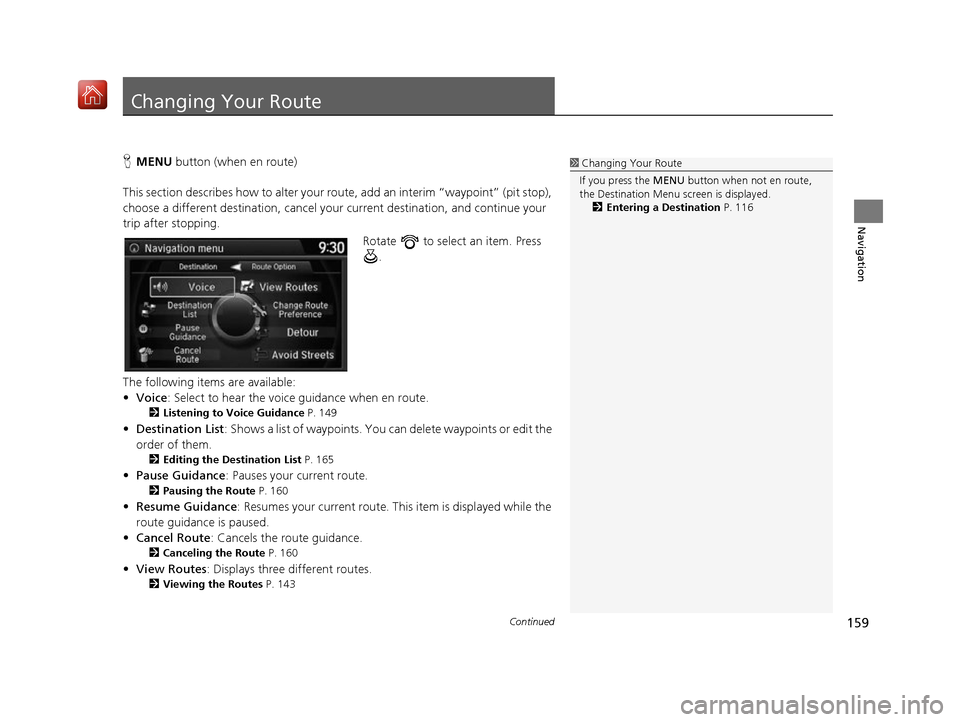
Rotate to select an item. Press .
The following items are available:
• Voice : Select to hear the voice guidance when en route.
2Listening to Voice Guidance P. 149
•Destination List : Shows a list of waypoints. You can delete waypoints or edit the
order of them.
2 Editing the Destination List P. 165
•Pause Guidance: Pauses your current route.
2 Pausing the Route P. 160
•Resume Guidance : Resumes your current route. Th is item is displayed while the
route guidance is paused.
• Cancel Route : Cancels the route guidance.
2Canceling the Route P. 160
•View Routes : Displays three different routes.
2Viewing the Routes P. 143
1Changing Your Route
If you press the MENU button when not en route,
the Destination Menu screen is displayed.
2 Entering a Destination P. 116
16 ACURA RDX NAVI-31TX48300.book 159 ページ 2015年8月5日 水曜日 午後4時12分
Page 161 of 357
uuChanging Your Route uPausing the Route
160
Navigation
• Change Route Preference : Changes the route preferences (calculating
method).
2 Route Preference P. 54
•Detour : Calculates a detour route.
2Taking a Detour P. 167
•Avoid Streets : Avoids streets along your route.
2Avoiding Streets P. 167
Pausing the Route
HMENU button (when en route) uPause Guidance
Pause the route guidance and return to the map screen. The de stination icons and
all waypoint flags remain displayed on the map. Press the MENU button when en
route and select Resume Guidance to resume the route guidance.
Canceling the Route
HMENU button (when en route) uCancel Route
Cancel the route guidance and remove th e destination and all waypoints from the
destination list. The system th en returns to the map screen.
1Pausing the Route
You can also pause your route from the Map Menu. 2 Map Menu P. 151
16 ACURA RDX NAVI-31TX48300.book 160 ページ 2015年8月5日 水曜日 午後4時12分
Page 172 of 357
171
Navigation
Resuming Your Trip
Stop your vehicle en route (e.g., to rest, stop for gas, etc.), and then continue on
your route.
If you did not complete your route, the Co ntinue Trip screen is displayed when you
restart your vehicle.
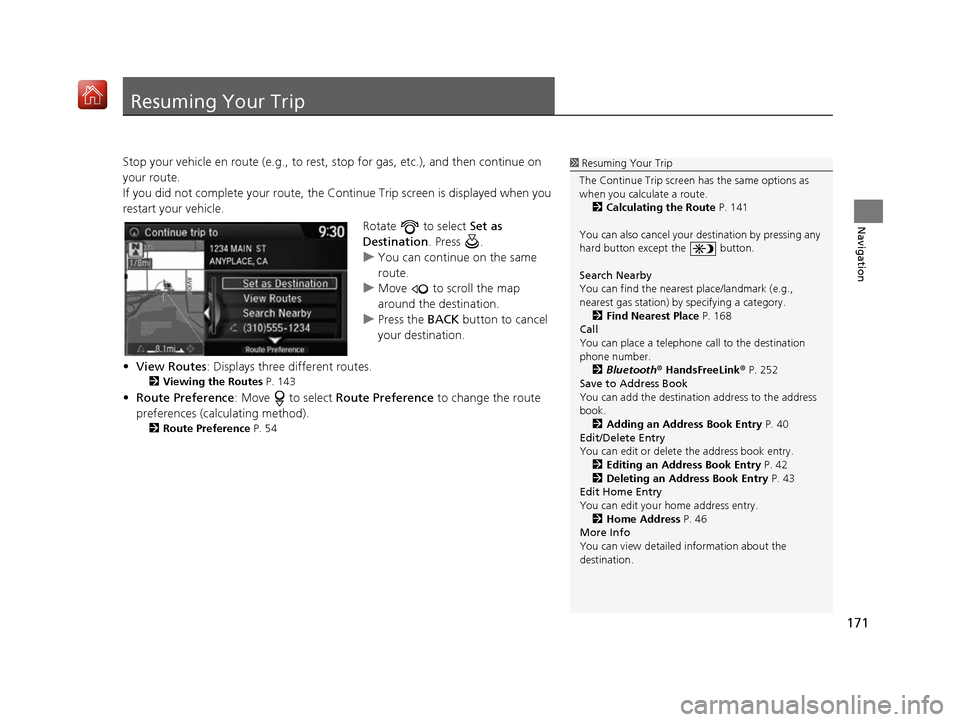
Rotate to select Set as
Destination . Press .
u You can continue on the same
route.
u Move to scroll the map
around the destination.
u Press the BACK button to cancel
your destination.
• View Routes : Displays three different routes.
2Viewing the Routes P. 143
•Route Preference : Move to select Route Preference to change the route
preferences (calculating method).
2 Route Preference P. 54
1Resuming Your Trip
The Continue Trip screen has the same options as
when you calculate a route. 2 Calculating the Route P. 141
You can also cancel your de stination by pressing any
hard button except the button.
Search Nearby
You can find the nearest place/landmark (e.g.,
nearest gas station) by specifying a category. 2 Find Nearest Place P. 168
Call
You can place a telephone call to the destination
phone number.
2 Bluetooth® HandsFreeLink ® P. 252
Save to Address Book
You can add the destinati on address to the address
book. 2 Adding an Address Book Entry P. 40
Edit/Delete Entry
You can edit or delete the address book entry.
2 Editing an Address Book Entry P. 42
2 Deleting an Address Book Entry P. 43
Edit Home Entry
You can edit your home address entry.
2 Home Address P. 46
More Info
You can view detailed information about the
destination.
16 ACURA RDX NAVI-31TX48300.book 171 ページ 2015年8月5日 水曜日 午後4時12分
Page 183 of 357
uuAudio Settings u
182
Audio
CD/HDD tab
• Recording from CD (CD mode): Selects whether the songs on music CDs are
automatically recorded to the HDD.
• Recording Quality (CD mode): Selects the quality of the music files recorded to
the HDD.
• HDD Info (HDD mode): Displays the HDD capacity.
• Update Gracenote Album Info (CD or HDD mode): Updates the Gracenote ®
Album Info (Gracenote ® Media Database) from CD or from USB.
2Updating Gracenote® Album Info P. 222
•Delete All HDD Data (HDD mode): Resets all the menu and customized
settings, and delete all music data on the HDD.
Bluetooth tab
• Bluetooth Device List (Bluetooth ® Audio mode): Edits or deletes Bluetooth
Audio device paired.
• Connect Bluetooth Audio Device (Bluetooth ® Audio, Pandora ®
* or AhaTM
mode): Connects, disconnects or pairs a Bluetooth® Audio device to HFL.
Other tab
• Source Select Popup : Selects whether the list of selectable audio sources comes
on when the AUDIO button is pressed.
• HD Radio Mode
* (AM/FM mode): Selects whether the audio system
automatically switches to th e digital radio waves or receives the analogue waves
only.
• Cover Art (CD (MP3/WMA/AAC), iPod, USB, Pandora ®
* or AhaTM mode): Turns
on and off the cover art display.
• Default : Cancels/Resets all customized items in the Audio Settings group as
default.
1 Audio Settings
*: This function is availa ble on U.S. models only.
16 ACURA RDX NAVI-31TX48300.book 182 ページ 2015年8月5日 水曜日 午後4時12分
Page 184 of 357
183
uuAudio Settings uAdjusting the Sound
Audio
Adjusting the Sound
H MENU button uSound
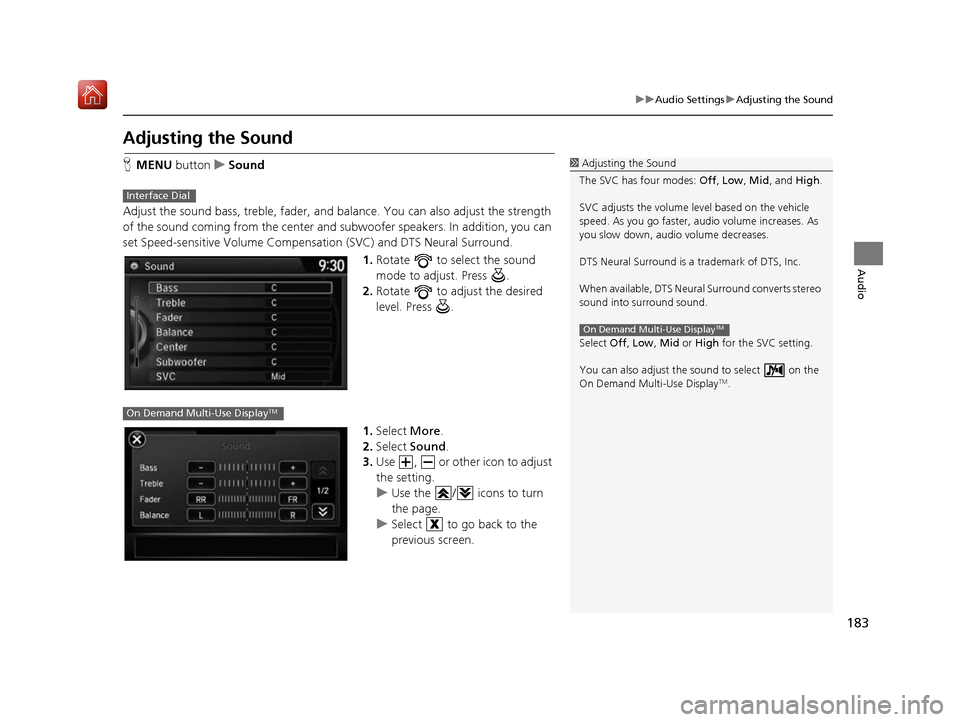
Adjust the sound bass, treble, fader, and balance. You can also adjust the strength
of the sound coming from the center and subwoofer speakers. In addition, you can
set Speed-sensitive Volume Compensation (SVC) and DTS Neural Surround.
1.Rotate to select the sound
mode to adjust. Press .
2. Rotate to adjust the desired
level. Press .
1. Select More.
2. Select Sound .
3. Use , or other icon to adjust
the setting.
u Use the / icons to turn
the page.
u Select to go back to the
previous screen.1Adjusting the Sound
The SVC has four modes: Off, Low , Mid, and High.
SVC adjusts the volume level based on the vehicle
speed. As you go faster, audio volume increases. As
you slow down, audi o volume decreases.
DTS Neural Surround is a trademark of DTS, Inc.
When available, DTS Neural Surround converts stereo
sound into surround sound.
Select Off, Low , Mid or High for the SVC setting.
You can also adjust the sound to select on the
On Demand Multi-Use Display
TM.
On Demand Multi-Use DisplayTM
Interface Dial
On Demand Multi-Use DisplayTM
16 ACURA RDX NAVI-31TX48300.book 183 ページ 2015年8月5日 水曜日 午後4時12分

