Page 116 of 357

115
Navigation
This section describes how to enter a destination, select a route to take, and follow the
route to your destination. It also describes how to change your route or destination along
the way.
Entering a Destination......................... 116
Address ............................................... 118
Address Book ....................................... 125
Previous Destination ............................. 126
Place Category ..................................... 127
Local Search ......................................... 129
Place Name .......................................... 131
Place Phone Number ............................ 134
Download POI ...................................... 135
Scenic Route ........................................ 136
Intersection .......................................... 137
Map Input............................................ 138
Coordinate .......................................... 140 Calculating the Route
............................141
Viewing the Routes ...............................143
Driving to Your Destination .................144
Viewing the Route ................................144
Listening to Voice Guidance ..................149
Reaching a Waypoint ............................150
Map Menu ..............................................151
Displaying the Map Menu .....................151
Hide Traffic Flow ...................................153
Directions .............................................154
Traffic Rerouting
TM................................156
Changing Your Route ............................159
Pausing the Route .................................160
Canceling the Route .............................160 Adding Waypoints ............................... 161
Editing the Destination List ................... 165
Taking a Detour ................................... 167
Avoiding Streets ................................... 167
Changing Your Destination ................. 168
Find Nearest Place ................................ 168
Selecting a Destination on the Map ...... 169
Entering a New Destination .................. 170
Resuming Your Trip .............................. 171
16 ACURA RDX NAVI-31TX48300.book 115 ページ 2015年8月5日 水曜日 午後4時12分
Page 117 of 357
116
Navigation
Entering a Destination
HMENU button (on map)
This section describes how to enter a destination for route guidance. Rotate to select an item. Press .
u Select More Search Methods to
display additional menu entries.
The following items are available:
• Address : Sets a destination by entering an address.
2Address P. 118
•Address Book : Sets a destination by selecting an address stored in your Address
Book.
2 Address Book P. 125
•Previous Destination : Sets a destination by select ing a previous destination.
2Previous Destination P. 126
1Entering a Destination
If you press the MENU button when en route, the
Route Option screen is displayed.
2 Changing Your Route P. 159
Prior to departure, you can set areas along your route
to avoid. 2 Avoided Area P. 60
16 ACURA RDX NAVI-31TX48300.book 116 ページ 2015年8月5日 水曜日 午後4時12分
Page 126 of 357
125
uuEntering a Destination uAddress Book
Navigation
Address Book
H MENU button uAddress Book
Select an address stored in your ad dress book to use as the destination.
1.Rotate to select your
destination from the list. Press .
2. Set the route to your destination.
2 Calculating the Route P. 141
uMove or to display only
the entries in the categories you
have created.
2 Selecting an Address Book
Category P. 42
1Address Book
If you have PIN-protecte d your address book, enter
your PIN when prompted. Press to select OK.
PINs are optional. 2 PIN Numbers P. 47
Move and rotate to select the following
items:
•Add New Address : Adds an entry to the address
book. 2 Adding an Address Book Entry P. 40
•Sort : Selects Sort by Name or Sort by Distance .
•Delete All: Deletes all entries in the address book.
•Driver 1 or Driver 2: Displays the address book for
the selected user.
16 ACURA RDX NAVI-31TX48300.book 125 ページ 2015年8月5日 水曜日 午後4時12分
Page 129 of 357
uuEntering a Destination uPlace Category
128
Navigation
3. Rotate to select an item. Press
.
The following items are available:
• Search by Name : Searches for a place in the subc ategory by name. Enter a place
name when prompted.
• Sort by Distance to Travel : Displays all the places in the subcategory sorted by
distance from your current location. The closest place is displayed at the top.
• City Vicinity: Searches for a place in the subcategory within a 20 mile (32 km)
radius of a specific city. Enter a city name when prompted and then select a city.
Only the first 1000 matching pl aces/landmarks are displayed.
4.Rotate to select a destination
from the list. Press .
5. Set the route to your destination.
2 Calculating the Route P. 141
1Place Category
The straight line distance (as the crow flies, not
driving distance) and direction to the destination are
shown for the highlighted place.
16 ACURA RDX NAVI-31TX48300.book 128 ページ 2015年8月5日 水曜日 午後4時12分
Page 134 of 357
133
uuEntering a Destination uPlace Name
Navigation
3. Rotate to select a place. Select
and press .
4. Set the route to your destination.
2 Calculating the Route P. 141
1Place Name in Multiple Categories
Move to select Sort by City or Sort by Distance .
16 ACURA RDX NAVI-31TX48300.book 133 ページ 2015年8月5日 水曜日 午後4時12分
Page 142 of 357
141Continued
Navigation
Calculating the Route
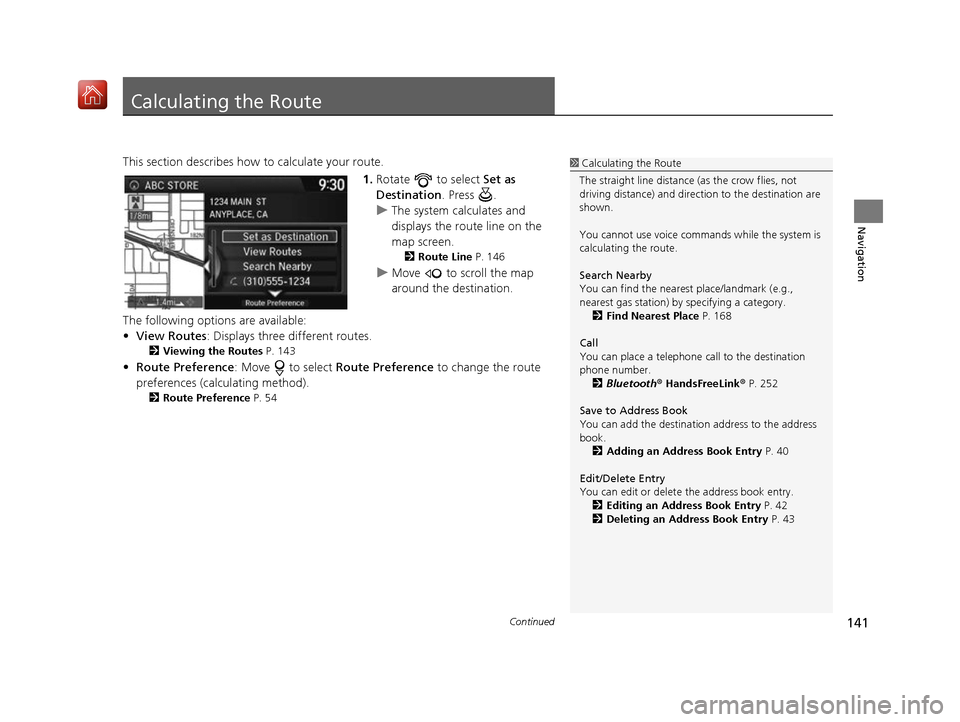
This section describes how to calculate your route.1.Rotate to select Set as
Destination . Press .
u The system calculates and
displays the route line on the
map screen.
2 Route Line P. 146
uMove to scroll the map
around the destination.
The following options are available:
• View Routes : Displays three different routes.
2Viewing the Routes P. 143
•Route Preference : Move to select Route Preference to change the route
preferences (calculating method).
2 Route Preference P. 54
1Calculating the Route
The straight line distance (as the crow flies, not
driving distance) and direction to the destination are
shown.
You cannot use voice commands while the system is
calculating the route.
Search Nearby
You can find the nearest place/landmark (e.g.,
nearest gas station) by specifying a category. 2 Find Nearest Place P. 168
Call
You can place a telephone call to the destination
phone number. 2 Bluetooth® HandsFreeLink ® P. 252
Save to Address Book
You can add the destinati on address to the address
book. 2 Adding an Address Book Entry P. 40
Edit/Delete Entry
You can edit or delete the address book entry.
2 Editing an Address Book Entry P. 42
2 Deleting an Address Book Entry P. 43
16 ACURA RDX NAVI-31TX48300.book 141 ページ 2015年8月5日 水曜日 午後4時12分
Page 143 of 357
uuCalculating the Route u
142
Navigation
2.Follow the route guidance to your
destination.
2 Driving to Your Destination
P. 144
u The system provides you with
pop-up messages if your route
passes through unverified
areas, avoid areas, or areas with
traffic restrictions.
1Calculating the Route
Edit Home Entry
You can edit your home address entry. 2 Home Address P. 46
More Info
You can view detailed information about the
destination.
16 ACURA RDX NAVI-31TX48300.book 142 ページ 2015年8月5日 水曜日 午後4時12分
Page 144 of 357
143
uuCalculating the Route uViewing the Routes
Navigation
Viewing the Routes
View three different routes to your destination.
Rotate to select a route. Press .
u The travel distance and estimated
travel time is displayed for each
route.
u The system calculates and displays
the route line on the map screen.
2 Route Line P. 146
■Using the server route
The following items are available:
• Quick : Displays the r oute with the shortest travel time.
• Direct : Displays the route with the shortest travel distance.
• Eco : Displays the route with the best fuel efficiency.
1Viewing the Routes
It is not unusual for some ca lculated route options to
be identical.
Server Routes is a subscription service. For more
information, contact an Acura dealer or visit
owners.acura.com (U.S.) or www.acura.ca/owners/
acuralink (Canada).
16 ACURA RDX NAVI-31TX48300.book 143 ページ 2015年8月5日 水曜日 午後4時12分


