Page 49 of 357
48
uuPersonal Information uPrevious Destination
System Setup
Previous Destination
H SETTINGS buttonuNavi Settings uPersonal Info uPrevious Destination
The navigation system maintain s a list of your previously routed destinations as a
shortcut for entering the same destination in the future. You can delete some or all
of your previous destinations from the list.
1.Rotate to select the
destination to delete. Press .
u Repeat the procedure as
necessary.
u Items to be deleted are
indicated with a trash icon.
2. Move and rotate to select
OK to delete the selected
destinations.1 Previous Destination
Up to 50 destinations can be stored.
To cancel the selection of a previous destination,
rotate to highlight the destination again. Press to de-select it.
Trash icon
16 ACURA RDX NAVI-31TX48300.book 48 ページ 2015年8月5日 水曜日 午後4時12分
Page 50 of 357
49
uuPersonal Information uCategory History
System Setup
Category History
H SETTINGS button uNavi Settings uPersonal Info uCategory History
The navigation system maintains a list of your recently used place categories as a
shortcut for selecting the same categories in the future. You can delete some or all
of your recently used categories from the list.
1.Rotate to select the category
to delete. Press .
u Repeat the procedure as
necessary.
u Items to be deleted are
indicated with a trash icon.
2. Move and rotate to select
OK to delete the selected
categories.1 Category History
Up to 50 categories can be stored.
To cancel the selection of a category, rotate to
highlight the category again. Press to de-select it.
Trash icon
16 ACURA RDX NAVI-31TX48300.book 49 ページ 2015年8月5日 水曜日 午後4時12分
Page 54 of 357
53
System Setup
Routing
HSETTINGS button uNavi Settings uRouting
Choose various settings that determine the navigation system functionality during
route calculation. Rotate to select an item. Press .
The following items are available:
• Route Preference : Changes the route preferen ces (calculating method).
2Route Preference P. 54
•Unverified Routing : Sets whether you use the ro ute guidance in unverified
areas.
2 Unverified Routing P. 56
•Traffic Rerouting : Sets whether you use automatic recalculation based on traffic
information.
2 Traffic Rerouting P. 58
•Edit POI Search Radius Along Route : Sets the distance from the route to find
waypoints.
2 Edit POI Search Radius Along Route P. 59
•Avoided Area : Specifies areas to avoid when calculating a route.
2Avoided Area P. 60
16 ACURA RDX NAVI-31TX48300.book 53 ページ 2015年8月5日 水曜日 午後4時12分
Page 57 of 357
56
uuRouting uUnverified Routing
System Setup
Unverified Routing
H SETTINGS buttonuNavi Settings uRouting uUnverified Routing
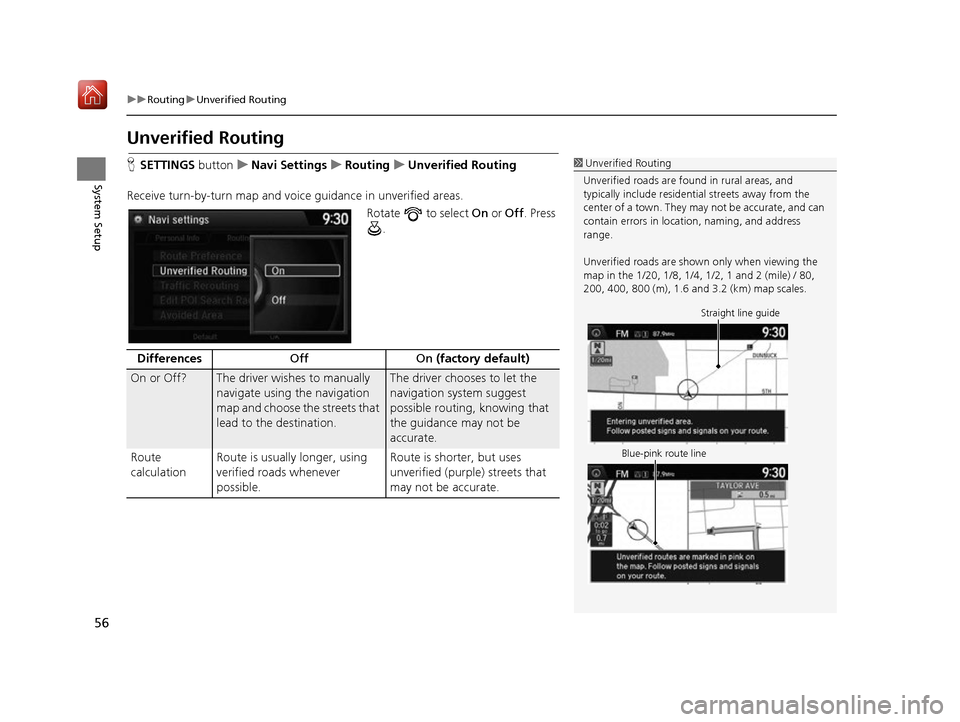
Receive turn-by-turn map and voice guidance in unverified areas.
Rotate to select On or Off . Press
.1 Unverified Routing
Unverified roads are found in rural areas, and
typically include residentia l streets away from the
center of a town. They ma y not be accurate, and can
contain errors in locati on, naming, and address
range.
Unverified roads are shown only when viewing the
map in the 1/20, 1/8, 1/4, 1/2, 1 and 2 (mile) / 80,
200, 400, 800 (m), 1.6 and 3.2 (km) map scales.
Straight line guide
Blue-pink route line
Differences Off On (factory default)
On or Off? The driver wishes to manually
navigate using the navigation
map and choose the streets that
lead to the destination.The driver chooses to let the
navigation system suggest
possible routing, knowing that
the guidance may not be
accurate.
Route
calculation Route is usually longer, using
verified roads whenever
possible. Route is shorter, but uses
unverified (purple) streets that
may not be accurate.
16 ACURA RDX NAVI-31TX48300.book 56 ページ 2015年8月5日 水曜日 午後4時12分
Page 58 of 357

57
uuRouting uUnverified Routing
System SetupRoute lineThe route line uses verified
streets only (when possible).
If Straight Line Guide is set to
On , a pink vector line is
displayed on the map that
continually points to your
destination.
2 Straight Line Guide P. 78
A blue-pink route line highlights
suggested unverified streets on
the map while traveling to your
destination.
Cautionary
messages Cautionary pop-up screens and
voice announcements remind
you to obey all traffic
restrictions when
starting route
guidance, approaching an
unverified area, and entering an
unverified street. Cautionary pop-up screens and
voice announcements remind
you to obey all traffic
restrictions when entering an
unverified street.
Guidance
(map/voice)There is no turn-by-turn map or
voice guidance.Voice guidance commands end
with the phrase “if possible” to
remind you to verify all traffic
restrictions.
Directions list A direction list is typically not available. However, depending
on your route, directions are
provided to help you reach the
first available verified road. A direction list is provided
showing street names and turn
symbols in pink.
Differences
Off On (factory default)
16 ACURA RDX NAVI-31TX48300.book 57 ページ 2015年8月5日 水曜日 午後4時12分
Page 59 of 357
58
uuRouting uTraffic Rerouting
System Setup
Traffic Rerouting
H SETTINGS buttonuNavi Settings uRouting uTraffic Rerouting
A faster route can be calculated based on continuously updated traffic information.
2Traffic ReroutingTM P. 156
Rotate to select an option. Press
.
The following options are available:
• On : The system reroutes automatica lly based on traffic information.
• Off (factory default): Disables the feature.
1Traffic Rerouting
Traffic Rerouting requires an AcuraLink Real-Time
Traffic
TM subscription.
2 AcuraLink ® P. 298
Automatic traffic rerouting may not provide a detour
route depending on circumstances.
16 ACURA RDX NAVI-31TX48300.book 58 ページ 2015年8月5日 水曜日 午後4時12分
Page 60 of 357
59
uuRouting uEdit POI Search Radius Along Route
System Setup
Edit POI Search Ra dius Along Route
HSETTINGS button uNavi Settings uRouting uEdit POI Search Radius
Along Route
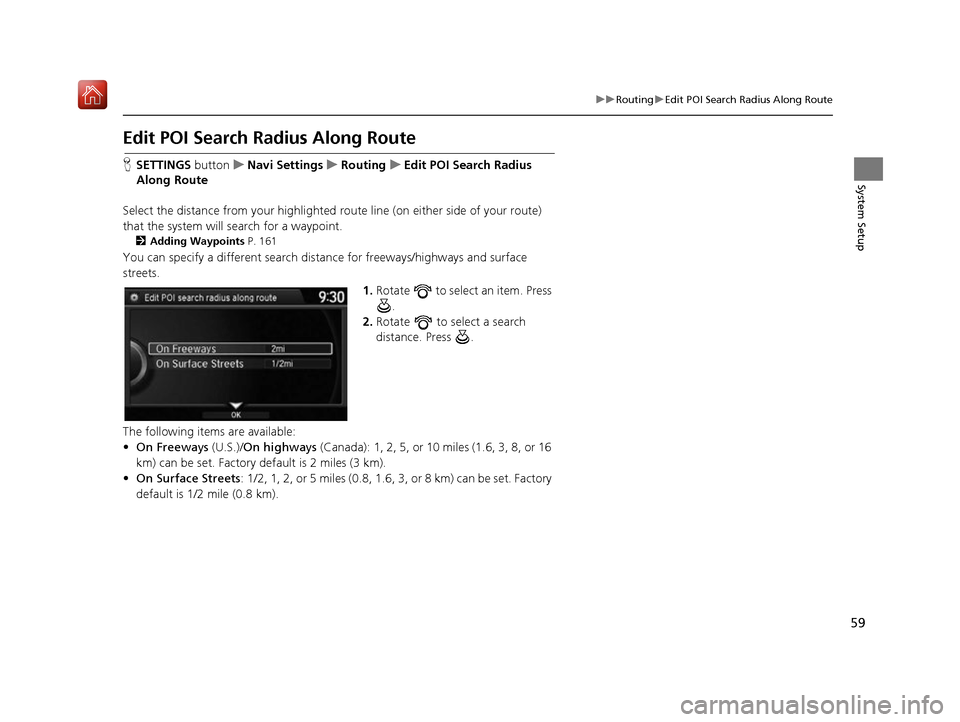
Select the distance from your highlighted ro ute line (on either side of your route)
that the system will search for a waypoint.
2Adding Waypoints P. 161
You can specify a different search distance for freeways/highways and surface
streets.
1.Rotate to select an item. Press
.
2. Rotate to select a search
distance. Press .
The following items are available:
• On Freeways (U.S.)/On highways (Canada): 1, 2, 5, or 10 miles (1.6, 3, 8, or 16
km) can be set. Factory default is 2 miles (3 km).
• On Surface Streets : 1/2, 1, 2, or 5 miles (0.8, 1.6, 3, or 8 km) can be set. Factory
default is 1/2 mile (0.8 km).
16 ACURA RDX NAVI-31TX48300.book 59 ページ 2015年8月5日 水曜日 午後4時12分
Page 63 of 357
62
System Setup
Guidance
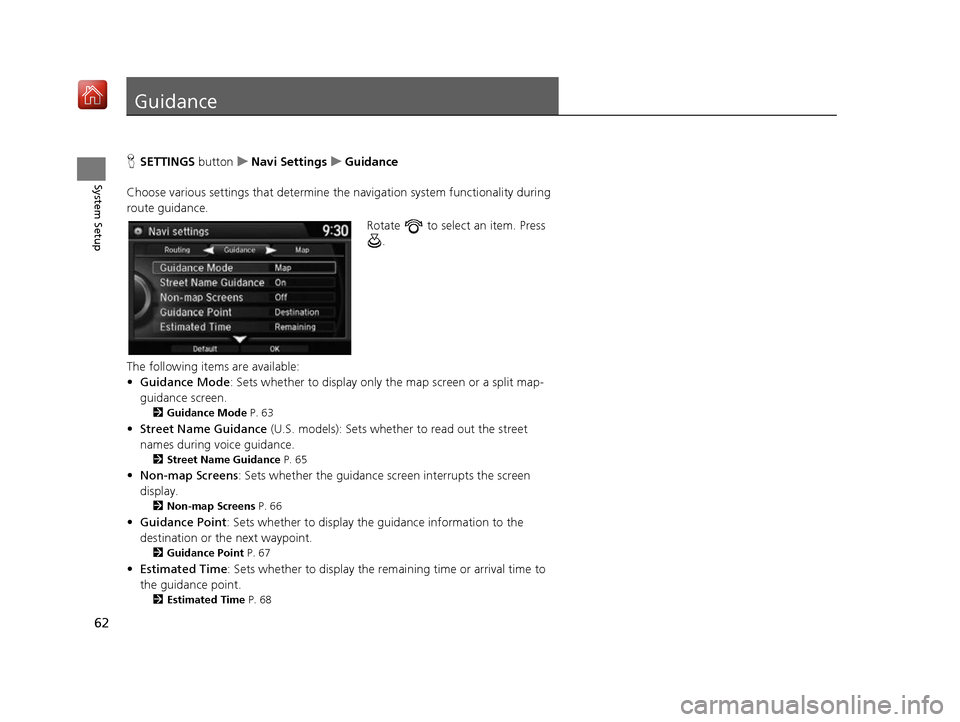
HSETTINGS buttonuNavi Settings uGuidance
Choose various settings that determine th e navigation system functionality during
route guidance.
Rotate to select an item. Press .
The following items are available:
• Guidance Mode : Sets whether to display only the map screen or a split map-
guidance screen.
2 Guidance Mode P. 63
•Street Name Guidance (U.S. models): Sets whether to read out the street
names during voice guidance.
2 Street Name Guidance P. 65
•Non-map Screens : Sets whether the guidance sc reen interrupts the screen
display.
2 Non-map Screens P. 66
•Guidance Point: Sets whether to display the guidance information to the
destination or the next waypoint.
2 Guidance Point P. 67
•Estimated Time : Sets whether to display the remaining time or arrival time to
the guidance point.
2 Estimated Time P. 68
16 ACURA RDX NAVI-31TX48300.book 62 ページ 2015年8月5日 水曜日 午後4時12分