Page 64 of 357
63
uuGuidance uGuidance Mode
Continued
System Setup
Guidance Mode
H SETTINGS button uNavi Settings uGuidance uGuidance mode
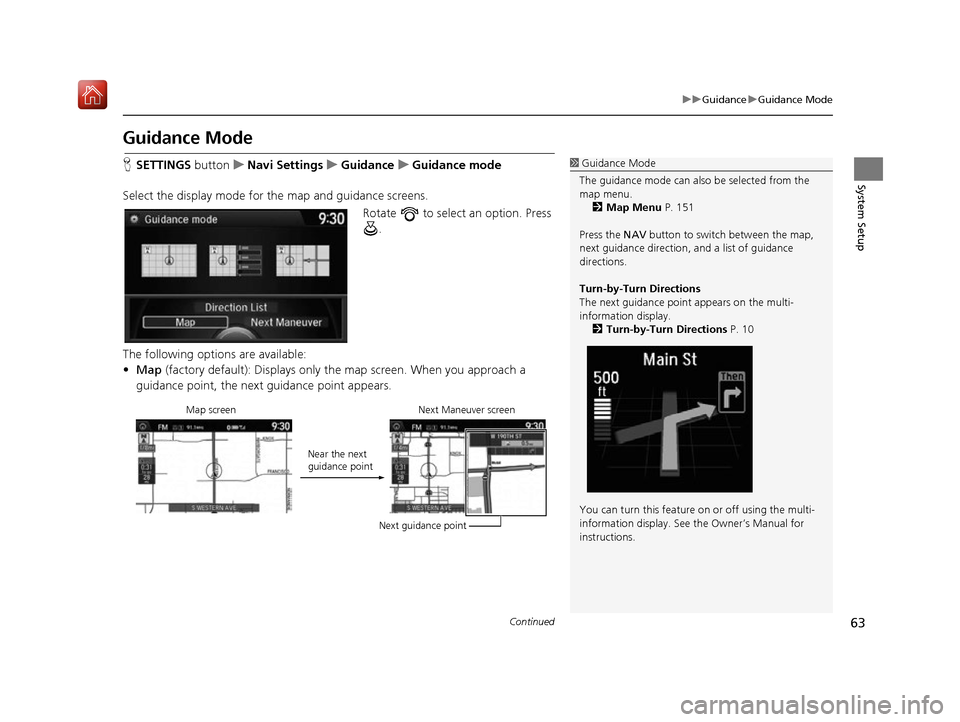
Select the display mode for the map and guidance screens. Rotate to select an option. Press .
The following options are available:
• Map (factory default): Displays only the map screen. When you approach a
guidance point, the next guidance point appears.1Guidance Mode
The guidance mode can also be selected from the
map menu. 2 Map Menu P. 151
Press the NAV button to switch between the map,
next guidance direction, and a list of guidance
directions.
Turn-by-Turn Directions
The next guidance point appears on the multi-
information display.
2 Turn-by-Turn Directions P. 10
You can turn this feature on or off using the multi-
information display. See the Owner’s Manual for
instructions.
Map screen Near the next
guidance pointNext Maneuver screen
Next guidance point
16 ACURA RDX NAVI-31TX48300.book 63 ページ 2015年8月5日 水曜日 午後4時12分
Page 65 of 357
64
uuGuidance uGuidance Mode
System Setup
• Direction List : Displays the map and direction list simultaneously on the map
screen. When you approach a guidance point, the next guidance point appears.
• Next Maneuver : Displays the map and next guidance point simultaneously on
the map screen.
Direction List screen
Guidance direction list Near the next
guidance point
Next Maneuver screen
Next guidance point
Next Maneuver screen Next guidance pointNear the next
guidance point
Next Maneuver screen
16 ACURA RDX NAVI-31TX48300.book 64 ページ 2015年8月5日 水曜日 午後4時12分
Page 66 of 357
65
uuGuidance uStreet Name Guidance
System Setup
Street Name Guidance
H SETTINGS button uNavi Settings uGuidance uStreet Name Guidance
The navigation system includes the street names during voice guidance (e.g., “Turn
right on Main Street”). Rotate to select an option. Press .
The following options are available:
• On (factory default): Voice guidan ce includes the street names.
• Off : Disables the feature.1Street Name Guidance
This feature is only available when the system
language is set to English.
This feature may not be available in non-English
speaking areas.
This function is available on U.S. models only.
16 ACURA RDX NAVI-31TX48300.book 65 ページ 2015年8月5日 水曜日 午後4時12分
Page 67 of 357
66
uuGuidance uNon-map Screens
System Setup
Non-map Screens
H SETTINGS buttonuNavi Settings uGuidance uNon-map Screens
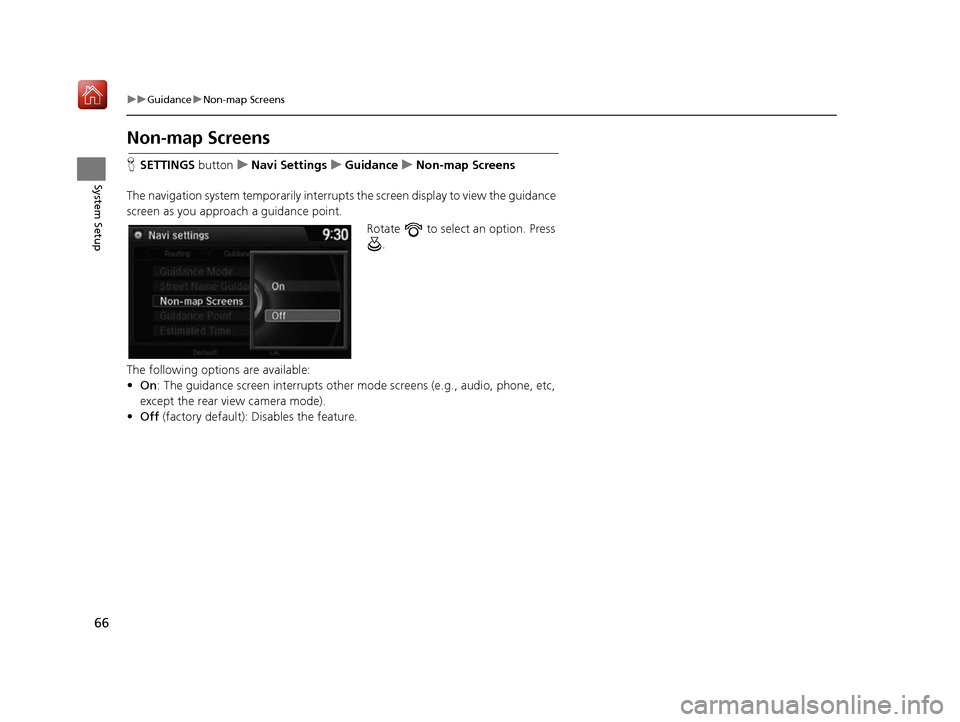
The navigation system temporarily interrupt s the screen display to view the guidance
screen as you approach a guidance point.
Rotate to select an option. Press .
The following options are available:
• On : The guidance screen interrupts other mode screens (e.g., audio, phone, etc,
except the rear view camera mode).
• Off (factory default): Disables the feature.
16 ACURA RDX NAVI-31TX48300.book 66 ページ 2015年8月5日 水曜日 午後4時12分
Page 68 of 357
67
uuGuidance uGuidance Point
System Setup
Guidance Point
H SETTINGS button uNavi Settings uGuidance uGuidance Point
Set the guidance point to display on the map screen. Rotate to select an option. Press .
The following options are available:
• Destination (factory default): Disp lays the remaining/arriva l time and distance to
the destination.
• Next Point : Displays the remaining/arrival time and distance to the next
waypoint.
16 ACURA RDX NAVI-31TX48300.book 67 ページ 2015年8月5日 水曜日 午後4時12分
Page 69 of 357
68
uuGuidance uEstimated Time
System Setup
Estimated Time
H SETTINGS buttonuNavi Settings uGuidance uEstimated Time
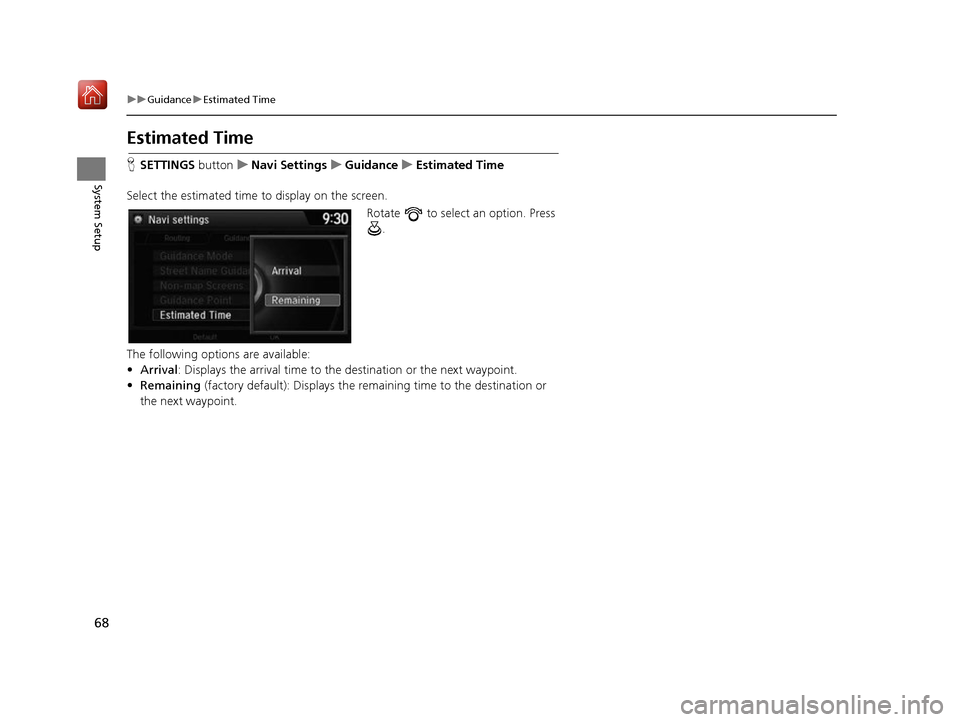
Select the estimated time to display on the screen. Rotate to select an option. Press .
The following options are available:
• Arrival : Displays the arrival time to the destination or the next waypoint.
• Remaining (factory default): Disp lays the remaining time to the destination or
the next waypoint.
16 ACURA RDX NAVI-31TX48300.book 68 ページ 2015年8月5日 水曜日 午後4時12分
Page 76 of 357
75
uuMap uColor
System SetupDash illumination
adjustment knob
(see your Owner’s
Manual for location)3When headlights are turned on, and you wish to
have the Day display mode, adjust the
illumination to the full brightness setting (beeps).
Remember: Adjust the dash brightness back to
mid-range to allow auto switching by sensing the
headlights are on or off.
Headlights (Auto/
On/Off) 4 When turned on, the display changes to Night
display mode. The previous three controls listed
above can “cancel” this function.
Remember: Use the (Display Mode)
button, or adjust the dash illumination to full
brightness, to set the display to your desired
choice.
Screen color choiceN/AThe user can select the color of the screen that
will be displayed for the Day and Night display
modes described above.
Illumination Pr
iority Operation
16 ACURA RDX NAVI-31TX48300.book 75 ページ 2015年8月5日 水曜日 午後4時12分
Page 80 of 357
79
uuMap uCurrent Location
System Setup
Current Location
H SETTINGS button uNavi Settings uMap uCurrent Location
Display and save your current location for future use as a destination. The address,
latitude, longitude, and elevation of your current location are displayed.
■ To save your current loca tion in the address book:
1.Press to select Address Book.
u Move to scroll the map as
necessary.
2. Edit the name, phone number,
and category.
2 Address Book P. 39
3.Move and rotate to select
OK . Press .
1Current Location
If you have PIN-protecte d your address book, enter
your PIN when prompted. Press to select OK.
PINs are optional. 2 PIN Numbers P. 47
The elevation is not displayed if the system is
receiving insufficient GPS information. When
elevation is displayed, it may differ with roadside
elevation signs by ±100 ft (±30 m) or more.
Saving your current loca tion does not change or
cancel your current route.
16 ACURA RDX NAVI-31TX48300.book 79 ページ 2015年8月5日 水曜日 午後4時12分