Page 15 of 357

14
Quick Reference GuideAcuraLink®
AcuraLink® Messages
AcuraLink® provides a direct communication link between you and Acura. It sends and receives several kinds of messages through the Acura
server.
AcuraLink Real-Time TrafficTM
Displays continuously updated traffic informat ion and recalculates your route in response to traffic flow, incidents, or road closures.
(P156) The following features are available:
Vehicle feature guide
Operating quick tips
Safety and maintenance information
Diagnostic information
Dealer appointment and maintenance reminders
Traffic information available
Traffic information off or map
scale too large
No icon: Out of coverage area
Traffic incident icons
Traffic status indicator (P156) Traffic flow indicator
Congestion
Incident
Weather
Heavy
Moderate
Free-flow
Construction
Road Closed
NOTE: AcuraLink Real-Time Traffic
TM is a subscription service. For more information, contact an Acura dealer or visit owners.acura.com (U.S.) or
www.acura.ca/owners/acuralink (Canada).
16 ACURA RDX NAVI-31TX48300.book 14 ページ 2015年8月5日 水曜日 午後4時12分
Page 17 of 357

16
Quick Reference GuideTroubleshootingFor more Information (P315)
Why does the vehicle position icon on the map “lag” a
short distance behind my actual position, especially at
intersections?
This is normal. The navigation system is unaware of the
width of intersections. Large differences in vehicle position
can indicate a temporary loss of the GPS signal.
Why does the “time to destination” display sometimes
increase even though I am getting closer to my
destination?
The “time to destination” is based on your actual road
speed and traffic conditions to give you a better estimate
of arrival time.
How do I specify a destination when an entered city or
street could not be found?
Try entering the street first. Some cities are lumped in
with a major metro area. In rural “unverified” areas or
new subdivisions, streets may be missing or only partially
numbered.
How do I turn on the navigation system voice guidance?
On the map screen, press to display the Map Menu.
Rotate to select Guidance Volume. Adjust the
preferred volume level.
My battery was disconnected or went dead, and the
navigation system is asking for a code. Where do I find it?
In most cases, you do not need to enter a code. Simply
press and hold the (Power) button for two seconds;
the system should reactivate.
2 System Initialization P. 332
16 ACURA RDX NAVI-31TX48300.book 16 ページ 2015年8月5日 水曜日 午後4時12分
Page 20 of 357

19
System Setup
This section describes the start-up procedure and the navigation and setup functions.
Start-up................................................... 20
Voice Control System ............................. 22
Command Input .................................... 22
Voice Recognition .................................. 23
Voice Recognition Settings ..................... 24
Siri Eyes Free .......................................... 25
Interface Settings ................................... 26
Personal Information .............................. 38
Address Book ......................................... 39
Home Address ....................................... 46
PIN Numbers .......................................... 47
Previous Destination ............................... 48
Category History .................................... 49
Download POI ........................................ 50 Routing
.....................................................53
Route Preference ....................................54
Unverified Routing ..................................56
Traffic Rerouting .....................................58
Edit POI Search Radius Along Route ........59
Avoided Area ..........................................60
Guidance ..................................................62
Guidance Mode ......................................63
Street Name Guidance ............................65
Non-map Screens ....................................66
Guidance Point .......................................67
Estimated Time .......................................68
Map ...........................................................69
Showing Icons on Map ...........................71 Color ..................................................... 73
View (Map Orientation) .......................... 76
3D Angle Adjustment............................. 77
Straight Line Guide ................................ 78
Current Location .................................... 79
Map Legend........................................... 80
Display Tracking ..................................... 84
Correct Vehicle Position ......................... 86
On Demand Multi-Use Display
TM........... 87
Changing the Screen Settings ................ 87
Customized Features .............................. 88
Data Reset ............................................. 113
Defaulting All the Settings.................... 113
16 ACURA RDX NAVI-31TX48300.book 19 ページ 2015年8月5日 水曜日 午後4時12分
Page 25 of 357
24
uuVoice Control System uVoice Recognition Settings
System Setup
Voice Recognition Settings
H SETTINGS buttonuSystem Settings uVoice Reco
Rotate to select an item. Press .
The following items are available:
• Voice Prompt : Turns the voice prompt on or off.
On (factory default): Provides the voice prompts.
Off : Disable the feature.
• Song By Voice : Turns the Song By Voice
TM on or off.
2Settings Song By VoiceTM (SBV) P. 231
•Song By Voice Phonetic Modification : Modifies a voice command of music
stored in the HDD or an iPod.
2 Phonetic Modification P. 233
•Phonebook Phonetic Modification : Modifies a voice command for the
phonebook.
2 Phonebook Phonetic Modification P. 268
•Guidance Volume : Adjusts the voice prompt volume level.
2Sound and Beep Settings P. 27
16 ACURA RDX NAVI-31TX48300.book 24 ページ 2015年8月5日 水曜日 午後4時12分
Page 26 of 357
25
uuVoice Control System uSiri Eyes Free
System Setup
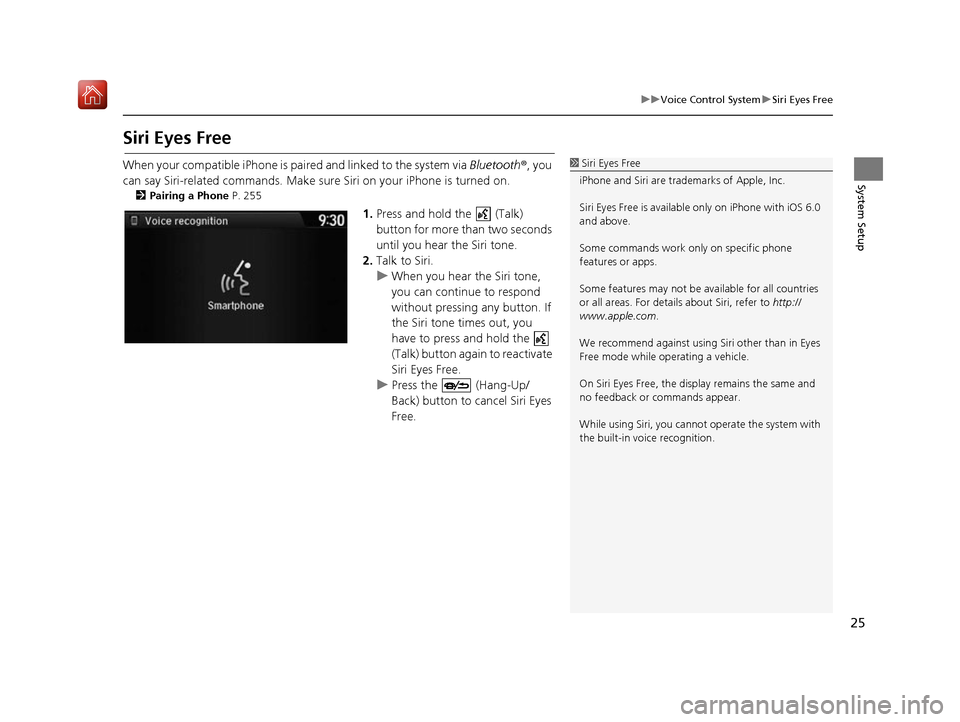
Siri Eyes Free
When your compatible iPhone is pa ired and linked to the system via Bluetooth®, you
can say Siri-related commands. Make sure Siri on your iPhone is turned on.
2Pairing a Phone P. 255
1.Press and hold the (Talk)
button for more than two seconds
until you hear the Siri tone.
2. Talk to Siri.
u When you hear the Siri tone,
you can continue to respond
without pressing any button. If
the Siri tone times out, you
have to press and hold the
(Talk) button again to reactivate
Siri Eyes Free.
u Press the (Hang-Up/
Back) button to cancel Siri Eyes
Free.
1Siri Eyes Free
iPhone and Siri are trademarks of Apple, Inc.
Siri Eyes Free is availabl e only on iPhone with iOS 6.0
and above.
Some commands work only on specific phone
features or apps.
Some features may not be available for all countries
or all areas. For detail s about Siri, refer to http://
www.apple.com .
We recommend against using Si ri other than in Eyes
Free mode while operating a vehicle.
On Siri Eyes Free, the display remains the same and
no feedback or commands appear.
While using Siri, you cannot operate the system with
the built-in voice recognition.
16 ACURA RDX NAVI-31TX48300.book 25 ページ 2015年8月5日 水曜日 午後4時12分
Page 28 of 357
27
uuInterface Settings uSound and Beep Settings
System Setup
Sound and Beep Settings
H SETTINGS button uSystem Settings uSound/Beep
Changes the system sound and beep settings. Rotate to select an item. Press .
The following items are available:
• Guidance Volume : Adjusts the navigation system volume level.
• Verbal Reminder : Turns the verbal reminders on and off.
On : Sets the verbal reminders.
Off : Disables the feature.1Sound and Beep Settings
Guidance Volume
If you set Guidance Volume to 0, you will not hear
route guidance or voice command confirmations.
You can also adjust Guidance Volume by rotating
the volume knob while the route guidance or voice
command confirmations is announced.
If you then select Voice in the Map Menu, you will
hear route guidance at the default volume.
16 ACURA RDX NAVI-31TX48300.book 27 ページ 2015年8月5日 水曜日 午後4時12分
Page 35 of 357
34
uuInterface Settings uLanguage Settings
System Setup
Language Settings
H SETTINGS buttonuSystem Settings uOthers uLanguage
Set the system language used on all screens. You can choose from three languages:
English , Français (French), Español (Spanish).
Rotate to select the system
language. Press .1Language Settings
Voice confirmation of cities and streets only occurs
when English is the system language.
When Français or Español is selected, some
messages continue to be displayed in English.
16 ACURA RDX NAVI-31TX48300.book 34 ページ 2015年8月5日 水曜日 午後4時12分
Page 43 of 357
uuPersonal Information uAddress Book
42
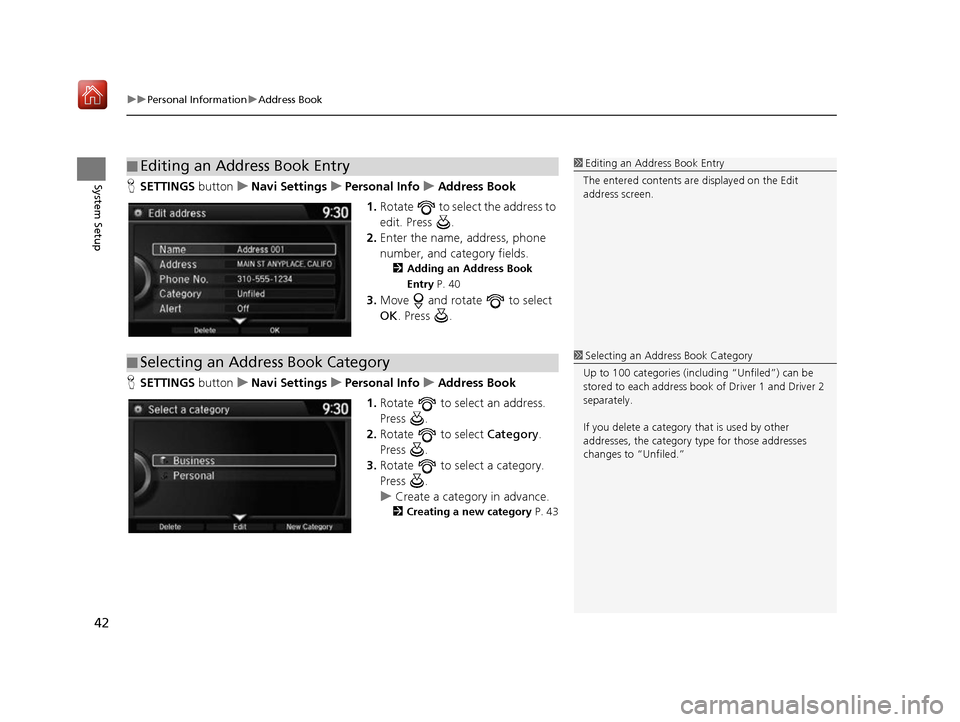
System SetupH SETTINGS buttonuNavi Settings uPersonal Info uAddress Book
1. Rotate to select the address to
edit. Press .
2. Enter the name, address, phone
number, and category fields.
2 Adding an Address Book
Entry P. 40
3.Move and rotate to select
OK . Press .
H SETTINGS buttonuNavi Settings uPersonal Info uAddress Book
1. Rotate to select an address.
Press .
2. Rotate to select Category.
Press .
3. Rotate to select a category.
Press .
u Create a category in advance.
2 Creating a new category P. 43
■Editing an Address Book Entry1
Editing an Address Book Entry
The entered contents are displayed on the Edit
address screen.
■ Selecting an Address Book Category1
Selecting an Addr ess Book Category
Up to 100 categories (including “Unfiled”) can be
stored to each address book of Driver 1 and Driver 2
separately.
If you delete a category that is used by other
addresses, the category type for those addresses
changes to “Unfiled.”
16 ACURA RDX NAVI-31TX48300.book 42 ページ 2015年8月5日 水曜日 午後4時12分


