2017 Acura RDX anc
[x] Cancel search: ancPage 304 of 357

303
uuAcuraLink ®u AcuraLink ® Message
Continued
AcuraLink® Messages
AcuraLink® Message
AcuraLink ® sends you messages on
vehicle features, sa fety and emissions
recall campaigns, maintenance
reminders, and diagnostic
information.
When you receive a new message, an
icon appears on the upper right
corner of the navigation screen.
There are six message categories.
• Feature Guide : Messages about your vehicle and its features are sent daily for
the first 90 days.
• Quick Tips : Supplements your Owner’s Manual with updated vehicle
information.
• Scheduled Dealer Appointment : An appointment made through the Acura
server or Acura Owners website can be rescheduled or canceled from this option.
2Dealer Appointments (U.S. only) P. 306
•Diagnostic Info: Appears when a warning indi cator or message comes on.
Rotate to select Check Later or Check Now.
u Selecting Check Now lets you know if yo u should see a dealer immediately or
later in accordance with the warning severity level.
• Maintenance Minder : Lets you know which maintenance item is due along
with a reminder message.
1 AcuraLink ® Message
Messages may not appear immediately after your
vehicle purchase. It can ta ke several days for your
dealer to register your vehicle’s ID.
If an icon includes an excl amation point, it indicates
that Acura gives high priority to this message
compared to the one without.
•: An unread message with high priority
•: An unread message
Message Icon
■ Message Category1
Message Category
The types of messages you receive can be modified.
Ask a dealer or visit owners.acura.com (U.S.) or
www.acura.ca/owners/acuralink (Canada).
You can call your dealer, find the nearest dealer, or
schedule appointments from the message options in
Maintenance Minder, Re calls/Campaigns, and
Diagnostic Info. 2 Message Options P. 305
16 ACURA RDX NAVI-31TX48300.book 303 ページ 2015年8月5日 水曜日 午後4時12分
Page 306 of 357

Continued305
uuAcuraLink ®u AcuraLink ® Message
AcuraLink® Messages
While a message is displayed, you
can use options to take immediate
action to the message.
Available options are:
• Voice : Reads the message aloud. Select Stop to cancel it.
• Find Acura Dlr. : Searches for the nearest Acura dealer.
• Delete: Deletes the displayed message.
• Call Your Dealer: Calls your Acura dealer using HFL.
• Schedule Dealer Appointment (U.S. only): Automatically sets an appointment
date at your dealer.
• Phone number : Dials a number displaye d in the message via HFL.
• Diagnostic Info: Updates the current diagnostic message by connecting to the
Acura server using HFL.
■Message Options1
Message Options
The available options vary by message category.
You can delete all message s in a category at once.
16 ACURA RDX NAVI-31TX48300.book 305 ページ 2015年8月5日 水曜日 午後4時12分
Page 307 of 357
uuAcuraLink ®u AcuraLink ® Message
306
AcuraLink® Messages
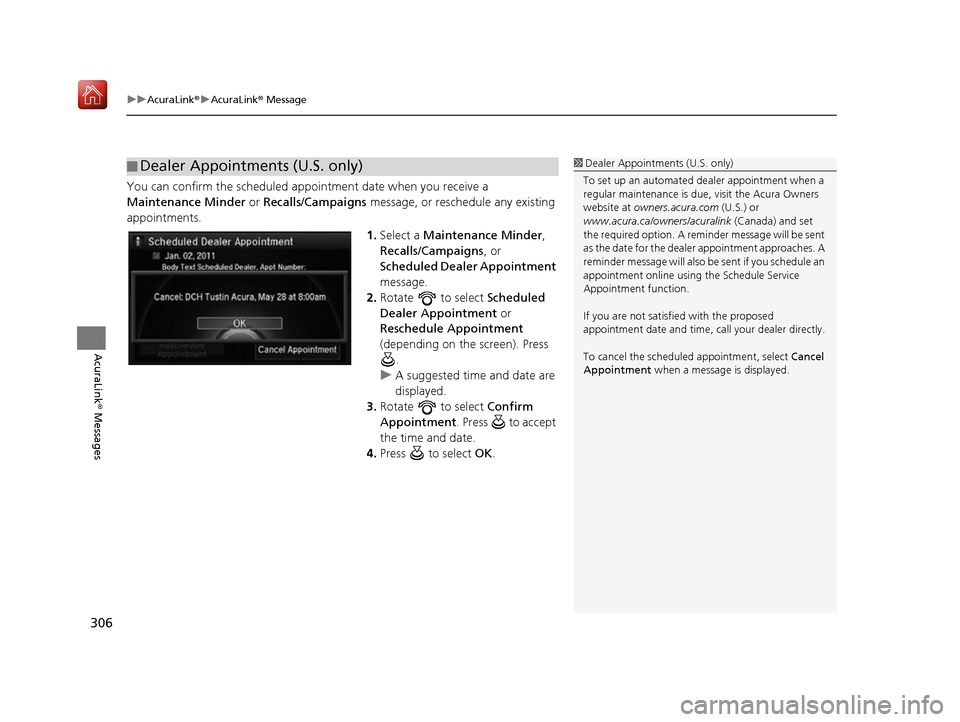
You can confirm the scheduled appointment date when you receive a
Maintenance Minder or Recalls/Campaigns message, or reschedule any existing
appointments.
1.Select a Maintenance Minder ,
Recalls/Campaigns , or
Scheduled Dealer Appointment
message.
2. Rotate to select Scheduled
Dealer Appointment or
Reschedule Appointment
(depending on the screen). Press .
u A suggested time and date are
displayed.
3. Rotate to select Confirm
Appointment . Press to accept
the time and date.
4. Press to select OK.
■Dealer Appointments (U.S. only)1
Dealer Appointments (U.S. only)
To set up an automated de aler appointment when a
regular maintenance is due , visit the Acura Owners
website at owners.acura.com (U.S.) or
www.acura.ca/owners/acuralink (Canada) and set
the required option. A remi nder message will be sent
as the date for the dealer appointment approaches. A
reminder message will also be sent if you schedule an
appointment online using the Schedule Service
Appointment function.
If you are not satisfied with the proposed
appointment date and time, ca ll your dealer directly.
To cancel the scheduled appointment, select Cancel
Appointment when a message is displayed.
16 ACURA RDX NAVI-31TX48300.book 306 ページ 2015年8月5日 水曜日 午後4時12分
Page 311 of 357
310
Other Features
Trip Computer
HINFO button uTrip Computer
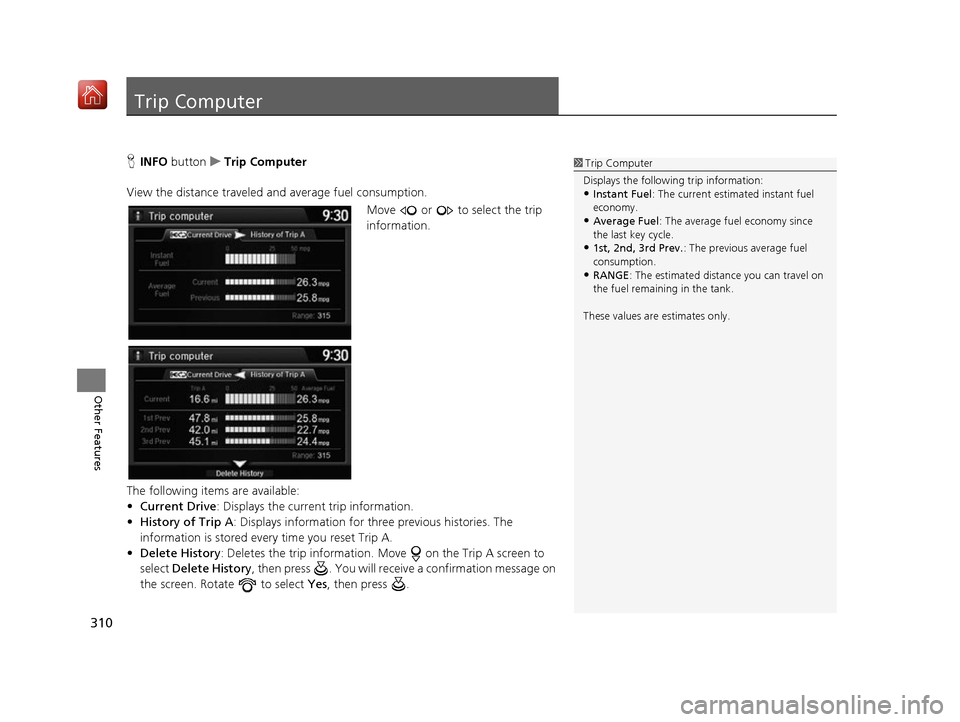
View the distance traveled and average fuel consumption. Move or to select the trip
information.
The following items are available:
• Current Drive : Displays the current trip information.
• History of Trip A : Displays information for th ree previous histories. The
information is stored every time you reset Trip A.
• Delete History : Deletes the trip information. Move on the Trip A screen to
select Delete History , then press . You will receiv e a confirmation message on
the screen. Rotate to select Yes, then press .1Trip Computer
Displays the following trip information:
•Instant Fuel : The current estimated instant fuel
economy.
•Average Fuel: The average fuel economy since
the last key cycle.
•1st, 2nd, 3rd Prev. : The previous average fuel
consumption.
•RANGE : The estimated distan ce you can travel on
the fuel remaining in the tank.
These values are estimates only.
16 ACURA RDX NAVI-31TX48300.book 310 ページ 2015年8月5日 水曜日 午後4時12分
Page 315 of 357

314
Other Features
Multi-View Rear Camera
About Your Multi-View Rear Camera
Your vehicle is equipped with a multi-view rear camera. When you shift into Reverse,
the rear view is displayed on the audio/information screen. The edge of the bumper
and parking guide lines are also displayed.
Rotate to adjust the screen
brightness.
While the rear view is displayed,
press to switch between WIDE,
NORMAL, and TOP DOWN view
modes.1Multi-View Rear Camera
Always keep the camera lens clean and
unobstructed. The multi-view rear camera has a lens
that makes distances appear different than they
actually are. Always take care when reversing, and
look behind you for obstacles.
Navigation controls are disabled when in Reverse.
Adjusting the brightness fo r the multi-view rear
camera display does not a ffect the brightness for the
navigation screen.
If you turn the guide lines off, they remain off until
you turn them back on.
The last used viewing mode is selected the next time
you shift into Reverse. However, once the power
mode is set to VEHICLE OFF (LOCK), WIDE mode is
selected if TOP DOWN view was last used.
You can change the Fixed Guideline and Dynamic
Guideline settings.
2 Customized Features P. 88
Fixed Guideline
On : Guidelines appear when you shift into .
Off : Guidelines do not appear.
Dynamic Guideline
On : Guidelines move according to the steering wheel
direction.
Off : Guidelines do not move.
Multi-View
Rear Camera
TOP DOWNNORMAL
Guide lines
Bumper
Camera Approx. 9.8 ft (3 m) Approx. 1.7 ft (50 cm)
Tailgate open range
WIDE
Screen display
Approx. 6.6 ft (2 m)Approx. 3.3 ft (1 m)Approx. 9.8 ft (3 m)
Approx. 6.6 ft (2 m) Approx. 3.3 ft (1 m)
16 ACURA RDX NAVI-31TX48300.book 314 ページ 2015年8月5日 水曜日 午後4時12分
Page 316 of 357
315
Troubleshooting
Troubleshooting....................................316
Map, Voice, Entering Destinations .........316
Traffic ...................................................318
Guidance, Routing ................................319
Update, Coverage, Map Errors ..............321
Display, Accessories ..............................321
Multi-View Rear Camera .......................321
Miscellaneous Questions .......................322
Error Messages ......................................323
Navigation System ................................323
CD Player ..............................................324
Hard Disc Drive (HDD) Audio .................325
iPod/USB Flash Drive .............................326
Pandora ®..............................................327 AhaTM Radio ......................................... 330
16 ACURA RDX NAVI-31TX48300.book 315 ページ 2015年8月5日 水曜日 午後4時12分
Page 317 of 357

316
Troubleshooting
Troubleshooting
Map, Voice, Entering Destinations
ProblemSolution
The Startup Confirmation screen is displayed
every time I start the car.This is normal. The Startup Confirmati on screen reminds you and your guest
drivers to always operate the navigation system in a safe manner. The Startup
Confirmation screen goes off after a certain period of time and the top screen of
the last mode is displayed.
The navigation system reboots by itself
(returns to the opening screen).A reboot can be caused by extreme temper atures or shock from bumpy roads, and
does not necessarily indicate a problem. If this happens frequently, please see a
dealer.
How do I specify a de stination when an
entered city or street could not be found?●Try entering the street first. Some cities are lumped in with a major metro area.
In rural “unverified” areas or new subdivisions, streets may be missing or only
partially numbered.
●Try selecting the destination directly from the map.
2 Map Input P. 138
Why do some letters become grayed out
when I enter an address?As you enter each letter in an address or a place/landmark, the navigation system
looks in the database to see what letters are possible and grays out letters that do
not apply.
How do I delete Personal Addresses,
Previous Destinations, or the Home Address?1. Press the SETTINGS button. Select Navi Settings > Personal Info to display
the types of information.
2. Select the type of address to delete.
3. Select Delete.
I cannot hear the navigation system voice.1.Press the SETTINGS button. Select System Settings and check that Guidance
Volume is not set to 0.
2. Select Voice Reco and set Voice Prompt to On.
Why is Call grayed out on the Calculate
Route screen?Your phone is not paired to Bluetooth® HandsFreeLink ® or, if paired, your phone
is in use.
2 Bluetooth® HandsFreeLink ® P. 252
16 ACURA RDX NAVI-31TX48300.book 316 ページ 2015年8月5日 水曜日 午後4時12分
Page 318 of 357

317
uuTroubleshooting uMap, Voice, Entering Destinations
Troubleshooting
The voice control system is having difficulty
recognizing my voice commands.Check that the vents are not blowing air onto the microphone on the ceiling, the
vehicle is as quiet as po ssible, and you are using the correct command when
speaking.
2 Voice Recognition P. 23
I cannot give voice commands.Make sure you selected OK at the Startup Confirmation screen.
2Start-up P. 20
I cannot select an option using the Interface
Dial.To reduce potential driver distraction, ce rtain onscreen functions and features are
limited or inoperable while the vehicle is moving. Use voice commands or pull over
to proceed.
The navigation system pronunciation of
street names in the guidance command or
destination address sounds strange.The basic guidance phrases use a studio-re corded voice, but street names are
pronounced using a machine-generated voice. Consequently, the name may be
mispronounced or sound strange at times.
The screen is bright when I drive at night.1.Check that the nighttime dashboard brightness control is not set to maximum.
2. Press the SETTINGS button. Select Navi Settings > Map > Color (Night) .
2Color P. 73
The screen is dark wh en I drive during the
day.Press the SETTINGS button. Select Navi Settings > Map > Color (Day) .
2Color P. 73
How do I change or remove my PIN?1.Press the SETTINGS button. Select Navi Settings > Personal Info > PIN
Number > Address Book PIN or Go Home PIN .
2. Enter your existing PIN. You then have the choice to change or remove the PIN.
2 PIN Numbers P. 47
I have forgotten my PIN. How do I reset the
PIN for Home or the PIN for personal
addresses?A dealer must reset the PIN for you.
ProblemSolution
16 ACURA RDX NAVI-31TX48300.book 317 ページ 2015年8月5日 水曜日 午後4時12分