Page 459 of 800
PRIUS_OM_OM47A29U_(U)
4595-7. Connecting Bluetooth®
5
Audio system
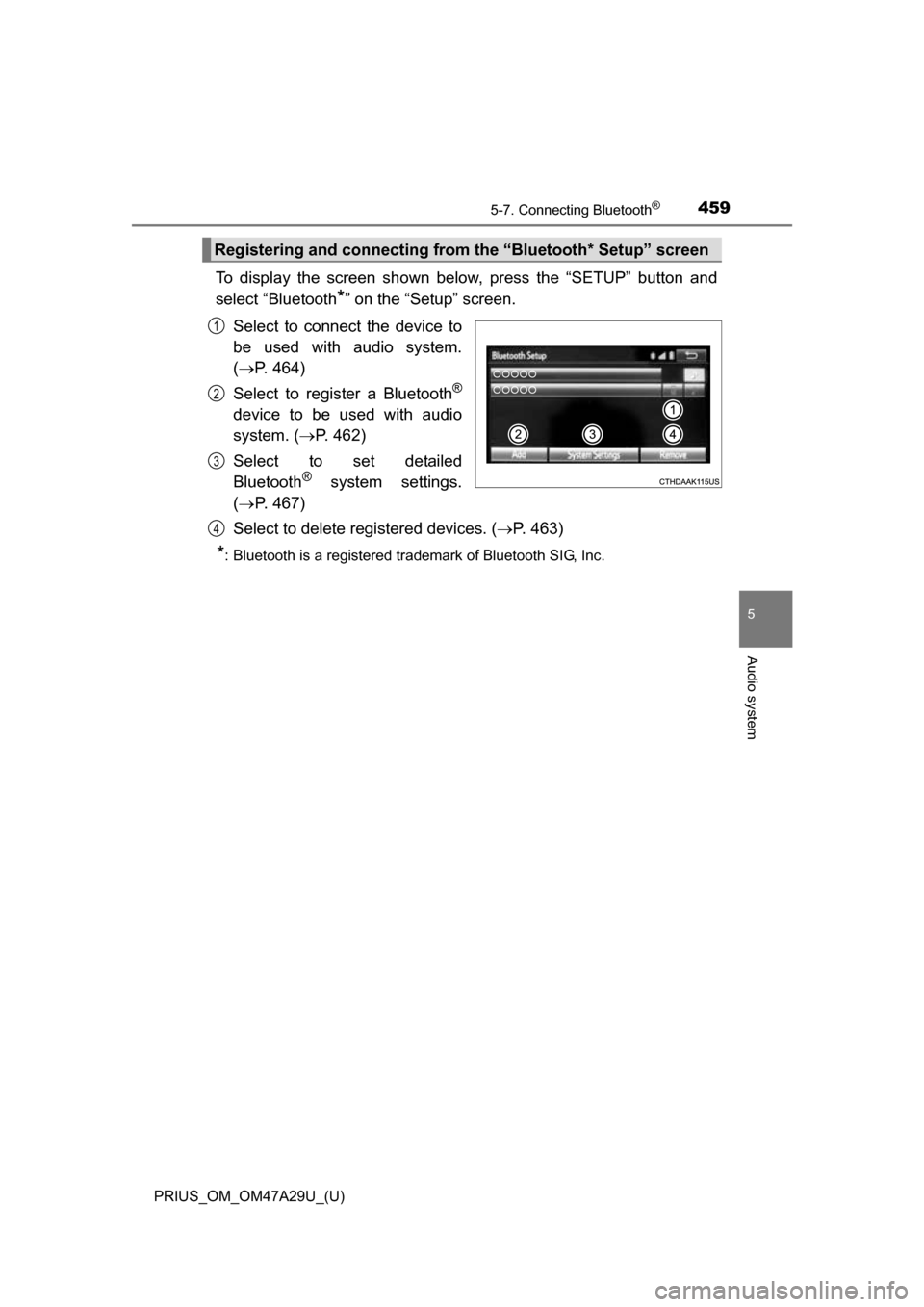
To display the screen shown below, press the “SETUP” button and
select “Bluetooth
*” on the “Setup” screen.
Select to connect the device to
be used with audio system.
( P. 464)
Select to register a Bluetooth
®
device to be used with audio
system. ( P. 462)
Select to set detailed
Bluetooth
® system settings.
( P. 467)
Select to delete registered devices. ( P. 463)
*: Bluetooth is a registered trademark of Bluetooth SIG, Inc.
Registering and connecting from the “Bluetooth* Setup” screen
1
2
3
4
Page 460 of 800
460
PRIUS_OM_OM47A29U_(U)
5-7. Connecting Bluetooth®
Registering a Bluetooth® audio player for
the first time
Turn the Bluetooth® connection setting of your audio player on.
Press the “AUDIO” button.
Select “ Audio”.
Follow the steps in “How to register a Bluetooth
® device” from .
( P. 462)
To use the Bluetooth® Audio, it is necessary to register an audio
player with the system.
Once the player has been registered, it is possible to use the
Bluetooth
® Audio.
For details about registering a Bluetooth
® device ( P. 462)
1
2
3
42
Page 461 of 800
461
PRIUS_OM_OM47A29U_(U)
5-7. Connecting Bluetooth®
5
Audio system
Registering a Bluetooth® phone for the first
time
Turn the Bluetooth® connection setting of your cellular phone on.
Press the “ ” button.
Select “Yes” to register a phone.
Follow the steps in “How to register a Bluetooth
® device” from .
( P. 462)
To use the hands-free system, it is necessary to register a
Bluetooth® phone with the system.
Once the phone has been registered, it is possible to use the
hands-free system.
For details about registering a Bluetooth
® device ( P. 462)
1
2
3
43
Page 466 of 800
466
PRIUS_OM_OM47A29U_(U)
5-7. Connecting Bluetooth®
Displaying a Bluetooth® device details
Display the “Bluetooth* Setup” screen. (P. 459)
*: Bluetooth is a registered trademark of Bluetooth SIG, Inc.
Select the device.
Select “Device Info”.
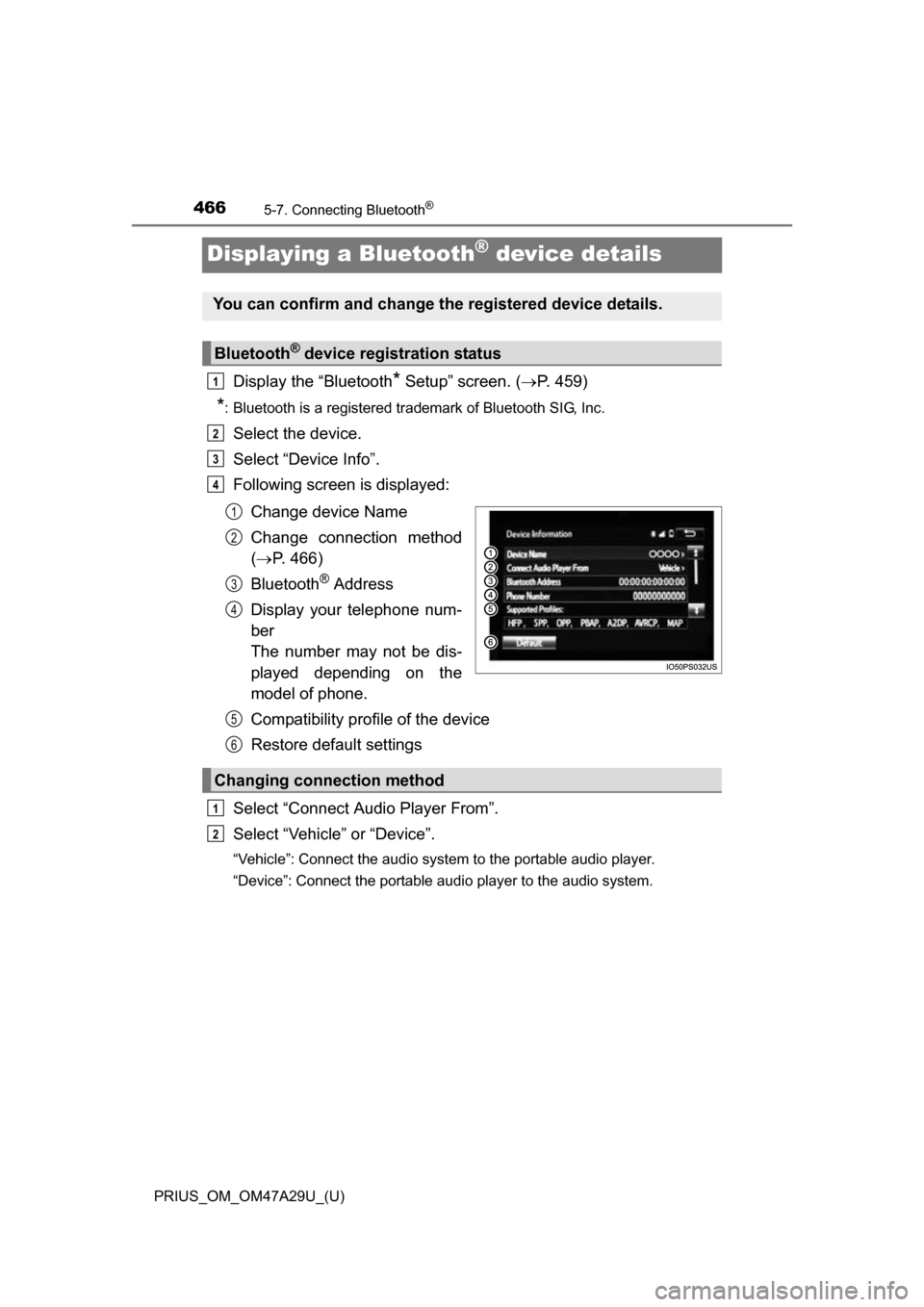
Following screen is displayed:
Change device Name
Change connection method
( P. 466)
Bluetooth
® Address
Display your telephone num-
ber
The number may not be dis-
played depending on the
model of phone.
Compatibility profile of the device
Restore default settings
Select “Connect Audio Player From”.
Select “Vehicle ” or “Device”.
“Vehicle”: Connect the audio system to the portable audio player.
“Device”: Connect the portable audio player to the audio system.
You can confirm and change the registered device details.
Bluetooth® device registration status
1
2
3
4
1
2
3
4
Changing connection method
5
6
1
2
Page 467 of 800
467
PRIUS_OM_OM47A29U_(U)
5-7. Connecting Bluetooth®
5
Audio system
Detailed Bluetooth® settings
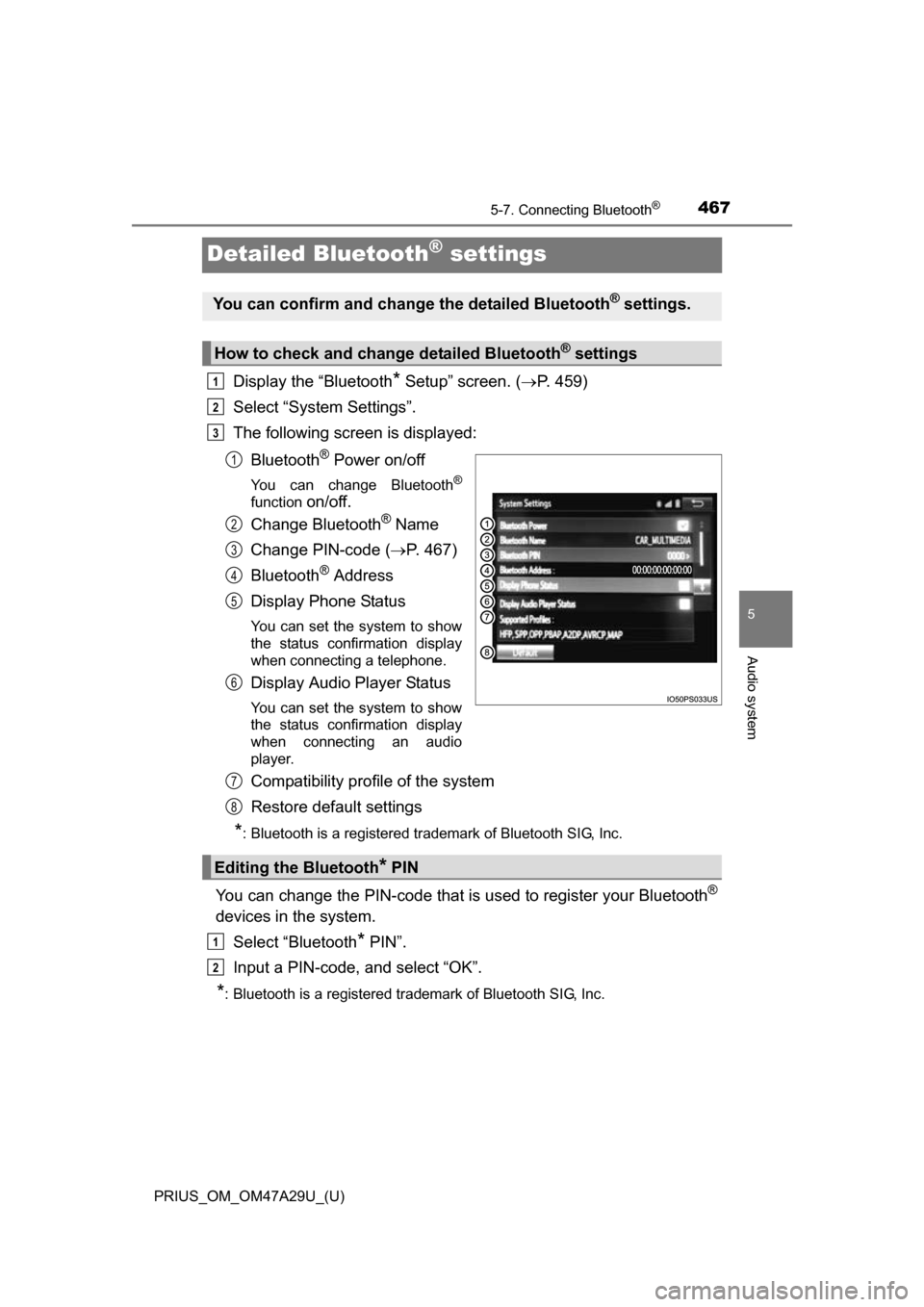
Display the “Bluetooth* Setup” screen. (P. 459)
Select “System Settings”.
The following screen is displayed:
Bluetooth
® Power on/off
You can change Bluetooth®
function on/off.
Change Bluetooth
® Name
Change PIN-code ( P. 467)
Bluetooth
® Address
Display Phone Status
You can set the system to show
the status confirmation display
when connecting a telephone.
Display Audio Player Status
You can set the system to show
the status confirmation display
when connecting an audio
player.
Compatibility profile of the system
Restore default settings
*: Bluetooth is a registered trademark of Bluetooth SIG, Inc.
You can change the PIN-code that is used to register your Bluetooth®
devices in the system.
Select “Bluetooth
* PIN”.
Input a PIN-code, and select “OK”.
*: Bluetooth is a registered trademark of Bluetooth SIG, Inc.
You can confirm and change the detailed Bluetooth® settings.
How to check and change detailed Bluetooth® settings
1
2
3
1
2
3
4
5
6
Editing the Bluetooth* PIN
7
8
1
2
Page 479 of 800
PRIUS_OM_OM47A29U_(U)
4795-9. Bluetooth® phone
5
Audio system
Select “Handset Mode” to on from a hands-free call to a cellular
phone call.
Select “Handset Mode” to off from a cellular phone call to a hands-free
call.Select “Transmit Volume”.
Select the desired level for the transmit volume.
Select “OK”.
Press the switch on the steering wheel or select .
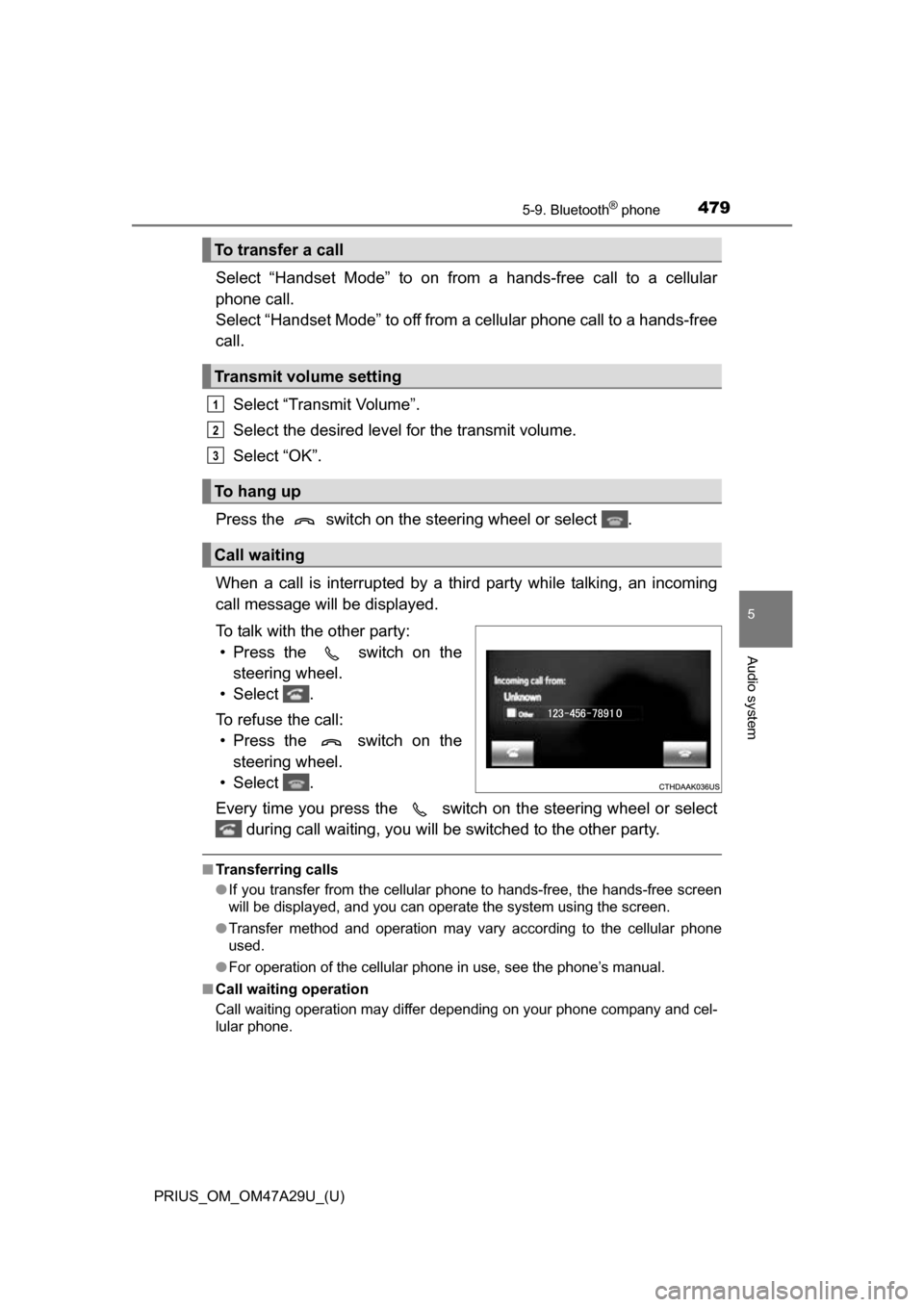
When a call is interrupted by a third party while talking, an incoming
call message will be displayed.
To talk with the other party: • Press the switch on the steering wheel.
• Select .
To refuse the call: • Press the switch on the steering wheel.
• Select .
Every time you press the switch on the steering wheel or select during call waiting, you will be switched to the other party.
■Transferring calls
●If you transfer from the cellular phone to hands-free, the hands-free screen
will be displayed, and you can operate the system using the screen.
● Transfer method and operation may vary according to the cellular phone
used.
● For operation of the cellular phone in use, see the phone’s manual.
■ Call waiting operation
Call waiting operation may differ depending on your phone company and cel-
lular phone.
To transfer a call
Transmit volume setting
To hang up
Call waiting
1
2
3
Page 485 of 800
485
PRIUS_OM_OM47A29U_(U)
5-9. Bluetooth® phone
5
Audio system
Bluetooth® phone settings
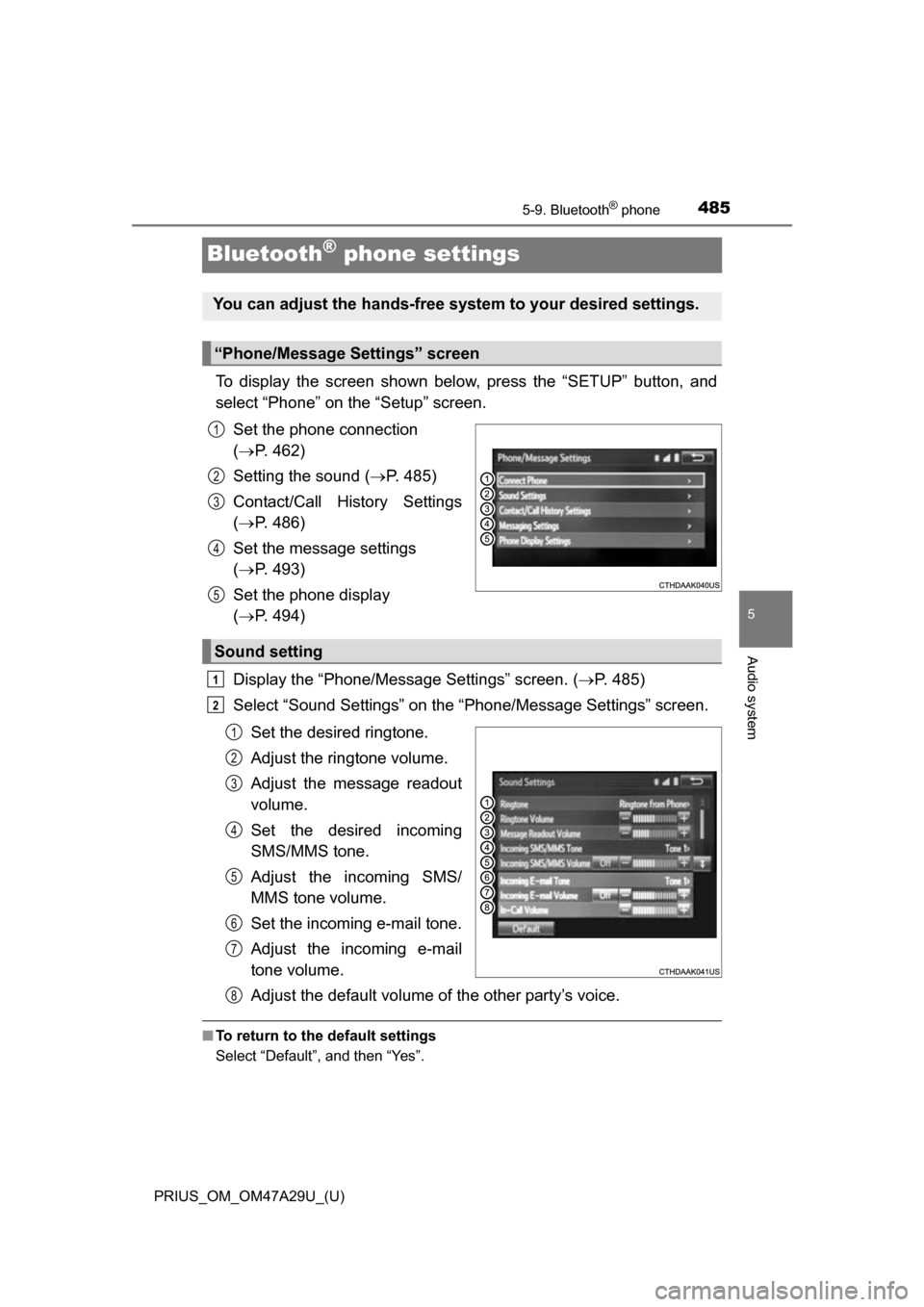
To display the screen shown below, press the “SETUP” button, and
select “Phone” on the “Setup” screen.Set the phone connection
( P. 462)
Setting the sound ( P. 485)
Contact/Call History Settings
( P. 486)
Set the message settings
( P. 493)
Set the phone display
( P. 494)
Display the “Phone/Message Settings” screen. ( P. 485)
Select “Sound Settings” on the “Phone/Message Settings” screen.
Set the desired ringtone.
Adjust the ringtone volume.
Adjust the message readout
volume.
Set the desired incoming
SMS/MMS tone.
Adjust the incoming SMS/
MMS tone volume.
Set the incoming e-mail tone.
Adjust the incoming e-mail
tone volume.
Adjust the default volume of the other party’s voice.
■To return to the default settings
Select “Default”, and then “Yes”.
You can adjust the hands-free system to your desired settings.
“Phone/Message Settings” screen
1
2
3
4
5
Sound setting
1
2
1
2
3
4
5
6
7
8
Page 486 of 800
486
PRIUS_OM_OM47A29U_(U)
5-9. Bluetooth® phone
Contact/Call Histor y Settings
Display the “Phone/Message Settings” screen. (P. 485)
Select “Contact/Call History Settings”.
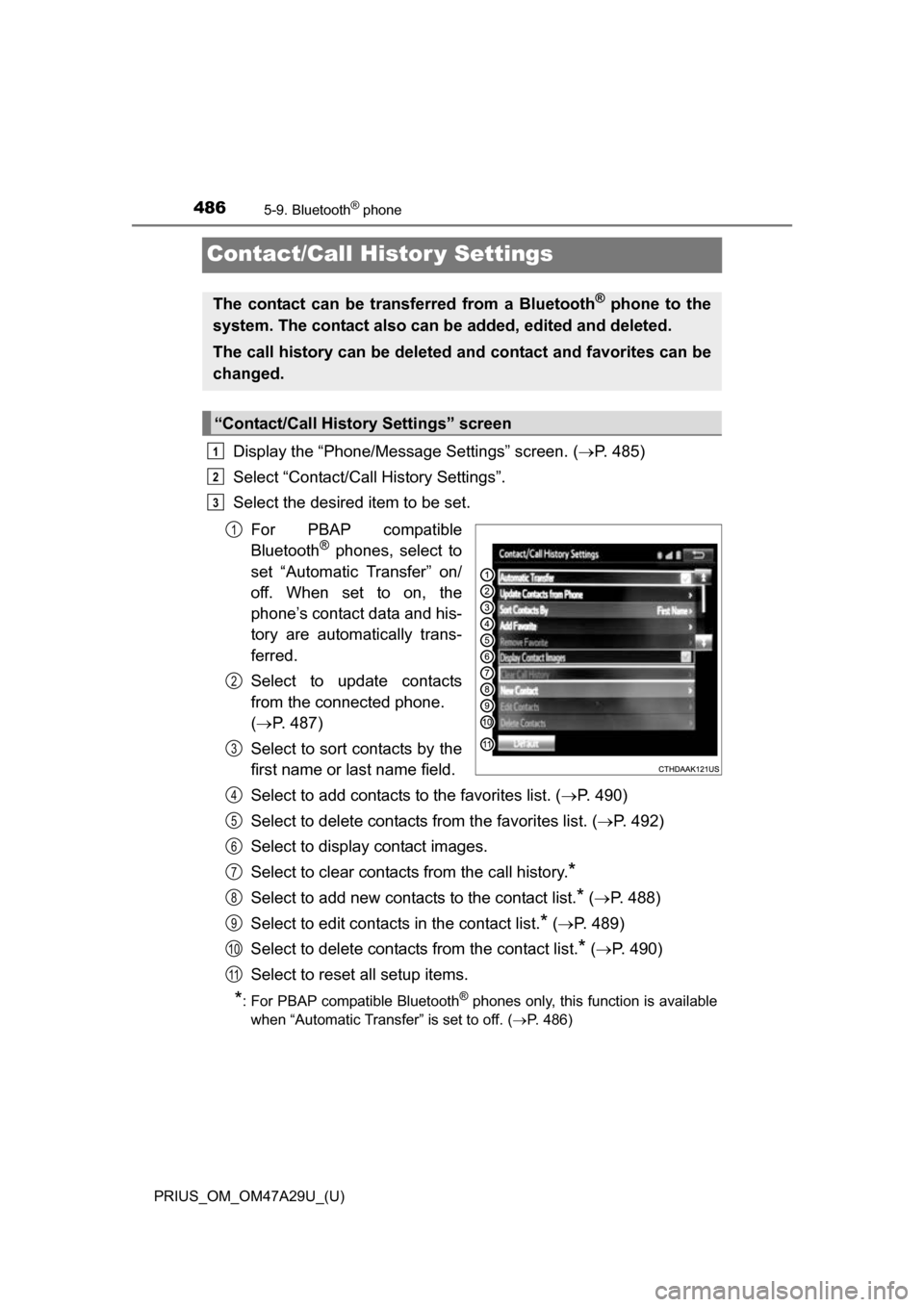
Select the desired item to be set.
For PBAP compatible
Bluetooth
® phones, select to
set “Automatic Transfer” on/
off. When set to on, the
phone’s contact data and his-
tory are automatically trans-
ferred.
Select to update contacts
from the connected phone.
( P. 487)
Select to sort contacts by the
first name or last name field.
Select to add contacts to the favorites list. ( P. 490)
Select to delete contacts from the favorites list. ( P. 492)
Select to display contact images.
Select to clear contacts from the call history.
*
Select to add new contacts to the contact list.* ( P. 488)
Select to edit contacts in the contact list.
* ( P. 489)
Select to delete contacts from the contact list.
* ( P. 490)
Select to reset all setup items.
*: For PBAP compatible Bluetooth® phones only, this function is available
when “Automatic Transfer” is set to off.
( P. 486)
The contact can be transferred from a Bluetooth® phone to the
system. The contact also can be added, edited and deleted.
The call history can be deleted and contact and favorites can be
changed.
“Contact/Call History Settings” screen
1
2
3
1
2
3
4
5
6
7
8
9
10
11