Page 225 of 429

Bluetooth® Communication Link
Mobile phones have been found to lose connection to the
Uconnect® Phone. When this happens, the connection
can generally be re-established by switching the mobile
phone OFF/ON. Your mobile phone is recommended to
remain in Bluetooth® ON mode.
Power-Up
After switching the ignition key from OFF to either the
ON or ACC position, or after a language change, you
must wait at least 15 seconds prior to using the system.
General Information
This device complies with Part 15 of the FCC rules and
RSS 210 of Industry Canada. Operation is subject to the
following conditions:
•Changes or modifications not expressly approved by
the party responsible for compliance could void the
user’s authority to operate the equipment.
•This device may not cause harmful interference.
•This device must accept any interference received,
including interference that may cause undesired op-
eration.
NAVIGATION
Navigation Registration (Uconnect® 8.4A Only)
Uconnect® 8.4A is Navigation-capable for dealer activa-
tion. See dealer for details.
Getting Started
Once the Navigation system has been activated by your
authorized dealer, access the system by pressing the
“Nav” button on the bottom of the touchscreen.
224 Uconnect® 8.4A — If Equipped
Page 290 of 429
Uconnect® 8.4AN — If Equipped
CONTENTS
!Uconnect® 8.4AN SYSTEM................291
!RADIO MODE.........................292
▫Setting Presets........................295
▫SiriusXM Satellite Radio Mode — If Equipped . .296
▫Audio..............................304
!MEDIA MODE.........................306
▫Disc Mode — If Equipped...............306
▫USB/iPod® Mode.....................308
▫AUX Mode..........................309
▫SD Card Mode — If Equipped............310
▫Bluetooth® Mode.....................312
!Uconnect® PHONE.....................314
▫Overview...........................314
▫Operation...........................317
▫Phone Call Features...................327
▫Advanced Phone Connectivity............332
▫Things You Should Know About Your Uconnect®
Phone.............................333
▫General Information...................339
!NAVIGATION.........................339
4
Page 292 of 429
Uconnect® 8.4AN SYSTEM
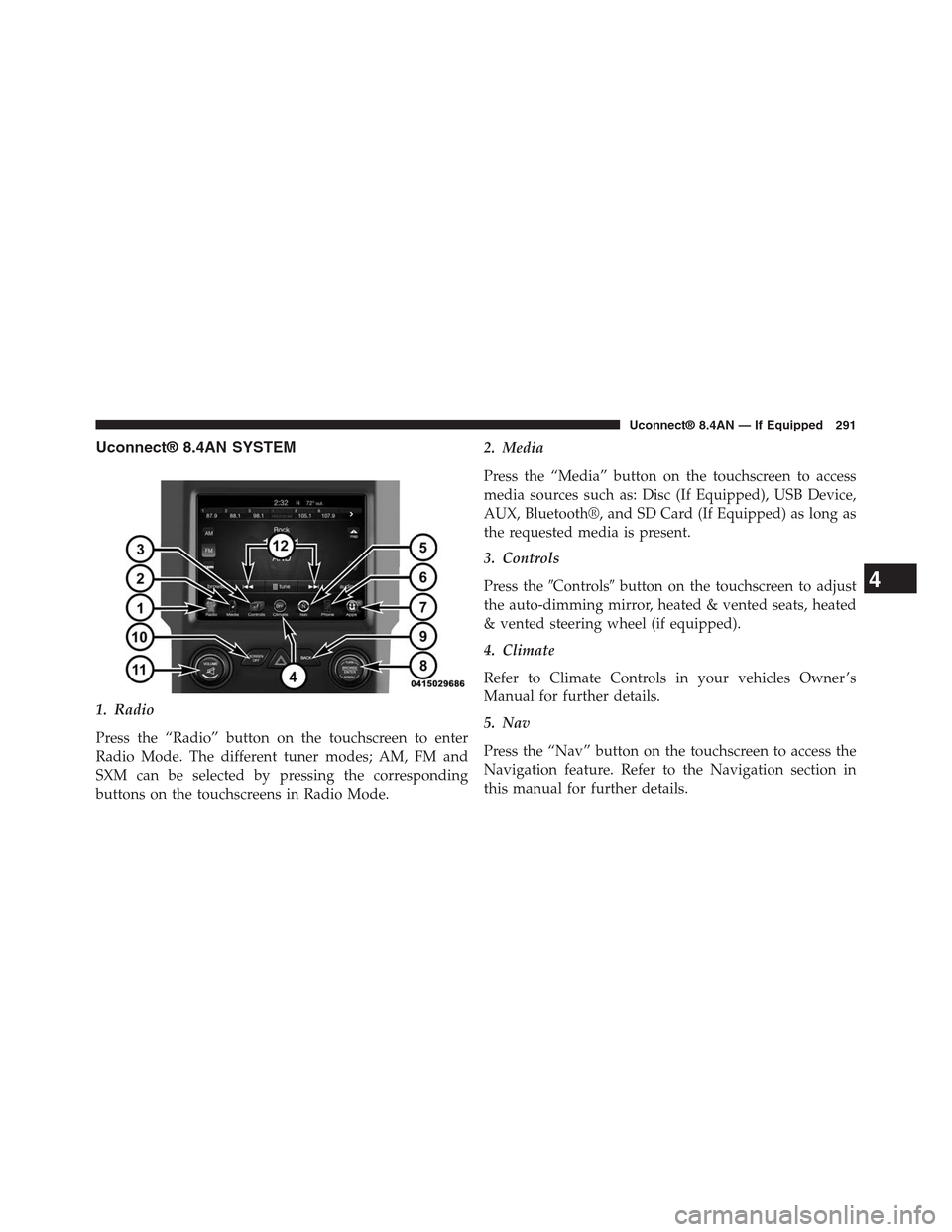
1. Radio
Press the “Radio” button on the touchscreen to enter
Radio Mode. The different tuner modes; AM, FM and
SXM can be selected by pressing the corresponding
buttons on the touchscreens in Radio Mode.
2. Media
Press the “Media” button on the touchscreen to access
media sources such as: Disc (If Equipped), USB Device,
AUX, Bluetooth®, and SD Card (If Equipped) as long as
the requested media is present.
3. Controls
Press the#Controls#button on the touchscreen to adjust
the auto-dimming mirror, heated & vented seats, heated
& vented steering wheel (if equipped).
4. Climate
Refer to Climate Controls in your vehicles Owner ’s
Manual for further details.
5. Nav
Press the “Nav” button on the touchscreen to access the
Navigation feature. Refer to the Navigation section in
this manual for further details.
4
Uconnect® 8.4AN — If Equipped 291
Page 313 of 429
Tracks
Press the “trks” button on the touchscreen to display a
pop up with the Song List. The currently playing song is
indicated by an arrow and lines above and below the
song title. When in the Tracks List screen you can rotate
the TUNE/SCROLL knob to highlight a track (indicated
by the line above and below the track name) and then
push the ENTER/BROWSE knob to start playing that
track.
Pressing the “trks” button on the touchscreen while the
pop up is displayed will close the pop up.
Audio
Refer to Radio Mode for adjusting the audio settings.
Bluetooth® Mode
Overview
Bluetooth® Streaming Audio (BTSA) or Bluetooth®
Mode is entered by pairing a Bluetooth® device, contain-
ing music, to the Uconnect® System.
Before proceeding, the Bluetooth® device must be paired
to the Uconnect® Phone to communicate with the
Uconnect® System.
NOTE:See the pairing procedure in the Uconnect®
Phone section for more details.
312 Uconnect® 8.4AN — If Equipped
Page 314 of 429

To access Bluetooth® mode, press the “Bluetooth®”
button on the left side of the display.
Seek Up/Down
Press and release the “Right Arrow”button on the
touchscreen for the next selection on the Bluetooth®
device. Press and release the “Left Arrow”button
on the touchscreen to return to the beginning of the
current selection, or return to the beginning of the
previous selection if the Bluetooth® device is within
the first second of the current selection.
Media Mode
Press the “Media” button on the touchscreen to select the
desired audio source: Bluetooth®.
Tracks
If the Bluetooth® device supports this feature, press the
“trks” button on the touchscreen to display a pop up with
the Song List. The currently playing song is indicated by
a blue arrow and lines above and below the song title.
Pressing the “trks” button on the touchscreen while the
pop up is displayed will close the pop up.
Audio
Refer to Radio Mode for adjusting the audio settings.
4
Uconnect® 8.4AN — If Equipped 313
Page 316 of 429
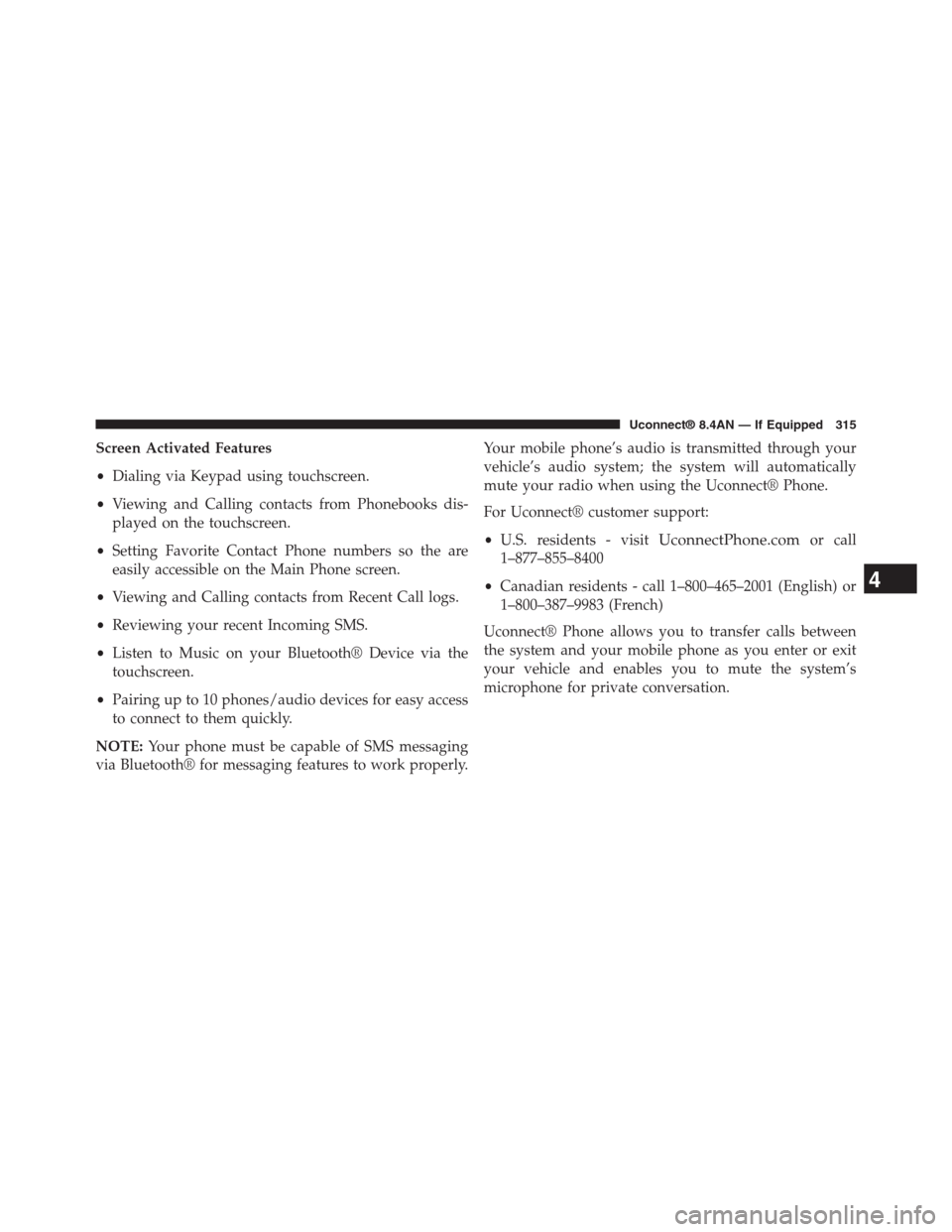
Screen Activated Features
•Dialing via Keypad using touchscreen.
•Viewing and Calling contacts from Phonebooks dis-
played on the touchscreen.
•Setting Favorite Contact Phone numbers so the are
easily accessible on the Main Phone screen.
•Viewing and Calling contacts from Recent Call logs.
•Reviewing your recent Incoming SMS.
•Listen to Music on your Bluetooth® Device via the
touchscreen.
•Pairing up to 10 phones/audio devices for easy access
to connect to them quickly.
NOTE:Your phone must be capable of SMS messaging
via Bluetooth® for messaging features to work properly.
Your mobile phone’s audio is transmitted through your
vehicle’s audio system; the system will automatically
mute your radio when using the Uconnect® Phone.
For Uconnect® customer support:
•U.S. residents - visitUconnectPhone.comor call
1–877–855–8400
•Canadian residents - call 1–800–465–2001 (English) or
1–800–387–9983 (French)
Uconnect® Phone allows you to transfer calls between
the system and your mobile phone as you enter or exit
your vehicle and enables you to mute the system’s
microphone for private conversation.
4
Uconnect® 8.4AN — If Equipped 315
Page 317 of 429
WARNING!
ALWAYS drive safely and obey all applicable
laws. You should only use Uconnect® features
when it is safe to do so. Failure to do so may result
in an accident involving serious injury or death.
The Uconnect® Phone is driven through your
Bluetooth® “Hands-Free Profile” mobile phone.
Uconnect® features Bluetooth® technology - the global
standard that enables different electronic devices to con-
nect to each other without wires or a docking station, so
Uconnect® Phone works no matter where you stow your
mobile phone (be it your purse, pocket, or briefcase), as
long as your phone is turned on and has been paired to
the vehicle’s Uconnect® Phone. The Uconnect® Phone
allows up to ten mobile phones or audio devices to be
linked to the system. Only one linked (or paired) mobile
phone and one audio device can be used with the system
at a time.
Uconnect® Phone Button
The Uconnect® Phonebutton on your steering
wheel is used to get into the phone mode
and make calls, show recent, incoming, out-
going calls, view phonebook etc., When you
press the button you will hear a BEEP. The
beep is your signal to give a command.
Uconnect® Voice Command Button
The Uconnect® Voice Commandbutton on your
steering wheel is only used for “barge in”
and when you are already in a call and you
want to send Tones or make another call.
Thebutton on your steering wheel is also used to
access the Voice Commands for the Uconnect® Voice
Command features if your vehicle is equipped. Please
see the Uconnect® Voice Command section for direc-
tion on how to use thebutton.
316 Uconnect® 8.4AN — If Equipped
Page 320 of 429
Cancel Command
At any prompt, after the beep, you can say “Cancel” and
you will be returned to the main menu.
You can also push the Phoneor Voice Command
button on your steering wheel when the system is
listening for a command and be returned to the main
or previous menu.
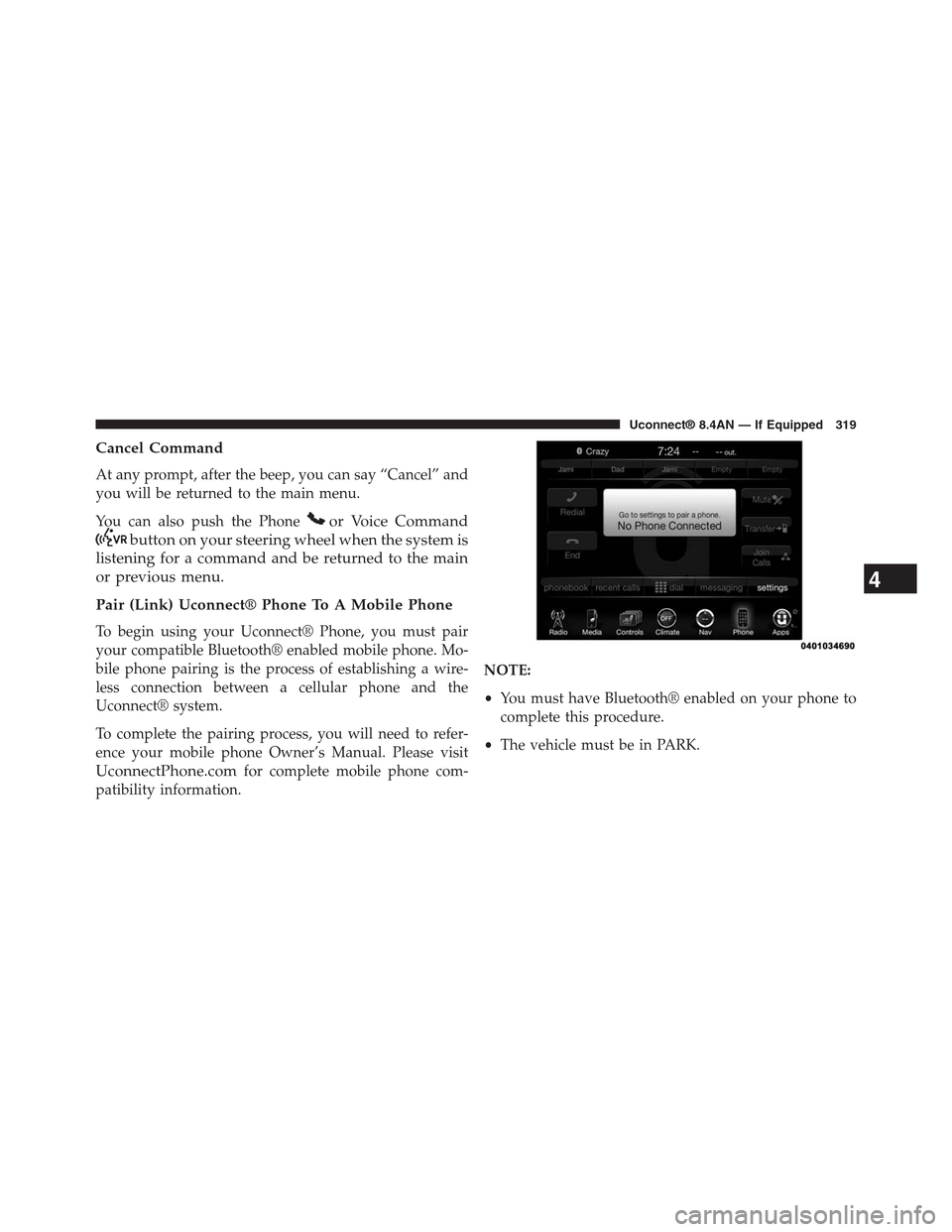
Pair (Link) Uconnect® Phone To A Mobile Phone
To begin using your Uconnect® Phone, you must pair
your compatible Bluetooth® enabled mobile phone. Mo-
bile phone pairing is the process of establishing a wire-
less connection between a cellular phone and the
Uconnect® system.
To complete the pairing process, you will need to refer-
ence your mobile phone Owner’s Manual. Please visit
UconnectPhone.comfor complete mobile phone com-
patibility information.
NOTE:
•You must have Bluetooth® enabled on your phone to
complete this procedure.
•The vehicle must be in PARK.
4
Uconnect® 8.4AN — If Equipped 319