Page 131 of 429
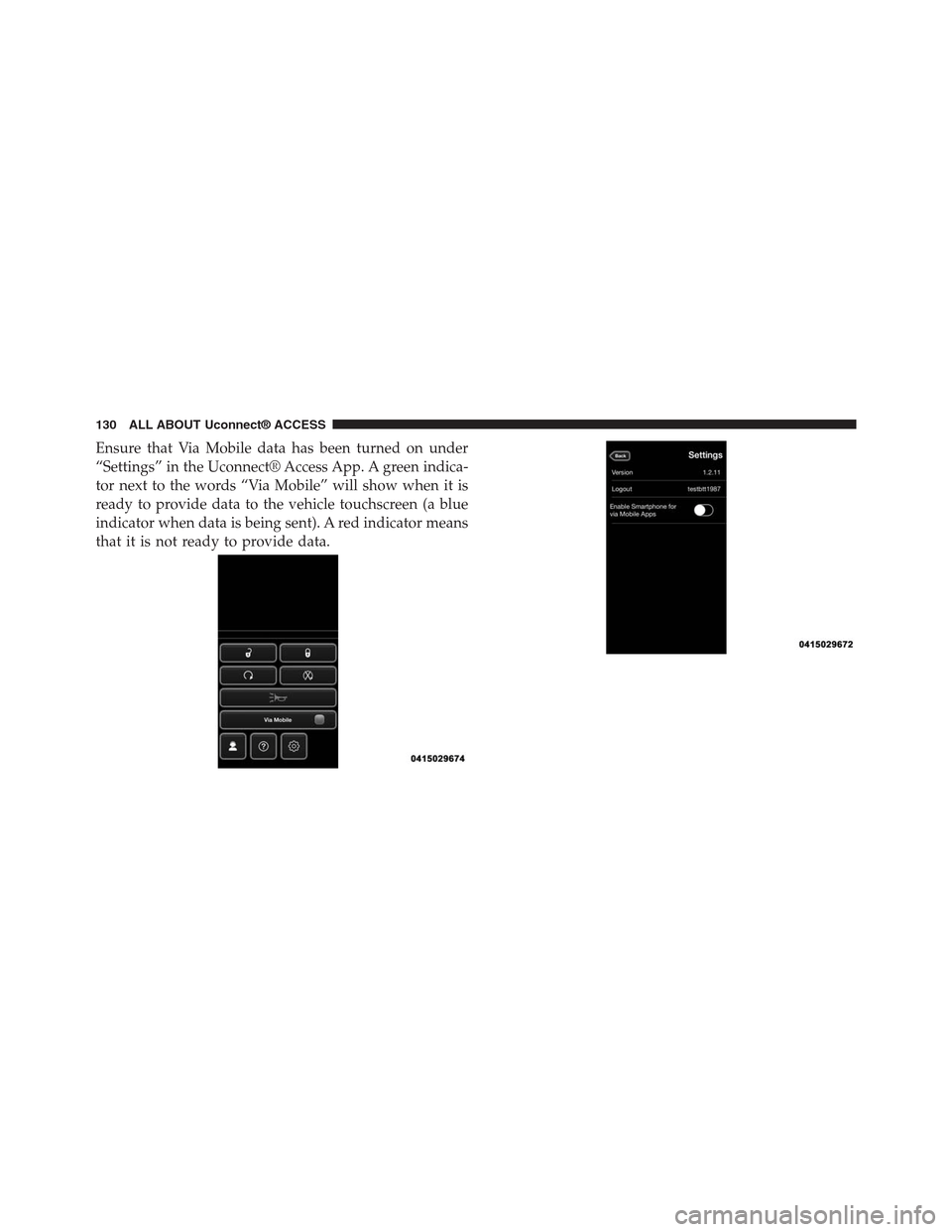
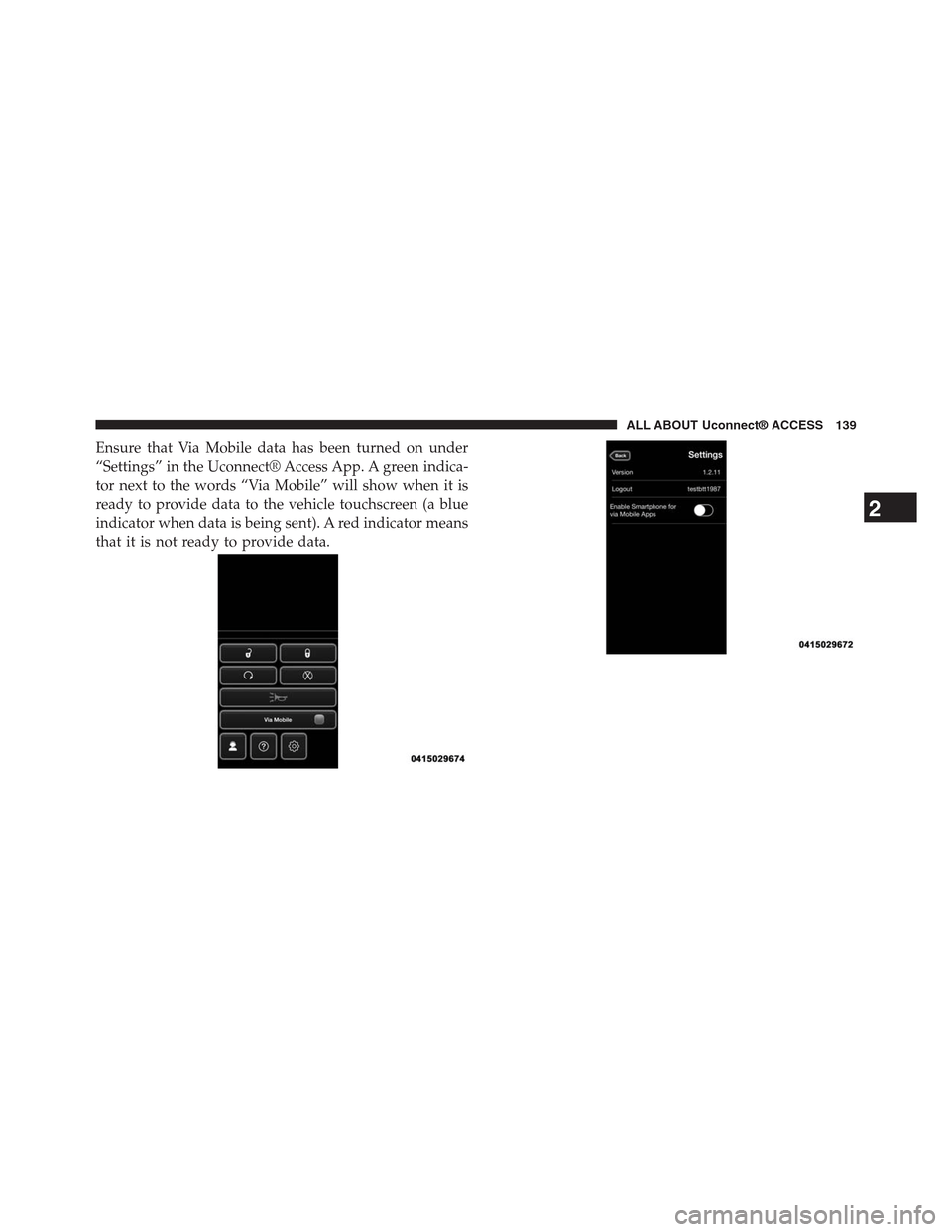
Ensure that Via Mobile data has been turned on under
“Settings” in the Uconnect® Access App. A green indica-
tor next to the words “Via Mobile” will show when it is
ready to provide data to the vehicle touchscreen (a blue
indicator when data is being sent). A red indicator means
that it is not ready to provide data.
130 ALL ABOUT Uconnect® ACCESS
Page 132 of 429
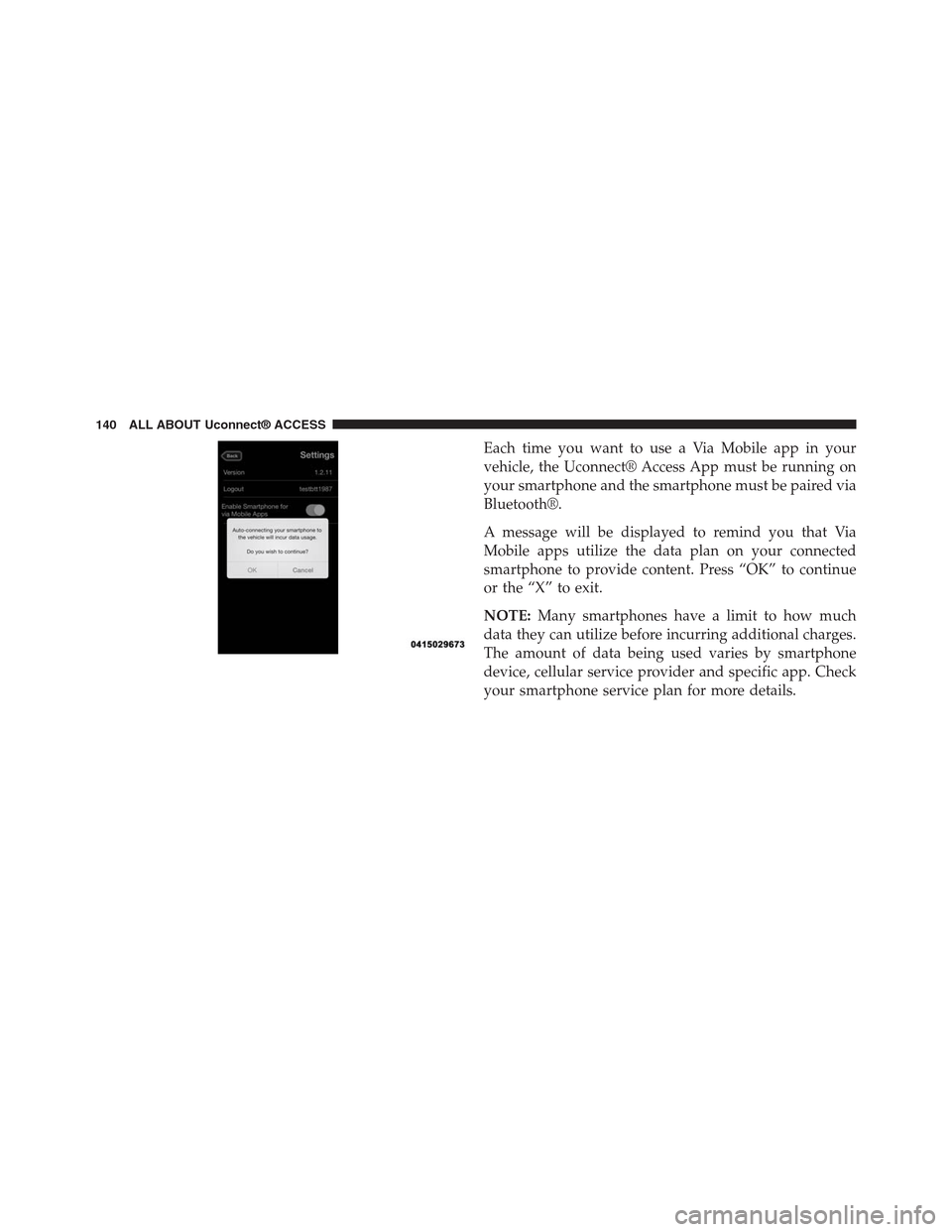
Each time you want to use a Via Mobile app in your
vehicle, the Uconnect® Access App must be running on
your smartphone and the smartphone must be paired via
Bluetooth®.
A message will be displayed to remind you that Via
Mobile apps utilize the data plan on your connected
smartphone to provide content. Press “OK” to continue
or the “X” to exit.
NOTE:Many smartphones have a limit to how much
data they can utilize before incurring additional charges.
The amount of data being used varies by smartphone
device, cellular service provider and specific app. Check
your smartphone service plan for more details.
2
ALL ABOUT Uconnect® ACCESS 131
Page 136 of 429
FAQs
1.Why can’t I get iHeartRadio Via Mobile to work?
Here are some things to consider:
•Check to ensure you have linked your iHeartRadio
account credentials with Uconnect® Access. This is
usually done during registration and setup. Then,
check to ensure you have properly connected your
compatible smartphone to the radio. The Uconnect®
Access App must be open and you must be logged
in. A blue light indicates that it’s providing data to
the vehicle.
•If you recently changed your password for iHeart-
Radio, it may need to be updated on Mopar Owner
Connect under the “Via Mobile” section.
2.How do I personalize the music played on my
custom station?Press the “thumbs up” icon when
music is played that you like, and the “thumbs down”
icon when music is played that you do not like. Future
music played will give you more of the music with
characteristics that meet your preferences. The more
often you use Thumb Up and Thumbs Down, the
better your station becomes.
3.How do I know when iHeartRadio is playing one of
the songs I indicated I “liked”?The Thumbs Up
button on the radio touchscreen will appear in red
when playing a song you previously liked.
4.If I changed my password for iHeartRadio, do I have
to update it with Uconnect® Access?Yes. Visit Mopar
Owner Connectmoparownerconnect.com, log in,
and click on Via Mobile.
2
ALL ABOUT Uconnect® ACCESS 135
Page 139 of 429

1. If you have not registered with Uconnect® Access,
begin by pressing the “Apps” button on the touch-
screen inside your vehicle, and then press “Uconnect
Registration.”
2. Once you receive an email from “Uconnect Access,”
click on the secure link to complete your registration
onmoparownerconnect.comwhere you’ll be guided
through setup of your Via Mobile profile.
3. Next, link app accounts to your Via Mobile profile by
entering your login information for apps like Slacker
Radio.
If you’ve already registered with Uconnect Access, log
in tomoparownerconnect.comto set up your Via
Mobile profile. Click on “Via Mobile Profile”.
4. Next, connect your smartphone to the vehicle touch-
screen. The Uconnect® Access app is compatible with
select iPhone® and Android smartphones. Visit
UconnectPhone.comto confirm that your smart-
phone is compatible with Uconnect®. Once you’ve
confirmed your smartphone is compatible, pair it to
the vehicle touchscreen via Bluetooth® to use Via
Mobile apps. If using an iPhone®, a USB cable may
also be supported for the data connection.
5. Launch the Uconnect® Access app on your connected
smartphone and log in with your Mopar Owner
Connect Username/Email and password. From the
vehicle touchscreen press the “Apps” button and
select Slacker Radio from the list. Slacker Radio is
located within the “All Apps” tab. To launch Slacker
Radio using voice recognition, push the button on the
steering wheel and say, “launch Slacker Via Mobile.”
138 ALL ABOUT Uconnect® ACCESS
Page 140 of 429
Ensure that Via Mobile data has been turned on under
“Settings” in the Uconnect® Access App. A green indica-
tor next to the words “Via Mobile” will show when it is
ready to provide data to the vehicle touchscreen (a blue
indicator when data is being sent). A red indicator means
that it is not ready to provide data.
2
ALL ABOUT Uconnect® ACCESS 139
Page 141 of 429
Each time you want to use a Via Mobile app in your
vehicle, the Uconnect® Access App must be running on
your smartphone and the smartphone must be paired via
Bluetooth®.
A message will be displayed to remind you that Via
Mobile apps utilize the data plan on your connected
smartphone to provide content. Press “OK” to continue
or the “X” to exit.
NOTE:Many smartphones have a limit to how much
data they can utilize before incurring additional charges.
The amount of data being used varies by smartphone
device, cellular service provider and specific app. Check
your smartphone service plan for more details.
140 ALL ABOUT Uconnect® ACCESS
Page 144 of 429
FAQs
1.Why can’t I get Slacker Radio Via Mobile to work?
Here are some things to consider:
•Check to ensure you have linked your Slacker Radio
account credentials with Uconnect® Access. This is
usually done during registration and setup. Then,
check to ensure you have properly connected your
compatible smartphone to the vehicle touchscreen.
The Uconnect® Access App must be open and you
must be logged in. A blue light indicates that it’s
providing data to the vehicle.
•If you recently changed your password for Slacker
Radio, it may need to be updated on Mopar Owner
Connect under the “Via Mobile” section.
2.How do I customize the music being played on the
station?As you listen to music, use the button on the
touchscreen to confirm your preference to the music
currently being played. Press the “like” icon to con-
firm what you want to hear more of, and the “dislike”
icon to eliminate what you do not want to hear.
3.How do I know when Slacker Radio is playing one
of the songs I indicated I “liked”?The heart button
on the touchscreen will appear in yellow when play-
ing a song you previously liked. When you see it
appear in yellow, you do not need to “like” it again,
and you know that Slacker Radio is playing your
preferences.
4.Can I ban a particular artist from playing in Slacker
Radio?Yes, Slacker Radio gives you the capability to
ban all songs from a particular artist or song by using
the “dislike” button on the touchscreen.
2
ALL ABOUT Uconnect® ACCESS 143
Page 147 of 429
1. If you have not yet registered with Uconnect® Access,
begin by pressing the “Apps” icon on the touchscreen
inside your vehicle, then pressing “Uconnect Registra-
tion.”
2. Once you receive an email from “Uconnect Access,”
click on the secure link to complete your registration
onmoparownerconnect.comwhere you will be
guided through the setup of your Via Mobile profile.
3. Next, link app accounts to your Via Mobile profile by
entering your login information for Aha™.
If you have already registered with Uconnect® Access,
log in tomoparownerconnect.comto set up your Via
Mobile profile. Click on “Via Mobile Profile.”
4. Next, connect your smartphone to the vehicle touch-
screen. The Uconnect® Access app is compatible with
select iPhone® and Android smartphones. Visit
UconnectPhone.comto confirm that your smart-
phone is compatible with Uconnect. Once you have
confirmed your smartphone is compatible, pair it to
the vehicle touchscreen via Bluetooth® to use Via
Mobile apps. If using an iPhone®, a USB cable may
also be supported for the data connection.
5. Launch the Uconnect® Access app on your connected
smartphone and log in with your Mopar Owner
Connect Username/Email and password. From the
vehicle touchscreen press the#Apps#button and select
Aha™ from the list. Aha™ is located within the “All
Apps” tab. To launch Aha™ using voice recognition,
push the VR button on the steering wheel and say,
“launch Aha™ Via Mobile.”
146 ALL ABOUT Uconnect® ACCESS