Page 96 of 429

Generic Phone Setup Instructions (your phone’s setup
process may be similar):
1. On phone select “Settings” (or the equivalent on your
phone)
2. Select Wireless/Bluetooth® settings
3. Ensure Bluetooth® is on (box checked)
4. Select Bluetooth® settings
5. Select Advanced setting
6. Ensure Message Access service is on (box checked)
7. Select Message Access settings
8. Check the box for SMS
9. Press the back button twice to return to the Bluetooth®
settings screen
10. Check the box for Discoverable
If a Bluetooth® authorization window appears showing
your phone requesting permissions, check the box for
Always and press Accept.
Sending A New Text Message From Radio
1. Pushon the steering wheel.
2. Say“Send text message.”
3. The system will respond “Say the phone number or
the full name and the phone type of the contact that
you want to send a message to.”
4. Dictate message (“I will be home at eight.”)
5. When finished dictating, wait for prompt and say
“Send.”
2
ALL ABOUT Uconnect® ACCESS 95
Page 101 of 429

user can press#Listen#on touchscreen or push the
#Phone#button on the steering wheel and say#Listen.#
Requirements
•(MAP may not be compatible with Apple iPhones®
(pre iOS 6). Apple iOS 6 supports receiving text
messages, but does not support sending text mes-
sages).
•Available on vehicles sold in the United States with a
Uconnect® 8.4A (sales code RA3) or Uconnect® 8.4AN
(sales code RA4) radio equipped with Uconnect®
Access.
•Vehicle must be registered with an active Uconnect®
Access Advantage trial or paid subscription for free
form text response to work.
•Vehicle and phone must be in range of the cellular
network.
•Customer must have a properly paired and connected
cellular device with Bluetooth® Message Access Pro-
file (MAP) enabled. Voice Texting is compatible with
many newer BlackBerry and Android mobile devices.
Apple iOS 5 and earlier does not support MAP so
iPhones will not send free form text messages. Apple
iOS 6 supports receiving, not sending text messages.
To check if your device has been tested to be compat-
ible please visitUconnectPhone.com.
Disclaimers
•Not all Voice Texting features may be available on your
phone.
•Your MAP supported phone must be paired and
connected to a compatible Uconnect® radio.
•You must have an active cellular connection and be
within cellular range to voice text.
100 ALL ABOUT Uconnect® ACCESS
Page 104 of 429

10.Can I use Text Messaging if the “messaging” button
doesn’t turn white?Only MAP compatible phones
will work with Text Messaging. If your phone is
compatible, the “messaging” light will turn white,
after the phone is Bluetooth® connected, and you
will then be able to do hands free Text Messaging.
The system will respond with “Sorry, I didn’t under-
stand you” if you push the steering wheel “Phone”
button and say a voice command for Text Messaging,
when the button isn’t active (“white”).
Remote Door Lock/Unlock
Lock Or Unlock Your Vehicle From Virtually Anywhere
Using Your Computer Or Smartphone App.
Description
The Remote Door Lock/Unlock feature provides you the
ability to lock or unlock the door on your vehicle,
without the keys and from virtually any distance. You
can send a request to your vehicle in one of three ways:
•Using the Uconnect® Access App from a compatible
smartphone
•From the Mopar® Owner Connect website
(moparownerconnect.com)
•Contacting Uconnect® Care
If you want, you can set up notifications for your account
to receive an email or text (SMS) message every time a
command is sent to lock or unlock your doors.
How It Works
Uconnect® Access App:
1. Download the Uconnect® Access App to a compatible
smartphone and login using your username and pass-
word.
2. To lock the doors, push the button with the closed lock
icon; to unlock the driver ’s door push the button with
the open lock icon.
2
ALL ABOUT Uconnect® ACCESS 103
Page 122 of 429

How It Works
Via Mobile uses the Uconnect® Access smartphone app
and your smartphone’s data plan to access your personal
Pandora® account from the vehicle and control it using
the vehicle touchscreen. A compatible smartphone is
required. The Pandora® mobile app on your phone does
not need to be launched to use Pandora® Via Mobile.
1. If you haven’t yet registered with Uconnect® Access,
begin by pushing the “Apps” icon on the touchscreen
inside your vehicle, and then push “Uconnect Regis-
tration.”
2. Once you receive an email from “Uconnect Access,”
click on the secure link to complete your registration
onmoparownerconnect.comwhere you’ll be guided
through setup of your Via Mobile profile.
3. Next, link app accounts to your Via Mobile profile by
entering your login information for Pandora®.
If you’ve already registered with Uconnect® Access,
log in tomoparownerconnect.comto set up your Via
Mobile profile. Click on “Via Mobile Profile.”
4. Next, connect your smartphone to the vehicle touch-
screen. The Uconnect® Access app is compatible with
select iPhone® and Android smartphones. Visit
UconnectPhone.comto confirm that your smart-
phone is compatible with Uconnect®. Once you’ve
confirmed your smartphone is compatible, pair it to
the vehicle touchscreen via Bluetooth® to use Via
Mobile apps. If using an iPhone®, a USB cable may
also be supported for the data connection.
2
ALL ABOUT Uconnect® ACCESS 121
Page 123 of 429
5. Launch the Uconnect® Access app on your connected
smartphone and log in with your Mopar Owner
Connect Username/Email and password. From the
vehicle touchscreen press the “Apps” button and
select Pandora® from the list. Pandora® is located
within the “All Apps” tab. To launch Pandora® using
voice recognition, push the button on the steering
wheel and say, “launch Pandora Via Mobile.”
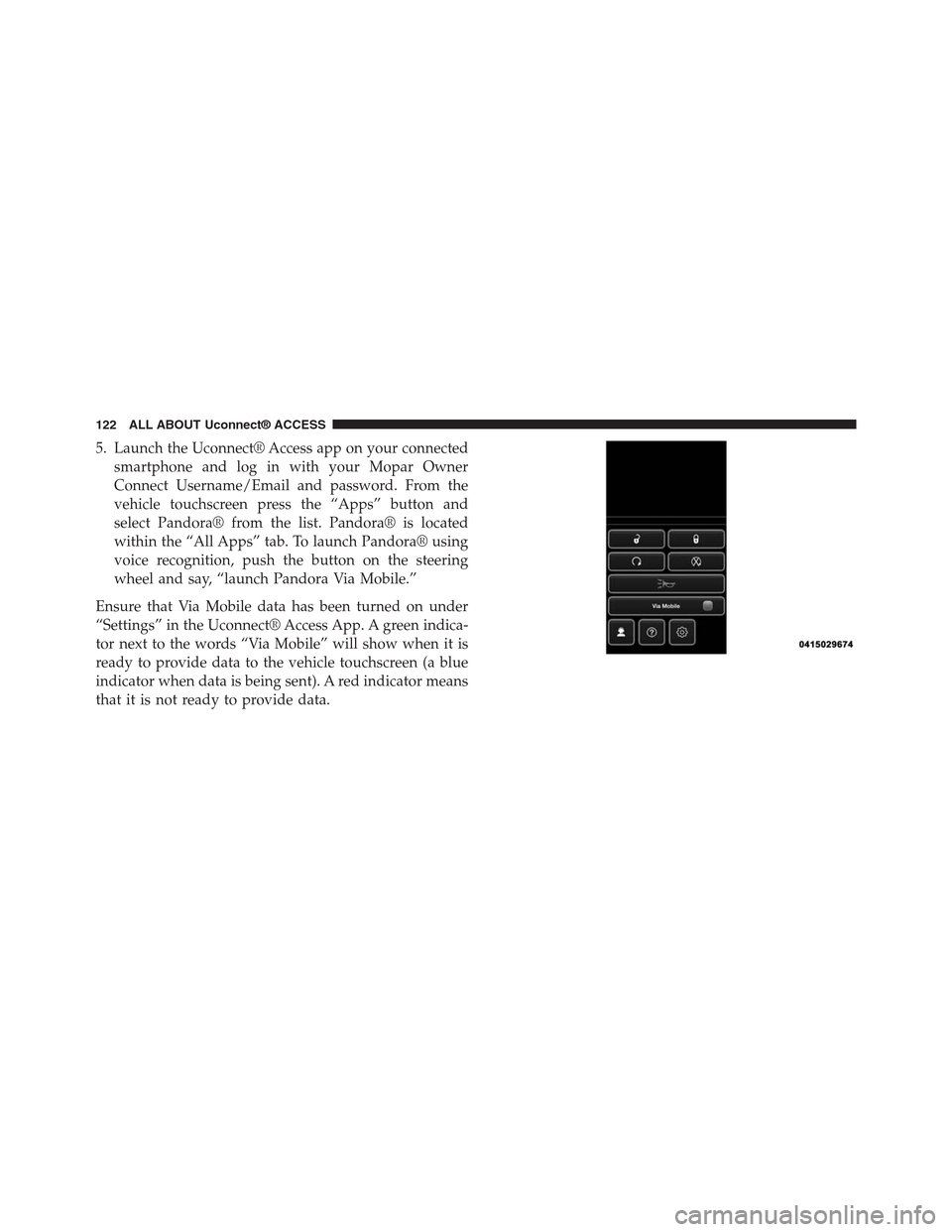
Ensure that Via Mobile data has been turned on under
“Settings” in the Uconnect® Access App. A green indica-
tor next to the words “Via Mobile” will show when it is
ready to provide data to the vehicle touchscreen (a blue
indicator when data is being sent). A red indicator means
that it is not ready to provide data.
122 ALL ABOUT Uconnect® ACCESS
Page 124 of 429
Each time you want to use a Via Mobile app in your
vehicle, the Uconnect® Access App must be running on
your smartphone and the smartphone must be paired via
Bluetooth®.
2
ALL ABOUT Uconnect® ACCESS 123
Page 127 of 429
•Vehicle must be equipped with Uconnect 8.4A/8.4AN.
Not available on Uconnect 5.0.
Tips and Shortcuts
•Pandora® will launch with the last setting and play list
you chose. To change this, select the “Station List”
button on the touchscreen in lower left corner to select
another station.
•Steering wheel controls supported are for “next track”
(until reaching maximum skips – for free account).
FAQs
1.Why can’t I get Pandora® Via Mobile to work?Here
are some things to consider:
•Check to ensure you have linked your Pandora®
account credentials with Uconnect® Access. This is
usually done during registration and setup. Then,
check to ensure you have properly connected your
compatible smartphone to the vehicle touchscreen.
The Uconnect® Access App must be open and you
must be logged in. A blue light indicates that it’s
providing data to the vehicle.
•If you recently changed your password for
Pandora®, it may need to be updated on Mopar
Owner Connect under the “Via Mobile” section.
2.If I changed my password for Pandora®, do I have to
update it with Uconnect® Access?Yes. Visit
moparownerconnect.com, log in, and click on Via
Mobile.
3.How do I set up a Pandora® account?You can create
an account with Pandora® by visitingpandora.com.
To make changes to an existing Pandora® account,
visit the Pandora® website.
4.Can I create a Pandora® account during Uconnect®
Access registration and setup?There is a link from the
Via Mobile profile page where the customer can go to
the Pandora® website to create a new account.
126 ALL ABOUT Uconnect® ACCESS
Page 130 of 429

the vehicle touchscreen. A compatible smartphone is
required. The iHeartRadio mobile app on your phone
does not need to be launched to use iHeartRadio Via
Mobile.
1. If you haven’t yet registered with Uconnect® Access,
begin by pressing the “Apps” icon on the touchscreen
inside your vehicle, and then press “Uconnect Regis-
tration.”
2. Once you receive an email from “Uconnect Access,”
click on the secure link to complete your registration
onmoparownerconnect.comwhere you’ll be guided
through setup of your Via Mobile profile.
3. Next, link app accounts to your Via Mobile profile by
entering your login information for apps like iHeart-
Radio.
If you’ve already registered with Uconnect® Access,
log in tomoparownerconnect.comto set up your Via
Mobile profile. Click on “Via Mobile Profile”.
4. Connect your smartphone to the vehicle touchscreen.
The Uconnect® Access app is compatible with select
iPhone® and Android smartphones. Visit
UconnectPhone.comto confirm that your smart-
phone is compatible with Uconnect®. Once you’ve
confirmed your smartphone is compatible, pair it to
the vehicle touchscreen via Bluetooth® to use Via
Mobile apps. If using an iPhone®, a USB cable may
also be supported for the data connection.
5. Launch the Uconnect® Access app on your connected
smartphone and log in with your Mopar Owner
Connect Username/Email and password. From the
vehicle touchscreen press the “Apps” button and
select iHeartRadio from the list. iHeartRadio is located
within the “All Apps” tab. To launch iHeartRadio
using voice recognition, push the button on the steer-
ing wheel and say, “launch iHeartRadio Via Mobile.”
2
ALL ABOUT Uconnect® ACCESS 129