Page 80 of 429

FAQs
1.How do I know if I have a good signal strength?
There is a signal strength indicator on the Apps button
of the radio touchscreen.
2.What do I do if the WiFi Hotspot connection drops
while I’m driving?The connection will be automatic
when you enter an area with cellular coverage. Factors
affecting the performance of WiFi Hotspot include:
cellular network signal strength and quality, time of
day, number of channels used by the service provider,
type of connection, number of client using WiFi
Hotspot, client device.
3.What is the factory default security setting?WPA2/
WPA
4.What if I want to create a custom password for my
connection?Select either WPA2/WPA or the WEP
setting and create a pass phrase by pressing Apps >
All Apps > WiFi Hotspot > View/Edit Pass phrase.
5.I do not see the connection on my wireless laptop or
phone, what should I do?Refer to your device’s
owner ’s manual for specific information related to
your device.
6.Are there any data constraints with WiFi Hotspot?
WiFi Hotspot must be purchased in either one day, one
week or one month durations.
2
ALL ABOUT Uconnect® ACCESS 79
Page 96 of 429

Generic Phone Setup Instructions (your phone’s setup
process may be similar):
1. On phone select “Settings” (or the equivalent on your
phone)
2. Select Wireless/Bluetooth® settings
3. Ensure Bluetooth® is on (box checked)
4. Select Bluetooth® settings
5. Select Advanced setting
6. Ensure Message Access service is on (box checked)
7. Select Message Access settings
8. Check the box for SMS
9. Press the back button twice to return to the Bluetooth®
settings screen
10. Check the box for Discoverable
If a Bluetooth® authorization window appears showing
your phone requesting permissions, check the box for
Always and press Accept.
Sending A New Text Message From Radio
1. Pushon the steering wheel.
2. Say“Send text message.”
3. The system will respond “Say the phone number or
the full name and the phone type of the contact that
you want to send a message to.”
4. Dictate message (“I will be home at eight.”)
5. When finished dictating, wait for prompt and say
“Send.”
2
ALL ABOUT Uconnect® ACCESS 95
Page 107 of 429
Uconnect® Care:
1. If you need to unlock the doors of your vehicle,
contact Uconnect® Care by calling 855-792-4241.
NOTE:The Uconnect® Care agents are trained to help
you with unlocking of your door (for example, in an
accidental lock-out). All other Remote Services should be
performed via the Mopar® Owner Connect website
(moparownerconnect.com) or through the Uconnect®
Access App on your compatible smartphone.
CAUTION!
Must be registered with Uconnect® access and
have a current subscription.
2. For security purposes, the Uconnect® Care agent will
verify your identity by asking for your 4-digit
Uconnect® Security PIN.
3. After providing your Uconnect® Security PIN, you
can ask them to lock or unlock your vehicle. The agent
will send a command to your vehicle to get the task
done.
Give It A Try!
•Download the Uconnect® Access App to your smart-
phone.
•Enter the username and password that you established
for the Mopar® Owner Connect website
(moparownerconnect.com) during registration of
your new vehicle.
•If logging in for the first time, you will be asked to
agree to the Terms of Service.
•Push the button to unlock your vehicle’s door, you will
then be asked to enter your Uconnect® Security PIN.
106 ALL ABOUT Uconnect® ACCESS
Page 113 of 429
Uconnect® Care:
1. If you need to unlock the doors of your vehicle,
contact Uconnect® Care by calling 855-792-4241.
NOTE:The Uconnect® Care Agents are trained to help
you with unlocking of your door (for example, in an
accidental lock-out). All other Remote Services should be
performed via the Mopar Owner Connect website
(moparownerconnect.com) or through the Uconnect®
Access App on your compatible smartphone.
2. For security purposes, the Uconnect® Care Agent will
verify your identity by asking for your 4-digit
Uconnect® Security PIN.
3. After providing your Uconnect® Security PIN, you
can ask them to lock or unlock your vehicle. The agent
will send a command to your vehicle to get the task
done.
Give It A Try!
•Download the Uconnect® Access App to your smart-
phone.
•Enter the username and password that you established
for the Mopar Owner Connect website
(moparownerconnect.com) during registration of
your new vehicle.
•If logging in for the first time, you will be asked to
agree to the Terms of Service.
•Press the button to start your vehicle’s engine.
•Your request will typically take about to three minutes
to process. If your vehicle has been parked for a while
it can take up to 30 minutes for the request to reach
your vehicle and perform the task.
11 2 A L L A B O U T U c o n n e c t ® A C C E S S
Page 118 of 429
5. A message will appear on the screen to let you know
if the command was received by your vehicle.
Uconnect® Care:
1. If you need to unlock the doors of your vehicle,
contact Uconnect® Care by calling 855-792-4241.
NOTE:The Uconnect® Care agents are trained to help
you with unlocking of your door (for example, in an
accidental lock-out). All other Remote Services should be
performed via the Mopar Owner Connect website
(moparownerconnect.com) or through the Uconnect®
Access App on your compatible smartphone.
2. For security purposes, the Uconnect® Care agent will
verify your identity by asking for your 4-digit
Uconnect® Security PIN.
3. After providing your Uconnect® Security PIN, you
can ask them to lock or unlock your vehicle. The agent
will send a command to your vehicle to get the task
done.
Give It A Try!
•Download the Uconnect® Access App to your smart-
phone.
•Enter the username and password that you established
for the Mopar Owner Connect website
(moparownerconnect.com) during registration of
your new vehicle.
•If logging in for the first time, you will be asked to
agree to the Terms of Service.
2
ALL ABOUT Uconnect® ACCESS 117
Page 125 of 429
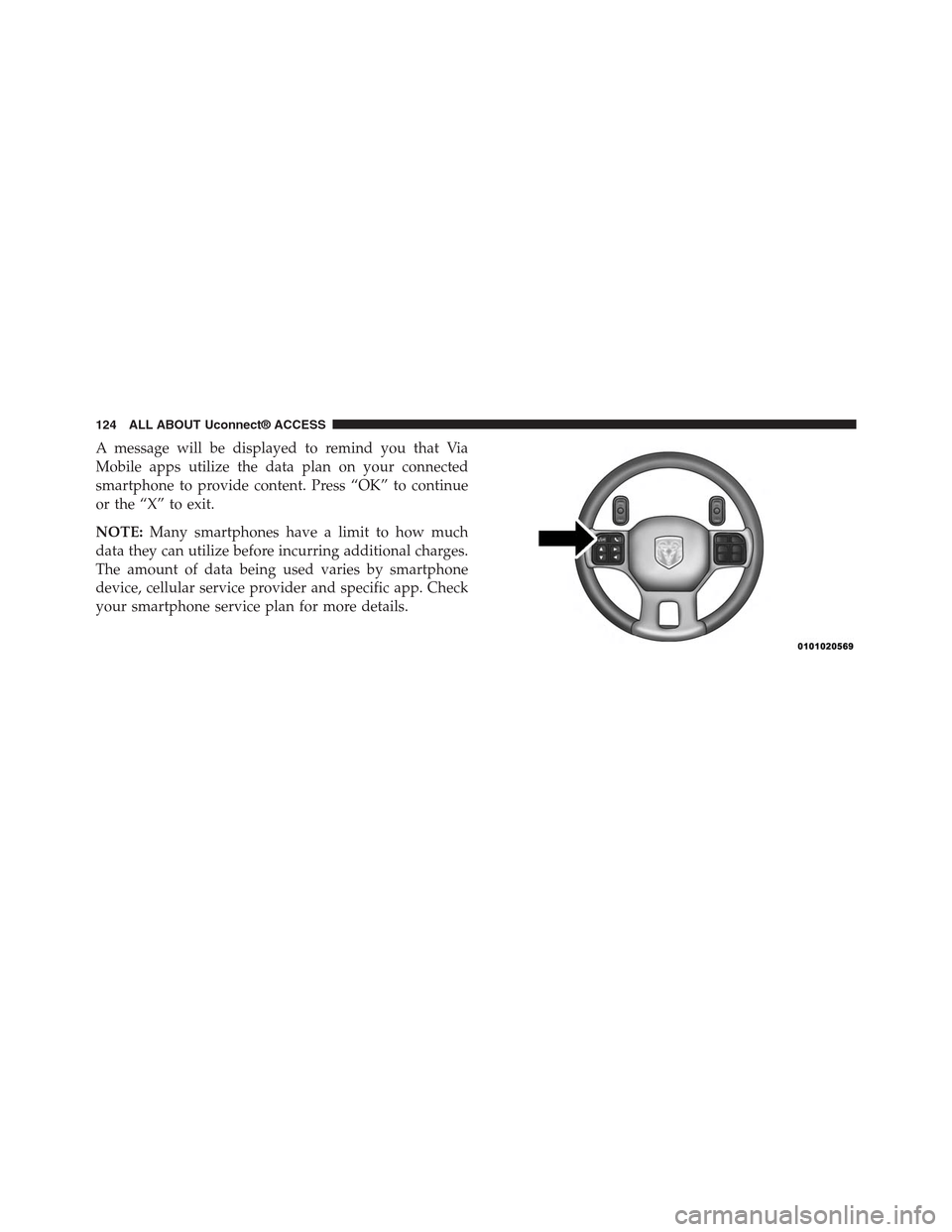
A message will be displayed to remind you that Via
Mobile apps utilize the data plan on your connected
smartphone to provide content. Press “OK” to continue
or the “X” to exit.
NOTE:Many smartphones have a limit to how much
data they can utilize before incurring additional charges.
The amount of data being used varies by smartphone
device, cellular service provider and specific app. Check
your smartphone service plan for more details.
124 ALL ABOUT Uconnect® ACCESS
Page 132 of 429
Each time you want to use a Via Mobile app in your
vehicle, the Uconnect® Access App must be running on
your smartphone and the smartphone must be paired via
Bluetooth®.
A message will be displayed to remind you that Via
Mobile apps utilize the data plan on your connected
smartphone to provide content. Press “OK” to continue
or the “X” to exit.
NOTE:Many smartphones have a limit to how much
data they can utilize before incurring additional charges.
The amount of data being used varies by smartphone
device, cellular service provider and specific app. Check
your smartphone service plan for more details.
2
ALL ABOUT Uconnect® ACCESS 131
Page 141 of 429
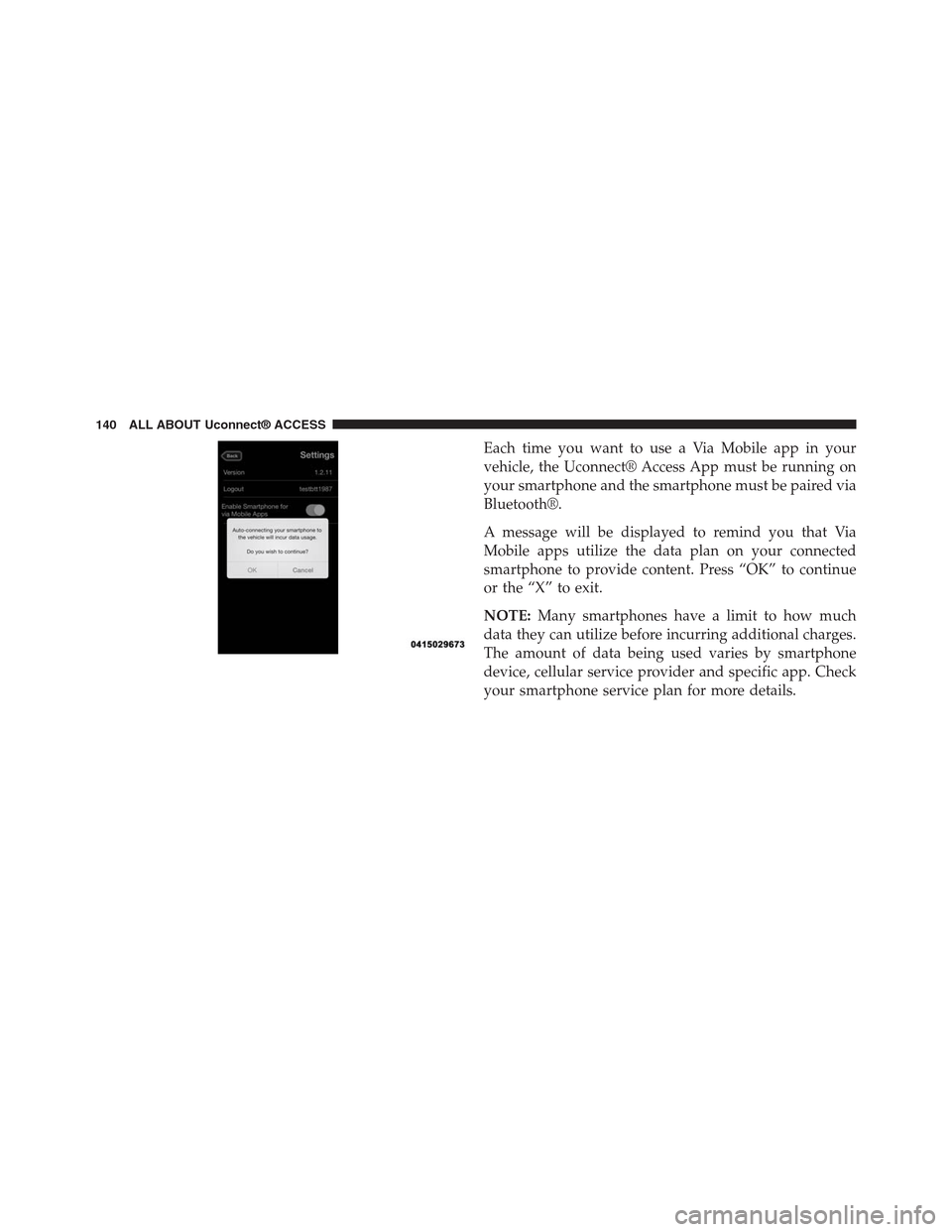
Each time you want to use a Via Mobile app in your
vehicle, the Uconnect® Access App must be running on
your smartphone and the smartphone must be paired via
Bluetooth®.
A message will be displayed to remind you that Via
Mobile apps utilize the data plan on your connected
smartphone to provide content. Press “OK” to continue
or the “X” to exit.
NOTE:Many smartphones have a limit to how much
data they can utilize before incurring additional charges.
The amount of data being used varies by smartphone
device, cellular service provider and specific app. Check
your smartphone service plan for more details.
140 ALL ABOUT Uconnect® ACCESS