Page 32 of 429

FAQs
1.How much does the Uconnect® Access App cost?
Uconnect® does not charge for the App, however to
utilize the Remote Services (e.g., Remote Door Lock/
Unlock) a subscription or trial is required to the
Advantage Package.
2.Will my vehicle be safe if I lose my smartphone?
People sometimes lose their phone, which is why
security measures have been engineered into the
Uconnect® Access App. Asking for your username/
email, password and Uconnect® Security PIN help to
ensure that nobody can get into your vehicle if they
happen to find your smartphone.
3.Why can’t all phones use the Uconnect® Access
App?The Uconnect® Access App has been designed
to work on most smartphones with the Apple and
Android operating systems. Visit
UconnectPhone.comto confirm that your smart-
phone is compatible with Uconnect®.
4.How do I know how much data is being used when
I’m using Via Mobile?Uconnect® Access Via Mobile
uses your smartphone’s existing data plan to stream
content. Data usage varies by phone/device, content
(e.g. videos), high quality audio and several other
factors. Please refer to your device carrier for specific
details.
2
ALL ABOUT Uconnect® ACCESS 31
Page 45 of 429

2.Edit Profile:
To manage the details of your Uconnect® Access
account, such as your contact information, password
and PIN, click on the “Edit Profile” button to access
the details of your account.
3.Shop:
To purchase a WiFi hotspot and renew your subscrip-
tion to a package, click on the “Shop” tab, then go to
the Uconnect® Store to make your purchase.
4.Connected Vehicle:
This statement will indicate which vehicle’s you own
that are equipped with the Uconnect® Access system.
Other vehicles you own may not have Uconnect®
Access and will indicate that it is a non-Uconnect®
Access Vehicle.
5.Remote Services:
For vehicles with an active Uconnect Access subscrip-
tion, press one of these icons and enter your four-digit
Uconnect® Security PIN to command your vehicle to
remotely start, lock/unlock doors or sound the horn
and lights.
6.Subscription Status:
Refer to this section to quickly see if you are currently
subscribed to remote services.
7.Uconnect® Access App:
This is where you can enter the mobile phone number
for your compatible smartphone to download the
Uconnect® Access App. Phone compatibility can be
verified atUconnectPhone.com. For more details, see
the section labeled Download the Uconnect® Access
App.
44 ALL ABOUT Uconnect® ACCESS
Page 46 of 429
8.Learn & Use:
Click on the “Learn & Use” tab to find user guides and
other information about your vehicle. More specifi-
cally, there is a dedicated Uconnect® Access tab in this
section to learn all about your connected vehicle
capabilities.
Editing Your Notifications
Notifications are an important element of your
Uconnect® Access Account. For example, any time you
use your remote services (such as Remote Door Unlock),
or if your theft alarm is set off, you can elect to receive a
text message and/or email to notify you of the event. To
set up the notifications, please follow these instructions.
NOTE:Standard text message rates apply.
To get the Uconnect Access App from the Mopar Owner
Connect website:
1. Log on tomoparownerconnect.comusing the
username/email and password you used when regis-
tering your Uconnect® Access system.
NOTE:If you forgot your username or password, links
are provided on the website to help you retrieve them.
2. Once logged in you will find yourself on the Dash-
board. Click the “Edit Profile” button in the upper-
right corner of the page.
3. Click the Uconnect® Notifications tab on the left side
of the page.
4. If you have more than one vehicle with Uconnect®
Access, please select which vehicle you want to man-
age notifications for using the drop down menu.
2
ALL ABOUT Uconnect® ACCESS 45
Page 104 of 429

10.Can I use Text Messaging if the “messaging” button
doesn’t turn white?Only MAP compatible phones
will work with Text Messaging. If your phone is
compatible, the “messaging” light will turn white,
after the phone is Bluetooth® connected, and you
will then be able to do hands free Text Messaging.
The system will respond with “Sorry, I didn’t under-
stand you” if you push the steering wheel “Phone”
button and say a voice command for Text Messaging,
when the button isn’t active (“white”).
Remote Door Lock/Unlock
Lock Or Unlock Your Vehicle From Virtually Anywhere
Using Your Computer Or Smartphone App.
Description
The Remote Door Lock/Unlock feature provides you the
ability to lock or unlock the door on your vehicle,
without the keys and from virtually any distance. You
can send a request to your vehicle in one of three ways:
•Using the Uconnect® Access App from a compatible
smartphone
•From the Mopar® Owner Connect website
(moparownerconnect.com)
•Contacting Uconnect® Care
If you want, you can set up notifications for your account
to receive an email or text (SMS) message every time a
command is sent to lock or unlock your doors.
How It Works
Uconnect® Access App:
1. Download the Uconnect® Access App to a compatible
smartphone and login using your username and pass-
word.
2. To lock the doors, push the button with the closed lock
icon; to unlock the driver ’s door push the button with
the open lock icon.
2
ALL ABOUT Uconnect® ACCESS 103
Page 106 of 429
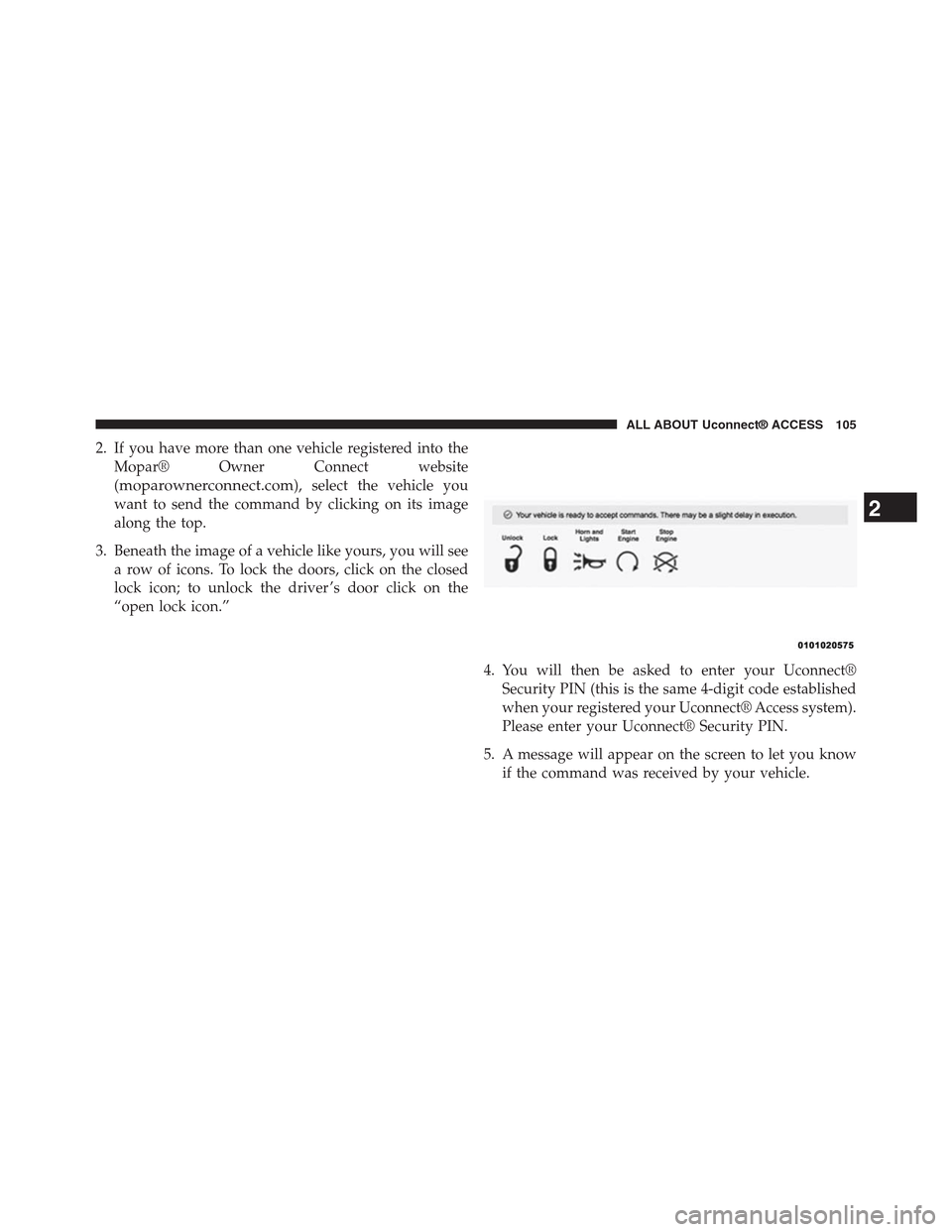
2. If you have more than one vehicle registered into the
Mopar® Owner Connect website
(moparownerconnect.com), select the vehicle you
want to send the command by clicking on its image
along the top.
3. Beneath the image of a vehicle like yours, you will see
a row of icons. To lock the doors, click on the closed
lock icon; to unlock the driver ’s door click on the
“open lock icon.”
4. You will then be asked to enter your Uconnect®
Security PIN (this is the same 4-digit code established
when your registered your Uconnect® Access system).
Please enter your Uconnect® Security PIN.
5. A message will appear on the screen to let you know
if the command was received by your vehicle.
2
ALL ABOUT Uconnect® ACCESS 105
Page 107 of 429
Uconnect® Care:
1. If you need to unlock the doors of your vehicle,
contact Uconnect® Care by calling 855-792-4241.
NOTE:The Uconnect® Care agents are trained to help
you with unlocking of your door (for example, in an
accidental lock-out). All other Remote Services should be
performed via the Mopar® Owner Connect website
(moparownerconnect.com) or through the Uconnect®
Access App on your compatible smartphone.
CAUTION!
Must be registered with Uconnect® access and
have a current subscription.
2. For security purposes, the Uconnect® Care agent will
verify your identity by asking for your 4-digit
Uconnect® Security PIN.
3. After providing your Uconnect® Security PIN, you
can ask them to lock or unlock your vehicle. The agent
will send a command to your vehicle to get the task
done.
Give It A Try!
•Download the Uconnect® Access App to your smart-
phone.
•Enter the username and password that you established
for the Mopar® Owner Connect website
(moparownerconnect.com) during registration of
your new vehicle.
•If logging in for the first time, you will be asked to
agree to the Terms of Service.
•Push the button to unlock your vehicle’s door, you will
then be asked to enter your Uconnect® Security PIN.
106 ALL ABOUT Uconnect® ACCESS
Page 108 of 429

•Your request will typically take about to 3 minutes to
process. If your vehicle has been parked for a while it
can take up to 30 minutes for the request to reach your
vehicle and perform the task.
Requirements
•Vehicle must be properly equipped with the
Uconnect® Access System.
•Vehicle must be in range of a usable and authorized
cellular signal.
•Vehicle must be registered with Uconnect® Access and
have an active subscription that includes the appli-
cable feature or App.
•If using the Uconnect® Access App to command your
vehicle, your smartphone must be compatible and in
range of a cellular signal.
•An ignition cycle is required for some remote com-
mands such as Remote Vehicle Start and Remote Door
Lock/Unlock if following a Remote Horn and Lights
activation.
FAQs
1.How long does it take to unlock or lock the door?
Depending on various conditions, it can take three
minutes or more for the request to get through to your
vehicle, although Uconnect® is always striving to
improve performance.
2.Which is faster, my Key Fob or the Uconnect® Access
App?Your Key Fob will lock/unlock the door quicker,
however its range is limited and it can sometimes get
misplaced or locked in the vehicle. Your Uconnect®
Access App comes in handy for these and other
situations.
2
ALL ABOUT Uconnect® ACCESS 107
Page 113 of 429
Uconnect® Care:
1. If you need to unlock the doors of your vehicle,
contact Uconnect® Care by calling 855-792-4241.
NOTE:The Uconnect® Care Agents are trained to help
you with unlocking of your door (for example, in an
accidental lock-out). All other Remote Services should be
performed via the Mopar Owner Connect website
(moparownerconnect.com) or through the Uconnect®
Access App on your compatible smartphone.
2. For security purposes, the Uconnect® Care Agent will
verify your identity by asking for your 4-digit
Uconnect® Security PIN.
3. After providing your Uconnect® Security PIN, you
can ask them to lock or unlock your vehicle. The agent
will send a command to your vehicle to get the task
done.
Give It A Try!
•Download the Uconnect® Access App to your smart-
phone.
•Enter the username and password that you established
for the Mopar Owner Connect website
(moparownerconnect.com) during registration of
your new vehicle.
•If logging in for the first time, you will be asked to
agree to the Terms of Service.
•Press the button to start your vehicle’s engine.
•Your request will typically take about to three minutes
to process. If your vehicle has been parked for a while
it can take up to 30 minutes for the request to reach
your vehicle and perform the task.
11 2 A L L A B O U T U c o n n e c t ® A C C E S S