2014 LINCOLN MKZ HYBRID Radio
[x] Cancel search: RadioPage 312 of 445

MP3 Track and Folder Structure
Audio systems capable of recognizing and
playing MP3 individual tracks and folder
structures work as follows:
•
There are two different modes for MP3
disc playback: MP3 track mode (system
default) and MP3 folder mode.
• MP3 track mode ignores any folder
structure on the MP3 disc. The player
numbers each MP3 track on the disc
(noted by the .mp3 file extension) from
T001 to a maximum of T255. The
maximum number of playable MP3 files
may be less depending on the
structure of the CD and exact model
of radio present.
• MP3 folder mode represents a folder
structure consisting of one level of
folders. The CD player numbers all
MP3 tracks on the disc (noted by the
.mp3 file extension) and all folders
containing MP3 files, from F001 (folder)
T001 (track) to F253 T255.
• Creating discs with only one level of
folders helps with navigation through
the disc files.
If you are burning your own MP3 discs, it
is important to understand how the system
reads the structures you create. While
various files may be present, (files with
extensions other than mp3), only files with
the .mp3 extension are played; other files
are ignored by the system. This enables
you to use the same MP3 disc for a variety
of tasks on your work computer, home
computer and your in-vehicle system. In track mode, the system displays and
plays the structure as if it were only one
level deep (all .mp3 files play, regardless
of being in a specific folder). In folder
mode, the system only plays the .mp3 files
in the current folder.
AUDIO UNIT - VEHICLES WITH:
PREMIUM AM/FM/CD
WARNING
Driving while distracted can result in
loss of vehicle control, crash and
injury. We strongly recommend that you
use extreme caution when using any
device that may take your focus off the
road. Your primary responsibility is the
safe operation of your vehicle. We
recommend against the use of any
hand-held device while driving and
encourage the use of voice-operated
systems when possible. Make sure you
are aware of all applicable local laws that
may affect the use of electronic devices
while driving. Note:
The MyLincoln Touch system
controls most of the audio features. See
Entertainment (page 334).
310
MKZ (CC9) Audio System
Page 313 of 445

CD slot: Insert a CD.
A
Eject:
Eject a CD.
B
TUNE +/-: In radio mode, select a frequency band and press one of the TUNE
buttons. The system stops at the first station it finds in that directio\
n. In SIRIUS
mode, select the previous or next channel. If a specific category is selecte\
d,
(Jazz, Rock, News, etc.), use the TUNE buttons find to the previous or next
channel in the selected category.
C
Volume: Swipe your finger across bar to adjust the volume level on your system.
D
Power:
Switch the audio system on and off by pressing the button.
E
Seek/Fast Forward/Reverse:
Press to go to the previous or next track or
available radio station. Press and hold to either reverse or fast forwar\
d through
the current track or to quickly reverse or advance through the radio ban\
d in
individual increments.
F
MEDIA HUB
The media hub is located in the center
console and has the following features: 311
MKZ (CC9) Audio SystemE146318
Page 323 of 445

What Can I Say?
To access the available voice commands
for the current session, do one of the
following:
•
During a voice session, press the help
icon (?) in the lower left status bar of
the screen.
• Say, "What can I say?" for an on-screen
listing of the possible voice commands
associated with your current voice
session.
• Press the voice icon. After the tone,
say, "Help" for an audible list of
possible voice commands.
Helpful Hints
• Make sure the interior of your vehicle
is as quiet as possible. Wind noise from
open windows and road vibrations may
prevent the system from correctly
recognizing spoken commands.
• After pressing the voice icon, wait until
after the tone sounds and Listening
appears before saying a command.
Any command spoken before this does
not register with the system.
• Speak naturally, without long pauses
between words.
• At any time, you can interrupt the
system while it is speaking by pressing
the voice icon.
Accessing a List of Available Commands
• If you use the touchscreen, press the
Settings icon >
Help > Voice
Command List.
• If you use the steering wheel control,
press the voice icon. After the tone,
speak your command clearly. Available voice commands
"Audio list of commands"
"Bluetooth audio list of commands" "Browse list of commands""CD list of commands"
"Climate control list of commands" "List of commands"
"Navigation list of commands" *
"Phone list of commands" "Radio list of commands"
"SD card list of commands"
"Sirius satellite list of commands" **
"Travel link list of commands" *
"USB list of commands"
"Voice instructions list of commands" "Voice settings list of commands" "Help"
* This command is only available when
your vehicle is equipped with the
navigation system, and the navigation
system SD card is in the card slot.
** This command is only available when you
have an active SIRIUS satellite radio
subscription.
321
MKZ (CC9) MyLincoln Touch™
Page 331 of 445

Navigation
Choose to have the system display the Shortest, Fastest
or most Ecological route first. If you set Always Use
Preferred Route to Yes, the system uses the selected
route type to calculate only one route to the desired
destination. Always Use Preferred Route bypasses route
selection in destination programming. The system only
calculates one route based on the preferred route setting.
Eco Time Penalty
allows you to select a low, medium or
high cost for the calculated Eco Route. The higher the
setting, the longer the time allotment is for the route.
Route Preferences
Have the system avoid freeways.
Have the system avoid tollroads.
Have the system avoid ferries or car trains.
Have the system use HOV (high-occupancy vehicle) lanes.
Have the system use guidance prompts.
Navigation Preferences
Have the system automatically fill-in State/Province
information.
Have the system display areas where roadwork occurs.
Traffic Preferences
Have the system display incident icons.
Have the system display areas where difficult driving
conditions may occur.
Have the system display areas where snow and ice on
the road may occur.
Have the system display any smog alerts.
Have the system display weather warnings.
Have the system display where there may be reduced
visibility.
Have the system turn on your radio for traffic announce-
ments.
Enter specific areas that you would like to avoid on
planned navigation routes.
Avoid Areas
329
MKZ (CC9) MyLincoln Touch™
Page 335 of 445
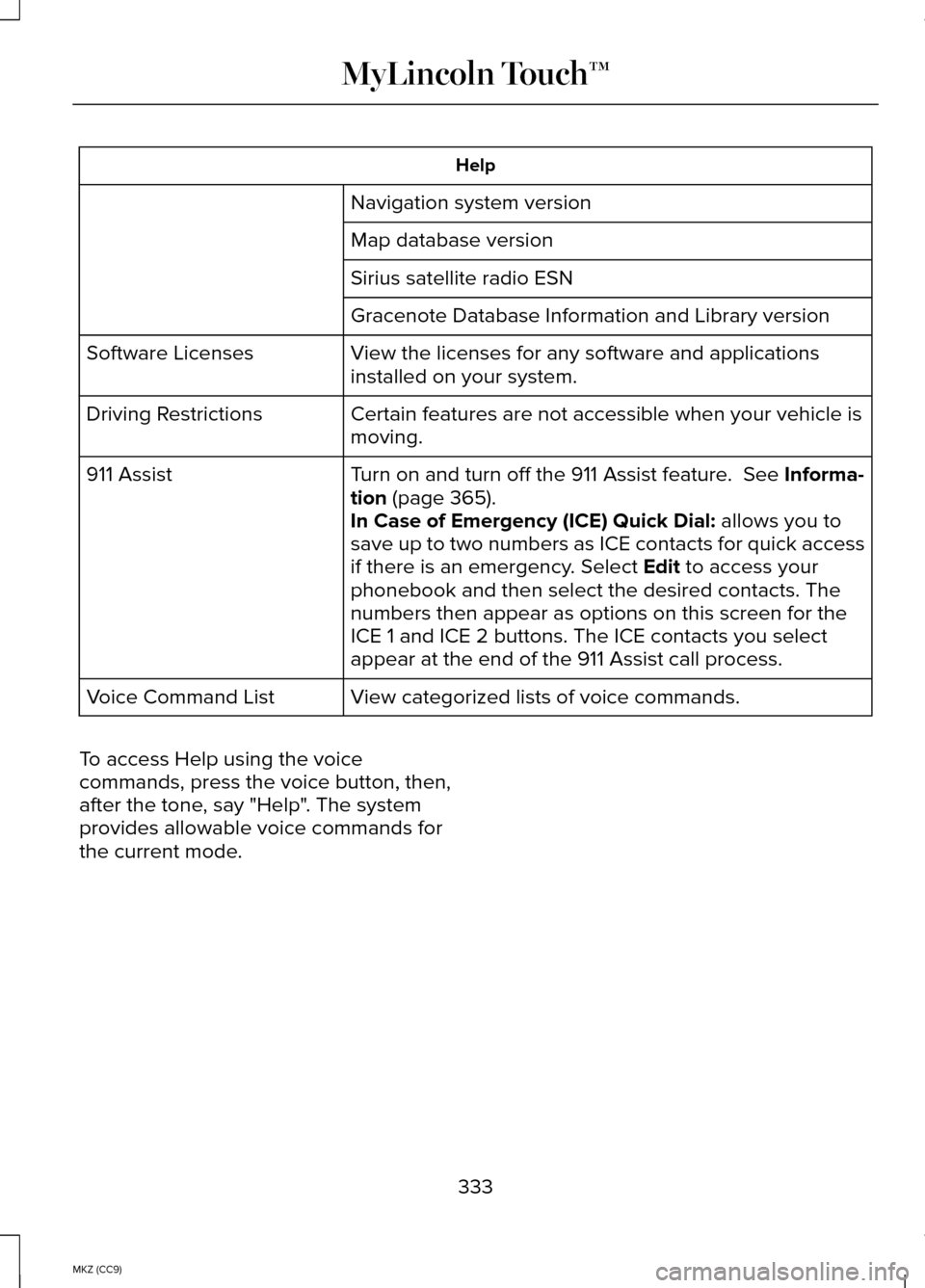
Help
Navigation system version
Map database version
Sirius satellite radio ESN
Gracenote Database Information and Library version
View the licenses for any software and applications
installed on your system.
Software Licenses
Certain features are not accessible when your vehicle is
moving.
Driving Restrictions
Turn on and turn off the 911 Assist feature. See Informa-
tion (page 365).
911 Assist
In Case of Emergency (ICE) Quick Dial: allows you to
save up to two numbers as ICE contacts for quick access
if there is an emergency. Select
Edit to access your
phonebook and then select the desired contacts. The
numbers then appear as options on this screen for the
ICE 1 and ICE 2 buttons. The ICE contacts you select
appear at the end of the 911 Assist call process.
View categorized lists of voice commands.
Voice Command List
To access Help using the voice
commands, press the voice button, then,
after the tone, say "Help". The system
provides allowable voice commands for
the current mode.
333
MKZ (CC9) MyLincoln Touch™
Page 336 of 445

ENTERTAINMENT
AM 1 and AM AST
A
FM 1, FM 2 and FM AST
B
SIRIUS
C
CDD
USBE
Touch this button to scroll down for more options, such as SD Card, BT Stereo
and A/V In
F
These buttons change with the media mode you are in.
G
Radio memory presets and CD controls.
H
Note: Some features may not be available
in your area. Contact an authorized dealer
for more information.
You can access these options using the
touchscreen or voice commands. Browsing Device Content
When listening to audio on a device, you
can browse through other devices without
having to change sources. For example, if
you are currently listening to audio on an
SD card, you can browse all the artists that
are stored on your USB device.
334
MKZ (CC9) MyLincoln Touch™A
B
C
D
E
F
G
H
E161892
Page 337 of 445
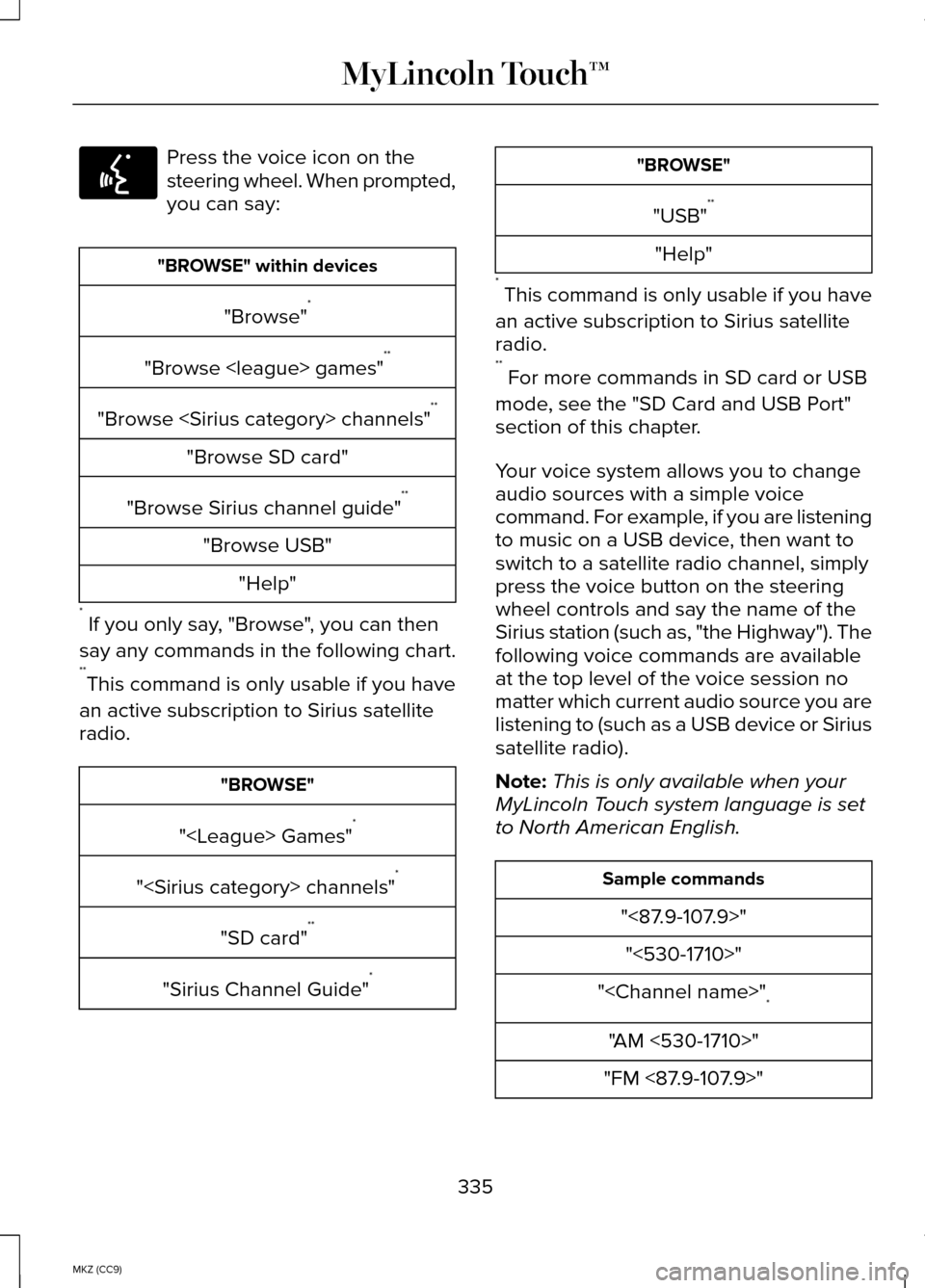
Press the voice icon on the
steering wheel. When prompted,
you can say:
"BROWSE" within devices
"Browse" *
"Browse
"Browse
"Browse SD card"
"Browse Sirius channel guide" **
"Browse USB" "Help"
* If you only say, "Browse", you can then
say any commands in the following chart.
** This command is only usable if you have
an active subscription to Sirius satellite
radio. "BROWSE"
"
"
"SD card" **
"Sirius Channel Guide" * "BROWSE"
"USB" **
"Help"
* This command is only usable if you have
an active subscription to Sirius satellite
radio.
** For more commands in SD card or USB
mode, see the "SD Card and USB Port"
section of this chapter.
Your voice system allows you to change
audio sources with a simple voice
command. For example, if you are listening
to music on a USB device, then want to
switch to a satellite radio channel, simply
press the voice button on the steering
wheel controls and say the name of the
Sirius station (such as, "the Highway"). The
following voice commands are available
at the top level of the voice session no
matter which current audio source you are
listening to (such as a USB device or Sirius
satellite radio).
Note: This is only available when your
MyLincoln Touch system language is set
to North American English. Sample commands
"<87.9-107.9>""<530-1710>"
"
"AM <530-1710>"
"FM <87.9-107.9>"
335
MKZ (CC9) MyLincoln Touch™E142599
Page 338 of 445
![LINCOLN MKZ HYBRID 2014 Owners Manual Sample commands
"Play [album] <name>" **
"Play [artist] <name>" **
"Play [genre] <name>" **
"Play [playlist] <name>" **
"Play [song] <name>" **
"Play <name>"
"Play <name (song or album)> by <artist na](/manual-img/15/6992/w960_6992-337.png "LINCOLN MKZ HYBRID 2014 Owners Manual Sample commands
\"Play [album] <name>\" **
\"Play [artist] <name>\" **
\"Play [genre] <name>\" **
\"Play [playlist] <name>\" **
\"Play [song] <name>\" **
\"Play <name>\"
\"Play <name (song or album)> by <artist na")
Sample commands
"Play [album]
"Play [artist]
"Play [genre]
"Play [playlist]
"Play [song]
"Play
"Play
"Sirius <0-223>" *
"Sports games" *
* This command is only usable if you have
an active subscription to Sirius satellite
radio.
** The commands that have [ ] around the
word means that the word is optional. For
example, if you say, "Play Metallica", this
is the same as the voice command, "Play
[artist]
AM/FM Radio Touch the AM or FM tab to listen
to the radio.
To change between AM and FM presets,
just touch the AM or FM tab. Memory Presets
Save a station by pressing and holding
one of the memory preset areas. There is
a brief mute while the radio saves the
station. Sound returns when finished.
HD Radio
Touch this button to turn HD Radio on. The
light on the button illuminates when the
feature is on. HD Radio allows you to
receive radio broadcasts digitally, where
available, providing free, crystal-clear
sound. See HD Radio information later in
this chapter.
Scan
Touch this button to go to the next strong
AM or FM radio station. The light on the
button illuminates when the feature is on.
Options
Sound Settings
Touch this button to adjust settings for:
•
Bass
• Midrange
• Treble
• Balance and Fade
• THX Deep Note Demo
• DSP (Digital Signal processing)
• Occupancy Mode
• Speed Compensated Volume.
Note: Your vehicle may not have all these
sound settings.
336
MKZ (CC9) MyLincoln Touch™E142611