Page 436 of 860
436 3-2. Using the audio system
SIENNA_U (OM45477U)
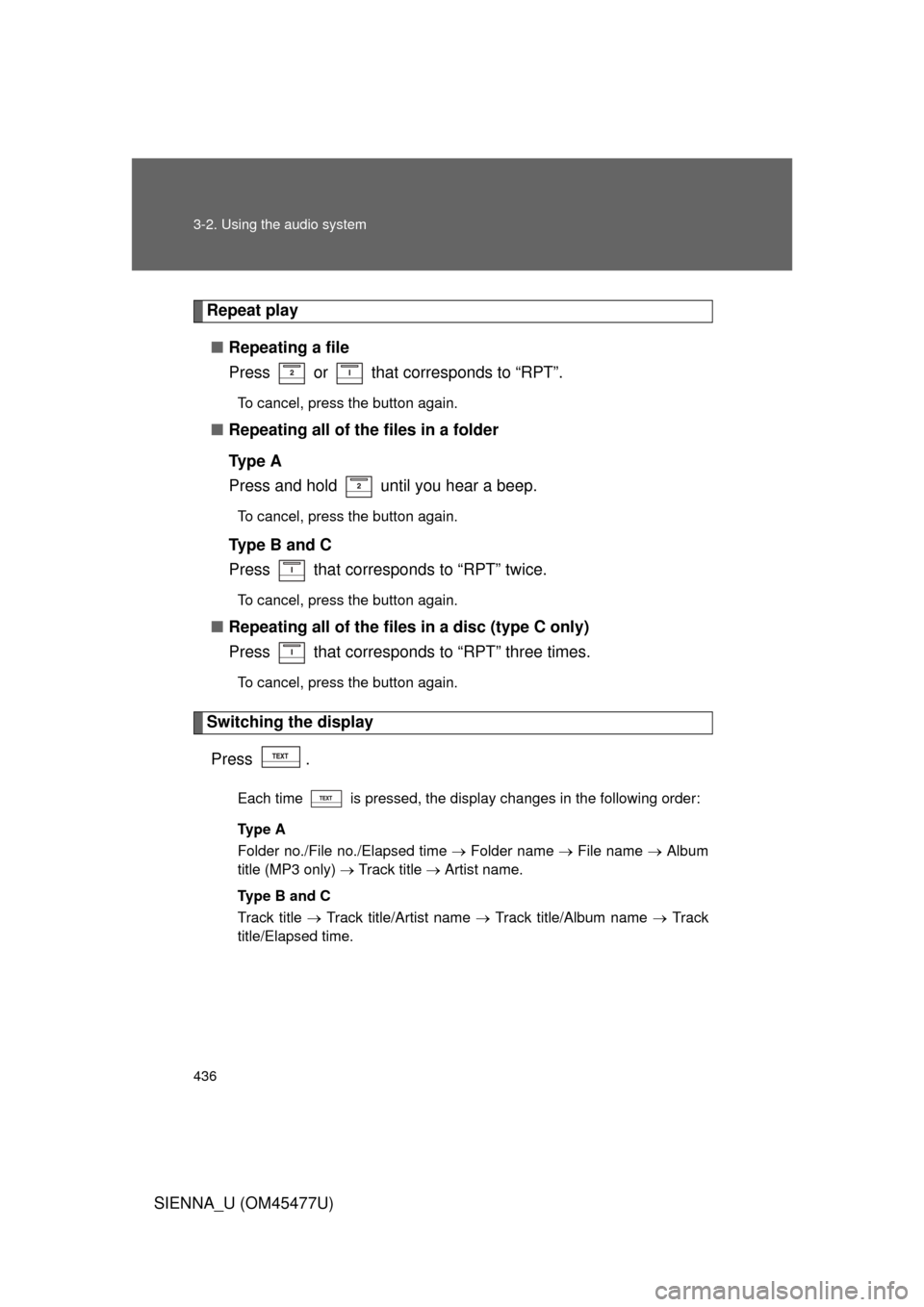
Repeat play■ Repeating a file
Press or that corresponds to “RPT”.
To cancel, press the button again.
■Repeating all of the files in a folder
Ty p e A
Press and hold until you hear a beep.
To cancel, press the button again.
Type B and C
Press that corresponds to “RPT” twice.
To cancel, press the button again.
■Repeating all of the files in a disc (type C only)
Press that corresponds to “RPT” three times.
To cancel, press the button again.
Switching the display
Press .
Each time is pressed, the display changes in the following order:
Ty p e A
Folder no./File no./Elapsed time Folder name File name Album
title (MP3 only) Track title Artist name.
Ty p e B a n d C
Track title Track title/Artist name Track title/Album name Track
title/Elapsed time.
Page 437 of 860
437
3-2. Using the audio system
3
Interior features
SIENNA_U (OM45477U)
■
Display (type A only)
P. 427
■ Error messages
“CD CHECK”: This indicates a problem either with the CD or inside the
player. The CD may be dirty, damaged or inserted up-side
down.
“WAIT” or “PLEASE WAIT”: Operation has stopped due to a high temper- ature inside the player. Wait for a while and
then press or . Contact
your Toyota dealer if the CD still cannot be
played back.
■ Discs that can be used
P. 428
■ CD player protection feature
P. 428
■ If CDs are left inside the CD pla yer or in the ejected position for
extended periods
P. 428
Page 439 of 860
439
3-2. Using the audio system
3
Interior features
SIENNA_U (OM45477U)
●
Compatible media
Media that can be used for MP3 and WMA playback are CD-Rs and CD-
RWs.
Playback in some instances may not be possible, depending on the status
of the CD-R or CD-RW. Playback may not be possible or the audio may
jump if the disc is scratched or marked with fingerprints.
● Compatible disc formats
The following disc formats can be used.
• Disc formats: CD-ROM Mode 1 and Mode 2
CD-ROM XA Mode 2, Form 1 and Form 2
• File formats: ISO9660 Level 1, Level 2, (Romeo, Joliet) MP3 and WMA files written in any format other than those listed above
may not play correctly, and their file names and folder names may not
be displayed correctly.
Items related to standards and limitations are as follows.
• Maximum directory hierarchy: 8 levels
• Maximum length of folder names/file names: 32 characters
• Maximum number of folders: 192 (including the root)
• Maximum number of files per disc: 255
● File names
The only files that can be recogniz ed as MP3/WMA and played are those
with the extension .mp3 or .wma.
Page 442 of 860
442
3-2. Using the audio system
SIENNA_U (OM45477U)
Operating an iPod
: If equipped
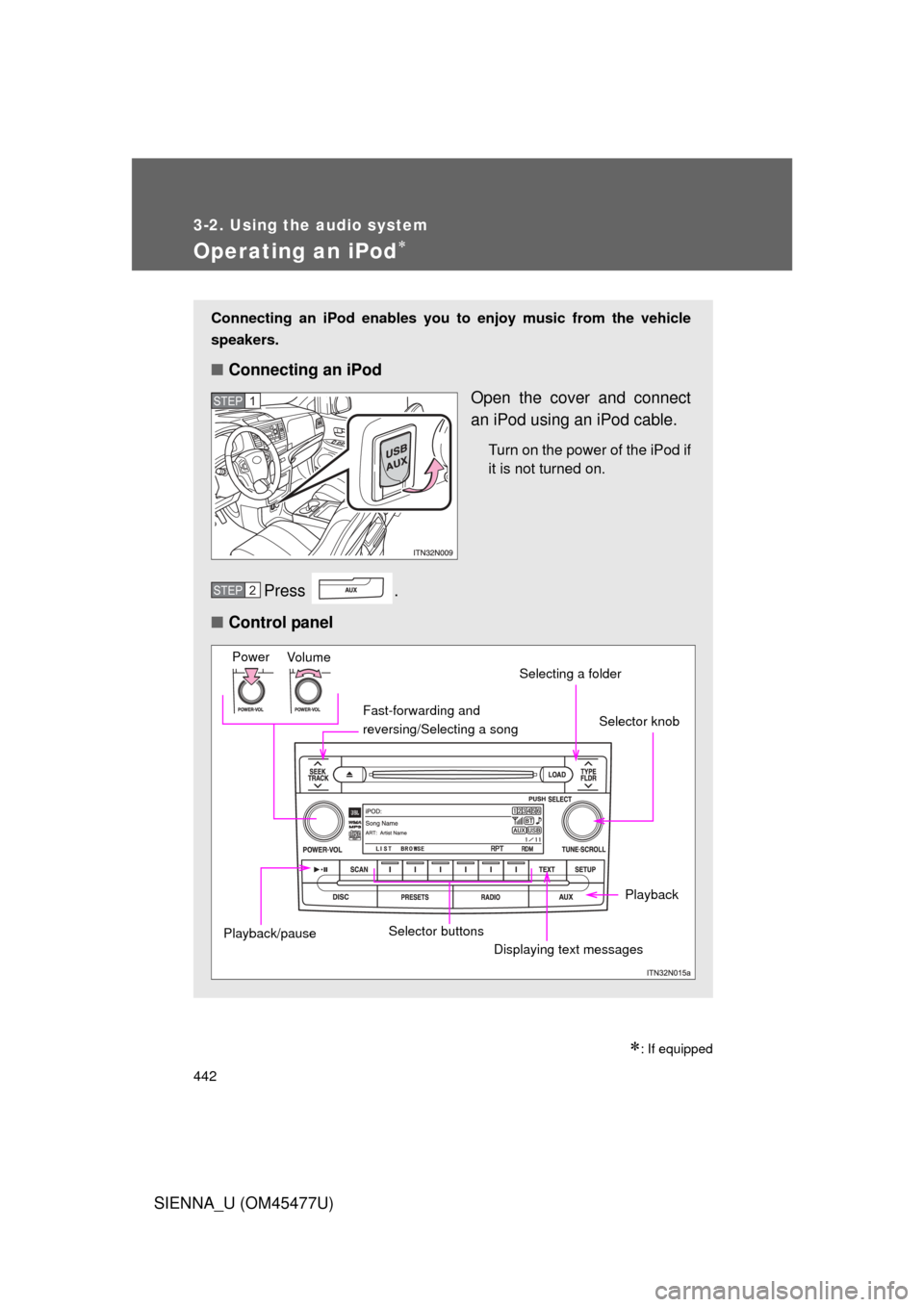
Connecting an iPod enables you to enjoy music from the vehicle
speakers.
■ Connecting an iPod
Open the cover and connect
an iPod using an iPod cable.
Turn on the power of the iPod if
it is not turned on.
Press .
■ Control panel
STEP1
STEP2
Fast-forwarding and
reversing/Selecting a song
Vo lu m e
PowerSelector knob
Displaying text messages
Selecting a folder
Selector buttons
Playback/pause
Playback
Page 443 of 860
443
3-2. Using the audio system
3
Interior features
SIENNA_U (OM45477U)
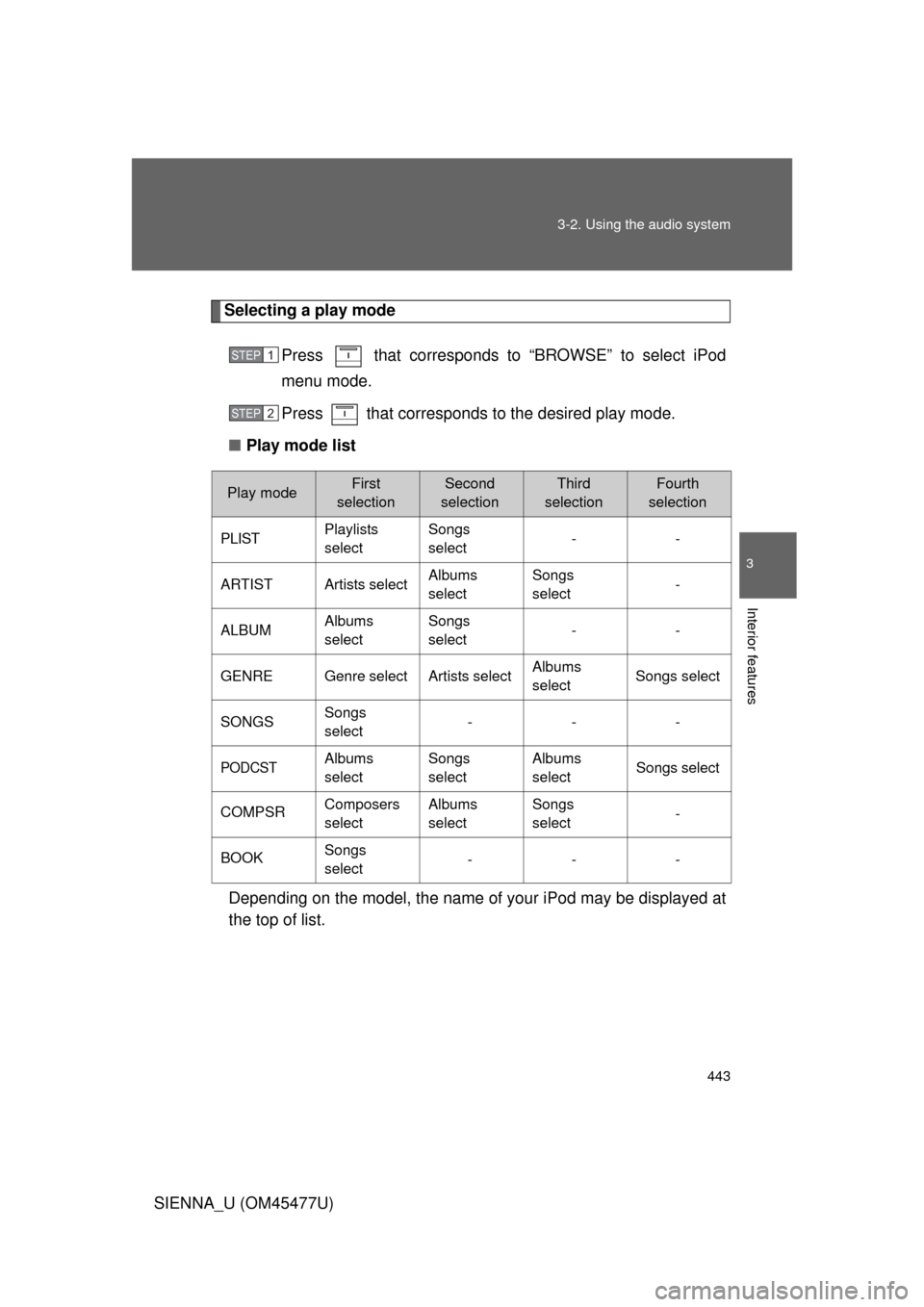
Selecting a play mode
Press that corresponds to “BROWSE” to select iPod
menu mode.
Press that corresponds to the desired play mode.
■ Play mode list
Depending on the model, the name of your iPod may be displayed at
the top of list.
STEP1
STEP2
Play modeFirst
selectionSecond
selectionThird
selectionFourth
selection
PLISTPlaylists
selectSongs
select--
ARTISTArtists selectAlbums
selectSongs
select-
ALBUMAlbums
selectSongs
select--
GENREGenre selectArtists selectAlbums
selectSongs select
SONGSSongs
select---
PODCSTAlbums
selectSongs
selectAlbums
selectSongs select
COMPSRComposers
selectAlbums
selectSongs
select-
BOOKSongs
select---
Page 444 of 860
444 3-2. Using the audio system
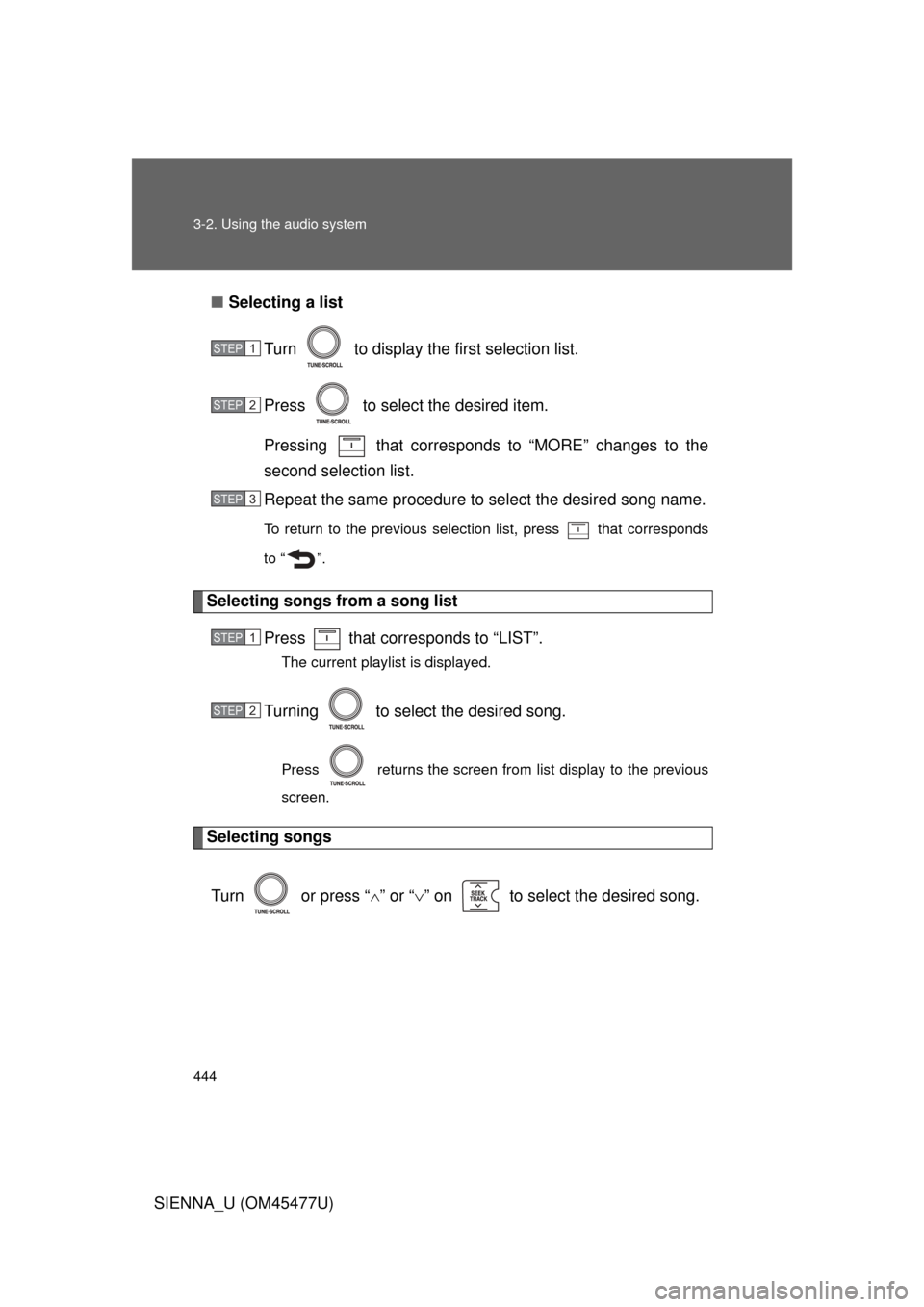
SIENNA_U (OM45477U)■
Selecting a list
Turn to display the first selection list.
Press to select the desired item.
Pressing that corresponds to “MORE” changes to the
second selection list.
Repeat the same procedure to select the desired song name.
To return to the previous selection list, press that corresponds
to “ ”.
Selecting songs from a song list
Press that corresponds to “LIST”.
The current playlist is displayed.
Turning to select the desired song.
Press returns the screen from list display to the previous
screen.
Selecting songs
Turn or press “ ” or “ ” on to select the desired song.
STEP1
STEP2
STEP3
STEP1
STEP2
Page 446 of 860
446 3-2. Using the audio system
SIENNA_U (OM45477U)
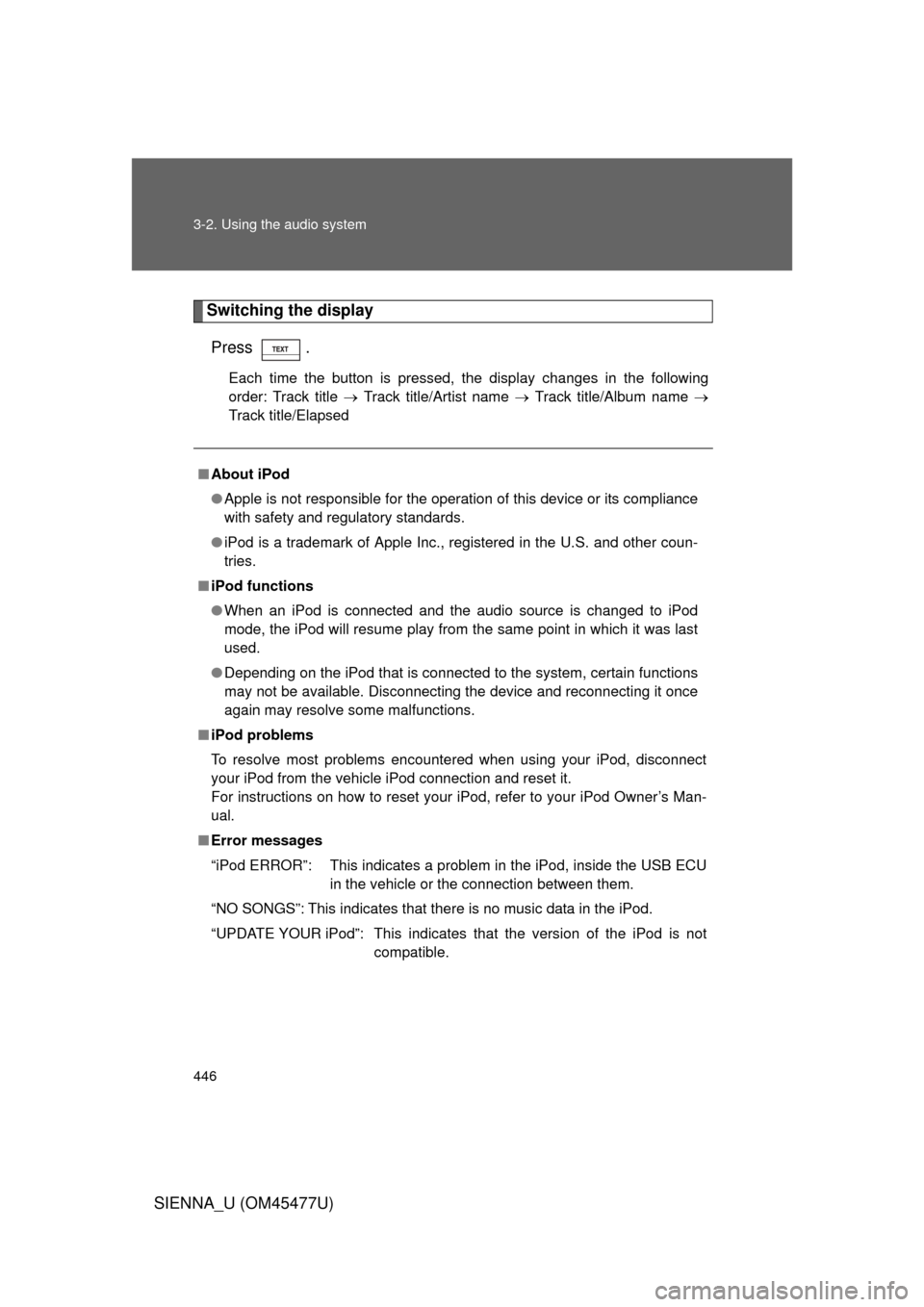
Switching the displayPress .
Each time the button is pressed, the display changes in the following
order: Track title Track title/Artist name Track title/Album name
Track title/Elapsed
■ About iPod
● Apple is not responsible for the operation of this device or its compliance
with safety and regulatory standards.
● iPod is a trademark of Apple Inc., registered in the U.S. and other coun-
tries.
■ iPod functions
● When an iPod is connected and the audio source is changed to iPod
mode, the iPod will resume play from the same point in which it was last
used.
● Depending on the iPod that is connected to the system, certain functions
may not be available. Disconnecting the device and reconnecting it once
again may resolve some malfunctions.
■ iPod problems
To resolve most problems encountered when using your iPod, disconnect
your iPod from the vehicle iPod connection and reset it.
For instructions on how to reset your iPod, refer to your iPod Owner’s Man-
ual.
■ Error messages
“iPod ERROR”: This indicates a problem in the iPod, inside the USB ECU
in the vehicle or the connection between them.
“NO SONGS”: This indicates that there is no music data in the iPod.
“UPDATE YOUR iPod”: This indicates that the version of the iPod is not compatible.
Page 449 of 860
449
3-2. Using the audio system
3
Interior features
SIENNA_U (OM45477U)
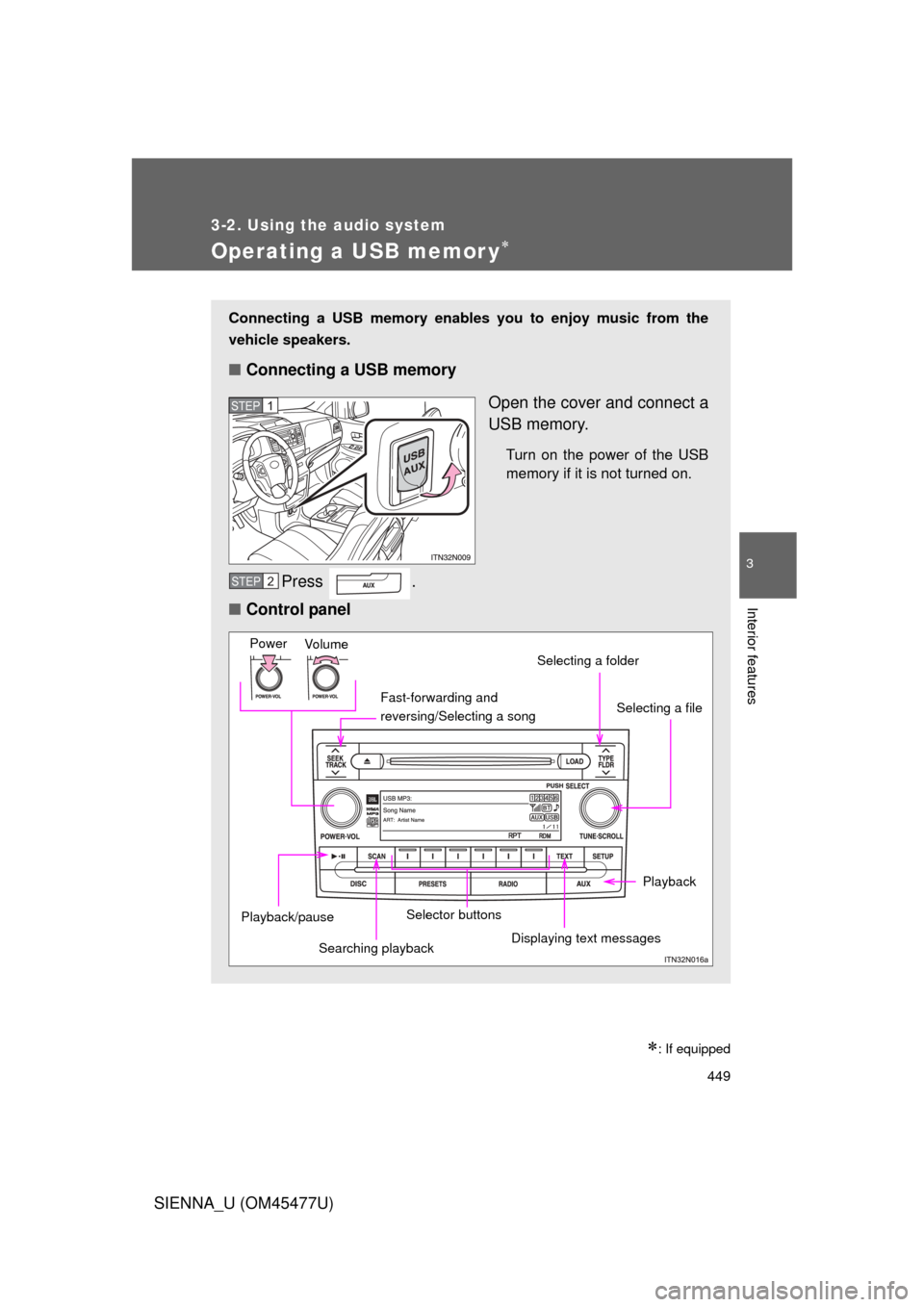
Operating a USB memor y
: If equipped
Connecting a USB memory enables you to enjoy music from the
vehicle speakers.
■Connecting a USB memory
Open the cover and connect a
USB memory.
Turn on the power of the USB
memory if it is not turned on.
Press .
■ Control panel
STEP1
STEP2
Fast-forwarding and
reversing/Selecting a song
Vo lu m e
PowerSelecting a file
Displaying text messages
Selecting a folder
Selector buttons
Playback/pause
Playback
Searching playback