Page 285 of 574
Changing and Selecting the Folders/Files
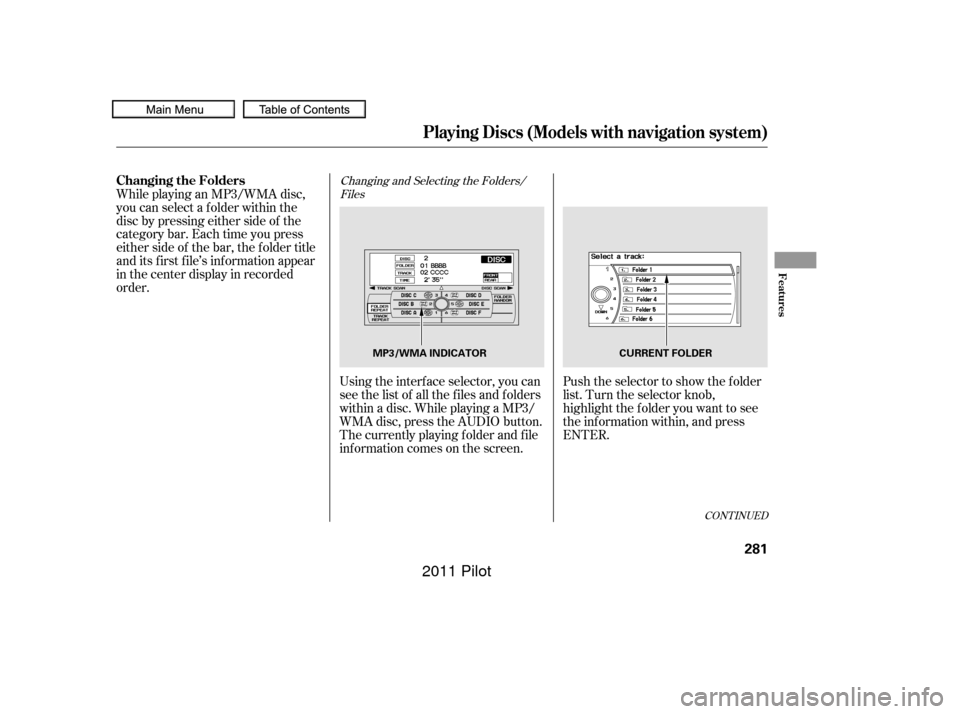
Using the interf ace selector, you can
see the list of all the f iles and f olders
within a disc. While playing a MP3/
WMA disc, press the AUDIO button.
The currently playing f older and f ile
inf ormation comes on the screen. Push the selector to show the f older
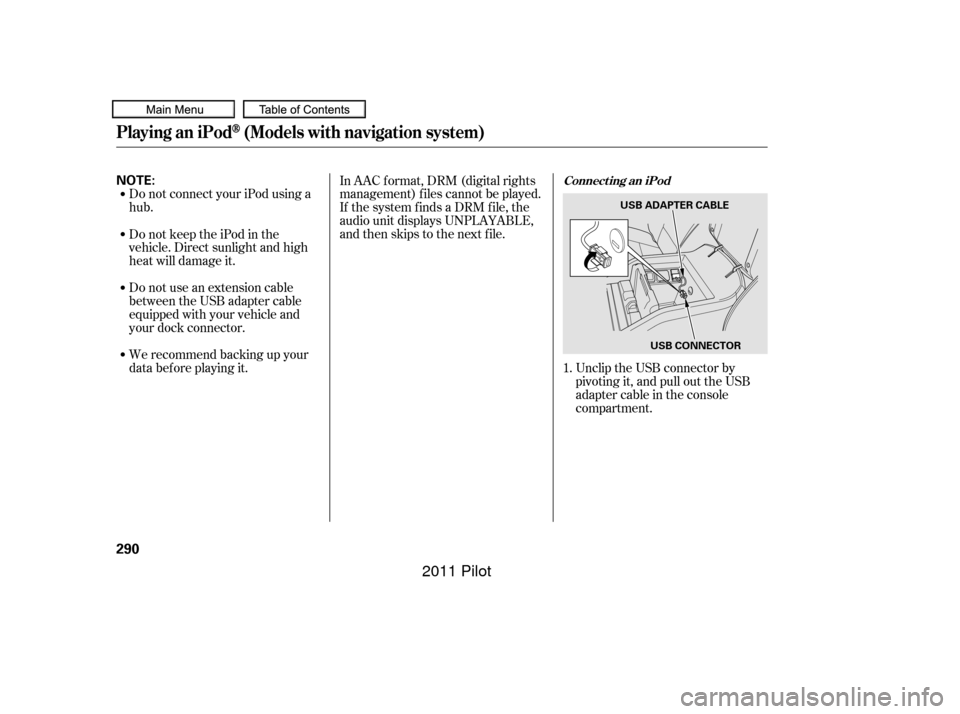
list. Turn the selector knob,
highlight the f older you want to see
the information within, and press
ENTER.
While playing an MP3/WMA disc,
you can select a f older within the
disc by pressing either side of the
category bar. Each time you press
either side of the bar, the folder title
and its f irst f ile’s inf ormation appear
in the center display in recorded
order.
CONT INUED
Playing Discs (Models with navigation system)
Changing the Folders
Features
281
MP3/WMA INDICATOR
CURRENT FOLDER
10/01/26 19:11:15 31SZA620_286
2011 Pilot
Page 286 of 574
This feature, when activated,
samples the f irst f ile of each f older
f or 10 seconds. To scan a f older,
press the SCAN button repeatedly
until you see F-SCAN in the audio
display. You will see SCAN next to
FOLDERandF-SCANintheaudio
display.
To listen to the rest of the folder,
press and hold the SCAN button
until you hear a beep. If you do not,
the system advances to the next
f older, plays 10 seconds of it, and
continues throughout the rest of the
folderthesameway.Whenthe
system samples the f irst f ile of all
f olders, f older scan is canceled, and
the last file played comes back.
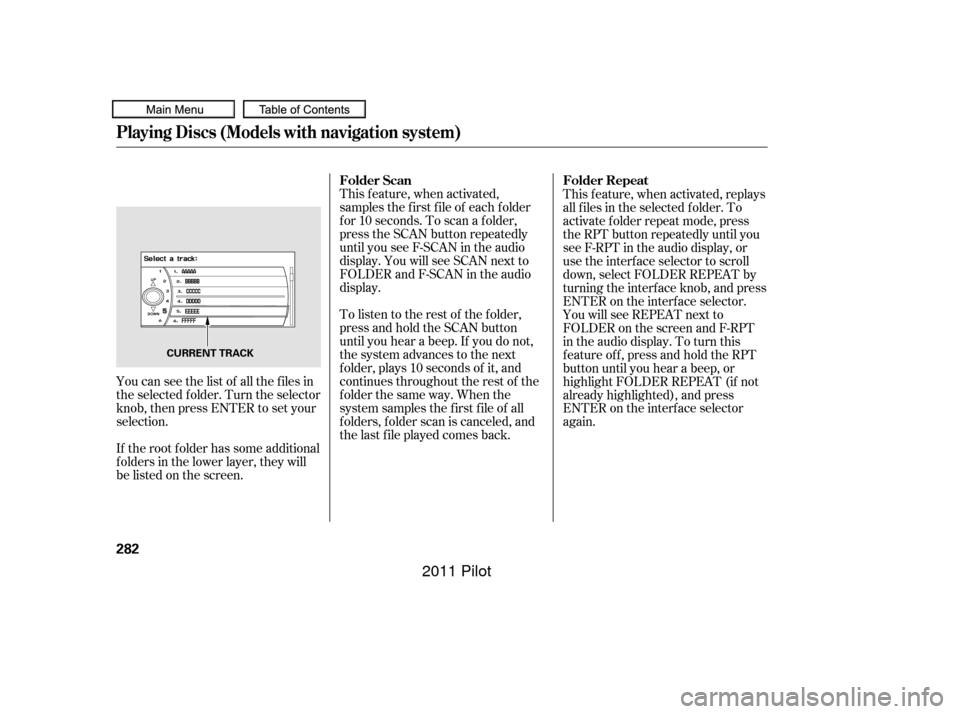
You can see the list of all the f iles in
the selected f older. Turn the selector
knob, then press ENTER to set your
selection.
If the root f older has some additional
f olders in the lower layer, they will
belistedonthescreen. This f eature, when activated, replays
all f iles in the selected f older. To
activate f older repeat mode, press
the RPT button repeatedly until you
seeF-RPTintheaudiodisplay,or
use the interf ace selector to scroll
down, select FOLDER REPEAT by
turning the interf ace knob, and press
ENTER on the interf ace selector.
You will see REPEAT next to
FOLDER on the screen and F-RPT
in the audio display. To turn this
feature off, press and hold the RPT
button until you hear a beep, or
highlight FOLDER REPEAT (if not
already highlighted), and press
ENTER on the interf ace selector
again.
Playing Discs (Models with navigation system)
Folder Repeat
Folder Scan
282
CURRENT TRACK
10/01/26 19:11:24 31SZA620_287
2011 Pilot
Page 287 of 574
To remove a dif f erent disc f rom the
changer,firstselectitbypressing
the corresponding number on the
preset button or turning the
interf ace knob, and pressing ENTER
on the interf ace selector. When that
disc begins playing, press the eject
button.
When you press the eject button
while listening to the radio, or with
the audio system turned of f , the disc
that was last selected is ejected.
Af ter that disc is ejected, pressing
the eject button again will eject the
next disc in numerical order. By
doing this six times, you can remove
all the discs f rom the changer.
You can also eject discs when the
ignition switch is of f :
To eject one disc, press and release
the eject button.
To eject all discs, press and hold the
eject button.
This f eature, when activated, plays
tracks in the current f older in
random order. To activate f older
random play, press the RDM button;
or use the interf ace selector to scroll
down, select FOLDER RANDOM by
interf ace knob, and press ENTER on
the interf ace selector. You will see
RANDOM next to FOLDER on the
screen and F-RDM in the audio
display. To turn this feature off,
press and hold the RDM button until
you hear a beep, or highlight
FOLDER RANDOM (if not already
highlighted), and press ENTER on
the interf ace selector again.
To remove the disc that is currently
playing, press the eject button. You
will see ‘‘EJECT’’ in the audio display.
When you remove the disc f rom the
slot, the system begins the load
sequence so you can load another
disc. If you do not load another disc,
the load sequence is canceled, and
the system continues playing in the
previous mode.
If you do not remove the disc f rom
the slot, the system will reload the
disc af ter 10 seconds.
Playing Discs (Models with navigation system)
Removing Discs f rom the
Changer
Folder Random
Features
283
10/01/26 19:11:35 31SZA620_288
2011 Pilot
Page 289 of 574
When using CD-R or CD-RW discs,
use only high quality discs labeled
f or audio use.
When recording a CD-R or
CD-RW, the recording must be
closedforittobeusedbythedisc
changer.When a disc is not being played,
store it in its case to protect it f rom
dust and other contamination. To
prevent warpage, keep discs out of
direct sunlight and extreme heat.
A new disc may be rough on the
inner and outer edges. The small
plastic pieces causing this roughness
can f lake of f and f all on the
recording surf ace of the disc,
causing skipping or other problems.
Remove these pieces by rubbing the
inner and outer edges with the side
of a pencil or pen.
Never try to insert f oreign objects in
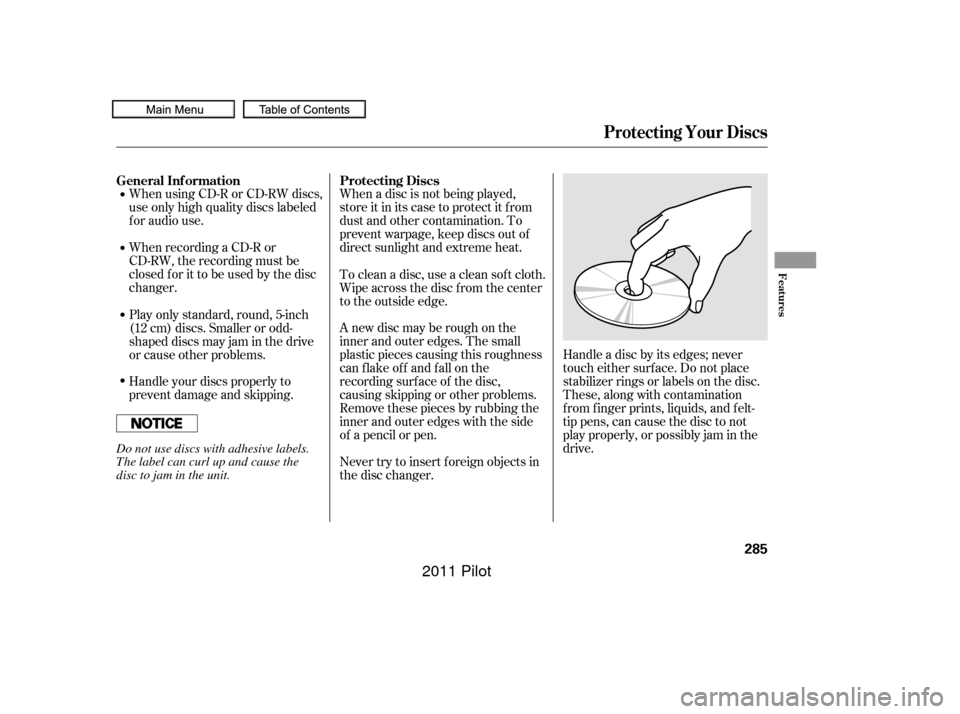
the disc changer. Handle a disc by its edges; never
touch either surf ace. Do not place
stabilizer rings or labels on the disc.
These, along with contamination
f rom f inger prints, liquids, and f elt-
tip pens, can cause the disc to not
play properly, or possibly jam in the
drive.
To clean a disc, use a clean sof t cloth.
Wipe across the disc f rom the center
to the outside edge.
Play only standard, round, 5-inch
(12 cm) discs. Smaller or odd-
shaped discs may jam in the drive
or cause other problems.
Handle your discs properly to
prevent damage and skipping.
General Inf ormation
Protecting Discs
Protecting Your Discs
Features
285
Do not use discs with adhesive labels.
The label can curl up and cause the
disc to jam in the unit.
10/01/26 19:11:57 31SZA620_290
2011 Pilot
Page 294 of 574
Do not connect your iPod using a
hub.
Do not use an extension cable
between the USB adapter cable
equipped with your vehicle and
your dock connector.
We recommend backing up your
data bef ore playing it.In AAC f ormat, DRM (digital rights
management) f iles cannot be played.
If the system finds a DRM file, the
audio unit displays UNPLAYABLE,
andthenskipstothenextfile.
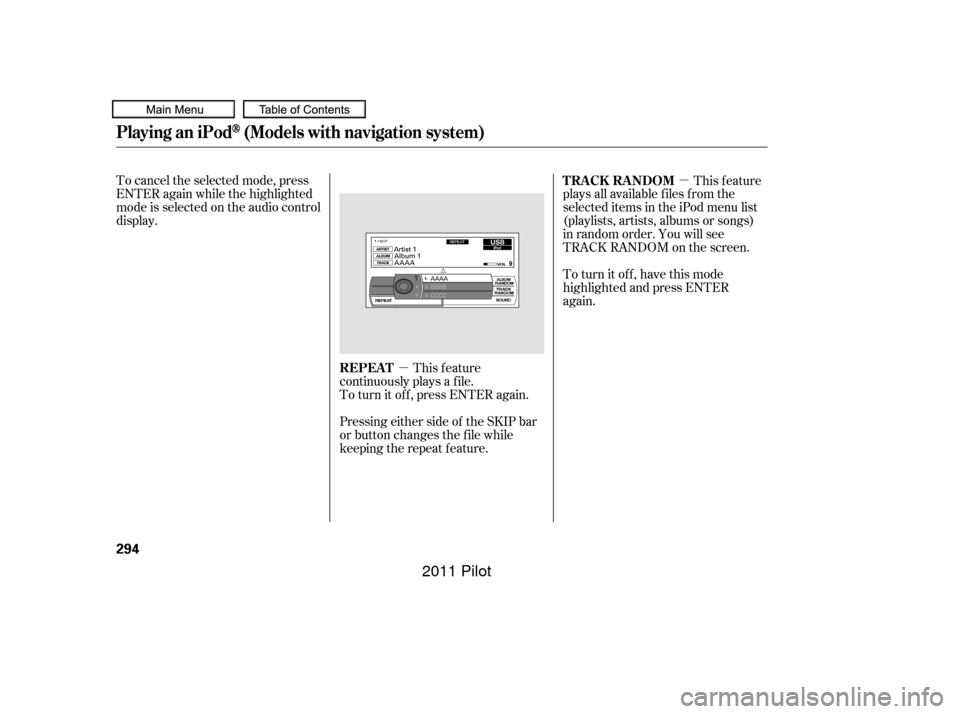
Unclip the USB connector by
pivoting it, and pull out the USB
adapter cable in the console
compartment.
DonotkeeptheiPodinthe
vehicle. Direct sunlight and high
heat will damage it.
1.
Connect ing an iPod
Playing an iPod(Models with navigation system)
290
NOTE:
USB ADAPTER CABLE
USB CONNECTOR
10/01/26 19:12:52 31SZA620_295
2011 Pilot
Page 298 of 574
�µ�µ
To cancel the selected mode, press
ENTER again while the highlighted
mode is selected on the audio control
display.
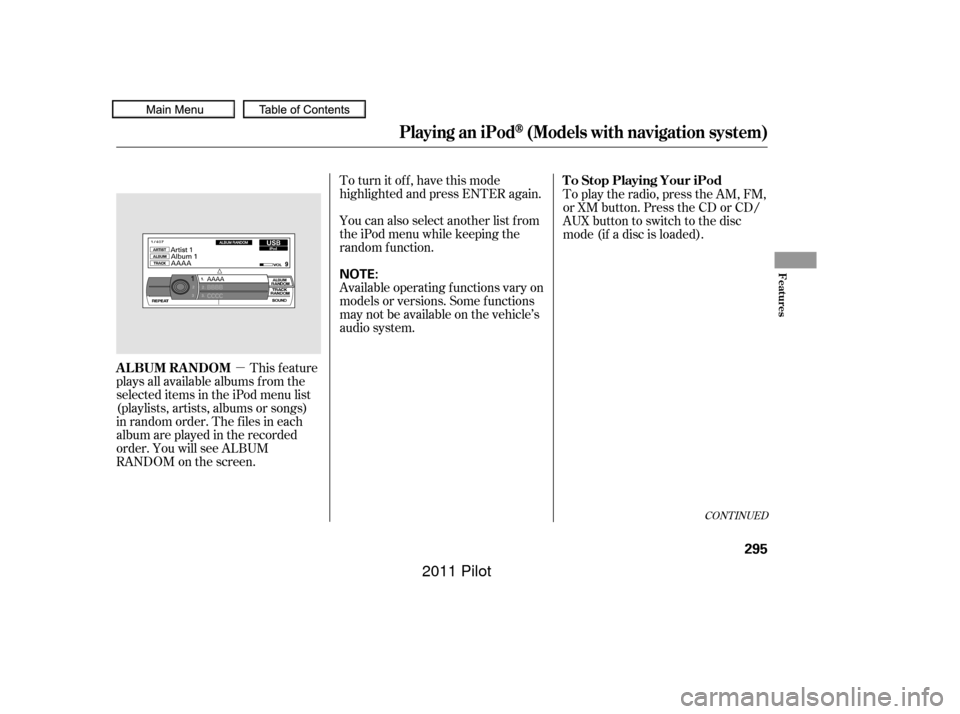
This feature
continuously plays a f ile.
To turn it off, press ENTER again. This feature
plays all available f iles f rom the
selected items in the iPod menu list
(playlists, artists, albums or songs)
in random order. You will see
TRACK RANDOM on the screen.
To turn it off, have this mode
highlighted and press ENTER
again.
Pressing either side of the SKIP bar
or button changes the f ile while
keeping the repeat f eature. REPEAT TRACK RANDOM
Playing an iPod(Models with navigation system)
294
10/01/26 19:13:28 31SZA620_299
2011 Pilot
Page 299 of 574
�µTo turn it off, have this mode
highlighted and press ENTER again.
You can also select another list from
theiPodmenuwhilekeepingthe
random f unction.
Available operating f unctions vary on
models or versions. Some f unctions
may not be available on the vehicle’s
audio system.
This feature
plays all available albums f rom the
selected items in the iPod menu list
(playlists, artists, albums or songs)
in random order. The f iles in each
album are played in the recorded
order. You will see ALBUM
RANDOM on the screen. To play the radio, press the AM, FM,
or XM button. Press the CD or CD/
AUX button to switch to the disc
mode (if a disc is loaded).
CONT INUED
T o Stop Playing Your iPod
ALBUM RANDOM
Playing an iPod(Models with navigation system)
Features
295
NOTE:
10/01/26 19:13:39 31SZA620_300
2011 Pilot
Page 303 of 574
�Î
�ΠThis audio system can operate the
audio f iles on a USB f lash memory
device with the same controls used
f or the in-dash disc changer. To play
a USB f lash memory device, connect
it to the USB adapter cable in the
console compartment, then press the
AUX button. The ignition switch
must be in the ACCESSORY (I) or
ON (II) position.Only AAC f ormat f iles recorded
with iTunes are playable on this
audio unit. Do not keep a USB f lash memory
device in the vehicle. Direct
sunlight and high heat will damage
it.
We recommend backing up your
data bef ore playing a USB f lash
memory device.
Depending on the type and
number of f iles, it may take some
time bef ore they begin to play.
Depending on the sof tware the
f iles were made with, it may not be
possibletoplaysomefiles,or
display some text data.
You can select the AUX mode by
using the navigation system voice
control buttons, but cannot operate
theplaymodefunctions.
The recommended USB f lash
memory devices are 256 MB or
higher, and f ormatted with the FAT
f ile system. Some digital audio
players may be compatible as well.
The audio system reads and plays
the audio f iles on the USB f lash
memory device in MP3, WMA or
AAC f ormats. Depending on the
f ormat, the display shows MP3,
WMA or AAC when a USB flash
memory device is playing. The USB
f lash memory device limit is up to
700 f olders or up to 65535 f iles. Some USB f lash memory devices
(such as devices with security lock-
out f eatures, etc.) will not work in
this audio unit.
Do not use a device such as a card
reader or hard drive as the device
or your f iles may be damaged.
Do not connect your USB f lash
memory device using a hub.
Do not use an extension cable to
the USB adapter cable equipped
with your vehicle.
:
CONT INUED
To Play a USB Flash Memory
Device
Voice Cont rol Syst em
Playing a USB Flash Memory Device (Models with navigation system)
Features
299
NOTE:
10/01/26 19:14:14 31SZA620_304
2011 Pilot