Page 308 of 574

�µ�µ
�µ
�µ
You can select any type of repeat,
random and scan modes on the audio
menu screen. Press the AUDIO
button to show the audio control
display on the navigation screen.
Push down the selector on the
interf ace dial to display the audio
menu items. Turntheknobontheinterfacedial
to select a play mode: f older random,
track random, folder repeat, track
repeat. Press ENTER to set your
selection.
To cancel the selected mode, push
down the selector to display the
audio menu on the audio control
display. Turn the knob on the
interf ace dial to select thehighlighted play mode, then press
ENTER to turn of f that selected
mode.
This feature
replays all the f iles in the selected
f older in the order they are stored.
Pressing either side of the
CATEGORY bar also turns of f this
feature.
This
f eature plays the f iles in the selected
f older in random order.
This feature
plays all the f iles in random order. This feature
continuously plays a f ile. Pressing
either side of the SKIP bar or button
also turns off this feature.
T o Select Repeat , Random or Scan
Mode:
FOLDER REPEAT
FOLDER RANDOM
TRACK RANDOM T RA CK REPEA T
Playing a USB Flash Memory Device (Models with navigation system)
304
10/01/26 19:15:12 31SZA620_309
2011 Pilot
Page 326 of 574
�Û�Ý�Û�Ý
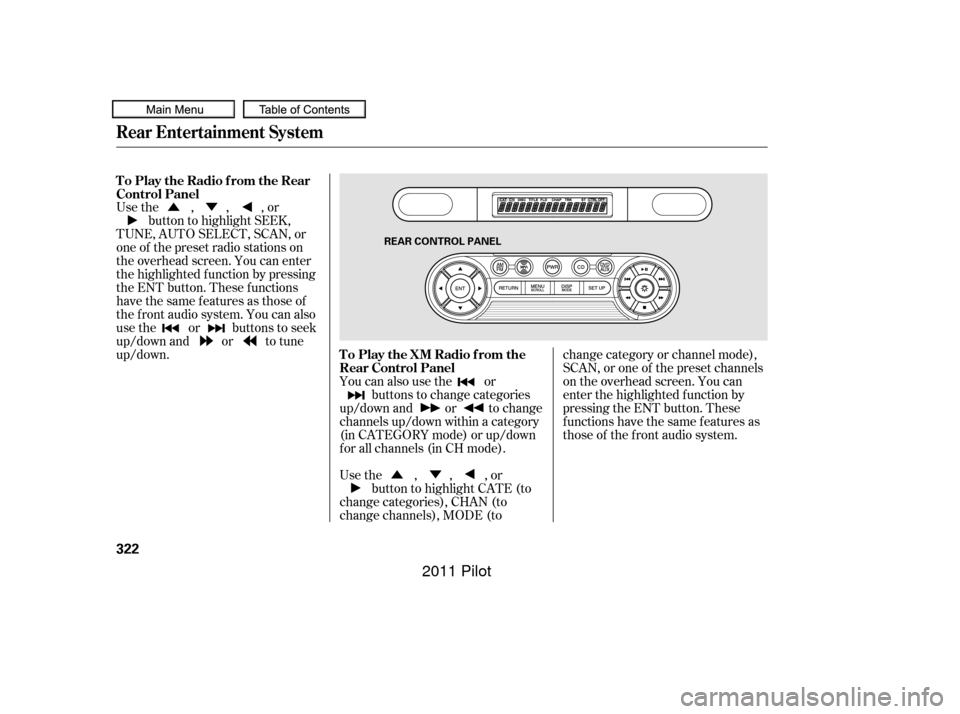
Usethe,,,or
button to highlight SEEK,
TUNE, AUTO SELECT, SCAN, or
one of the preset radio stations on
the overhead screen. You can enter
the highlighted f unction by pressing
the ENT button. These f unctions
have the same features as those of
the f ront audio system. You can also
use the or buttons to seek
up/down and or to tune
up/down.
You can also use the orbuttons to change categories
up/down and or to change
channels up/down within a category
(in CATEGORY mode) or up/down
f or all channels (in CH mode).
Usethe,,,or button to highlight CATE (to
change categories), CHAN (to
change channels), MODE (to change category or channel mode),
SCAN, or one of the preset channels
on the overhead screen. You can
enter the highlighted f unction by
pressing the ENT button. These
functions have the same features as
those of the f ront audio system.
To Play the Radio f rom the Rear
Control Panel
To Play the XM Radio f rom the
Rear Control Panel
Rear Entertainment System
322
REAR CONTROL PANEL
10/01/26 19:18:05 31SZA620_327
2011 Pilot
Page 327 of 574
�Û�Ý
�Û
�Û
�Ý
�Ý �Ý�Û
�Û�Ý
While the overhead screen is closed,
you can see the XM Radio
inf ormation in the subsidiary display
in the ceiling. Pressing the DISP
MODE button repeatedly changes
the subsidiary display f rom the
channel number, to the category
name, to the music title, to the artist
name, and to the channel name, and
then back to the channel number.
To change mode, press and hold the
DISP MODE button f or 5 seconds.
Usethe,,,or
button to highlight REPEAT,
RANDOM, SCAN, , (skip), , or (cue) on the overhead
screen. You can enter the
highlighted f unction by pressing the
ENT button. These f unctions have
the same features as those of the
f ront audio system. If discs are loaded in the disc
changer, select them by pressing the
CD button.
To change the disc currently playing,
usethe,,,or button to highlight your
selected disc icon, and press ENT.
If CDs are loaded in the CD changer
and the overhead screen is not open,
pressing the or button changes
the discs. If an iPod
or USB f lash memory
device is connected to the USB
adapter cable in the console
compartment, you can select f iles to
play.
For an iPod
,usethe , ,
, or button to highlight
REPEAT, RANDOM, , (skip), , or (cue) on
the overhead screen.
For a USB f lash memory device, use
the,,,or button to highlight REPEAT,
RANDOM, SCAN, , (skip), , or (cue) on the overhead
screen.
Rear Entertainment System
To Play a Disc in the 6-Disc
Changer f rom the Rear Control
Panel To Play an iPodor USB Flash
Memory Device f rom the Rear
Control Panel
Features
323
10/01/26 19:18:16 31SZA620_328
2011 Pilot
Page 329 of 574
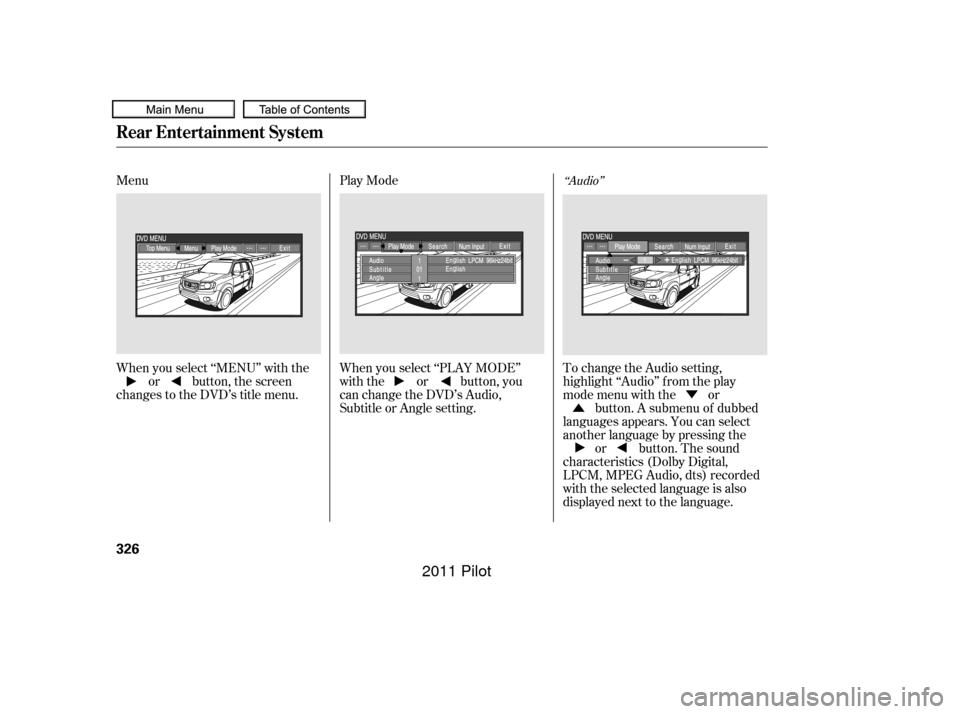
When you press the MENU
SCROLL button while a DVD is
playing, the DVD Menu appears.
ThemenuoptionsareTOPMENU,
MENU, PLAY MODE, SEARCH,
and NumInput.
To go to your selected menu, use theor button to highlight the
icon and press the ENT button. To
return to the DVD video screen,
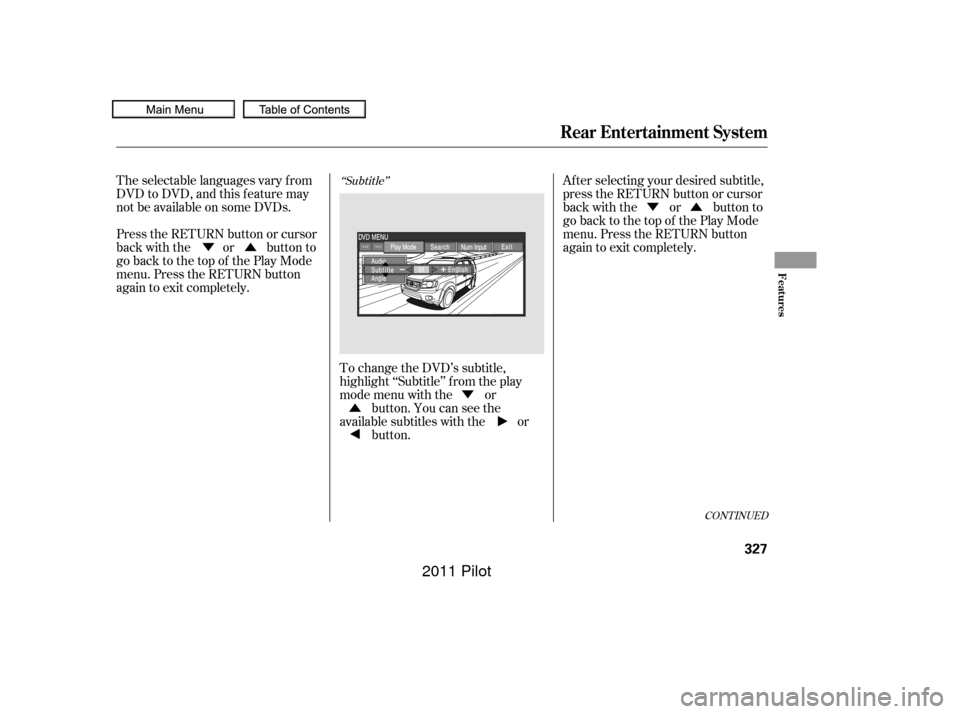
select EXIT. When you select ‘‘TOP MENU’’, the
screen changes to the DVD’s title
menu. This menu also appears when
you press the MENU SCROLL
button while a DVD is not playing.
To go back to play, press the
RETURN button. Top Menu
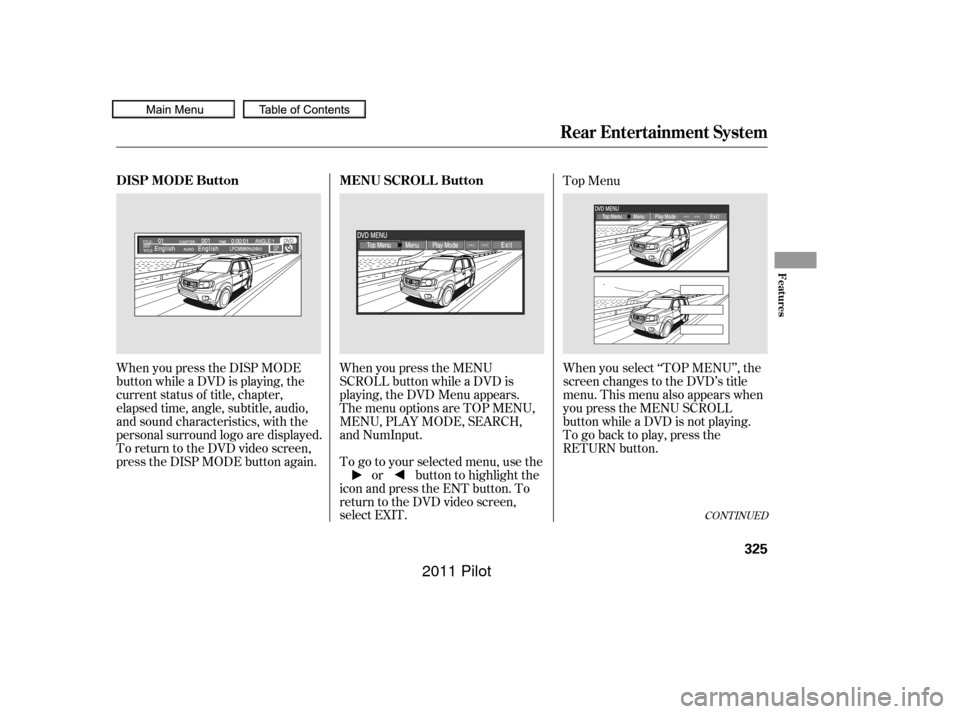
When you press the DISP MODE
button while a DVD is playing, the
current status of title, chapter,
elapsed time, angle, subtitle, audio,
and sound characteristics, with the
personal surround logo are displayed.
To return to the DVD video screen,
press the DISP MODE button again.
CONT INUED
Rear Entertainment System
MENU SCROLL Button
DISP MODE Button
Features
325
10/01/26 19:18:40 31SZA620_330
2011 Pilot
Page 330 of 574
�Û�Ý
Menu
Play Mode
When you select ‘‘MENU’’ with the or button, the screen
changes to the DVD’s title menu. When you select ‘‘PLAY MODE’’
with the or button, you
can change the DVD’s Audio,
Subtitle or Angle setting.To change the Audio setting,
highlight ‘‘Audio’’ f rom the play
mode menu with the or
button. A submenu of dubbed
languages appears. You can select
another language by pressing the or button. The sound
characteristics (Dolby Digital,
LPCM, MPEG Audio, dts) recorded
with the selected language is also
displayed next to the language.
‘‘Audio’’
Rear Entertainment System
326
10/01/26 19:18:52 31SZA620_331
2011 Pilot
Page 331 of 574
�Ý�Û�Ý
�Û �Ý�Û
CONT INUED
‘‘Subtitle’’The selectable languages vary f rom
DVD to DVD, and this f eature may
notbeavailableonsomeDVDs.
Press the RETURN button or cursor
back with the or button to
go back to the top of the Play Mode
menu. Press the RETURN button
again to exit completely.
Af ter selecting your desired subtitle,
press the RETURN button or cursor
back with the or button to
go back to the top of the Play Mode
menu. Press the RETURN button
again to exit completely.
To change the DVD’s subtitle,
highlight ‘‘Subtitle’’ f rom the play
mode menu with the or button. You can see the
available subtitles with the or button.
Rear Entertainment System
Features
327
10/01/26 19:19:00 31SZA620_332
2011 Pilot
Page 332 of 574
�Ý�Û
�Û�Ý
‘‘Angle’’
When you highlight ‘‘Search’’ with
the or button, the ‘‘Jump
to chapter and title number input’’
message appears. To select
‘‘Chapter’’ or ‘‘Title’’ search, press
the ENT button. Search
If there are no multiple angles
available on the DVD, you cannot
change f rom ‘‘Angle 1’’.
Press the RETURN button or cursor
back with the or button to
go back to the top of the Play Mode
menu.
Press the RETURN button again to
exit completely.
To change the view angle, highlight
‘‘Angle’’ f rom the play mode menu
with the or button. You
can see the available angle options
with the or button.
Rear Entertainment System
328
10/01/26 19:19:11 31SZA620_333
2011 Pilot
Page 333 of 574
�Û�Ý
CONT INUED
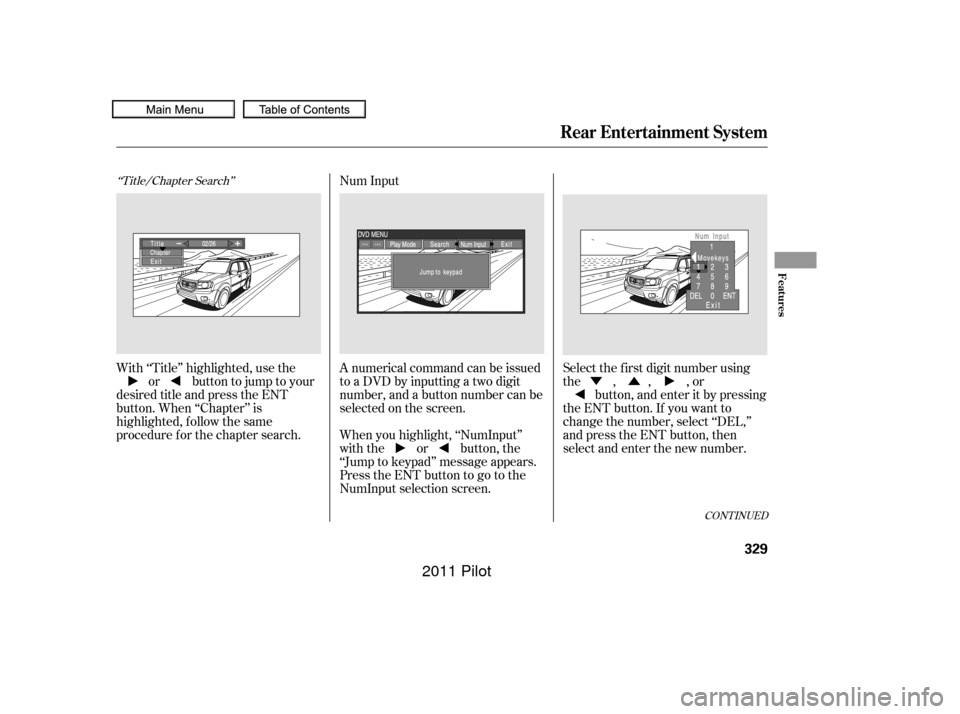
‘‘Title/Chapter Search’’
With ‘‘Title’’ highlighted, use theor buttontojumptoyour
desired title and press the ENT
button. When ‘‘Chapter’’ is
highlighted, f ollow the same
procedure f or the chapter search. A numerical command can be issued
to a DVD by inputting a two digit
number, and a button number can be
selected on the screen.
Select the f irst digit number using
the , , , or
button, and enter it by pressing
the ENT button. If you want to
change the number, select ‘‘DEL,’’
and press the ENT button, then
select and enter the new number.
When you highlight, ‘‘NumInput’’
with the or button, the
‘‘Jump to keypad’’ message appears.
PresstheENTbuttontogotothe
NumInput selection screen. Num Input
Rear Entertainment System
Features
329
10/01/26 19:19:22 31SZA620_334
2011 Pilot