Page 211 of 574
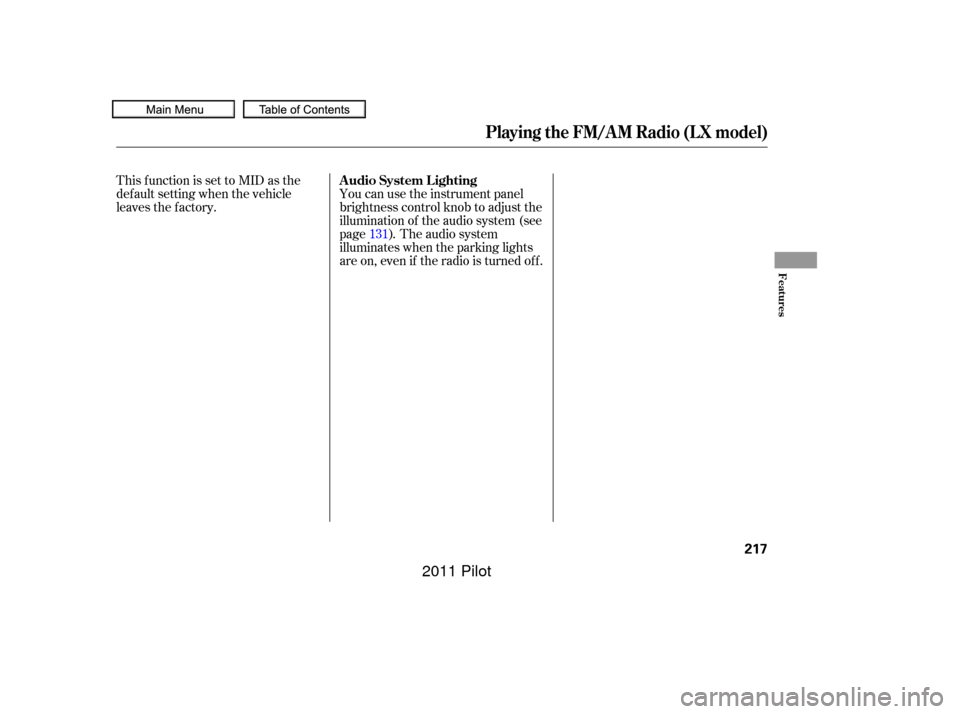
Theclimatecontrolsystemhastwo
sensors: a sunlight sensor on top of
the dashboard, and a temperature
and humidity sensor next to the
steering column. Do not cover the
sensors or spill any liquid on them. Sunlight and T emperature
Sensors
Climate Control System
Features
207
TEMPERATURE/HUMIDITY SENSOR
SUNLIGHT SENSOR
10/01/26 18:58:55 31SZA620_212
2011 Pilot
Page 221 of 574
This f unction is set to MID as the
def ault setting when the vehicle
leaves the factory.You can use the instrument panel
brightness control knob to adjust the
illumination of the audio system (see
page ). The audio system
illuminates when the parking lights
are on, even if the radio is turned of f .131
Playing the FM/AM Radio (LX model)
A udio System L ighting
Features
217
10/01/26 19:00:30 31SZA620_222
2011 Pilot
Page 239 of 574
You can use the instrument panel
brightness control knob to adjust the
illumination of the audio system (see
page ). The audio system
illuminates when the parking lights
are on, even if the radio is turned of f .131
Playing the FM/AM Radio (EX and EX-L models)
A udio System L ighting
Features
235
10/01/26 19:03:30 31SZA620_240
2011 Pilot
Page 256 of 574
The selector can be pushed lef t,
right, up, down, and in. Use the
selector to scroll through lists, to
select menus, and to highlight menu
items. When you make a selection,
push the center of the selector
(ENTER)togotothatselection. The knob turns lef t and right. Use it
to make selections or adjustments to
a list or menu on the screen.
Most audio system f unctions can still
be controlled by standard buttons,
dials, and knobs, but some f unctions
can only be accessed using the
interf ace dial. The interf ace dial has
two parts, a knob and a selector. The audio system can also be
operated by voice control. See the
navigation system manual f or
complete details.
On models with navigation system
Interf ace Dial
Voice Control System
Audio System (Models with navigation system)
252
SELECTOR
KNOB ENTER
10/01/26 19:06:23 31SZA620_257
2011 Pilot
Page 260 of 574
�µ
�µ
If you are
traveling and can no longer receive
your preset stations, you can use the
auto select feature to find stations in
the local area.
Each preset button or
preset icon can store one f requency
on AM and two f requencies on FM.
Select the desired band, AM or
FM. FM1 and FM2 let you store
twosetsof FMfrequencieswith
the preset buttons (on-screen
icons).
Usethetune,seek,orscan
function to tune the radio to a
desired station.
Press the preset button, and hold
it until you hear a beep. You can
also store f requencies with the
interf ace dial. Select the preset
icon you want to store the
f requency on, then press ENTER
on the interf ace selector, and hold
it f or more than 2 seconds.
Repeat steps 1 through 3 to store a
total of six stations on AM and
twelve stations on FM. You will see ‘‘0’’ displayed if auto
select cannot f ind a strong station f or
every preset button.
If you do not like the stations auto
select has stored, you can store
other f requencies on the preset
buttons (icons) as previously
described.
To turn of f auto select, press
ENTER on the interf ace selector or
press the A.SEL button again. This
restores the presets you originally
set.
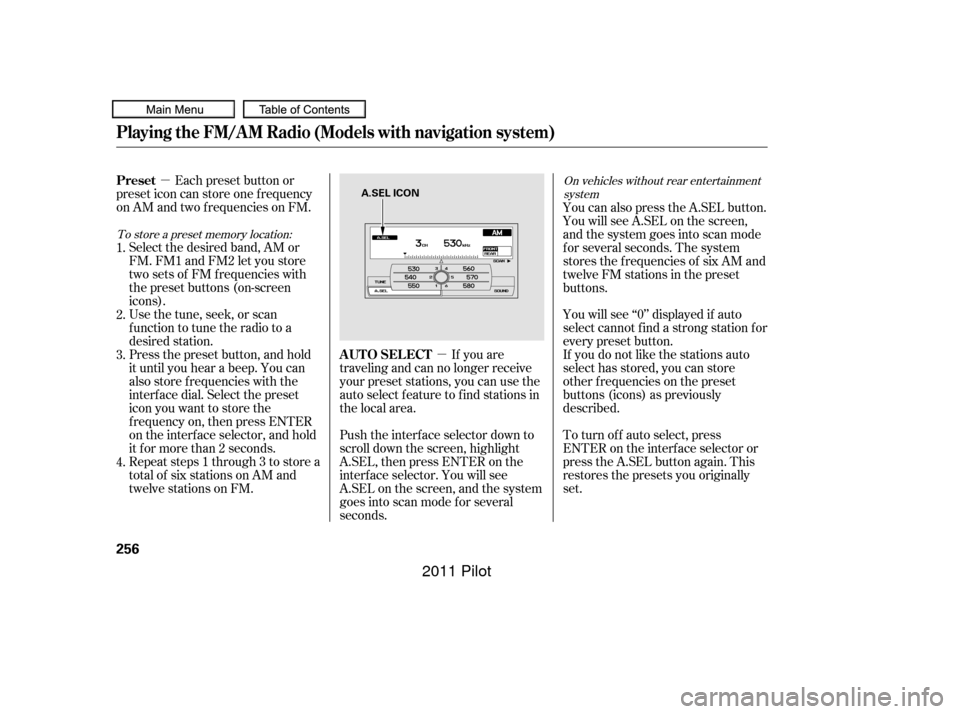
Push the interf ace selector down to
scroll down the screen, highlight
A.SEL, then press ENTER on the
interf ace selector. You will see
A.SEL on the screen, and the system
goes into scan mode f or several
seconds. You can also press the A.SEL button.
YouwillseeA.SELonthescreen,
and the system goes into scan mode
f or several seconds. The system
stores the f requencies of six AM and
twelve FM stations in the preset
buttons.
1.
2.
3.
4.
To store a preset memory location: On vehicles without rear entertainment
system
AUTO SELECT
Preset
Playing the FM/A M Radio (Models with navigation system)
256
A.SEL ICON
10/01/26 19:07:05 31SZA620_261
2011 Pilot
Page 281 of 574
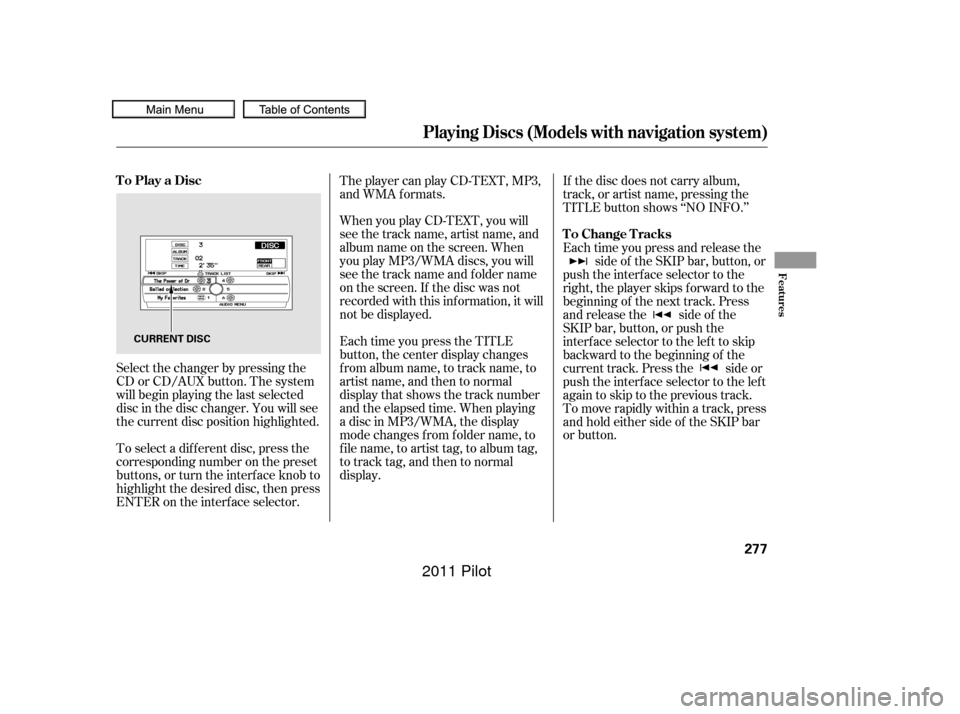
When you play CD-TEXT, you will
see the track name, artist name, and
album name on the screen. When
you play MP3/WMA discs, you will
see the track name and folder name
on the screen. If the disc was not
recorded with this inf ormation, it will
not be displayed.
To select a dif f erent disc, press the
corresponding number on the preset
buttons, or turn the interf ace knob to
highlight the desired disc, then press
ENTER on the interf ace selector. The player can play CD-TEXT, MP3,
and WMA formats.
Select the changer by pressing the
CD or CD/AUX button. The system
will begin playing the last selected
disc in the disc changer. You will see
the current disc position highlighted. Each time you press the TITLE
button, the center display changes
f rom album name, to track name, to
artist name, and then to normal
display that shows the track number
and the elapsed time. When playing
a disc in MP3/WMA, the display
mode changes f rom f older name, to
f ile name, to artist tag, to album tag,
to track tag, and then to normal
display.If the disc does not carry album,
track, or artist name, pressing the
TITLE button shows ‘‘NO INFO.’’
Each time you press and release the
side of the SKIP bar, button, or
push the interface selector to the
right, the player skips forward to the
beginning of the next track. Press
and release the side of the
SKIP bar, button, or push the
interface selector to the left to skip
backward to the beginning of the
current track. Press the side or
push the interface selector to the left
againtoskiptotheprevioustrack.
To move rapidly within a track, press
andholdeithersideof theSKIPbar
or button.
Playing Discs (Models with navigation system)
To Play a Disc
To Change Tracks
Features
277
CURRENT DISC
10/01/26 19:10:31 31SZA620_282
2011 Pilot
Page 282 of 574
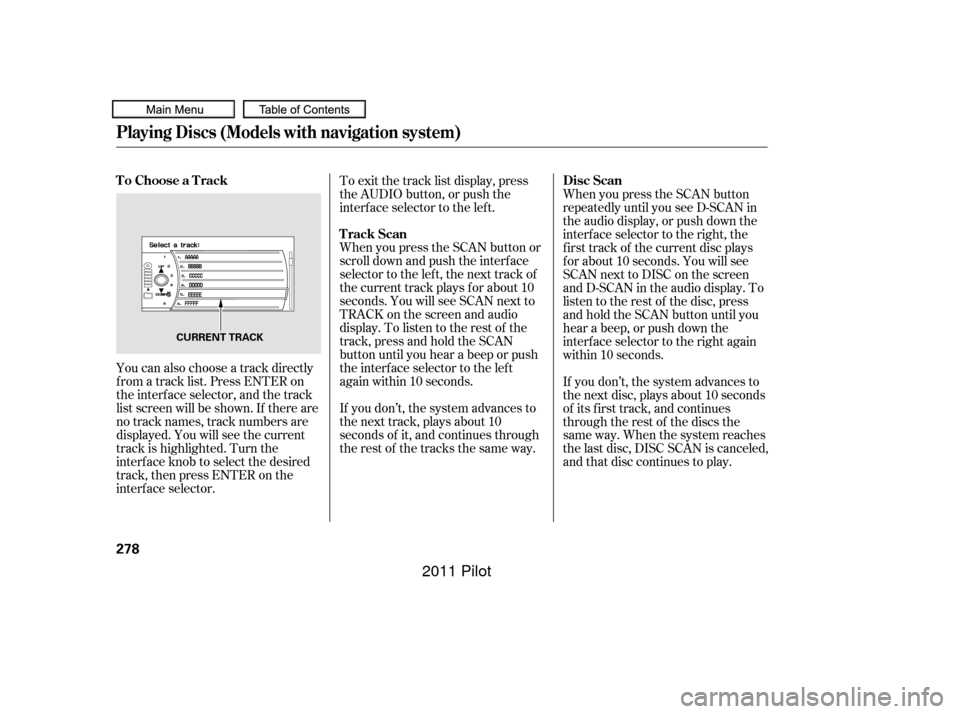
You can also choose a track directly
f rom a track list. Press ENTER on
the interf ace selector, and the track
list screen will be shown. If there are
no track names, track numbers are
displayed. You will see the current
track is highlighted. Turn the
interf ace knob to select the desired
track, then press ENTER on the
interf ace selector.To exit the track list display, press
the AUDIO button, or push the
interf ace selector to the lef t.
When you press the SCAN button or
scroll down and push the interf ace
selector to the left, the next track of
the current track plays f or about 10
seconds. You will see SCAN next to
TRACKonthescreenandaudio
display. To listen to the rest of the
track, press and hold the SCAN
button until you hear a beep or push
the interface selector to the left
again within 10 seconds.
When you press the SCAN button
repeatedly until you see D-SCAN in
the audio display, or push down the
interface selector to the right, the
f irst track of the current disc plays
f or about 10 seconds. You will see
SCAN next to DISC on the screen
and D-SCAN in the audio display. To
listen to the rest of the disc, press
andholdtheSCANbuttonuntilyou
hear a beep, or push down the
interf ace selector to the right again
within 10 seconds.
If you don’t, the system advances to
the next track, plays about 10
seconds of it, and continues through
the rest of the tracks the same way. If you don’t, the system advances to
the next disc, plays about 10 seconds
of its f irst track, and continues
through the rest of the discs the
same way. When the system reaches
the last disc, DISC SCAN is canceled,
and that disc continues to play.
Playing Discs (Models with navigation system)
To Choose a Track
Track ScanDisc Scan
278
CURRENT TRACK
10/01/26 19:10:42 31SZA620_283
2011 Pilot
Page 283 of 574
To replay the current track
continuously, press and release the
RPT button, or use the interface
selector to scroll down, select
TRACK REPEAT, and press ENTER
on the interf ace selector. As a
reminder, you will see REPEAT next
toTRACKonthescreenandRPTin
the audio display. To turn this
feature off, press and hold the RPT
button until you hear a beep, or
highlight TRACK REPEAT (if not
already highlighted), and press
ENTER on the interf ace selector
again.To replay the current disc
continuously, press the RPT button
repeatedly until you see D-RPT in
the audio display, or use the
interf ace selector to scroll down,
select DISC REPEAT, and press
ENTER on the interf ace selector. As
a reminder, you will see REPEAT
next to DISC on the screen and
D-RPT in the audio display. To turn
this feature off, press and hold the
RPT button until you hear a beep, or
highlight DISC REPEAT (if not
already highlighted), and press
ENTER on the interf ace selector
again.To play the tracks of the current disc
in random order, press and release
the RDM button, or use the interface
selector to scroll down, select
TRACK RANDOM, and press
ENTER on the interf ace selector. As
a reminder, you will see RANDOM
next to TRACK on the screen and
RDM in the audio display. To turn
this feature off, press and hold the
RDM button until you hear a beep,
or highlight TRACK RANDOM (if
not already highlighted), and press
ENTER on the interf ace selector
again.
Playing Discs (Models with navigation system)
T rack Repeat
Disc Repeat Random Play
Features
279
10/01/26 19:10:49 31SZA620_284
2011 Pilot