Page 393 of 722
�Î
�ÎThe displayed message may
vary on models or versions. On
some models, there is no
message to disconnect.
To take the system out of the iPod
mode, press one of the other source
buttons than the USB/AUX button.
When a compatible audio unit is
connected to the auxiliary input jack,
press the USB/AUX button to select
it. When you disconnect the iPod while
it is playing, the audio screen (if
selected) shows NO DATA.
If you reconnect the same iPod, the
system may begin playing where it
lef t of f , depending on what mode the
iPod is in when it is reconnected.
You can also press the MODE
buttononthesteeringwheelto
change modes.
You can disconnect the iPod at any
time when you see the ‘‘OK to
disconnect’’ message in the iPod
display. Always make sure you see
‘‘OK to disconnect’’ message in the
iPod display bef ore you disconnect it.
Make sure to f ollow the iPod’s
instructions on how to disconnect
the dock connector f rom the USB
adapter cable. :
T o Stop Playing Your iPod
Disconnect ing an iPodPlaying an iPod
(Models with navigation system)
390
When you connect your iPod to the
navigation system, the most recent
settings (Shuf f le, Repeat, etc.) will be
carried over.
10/07/17 10:26:20 31TK8600_395
2011 Odyssey
Page 397 of 722

Some versions of MP3, WMA, or
AAC f ormat may not be supported. If
an unsupported f ile is f ound, the
audio unit displays UNSUPPORTED,
then skips to the next file.
Some devices cannot be powered
or charged via the USB adapter. If
this is the case, use the accessory
adapter to supply power to your
device.
You can select the AUX mode by
using the voice control buttons, but
cannot operate the play mode
f unctions. The order of f iles in USB playback
maybedifferentfromtheorderof
f iles displayed in PC or other
devices etc. Files are played in the
orderstoredinUSBflashmemory
device.
Do not keep a USB f lash memory
device in the vehicle. Direct
sunlight and high heat will damage
it.
Depending on the type and
number of f iles, it may take some
time bef ore they begin to play.
Depending on the sof tware the
f iles were made with, it may not be
possibletoplaysomefiles,or
displaysometextdata. We recommend backing up your
data bef ore playing a USB f lash
memory device.
Depending on the type of
encoding and writing sof tware
used, there may be cases where
character inf ormation does not
display properly.
Voice Cont rol Syst em
Playing a USB Flash Memory Device (Models with navigation system)394
10/07/17 10:26:49 31TK8600_399
2011 Odyssey
Page 399 of 722
�µ�µ
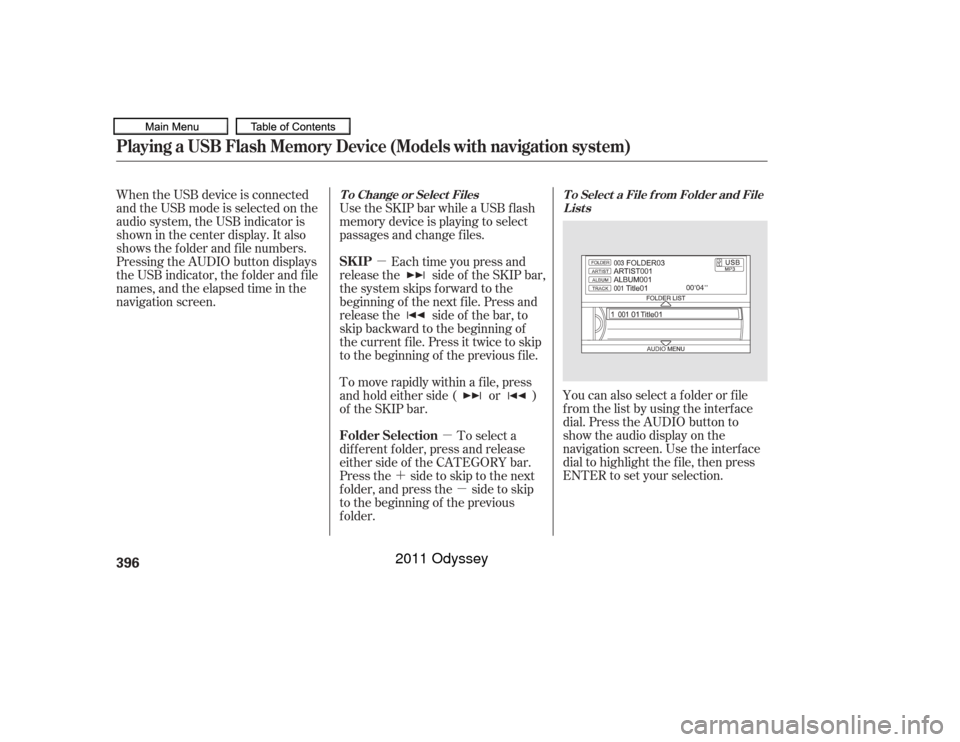
�´ �µ You can also select a f older or f ile
from the list by using the interface
dial. Press the AUDIO button to
show the audio display on the
navigation screen. Use the interf ace
dial to highlight the f ile, then press
ENTER to set your selection.
When the USB device is connected
andtheUSBmodeisselectedonthe
audio system, the USB indicator is
shown in the center display. It also
shows the f older and f ile numbers.
Pressing the AUDIO button displays
the USB indicator, the f older and f ile
names,andtheelapsedtimeinthe
navigation screen.
Use the SKIP bar while a USB f lash
memory device is playing to select
passages and change f iles.
Each time you press and
releasethe sideof theSKIPbar,
the system skips forward to the
beginning of the next f ile. Press and
releasethe sideof thebar,to
skip backward to the beginning of
the current f ile. Press it twice to skip
to the beginning of the previous file.
To move rapidly within a f ile, press
andholdeitherside( or )
of the SKIP bar.
To select a
dif f erent f older, press and release
either side of the CATEGORY bar.
Press the side to skip to the next
f older, and press the side to skip
to the beginning of the previous
f older.
T o Select a File f rom Folder and File
Lists
T o Change or Select Files
SK IP
Folder Selection
Playing a USB Flash Memory Device (Models with navigation system)396
10/07/17 10:27:03 31TK8600_401
2011 Odyssey
Page 405 of 722
You can disconnect the USB f lash
memory device at any time even if
the USB mode is selected on the
audio system. Always f ollow the USB
f lash memory device’s instructions
when you remove it.
To take the system out of the USB
mode, press one of the other source
buttons than the USB/AUX button.
When a compatible audio unit is
connected to the auxiliary input jack,
press the USB/AUX button to When you disconnect the USB f lash
memory device while it is playing,
the center display and the audio
screen (if selected) show NO DATA.
If you reconnect the same USB f lash
memory device, the system will
begin playing where it lef t of f . You can also press the MODE
buttononthesteeringwheelto
change modes.Disconnect ing a USB Flash Memory Device
To Stop Playing a USB Flash
Memory DevicePlaying a USB Flash Memory Device (Models with navigation system)402
10/07/17 10:27:58 31TK8600_407
select it.
2011 Odyssey
Page 410 of 722
The resume/pause mode can stop
playing a f ile temporarily.Turn the interface dial to switch the
setting between the resume/pause
mode and the sound setup mode.
Select Resume/Pause, then press
ENTER to set your selection. Each
time you press ENTER, the system
switches between the resume mode
and pause mode.
Thepausefunctionmaynot
be available on some phone devices.
Press the AUDIO button to display
the audio control display. Turn the
dial to switch the setting between
theresume/pausemodeandthe
sound setup mode. Select Sound
Setup, then press ENTER to set your
selection.
CONT INUED
T o pause or resume a f ile T o change sound settings
Bluetooth
Audio System (Models with navigation system)
Features
407
NOTE:
10/07/17 10:28:36 31TK8600_412
2011 Odyssey
Page 414 of 722
�´
�µ �´�µ
�´
�µ
The MODE button changes the
mode.
Pressing the MODE button
repeatedly cycles through all
possible media sources whether they
are present or not.
Pressing the MODE button
repeatedly cycles through all present,
connected media sources. Media
sources that are not present or
connected will not appear when
cycling with the MODE button.
If you are listening to the radio, use
the CH button to change stations.
Each time you press the top ( ) of
the button, the system goes to the
next preset station on the band you
are listening to. Press the bottom
( ) to go back to the previous
station. To search up and down f rom the
current f requency and f ind a station
with a strong signal, press the top
( ) or bottom ( ) of the button for
1 second.
If you are playing a disc, the system
skips to the beginning of the next
track each time you press the top
( ) of the CH button. Press the
bottom ( ) to return to the
beginning of the current track. Press
it again to return to the previous
track. You will see the disc and track
numbers in the upper display.
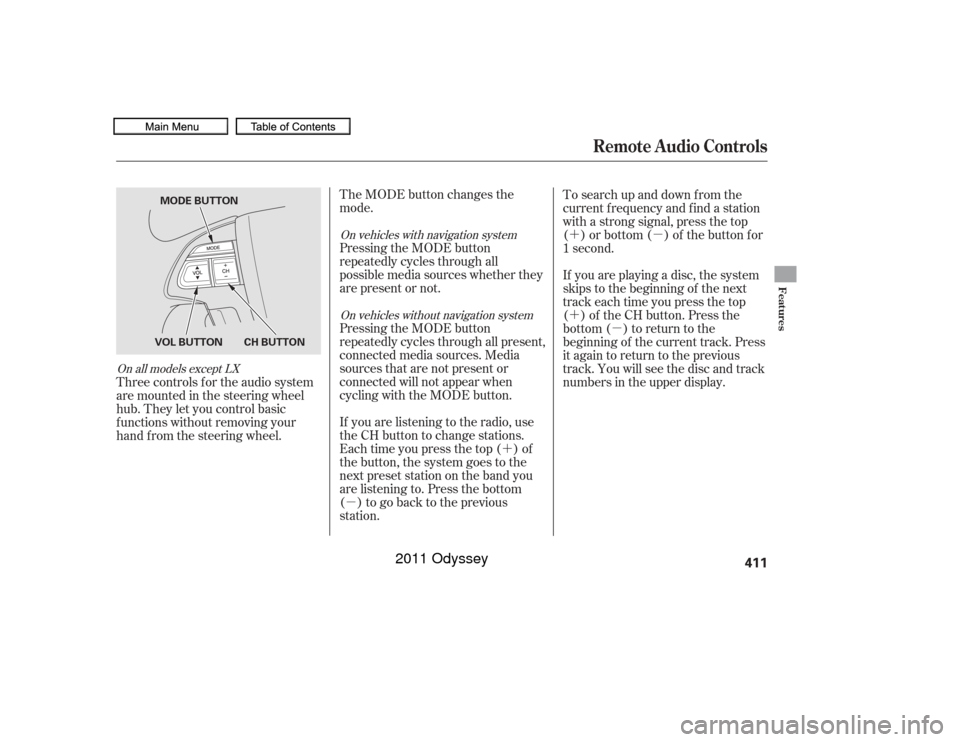
Three controls f or the audio system
are mounted in the steering wheel
hub. They let you control basic
f unctions without removing your
hand f rom the steering wheel.
On vehicles with navigation system
On vehicles without navigation system
On all models except LX
Remote Audio Controls
Features
411
CH BUTTON
VOL BUTTON MODE BUTTON
10/07/17 10:29:09 31TK8600_416
2011 Odyssey
Page 417 of 722
On vehicles with standard rear screenOn vehicles without navigation system
Press the REAR POWER button.
The indicator on the REAR POWER
button will come on. The rear seat
passengers can then operate the rear
system f rom the control panel in the
ceiling. The rear control panel can
also be detached and used as a
remote control, by pushing the
release button, and pulling the
remote toward you.
You can disable the rear control
panel f rom the f ront control panel.
Your vehicle is equipped with a rear
entertainment system that includes a
DVD player f or the enjoyment of the
rear passengers.
With this system, the rear
passengers can enjoy a dif f erent
entertainment source (radio, disc,
CD Library, HDD, USB, iPod
,DVD
player or XM Radio) than the f ront
seat occupants. The audio is
broadcast through the supplied
wireless headphones.
The ignition switch must be in the
ACCESSORY (I) or the ON (II)
position to operate the rear
entertainment system. Press the SETUP button and turn
the selector knob to ‘‘Rear Setup,’’
then press the selector knob. Select
the ‘‘Rear Remote On.’’ Each time
you press and release the selector
knob, this feature turn on and off. To Turn On the System
To turn of f the rear control
Rear Entertainment System414
This vehicle’s overhead mounted video
display, if so equipped, includes
mercury-containing components. Upon
removal, please reuse, recycle, or
dispose of as hazardous waste.
10/07/17 10:29:28 31TK8600_419
2011 Odyssey
Page 422 of 722
�µ
�µ Press the eject button to
remove the DVD from the drive.
Pressandholdthe
side of the SKIP bar to move
f orward. Press and hold the side of the SKIP bar to move
backward. Release the bar when the
system reaches the point you want.
Each time you press the side of
the SKIP bar and release it, the
system skips f orward to the
beginning of the next track or
chapter. Press and release the side of the SKIP bar to skip
backward to the beginning of the
current track. Press and release it
again to skip to the beginning of the
previous track or chapter.
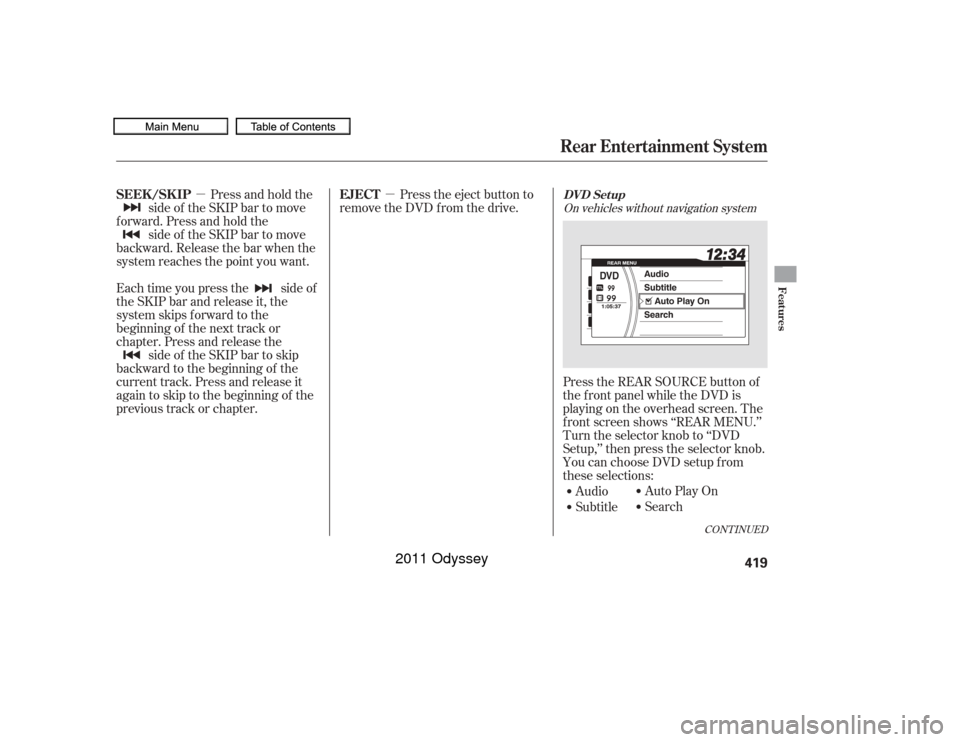
Audio
SubtitleAuto Play On
Search
Press the REAR SOURCE button of
the f ront panel while the DVD is
playing on the overhead screen. The
f ront screen shows ‘‘REAR MENU.’’
Turn the selector knob to ‘‘DVD
Setup,’’ then press the selector knob.
You can choose DVD setup f rom
these selections:
CONT INUED
On vehicles without navigation system
EJECT
SEEK /SK IP
Rear Entertainment SystemDVD Set up
Features
419
10/07/17 10:30:07 31TK8600_424
2011 Odyssey