Page 349 of 722
The CD player can play CD-Rs and
CD-RWs compressed in MP3, WMA
or AAC f ormats. When playing a disc
in MP3, WMA or AAC, you will see
‘‘MP3,’’ ‘‘WMA’’ or ‘‘AAC’’ on the
center display and screen (if
selected). A disc can support more
than 99 folders, and each folder can
hold up to 255 playable f iles.To play an MP3/WMA/AAC disc,
use the disc controls previously
described, along with the f ollowing
inf ormation. Combining a low sampling f requency
with a low bitrate may result in
extremely degraded sound quality.
Depending on the sof tware the f iles
were made with, it may not be
possible to play some f iles, or display
some text data. Each time you press either side of
the bar, the folder title and its first
f ile’s inf ormation appear on the
center display. On the navigation
display, each time you press either
side of the bar, the system skips to
the previous or next f older on the
disc and displays a list of the
selected f older’s contents.
Playing an MP3/WMA /A A C Disc
Changing the FoldersPlaying a Disc (Models with navigation system)346
NOTE:
10/07/17 10:20:09 31TK8600_351
2011 Odyssey
Page 353 of 722
The system plays the f irst f ile in the
f irst f older f or about 10 seconds. If
you do nothing, the system will then
play the f irst f iles in the next f olders
for 10 seconds. After playing the first
file in the last folder, the system
plays normally.To remove the disc, press the eject
( ) button.
If you do not remove the disc f rom
the slot, the system will reload the
disc af ter 10 seconds. The disc starts
playing automatically. For inf ormation on how to handle
and protect discs, see page .
To turn this feature off, press the
SCAN button again, or turn the
interf ace dial to select the OFF icon,
andpressENTERontheinterface
selector. The system begins to play
the last track sampled.
Each time you press and release the
SCAN button, the mode changes
from file scan to folder scan, then to
normal play. 352
Removing a Disc f rom the Player Protecting DiscsPlaying a Disc (Models with navigation system)350NOTE:
10/07/17 10:20:39 31TK8600_355
2011 Odyssey
Page 361 of 722
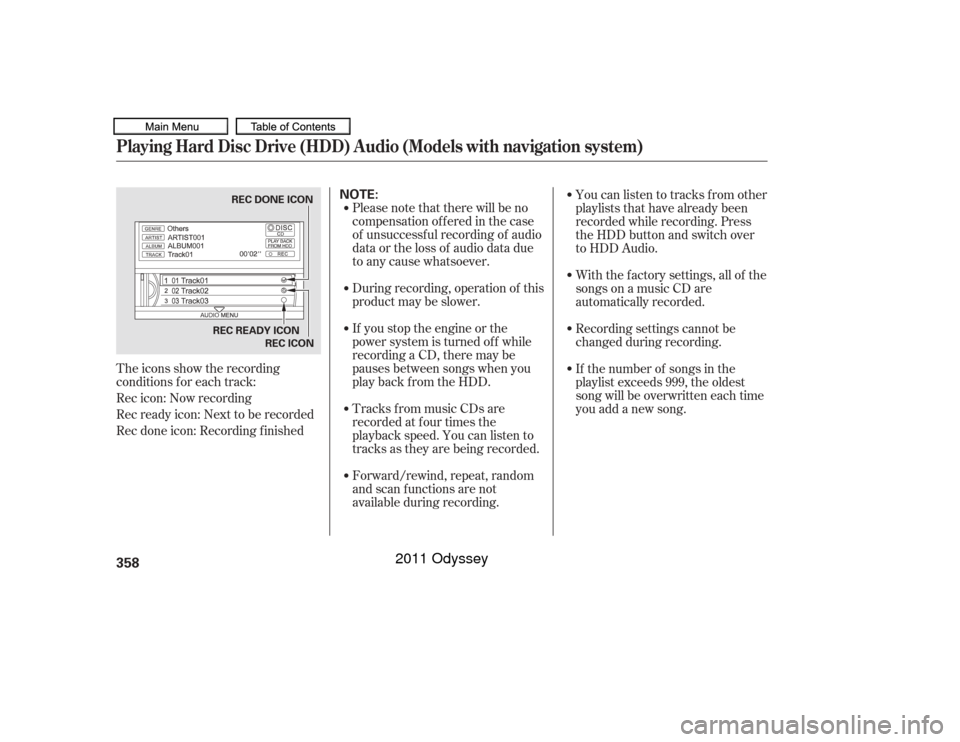
The icons show the recording
conditions f or each track:
Rec icon: Now recording
Rec ready icon: Next to be recorded
Rec done icon: Recording f inishedPlease note that there will be no
compensationofferedinthecase
of unsuccessf ul recording of audio
data or the loss of audio data due
to any cause whatsoever.
During recording, operation of this
product may be slower.
If you stop the engine or the
power system is turned of f while
recording a CD, there may be
pauses between songs when you
play back f rom the HDD.
Tracks from music CDs are
recorded at f our times the
playback speed. You can listen to
tracks as they are being recorded.
Forward/rewind, repeat, random
and scan f unctions are not
available during recording.With the factory settings, all of the
songs on a music CD are
automatically recorded.
Recording settings cannot be
changed during recording.
If the number of songs in the
playlist exceeds 999, the oldest
song will be overwritten each time
you add a new song. Youcanlistentotracksfromother
playlists that have already been
recorded while recording. Press
the HDD button and switch over
to HDD Audio.Playing Hard Disc Drive (HDD) Audio (Models with navigation system)358
NOTE:
REC READY ICON
REC DONE ICON
REC ICON
10/07/17 10:21:55 31TK8600_363
2011 Odyssey
Page 385 of 722
Gracenote makes no representations
or warranties, express or implied,
regarding the accuracy of any
Gracenote Data from in the
Gracenote Servers. Gracenote
reserves the right to delete data
from the Gracenote Servers or to
change data categories f or any cause
that Gracenote deems suf f icient. No
warranty is made that the Gracenote
Software or Gracenote Servers are
error-f ree or that f unctioning of
Gracenote Sof tware or Gracenote
Servers will be uninterrupted.
Gracenote is not obligated to provide
you with new enhanced or additional
data types or categories that
Gracenote may provide in the f uture
and is f ree to discontinue its services
at any time.
Gracenote reserves all rights in
Gracenote Data, the Gracenote
Software, and the Gracenote Servers,
including all ownership rights. Under
no circumstances will Gracenote
become liable f or any payment to
you f or any inf ormation that you
provide. You agree that Gracenote,
Inc. may enf orce its rights under this
Agreement against you directly in its
own name.
The Gracenote service uses a unique
identif ier to track queries f or
statistical purposes. The purpose of a
randomly assigned numeric
identif ier is to allow the Gracenote
service to count queries without
knowing anything about who you are.
For more inf ormation, see the web
page for the Gracenote Privacy
Policy f or the Gracenote service.
The Gracenote Sof tware and each
item of Gracenote Data are licensed
to you ‘‘AS IS.’’ GRACENOTE DISCLAIMS ALL
WARRANTIES EXPRESS OR
IMPLIED, INCLUDING, BUT NOT
LIMITED TO, IMPLIED
WARRANTIES OF
MERCHANTABILITY, FITNESS
FOR A PARTICULAR PURPOSE,
TITLE, AND NON-
INFRINGEMENT. GRACENOTE
DOES NOT WARRANT THE
RESULTS THAT WILL BE
OBTAINED BY YOUR USE OF
THE GRACENOTE SOFTWARE
OR ANY GRACENOTE SERVER.
IN NO CASE WILL GRACENOTE
BE LIABLE FOR ANY
CONSEQUENTIAL OR
INCIDENTAL DAMAGES OR FOR
ANY LOST PROFITS OR LOST
REVENUES.
Gracenote 2010
Playing Hard Disc Drive (HDD) Audio (Models with navigation system)382
10/07/17 10:25:12 31TK8600_387
2011 Odyssey
Page 389 of 722
�µEach time you press and
releasethe sideof theSKIPbar,
the system skips forward to the
beginning of the next track. Press
and release the side of the bar
to skip backward to the beginning of
the current track. Press it again to
skip to the beginning of the previous
track. Use the SKIP bar while an iPod is
playing to select passages and
change f iles.
To move rapidly within playing track,
press and hold either side ( or ) of the SKIP bar.
If the iPod indicator does not appear
in the audio display, check the
connections, and try to reconnect the
iPod a f ew times.
If the audio system still does not
recognize the iPod, the iPod may
need to be reset. Follow the
instructions that came with your
iPod, or you can f ind reset
instructions online at
The current f ile number and total of
the selected playable f iles are
displayed in the center display.
Pressing the AUDIO button displays
the artist, album and track (f ile)
names on the navigation screen.
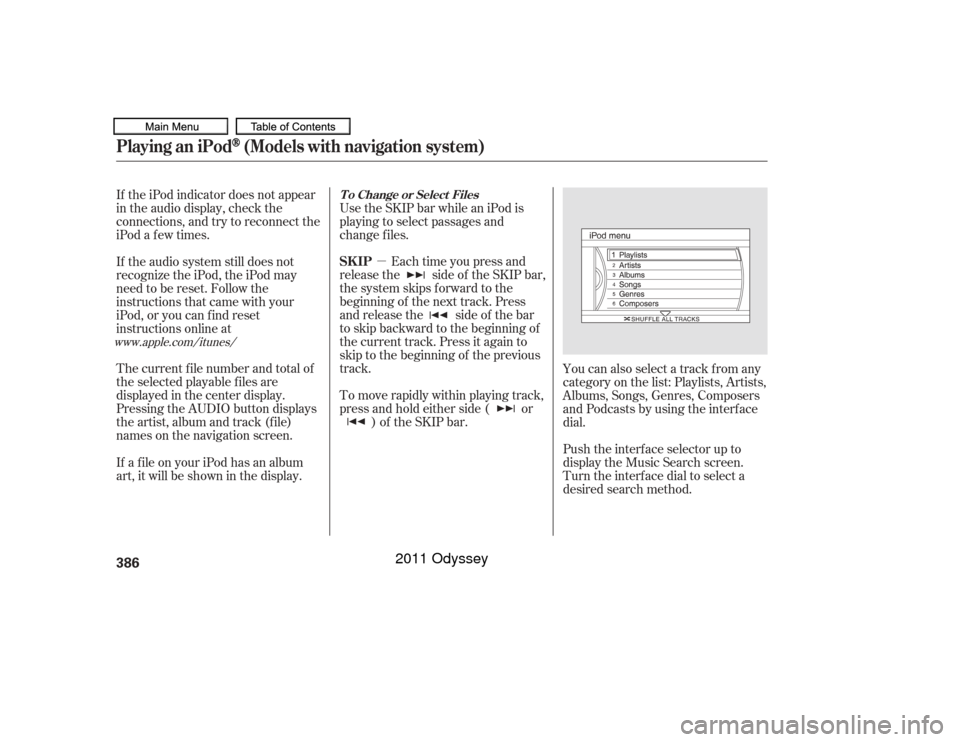
You can also select a track from any
category on the list: Playlists, Artists,
Albums, Songs, Genres, Composers
andPodcastsbyusingtheinterface
dial.
Push the interf ace selector up to
display the Music Search screen.
Turn the interf ace dial to select a
desired search method.
If a f ile on your iPod has an album
art, it will be shown in the display.
www.apple.com/
itunes/ T o Change or Select Files
SK IP
Playing an iPod
(Models with navigation system)
386
10/07/17 10:25:47 31TK8600_391
2011 Odyssey
Page 390 of 722
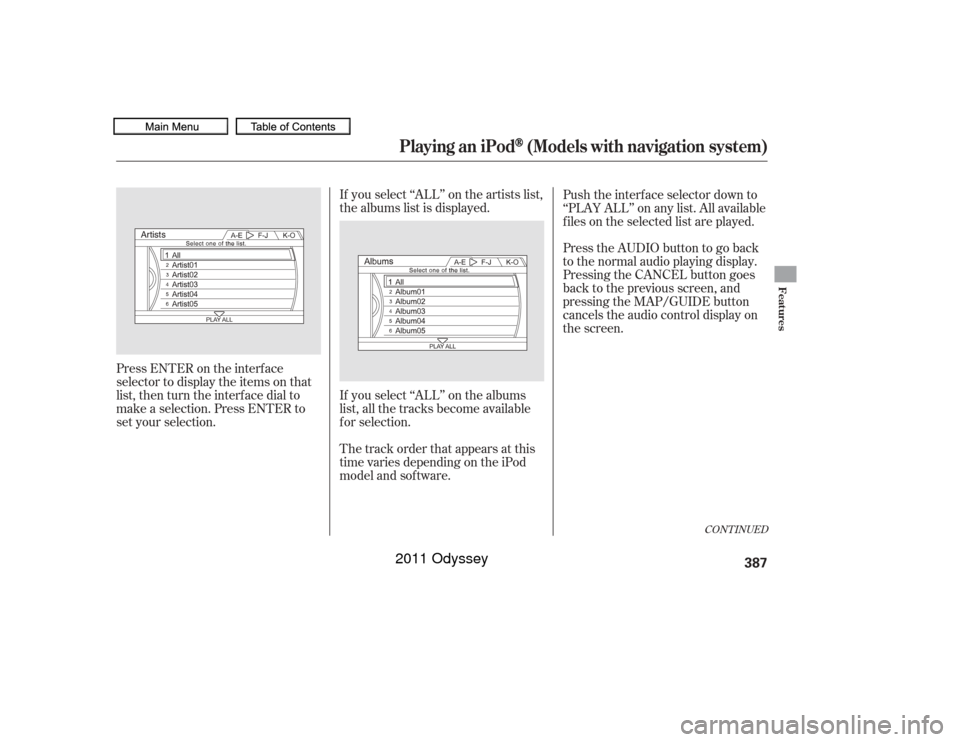
If you select ‘‘ALL’’ on the artists list,
the albums list is displayed.
If you select ‘‘ALL’’ on the albums
list, all the tracks become available
f or selection.
The track order that appears at this
time varies depending on the iPod
model and sof tware.
Press ENTER on the interf ace
selector to display the items on that
list, then turn the interface dial to
make a selection. Press ENTER to
set your selection. Push the interf ace selector down to
‘‘PLAY ALL’’ on any list. All available
f iles on the selected list are played.
PresstheAUDIObuttontogoback
to the normal audio playing display.
Pressing the CANCEL button goes
back to the previous screen, and
pressing the MAP/GUIDE button
cancels the audio control display on
the screen.
CONT INUED
Playing an iPod
(Models with navigation system)
Features
387
10/07/17 10:25:54 31TK8600_392
2011 Odyssey
Page 391 of 722
�µ
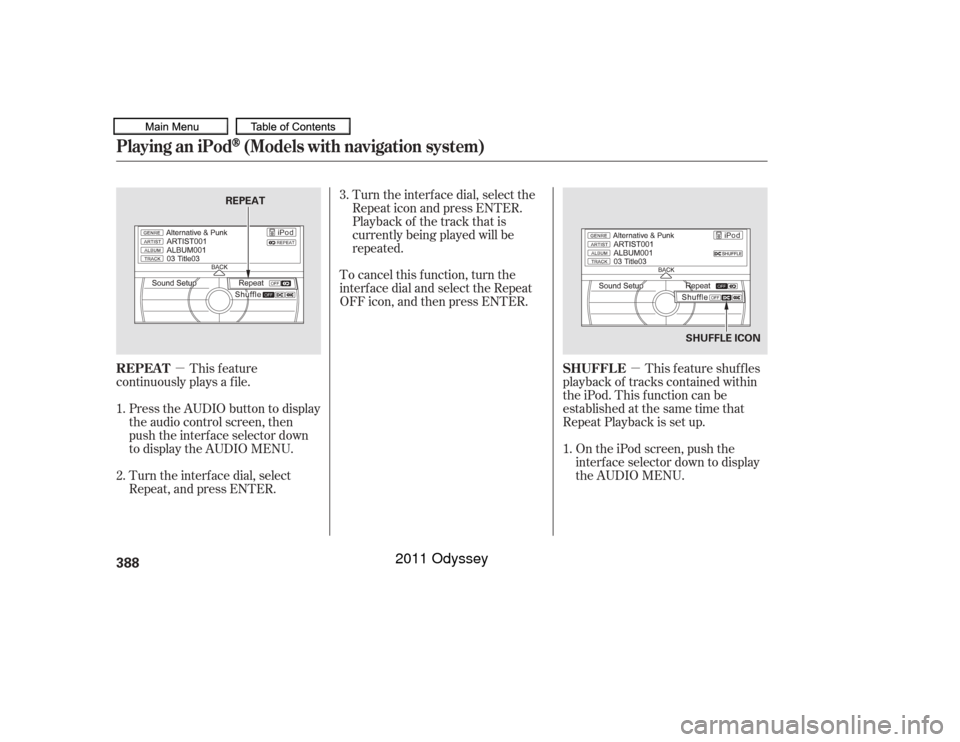
�µ This feature shuffles
playback of tracks contained within
the iPod. This f unction can be
established at the same time that
Repeat Playback is set up.
On the iPod screen, push the
interf ace selector down to display
the AUDIO MENU.
Turn the interf ace dial, select the
Repeat icon and press ENTER.
Playback of the track that is
currently being played will be
repeated.
To cancel this f unction, turn the
interf ace dial and select the Repeat
OFFicon,andthenpressENTER.
This feature
continuously plays a f ile.
Press the AUDIO button to display
the audio control screen, then
push the interf ace selector down
to display the AUDIO MENU.
Turn the interf ace dial, select
Repeat, and press ENTER. 3.
1.
1.
2. SHUFFLE
REPEAT
Playing an iPod
(Models with navigation system)
388
SHUFFLE ICON
REPEAT
10/07/17 10:26:03 31TK8600_393
2011 Odyssey
Page 392 of 722
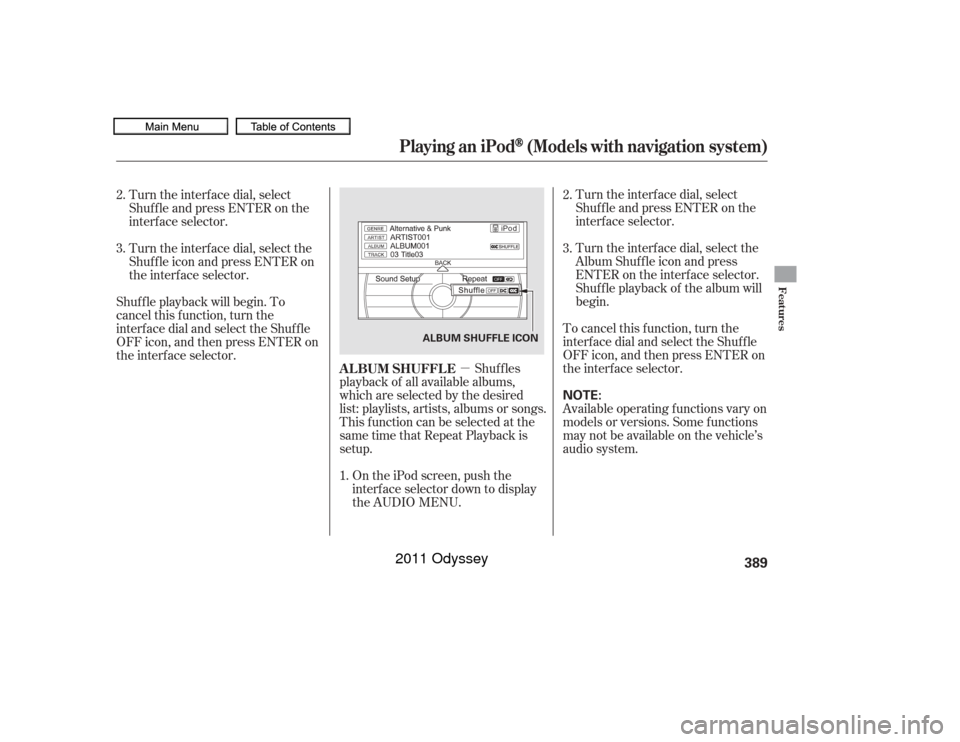
�µTurn the interf ace dial, select
Shuf f le and press ENTER on the
interf ace selector.
Turn the interf ace dial, select the
Album Shuf f le icon and press
ENTER on the interf ace selector.
Shuf f le playback of the album will
begin.
To cancel this f unction, turn the
interf ace dial and select the Shuf f le
OFFicon,andthenpressENTERon
the interf ace selector.
Available operating f unctions vary on
models or versions. Some f unctions
may not be available on the vehicle’s
audio system.
Shuf f les
playback of all available albums,
which are selected by the desired
list: playlists, artists, albums or songs.
This f unction can be selected at the
same time that Repeat Playback is
setup.
On the iPod screen, push the
interf ace selector down to display
the AUDIO MENU.
Turn the interf ace dial, select
Shuf f le and press ENTER on the
interf ace selector.
Turn the interf ace dial, select the
Shuf f le icon and press ENTER on
the interf ace selector.
Shuf f le playback will begin. To
cancel this f unction, turn the
interf ace dial and select the Shuf f le
OFFicon,andthenpressENTERon
the interf ace selector. 2.
1. 3.
2.
3.
ALBUM SHUFFLE
Playing an iPod
(Models with navigation system)
Features
389
NOTE:
ALBUM SHUFFLE ICON
10/07/17 10:26:13 31TK8600_394
2011 Odyssey