Page 317 of 722
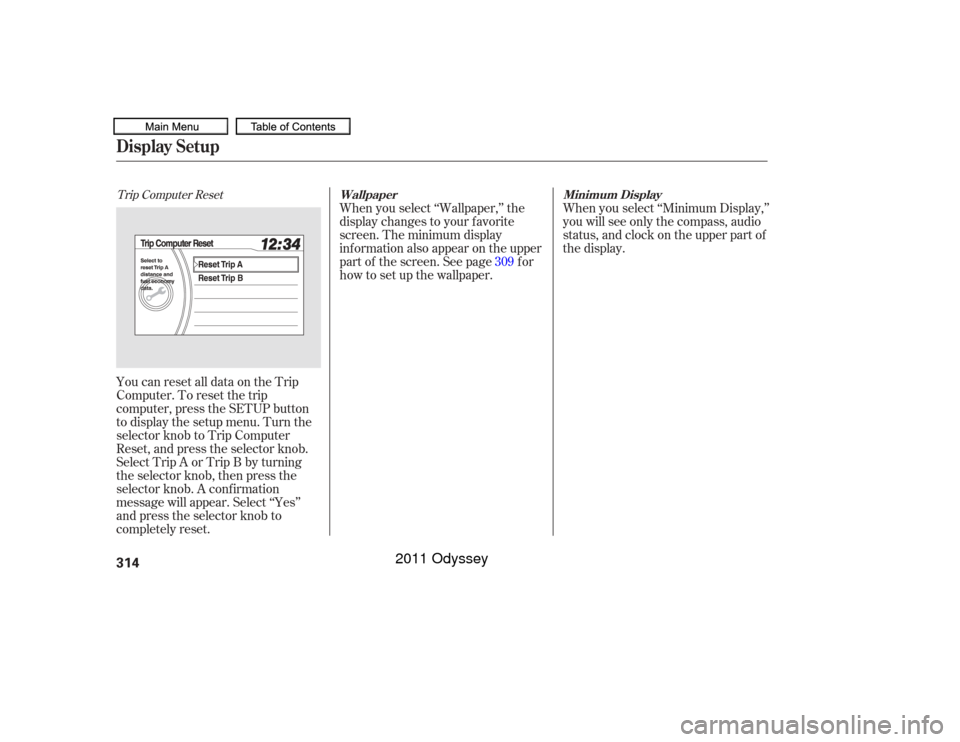
Trip Computer ResetYou can reset all data on the Trip
Computer. To reset the trip
computer, press the SETUP button
to display the setup menu. Turn the
selector knob to Trip Computer
Reset, and press the selector knob.
Select Trip A or Trip B by turning
the selector knob, then press the
selector knob. A conf irmation
message will appear. Select ‘‘Yes’’
and press the selector knob to
completely reset.When you select ‘‘Wallpaper,’’ the
display changes to your f avorite
screen. The minimum display
inf ormation also appear on the upper
part of the screen. See page f or
how to set up the wallpaper.
When you select ‘‘Minimum Display,’’
you will see only the compass, audio
status, and clock on the upper part of
the display.
309
Wallpaper Minimum Display
Display Setup314
10/07/17 10:16:07 31TK8600_319
2011 Odyssey
Page 318 of 722

To set the time, press and release
the CLOCK button. The display
will change to the clock adjust
screen.
You can also set the time from the
setup menu.
Change the hours by pressing the H
(hour) button until the numbers
advance to the desired time. Change
the minutes by pressing the M
(minute) button until the numbers
advance to the desired time.
Press the CLOCK button again to
enter the set time.
Press the SETUP button to display
the setup menu. Turn the selector
knob to ‘‘CLOCK ADJUST’’ and
press the selector knob.
To set the time, press the CLOCK
button until you hear a beep. The
displayed time begins to blink. If your vehicle’s battery is
disconnected or goes dead, you may
need to set the clock.
1.
CONT INUED
On LX models EX, EX-L models
Setting the Clock
On Vehicles wit hout Navigat ion
Syst em
Features
315
CLOCK
BUTTON
HOUR
BUTTON Without rear
entertainment
system
With rear
entertainment
system
MINUTE BUTTON
CLOCK BUTTON CLOCK BUTTON
10/07/17 10:16:19 31TK8600_320
2011 Odyssey
Page 319 of 722
�Ú
On vehicles with navigation systemThe navigation system receives
signals f rom the global positioning
system (GPS), and the displayed
time is updated automatically by the
GPS. Ref er to the navigation system
manual f or how to adjust the time.
Turn the selector knob to change
the setting between 12H and 24H,
and count the numbers up or down.
To enter the clock setting, press
the selector knob repeatedly to
select ‘‘SET’’ or ‘‘EXIT,’’ then press
the knob. The display will return
to the setup menu.
Press the selector knob to select
the item which you want to adjust.
Each time you press the selector
knob, the selected item changes
between hours, minutes, SET and
EXIT. The selected item is
indicated with in the display.
2. 3.
4.
Setting the Clock316U.S. EX models
EX-L and Canadian EX models
10/07/17 10:16:26 31TK8600_321
2011 Odyssey
Page 340 of 722
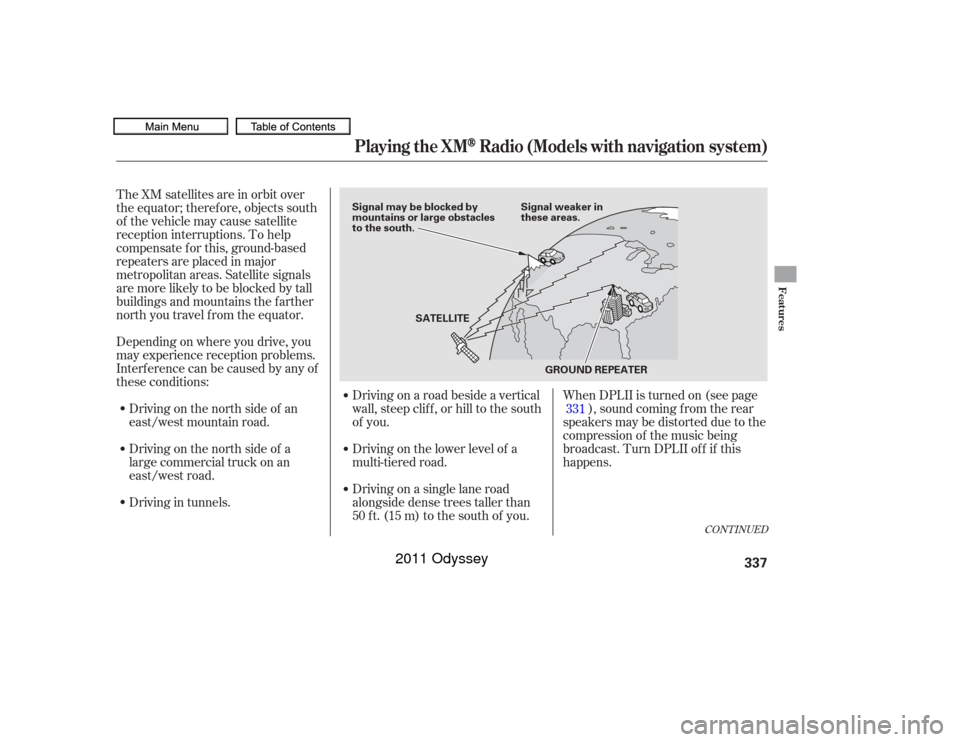
The XM satellites are in orbit over
the equator; therefore, objects south
of the vehicle may cause satellite
reception interruptions. To help
compensate f or this, ground-based
repeaters are placed in major
metropolitan areas. Satellite signals
aremorelikelytobeblockedbytall
buildings and mountains the f arther
north you travel f rom the equator.
Depending on where you drive, you
may experience reception problems.
Interf erence can be caused by any of
these conditions:Driving on the north side of an
east/west mountain road.
Driving on the north side of a
large commercial truck on an
east/west road.
Driving in tunnels. Driving on a single lane road
alongside dense trees taller than
50 ft. (15 m) to the south of you. Driving on the lower level of a
multi-tiered road. Driving on a road beside a vertical
wall, steep clif f , or hill to the south
of you.When DPLII is turned on (see page
), sound coming f rom the rear
speakers may be distorted due to the
compression of the music being
broadcast. Turn DPLII of f if this
happens. 331
CONT INUED
Playing the XM
Radio (Models with navigation system)
Features
337
GROUND REPEATER
Signal may be blocked by
mountains or large obstacles
to the south.
Signal weaker in
these areas.
SATELLITE
10/07/17 10:19:02 31TK8600_342
2011 Odyssey
Page 396 of 722
�Î
�ÎOnly AAC f ormat f iles recorded
with iTunes are playable on this
audio unit.
Some USB f lash memory devices
(such as devices with security lock-
out f eatures, etc.) will not work in
this audio unit. The recommended USB f lash
memory devices are 256 MB or
higher, and f ormatted with the FAT
f ile system. Some digital audio
players may be compatible as well.
This audio system can select and
play the audio f iles f rom a USB f lash
memory device with the same
controls used f or the in-dash disc
player. To play a USB f lash memory
device, connect it to the USB adapter
cable in the glove box, then press the
USB/AUX button. The ignition
switch must be in the ACCESSORY
(I) or ON (II) position. Do not use a device such as a card
reader or hard drive as it or your
f iles may be damaged.
Do not connect your USB f lash
memory device using a hub.
Do not use an extension cable to
the USB adapter cable equipped
with your vehicle.
The audio system reads and plays
the audio f iles on the USB f lash
memory device in MP3, WMA or
AAC formats. The USB flash
memory device limit is up to 700
f olders or up to 15000 f iles. :
CONT INUED
To Play a USB Flash Memory
Device
Playing a USB Flash Memory Device (Models with navigation system)
Features
393
NOTE:
10/07/17 10:26:40 31TK8600_398
2011 Odyssey
Page 420 of 722
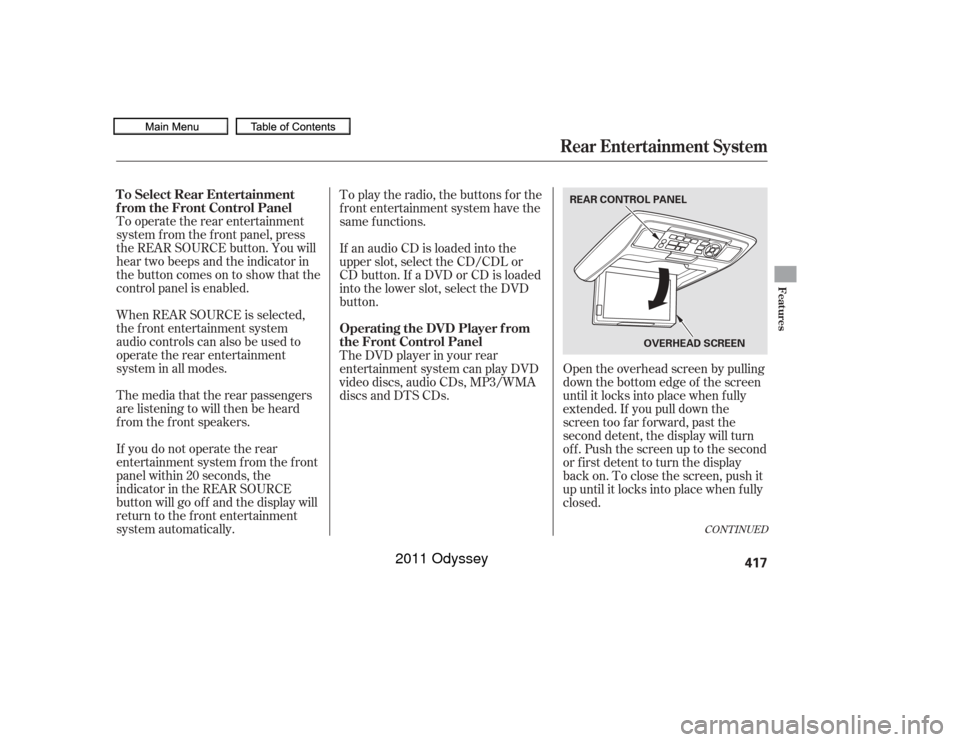
To operate the rear entertainment
system f rom the f ront panel, press
the REAR SOURCE button. You will
hear two beeps and the indicator in
the button comes on to show that the
control panel is enabled.
When REAR SOURCE is selected,
the f ront entertainment system
audio controls can also be used to
operate the rear entertainment
system in all modes.To play the radio, the buttons for the
f ront entertainment system have the
same f unctions.
The media that the rear passengers
are listening to will then be heard
f rom the f ront speakers.
If you do not operate the rear
entertainment system f rom the f ront
panel within 20 seconds, the
indicator in the REAR SOURCE
button will go of f and the display will
return to the front entertainment
system automatically. If an audio CD is loaded into the
upper slot, select the CD/CDL or
CD button. If a DVD or CD is loaded
into the lower slot, select the DVD
button.
The DVD player in your rear
entertainment system can play DVD
video discs, audio CDs, MP3/WMA
discs and DTS CDs.
Open the overhead screen by pulling
down the bottom edge of the screen
until it locks into place when f ully
extended. If you pull down the
screen too far forward, past the
second detent, the display will turn
off. Push the screen up to the second
or first detent to turn the display
back on. To close the screen, push it
up until it locks into place when f ully
closed.
CONT INUED
To Select Rear Entertainment
f rom the Front Control Panel
Operating the DVD Player f rom
the Front Control Panel
Rear Entertainment System
Features
417
REAR CONTROL PANEL
OVERHEADSCREEN
10/07/17 10:29:50 31TK8600_422
2011 Odyssey
Page 428 of 722
Usethe,,,orbutton to highlight Repeat,
Random, or Scan on the screen. You
can enter the highlighted f unction by
pressing the ENTER button. These
functions have the same features as
those of the f ront audio system.
When the TITLE/SCROLL button is
pressed, the title scrolls. When it is
pushed again, scrolling stops. Pressthe buttontoskiptothe
beginning of the next chapter. Press
the button to return to the
beginning of the current chapter.
Press the button again quickly
to go to the previous chapter.
To move rapidly within a chapter,
press and hold the or
button. The system will
continue to move through the
chapter. Press the button to
move forward, or the button to
move backward. Release the button
when the system reaches the point
you want.
ToselectthemenuontheDVD,
press the MENU button. Use the , , , and button
to move to the desired menu
selection, then press the ENTER
button to enter your selection.
The video screen is f or use by rear
seat passengers only. The driver and
f ront seat passenger should not try
to view the screen while driving.
Open the overhead screen by pulling
down the bottom edge of the screen
until it locks into place when f ully
extended. If you pull down the
screen too far forward, past the
second detent, the display will turn
off. Push the screen up to the second
or first detent to turn the display
back on. To close the screen, push it
up until it locks into place when f ully
closed.
Press the button when you
want to pause the DVD. Press this
button again to go back to PLAY.
To Play a Disc, CD L ibrary, HDD,
USB, or iPod
from the Rear
Control Panel To Play a DVD from the Rear
Control Panel
Rear Entertainment System
Features
425
10/07/17 10:30:58 31TK8600_430
2011 Odyssey
Page 476 of 722
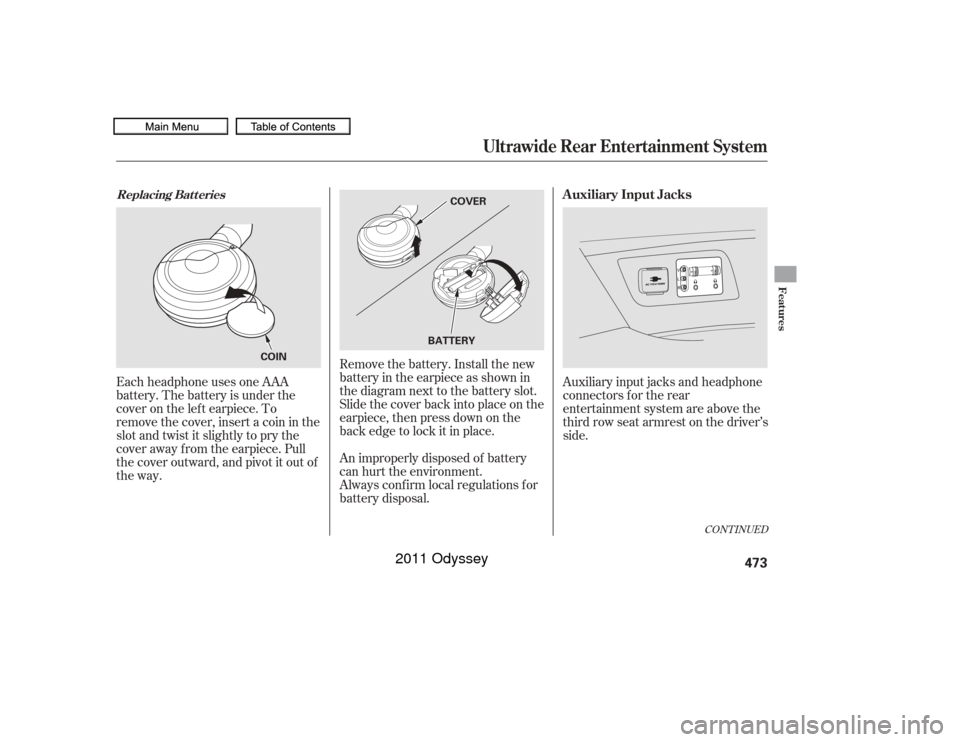
Remove the battery. Install the new
battery in the earpiece as shown in
the diagram next to the battery slot.
Slide the cover back into place on the
earpiece, then press down on the
back edge to lock it in place.
Each headphone uses one AAA
battery. The battery is under the
cover on the lef t earpiece. To
remove the cover, insert a coin in the
slot and twist it slightly to pry the
cover away f rom the earpiece. Pull
the cover outward, and pivot it out of
the way.
An improperly disposed of battery
can hurt the environment.
Always conf irm local regulations f or
battery disposal.Auxiliary input jacks and headphone
connectors f or the rear
entertainment system are above the
third row seat armrest on the driver’s
side.
CONT INUED
Replacing Bat t eries
Auxiliary Input Jacks
Ultrawide Rear Entertainment System
Features
473
COVER
BATTERY
COIN
10/07/17 10:37:46 31TK8600_478
2011 Odyssey