2010 CHEVROLET IMPALA lock
[x] Cancel search: lockPage 191 of 432

Change Compass ZoneYour vehicle may have this feature. To change the
compass zone through the DIC, seeDIC Compass
on page 4-42.Calibrate CompassYour vehicle may have this feature. The compass can
be manually calibrated. To calibrate the compass
through the DIC, seeDIC Compass on page 4-42.Relearn Remote KeyTo access this display, the vehicle must be in P (Park).
This display allows you to match the Remote Keyless
Entry (RKE) transmitter to your vehicle. This procedure
will erase all previously learned transmitters. Therefore,
they must be relearned as additional transmitters.To match an RKE transmitter to your vehicle:
1. Press the vehicle information button until
PRESS
V
TO RELEARN REMOTE KEY displays.
2. Press the set/reset button until REMOTE KEY
LEARNING ACTIVE is displayed.
3. Press and hold the lock and unlock buttons on
the first transmitter at the same time for about
15 seconds.
A chime will sound indicating that the transmitter is
matched.
4. To match additional transmitters at this time, repeat
Step 3.
Each vehicle can have a maximum of eight
transmitters matched to it.
5. To exit the programming mode, you must cycle the
key to LOCK/OFF.
Blank DisplayThis display shows no information.
4-41
Page 203 of 432

AUTO DOOR UNLOCKThis feature allows you to select whether or not to
turn off the automatic door unlocking feature. It also
allows you to select which doors and when the doors will
automatically unlock. SeeProgrammable Automatic
Door Unlock on page 3-11for more information.
Press the customization button until AUTO DOOR
UNLOCK appears on the DIC display. Press the
set/reset button once to access the settings for this
feature. Then press the customization button to scroll
through the following settings:
OFF:None of the doors will automatically unlock.
DRIVER AT KEY OUT:Only the driver’s door will
unlock when the key is taken out of the ignition.
DRIVER IN PARK:Only the driver’s door will unlock
when the vehicle is shifted into P (Park).
ALL AT KEY OUT:All of the doors will unlock when
the key is taken out of the ignition.
ALL IN PARK (default):All of the doors will unlock
when the vehicle is shifted into P (Park).
NO CHANGE:No change will be made to this feature.
The current setting will remain.
To select a setting, press the set/reset button while the
desired setting is displayed on the DIC.
REMOTE DOOR LOCKThis feature allows you to select the type of feedback
you will receive when locking the vehicle with the
Remote Keyless Entry (RKE) transmitter. You will not
receive feedback when locking the vehicle with the RKE
transmitter if any of the doors are open. SeeRemote
Keyless Entry (RKE) System Operation on page 3-4
for more information.
Press the customization button until REMOTE DOOR
LOCK appears on the DIC display. Press the set/reset
button once to access the settings for this feature.
Then press the customization button to scroll through
the following settings:
HORN & LIGHTS OFF:There will be no feedback
when you press the lock button on the RKE transmitter.
LIGHTS ONLY:The exterior lamps will flash when
you press the lock button on the RKE transmitter.
HORN ONLY:The horn will sound on the second press
of the lock button on the RKE transmitter.
HORN & LIGHTS ON (default):The exterior lamps
will flash when you press the lock button on the
RKE transmitter, and the horn will sound when the lock
button is pressed again within five seconds of the
previous command.
NO CHANGE:No change will be made to this feature.
The current setting will remain.
4-53
Page 204 of 432

To select a setting, press the set/reset button while the
desired setting is displayed on the DIC.REMOTE DOOR UNLOCKThis feature allows you to select the type of feedback you
will receive when unlocking the vehicle with the Remote
Keyless Entry (RKE) transmitter. You will not receive
feedback when unlocking the vehicle with the RKE
transmitter if the doors are open. SeeRemote Keyless
Entry (RKE) System Operation on page 3-4for more
information.
Press the customization button until REMOTE DOOR
UNLOCK appears on the DIC display. Press the
set/reset button once to access the settings for this
feature. Then press the customization button to scroll
through the following settings:
LIGHTS OFF:The exterior lamps will not flash when
you press the unlock button on the RKE transmitter.
LIGHTS ON (default):The exterior lamps will
flash when you press the unlock button on the
RKE transmitter.
NO CHANGE:No change will be made to this feature.
The current setting will remain.
To select a setting, press the set/reset button while the
desired setting is displayed on the DIC.
EXIT LIGHTINGThis feature allows you to select the amount of time you
want the exterior lamps to remain on when it is dark
enough outside. This happens after the key is turned
from ON/RUN to LOCK/OFF.
Press the customization button until EXIT LIGHTING
appears on the DIC display. Press the set/reset button
once to access the settings for this feature. Then press
the customization button to scroll through the following
settings:
OFF:The exterior lamps will not turn on.
30 SECONDS (default):The exterior lamps will stay on
for 30 seconds.
1 MINUTE:The exterior lamps will stay on for
one minute.
2 MINUTES:The exterior lamps will stay on for
two minutes.
NO CHANGE:No change will be made to this feature.
The current setting will remain.
To select a setting, press the set/reset button while the
desired setting is displayed on the DIC.
4-54
Page 205 of 432

APPROACH LIGHTINGThis feature allows you to select whether or not to
have the exterior lights turn on briefly during low light
periods after unlocking the vehicle using the Remote
Keyless Entry (RKE) transmitter.
Press the customization button until APPROACH
LIGHTING appears on the DIC display. Press the
set/reset button once to access the settings for
this feature. Then press the customization button
to scroll through the following settings:
OFF:The exterior lights will not turn on when you
unlock the vehicle with the RKE transmitter.
ON (default):If it is dark enough outside, the exterior
lights will turn on briefly when you unlock the vehicle
with the RKE transmitter.
The lights will remain on for 20 seconds or until the lock
button on the RKE transmitter is pressed, or the vehicle is
no longer off. SeeRemote Keyless Entry (RKE) System
Operation on page 3-4for more information.
NO CHANGE:No change will be made to this feature.
The current setting will remain.
To select a setting, press the set/reset button while the
desired setting is displayed on the DIC.
CHIME VOLUMEThis feature allows you to select the volume level of the
chime.
Press the customization button until CHIME VOLUME
appears on the DIC display. Press the set/reset button
once to access the settings for this feature. Then press
the customization button to scroll through the following
settings:
NORMAL:The chime volume will be set to a normal
level.
LOUD:The chime volume will be set to a loud level.
NO CHANGE:No change will be made to this feature.
The current setting will remain.
There is no default for chime volume. The volume will
stay at the last known setting.
To select a setting, press the set/reset button while the
desired setting is displayed on the DIC.
4-55
Page 208 of 432
Setting the ClockWithout Date DisplayAM/FM Base Radio with a Single CD PlayerThis radio has a
H
button for setting the time.
To set the time:
1. Press the
H
button until the hour begins flashing on
display. PressH
a second time and the minutes
begin flashing on display.
2. To increase or decrease the time, do one of the
following while the hours or minutes are flashing:
•
Turn the
f
knob.
•
Press
¨
SEEK or
©
SEEK.
•
Press
\
FWD or
s
REV.
3. Press the
H
button again until the clock display
stops flashing to set the currently displayed time,
or wait five seconds until the flashing stops and the
current time displayed is automatically set.
To change the time default setting from 12 hour to
24 hour, press theH
button until 12H or 24H is displayed.
Once 12H or 24H is displayed, turn the
f
knob to the
desired option to select the setting. Press the
H
button
again to apply the setting, or let the screen time out.
With Date DisplaySingle CD (MP3) PlayerThis radio has a
H
button for setting the time.
To set the time and date:
1. Turn the radio on.
2. Press the
H
button and the HR, MIN, MM, DD,
YYYY (hour, minute, month, day, and year)
displays.
3. Press the pushbutton located under any one of the
tabs to be changed.
4. To increase the time or date, do one of the
following:
•
Press the pushbutton below the selected tab.
•
Turn the
f
knob clockwise.
•
Press
¨
SEEK.
•
Press
\
FWD.
5. To decrease the time or date, do one of the
following:
•
Turn the
f
knob counter-clockwise.
•
Press
©
SEEK.
•
Press
s
REV.
4-58
Page 210 of 432
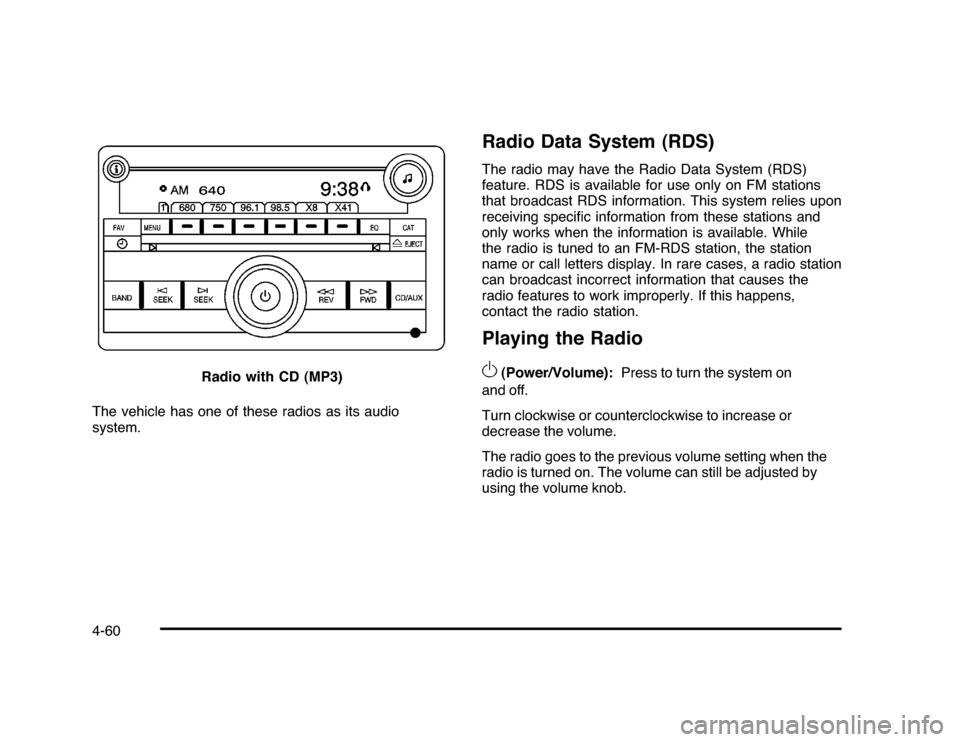
The vehicle has one of these radios as its audio
system.
Radio Data System (RDS)The radio may have the Radio Data System (RDS)
feature. RDS is available for use only on FM stations
that broadcast RDS information. This system relies upon
receiving specific information from these stations and
only works when the information is available. While
the radio is tuned to an FM-RDS station, the station
name or call letters display. In rare cases, a radio station
can broadcast incorrect information that causes the
radio features to work improperly. If this happens,
contact the radio station.Playing the Radio
O
(Power/Volume):Press to turn the system on
and off.
Turn clockwise or counterclockwise to increase or
decrease the volume.
The radio goes to the previous volume setting when the
radio is turned on. The volume can still be adjusted by
using the volume knob. Radio with CD (MP3)
4-60
Page 213 of 432
Setting the Tone
(Bass/Midrange/Treble)BASS/MID/TREB (Bass, Midrange, or Treble):The
radio may display some or all tones, such as BASS, MID,
and TREB. To adjust the tone settings, press the
f
knob
until the tone control tabs display. Press the softkey
under the desired tab, then turn the
f
knob clockwise
or counterclockwise to adjust the highlighted setting.
The highlighted setting can also be adjusted by pressing
either SEEK arrow,
\
FWD, or
s
REV button until the
desired levels are obtained. If a station’s frequency is
weak, or has static, decrease the treble.
The radio may be capable of adjusting bass, midrange, or
treble to the middle position by pressing the softkey under
the BASS, MID (midrange), or TREB (treble) tab for more
than two seconds. The radio beeps once and the level
adjusts to the middle position.
The radio may also be capable of adjusting all tone
and speaker controls to the middle position by pressing
the
f
knob for more than two seconds until the radio
beeps once.
EQ (Equalization):Press to select preset equalization
settings.To return to the manual mode, press until Manual
displays or start to manually adjust the bass and
depending on the radio, midrange, or treble by
pressing the
f
knob.
Adjusting the Speakers (Balance/Fade)
`
BAL/FADE (Balance/Fade):To adjust balance
or fade, press the
`
if the radio has this symbol, or
the
f
knob until the speaker control tabs display.
Continue pressing the
f
knob to highlight the desired
tab, or press the softkey under the desired tab. Turn
the
f
knob clockwise or counterclockwise to adjust the
setting. The setting can also be adjusted by pressing
either SEEK arrow,
\
FWD, or
s
REV until the
desired levels are obtained.
The radio may be capable of adjusting balance or fade to
the middle position by pressing the softkey under the BAL
or FADE tab for more than two seconds. The radio beeps
once and the level adjusts to the middle position.
The radio may also be capable of adjusting all speaker
and tone controls to the middle position by pressing
the
f
knob for more than two seconds until the radio
beeps once.
4-63
Page 214 of 432
Finding a Category (CAT) Station
(XM™ Satellite Radio Service Only)CAT (Category):The radio may have the CAT button
feature. To select and find a desired category:
1. Press the BAND button until the XM frequency
displays. Press the CAT button to display the
category tabs on the radio display. Continue
pressing the CAT button until the desired category
name displays.
2. Press either of the two buttons below the desired
category tab to immediately tune to the first XM
station associated with that category.
3. Turn the
f
knob, press the buttons below the right
or left arrows displayed, or press the SEEK arrows
to go to the previous or to the next XM station
within the selected category.
4. To exit the category search mode, press the FAV
button or BAND button to display favorites again.
Undesired XM categories can be removed through the
setup menu. To remove an undesired category:
1. Press the MENU button to display the radio
setup menu.
2. Press the softkey below the XM CAT tab.3. Turn the
f
knob to display the category to be
removed.
4. Press the softkey located under the Remove tab
until the category name along with the word
Removed displays.
5. Repeat the steps to remove more categories.
Removed categories can be restored by pressing the
softkey under the Add tab when a removed category
displays or by pressing the softkey under the Restore
All tab.
Categories cannot be removed or added while the
vehicle is moving faster than 5 mph (8 km/h).
Radio MessagesCalibration Error:The audio system has been
calibrated for the vehicle from the factory. If Calibration
Error displays, it means that the radio has not been
configured properly for the vehicle and it must be
returned to your dealer/retailer for service.
Loc or Locked:If Loc or Locked displays, it means
the THEFTLOCK
®
system has locked up. Take the
vehicle to your dealer/retailer for service.
If any error occurs repeatedly or if an error cannot be
corrected, contact your dealer/retailer.
4-64