2009 JAGUAR XF Start
[x] Cancel search: StartPage 287 of 391
287
Digital audio broadcasting
PRESET BUTTONS
Storing channels as presets
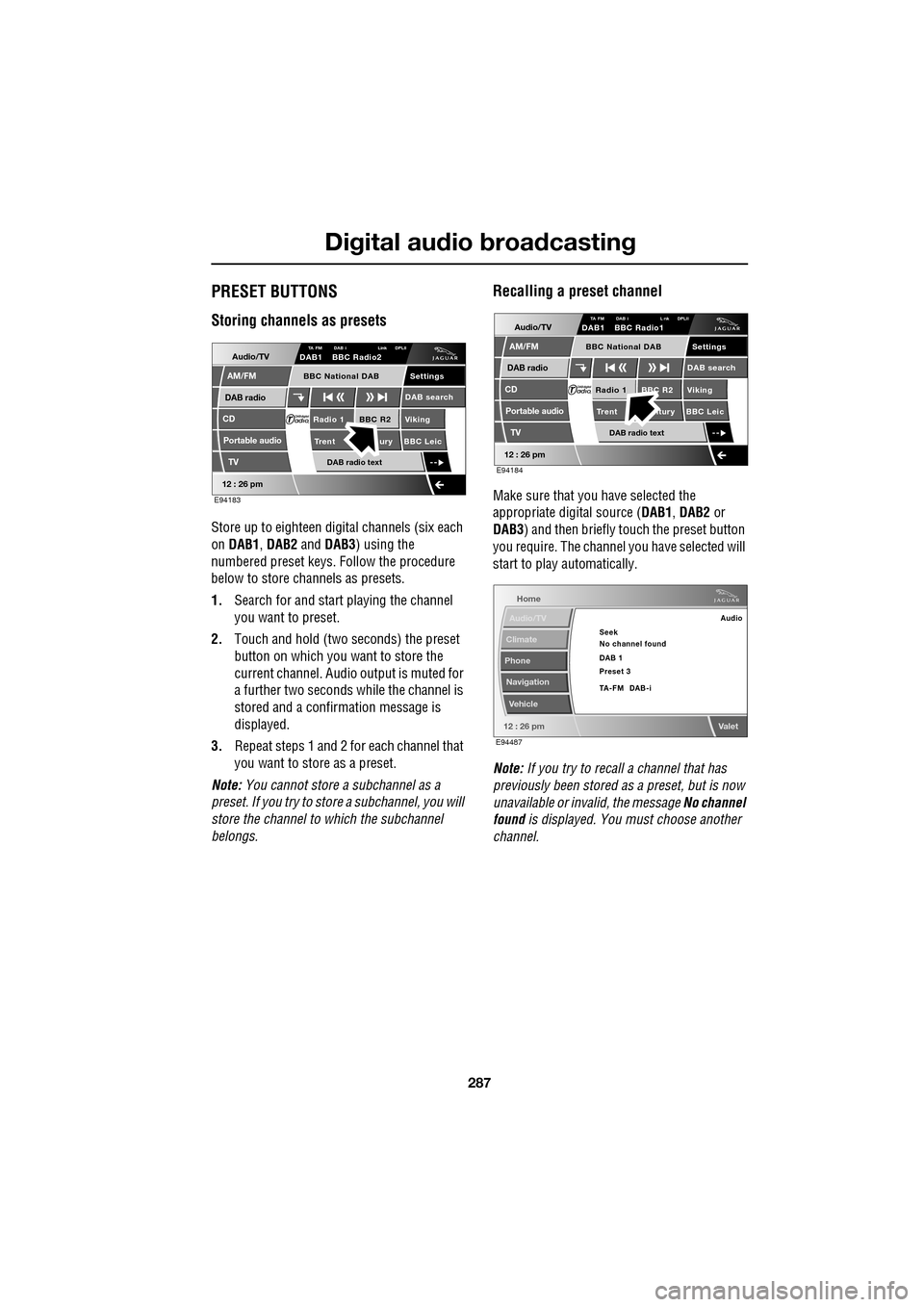
Store up to eighteen digital channels (six each
on DAB1 , DAB2 and DAB3 ) using the
numbered preset keys. Follow the procedure
below to store channels as presets.
1. Search for and start playing the channel
you want to preset.
2. Touch and hold (two seconds) the preset
button on which you want to store the
current channel. Audi o output is muted for
a further two seconds while the channel is
stored and a confirmation message is
displayed.
3. Repeat steps 1 and 2 for each channel that
you want to store as a preset.
Note: You cannot store a subchannel as a
preset. If you try to stor e a subchannel, you will
store the channel to which the subchannel
belongs.
Recalling a preset channel
Make sure that you have selected the
appropriate digital source ( DAB1, DAB2 or
DAB3 ) and then briefly touch the preset button
you require. The channel you have selected will
start to play automatically.
Note: If you try to recall a channel that has
previously been stored as a preset, but is now
unavailable or invalid, the message No channel
found is displayed. You must choose another
channel.
Audio/TV
DAB radio
CD
AM/FM
12 : 26 pm
BBC R2 Viking
Trent ury BBC LeicRadio 1
Settings
DAB search
TA FM DAB i Link DPLIIDAB1 BBC Radio2
Portable audio
TV
DAB radio text
BBC National DAB
E94183
Audio/TV
DAB radio
CD
AM/FM
12 : 26 pm
BBC R2 Viking
Trent ntury BBC LeicRadio 1
Settings
DAB search
TA FM DAB i L nk DPLIIDAB1 BBC Radio1
Portable audio
TV
DAB radio text
BBC National DAB
E94184
Home
Audio/TV
Climate
Phone
Navigation
Vehicle
Valet12 : 26 pm
Audio
Seek
No channel found
Preset 3 DAB 1
TA-FM DAB-i
E94487
Page 290 of 391
Digital audio broadcasting
290
DAB text
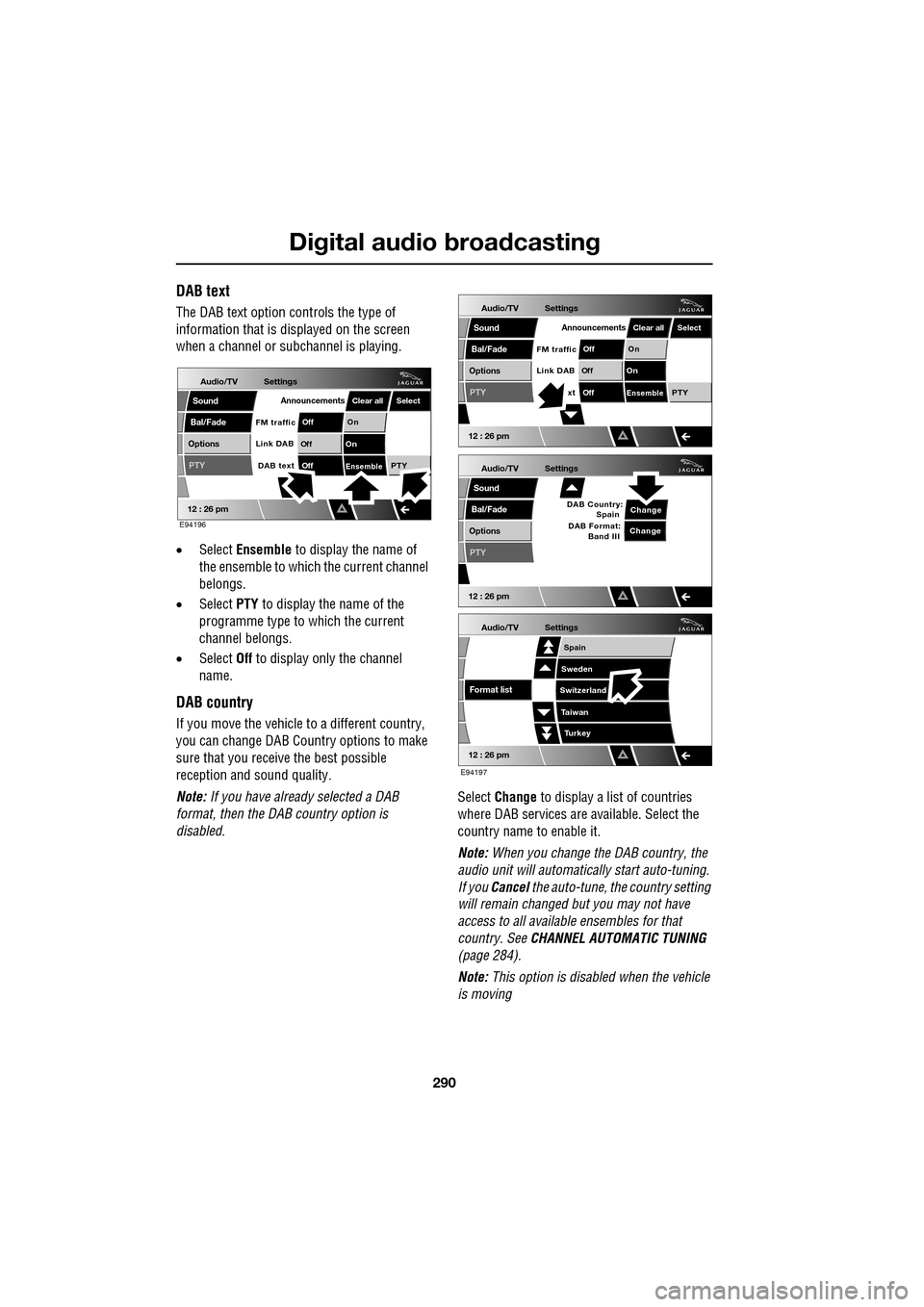
The DAB text option controls the type of
information that is displayed on the screen
when a channel or s ubchannel is playing.
• Select Ensemble to display the name of
the ensemble to which the current channel
belongs.
• Select PTY to display the name of the
programme type to which the current
channel belongs.
• Select Off to display only the channel
name.
DAB country
If you move the vehicle to a different country,
you can change DAB Count ry options to make
sure that you receive the best possible
reception and sound quality.
Note: If you have already selected a DAB
format, then the DAB country option is
disabled. Select
Change to display a list of countries
where DAB services are available. Select the
country name to enable it.
Note: When you change the DAB country, the
audio unit will automati cally start auto-tuning.
If you Cancel the auto-tune, the country setting
will remain changed but you may not have
access to all available ensembles for that
country. See CHANNEL AUTOMATIC TUNING
(page 284).
Note: This option is disabled when the vehicle
is moving
Audio/TV
Bal/Fade
Options
Sound
12 : 26 pm
Settings
Announcements
On
Of f
On
Of f
EnsemblePTY
Of f
DAB text
Link DAB
FM trafficPTY
Select
Clear all
E94196
Audio/TV
Bal/Fade
Options
Sound
12 : 26 pm
Settings
Announcements
On
Of f
On
Of f
EnsemblePTY
Of f
xt
Link DAB
FM trafficPTY
Select
Clear all
Audio/TV
Bal/Fade
Options
Sound
12 : 26 pm
Settings
Change
PTY
Change
DAB Country:
Spain
DAB Format: Band III
Audio/TV
12 : 26 pm
Settings
Turkey
Spain
Sweden
Switzerland
T aiwan
Format list
E94197
Page 291 of 391
291
Digital audio broadcasting
DAB format
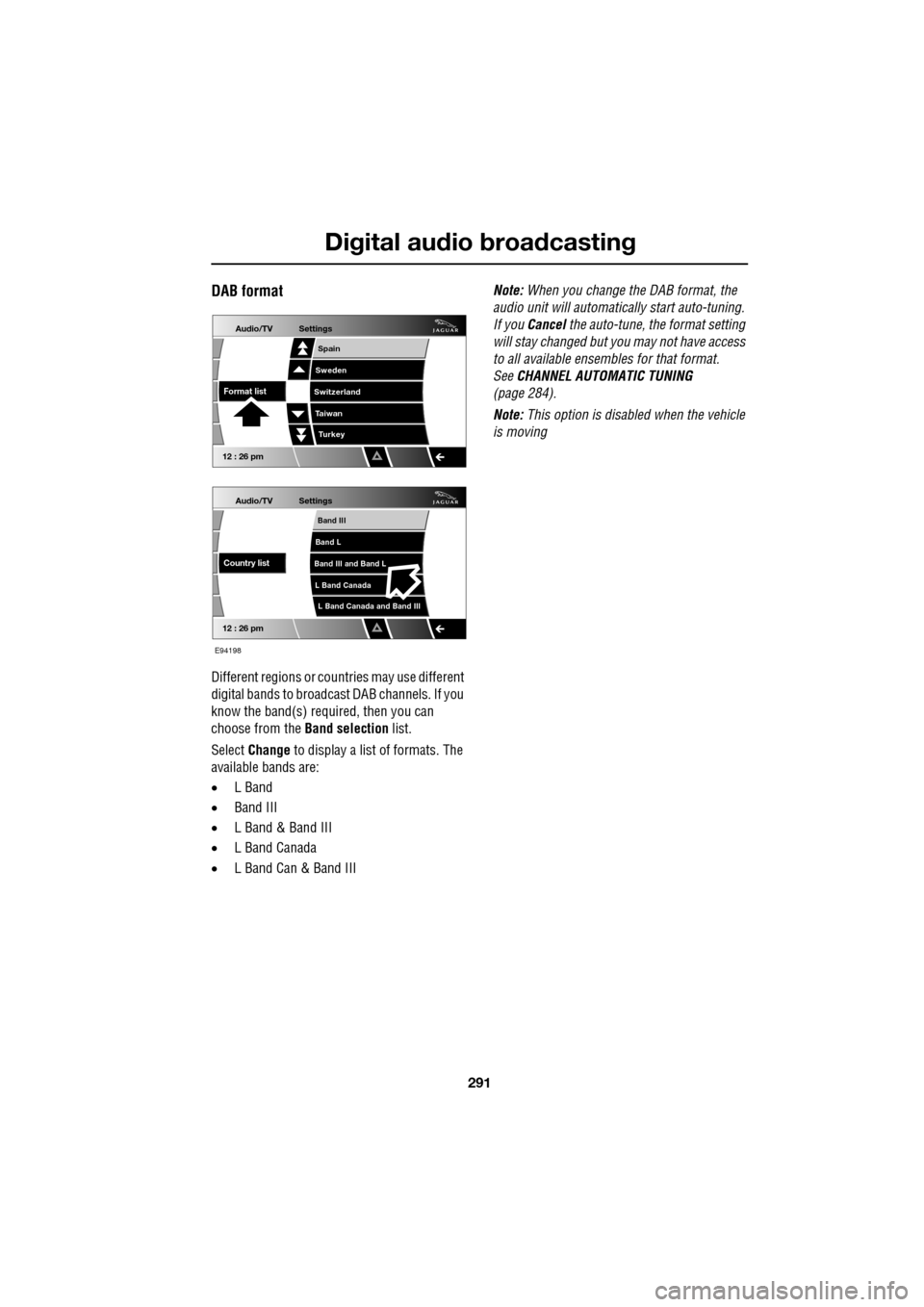
Different regions or countries may use different
digital bands to broadcast DAB channels. If you
know the band(s) required, then you can
choose from the Band selection list.
Select Change to display a list of formats. The
available bands are:
• L Band
• Band III
• L Band & Band III
• L Band Canada
• L Band Can & Band III Note:
When you change the DAB format, the
audio unit will automati cally start auto-tuning.
If you Cancel the auto-tune, the format setting
will stay changed but y ou may not have access
to all available ensembles for that format.
See CHANNEL AUTOMATIC TUNING
(page 284).
Note: This option is disabled when the vehicle
is moving
Audio/TV
12 : 26 pm
Settings
L Band Canada and Band III
Band III
Band L
Band III and Band L
L Band Canada
Country list
Audio/TV
12 : 26 pm
Settings
Turkey
Spain
Sweden
Switzerland
T aiwan
Format list
E94198
Page 294 of 391

Compact disc player
294
Loading several CDs (six CD player)
Press the LOAD button and insert each CD into
the CD slot as requested by the message on the
touch-screen. A pop-up me ssage will indicate
which slot is being sele cted in turn until the
unit is fully loaded.
When the CD player has been loaded, you can
operate the CD using the touch-screen
controls.
EJECTING COMPACT DISCS
Press the eject button. A short press will eject
a single CD, while a long press will eject each
loaded CD in sequence.
When a disc is ejected, remove it from the
loading slot. If you fail to remove an ejected
disc, it will be drawn back into the player after
ten seconds.
If you want to stop ejecting multiple discs, on
the touch-screen, select Cancel.
COMPACT DISC SELECTION
On a six CD player, when a CD has been
selected on the touch-screen, the upper display
indicates which disc is being loaded and play
will start when loading is complete. Touch
another disc on the scre en to load and start
playing that disc.
• TP: The background radio station provides
Traffic Programme (TP) and is able to
support Traffic Anouncements (TA).
• TA: Traffic announcements are available in
the CD mode and will interrupt the playing
of the CD. At the end of the announcement,
the CD will resume playing.
E94068
E94071
Audio/TV
DAB radio
CD
AM/FM
12 : 26 pm
Portable audio
TV
Settings
1 23 45 6
MixRepeat
TP TA
3CHLoading CD 1
E94072
TP TA3CH
Loading CD 1
Page 295 of 391
295
Compact disc player
TRACK SELECTION
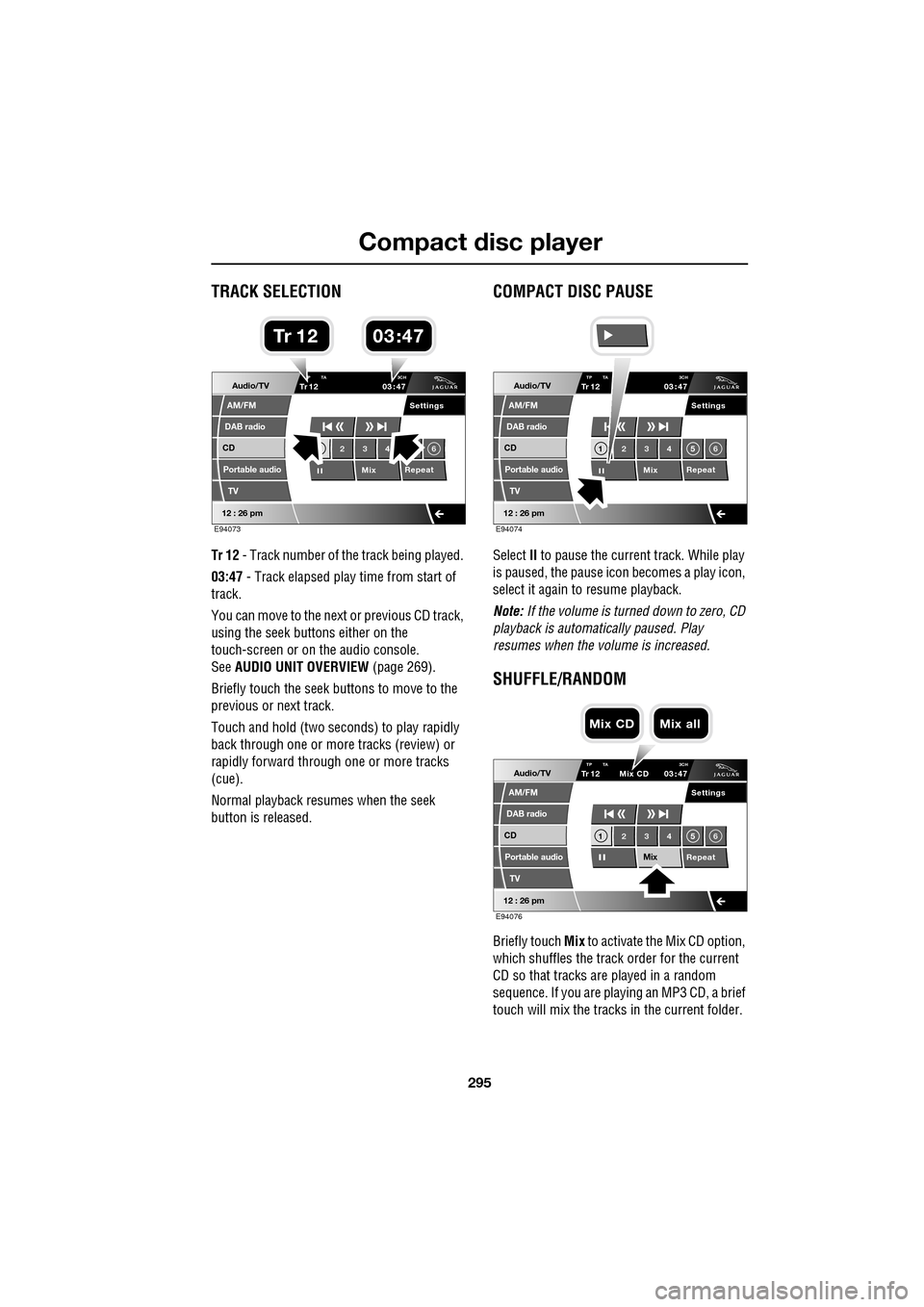
Tr 12 - Track number of th e track being played.
03:47 - Track elapsed play time from start of
track.
You can move to the next or previous CD track,
using the seek buttons either on the
touch-screen or on the audio console.
See AUDIO UNIT OVERVIEW (page 269).
Briefly touch the seek buttons to move to the
previous or next track.
Touch and hold (two seco nds) to play rapidly
back through one or more tracks (review) or
rapidly forward through one or more tracks
(cue).
Normal playback resumes when the seek
button is released.
COMPACT DISC PAUSE
Select II to pause the current track. While play
is paused, the pause ic on becomes a play icon,
select it again to resume playback.
Note: If the volume is turned down to zero, CD
playback is automatically paused. Play
resumes when the volume is increased.
SHUFFLE/RANDOM
Briefly touch Mix to activate the Mix CD option,
which shuffles the track order for the current
CD so that tracks are played in a random
sequence. If you are play ing an MP3 CD, a brief
touch will mix the tracks in the current folder.
Audio/TV
DAB radio
CD
AM/FM
12 : 26 pm
Portable audio
TV
Settings
23 4 6
MixRepeat
TrP TA
3CH1203 47
E94073
03 47Tr 1 2
Audio/TV
DAB radio
CD
AM/FM
12 : 26 pm
Portable audio
TV
Settings
1 23 45 6
MixRepeat
TrTP TA
3CH1203 47
E94074
Audio/TV
DAB radio
CD
AM/FM
12 : 26 pm
Portable audio
TV
Settings
1 23 45 6
MixRepeat
TrTP TA 3CH1203 47
Mix CD
E94076
Mix CD Mix all
Page 297 of 391
297
Compact disc player
MP3 FILE PLAYBACK
On audio units fitted with a 6-disc CD player,
you can play CDs co ntaining MP3 files.
MP3 discs have the potential to hold more
music than a conventional CD, because each
track can be compressed to a higher degree
during recording.
If you record your own music, each session
must be properly closed but the whole disc
does not have to be finalised.
Some pre-recorded and personally-recorded
discs, can contain additional information on
the disc, e.g. CD titles, track titles and the
artist's name (this info rmation is contained in
ID3 Tags).
Additional touch-screen controls enable you to
select folders and tracks and display various
items of information about the recordings.
Note: A mixture of CDs and MP3 discs can be
loaded into the 6-disc CD player together.
Note: The audio system will play MP3, WMA,
WAV and AAC files. The highest compression
rate supported, is 320k bits per second (kbps).
If anything less than 128 kbps is used, Digital
Signal Processing (DSP) functionality may be
lost.
Note: The CD player is not guaranteed to play
every disc available because of variation in the
quality of discs.
Using MP3 discs
When an MP3 disc is first played, the first track
in the root folder will play first. If you restart
play after switching to another disc or audio
source, then play will resume from the point
you left it.
Note: The CD player may take a long time (one
minute or more) to load an MP3 disc, owing to
the number of tracks on it. To minimise the
loading on the system, a rigid folder structure
is recommended.
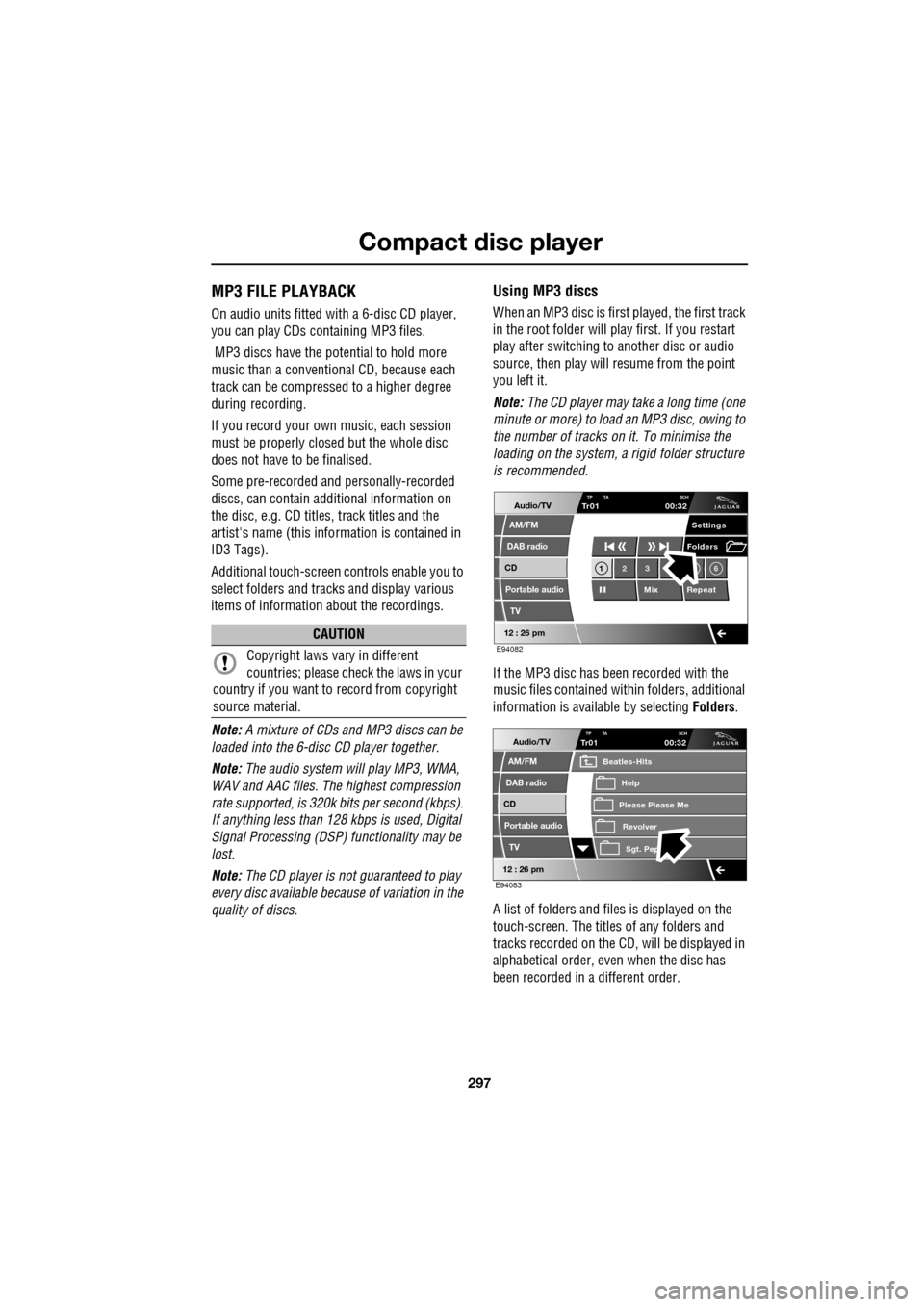
If the MP3 disc has been recorded with the
music files contained with in folders, additional
information is available by selecting Folders.
A list of folders and files is displayed on the
touch-screen. The titles of any folders and
tracks recorded on the CD, will be displayed in
alphabetical order, even when the disc has
been recorded in a different order.
CAUTION
Copyright laws vary in different
countries; please check the laws in your
country if you want to record from copyright
source material.
Audio/TV
DAB radio
CD
AM/FM
12 : 26 pm
Portable audio
TV
Settings
1 23 6
MixRepeat
Folders
TP TA
3CHTr0100:32
E94082
Audio/TV
DAB radio
CD
AM/FM
12 : 26 pm
Portable audio
TV
TP TA 3CHTr0100:32
Please Please Me
Beatles-Hits
RevolverSgt. Pep
Help
E94083
Page 298 of 391
Compact disc player
298
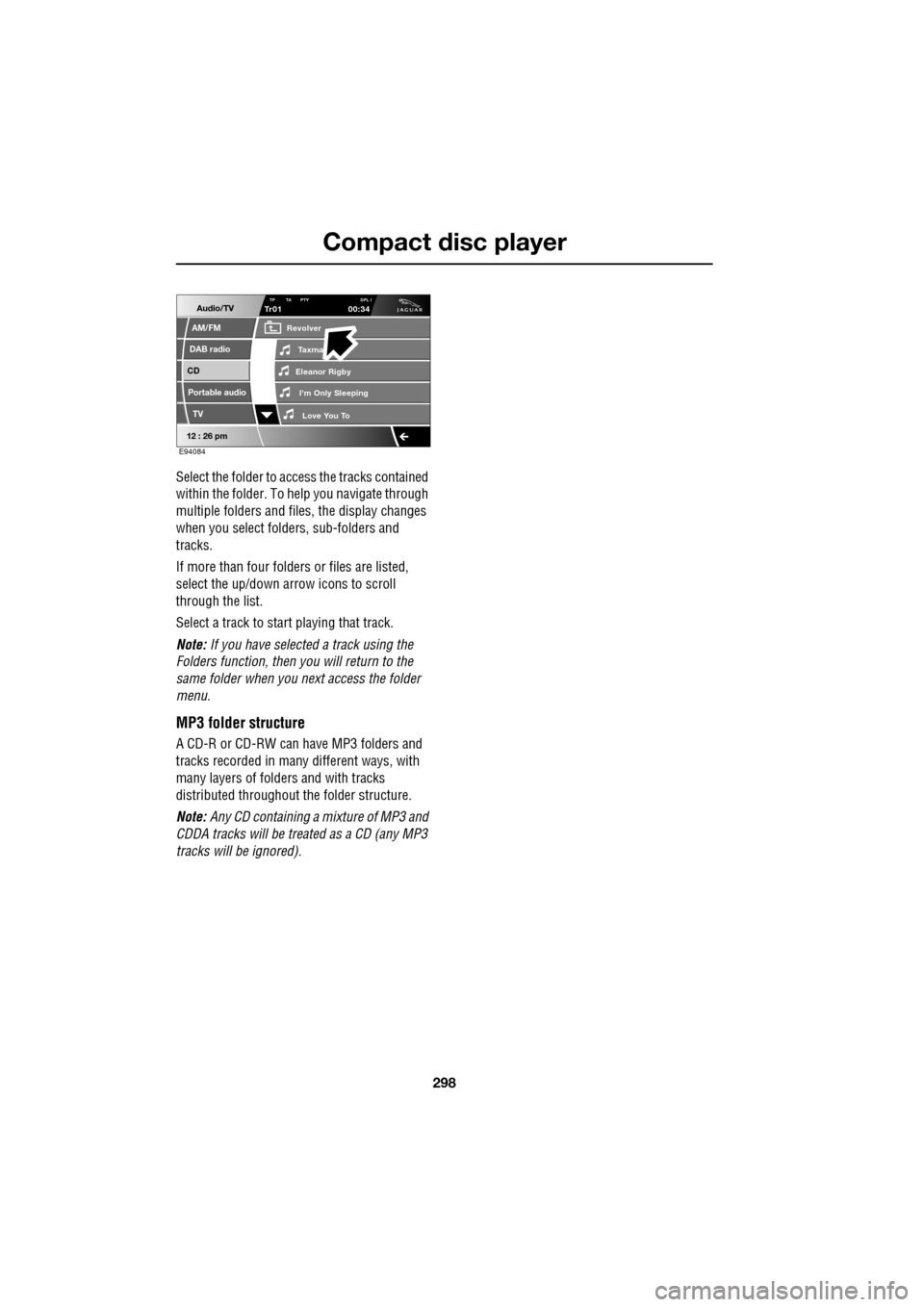
Select the folder to access the tracks contained
within the folder. To help you navigate through
multiple folders and files, the display changes
when you select folders, sub-folders and
tracks.
If more than four folders or files are listed,
select the up/down arrow icons to scroll
through the list.
Select a track to start playing that track.
Note: If you have selected a track using the
Folders function, then you will return to the
same folder when you next access the folder
menu.
MP3 folder structure
A CD-R or CD-RW can have MP3 folders and
tracks recorded in many different ways, with
many layers of folders and with tracks
distributed throughout the folder structure.
Note: Any CD containing a mixture of MP3 and
CDDA tracks will be trea ted as a CD (any MP3
tracks will be ignored).
Audio/TV
DAB radio
CD
AM/FM
12 : 26 pm
Portable audio
TV
TP TA PTY DPL ITr0100:34
Eleanor Rigby
Revolver
I'm Only Sleeping Love You To
Taxma
E94084
Page 300 of 391
Portable audio
300
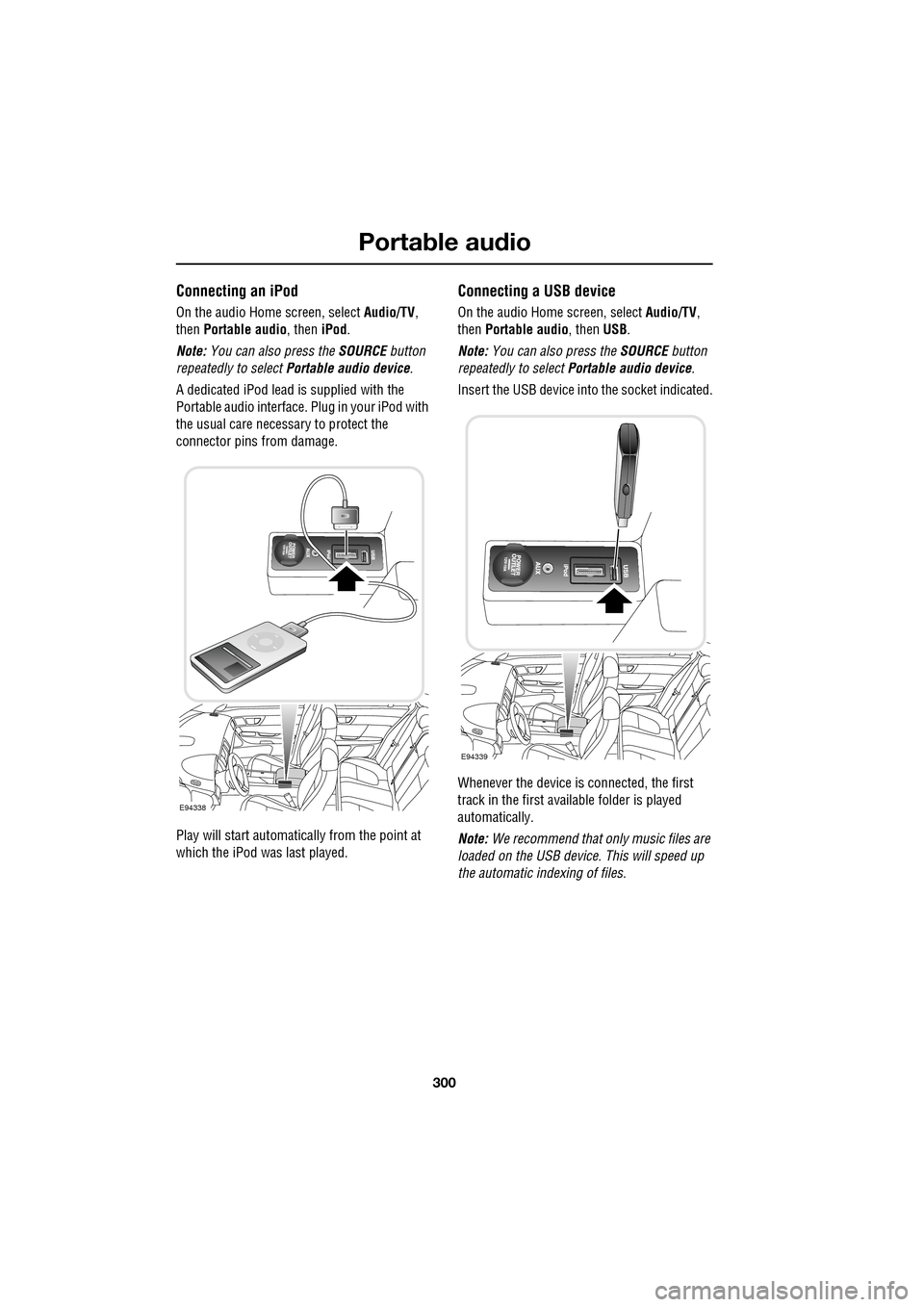
Connecting an iPod
On the audio Home screen, select Audio/TV,
then Portable audio , then iPod.
Note: You can also press the SOURCE button
repeatedly to select Portable audio device .
A dedicated iPod lead is supplied with the
Portable audio interface. Plug in your iPod with
the usual care necess ary to protect the
connector pins from damage.
Play will start automatically from the point at
which the iPod was last played.
Connecting a USB device
On the audio Home screen, select Audio/TV,
then Portable audio, then USB.
Note: You can also press the SOURCE button
repeatedly to select Portable audio device .
Insert the USB device into the socket indicated.
Whenever the device is connected, the first
track in the first available folder is played
automatically.
Note: We recommend that only music files are
loaded on the USB devi ce. This will speed up
the automatic i ndexing of files.
E94338
E94339