2009 JAGUAR XF Start
[x] Cancel search: StartPage 346 of 391

Navigation system
346
Enter the house number of the address (if
known) then touch OK to confirm.
If the house number is not known, press OK (1)
- the mid-point of the street is then used as the
destination.
Note: If a list of house number ranges is
displayed, select the a pplicable range and then
enter the number. The map screen showing the route settings and
destination detail
s is displayed.
Touch Route Prefs. (1) to change the route
settings or Destination to start the route
calculation. If a destinati on is already set, touch
Waypoint to add a waypoint in the journey.
Address
Street
To w n
Intersection
Display Map GBR
ABINGDON,OXFORDSHIREAUSTIN PLACE
Address
(1-139):
OK
1
Delete
23
45 6 78 9
0
Address
(1-139):81
OK
1 Delete
23
45 6 78 9
0
House
Number
HouseNumber
House Number
Search Area
12 : 26 pm
12 : 26 pm
12 : 26 pm
1
JOL4539ENG
A 3 4
Info
Route
Prefs.N
1/8mi
81 AUSTIN PLACTMC
12 : 26 pmDestinationWaypoint
JOL4540ENG
Page 347 of 391

347
Navigation system
ROUTE PREFERENCES
If Route Prefs. is selected, the route
preferences screen will be displayed. select the
desired option(s) and select OK to confirm.
Note: Touch a dark blue band to select that
feature or a light blue band to deselect it.
START GUIDANCE
After touching Destination, the system will
calculate the route.
There is now a choice to select 3 Route,
Change Route or to Start navigation guidance.
If 3 Route is touc hed, a choice of three different
routes is displayed on the map.
Major Roads
Route Preferences
Toll Road
Ferry
Restricted Roa
Car Train
OK
Major Roads
Route Preferences
Toll Road
Ferry
Restricted Road
Car Train
OK
12 : 26 pm
12 : 26 pm
JOL4541ENG
A 3 4
N
1/8mi
81 AUSTIN PLACE
Searching route....
Destination has been set as
81 AUSTIN PLACE.
12 : 26 pm
JOL4542ENG
OXFORD
OXFORD L
LUTON
M 4 0
12 : 26 pm
m
Route 1
Change
Route Start
3 Route
2ml
JOL4659ENG
Total12 ml
20
10
NTMC
JOL4669ENG
RD
OXFORD O
LUTON
M 4 0
12 : 26 pm
m
Route 1
Change
Route Start
3 Route
2ml
Total12 ml
20
10
NTMC
Page 348 of 391
Navigation system
348
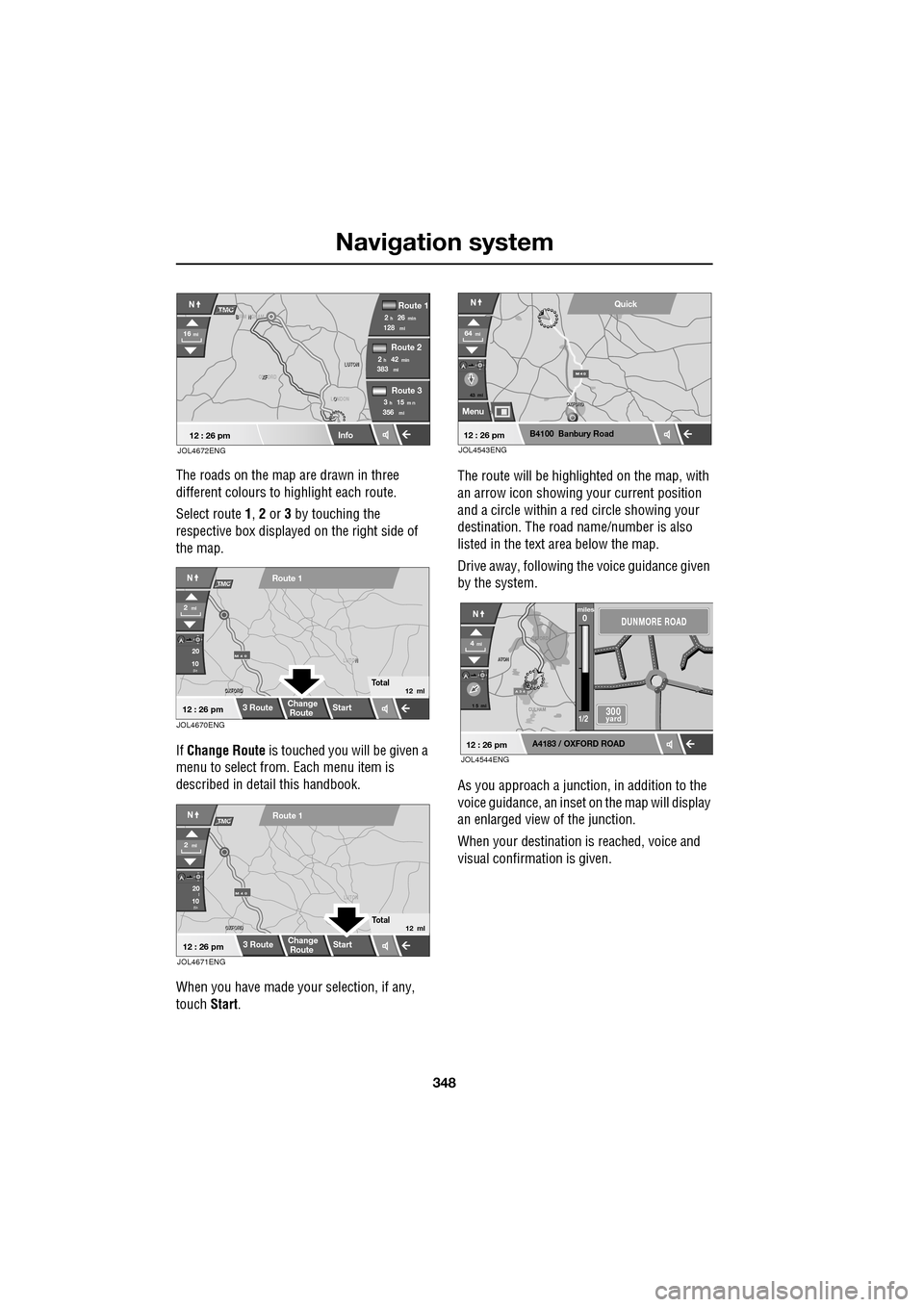
The roads on the map are drawn in three
different colours to highlight each route.
Select route 1, 2 or 3 by touching the
respective box displaye d on the right side of
the map.
If Change Route is touched you will be given a
menu to select from . Each menu item is
described in deta il this handbook.
When you have made your selection, if any,
touch Start. The route will be highlighted on the map, with
an arrow icon showing your current position
and a circle within a re
d circle showing your
destination. The road name/number is also
listed in the text area below the map.
Drive away, following the voice guidance given
by the system.
As you approach a junction, in addition to the
voice guidance, an inset on the map will display
an enlarged view of the junction.
When your destination is reached, voice and
visual confirmation is given.
XF
OXFORD LUTON
LUTON
12 : 26 pm
NTMC
Info
Route 1
mi
Route 2
Route 3
128min26h2
mi383min42h2
mi356m n15h3
16mi
O
LONDON
B N
BIRM NGHAM
JOL4672ENG
JOL4670ENG
OXFORD
OXFORD N
LUTON
M 4 0
12 : 26 pm
m
Route 1
Change
Route Start
3 Route
2ml
Total12 ml
20
10
NTMC
JOL4671ENG
OXFORD
OXFORD LUTON
M 4 0
12 : 26 pm
m
Route 1
Change
Route
Start
3 Route
2ml
Total12 ml
20
10l
NTMC
43 mi
Menu
B4100 Banbury Road
64mi
NQuick
12 : 26 pmJOL4543ENG
A 3 4
OXFORD
CULHAM
A
TON
A
TON
1 5 mi
A4183 / OXFORD ROAD
4mi
NDUNMORE ROAD
300 yard
miles0
1/2
12 : 26 pmJOL4544ENG
Page 356 of 391

Navigation system
356
DESTINATION ENTRY
Setting a destination
From the Navigation Menu, select Destination
Entry .
The Destination Entry menu provides a choice
of methods for ente ring a destination.
Choosing your route
Once the destination has been calculated
options for your journey can be made by
touching Route Prefs. or by selecting 3 Route
or Change Route .
Information about al tering your route
preferences is given ea rlier in this handbook.
See ROUTE PREFERENCES (page 347).
Start guidance
When the system has calculated the route, the
map is displayed.
The route will be highlighted on the map, with
an icon showing your current position. The
road name/number is al so listed in the text
area.
If no destination is set, the Destination key is
highlighted and Waypoint is greyed out (not
selectable).
If a destination is set and no waypoint is set
both Destination and Waypoint are
highlighted.
Drive away, following the voice guidance given
by the system. As you approach a junction, in
addition to the voice guidance, an inset on the
map will display an enlarged view of the
junction.
When your destination is reached, voice and
visual confirmation is given.
Points of interest
To set a POI as destination or a waypoint.
See POINTS OF INTEREST (page 362).
Destination
POI
Postcode
Map
Coordinates
Address
Home GBR
12 3 4 5
vious
Memory
Search
Motorway
Entry/Exit
Area
12 : 26 pmJOL4561ENG
A 3 4
OK
Info
N
1/8mi
81 AUSTIN PLACE
12 : 26 pm
Route
Prefs.
JOL4562ENG
Page 363 of 391

363
Navigation system
Once the POI has been selected the route is
determined. Touch Route Prefs. to change the
route settings, or touch OK to start the route
calculation.
The map screen showing the destination
details and route sett ings is displayed.
POI ICON DISPLAY
After selecting a category, the map display
shows the location of each POI in the selected
category, indicated by the appropriate POI
icon.
For information about a particular POI, touch
the desired POI icon.
List of icons
OK
Info
N
1/8 mi
3D PETROL
12 : 26 pm
Route
Prefs.
JOL4588ENG
N3D PETROL
Destination has been set as
3D PETROL.
12 : 26 pmJOL4589ENG
Shopping
Shopping Centre
Travel
Park & Ride
Railway Station Tourist
Information
Airport
Bus Station Ferry Port
Motorway Service Station
Page 371 of 391

371
Navigation system
On route event icon
The on route event icon will show a traffic event
as a line of stationary vehicles with the distance
to the start point of the event. Touch the icon to
repeat audio guidance (when audio guidance is
switched on).
The icon will be displayed on the map with the
following conditions:
•The map scale is between 50 metres and
4 km (1/32 mile and 2 miles).
• RDS-TMC setting is on and there are some
events on the route.
The on route event icon will show the nearest
event on the route and the distance to the
event.
All traffic events
When the All Traffic Events button on the
RDS-TMC setting screen is touched, all traffic
events are listed by road name. If an event
occurs on more than one road of your route,
the system will list it wi th the first road name.
Each event is seen as text information from the
menu.
While the list is being displayed the information
is not updated.
When you select a road the system shows
traffic events, if there are any, with the basic
information.
Note: The maximum text length displayed is 24
characters. The basic informat
ion screen shows:
• Road number.
• Brief information of the event.
• Direction and distance to the start point of
the event (in a straight line).
Up to 20 events can be shown in distance order
from the current vehicle position. If the event
list is longer than three the remaining can be
seen by scrolling the screen.
When the Map button is touc hed, the map
screen will display the place of the event start
point. The scale is always 500 metres (1/4
mile). If the event has finished, the map screen
will still be displayed when the Map button is
touched but no event icon will be shown on the
map.
When the Detail button is touche d, the system
shows the detail of that event.
Page 376 of 391

Navigation system
376
NAVIGATION GO TO PREVIOUS STARTING POINT Allows you to specify the star
t point of a previous route
either as a destination or a waypoint. If you are following
route guidance, and this is the la st start point set, this will
be your current start point.
NAVIGATION SHOW (NEXT, 1ST,
2ND, 3RD, 4TH, 5TH) WAYPOINT Displays the waypoint asked fo
r, provided it has been set.
NAVIGATION DELETE NEXT WAYPOINT Deletes the next waypoint from
the route and recalculates
the route if appropriate.
NAVIGATION DETOUR This co mmand prompts the navigation system to propose a
detour in the route being foll owed. This takes effect from
your current position and the length of the detour can be
specified in Route Preferences. See ROUTE PREFERENCES
(page 347).
NAVIGATION DETOUR ENTIRE ROUTE This command prompts the navi
gation to offer one of the
alternative routes calculated for the current destination.
NAVIGATION CANCEL GUIDAN CE Cancels route guidance.
NAVIGATION AVOID MAJOR ROADS Ensures that routes are calc
ulated avoiding major roads.
NAVIGATION PREFER MAJOR ROADS Ensures that major roads are included when routes are
calculated.
NAVIGATION AVOID TOLL ROADS Ensures that routes are calc
ulated avoiding toll roads.
NAVIGATION PREFER TOLL ROADS Ensures that toll roads are included when routes are
calculated.
NAVIGATION AVOID FERRIES Ens ures that routes are calculated avoiding ferries.
NAVIGATION PREFER FERRIES Ensures that ferries are included when routes are
calculated.
NAVIGATION PLAY DIRECTORY P rompts a voice message giving all the navigation
nametags. This can be interr upted by pressing the voice
control button and, after the tone, saying REPLAY, GO TO,
DELETE or CANCEL.
NAVIGATION DELETE DIRECTORY Delete the entire director
y of navigation nametags.
NAVIGATION MARK CURRENT POSITION Marks the vehicle’s current
position as a memory point.
NAVIGATION DYNAMIC GUIDANCE ON Switches on dynami
c route guidance.
NAVIGATION DYNAMIC GUIDANCE OFF Switches off dynamic route guidance.
Voice command System response
Page 381 of 391

Index
381
A
ABS driving hints . . . . . . . . . . . . . . . . . . 144
ACC . . . . . . . . . . . . . . . . . . . . . . . . . . . . . 159
Accessories . . . . . . . . . . . . . . . . . . . . . . . . 14
Adaptive cruise control . . . . . . . . . . . . . . 159
Adaptive cruise control (ACC)principle of operation . . . . . . . . . . . . . 159
Adaptive dynamics . . . . . . . . . . . . . . . . . 172
Adjusting the headlamps . . . . . . . . . . . . . . 78
Adjusting the steering wheel . . . . . . . . . . . 67 entry and exit mode . . . . . . . . . . . . . . . 67
Advanced emergency brake assist . . . . . 165
AFS . . . . . . . . . . . . . . . . . . . . . . . . . . . . . . 79
Air vents . . . . . . . . . . . . . . . . . . . . . . . . . 115 rear vents . . . . . . . . . . . . . . . . . . . . . . 115
Airbag labels . . . . . . . . . . . . . . . . . . . . . . . 58
Airbag service information . . . . . . . . . . . . 58
Airbag warning lamp . . . . . . . . . . . . . . . . . 57
Alarm trigger information . . . . . . . . . . . . . . . . 39
Alarm sensor override . . . . . . . . . . . . . . . . 22
Approach lamps . . . . . . . . . . . . . . . . . . . . 81
Arming . . . . . . . . . . . . . . . . . . . . . . . . . . . 19
Arming the alarm . . . . . . . . . . . . . . . . . . . 37
alarm indicator . . . . . . . . . . . . . . . . . . . 38
battery-backed sounder . . . . . . . . . . . . 38
full alarm. . . . . . . . . . . . . . . . . . . . . . . . 37
perimeter alarm . . . . . . . . . . . . . . . . . . 37
ASL . . . . . . . . . . . . . . . . . . . . . . . . . . . . . 167
Audible warnings and indicators . . . . . . . 104
Audio portable interface . . . . . . . . . . . . . . . . 131
Audio control. . . . . . . . . . . . . . . . . . . 69, 272
sound settings . . . . . . . . . . . . . . . . . . 272
Audio controls . . . . . . . . . . . . . . . . . . . . . 282 steering wheel controls. . . . . . . . . . . . 282
Audio unit overview. . . . . . . . . . . . . . . . . 269 audio controls . . . . . . . . . . . . . . . . . . . 269
sound system overview . . . . . . . . . . . 270
Autolamps . . . . . . . . . . . . . . . . . . . . . . . . . 76 exit delay. . . . . . . . . . . . . . . . . . . . . . . . 77
windscreen wiper detection . . . . . . . . . 76
Automatic climate control . . . . . . . . . . . . 116 controls . . . . . . . . . . . . . . . . . . . . . . . 116
touch-screen operation . . . . . . . . . . . . 119 Automatic speed limiter . . . . . . . . . . . . . . 167
Automatic speed limiter (ASL)
principle of operation . . . . . . . . . . . . . . 167
Automatic transmission . . . . . . . . . . . . . . 137
automatic mode . . . . . . . . . . . . . . . . . . 139
JaguarDrive selector . . . . . . . . . . . . . . 137
limp-home mode . . . . . . . . . . . . . . . . . 143
manual mode . . . . . . . . . . . . . . . . . . . . 141
message centre display . . . . . . . . . . . . 143
sport mode . . . . . . . . . . . . . . . . . . . . . 140
starting. . . . . . . . . . . . . . . . . . . . . . . . . 139
Autostore control . . . . . . . . . . . . . . . . . . . 274
Auxiliary connections . . . . . . . . . . . . . . . . 299 connecting a USB device . . . . . . . . . . . 300
connecting an auxiliary device . . . . . . . 301
connecting an iPod . . . . . . . . . . . . . . . 300
connecting more than one device . . . . 301
portable audio overview . . . . . . . . . . . . 299
Auxiliary input devices . . . . . . . . . . . . . . . 302 displaying track information. . . . . . . . . 303
playing a portable device . . . . . . . . . . . 302
portable device settings . . . . . . . . . . . . 306
searching a portable device . . . . . . . . . 304
Auxiliary power sockets . . . . . . . . . . . . . . 125
B
Battery charging faults . . . . . . . . . . . . . . . . . . . 213
Battery care . . . . . . . . . . . . . . . . . . . . . . . 212 Battery Monitoring System (BMS) . . . . 213
Battery charging . . . . . . . . . . . . . . . . . . . . 215
Battery warning symbols . . . . . . . . . . . . . 212
Blind spot monitor . . . . . . . . . . . . . . . . . . . 97 sensor blockage . . . . . . . . . . . . . . . . . . . 98
system fault . . . . . . . . . . . . . . . . . . . . . . 98
Block heaters . . . . . . . . . . . . . . . . . . . . . . 134
Bonnet lock . . . . . . . . . . . . . . . . . . . . . . . 195
Booster cables . . . . . . . . . . . . . . . . . . . . . 214
Booster cushions . . . . . . . . . . . . . . . . . . . . 61
Brake fluid check . . . . . . . . . . . . . . . . . . . 206
checking the fluid level. . . . . . . . . . . . . 206
topping up the fluid . . . . . . . . . . . . . . . 207
Brakes
brake pads . . . . . . . . . . . . . . . . . . . . . . 144
pad wear warning. . . . . . . . . . . . . . . . . 144
principle of operation . . . . . . . . . . . . . . 144