2009 JAGUAR XF mode
[x] Cancel search: modePage 306 of 391
Portable audio
306
Portable device settings
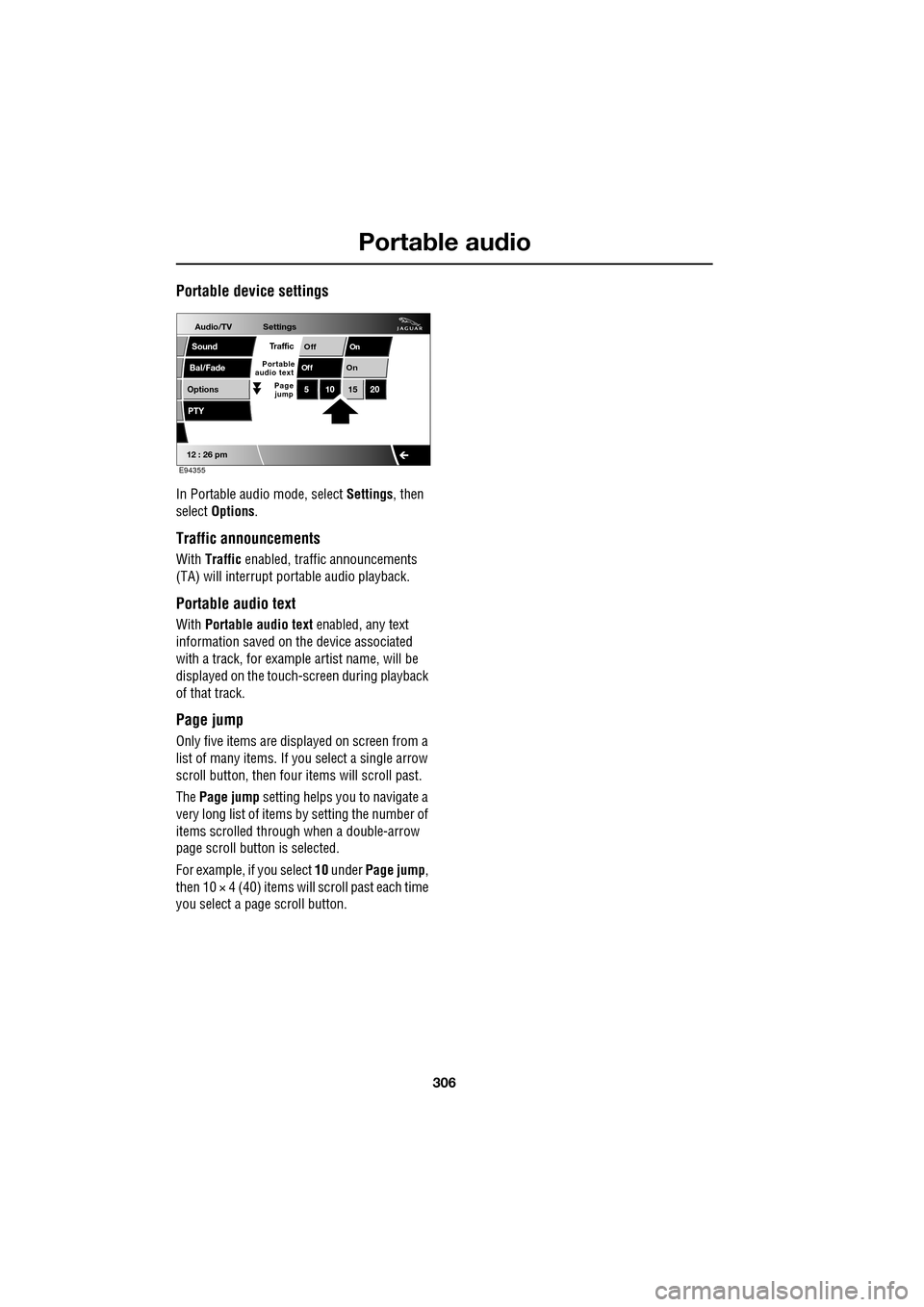
In Portable audio mode, select Settings, then
select Options .
Traffic announcements
With Traffic enabled, traffic announcements
(TA) will interrupt por table audio playback.
Portable audio text
With Portable audio text enabled, any text
information saved on the device associated
with a track, for example artist name, will be
displayed on the touch- screen during playback
of that track.
Page jump
Only five items are displayed on screen from a
list of many items. If yo u select a single arrow
scroll button, then four items will scroll past.
The Page jump setting helps you to navigate a
very long list of items by setting the number of
items scrolled through when a double-arrow
page scroll butto n is selected.
For example, if you select 10 under Page jump ,
then 10 × 4 (40) items will scroll past each time
you select a pa ge scroll button.
Audio/TV
Bal/Fade
Options
Sound
12 : 26 pm
Settings
OnOff
On
Of f
PTY
510 1520
Traffic
Portable
audio text
Page
jump
E94355
Page 309 of 391

309
Telephone
Safety
Driving
Check local regulations covering the use of
in-car telephones in the areas that you intend to
use your telephone, and always obey them.
Observe the following guidelines if you are
using the phone when driving.
• Give full attention to driving - safe driving
is your prime responsibility.
• Always use hands-free operation when
driving.
• When receiving a call, if driving conditions
demand, pull off the road and park.
Electronic devices
Most modern electronic equipment is shielded
from Radio Frequency (R F) signals. However,
certain equipment may not be shielded against
RF signals from your phone.
Pacemakers
The Health Industry Manufacturers'
Association recommends that a minimum
separation of 15 centimetres (six inches) is
maintained between a wireless phone antenna
and a pacemaker, to avoid potential
interference with the pacemaker. These
recommendations are consistent with the
independent research by, and
recommendations of, Wireless Technology
Research.
TELEPHONE PAIRING AND DOCKING
Before use, your mobile phone must be paired
and docked with the vehicle’s Bluetooth
system. This is done via your mobile phone or
the touch-screen.
Pairing and docking using your mobile
phone
Follow the steps below, to pair and dock your
phone with the vehicle using your mobile
phone.
Note: The process of pairing and docking your
phone with the vehicle using the mobile phone,
will vary depending on the type of mobile
phone used.
3. Ensure that the ignition is on and the
touch-screen is active.
4. Ensure that there is no mobile phone
currently docked with the vehicle's
Bluetooth system. If a mobile phone is
docked with the system, you will not be
able pair and dock another phone until the
current phone has been undocked. To
undock a phone, select Phone or Comms
on the home screen, then Settings and
then Undock .
5. Using the mobile phone, search for
Bluetooth devices. See your phone's
operating instructions for further
information.
WARNING
Read the following information
thoroughly before using your
telephone.
nametag
Register
Voice mail
Answer options
Phone options
Change phone
E96911
Comms
Add phone
Search new
Docked phone: Nokia 6230i
Undock
Page 310 of 391

Telephone
310
6.When the vehicle's Bluetooth system is
discovered, your mob ile phone will list
Jaguar as a discovered Bluetooth device.
Select this device from the list.
7. You will now be requested to enter a
Bluetooth PIN. When pairing and docking
from your mobile phone, this number is
always 1313.
Once your phone is paired to the vehicle's
Bluetooth system, it can connect automatically.
If the phone does not automatically connect,
you will have to conne ct manually with the
Jaguar Bluetooth System, via the mobile
phone. Please consul t the mobile phone's
handbook for further information.
Note: Some mobile phones require you to
authorise the connection each time you start
the system. To change this, you must set
Jaguar as ‘authorised’ in the mobile phone’s
known device list. This will enable connections
from the vehicle to the mobile phone to take
place automatically without confirmation each
time. Please consul t the mobile phone’s
handbook for further information.
Pairing and docking using the
touch-screen
1. Switch on your mobile phone’s Bluetooth
connection, using the phone’s menu. Make
sure that your mobile phone is in Bluetooth
discoverable mode, sometimes referred to
as find me mode (s ee your phone’s
operating instructions for more
information).
2. Switch the ignition system on, ensure that
the touch-screen is active. 3.
From the home menu select Comms. If
your car is not fitted with JaguarVoice,
Phone will appear in the position occupied
by Comms .
4. Select Settings .
5. Select Search new . The system will search
for all Bluetooth phones that are in range.
If a phone is already docked, it will be
automatically undocked when a Search is
initiated.
Home
Audio/TV
Climate
Comms
Navigation
VehicleExternal
Left Right
20 17CC
15C
.5 .5
DAB radio DAB1
BBC 5Live Xtra
BBC National DAB
TA FM DAB i Subch. PL II
Valet12 : 26 pm
E96908
Digit Dial
Names
Last 10
Settings
7
1
4
*8
2
5
0 9
6
Options
C
E96912
Comms
Page 317 of 391

317
Telephone
MAKING A CALL
Before you make a call, your mobile phone
must be paired and docked with the vehicle’s
Bluetooth system.
From the Home menu, select Comms.
Key in the phone number, including the area
code, if applicable - the number will be
displayed. Touch the connect icon.
Changing a phone number
When entering a number, you can change the
phone number shown on the touch-screen
using the C button.
A momentary touch erases a single digit, a long
touch erases the complete number.
Receiving a call
If the audio system is in use when the phone
becomes active, the audio system source is
suppressed for the dur ation of the call. If automatic answer has been programmed, the
call will automatically answer after a few
seconds. Refer to
Answer options.
To answer a call: The preferred method to
accept an incoming call, if Automatic answer is
not active, is to use th e hands-free controls on
the steering wheel (refer to Hand-free
controls ). Alternatively, you can accept or
reject the incoming call, from the pop-up
displayed on the touch-screen.
Ending a call
The preferred method to end a call is to use the
hands-free controls on the steering wheel.
Refer to Hands-free controls .
Alternatively, select the End call icon
(arrowed).
Continuity of calls
Whilst in a call, the ca ll remains connected if
the vehicle is in convenience mode. When the
call ends, another call cannot be made or
received through the vehicle system, unless
the ignition is on and the touch-screen system
active.
Home
Audio/TV
Climate
Comms
Navigation
VehicleExternal
Left Right
20 17CC
15C
.5 .5
DAB radio DAB1
BBC 5Live Xtra
BBC National DAB
TA FM DAB i Subch. PL II
Valet12 : 26 pm
E96908
Digit Dial
Names
Last 10
Settings
7
1
4
*8
2
5
0 9
3
6
Options
C
E96924
Comms02476303080Digit Dial
Names
Last 10
Settings
7
1
4
*8
2
5
0 9
3
6
Options
C
E96925
Comms
00:00:05
Page 321 of 391
321
Telephone
HANDS-FREE CONTROLS
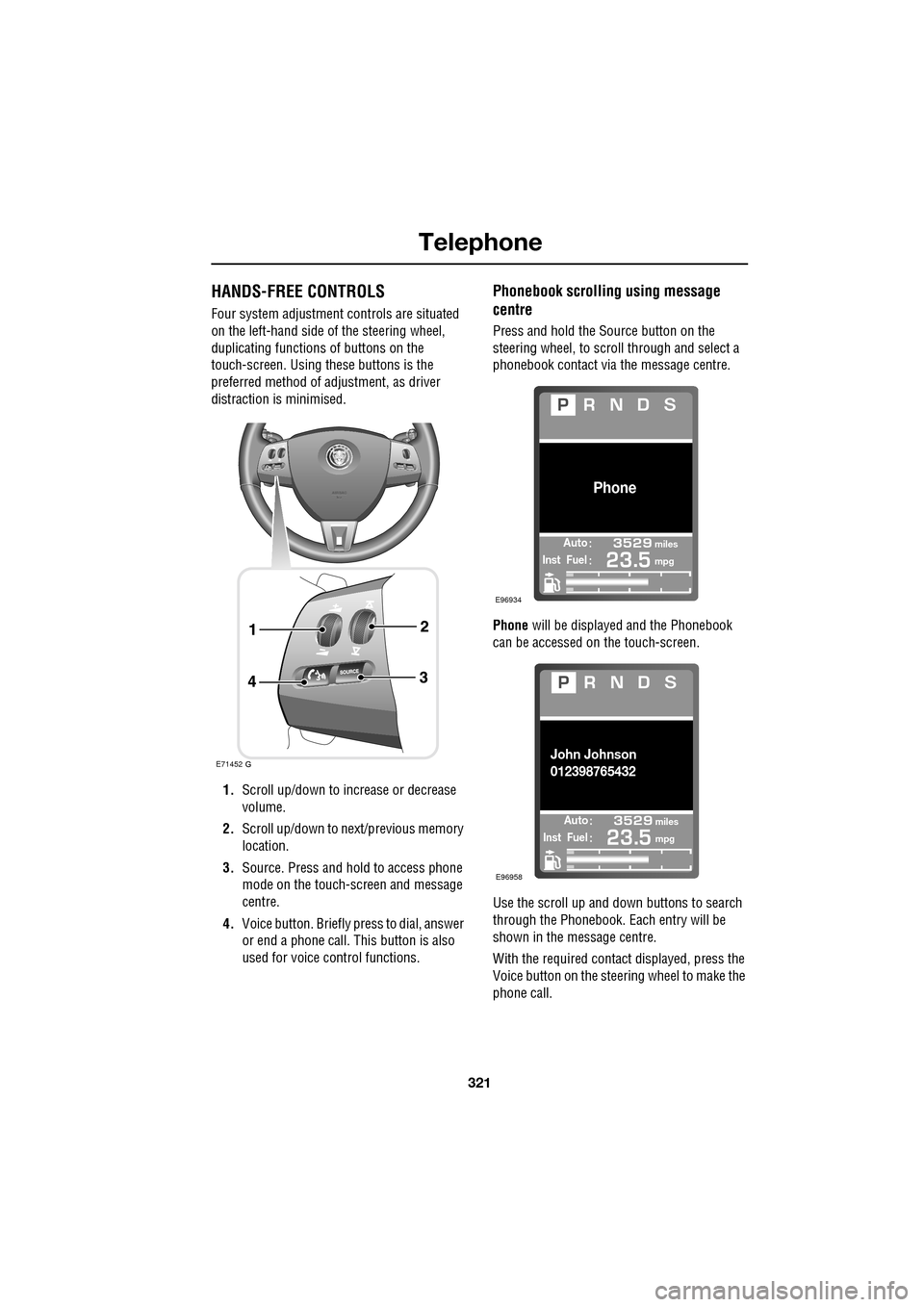
Four system adjustment controls are situated
on the left-hand side of the steering wheel,
duplicating functions of buttons on the
touch-screen. Using these buttons is the
preferred method of adjustment, as driver
distraction is minimised.
1. Scroll up/down to increase or decrease
volume.
2. Scroll up/down to ne xt/previous memory
location.
3. Source. Press and hold to access phone
mode on the touch-screen and message
centre.
4. Voice button. Briefly press to dial, answer
or end a phone call. This button is also
used for voice control functions.
Phonebook scrolling using message
centre
Press and hold the Source button on the
steering wheel, to scroll through and select a
phonebook contact via the message centre.
Phone will be displayed and the Phonebook
can be accessed on the touch-screen.
Use the scroll up and down buttons to search
through the Phonebook. Each entry will be
shown in the message centre.
With the required contact displayed, press the
Voice button on the steering wheel to make the
phone call.
E71452
Automiles
Inst Fuelmpg
Phone
E96934
Automiles
Inst Fuelmpg
John Johnson
012398765432
E96958
Page 322 of 391
Telephone
322
Making/ending a call
To dial:
Key in the phone number, including the area
code. The number will be displayed.
To connect:
To end a call:
OTHER FEATURES
Keyboard magnification
This option allows the user to increase the
keyboard size.
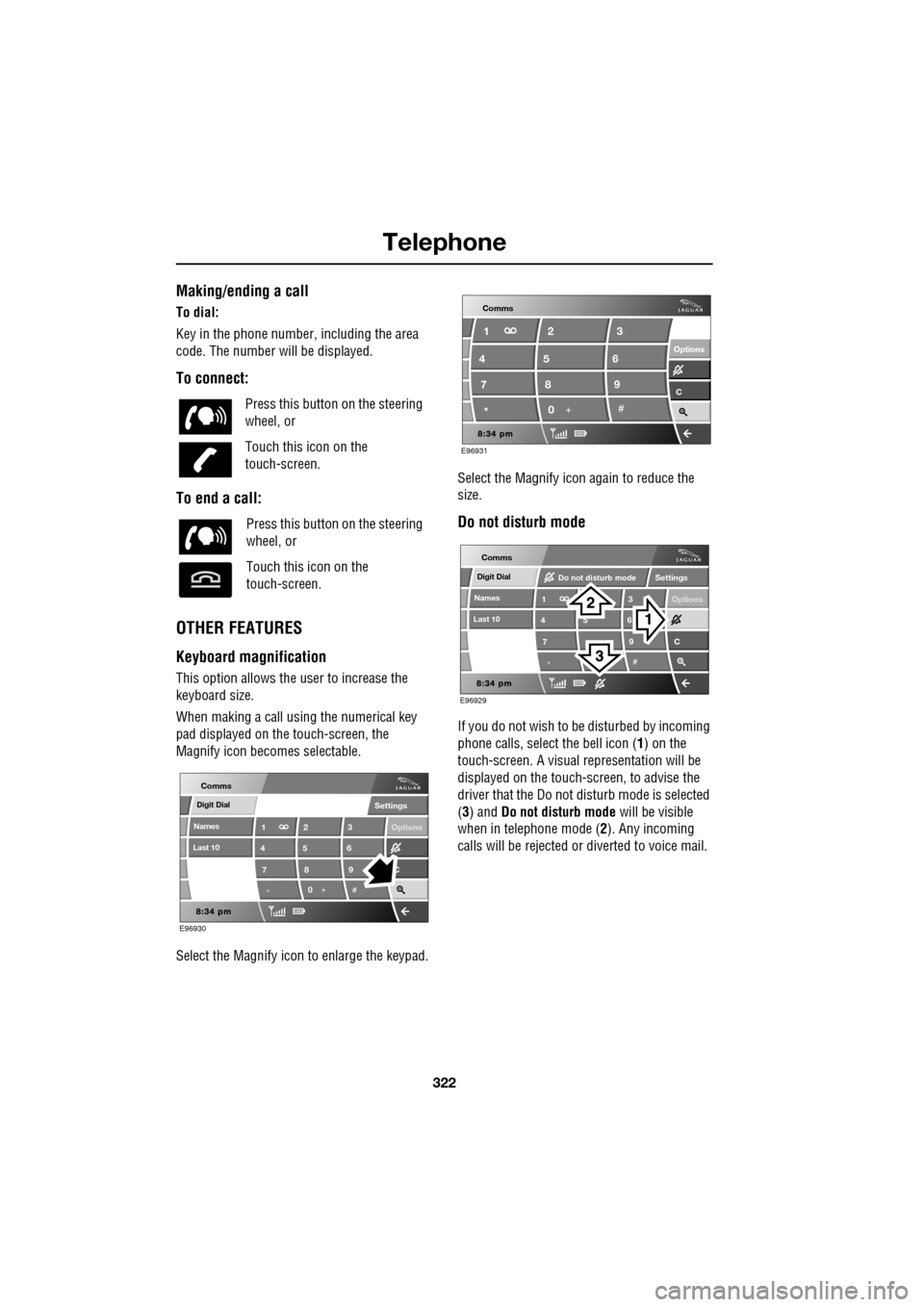
When making a call using the numerical key
pad displayed on the touch-screen, the
Magnify icon becomes selectable.
Select the Magnify icon to enlarge the keypad. Select the Magnify icon
again to reduce the
size.
Do not disturb mode
If you do not wish to be disturbed by incoming
phone calls, select the bell icon (1) on the
touch-screen. A visual representation will be
displayed on the touch-screen, to advise the
driver that the Do not di sturb mode is selected
(3) and Do not disturb mode will be visible
when in telephone mode ( 2). Any incoming
calls will be rejected or diverted to voice mail.
Press this button
on the steering
wheel, or
Touch this icon on the
touch-screen.
Press this button on the steering
wheel, or
Touch this icon on the
touch-screen.
Digit Dial
Names
Last 10
Settings
7
1
4
*8
2
5
0 9
3
6
Options
C
E96930
Comms
E96931
Comms
Options Options
C7 1
4
* 82
5
0 93
6
Digit Dial
Names
Last 10
Settings
7
1
4
*
5 9
3
6
Options
C
E96929
Comms
Do not disturb mode
Page 328 of 391
Television
328
GENERAL INFORMATION
Introduction
TV viewing is possible when the vehicle is
stationary with the transmission in the P (Park)
position. The TV pictur e can be viewed in
preview mode or full-screen.
If the vehicle is moving when TV is selected or
if the vehicle is driven off when the TV is
operating, a warning message will display, the
TV picture will cease and only audio reception
is available.
Note: Japan market: The TV will operate
normally up to speeds of 5 km/h (3 mph), after
which the TV picture will cease and only audio
reception is available.
TV sound is provided through the audio system
speakers.
TV reception
Repositioning the vehicle may improve the
picture whereas in diffic ult locations (distant
transmitter, hills etc.), reception may not be
possible at all. Sound quality may also be
affected to a lesser degree by loss of signal,
which can give rise to variable quality over
short distances while on the move.
Note: Television systems re quire consistent
and strong signals for go od quality reception.
These signals are affected by transmitter
coverage and surrounding features (hills, high
buildings, trees etc.) which will reduce the
signal, thus redu cing picture quality.
TV inhibit with vehicle moving
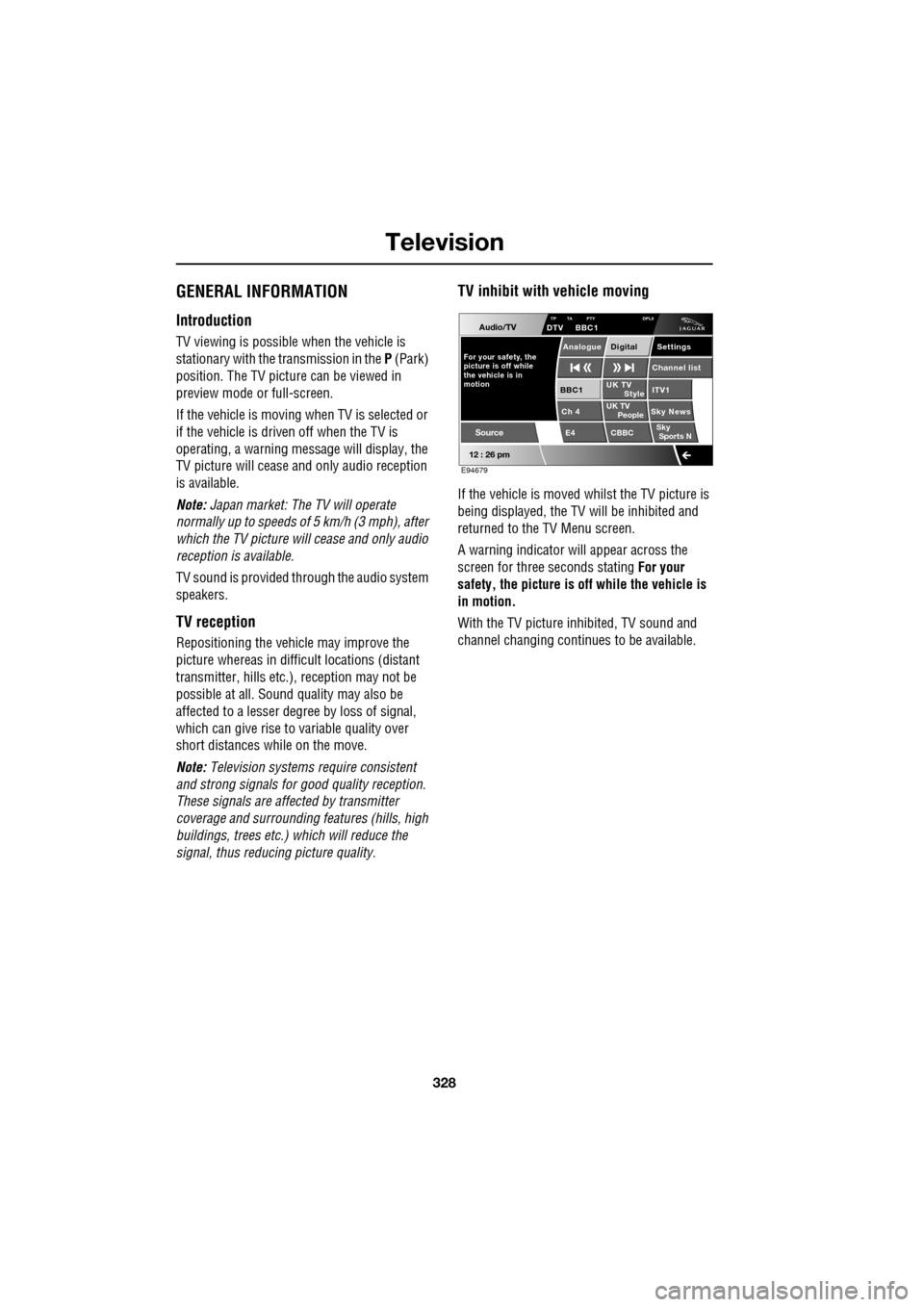
If the vehicle is moved whilst the TV picture is
being displayed, the TV will be inhibited and
returned to the TV Menu screen.
A warning indicator will appear across the
screen for three seconds stating For your
safety, the picture is of f while the vehicle is
in motion.
With the TV picture inhibited, TV sound and
channel changing contin ues to be available.
Audio/TV
12 : 26 pm
UK TV
ITV1
Ch 4 Sky News E4 CBBCBBC1
Settings
Channel list
TP TA PTY DPLIIDTV BBC1
Style
UK TV People
SkySports N
Source
For your safety, the
picture is off while
motion the vehicle is inAnalogue Digital
E94679
Page 329 of 391

329
Television
TELEVISION CONTROLS
TV controls
1.Touch-screen: See TOUCH-SCREEN
(page 109).
2. Seek up: Short press to seek next channel
frequency; long press for next available
channel.
3. Settings:
•Short press to display the audio Settings
menu.
• Long press (two seconds) to display the
Vol presets menu.
4. On/off and volume control:
•Press the control to switch the system
on/off.
• Rotate the control to increase or
decrease volume level. Any volume
setting made whilst in audio, phone,
navigation or voice ac tivation mode, will
be memorised for that system. 5. SOURCE
: Press to change the source
media through FM1, FM2, AM, DAB1,
DAB2, DAB3, CD, iPod, USB, Auxiliary
input and TV.
6. Seek down: Short press to seek previous
preset channel; long press for previous
available channel.
Audio/TV
12 : 26 pmMore4 TMF
TP TA PTY DPLIIDTV ITV3
UKTV
HistorySource
ITV2
ITV2+1 ITV4Film4
Settings
Channel listAnalogue Digital
Ftn
ITV3
Touch image for
full screen
Savage Planet
E94705
1
6
5
4
2
3