2009 JAGUAR XF mode
[x] Cancel search: modePage 278 of 391

Audio unit menus
278
FM text
FM text displays any text messages sent out by
the current station.
Select the arrow icon to display a pop-up
screen showing the complete text message.
Select Cancel to remove the pop-up screen.
PRIORITY PROGRAMME TYPE (PTY)
PTY overview
The Programme Type (PTY) feature has two
functions:
•To set a desired PTY category for the
current station.
• To search for a station in a selected PTY
category and then retune to that station (if
found). Select
Settings to display the Settings menu.
Select PTY to display a list of available PTY
categories.
Selecting PTY categories
Select the arrow icon to scroll through the list
of available PTY categories.
Select a PTY category to select it in the list;
touch the category again to clear the selection.
If you want to deselect all PTY categories,
select Clear all .
Note: If no PTY categories are selected, then
the text PTY will disappear from the top of the
touch-screen display.
While tuned to a stati on, touch the required
PTY category (or categories), then touch the
previous screen arrow. The audio unit will now
wait for RDS informati on to indicate that a
station has changed its programme type.
If the current station is already in the selected
PTY category and reception is lost, then the
radio will attempt to fi nd another station with
the correct PTY category.
Note: PTY is active in FM radio, CD, TV and
Portable audi o modes only.
Audio/TV
DAB radio
CD
AM/FM
12 : 26 pm
BBC R2 BBC R3
BBC R4 BBC LDN BBC W&M Mercia Galaxy 106.2Radio 1
Settings
utostore
TP TA PT AF REG 3CHFM2 89. BBC R2
Portable audio TV
Text sent by station
E94057
Text sent by station
Audio/TV
DAB radio
CD
AM/FM
12 : 26 pm
TP TA PTY AF REG 3CHFM2 89.0 BBC R2
Portable audio
TV
FM text
The latest news headlines from BBC Radio 2.
ValetE94058
Audio
Options
PTY
Sound
12 : 26 pm
Settings
Clear all
PTY search
Education
News
Current affairs
Information
Sport
E94088
Page 284 of 391
Digital audio broadcasting
284
CHANNEL AUTOMATIC TUNING
Note: When you first use the DAB radio, you
will be unable to listen to any digital broadcasts
until you have comp leted the auto-tune
process.
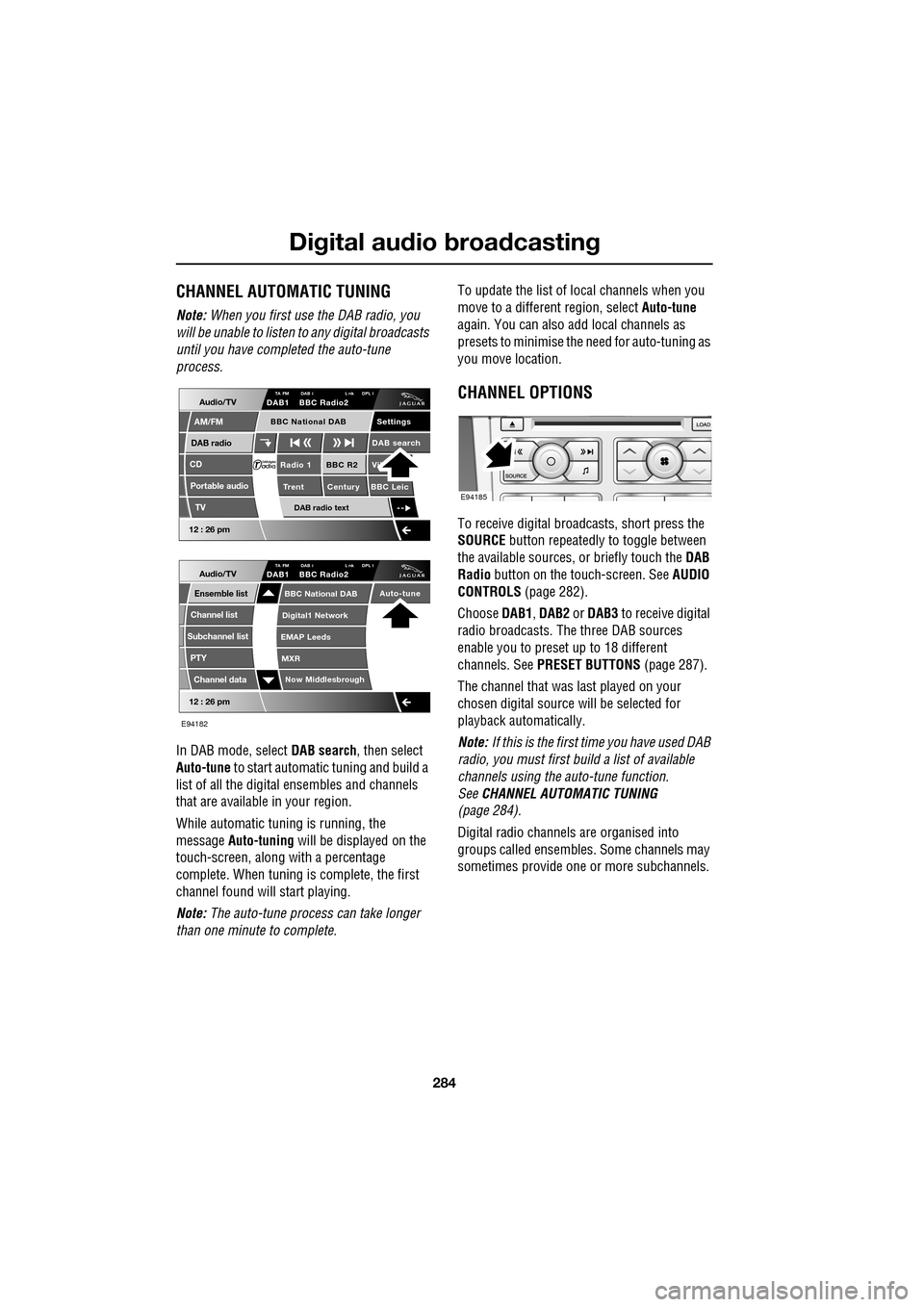
In DAB mode, select DAB search, then select
Auto-tune to start automatic tuning and build a
list of all the digital ensembles and channels
that are available in your region.
While automatic tuning is running, the
message Auto-tuning will be displayed on the
touch-screen, along with a percentage
complete. When tuning is complete, the first
channel found will start playing.
Note: The auto-tune process can take longer
than one minute to complete. To update the list of lo
cal channels when you
move to a different region, select Auto-tune
again. You can also add local channels as
presets to minimise the need for auto-tuning as
you move location.
CHANNEL OPTIONS
To receive digital broadcasts, short press the
SOURCE button repeatedly to toggle between
the available sources, or briefly touch the DAB
Radio button on the touch-screen. See AUDIO
CONTROLS (page 282).
Choose DAB1, DAB2 or DAB3 to receive digital
radio broadcasts. The three DAB sources
enable you to preset up to 18 different
channels. See PRESET BUTTONS (page 287).
The channel that was last played on your
chosen digital source will be selected for
playback automatically.
Note: If this is the first time you have used DAB
radio, you must first build a list of available
channels using the auto-tune function.
See CHANNEL AUTOMATIC TUNING
(page 284).
Digital radio channels are organised into
groups called ensembles. Some channels may
sometimes provide one or more subchannels.
Audio/TV
DAB radio
CD
AM/FM
12 : 26 pm
BBC R2 Vik
Trent Century BBC LeicRadio 1
Settings
DAB search
TA FM DAB i L nk DPL IDAB1 BBC Radio2
Portable audio
TV
DAB radio text
BBC National DAB
12 : 26 pm
Now Middlesbrough
BBC National DAB
Digital1 Network
EMAP Leeds
MXR
Audio/TVTA FM DAB i L nk DPL IDAB1 BBC Radio2
Channel list
Subchannel list
Ensemble list
PTY
Channel data
Auto-tune
E94182
E94185
Page 288 of 391

Digital audio broadcasting
288
SETTINGS
In DAB mode, select Settings.
Select Options .
Note: If Settings is selected once, but no
action is taken for a further ten seconds, the
system will exit the menu automatically.
Announcements
You can select up to four types of
announcement from a list of eleven, for
example, News, Area/Weather , Traffic and
Alarm .
When a DAB announcement is broadcast, it will
interrupt normal play for the duration of the
announcement.
Note: The Alarm announcement type,
broadcasts information concerning crises of
national or international importance. To display the full list
of announcement types,
touch Select .
Select an announcement type to enable it,
select it again to disabl e it. If you want to clear
all enabled types, select Clear all. To scroll
through the list, select the arrow buttons.
Note: If you have already selected four
announcement types, y ou will be unable to
select further types.
Audio/TV
DAB radio
CD
AM/FM
12 : 26 pm
BBC R2 Viking
Trent Century BBC LeicRadio 1
Settings search
TA FM DAB i Link DPLIIDAB1 BBC Radio2
Portable audio
TV
DAB radio text
BBC National DAB
E94190
Audio/TV
Bal/Fade
Options
Sound
12 : 26 pm
Settings
Announcements
On
Of f
On
Of f
EnsemblePTY
Of f
DAB text
Link DAB
FM trafficPTY
Select
Clear all
E94191
Audio/TV
Bal/Fade
Options
Sound
12 : 26 pm
Settings
Announcements
On
Of f
On
Of f
EnsemblePTY
Of f
DAB text
Link DAB
FM trafficPTY
Select
Clear all
E94192
Audio/TV
12 : 26 pm
Settings
News
Alarm
Traffic
T ransport flash
W
arning services
Clear allSelect up to
four options
E94193
Page 294 of 391

Compact disc player
294
Loading several CDs (six CD player)
Press the LOAD button and insert each CD into
the CD slot as requested by the message on the
touch-screen. A pop-up me ssage will indicate
which slot is being sele cted in turn until the
unit is fully loaded.
When the CD player has been loaded, you can
operate the CD using the touch-screen
controls.
EJECTING COMPACT DISCS
Press the eject button. A short press will eject
a single CD, while a long press will eject each
loaded CD in sequence.
When a disc is ejected, remove it from the
loading slot. If you fail to remove an ejected
disc, it will be drawn back into the player after
ten seconds.
If you want to stop ejecting multiple discs, on
the touch-screen, select Cancel.
COMPACT DISC SELECTION
On a six CD player, when a CD has been
selected on the touch-screen, the upper display
indicates which disc is being loaded and play
will start when loading is complete. Touch
another disc on the scre en to load and start
playing that disc.
• TP: The background radio station provides
Traffic Programme (TP) and is able to
support Traffic Anouncements (TA).
• TA: Traffic announcements are available in
the CD mode and will interrupt the playing
of the CD. At the end of the announcement,
the CD will resume playing.
E94068
E94071
Audio/TV
DAB radio
CD
AM/FM
12 : 26 pm
Portable audio
TV
Settings
1 23 45 6
MixRepeat
TP TA
3CHLoading CD 1
E94072
TP TA3CH
Loading CD 1
Page 296 of 391
Compact disc player
296
Touch and hold (two seconds) Mix to activate
the Mix all option, which shuffles the order of
play for all tracks across all loaded CDs. If you
are playing an MP3 CD, a long touch will mix
the tracks from all the folders on the current
disc.
REPEAT COMPACT DISC TRACKS
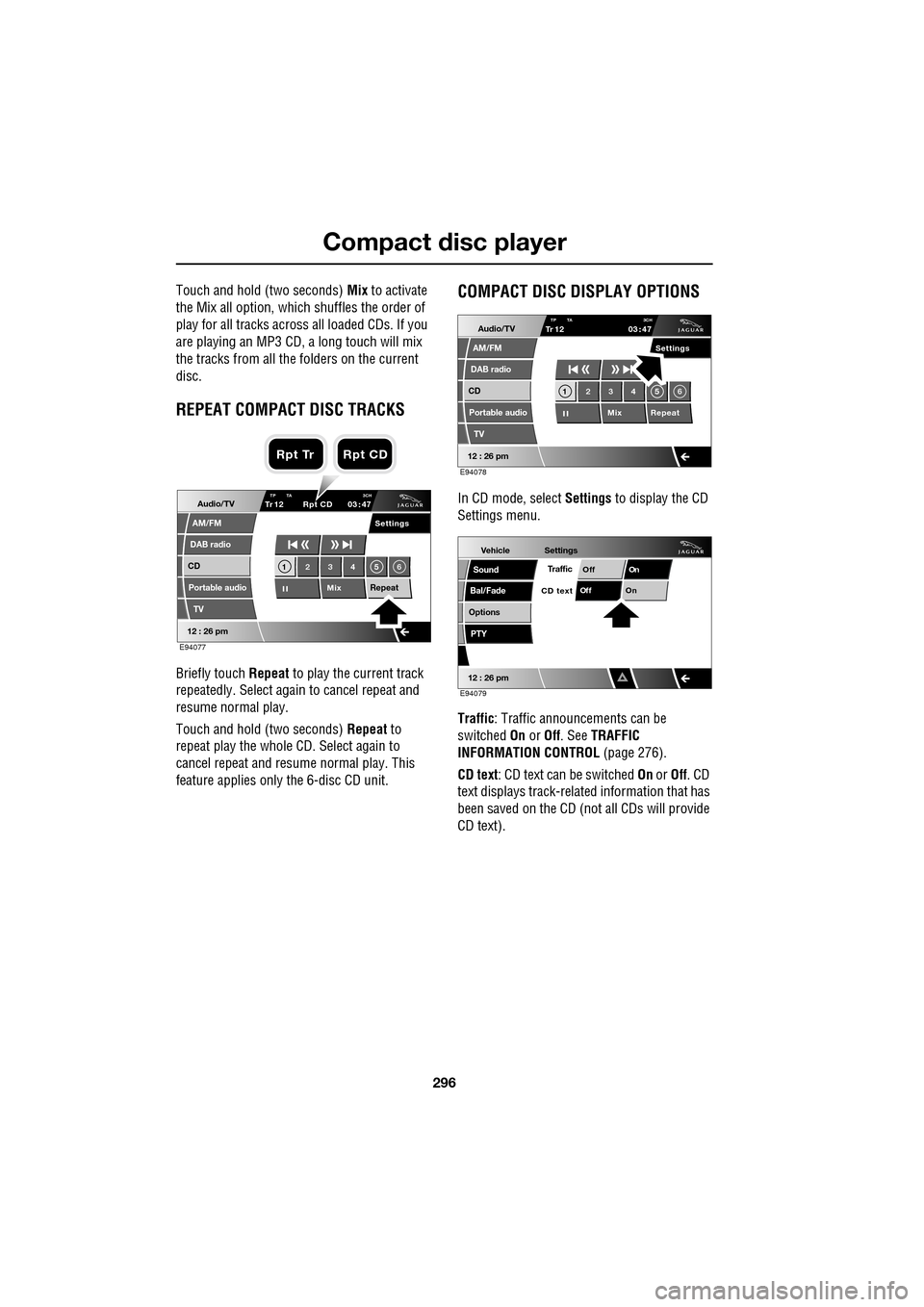
Briefly touch Repeat to play the current track
repeatedly. Select again to cancel repeat and
resume normal play.
Touch and hold (two seconds) Repeat to
repeat play the whole CD. Select again to
cancel repeat and resu me normal play. This
feature applies only the 6-disc CD unit.
COMPACT DISC DISPLAY OPTIONS
In CD mode, select Settings to display the CD
Settings menu.
Traffic : Traffic announcements can be
switched On or Off. See TRAFFIC
INFORMATION CONTROL (page 276).
CD text : CD text can be switched On or Off. CD
text displays track-related information that has
been saved on the CD (not all CDs will provide
CD text).Audio/TV
DAB radio
CD
AM/FM
12 : 26 pm
Portable audio
TV
Settings
1 23 45 6
MixRepeat
TrTP TA 3CH1203 47
Rpt CD
E94077
Rpt Tr Rpt CD
Audio/TV
DAB radio
CD
AM/FM
12 : 26 pm
Portable audio
TV
Settings
1 23 45 6
MixRepeat
TrTP TA
3CH1203 47
E94078
Vehicle
Options
Sound
Bal/Fade
12 : 26 pm
Settings
TrafficOnOff
On
Of f
CD text
PTY
E94079
Page 299 of 391

299
Portable audio
PORTABLE AUDIO
Portable audio overview
The portable audio system is located in the
centre console cubby box. You can connect a
variety of audio devices, including iPods, via
this interface to the audio system.
If you are connecting an iPod or mass storage
device, you can use the touch-screen to
operate and search the device. Many of the
controls are similar to those available for CD
play.
The devices that you can connect to the
portable audio interface include:
• USB mass storage devices, for example
memory stick.
• iPod.
• Auxiliary device (no to uch-screen control).
Note: The portable audio interface supports
the following iPods:
•iPod (generations 3-5).
•iPod Mini.
•iPod Nano (generations 1-3).
•iPod Photo.
•iPod Classic.
Note: The audio system will play MP3, WMA,
WAV and AAC files. Note:
Some MP3 players ha ve their own file
system that is not suppor ted by this system. To
use your MP3 player, y ou must set it to USB
Removable Device or Mass Storage Device
mode (see manufacturer's information for
further details). Only music that has been
added to the device in this mode can be played
via the vehicle's portable audio system.
Note: The system will suppor t devices with a
storage capacity up to 256 GB (approximately
65 000 tracks).
CAUTION
We recommend that you replace the
rubber cover when a portable device is
not plugged in. This will prevent damage to the
system. The cover is not waterproof.
Please disconnect your iPod when
leaving the vehicle. Failure to do so may
result in the iPod battery discharging.
Page 301 of 391

301
Portable audio
Connecting an auxiliary device
On the audio Home screen, select Audio/TV
and then select Portable audio.
Note: You can also press the SOURCE button
repeatedly to select Portable audio device .
Insert the AUX jack plug into the socket
indicated.
Select AUX.
Play will start when you switch on and start
playing the auxiliary device.
Note: You cannot operate or search the
auxiliary audio device using the touch-screen,
so all buttons on the touch-screen are
unavailable.
Connecting more than one device
You can connect an iPod and a USB device
simultaneously to the portable audio interface
and switch between them using the
touch-screen. Select iPod, USB or AUX , to
switch between modes.
The device docked first will remain the active
device until you choose to change.
If, after changing to the newly-docked device,
you change back to the first device, play will
resume at the point you left it (USB and iPod
only).
Note: You cannot use a USB hub to connect
more than one USB device to the audio unit.
Note: Devices connected to the iPod and USB
ports will be charged, but devices that are fully
discharged will not play. Please disconnect
your iPod when leaving the vehicle. Failure to
do so may result in the iPod battery
discharging.
Note: Options such as Repeat and Mix relate
to the device currently playing, they will not
apply to any subsequent device.
E94340
Audio/TV
DAB radio
CD
AM/FM
12 : 26 pm
iPod AUX
RepeUSB
Settings
Folders
TP TA PTY DPLIITr 04
Portable audio
TV
Sing for absolution
00:36
E94709
Page 304 of 391
Portable audio
304
Searching a portable device
Next/previous track
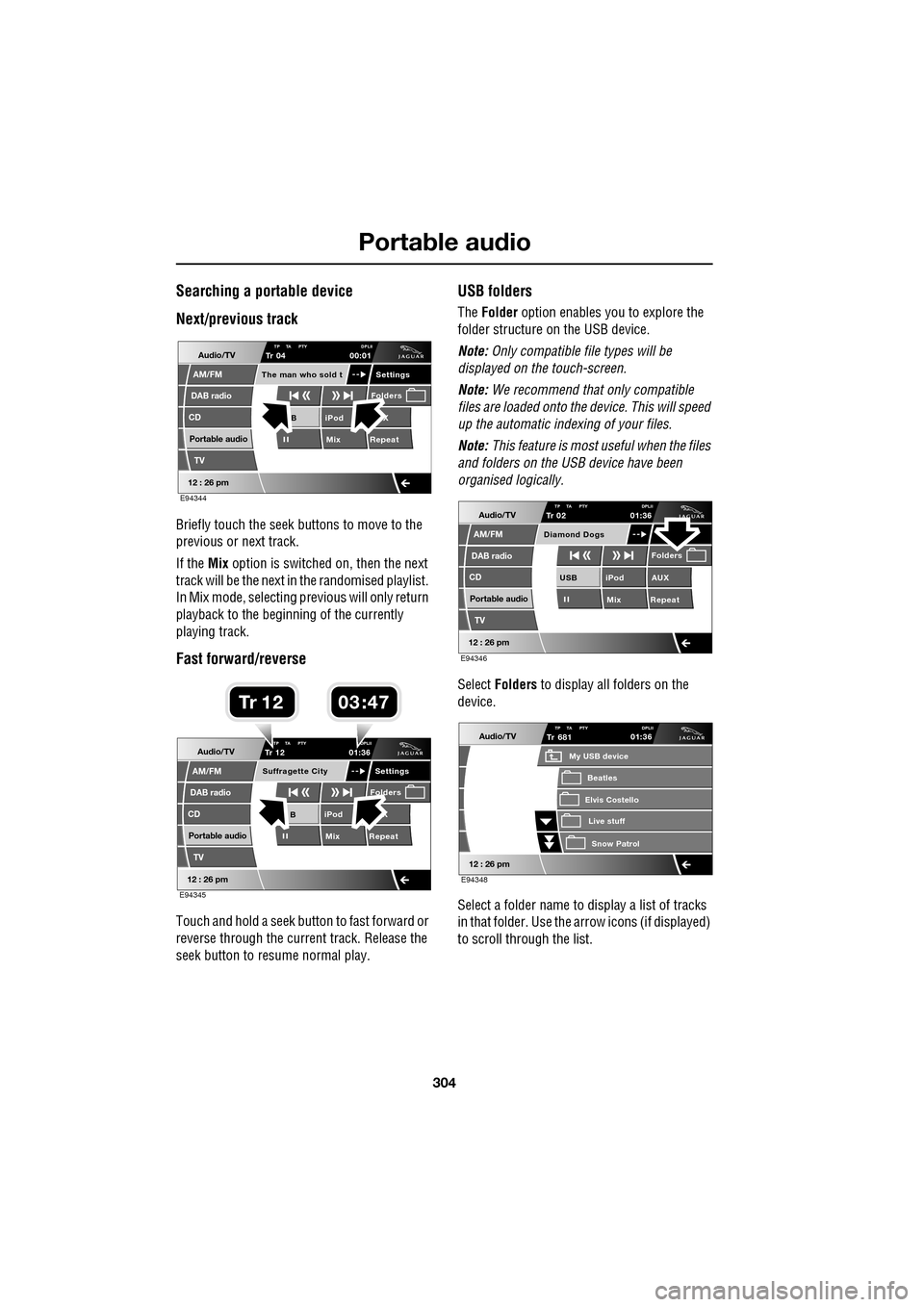
Briefly touch the seek buttons to move to the
previous or next track.
If the Mix option is switched on, then the next
track will be the next in the randomised playlist.
In Mix mode, selecting previous will only return
playback to the beginning of the currently
playing track.
Fast forward/reverse
Touch and hold a seek button to fast forward or
reverse through the current track. Release the
seek button to resume normal play.
USB folders
The Folder option enables you to explore the
folder structure on the USB device.
Note: Only compatible file types will be
displayed on the touch-screen.
Note: We recommend that only compatible
files are loaded onto the device. This will speed
up the automatic indexing of your files.
Note: This feature is most useful when the files
and folders on the USB device have been
organised logically.
Select Folders to display all folders on the
device.
Select a folder name to display a list of tracks
in that folder. Use the arrow icons (if displayed)
to scroll through the list.
Audio/TV
DAB radio
CD
AM/FM
12 : 26 pm
iPod X
Mix RepeatB
Settings
Folders
TP TA PTY DPLIITr 04
Portable audio
TV
The man who sold t
00:01
E94344
Audio/TV
DAB radio
CD
AM/FM
12 : 26 pm
iPod X
Mix RepeatB
Settings
Folders
TP TA PTY DPLIITr 12
Portable audio
TV
Suffragette City
01:36
E94345
03 47Tr 1 2
Audio/TV
DAB radio
CD
AM/FM
12 : 26 pm
iPod AUX
Mix RepeatUSB
Folders
TP TA PTY DPLIITr 02
Portable audio
TV
Diamond Dogs
01:36
E94346
Audio/TV
12 : 26 pm
Tr
Elvis Costello
My USB device
Live stuffSnow Patr ol
Beatles
681TP TA PTY DPLII01:36
E94348