2003 BMW 760LI SEDAN reset
[x] Cancel search: resetPage 90 of 229
Everything under control
88 wise engine functions are not ensured and
damage can occur.<
Refueling is only registered by the com-
puter for fuel amounts above approx.
1.3 gallons (5 liters).
Distance to destination
When you enter a destination in the naviga-
tion system or manually enter a distance in
the computer prior to departure, the
system can also display the distance
remaining to your destination, refer to
page 132 or 89.
The system automatically adopts the dis-
tance to your destination using the route
recommended by the navigation system.
When you enter a destination in the
navigation system, any manual
entries will be overwritten no later than
once 1,640 ft (500 meters) of the calcu-
lated distance have elapsed.<
Energy Control/
Current fuel consumption
Shows your current fuel consumption rate
in mpg Ð in liters/100 km on Canadian vehi-
cles. This allows you to see whether your
current driving style is conducive to fuel
economy with minimum exhaust emis-
sions.
When the vehicle is stationary the display
goes to the maximum reading, zero on
Canadian models.
Average fuel consumption
The average fuel consumption is calculated
for the time during which the engine is run-
ning.
You can use the Control Display to view
your fuel consumption rate over two dif-
ferent distances, refer to Computer or Trip
computer.
Average speed
Periods with the vehicle parked and the
engine off are not included in the calcula-
tions of average speed.
Time of arrival
A display of your estimated time of arrival is
available whenever you enter a destination
in the navigation system, refer to page 132,
or enter the distance manually in the com-
puter, refer to page 89, prior to departure.
This function is only available if the
time in the Control Display has been
correctly set, refer to page 91.<
Control Display screen contents
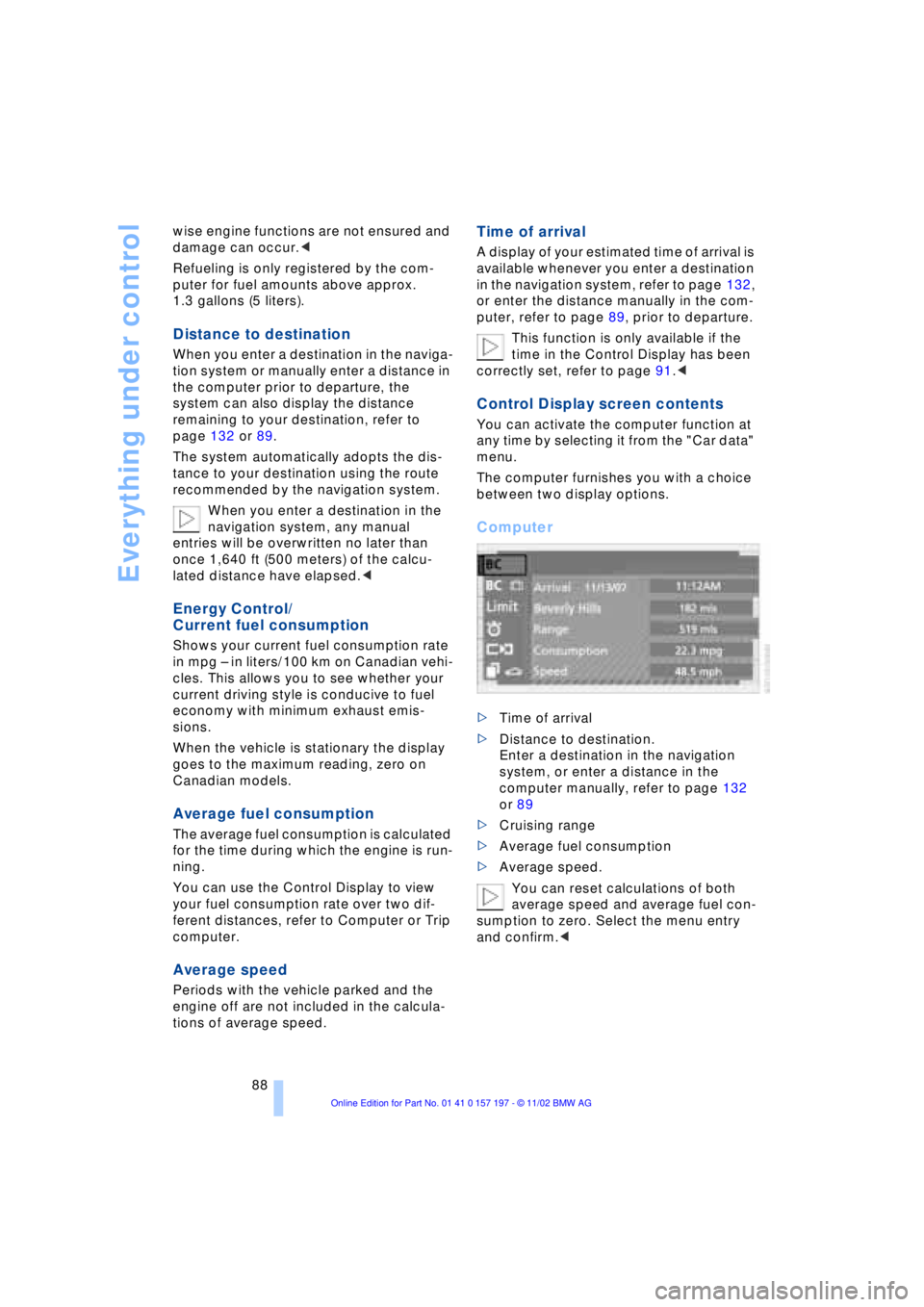
You can activate the computer function at
any time by selecting it from the "Car data"
menu.
The computer furnishes you with a choice
between two display options.
Computer
>Time of arrival
>Distance to destination.
Enter a destination in the navigation
system, or enter a distance in the
computer manually, refer to page 132
or 89
>Cruising range
>Average fuel consumption
>Average speed.
You can reset calculations of both
average speed and average fuel con-
sumption to zero. Select the menu entry
and confirm.<
Page 91 of 229
At a glance
Controls
Driving tips
Communications
Navigation
Entertainment
Mobility
Reference
89
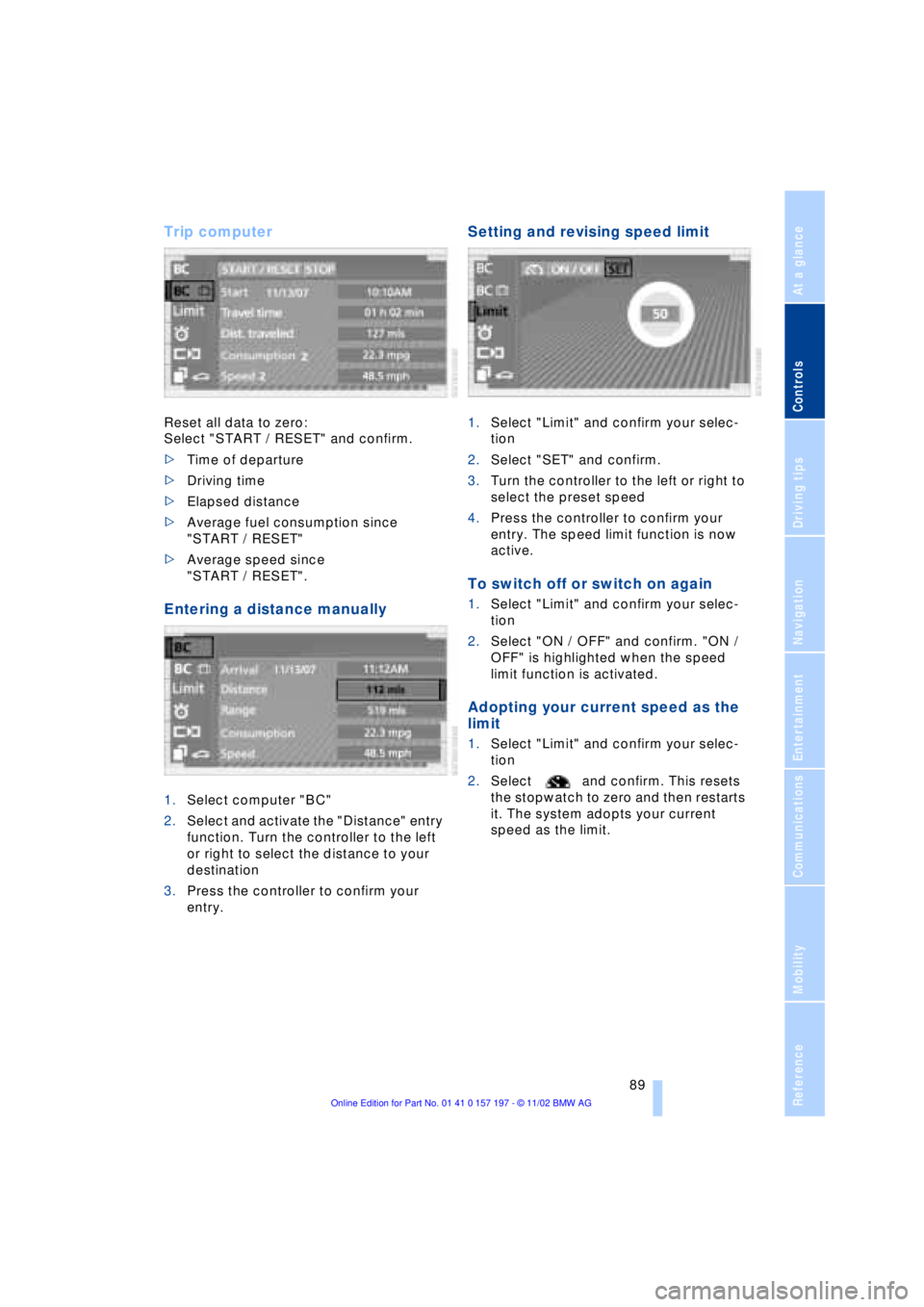
Trip computer
Reset all data to zero:
Select "START / RESET" and confirm.
>Time of departure
>Driving time
>Elapsed distance
>Average fuel consumption since
"START / RESET"
>Average speed since
"START / RESET".
Entering a distance manually
1.Select computer "BC"
2.Select and activate the "Distance" entry
function. Turn the controller to the left
or right to select the distance to your
destination
3.Press the controller to confirm your
entry.
Setting and revising speed limit
1.Select "Limit" and confirm your selec-
tion
2.Select "SET" and confirm.
3.Turn the controller to the left or right to
select the preset speed
4.Press the controller to confirm your
entry. The speed limit function is now
active.
To switch off or switch on again
1.Select "Limit" and confirm your selec-
tion
2.Select "ON / OFF" and confirm. "ON /
OFF" is highlighted when the speed
limit function is activated.
Adopting your current speed as the
limit
1.Select "Limit" and confirm your selec-
tion
2.Select and confirm. This resets
the stopwatch to zero and then restarts
it. The system adopts your current
speed as the limit.
Page 92 of 229
Everything under control
90
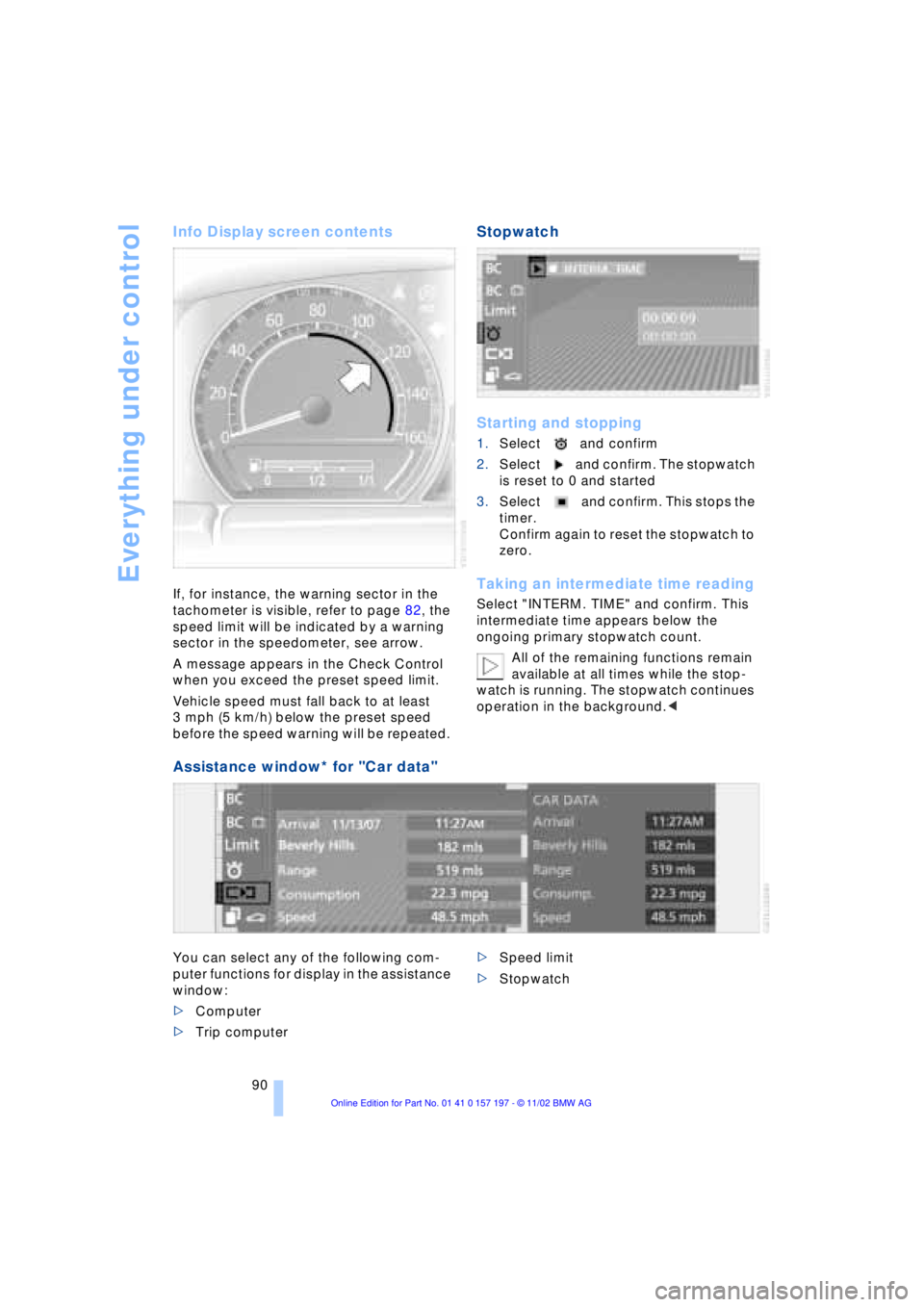
Info Display screen contents
If, for instance, the warning sector in the
tachometer is visible, refer to page 82, the
speed limit will be indicated by a warning
sector in the speedometer, see arrow.
A message appears in the Check Control
when you exceed the preset speed limit.
Vehicle speed must fall back to at least
3 mph (5 km/h) below the preset speed
before the speed warning will be repeated.
Stopwatch
Starting and stopping
1.Select and confirm
2.Select and confirm. The stopwatch
is reset to 0 and started
3.Select and confirm. This stops the
timer.
Confirm again to reset the stopwatch to
zero.
Taking an intermediate time reading
Select "INTERM. TIME" and confirm. This
intermediate time appears below the
ongoing primary stopwatch count.
All of the remaining functions remain
available at all times while the stop-
watch is running. The stopwatch continues
operation in the background.<
Assistance window* for "Car data"
You can select any of the following com-
puter functions for display in the assistance
window:
>Computer
>Trip computer >Speed limit
>Stopwatch
Page 93 of 229
At a glance
Controls
Driving tips
Communications
Navigation
Entertainment
Mobility
Reference
91
Importing display
1.Select the desired function and confirm
Ð here, computer "BC"
2.Select and confirm. This resets
the stopwatch to zero and then restarts
it. The function appears in the assis-
tance window.
The symbol is highlighted if
the function displayed in the asssis-
tance window is selected in the Control
Display. You can also choose to view brief
help texts explaining selected menu
entries, refer to page 23, or the travel route
on vehicles equipped with a GPS naviga-
tion system, refer to page 131.<
Changing settings
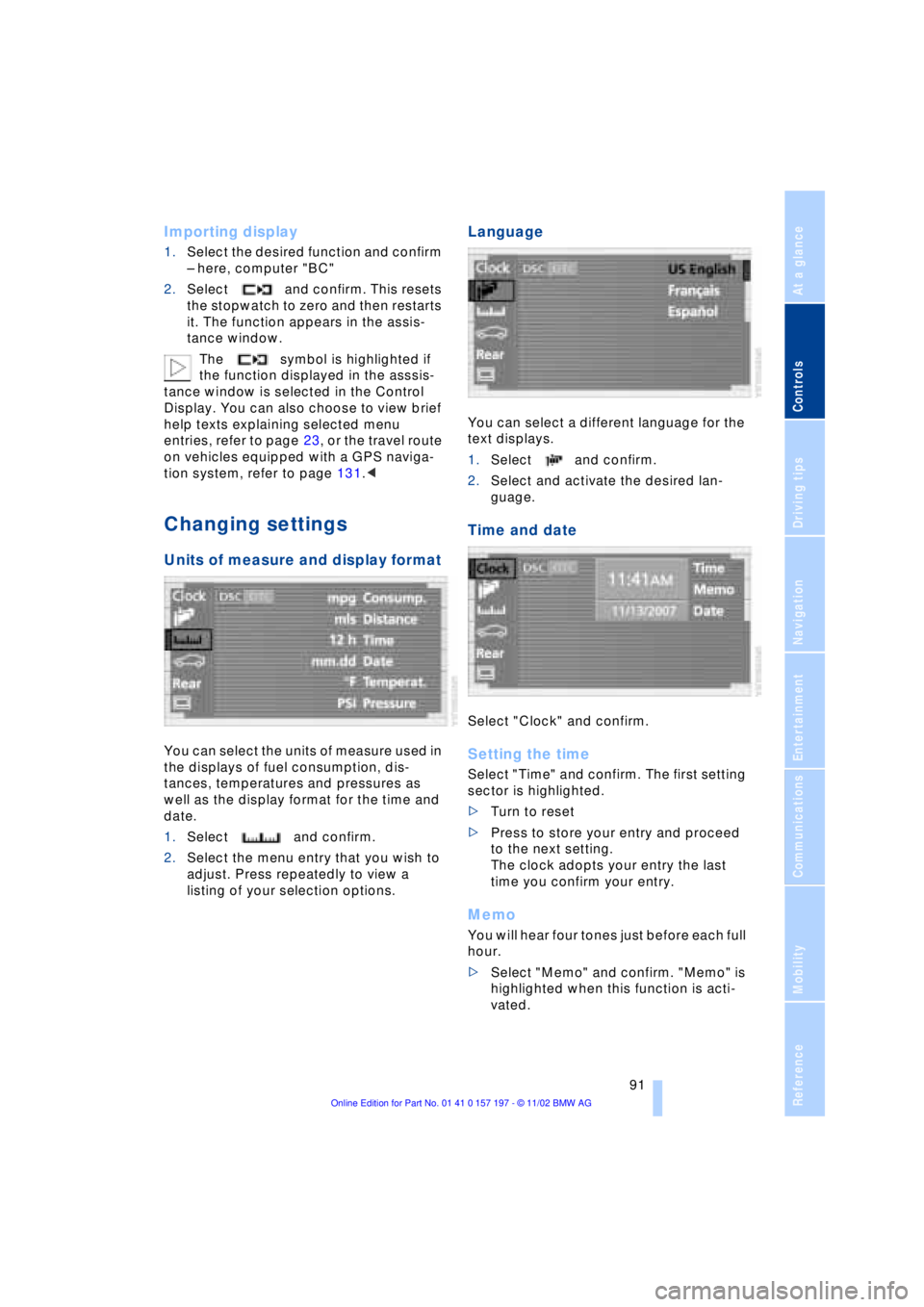
Units of measure and display format
You can select the units of measure used in
the displays of fuel consumption, dis-
tances, temperatures and pressures as
well as the display format for the time and
date.
1.Select and confirm.
2.Select the menu entry that you wish to
adjust. Press repeatedly to view a
listing of your selection options.
Language
You can select a different language for the
text displays.
1.Select and confirm.
2.Select and activate the desired lan-
guage.
Time and date
Select "Clock" and confirm.
Setting the time
Select "Time" and confirm. The first setting
sector is highlighted.
>Turn to reset
>Press to store your entry and proceed
to the next setting.
The clock adopts your entry the last
time you confirm your entry.
Memo
You will hear four tones just before each full
hour.
>Select "Memo" and confirm. "Memo" is
highlighted when this function is acti-
vated.
Page 94 of 229
Everything under control
92
Setting the date
Select "Date" and confirm. The first section
of the date display is highlighted Ð
here: day.
>Turn to reset
>Press to store and highlight the next
entry Ð here: month and year.
The system adopts the date the last
time you store your entry
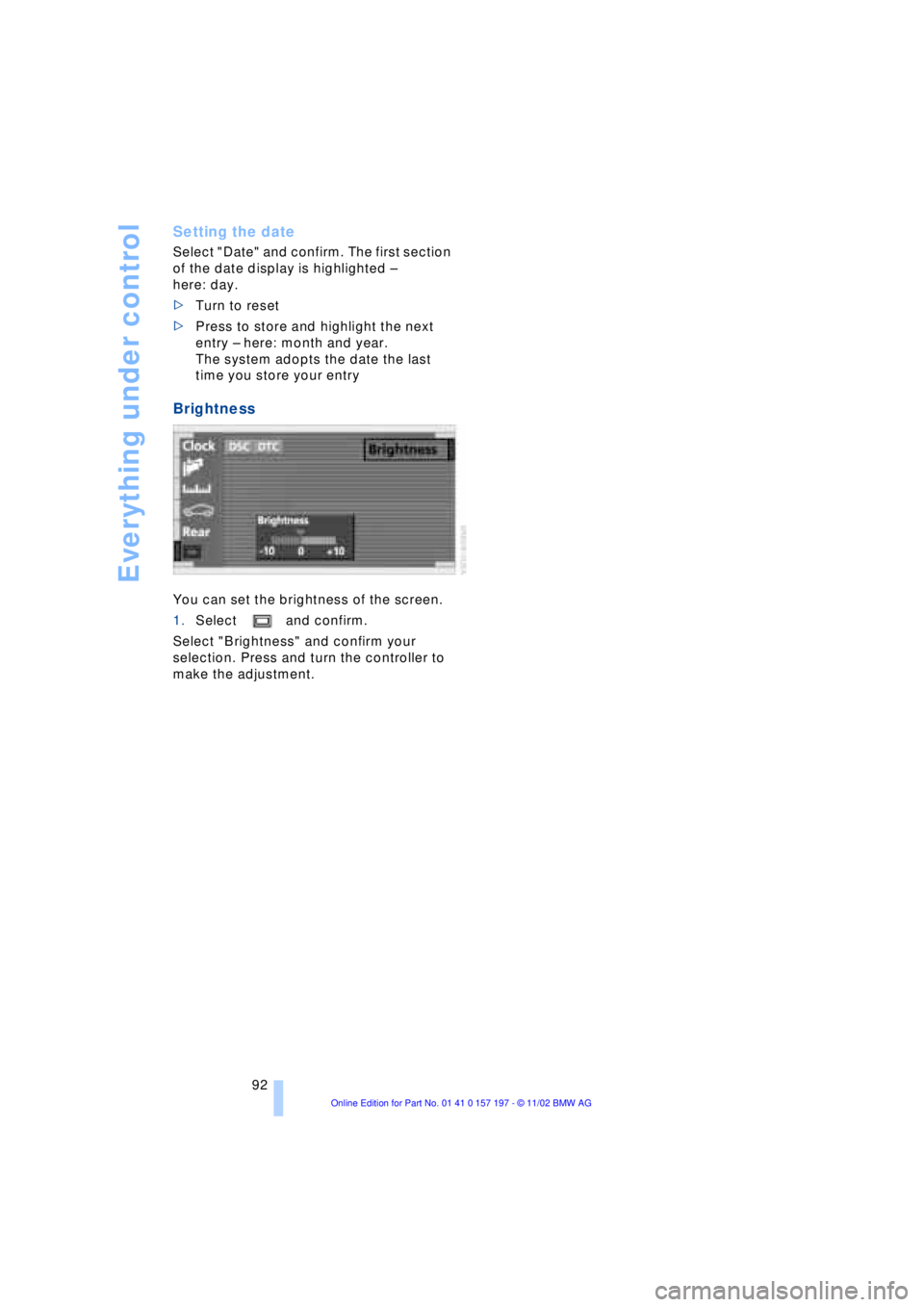
Brightness
You can set the brightness of the screen.
1.Select and confirm.
Select "Brightness" and confirm your
selection. Press and turn the controller to
make the adjustment.
Page 112 of 229
A congenial climate
110
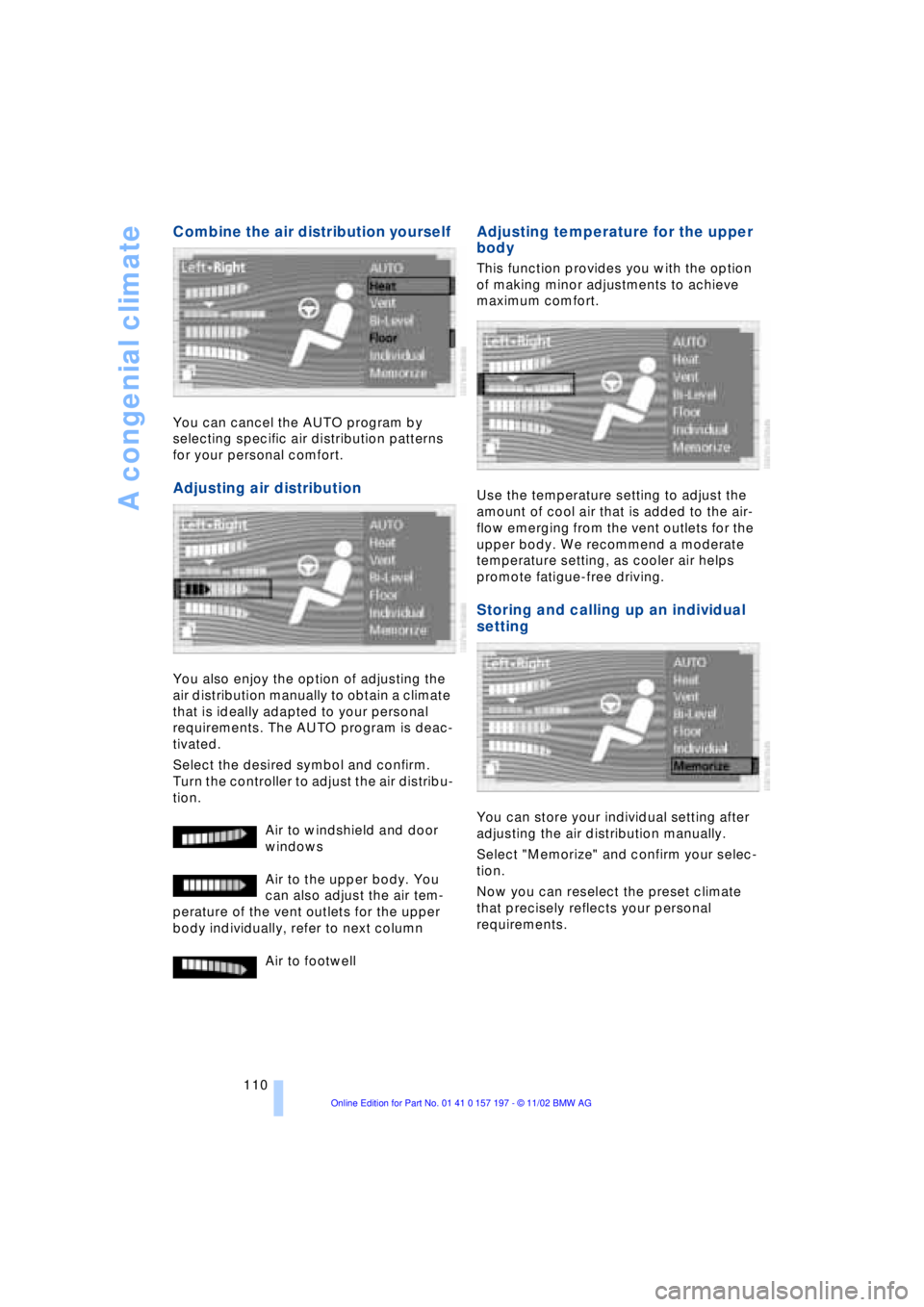
Combine the air distribution yourself
You can cancel the AUTO program by
selecting specific air distribution patterns
for your personal comfort.
Adjusting air distribution
You also enjoy the option of adjusting the
air distribution manually to obtain a climate
that is ideally adapted to your personal
requirements. The AUTO program is deac-
tivated.
Select the desired symbol and confirm.
Turn the controller to adjust the air distribu-
tion.
Air to windshield and door
windows
Air to the upper body. You
can also adjust the air tem-
perature of the vent outlets for the upper
body individually, refer to next column
Air to footwell
Adjusting temperature for the upper
body
This function provides you with the option
of making minor adjustments to achieve
maximum comfort.
Use the temperature setting to adjust the
amount of cool air that is added to the air-
flow emerging from the vent outlets for the
upper body. We recommend a moderate
temperature setting, as cooler air helps
promote fatigue-free driving.
Storing and calling up an individual
setting
You can store your individual setting after
adjusting the air distribution manually.
Select "Memorize" and confirm your selec-
tion.
Now you can reselect the preset climate
that precisely reflects your personal
requirements.
Page 149 of 229
At a glance
Controls
Driving tips
Communications
Navigation
Entertainment
Mobility
Reference
147
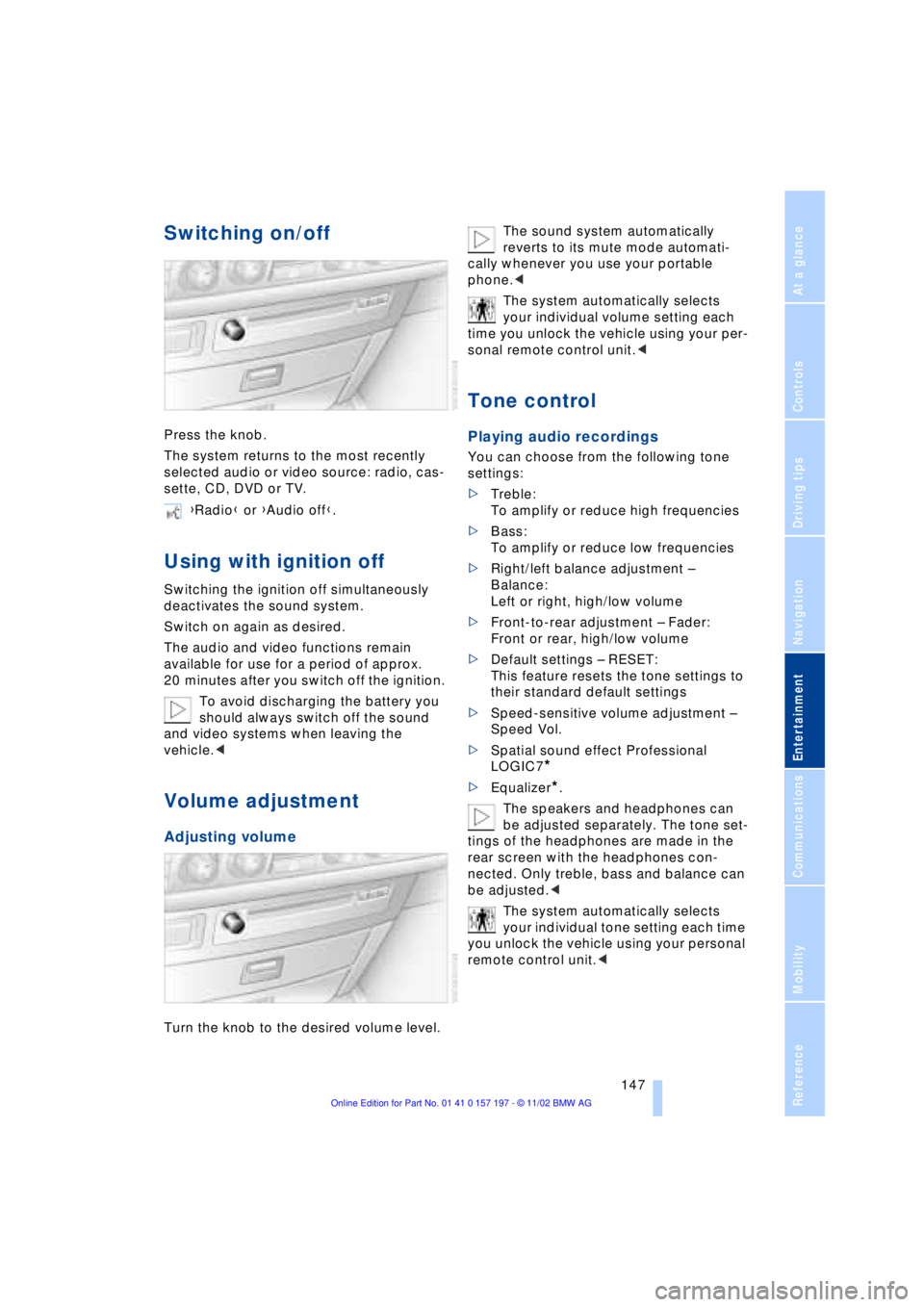
Switching on/off
Press the knob.
The system returns to the most recently
selected audio or video source: radio, cas-
sette, CD, DVD or TV.
Using with ignition off
Switching the ignition off simultaneously
deactivates the sound system.
Switch on again as desired.
The audio and video functions remain
available for use for a period of approx.
20 minutes after you switch off the ignition.
To avoid discharging the battery you
should always switch off the sound
and video systems when leaving the
vehicle.<
Volume adjustment
Adjusting volume
Turn the knob to the desired volume level.The sound system automatically
reverts to its mute mode automati-
cally whenever you use your portable
phone.<
The system automatically selects
your individual volume setting each
time you unlock the vehicle using your per-
sonal remote control unit.<
Tone control
Playing audio recordings
You can choose from the following tone
settings:
>Treble:
To amplify or reduce high frequencies
>Bass:
To amplify or reduce low frequencies
>Right/left balance adjustment Ð
Balance:
Left or right, high/low volume
>Front-to-rear adjustment Ð Fader:
Front or rear, high/low volume
>Default settings Ð RESET:
This feature resets the tone settings to
their standard default settings
>Speed-sensitive volume adjustment Ð
Speed Vol.
>Spatial sound effect Professional
LOGIC7
*
>Equalizer*.
The speakers and headphones can
be adjusted separately. The tone set-
tings of the headphones are made in the
rear screen with the headphones con-
nected. Only treble, bass and balance can
be adjusted.<
The system automatically selects
your individual tone setting each time
you unlock the vehicle using your personal
remote control unit.< {Radio} or {Audio off}.
Page 150 of 229
Entertainment
148
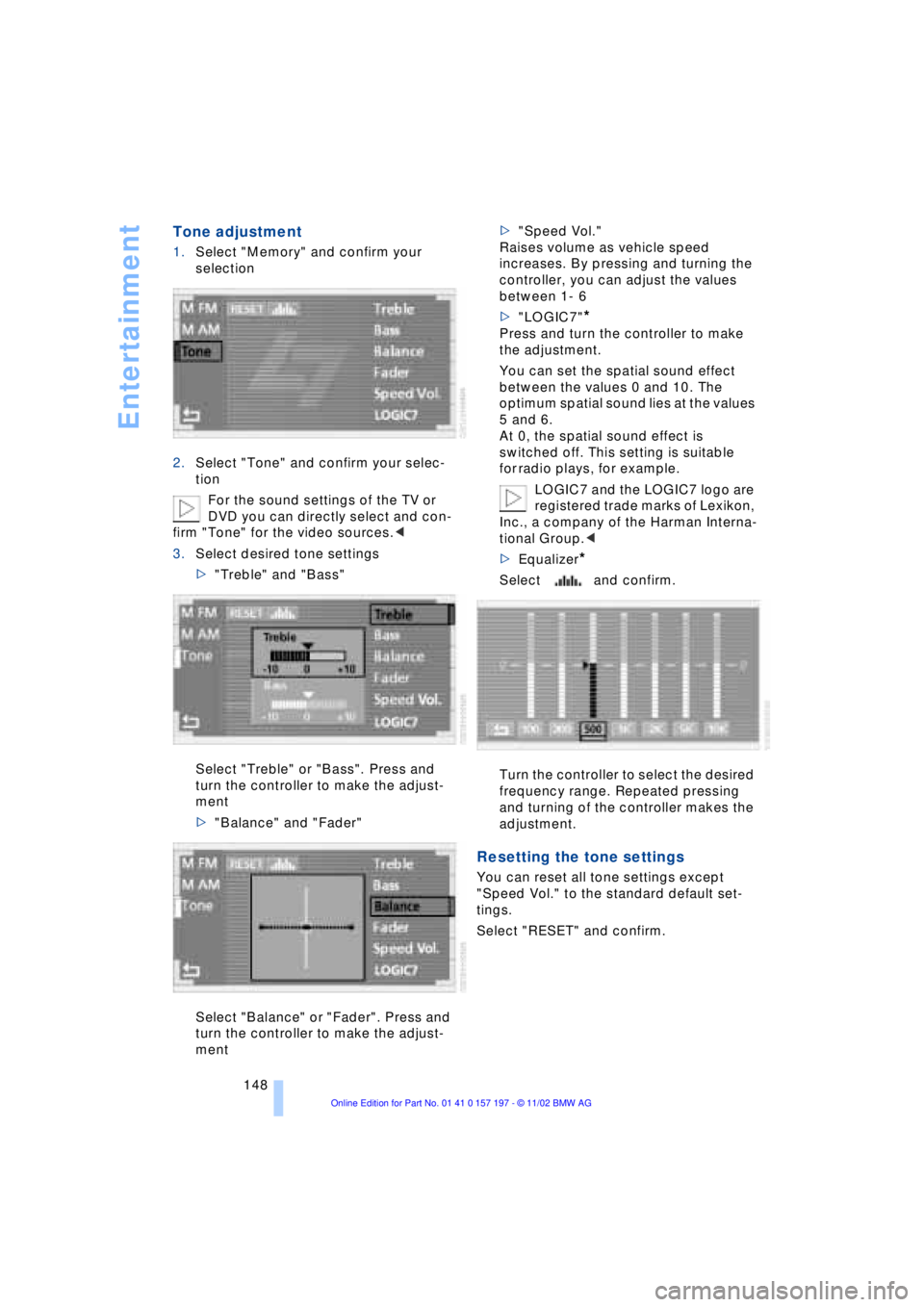
Tone adjustment
1.Select "Memory" and confirm your
selection
2.Select "Tone" and confirm your selec-
tion
For the sound settings of the TV or
DVD you can directly select and con-
firm "Tone" for the video sources.<
3.Select desired tone settings
>"Treble" and "Bass"
Select "Treble" or "Bass". Press and
turn the controller to make the adjust-
ment
>"Balance" and "Fader"
Select "Balance" or "Fader". Press and
turn the controller to make the adjust-
ment>"Speed Vol."
Raises volume as vehicle speed
increases. By pressing and turning the
controller, you can adjust the values
between 1- 6
>"LOGIC7"
*
Press and turn the controller to make
the adjustment.
You can set the spatial sound effect
between the values 0 and 10. The
optimum spatial sound lies at the values
5 and 6.
At 0, the spatial sound effect is
switched off. This setting is suitable
for radio plays, for example.
LOGIC7 and the LOGIC7 logo are
registered trade marks of Lexikon,
Inc., a company of the Harman Interna-
tional Group.<
>Equalizer
*
Select and confirm.
Turn the controller to select the desired
frequency range. Repeated pressing
and turning of the controller makes the
adjustment.
Resetting the tone settings
You can reset all tone settings except
"Speed Vol." to the standard default set-
tings.
Select "RESET" and confirm.