2023 FORD EXPEDITION ECU
[x] Cancel search: ECUPage 466 of 658
WHEEL NUTS
WARNING: When you install awheel, always remove any corrosion, dirtor foreign materials present on themounting surfaces of the wheel or thesurface of the wheel hub, brake drum orbrake disc that contacts the wheel. Makesure to secure any fasteners that attachthe rotor to the hub so they do notinterfere with the mounting surfaces ofthe wheel. Installing wheels withoutcorrect metal-to-metal contact at thewheel mounting surfaces can cause thewheel nuts to loosen and the wheel tocome off while your vehicle is in motion,resulting in loss of vehicle control,personal injury or death.
lb.ft (Nm)1Bolt Size
150 lb.ft (204 Nm)M14 x 1.5
1 Torque specifications are for nut and boltthreads free of dirt and rust. Use only ourrecommended replacement wheel nutsand or wheel bolts.
Retighten the wheel nuts to the specifiedtorque within 100 mi (160 km) after anywheel disturbance, such as tire rotation,changing a flat tire or wheel removal.
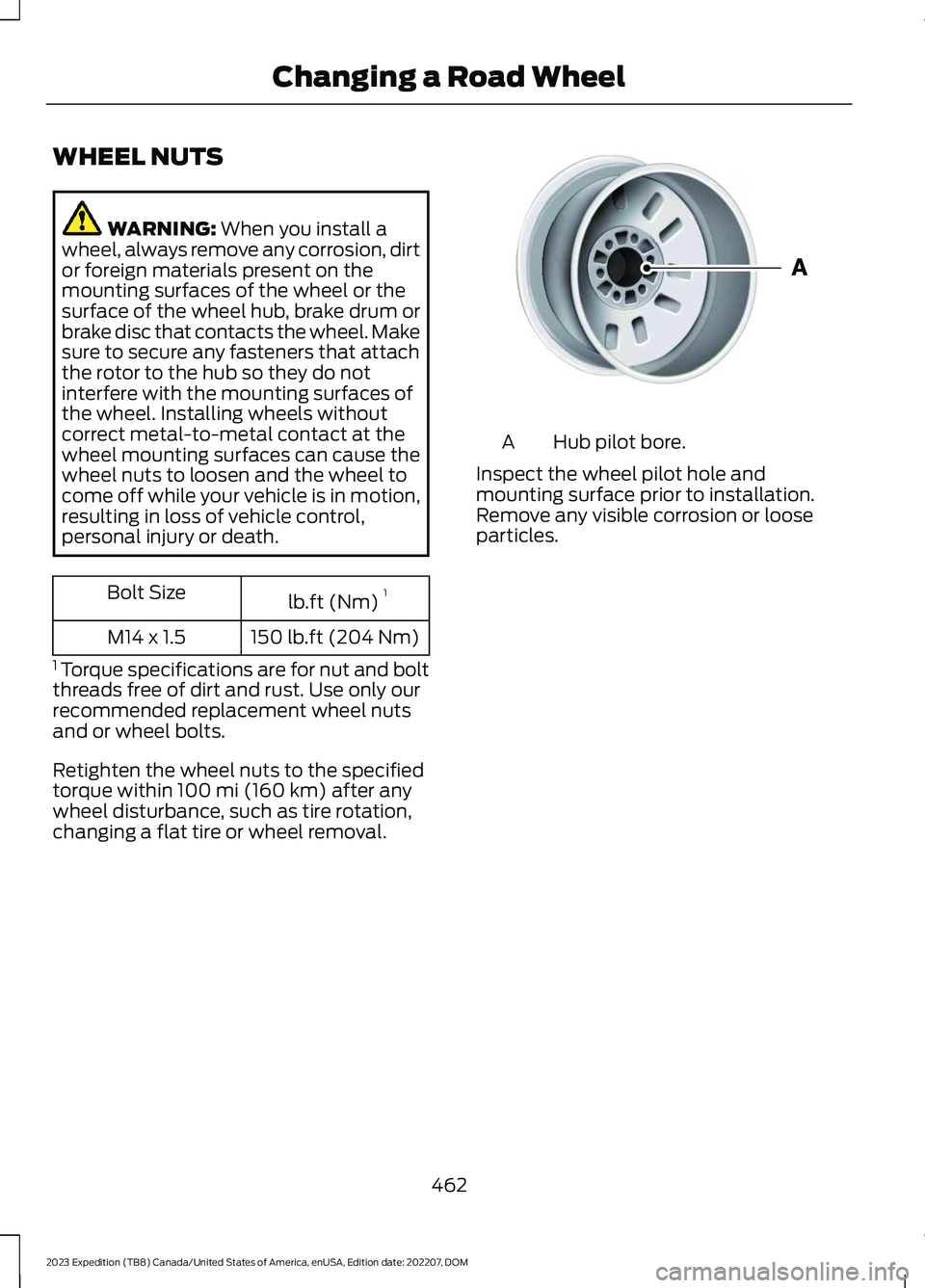
Hub pilot bore.A
Inspect the wheel pilot hole andmounting surface prior to installation.Remove any visible corrosion or looseparticles.
462
2023 Expedition (TB8) Canada/United States of America, enUSA, Edition date: 202207, DOMChanging a Road WheelE145950
Page 480 of 658
CONNECTING THE VEHICLE TO
A WI-FI NETWORK - VEHICLES
WITH: 12 INCH SCREEN
Select the settings option on thefeature bar.
1.Press Connectivity.
2.Press Manage Wi-Fi Networks.
3.Switch Wi-Fi on.
4.Press View Available Networks.
5.Select an available Wi-Fi network.
Note:Enter the network password toconnect to a secure network.
CONNECTING THE VEHICLE TO
A WI-FI NETWORK - VEHICLES
WITH: 15 INCH SCREEN
Access the application drawer on thetouchscreen.
1.Press Connectivity.
2.Press Manage Wi-Fi Networks.
3.Switch Wi-Fi on.
4.Press View Available Networks.
5.Select an available Wi-Fi network.
Note:Enter the network password toconnect to a secure network.
CONNECTED VEHICLE –
TROUBLESHOOTING
CONNECTED VEHICLE –FREQUENTLY ASKED QUESTIONS- VEHICLES WITH: MODEM
Why can I not confirm theconnection of my FordPassaccount to the modem?
•The modem is not enabled. Switchvehicle connectivity on.
•The network signal is weak. Move yourvehicle closer to a place where thenetwork signal is not obstructed.
CONNECTED VEHICLE –FREQUENTLY ASKED QUESTIONS- VEHICLES WITH: SYNC 4
Why can I not confirm theconnection of my FordPassaccount to the modem?
•The modem is not enabled. Switchvehicle connectivity on.
•The network signal is weak. Move yourvehicle closer to a place where thenetwork signal is not obstructed.
476
2023 Expedition (TB8) Canada/United States of America, enUSA, Edition date: 202207, DOMConnected VehicleE280315
Page 481 of 658
Why can I not connect to a Wi-Finetwork?
•You entered the wrong networkpassword. Enter the correct password.
•The network signal is weak. Move yourvehicle closer to the Wi-Fi router or toa place where the network signal is notobstructed.
•There are multiple access points inrange with the same network name.Choose a unique name for yournetwork. Do not use the default nameunless it contains a unique identifier,for example as part of the MACaddress.
Why does the Wi-Fi connectiondisconnect after successfulconnection?
•The network signal is weak. Move yourvehicle closer to the Wi-Fi router or toa place where the network signal is notobstructed.
What can I do if I am close to a Wi-Fi router but the network signalstrength is weak?
•If your vehicle has a heated windshield,position your vehicle so that thewindshield is not facing the Wi-Firouter.
•If your vehicle has metallic tinting onthe windows but not on the windshield,position your vehicle so that thewindshield is facing the Wi-Fi router oropen the windows that are facing therouter.
•If your vehicle has metallic tinting onthe windows and the windshield, openthe windows that are facing the router.
•If your vehicle is in a garage and youhave the garage door closed, open thegarage door as it could block the signal.
Why can I not see a network Iexpect to see in the list of availablenetworks?
•The network is hidden. Make thenetwork visible and try again, ormanually add a network in the Wi-Fisettings menu.
•Some network security types are notsupported, for example WEP.
Why do software downloads taketoo long?
•The network signal is weak. Move yourvehicle closer to the Wi-Fi router or toa place where the network signal is notobstructed.
•Wi-Fi network is in high demand or hasa slow Internet connection. Use a morereliable Wi-Fi network.
Why does the software not updatewhen the system seems to connectto a Wi-Fi network and the signalstrength is excellent?
•No software update is available at thistime.
•Select automatic updates option in thesettings menu to enable automaticsoftware update or contact anauthorized dealer.
•There could be a connection problem.Test the network using another device.
477
2023 Expedition (TB8) Canada/United States of America, enUSA, Edition date: 202207, DOMConnected Vehicle
Page 482 of 658
CREATING A VEHICLE WI-FI
HOTSPOT - VEHICLES WITH:
12 INCH SCREEN
You can create a Wi-Fi hotspot in yourvehicle and allow devices to connect to itfor access to the Internet.
Select the settings option on thefeature bar.
1.Press Vehicle Hotspot.
Note:The vehicle hotspot default settingis on.
2.Press Settings.
3.Press Edit.
4.Press Hotspot visibility.
Note:The hotspot visibility default settingis on.
Finding the Wi-Fi Hotspot Nameand Password
Select the settings option on thefeature bar.
1.Press Vehicle Hotspot.
2.Press Settings.
Note:The network name is the hotspotname.
3.Press View Password.
Connecting a Device to the Wi-FiHotspot
1.On your device, switch Wi-Fi on andselect the hotspot from the list ofavailable Wi-Fi networks.
2.When prompted, enter the password.
Purchasing a Data Plan
1.Connect a device to the hotspot.
Note:The vehicle network carrier’s portalopens on your device.
2.If the portal does not open on yourdevice, open a website and it redirectsto the vehicle network carrier’s portal.
Note:Secure websites do not redirect.
3.Follow the instructions on the carrierportal to purchase a plan.
Note:If you have an active plan, the systemdoes not redirect to the vehicle networkcarrier’s portal when you connect a device.Visit the vehicle network carrier’s websiteto purchase more data.
Note:If data usage information is availablein the vehicle hotspot menu, it isapproximate.
Note:If you carry out a master reset, thesystem does not remove your vehicle fromyour vehicle network carrier’s account. Toremove your vehicle from the account,contact your vehicle network carrier.
Note:The vehicle network carrier providesVehicle Hotspot services, subject to yourvehicle network carrier agreement, coverageand availability.
CREATING A VEHICLE WI-FI
HOTSPOT - VEHICLES WITH:
15 INCH SCREEN
You can create a Wi-Fi hotspot in yourvehicle and allow devices to connect to itfor access to the Internet.
Tap the vehicle drawer on the top left ofthe screen.
1.Press Vehicle Hotspot.
Note:The vehicle hotspot default settingis on.
2.Press Settings under the VehicleHotspot menu.
3.Press Edit.
4.Switch the Wi-Fi Visibility option on oroff.
478
2023 Expedition (TB8) Canada/United States of America, enUSA, Edition date: 202207, DOMVehicle Wi-Fi HotspotE280315 E280315
Page 483 of 658
Note:The Wi-Fi visibility default setting ison.
Finding the Wi-Fi Hotspot Nameand Password
Tap the vehicle drawer on the top left ofthe screen.
1.Press Vehicle Hotspot.
2.Press Settings under the VehicleHotspot menu.
Note:The network name is the hotspotname.
3.Switch the Show Password option onor off.
Connecting a Device to the Wi-FiHotspot
1.On your device, switch Wi-Fi on andselect the hotspot from the list ofavailable Wi-Fi networks.
2.When prompted, enter the password.
Purchasing a Data Plan
1.Connect a device to the hotspot.
Note:The vehicle network carrier’s portalopens on your device.
2.If the portal does not open on yourdevice, open a website and it redirectsto the vehicle network carrier’s portal.
Note:Secure websites do not redirect.
3.Follow the instructions on the carrierportal to purchase a plan.
Note:If you have an active plan, the systemdoes not redirect to the vehicle networkcarrier’s portal when you connect a device.Visit the vehicle network carrier’s websiteto purchase more data.
Note:If data usage information is availablein the vehicle hotspot menu, it isapproximate.
Note:If you carry out a master reset, thesystem does not remove your vehicle fromyour vehicle network carrier’s account. Toremove your vehicle from the account,contact your vehicle network carrier.
Note:The vehicle network carrier providesVehicle Hotspot services, subject to yourvehicle network carrier agreement, coverageand availability.
CHANGING THE VEHICLE WI-
FI HOTSPOT NAME OR
PASSWORD - VEHICLES WITH:
12 INCH SCREEN
Select the settings option on thefeature bar.
1.Press Vehicle Hotspot.
2.Press Settings.
3.Press Edit.
4.Press Change Network Name.
5.Enter your required network name.
6.Press Done.
7.Press Change Password.
8.Enter your required password.
9.Press Done.
Changing the Wi-Fi HotspotFrequency
Note:The vehicle hotspot frequency bandis selectable depending upon your devicecapabilities. You will not be able to connectyour device to the vehicle hotspot if it doesnot support the selected frequency band.
Select the settings option on thefeature bar.
1.Press Vehicle Hotspot.
2.Press Settings.
3.Press Edit.
479
2023 Expedition (TB8) Canada/United States of America, enUSA, Edition date: 202207, DOMVehicle Wi-Fi HotspotE280315 E280315
Page 489 of 658
Depending on the station quality, you couldhear a slight sound change when thestation changes between analog anddigital audio.
You cannot access a saved HD station ifyour vehicle is outside the station’sreception area.
SWITCHING DIGITAL RADIORECEPTION ON AND OFF
1.Press Settings on the touchscreen.
2.Press Radio Settings.
3.Switch AM HD Radio or FM HD Radioon or off.
DIGITAL RADIO INDICATORS
HD Radio Indicator
The indicator appears when HD Radio ison and you tune to a station broadcastingHD Radio technology.
The color of the indicator changes toindicate the system status.
Gray indicates the system is acquiring adigital station.
Orange indicates digital audio is playing.
Multicast Indicator
The multicast indicator appears if thecurrent station is broadcasting multipledigital broadcasts. The highlightednumbers indicate additional digitalchannels available.
Note:For stations that have more than oneHD multicast, the HD indicator and radiotext appears as a button. Press the buttonto cycle through all of the HD stations onthat specific frequency.
SATELLITE RADIO (IF EQUIPPED)
WHAT IS SATELLITE RADIO
Your factory-installed SiriusXM radiosystem includes a limited subscriptionterm, which begins on the date of sale orlease of your vehicle. See an authorizeddealer for availability.
For additional information about extendedsubscription terms, visit www.SiriusXM.comin the United States,www.SiriusXM.ca inCanada, or call SiriusXM at1-888-539-7474.
Note:SiriusXM reserves the unrestrictedright to change, rearrange, add or deleteprogramming including canceling, movingor adding particular channels, and its prices,at any time, with or without notice to you.Neither SiriusXM and its affiliates nor FordMotor Company and its affiliates will beliable to you or any third party for any suchmodification, suspension or termination.
SATELLITE RADIO LIMITATIONS
For optimal reception performance, keepthe antenna clear of snow and ice build-upand keep luggage and other material asfar away from the antenna as possible.Placing luggage over the antenna mayreduce performance. Factory-installed andaftermarket vehicle structures including,but not limited to, roof racks and soft toproofs in a partially open position couldreduce reception performance.
485
2023 Expedition (TB8) Canada/United States of America, enUSA, Edition date: 202207, DOMAudio System - Vehicles With: 12 Inch ScreenE142616
Page 490 of 658
Hills, mountains, tall buildings, bridges,tunnels, freeway overpasses, parkinggarages, dense tree foliage andthunderstorms can interfere with yourreception.
When you pass a ground-basedbroadcast-repeating tower, a strongersignal may overtake a weaker one andcould result in the audio system muting.Your display could show an error messageto indicate the interference.
LOCATING THE SATELLITE RADIOIDENTIFICATION NUMBER
1.Select SiriusXM as the audio source.
2.Tune to channel 0.
SELECTING A CHANNEL
Manually Selecting a Channel
Press the button to find theprevious or next available radiochannel.
Linear Tuner
The linear tuner is displayed whenmanually selecting a channel. You canswipe left or right on the linear tunercarousel to navigate through the channellist. Tap on a channel title to listen to it.
Using Direct Tune
1.Press the channel up or down buttonto open the linear tuner screen.
2.Press Direct Tune to open the numberpad.
3.Enter the channel you prefer.
Using Browse
1.Press Browse.
2.Select a channel.
SATELLITE RADIO SETTINGS
Subscription
Your subscription status is displayed. Youcan subscribe or manage your subscriptiondirectly from the touchscreen.
SiriusXM Favorites
While you are listening to SiriusXM, you cansave favorites by:
•Tapping the currently tuned channelor show logo on the SiriusXM audioscreen.
•Tuning to a channel or show you wantto save as a favorite. Navigate to theSiriusXM Favorites screen and pressthe Add Current button. The currentlytuned channel or show is saved as afavorite.
•Saving a radio preset. This saves thecurrently tuned SiriusXM channel orshow as a favorite
Note:Requires a trial or active subscriptionto use.
Listening History
Listening history is a list of recently listenedto SiriusXM content. You can view, manageand reset the listening history using thecontrols on the touchscreen.
Note:Requires a trial or active subscriptionto use.
Help and Support
You can contact SiriusXM Customer Caredirectly from SYNC and view informationrequired to manage your SiriusXM account.
486
2023 Expedition (TB8) Canada/United States of America, enUSA, Edition date: 202207, DOMAudio System - Vehicles With: 12 Inch ScreenE328569 E328570
Page 492 of 658
AUDIO SYSTEM – TROUBLESHOOTING
AUDIO SYSTEM – INFORMATION MESSAGES
Satellite Radio Troubleshooting
Recommended ActionPotential EffectsError Message
Internet connectivity isturned off. See ConnectedVehicle (page 475).
Internet streaming and OnDemand shows are unavail-able and some SiriusXMfeatures are disabled.
Connectivity Disabled
SYNC attempts to connect.See Satellite Radio Limit-ations (page 485).Switch toa satellite connection for thecurrent channel if the optionis available.
Audio system may mute.Switch to Satellite buttonmay be displayed on theSiriusXM audio screen if thechannel is also available viasatellite.
No Internet
Antenna may be obstructedor satellite reception is weakin your location. See Satel-lite Radio Limitations(page 485).Switch to aninternet connection for thecurrent channel if the optionis available.
Audio system may mute.Switch to Internet buttonmay be displayed on theSiriusXM audio screen if thechannel is also available viastreaming.
No Satellite Signal
Allow some time for theaudio to load or tune to adifferent channel.
Audio system may mutewhile the audio attempts toload.
Slow Network Connection
A temporary update may bein progress. Allow some timebefore retrying to tune to thechannel. If the issuecontinues, the channel mayno longer be available.
Audio system may mute.Radio may tune to adifferent channel.
Channel Unavailable
A temporary update may bein progress. Allow some timebefore retrying to play theepisode. If the issuecontinues, the episode mayno longer be available.
Audio system may mute.Radio may tune to adifferent channel.
Episode Unavailable
488
2023 Expedition (TB8) Canada/United States of America, enUSA, Edition date: 202207, DOMAudio System - Vehicles With: 12 Inch Screen