Page 33 of 498
31
2
2-1. QUICK REFERENCE
QUICK REFERENCE
■Buttons on the Controller
1 Press the button on the
steering wheel.
2 Wait for the acoustic signal.
3 Say the command.
If no further spoken commands are
possible, switch to Toyota Supra
Command to operate the function.
The voice control system should
not be used for emergency calls.
Under stress, a person's speech
and voice pitch can change. This
could unnecessarily delay connec-
tion of your call.
Instead, use the SOS button
located near the rear-view mirror.
Controller
ButtonFunction
Press once: to call up the
main menu.
Press twice: shows all
menu items of the main
menu.
To call up the Communi-
cation menu.
To call up the Media/Radio
menu.
To call up the Destination
input menu of the naviga-
tion system.
To call up the navigation
map.
Press once: to call up the
previous screen.
Press and hold: to call up
the last menus used.
To call up the Options
menu.
Voice control
Activating the voice control sys-
tem
This symbol in dicates that
the voice control system is
active.
Switching off the voice control sys-
tem
Press the button on the
steering wheel or say
›Cancel‹.
Information for emergency calls
Page 35 of 498
33
2
2-1. QUICK REFERENCE
QUICK REFERENCE
The memory function enables the
following settings to be stored and
retrieved when required:
• Seat position.
• Exterior mirror position.
• Height of the Head-Up Display.
1 Set the desired position.
2 Press the button on the
driver's seat. The lettering in the
button is illuminated.
3 Press the desired button 1 or 2
at the driver's seat while the let-
tering is illuminated. A signal
sounds.
Press the desired button 1 or 2.
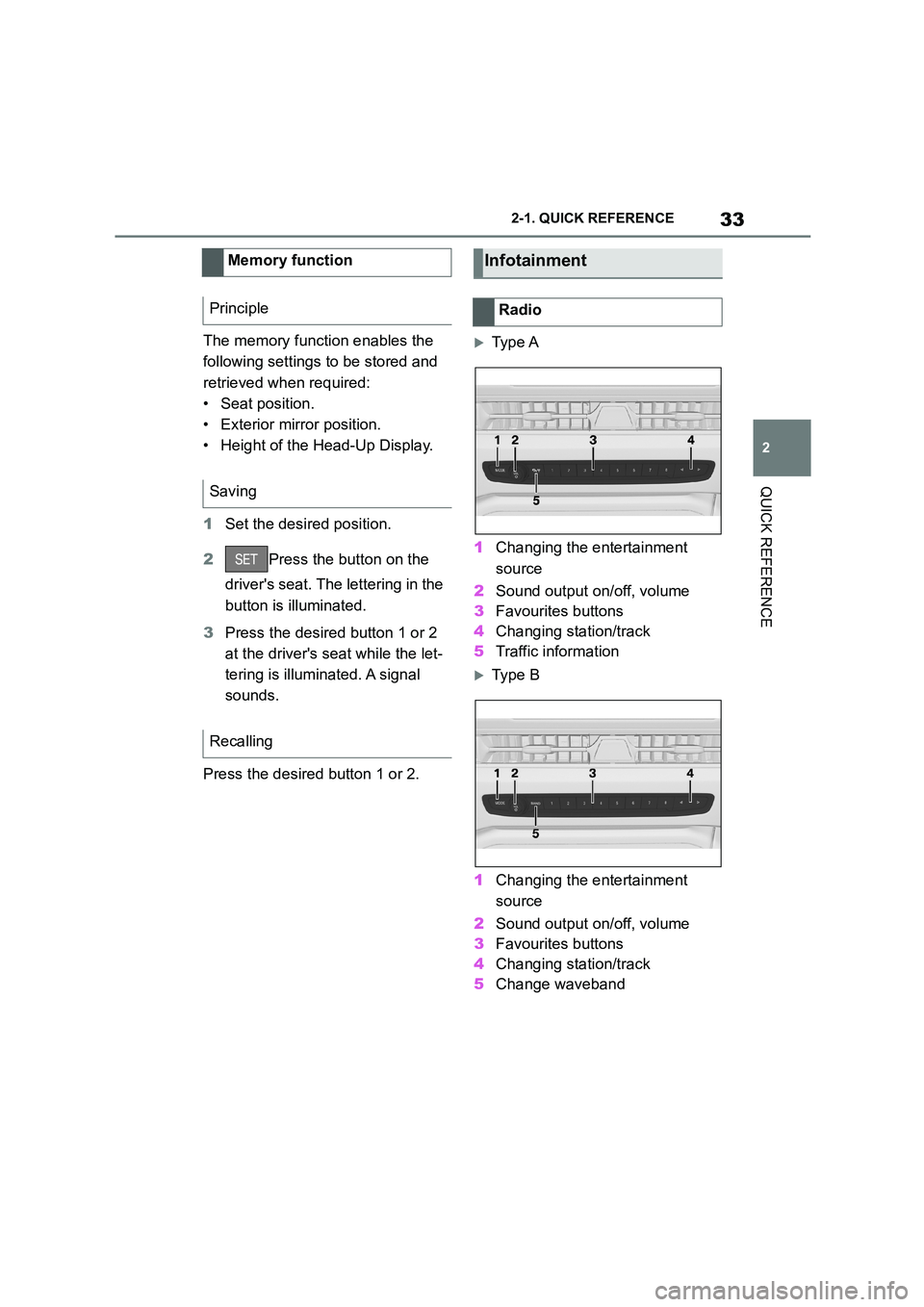
Ty p e A
1 Changing the entertainment
source
2 Sound output on/off, volume
3 Favourites buttons
4 Changing station/track
5 Traffic information
Ty p e B
1 Changing the entertainment
source
2 Sound output on/off, volume
3 Favourites buttons
4 Changing station/track
5 Change waveband
Memory function
Principle
Saving
Recalling
Infotainment
Radio
Page 37 of 498
35
2
2-1. QUICK REFERENCE
QUICK REFERENCE
phone assigned to the tele-
phone function.
To establish the connection via the
additional telephone:
1 Press the button.
2 "Call via"
*: if equipped
CarPlay makes it possible to oper-
ate certain functions of a compati-
ble Apple iPhone by Siri voice
operation and using Toyota Supra
Command.
• Compatible iPhone, iPhone 5 or
later with iOS 7.1 or later.
• Corresponding mobile radio con-
tract.
• Bluetooth, Wi-Fi and Siri voice
operation are activated on the
iPhone.
Via Toyota Supra Command:
1 "My Vehicle"
2 "System settings"
3 "Mobile devices"
4 "Settings"
5 Select the following settings:
"Bluetooth"
"Apple CarPlay"
Register iPhone via Bluetooth on
the vehicle.
Select CarPlay as the function:
"Apple CarPlay"
The iPhone is connected to the
vehicle and displayed in the device
list.
Apple CarPlay preparation*
Principle
Operating requirements
Switching on Bluetooth and
CarPlay
Registering iPhone with CarPlay
Page 50 of 498
483-1. CONTROLS
13 Horn, entire area
14 To release the bonnet
P. 3 2 1
15 Unlocking the boot lid P.91
1 Control Display P.59
2 Hazard warning lights
P. 3 5 2
3 Ventilation P.266
4 Glove box P.274
5 Radio/multimedia, see Naviga-
tion system Owner's manual
6 Automatic air conditioning P.261
7 Controller with buttons P.60,
P. 6 1
8 Sport mode switch P.160
SPORT drive mode
Toyota Supra Safety P.205
Auto Start/Stop P.145
Parking Sensors P.50
Rear-view camera P.253
RCTA (Rear cross traffic alert)
function P.256
Park Assistant P.50
Vehicle Stability Control,
VSC P.229
9 Parking brake P.148
10 Automatic transmission selector
lever P.154
Around the centre console
1
4
23
5
6
7
89
10
11
Page 57 of 498
55
3
3-1. CONTROLS
CONTROLS
Switching on drive-ready state cor-
responds to starting the engine.
Some functions, for example Vehi-
cle Stability Control VSC, can only
be operated when drive-ready state
is switched on.
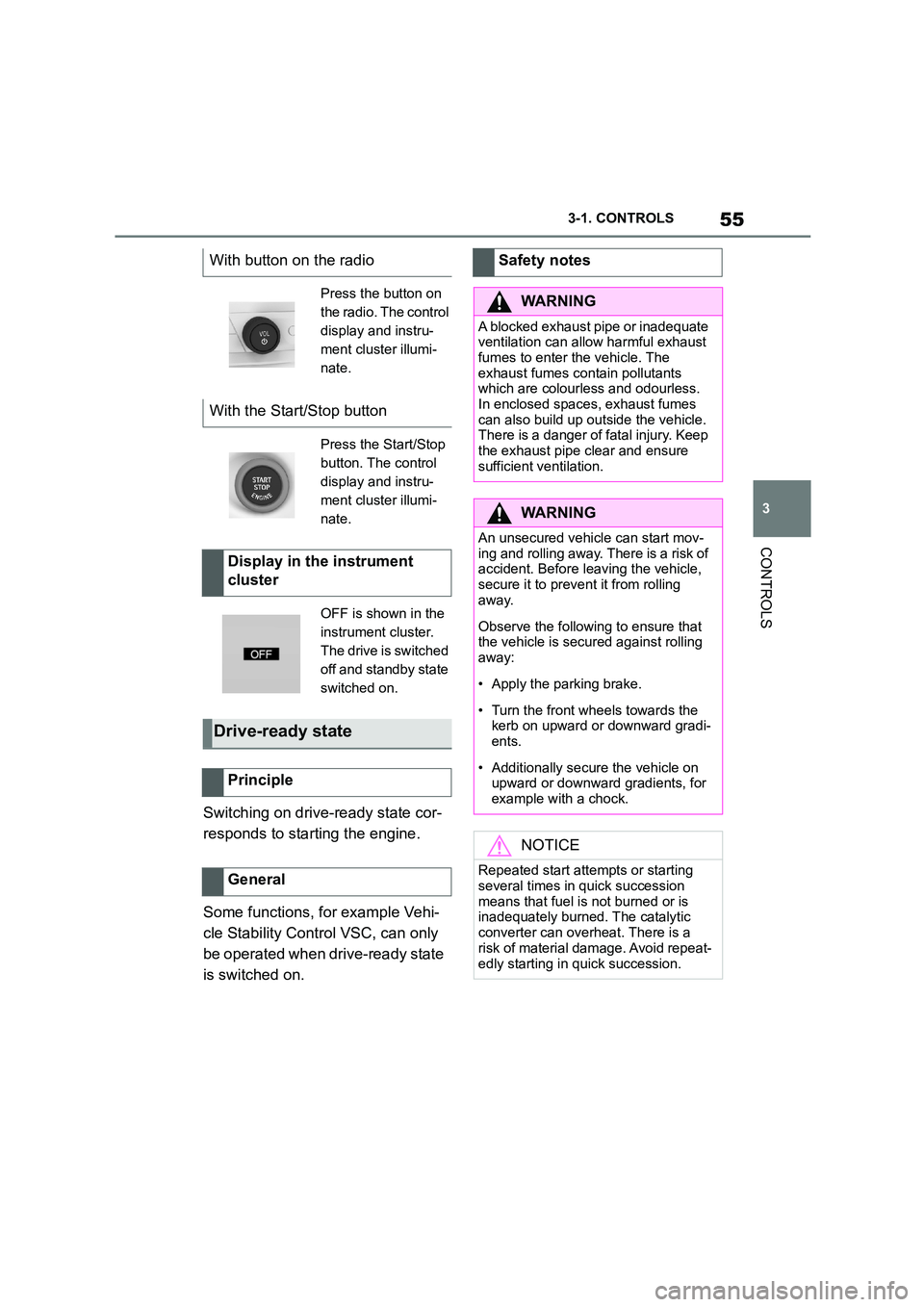
With button on the radio
Press the button on
the radio. The control
display and instru-
ment cluster illumi-
nate.
With the Start/Stop button
Press the Start/Stop
button. The control
display and instru-
ment cluster illumi-
nate.
Display in the instrument
cluster
OFF is shown in the
instrument cluster.
The drive is switched
off and standby state
switched on.
Drive-ready state
Principle
General
Safety notes
WA R N I N G
A blocked exhaust pipe or inadequate
ventilation can allow harmful exhaust fumes to enter the vehicle. The
exhaust fumes contain pollutants
which are colourless and odourless. In enclosed spaces, exhaust fumes
can also build up outside the vehicle.
There is a danger of fatal injury. Keep
the exhaust pipe clear and ensure sufficient ventilation.
WA R N I N G
An unsecured vehicle can start mov-ing and rolling away. There is a risk of
accident. Before leaving the vehicle,
secure it to prevent it from rolling away.
Observe the following to ensure that the vehicle is secured against rolling
away:
• Apply the parking brake.
• Turn the front wheels towards the
kerb on upward or downward gradi- ents.
• Additionally secure the vehicle on upward or downward gradients, for
example with a chock.
NOTICE
Repeated start attempts or starting
several times in quick succession
means that fuel is not burned or is inadequately burned. The catalytic
converter can overheat. There is a
risk of material damage. Avoid repeat-
edly starting in quick succession.
Page 63 of 498
61
3
3-1. CONTROLS
CONTROLS
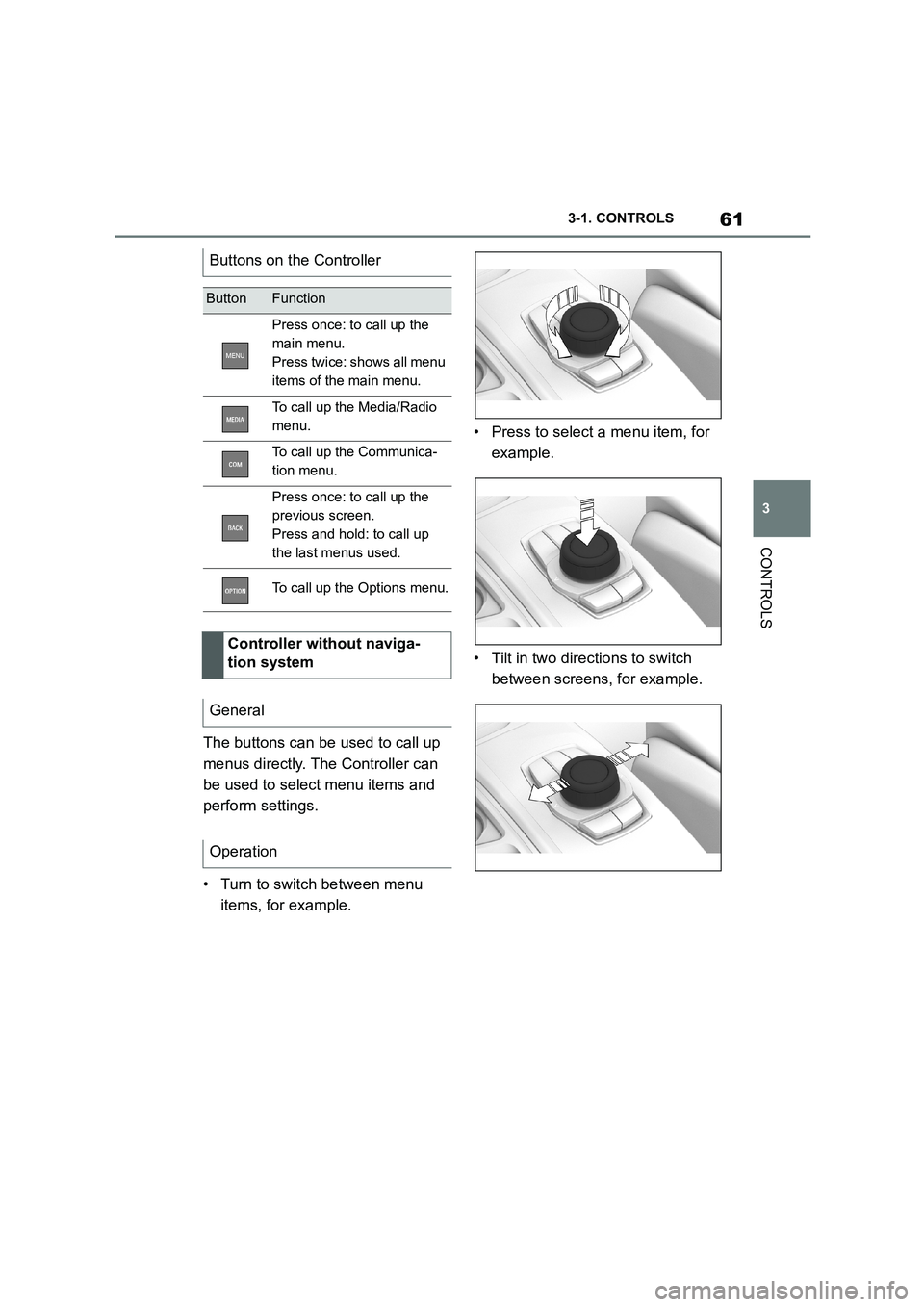
The buttons can be used to call up
menus directly. The Controller can
be used to select menu items and
perform settings.
• Turn to switch between menu
items, for example.
• Press to select a menu item, for
example.
• Tilt in two directions to switch
between screens, for example.
Buttons on the Controller
ButtonFunction
Press once: to call up the
main menu.
Press twice: shows all menu
items of the main menu.
To call up the Media/Radio
menu.
To call up the Communica-
tion menu.
Press once: to call up the
previous screen.
Press and hold: to call up
the last menus used.
To call up the Options menu.
Controller without naviga-
tion system
General
Operation
Page 64 of 498
623-1. CONTROLS
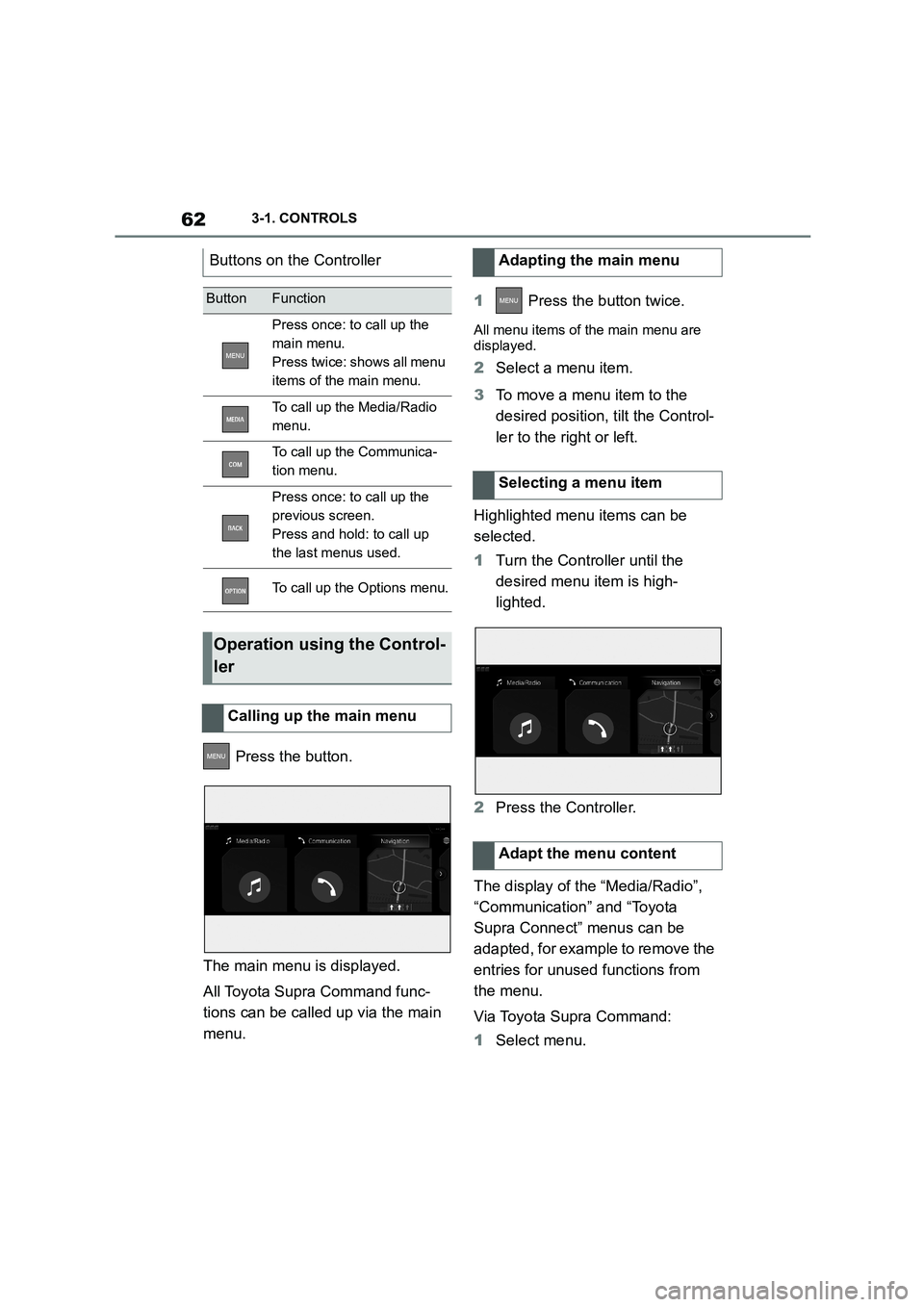
Press the button.
The main menu is displayed.
All Toyota Supra Command func-
tions can be called up via the main
menu.
1 Press the button twice.
All menu items of the main menu are
displayed.
2 Select a menu item.
3 To move a menu item to the
desired position, tilt the Control-
ler to the right or left.
Highlighted menu items can be
selected.
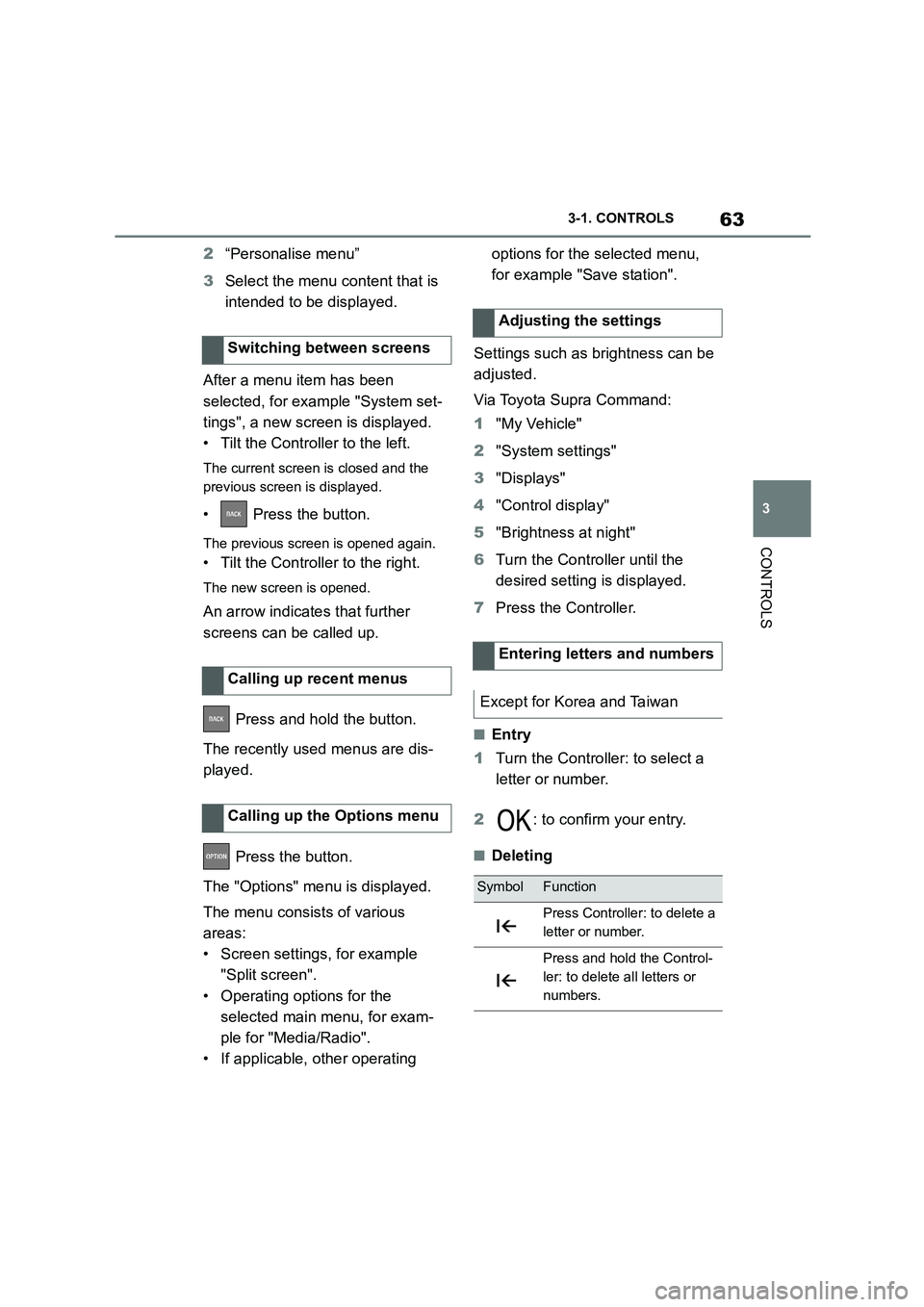
1 Turn the Controller until the
desired menu item is high-
lighted.
2 Press the Controller.
The display of the “Media/Radio”,
“Communication” and “Toyota
Supra Connect” menus can be
adapted, for example to remove the
entries for unused functions from
the menu.
Via Toyota Supra Command:
1 Select menu.
Buttons on the Controller
ButtonFunction
Press once: to call up the
main menu.
Press twice: shows all menu
items of the main menu.
To call up the Media/Radio
menu.
To call up the Communica-
tion menu.
Press once: to call up the
previous screen.
Press and hold: to call up
the last menus used.
To call up the Options menu.
Operation using the Control-
ler
Calling up the main menu
Adapting the main menu
Selecting a menu item
Adapt the menu content
Page 65 of 498
63
3
3-1. CONTROLS
CONTROLS
2 “Personalise menu”
3 Select the menu content that is
intended to be displayed.
After a menu item has been
selected, for example "System set-
tings", a new screen is displayed.
• Tilt the Controller to the left.
The current screen is closed and the
previous screen is displayed.
• Press the button.
The previous screen is opened again.
• Tilt the Controller to the right.
The new screen is opened.
An arrow indicate s that further
screens can be called up.
Press and hold the button.
The recently used menus are dis-
played.
Press the button.
The "Options" menu is displayed.
The menu consists of various
areas:
• Screen settings, for example
"Split screen".
• Operating options for the
selected main menu, for exam-
ple for "Media/Radio".
• If applicable, other operating
options for the selected menu,
for example "Save station".
Settings such as brightness can be
adjusted.
Via Toyota Supra Command:
1 "My Vehicle"
2 "System settings"
3 "Displays"
4 "Control display"
5 "Brightness at night"
6 Turn the Controller until the
desired setting is displayed.
7 Press the Controller.
■Entry
1 Turn the Controller: to select a
letter or number.
2 : to confirm your entry.
■Deleting
Switching between screens
Calling up recent menus
Calling up the Options menu
Adjusting the settings
Entering letters and numbers
Except for Korea and Taiwan
SymbolFunction
Press Controller: to delete a
letter or number.
Press and hold the Control-
ler: to delete all letters or
numbers.