Page 46 of 219
![KIA TELLURIDE 2020 Navigation System Quick Reference Guide 2-8
Viewing the surround view while driving
1 In order to see the surround view, press the []
button.
The system displays both the front view and surround view.
0000
A
The surround view monitor funct](/manual-img/2/54882/w960_54882-45.png "KIA TELLURIDE 2020 Navigation System Quick Reference Guide 2-8
Viewing the surround view while driving
1 In order to see the surround view, press the []
button.
The system displays both the front view and surround view.
0000
A
The surround view monitor funct")
2-8
Viewing the surround view while driving
1 In order to see the surround view, press the []
button.
The system displays both the front view and surround view.
0000
A
The surround view monitor function operates only when
any of the following conditions is met.
-The driving speed is below 9mph with the shift position
in “D” (Drive).
-The vehicle is statinoary and the shift position is in “D”
(Drive) or “N” (Neutral).
Viewing the rear top view display (if equipped)
You can look down the rear view from the top through the rear-
view display.
1 On the rear-view screen, touch .
2 Check the top view display and assist guide lines.
0000
A
The guide lines appear on the rear top view.
-Displays the space required to open the trunk (tailgate).
After a parking, check whether the space is sufficient to
open the trunk and there is no obstacle.
-Displays the extension line from the center of the
vehicle. According to the steering direction, the moving
direction of the center is displayed on the screen.
Surround View Monitor (if equipped)
You can check the surroundings by using multiple cameras on the
vehicle.
0000
A
Use the +/- button on the right of the screen to zoom in or
out.
Page 48 of 219
2-10
Using the rear-seat climate
control system
(if equipped)
You can check or set the rear-seat climate status on the system
screen.
1 Perform any of the following methods:
\225Press the [
REAR] button on the climate control system.
\225On the All Menus screen, touch Rear Climate Controls.
2 Select and then change the settings.
\037\036\035
\034\033
\032
\031
For automatic temperature control
Configuring the surround view monitor
settings
1 On the surround view screen, touch .
2 Select and then change the settings.
\225To select the information to appear on the video, touch
Display Contents. (e.g. Top view parking guidance, rear
view parking guidance, parking distance warning).
\225To select the default view for top view monitoring, touch
Top View Default Mode.
\225To select the default view for using the surround view
monitor function while driving, touch
Front View Default
Mode.
Page 52 of 219
2-14
Checking weather information via HD
Radio Data
1 On the All Menus screen, touch HD Radio Data.
2 Touch Weather.
3 Check today's weather information of your
position (for city).
0000
A
To see weather forecasts for today and the next four days,
touch 5 Days.
0000
A
To see weather information of another area, touch Other
City.
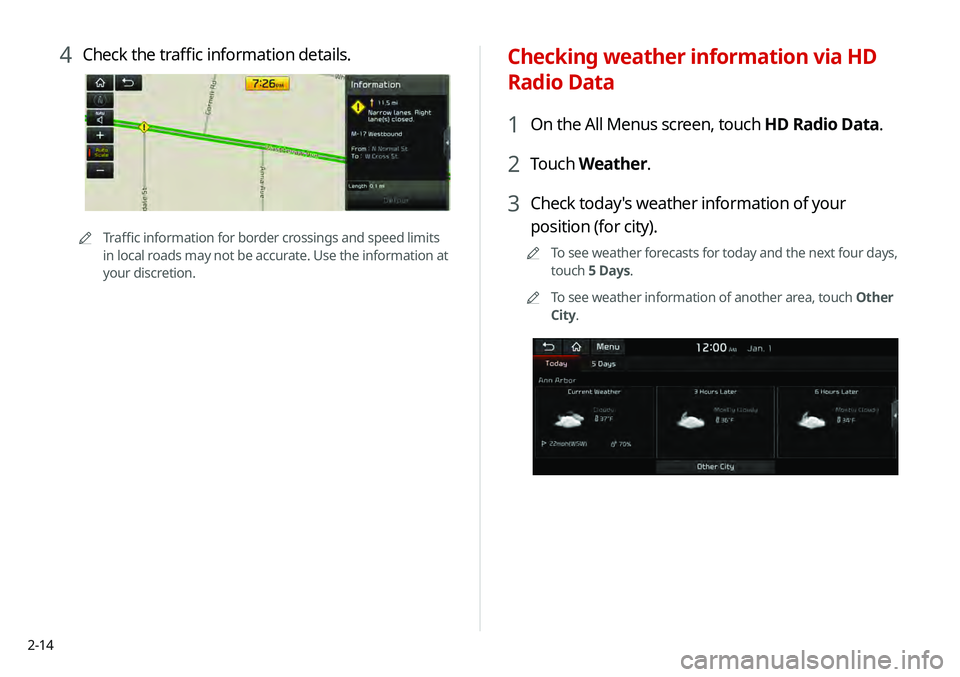
4 Check the traffic information details.
0000
A
Traffic information for border crossings and speed limits
in local roads may not be accurate. Use the information at
your discretion.
Page 53 of 219
2-15
Using the sound mood lamp (if
equipped)
You can set to implement various lighting effects by synchronizing
with the playing music.
1 On the All Menus screen, touch Sound Mood
Lamp.
2 Select and then change the settings.
\037
\036
\035
\034
\033
\032
a Can turn on or off the sound mood lamp.
b Can select various color themes. Based on the selected
color theme, the lights on the front door trim (inside
handle garnish/armrest-molding) and at the bottom of
the glove box change their colors in various patterns.
c Can select the color of the light on the front door trim
(inside handle garnish/armrest molding). The selected
lighting color changes into a soft glow effect.
Checking weather information in
Doppler Radar
1 On the All Menus screen, touch HD Radio Data.
2 Touch Doppler Radar.
3 See the weather condition details in the HD Radio
coverage area.
Page 54 of 219
2-16
d Can synchronize the light with the playing music.0000
A
After checking Music+, music is not played back or the
light does not illuminate when muted.
e Can adjust the brightness of the light.
f The list of menu items appears.
\225 Reset: Can reset all the settings of the sound mood
lamp.
\225User's Manual on Web (QR Code): Displays the QR
code that provides access to the online user manual
for the system.
\225Split Screen: Can turn on or off the split screen mode.
0000
A
You cannot manipulate the sound mood lamp while driving.
0000
A
The light of the inside handle garnish gradually turns off
when you drive above the specified speed.
0000
A
When a door is opened, the light automatically turns off.
Page 79 of 219
5-3
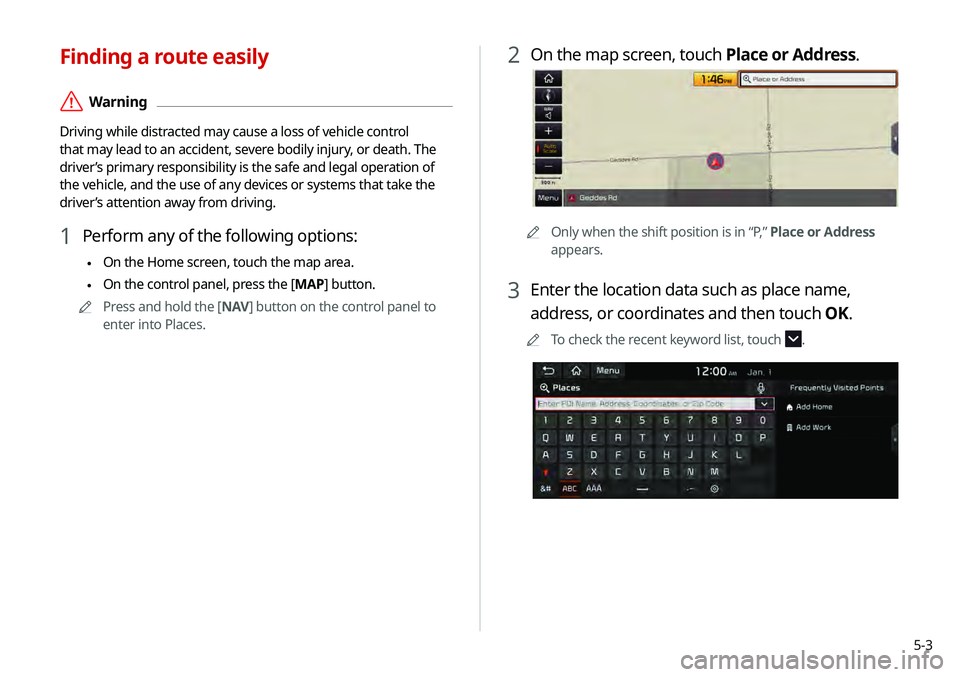
2 On the map screen, touch Place or Address.
0000AOnly when the shift position is in “P,” Place or Address
appears.
3 Enter the location data such as place name,
address, or coordinates and then touch OK.
0000
A
To check the recent keyword list, touch .
Finding a route easily
\335Warning
Driving while distracted may cause a loss of vehicle control
that may lead to an accident, severe bodily injury, or death. The
driver’s primary responsibility is the safe and legal operation of
the vehicle, and the use of any devices or systems that take the
driver’s attention away from driving.
1 Perform any of the following options:
\225On the Home screen, touch the map area.
\225On the control panel, press the [
MAP] button.
0000
A
Press and hold the [ NAV] button on the control panel to
enter into Places.
Page 83 of 219
5-7
Using the detailed guidance
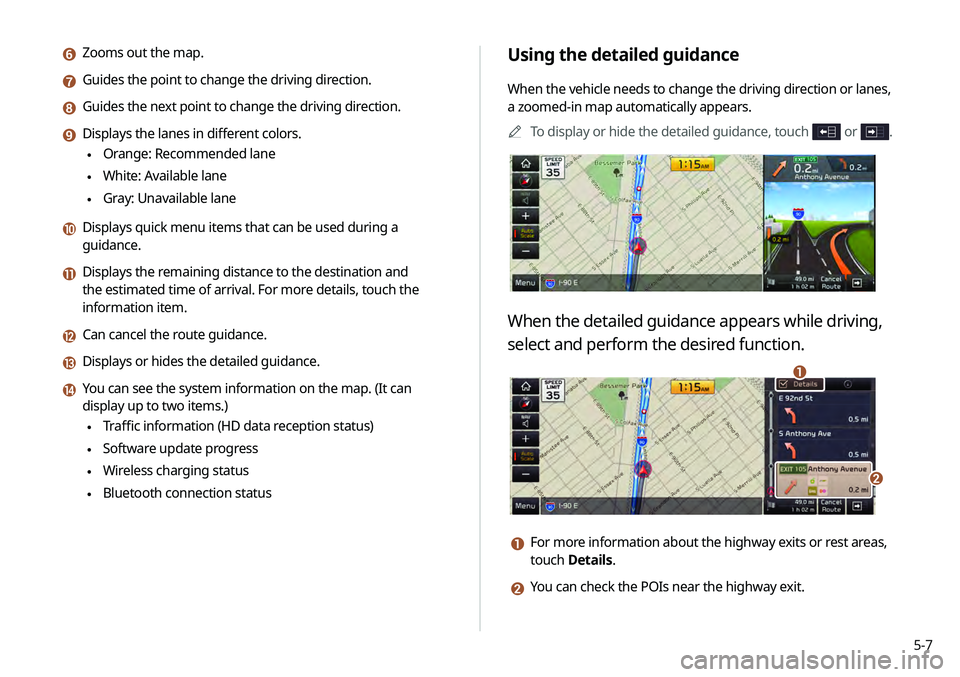
When the vehicle needs to change the driving direction or lanes,
a zoomed-in map automatically appears.0000
A
To display or hide the detailed guidance, touch
or .
When the detailed guidance appears while driving,
select and perform the desired function.
\037
\036
a For more information about the highway exits or rest areas,
touch Details.
b You can check the POIs near the highway exit.
f Zooms out the map.
g Guides the point to change the driving direction.
h Guides the next point to change the driving direction.
i Displays the lanes in different colors.
\225Orange: Recommended lane
\225White: Available lane
\225Gray: Unavailable lane
j Displays quick menu items that can be used during a
guidance.
k Displays the remaining distance to the destination and
the estimated time of arrival. For more details, touch the
information item.
l Can cancel the route guidance.
m Displays or hides the detailed guidance.
n You can see the system information on the map. (It can
display up to two items.)
\225Traffic information (HD data reception status)
\225Software update progress
\225Wireless charging status
\225Bluetooth connection status
Page 84 of 219
5-8
Adjusting the navigation volume
You can adjust the volume of navigation or GPS warning sound.
On the map screen, touch NAV and then touch or
, or use the control bar to adjust the volume.
0000ATo have the navigation sound always output first over media
sound, check Navigation Volume Priority.
0000
A
To turn off the navigation sound, touch
NAV and then touch
.
0000
A
To adjust the navigation volume, on the All Menus screen,
touch Setup >
Sound >
Navigation Volume >
Use Map
Screen Volume Buttons or Volume Knob . During guidance,
use the [ VOLUME] knob on the control panel or the [+ /-] lever
on the steering wheel to adjust the navigation volume.
> See
“ Use Map Screen Volume Buttons or Volume Knob .”
Configuring the settings for map display
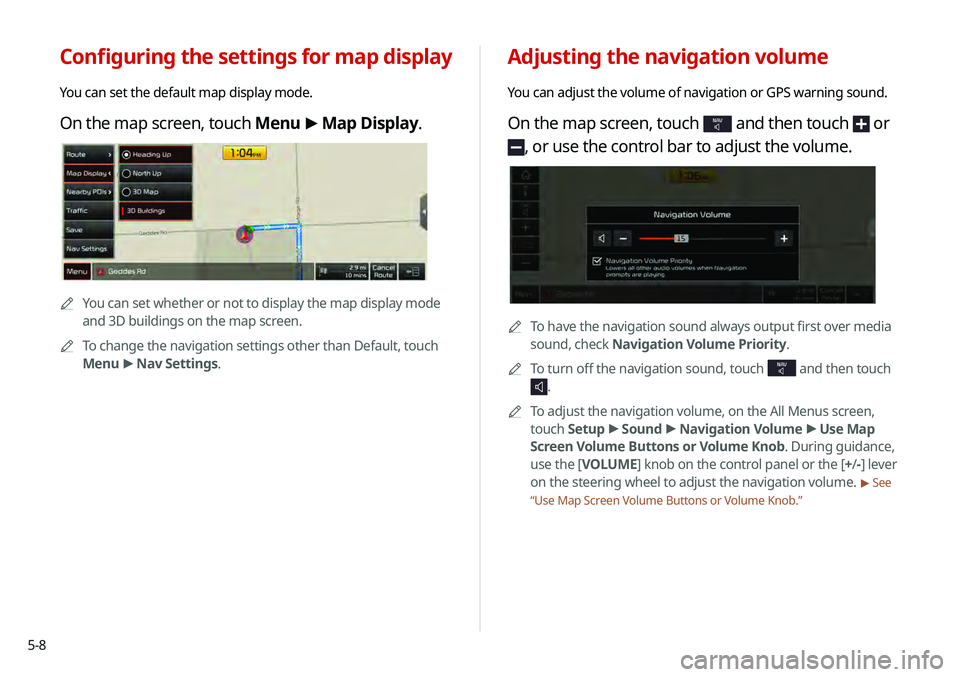
You can set the default map display mode.
On the map screen, touch Menu >
Map Display.
0000A
You can set whether or not to display the map display mode
and 3D buildings on the map screen.
0000
A
To change the navigation settings other than Default, touch
Menu >
Nav Settings.
![KIA TELLURIDE 2020 Navigation System Quick Reference Guide 2-10
Using the rear-seat climate
control system
(if equipped)
You can check or set the rear-seat climate status on the system
screen.
1 Perform any of the following methods:
\225Press the [
REAR]](/manual-img/2/54882/w960_54882-47.png "KIA TELLURIDE 2020 Navigation System Quick Reference Guide 2-10
Using the rear-seat climate
control system
(if equipped)
You can check or set the rear-seat climate status on the system
screen.
1 Perform any of the following methods:
\225Press the [
REAR]")