2020 DODGE GRAND CARAVAN display
[x] Cancel search: displayPage 320 of 380

318MULTIMEDIA
Warning
Read this information carefully before starting
to operate the navigation system and follow the
instructions in this manual. Neither the FCA US
LLC nor Garmin® shall be liable for problems or
accidents resulting from failure to observe the
instructions in this manual.
Failure to avoid the following potentially
hazardous situations could result in an accident
or collision resulting in death or serious injury.
Always drive safely. Only use the navigation
features in this vehicle when it is safe to do
so. You accept full responsibility for the use
of the features in this vehicle.
When navigating, carefully compare informa -
tion displayed on the navigation system to all
available navigation sources, including road
signs, road closures, road conditions, traffic
congestion, weather conditions, and other
factors that may affect safety while driving.
For safety, always resolve any discrepancies
before continuing navigation, and defer to
posted road signs and road conditions.
The navigation system is designed to provide
route suggestions. It is not a replacement for
driver attentiveness and good judgment. Do
not follow route suggestions if they suggest
an unsafe or illegal maneuver or would place
the vehicle in an unsafe situation.
Be careful of the ambient temperature. Using
the navigation system at extreme tempera -
tures can lead to malfunction or damage.
Also note that the unit can be damaged by
strong vibration, metal objects, or by water
getting inside the unit.
Caution
The navigation system is designed to provide
you with route suggestions. It does not reflect
road closures or road conditions, weather
conditions, or other factors that may affect
safety or timing while driving.
Use the navigation system only as a naviga -
tional aid. Do not attempt to use the navigation
system for any purpose requiring precise
measurement of direction, distance, location,
or topography. The Global Positioning System (GPS) is
operated by the United States government,
which is solely responsible for its accuracy and
maintenance. The government system is
subject to changes that could affect the
accuracy and performance of all GPS
equipment, including the navigation system.
Notice
This navigation system can be used when the
ignition key is turned to ON/RUN or ACC. To
preserve the battery, however, it should be used
with the engine running whenever possible.
Using the navigation system for a long time with
the engine switched off can cause the battery to
run down.
Map Data Information
Garmin® uses a combination of governmental
and private data sources. Virtually all data
sources contain some inaccurate or incomplete
data. In some countries, complete and accurate
map information is either not available or is
prohibitively expensive.
20_RT_OM_EN_USC_t.book Page 318
Page 326 of 380
324MULTIMEDIA
Setting A Simulated Location
You can use the GPS simulator to select another
location, near which you can search for and
save points of interest. This may be helpful
when planning trips.
1. From the main menu, press
Tools >
Settings > System > GPS Simulator > On
.
2. From the main menu, press Where To? >
Browse Map .
3. Press an area on the map.
4. Press > Set Location .
Entering Coordinates
If you know the geographic coordinates of your
destination, you can use your navigation system
to navigate to the destination using the latitude
and longitude coordinates.
1. From the main menu, press
Where To? >
Coordinates
.
2. Press a field to enter the latitude and longitude data.
3. Press View on Map .
4. Press Go! Changing The Map Coordinate Format
1. From the Home Screen, press
Where To? >
Coordinates > > Format
.
2. Select a format.
About Map Pages
Viewing The Map While Navigating
NOTICE
In no event shall Garmin be liable for any
incidental, special, indirect, or consequential
damages, including, without limitation,
damages for any traffic fines or citations,
whether resulting from the use, misuse, or
inability to use the product or from defects in
the product. Some states do not allow the
exclusion of incidental or consequential
damages, so the above limitations may not
apply to you.
Your route is marked with a magenta line. A
checkered flag marks your destination. As you travel, your navigation system guides you
to your destination with voice prompts, arrows
on the map, and directions at the top of the
map. If you depart from the original route, your
navigation system recalculates the route and
provides new directions.
A speed limit icon displaying the current speed
limit may appear as you travel on major
roadways.
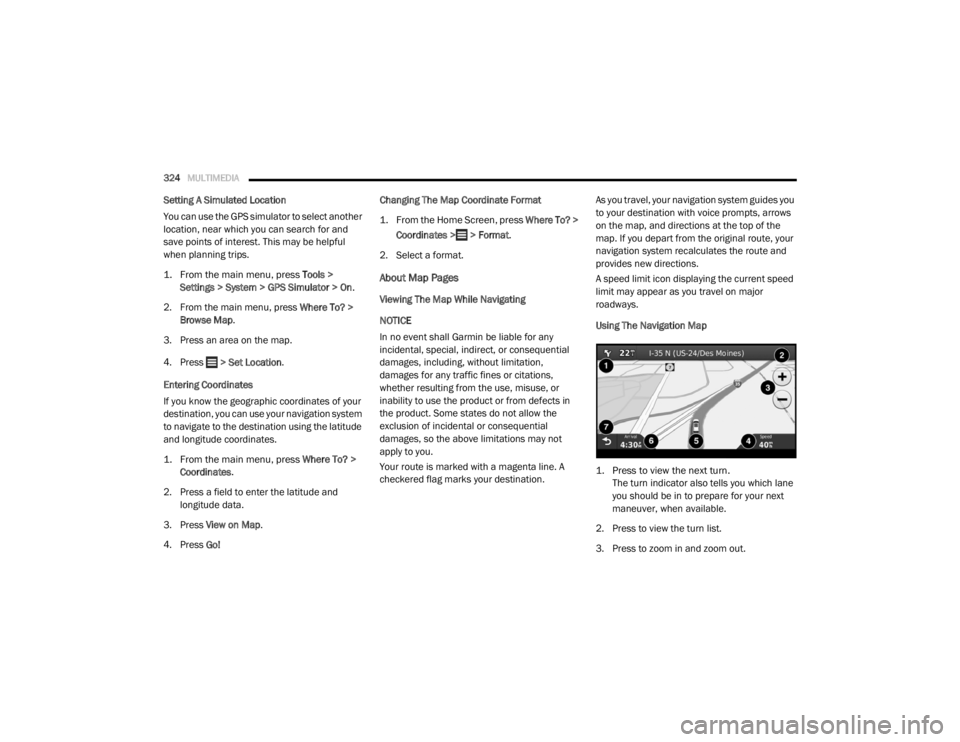
Using The Navigation Map
1. Press to view the next turn.
The turn indicator also tells you which lane
you should be in to prepare for your next
maneuver, when available.
2. Press to view the turn list.
3. Press to zoom in and zoom out.
20_RT_OM_EN_USC_t.book Page 324
Page 327 of 380
MULTIMEDIA325
4. Press to view trip information.
5. Press to view information for the location.
6. Press to display a different data field.
7. Press to return to the main menu.
About myTrends
When the myTrends feature is enabled, your
estimated time of arrival for your frequent
destinations, like your workplace, automatically
appear in the navigation bar at the top of the
map.
When myTrends information appears in the
navigation bar, you can press the navigation bar
to view route options for the suggested
destination.
Enabling myTrends
From the main menu press Settings >
Navigation > myTrends > Enabled .
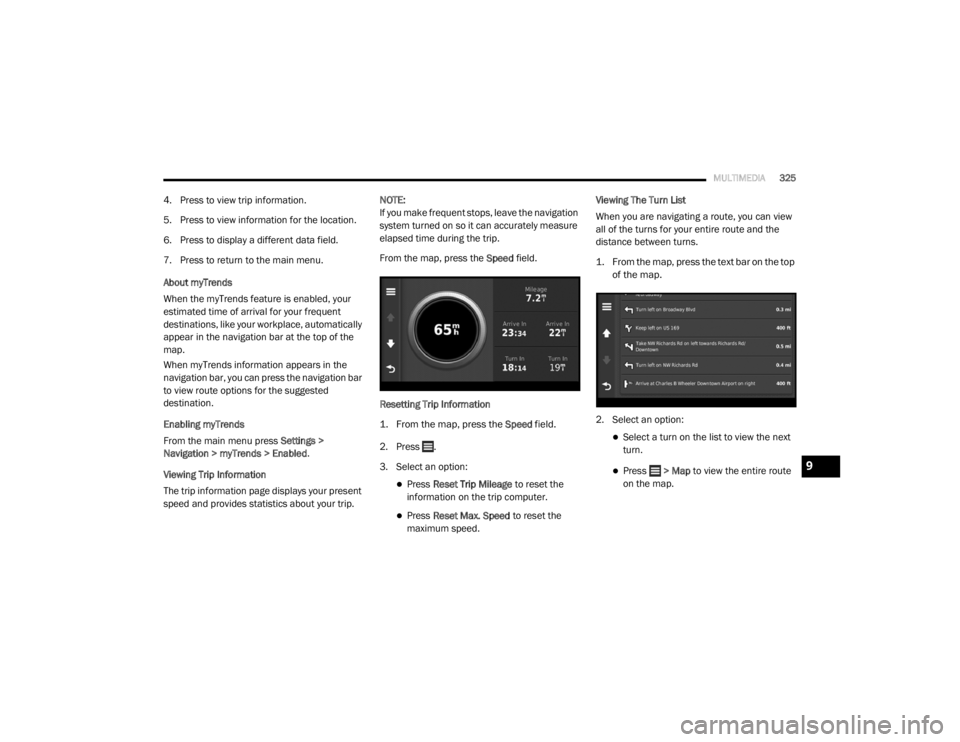
Viewing Trip Information
The trip information page displays your present
speed and provides statistics about your trip. NOTE:
If you make frequent stops, leave the navigation
system turned on so it can accurately measure
elapsed time during the trip.
From the map, press the
Speed field.
Resetting Trip Information
1. From the map, press the
Speed
field.
2. Press .
3. Select an option:
Press Reset Trip Mileage to reset the
information on the trip computer.
Press Reset Max. Speed to reset the
maximum speed. Viewing The Turn List
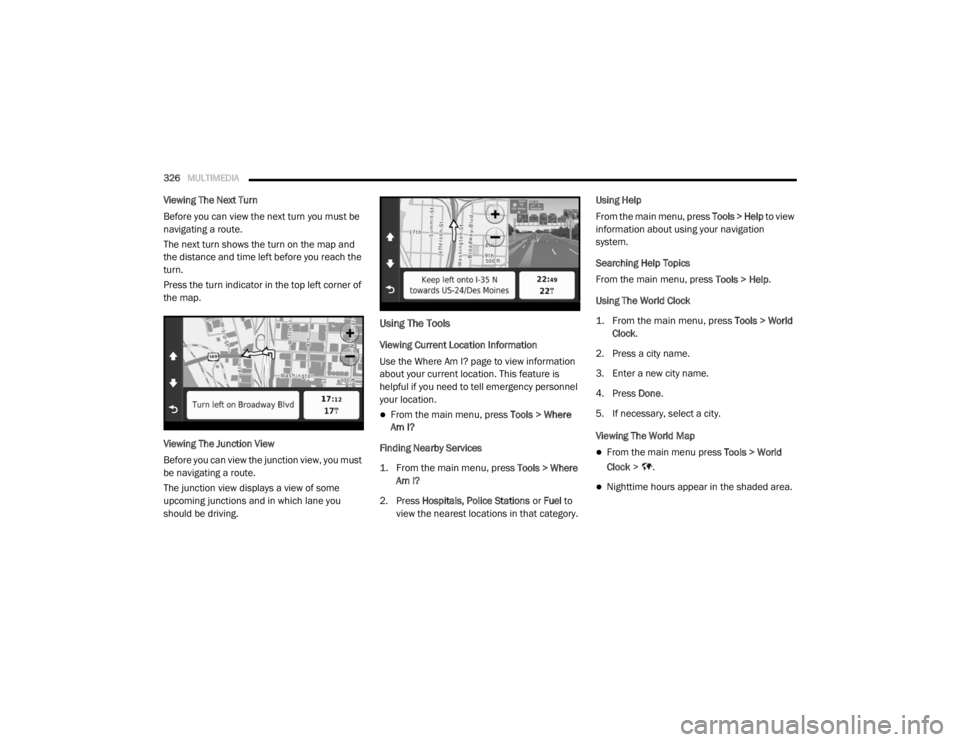
When you are navigating a route, you can view
all of the turns for your entire route and the
distance between turns.
1. From the map, press the text bar on the top
of the map.
2. Select an option:
Select a turn on the list to view the next
turn.
Press > Map to view the entire route
on the map.9
20_RT_OM_EN_USC_t.book Page 325
Page 328 of 380
326MULTIMEDIA
Viewing The Next Turn
Before you can view the next turn you must be
navigating a route.
The next turn shows the turn on the map and
the distance and time left before you reach the
turn.
Press the turn indicator in the top left corner of
the map.
Viewing The Junction View
Before you can view the junction view, you must
be navigating a route.
The junction view displays a view of some
upcoming junctions and in which lane you
should be driving.
Using The Tools
Viewing Current Location Information
Use the Where Am I? page to view information
about your current location. This feature is
helpful if you need to tell emergency personnel
your location.
From the main menu, press Tools > Where
Am I?
Finding Nearby Services
1. From the main menu, press
Tools > Where
Am I?
2. Press Hospitals, Police Stations or Fuel to
view the nearest locations in that category. Using Help
From the main menu, press
Tools > Help to view
information about using your navigation
system.
Searching Help Topics
From the main menu, press Tools > Help.
Using The World Clock
1. From the main menu, press
Tools > World
Clock
.
2. Press a city name.
3. Enter a new city name.
4. Press Done .
5. If necessary, select a city.
Viewing The World Map
From the main menu press Tools > World
Clock > .
Nighttime hours appear in the shaded area.
20_RT_OM_EN_USC_t.book Page 326
Page 329 of 380

MULTIMEDIA327
Using The Calculator
From the main menu press Tools > Calculator.
Using The Unit Converter
1. From the main menu press
Tools > Unit
Converter
.
2. Press the box with a unit of measurement listed.
3. Select a unit of measurement.
4. Press Save .
Two units of measurement are listed.
5. Press a unit of measurement to change.
6. Select a unit of measurement.
7. Press Done .
8. Repeat steps five to six, if necessary.
9. Enter a value.
10. Press Done . Setting Currency Conversion Rates Manually
You can update the currency conversion rates
manually so that you are always using the most
current rates.
1. From the main menu press
Tools > Unit
Converter
.
2. Press the box with a currency listed.
3. Select Currency.
4. Press Save .
5. Press a currency box.
6. Select the currency you want to update.
7. Repeat steps three to six to select a currency to convert to, if necessary.
8. Press a box under a currency.
9. Enter a new value for the currency.
10. Press Done .
11. Repeat steps eight to nine, if necessary.Customizing The Navigation System
1. From the main menu, press “Settings.”
2. Press a setting category.
3. Press the setting to change it.
System Settings
From the main menu press Settings > System.
GPS Simulator— stops the navigation system
from receiving a GPS signal, and saves
battery power.
About — displays the software version
number, the unit ID number and information
on several other software features.
9
20_RT_OM_EN_USC_t.book Page 327
Page 330 of 380

328MULTIMEDIA
NOTE:
You need this information when you update the
system software or purchase additional map
data.
Restoring The System Settings
From the main menu, press Settings > System
> > Restore .
Changing The Map Settings
From the main menu press Settings > Map.
Map Detail — sets the level of detail on the
map. More detail may result in slower map
drawing.
Map View — sets the perspective on the Map
page.
Map Theme — changes the color of the map
data.
Map Data Layout — changes the amount of
data visible on the map.
Vehicle — changes the icon to represent your
position on the map.
Trip Log
Show on Map — displays the path of your
travels on the map.
Clear Trip Log
Changing The Map Perspective
1. From the main menu press
Settings > Map
> Map View
.
2. Select an option:
Press Track Up to display the map in two
dimensions (2-D), with your direction of
travel at the top.
Press North Up to display the map in 2-D
with North at the top.
Press 3-D to display the map in three
dimensions. Route Preferences
From the main menu, press
Settings >
Navigation > Route Preference .
The route calculation is based on road speeds
and vehicle acceleration data for a given route.
Faster Time — Calculates routes that are
faster to drive but can be longer in distance.
Shorter Distance — Calculates routes that are
shorter in distance but can take more time to
drive.
Prompted — Select the faster time and
shorter distance for your route.
Avoiding Road Features
1. From the main menu press
Settings >
Navigation > Avoidances
.
2. Select the road features to avoid on your routes.
3. Press “Save.”
Restoring The Original Navigation Settings
From the main menu press Settings >
Navigation > > Restore.
20_RT_OM_EN_USC_t.book Page 328
Page 343 of 380

MULTIMEDIA341
Connecting The External USB Device
Use the connection cable to connect a external
USB device to the vehicle's USB connector port
which is located in the glove compartment.
USB Port
NOTE:
The glove compartment will have a position
where the consumer electronic audio device
cable can be routed through without damaging
the cable when closing the lid. This allows
routing of the cable without damaging it while
closing the lid. If a cut out is not available in the
glove compartment, route the cable away from
the lid latch and in a place that will allow the lid
to close without damaging the cable. Once the audio device is connected and
synchronized to the vehicle's USB/MP3 control
system (External USB device may take a few
minutes to connect), the audio device starts
charging and is ready for use by pushing radio
buttons.
NOTE:
If the audio device battery is completely
discharged, it may not communicate with the
USB/MP3 control system until a minimum
charge is attained. Leaving the audio device
connected to the USB/MP3 control system may
charge it to the required level.
Using This Feature
By using an external USB device to connect to
the USB port:
The audio device can be played on the
vehicle’s sound system, providing metadata
(artist, track title, album, etc.) information on
the radio display.
The audio device can be controlled using the
radio buttons to Play, Browse, and List the
audio device’s contents.
The audio device battery charges when
plugged into the USB connector (if supported
by the specific audio device).
Controlling The External USB Device Using
Radio Buttons
To enter the AUX/USB/MP3 control mode and
access a connected audio device, either push
the Aux button on the radio faceplate or push
the VR button and say "USB" or "Switch to USB."
Once in the AUX/USB/MP3 control mode, audio
tracks (if available from audio device) start
playing over the vehicle's audio system.
Play Mode
When switched to AUX/USB/MP3 control mode,
the external USB device automatically starts
Play mode. In Play mode, the following buttons
on the radio faceplate may be used to control
the external USB device and display data:
Use the TUNE control knob to select the next
or previous track.
Turning it clockwise (forward) by one
click, while playing a track, skips to the
next track or push the Voice Recognition
(VR) button and say "Next Track".
9
20_RT_OM_EN_USC_t.book Page 341
Page 344 of 380

342MULTIMEDIA
Turning it counterclockwise (backward)
by one click will jump to the previous
track in the list or push the VR button and
say "Previous Track".
Jump backward in the current track by
pushing and holding the << RW button.
Holding the << RW button long enough will
jump to the beginning of the current track.
Jump forward in the current track by pushing
and holding the FF >> button.
A single push backward << RW or forward FF
>> will jump backward or forward respec -
tively, for five seconds.
Use the << SEEK and SEEK >> buttons to
jump to the previous or next track. Pushing
the SEEK >> button during play mode will
jump to the next track in the list, or push the
VR button and say "Next or Previous Track."
While a track is playing, push the INFO button
to see the associated metadata (artist, track
title, album, etc.) for that track. Pushing the
INFO button again jumps to the next screen
of data for that track. Once all screens have
been viewed, the last INFO button push will
go back to the play mode screen on the radio.
Pushing the Repeat button will change the
audio device mode to repeat the current
playing track or push the VR button and say
"Repeat On" or "Repeat Off".
Push the Scan button to use AUX/USB/MP3
device scan mode, which will play the first 10
seconds of each track in the current list and
then forward to the next song. To stop Scan
mode and start playing the desired track,
when it is playing the track, push the Scan
button again. During Scan mode, pushing the
<< SEEK and SEEK >> buttons will select the
previous and next tracks.
RND button: Pushing this button toggles
between Shuffle ON and Shuffle OFF modes
for the external USB device, or push the VR
button and say "Shuffle On" or "Shuffle Off." If
the RND icon is showing on the radio display,
then the shuffle mode is On.
List Or Browse Mode
During Play mode, pushing any of the buttons
described below will bring up List mode. List
mode enables scrolling through the list of
menus and tracks on the audio device. Tune control knob: The Tune control knob
functions in a similar manner as the scroll
wheel on the audio device or external USB
device.
Turning it clockwise (forward) and counter-
clockwise (backward) scrolls through the
lists, displaying the track detail on the radio
display. Once the track to be played is high-
lighted on the radio display, push the Tune
control knob to select and start playing the
track. Turning the TUNE control knob fast will
scroll through the list faster. During fast
scroll, a slight delay in updating the informa
-
tion on the radio display may be noticeable.
In List mode, the radio Preset buttons are used
as shortcuts to the following lists on the
external USB device:
Preset 1 – Playlists
Preset 2 – Artists
Preset 3 – Albums
Preset 4 – Genres
Preset 5 – Audiobooks
Preset 6 – Podcasts
20_RT_OM_EN_USC_t.book Page 342