2020 DODGE GRAND CARAVAN display
[x] Cancel search: displayPage 290 of 380
288MULTIMEDIA
Change A Track
Press the Forward Arrow button to select the
next track on the disc.
Press and hold the Forward Arrow button to
fast forward through the track.
Press the Back Arrow button to select the
start of the current track (while the track is
playing) or the previous track (if the current
track has just started).
Press and hold the Back Arrow button to fast
rewind through the track.
Press the Pause button to pause the playback
of the disc.
Press the Play button to resume playback of the
disc.
Displaying The Elapsed Title Time
The elapsed title time of the currently playing
track displays in the left center of the screen.
Select Title From List
Press the Tracks button to display a list of the
titles of the currently playing disc. Select the
desired track you wish to play.
Press the Tracks button a second time to hide
the list. Disc Info
Press the Info button to display the
cover art (if available) and track title.
Press the Info button a second time to
display the track title, artist, album,
and genre.
Press the Info button to close the Info panel.
Gracenote® End User License Agreement
This application or device contains software
from Gracenote®, Inc. of Emeryville, California
(“Gracenote®”). The software from Gracenote®
(the “Gracenote® Software”) enables this
application to perform disc and/or file identifi -
cation and obtain music-related information,
including name, artist, track, and title
information (“Gracenote® Data”) from online
servers or embedded databases (collectively,
“Gracenote® Servers”) and to perform other
functions. You may use Gracenote® Data only
by means of the intended End-User functions of
this application or device. You agree that you will use Gracenote® Data,
the Gracenote® Software, and Gracenote®
Servers for your own personal non-commercial
use only. You agree not to assign, copy, transfer
or transmit the Gracenote® Software or any
Gracenote® Data to any third party. YOU AGREE
NOT TO USE OR EXPLOIT GRACENOTE DATA,
THE GRACENOTE SOFTWARE, OR GRACENOTE
SERVERS, EXCEPT AS EXPRESSLY PERMITTED
HEREIN.
You agree that your non-exclusive license to use
the Gracenote® Data, the Gracenote®
Software, and Gracenote® Servers will
terminate if you violate these restrictions. If your
license terminates, you agree to cease any and
all use of the Gracenote® Data, the
Gracenote® Software, and Gracenote®
Servers. Gracenote® reserves all rights in
Gracenote® Data, the Gracenote® Software,
and the Gracenote® Servers, including all
ownership rights. Under no circumstances will
Gracenote® become liable for any payment to
you for any information that you provide. You
agree that Gracenote®, Inc. may enforce its
rights under this Agreement against you directly
in its own name.
20_RT_OM_EN_USC_t.book Page 288
Page 291 of 380

MULTIMEDIA289
The Gracenote® service uses a unique
identifier to track queries for statistical
purposes. The purpose of a randomly assigned
numeric identifier is to allow the Gracenote®
service to count queries without knowing
anything about who you are. For more
information, see the web page for the
Gracenote® Privacy Policy for the Gracenote®
service.
The Gracenote® Software and each item of
Gracenote® Data are licensed to you “AS IS.”
Gracenote® makes no representations or
warranties, express or implied, regarding the
accuracy of any Gracenote® Data from in the
Gracenote® Servers. Gracenote® reserves the
right to delete data from the Gracenote®
Servers or to change data categories for any
cause that Gracenote® deems sufficient. No
warranty is made that the Gracenote® Software
or Gracenote® Servers are error-free or that
functioning of Gracenote® Software or
Gracenote® Servers will be uninterrupted.
Gracenote® is not obligated to provide you with
new enhanced or additional data types or
categories that Gracenote® may provide in the
future and is free to discontinue its services at
any time. GRACENOTE DISCLAIMS ALL WARRANTIES
EXPRESS OR IMPLIED, INCLUDING, BUT NOT
LIMITED TO, IMPLIED WARRANTIES OF
MERCHANTABILITY, FITNESS FOR A
PARTICULAR PURPOSE, TITLE, AND
NON-INFRINGEMENT. GRACENOTE DOES NOT
WARRANT THE RESULTS THAT WILL BE
OBTAINED BY YOUR USE OF THE GRACENOTE
SOFTWARE OR ANY GRACENOTE SERVER. IN
NO CASE WILL GRACENOTE BE LIABLE FOR ANY
CONSEQUENTIAL OR INCIDENTAL DAMAGES OR
FOR ANY LOST PROFITS OR LOST REVENUES.
© Gracenote®, Inc. 2010
Portions of the content is copyright ©Muze or its
providers.
NOTE:
Visit
DriveUconnect.com (U.S. Residents) or
DriveUconnect.ca (Canadian Residents) for
update information.
Copy Disc To Hard-Drive
Press the Copy button to copy the
current disc to the Hard Disc Drive. Disc Menu
While in disc mode with inserted audio disc,
push the Menu button to access the Disc Menu.
Press the Random button to play the titles on
the disc in random order. Press the Random
button a second time to turn Random off.
Press the Repeat Folder button to repeat all
songs in the currently playing folder (MP3/WMA
disc only). Press the Repeat Folder button a
second time to stop the repeat mode.
Playing A MP3/WMA Disc
1. Push the Load button once.
2. With the printed side upwards, insert the
disc into the disc slot of the radio. The radio
pulls the disc automatically and closes the
flip screen. The radio selects the
appropriate mode after the disc is
recognized, and starts playing the first
track. The display shows “Reading...” during
this process.
A MP3/WMA disc may contain audio files in
a folder structure. The folder, if any, is
shown in the list view.
Press the Tracks button if the list is not dis -
played.
9
20_RT_OM_EN_USC_t.book Page 289
Page 292 of 380

290MULTIMEDIA
3. Press a button with a folder symbol to open
a folder.
4. Press the Folder Up button to close a folder.
Playing A Video DVD
NOTE:
Viewing a DVD video on the radio screen is not
available in all states, the vehicle must be
stopped and the shifter must be in the PARK
position for vehicles with an automatic
transmission. In vehicles with a manual
transmission the parking brake must be
engaged.
First insert a video DVD.
The playback starts automatically after the DVD
video is recognized by the disc drive. Press the Chapters button to display a list of
available chapters or tracks. Press a Chapter or
Track button in the list to start playback from
the selected section.
Press the View Video button to view the video on
the screen.
DVD MENU Controls
If you insert a DVD video disc that contains a top
menu, a menu may appear.
Press the Cursor Arrow buttons to select the title
you want to view, then press the Enter button to
start playback.
Press the DVD Move button to move
the controls to the right part of the
screen. Press the Close button to close the
DVD MENU Controls.
DVD Playback Controls
In video playback mode, press anywhere on the
touchscreen to show the DVD Playback
Controls.
To pause playback, press the Pause button.
To stop playback, press the Stop button.
Press the Fast Reverse (double left arrows)
button during playback to fast reverse playback.
Press the Fast Forward (double right arrows)
button during playback to fast forward
playback.
Press the Next button to locate succeeding
chapters or tracks.
20_RT_OM_EN_USC_t.book Page 290
Page 294 of 380

292MULTIMEDIA
After a short pause, the copy process begins
and the audio resumes playback from the start
of the track. The copy process continues in the
background while the audio plays. The progress
is shown in the display. Even if you change to
another mode (radio, AUX, etc.) or turn the radio
Off (ignition ON/RUN), the copy process will
continue in the background.
It is also possible to listen to radio modes during
this process. Copying time is greater than 4x the
normal playback rate.
NOTE:
When copying CD-Audio to HDD, audio files are
converted from CD-Audio to AAC. If available,
the artist name, album name, cover art, track
names and genres are stored with the tracks on
the HDD. DVD-Audio cannot be copied to the
HDD. If the CD-Audio disc is not recognized by
the Gracenote® Music Recognition Service, you
can rip the CD-Audio disc on your
internet-equipped computer first, then copy the
resulting compressed audio files to a USB
memory stick. Then insert the USB memory
stick in the radio and copy the audio files to the
HDD mode. Copy WMA/MP3 Files To Hard-Drive
MP3 and WMA formatted compressed audio
files from a disc or via USB (e.g., USB stick) can
be copied to the Hard Disc Drive.
It is recommended to sort music files into
folders.
Songs located in the root level (top level) of the
disc or USB device are saved on the Hard Disk
Drive in a root folder. Songs that are stored in
folders on the disc or USB devices are saved to
the same folder name on the Hard Disk Drive.
Only folders that contain song files are copied to
the Hard Disk Drive.
For the example above, the list on the HDD will
show the following:
Disc_Root_Level Songs (Playlist 1)
Song 1.mp3 (First song in playlist 1)
Song 2.mp3 (Second song in playlist 1)
Song 3.wma (Third song in playlist 1)
My Playlist Folder 1 (Playlist 2)
01 Song.mp3 (First song in playlist 2)
02 Song.mp3 (Second song in playlist 2)
03 Song.mp3 (Third song in playlist 2)
Copying Complete Disc
You can copy a complete music disc using the
following procedure:
1. Insert a disc with MP3/WMA files.
2. Press the Copy button to copy music files of the inserted disc to the hard disk drive.
The copy progress is shown in the display.
You can continue listening to any audio source
during the copy process.
20_RT_OM_EN_USC_t.book Page 292
Page 295 of 380

MULTIMEDIA293
Selective Song Copying From Disc
You can select specific songs on a WMA/MP3
disc using the following procedure:
1. Push the My Files button located on the
faceplate.
2. Select “My Music”. 3. Press the Add Music Files to HDD button.
4. Press the From Disc button in the next
screen.
5. Select the folders or titles you would like to copy.
A red check mark indicates the selected
songs and/or folders. Press the check All
button to select all files and folders at once.
6. Press the Save button to start the copy process.
The copy process is shown on the display. It is
possible to listen to radio modes during this
process.
If you unplug or eject the media before the
copying process is finished, the process will be
interrupted. You may restart the copying
process by repeating the steps above. Copying From USB
1. Insert a USB device.
2. Select “My Music”.
9
20_RT_OM_EN_USC_t.book Page 293
Page 297 of 380
MULTIMEDIA295
Change A Track
Press the Forward Arrow button to select the
next track on the disc.
Press and hold the Forward Arrow button to
fast forward through the track.
Press the Back Arrow button to select the
start of the current track (while the track is
playing) or the previous track (if the current
track has just started).
Press and hold the Back Arrow button to fast
rewind through the track.
Press the Pause button to pause the playback
of the disc.
Press the Play button to resume playback of the
disc.
Tagging Favorite HDD Songs
When a song is playing that you want
to add to the Favorite Songs list, press
the Favorites button.
To view the Favorite Songs list, press
the Browse button, then press the Favorites
button, next press the Favorite Songs button. Press the All button on the touchscreen to
play all favorite songs from the top of the list.
Displaying The Elapsed Time
The elapsed time of the current playing track is
displayed in the left center of the screen.
HDD Menu
While in HDD mode, push the Menu button
located on the faceplate to access the HDD
Menu.
Random Playback
The random play function plays random tracks
from the hard disk drive. Press the Random
button to switch the random play function on or
off.
A red check mark indicates the random play
function is active.
Repeat Track
The repeat track function repeats the currently
played track. Press the Rpt. TRK button to
switch the repeat track function on or off.
A red check mark indicates the repeat track
function is active.Favorite Playlists On The Hard Disk Drive
You may save links to favorite
playlists in the Favorite Playlists list.
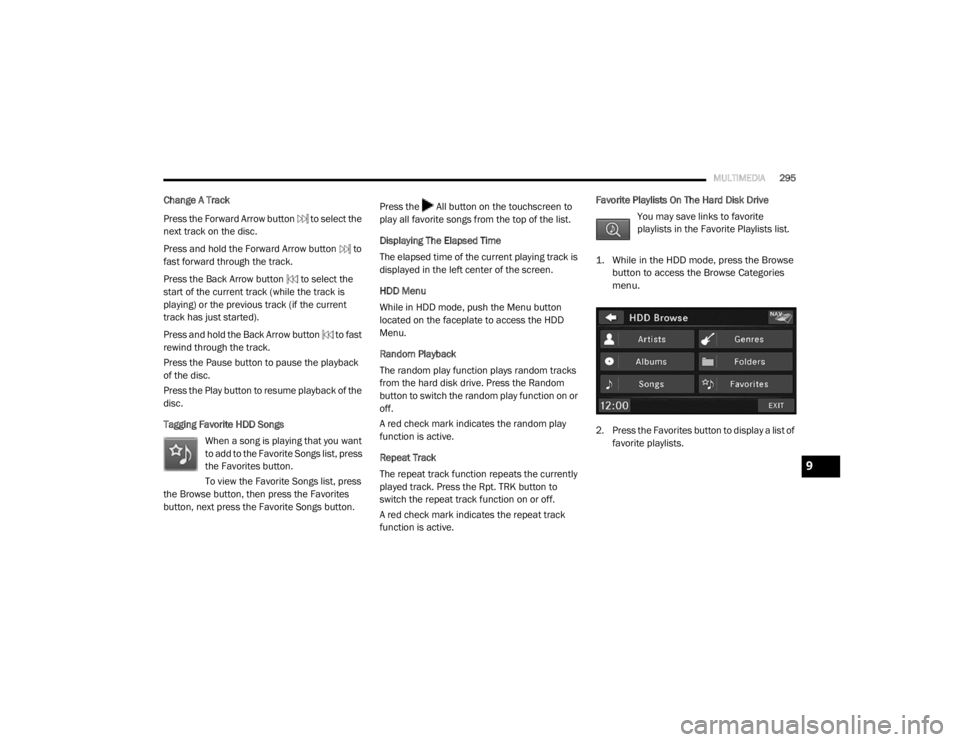
1. While in the HDD mode, press the Browse button to access the Browse Categories
menu.
2. Press the Favorites button to display a list of favorite playlists.
9
20_RT_OM_EN_USC_t.book Page 295
Page 299 of 380
MULTIMEDIA297
3. Press the Rename HDD Folders button.
4. Press the folder you want to rename.
5. Spell the name of the folder, then press the
Save button.
Deleting Tracks From The Hard Disk Drive
1. Push the Menu button located on the faceplate.
2. Press the My Music button. 3. Press the Delete Music Files from HDD
button.
4. Select the folder from which you want to delete tracks.
5. Select the tracks you want to delete by pressing the track to turn on the red check
mark. If you want to delete all tracks from
the folder, press the Check All button.
6. After you have selected all of the tracks to delete, press the Delete button to
permanently remove the files from the Hard
Disk Drive. Deleting All Files From The Hard Disk Drive
1. Push the Menu button located on the
faceplate.
2. Press the System Setup button on the touchscreen to access the System Setup
menu.
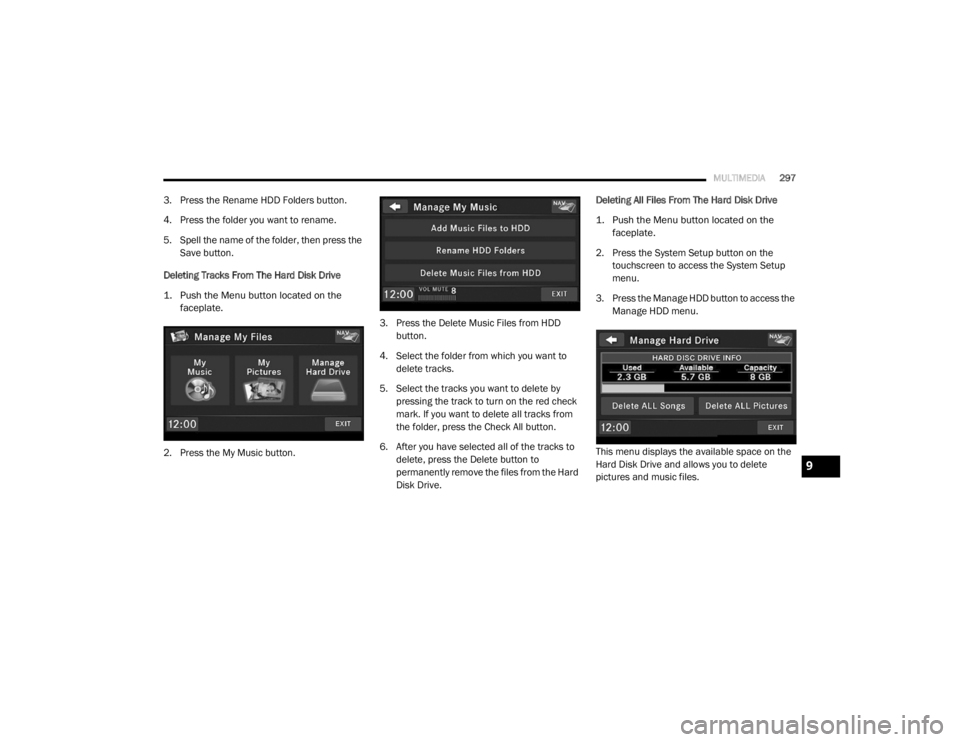
3. Press the Manage HDD button to access the Manage HDD menu.
This menu displays the available space on the
Hard Disk Drive and allows you to delete
pictures and music files.
9
20_RT_OM_EN_USC_t.book Page 297
Page 300 of 380

298MULTIMEDIA
Importing Pictures
It is possible to import display pictures to the
internal Hard Disk Drive. The pictures can be
displayed on the right half of the radio screen.
In the default mode, the vehicle brand logo is
displayed in the right half of the screen. Push
the Menu button on the right side of the radio to
access one of the setting menus.
It is recommended to change the picture
dimensions on a PC or Digital Camera to 240 by
158 pixels before the import.
NOTE:
USB devices (e.g., camera memory USB
adaptors, etc.) must comply with the MSD
(Mass Storage Device) standard. This USB terminal can provide power to the inserted
device. The device's current limitation must be
less or equal to 500mA.
1. Push the My Files button located on the
faceplate to go to the Manage My Files
screen.
2. Insert either a CD or a USB Stick containing your pictures.
3. Press the My Pictures button to get an overview of the images currently stored on
the Hard Disk Drive.
The radio can store 23 user pictures.
4. Press the Add button to view the pictures stored on the CD or USB memory stick. NOTE:
Depending on the file size of each picture on the
CD or USB memory stick, loading the images in
the screen may take time.
5. Select the type of media inserted.
6. Use the Page Up or Down buttons to page
through a list of pictures and press the
picture you would like to import.
7. Select which pictures you want to copy. The red check mark indicates a picture file to
copy.
The imported picture is now available in the
Manage My Pictures screen.
20_RT_OM_EN_USC_t.book Page 298