2020 AUDI TT COUPE display
[x] Cancel search: displayPage 146 of 280
Audi connect
> Then select and confirm Network search. The
devices that are found are shown in the
Infotainment system display.
> Select and confirm your personal Wi-Fi hotspot
from the list.
> Enter the password that your mobile device
provides, if necessary.
> Select and confirm OK.
Z\ WARNING
Always follow the information found in > A\
in General information on page 142.
@) Note
Always follow the information found in >@® in
General information on page 142.
@) Tips
— Your cell phone service provider can deter-
mine which functions are supported by your
mobile device.
— Your cell phone data package determines if
other devices will be able to use the person-
al Wi-Fi hotspot.
— Audi recommends protecting your mobile
wireless network with a password to prevent
unauthorized access.
— For an explanation on conformity with the
FCC regulations in the United States and the
Industry Canada regulations, see
=> page 260.
Using a Wi-Fi hotspot
Applies to: vehicles with Wi-Fi hotspot
You can connect up to eight Wi-Fi devices (such
as smartphones) with the MMI Wi-Fi hotspot. If
the MMI is connected to the Internet
= page 142, the connected Wi-Fi devices can also
use the MMI’s Internet connection.
Requirement: The ignition must be switched on.
> Select: [MENU] button > Telephone > right con-
trol button > Wi-Fi settings > Wi-Fi. Switch on
the Wi-Fi hotspot.
> Select: [MENU] button > Telephone > right con-
trol button > Wi-Fi settings > Network key. The
access data for the Wi-Fi hotspot is displayed.
144
Switch on the visibility of the Wi-Fi hotspot if
necessary.
> Switch the Wi-Fi function on in your mobile de-
vice and connect it to the MMI Wi-Fi hotspot
using the authentication data that is shown.
> Follow any additional system prompts on your
Wi-Fi device if necessary.
Your device is successfully connected with the
MMI's Wi-Fi hotspot.
ZA WARNING
Always follow the information found in > AV
in General information on page 142.
@) Note
Always follow the information found in >@ in
General information on page 142.
(i) Tips
For an explanation on conformity with the
FCC regulations in the United States and the
Industry Canada regulations, see > page 260.
Audi connect
Infotainment services
Configuration
Applies to: vehicles with Audi connect Infotainment
Requirement: your vehicle must be connected to
the Internet > page 142.
Some Audi connect Infotainment services must
be configured through your personal myAudi ac-
count at my.audi.com before using them for the
first time.
> Register at my.audi.com.
> Add your vehicle to your myAudi account.
> Select: [MENU] button > Audi connect > right
control button > Log in.
> Log in to myAudi in the vehicle using your e-
mail address and password.
Page 147 of 280
8S1012721BB
Audi connect
@) Tips
— For some Audi connect Infotainment serv-
ices, you may also have to enter your myAu-
di access information when accessing
services in the MMI.
— Some Audi connect Infotainment services
must be activated at my.audi.com.
—To make logging in easier in the vehicle, you
will receive an 8-digit myAudi PIN as an al-
ternative to your myAudi password after you
have created a myAudi account.
— Depending on the country, you may be able
to use the myAudi app or my.audi.com.
— For detailed information on configuration,
visit my.audi.com.
Accessing Audi connect Infotainment
Applies to: vehicles with Audi connect Infotainment
> Select: the [MENU] button > Audi connect.
A list of all of the available Audi connect Infotain-
ment services is shown on the Infotainment sys-
tem display.
You can also filter the Audi connect Infotainment
services by category:
> Select: [MENU] button > Audi connect > left
control button > for example, Navigation for
the Audi connect Infotainment services in the
Navigation menu.
Erm aac
Applies to: vehicles with Audi connect Infotainment
> Select: [MENU] button > Audi connect > desired
Audi connect Infotainment service > right con-
trol button.
Depending on the equipment and the Audi con-
nect
Infotainment service selected, the following
basic functions may be available:
Save as preview
You can also see a preview of the selected Audi
connect Infotainment services on the Audi con-
nect
Infotainment home page.
) Not available in all languages.
Show on map
You can show selected contents on the map and
use them for route guidance.
Log in
See > page 144.
Read out)
You can allow the MMI to read out the selected
contents.
Call
If a phone number was assigned to an entry, you
can call the number, for example to reserve tick-
ets.
Refresh
The contents for the selected Audi connect Info-
tainment service are refreshed.
Start route guidance
If a location was saved with an entry, you can use
it as the navigation destination. Route guidance
starts immediately.
Change search area
The set search area can be changed at any time.
Additional information on search areas can be
found under > page 152.
Closing Audi connect Infotainment services
Regardless of the function selected, you can
close an Audi connect Infotainment service at
any time and return to the home screen.
Services
Applies to: vehicles with Audi connect Infotainment
Depending on the country and the vehicle equip-
ment, the following services may be available:
Weather information
Information on current weather conditions as
well as weather forecasts for the selected search
area.
> Select and confirm Weather.
145
Page 148 of 280
Audi connect
Online news
> Select: Online news > desired newsfeed > a
headline.
If you logged in to myAudi in your vehicle
= page 144, personalized newsfeeds can be dis-
played.
Access to Twitter
Requirement: you must have connected your ve-
hicle with myAudi > page 144. You must have
connected your myAudi account with Twitter.
You can only connect one Twitter account with
your myAudi account. Not all settings can be ad-
justed in the MMI. Some can only be adjusted
through the Twitter website.
> Select: Twitter > left control button > desired
function (for example, Trends).
Z\ WARNING
Always follow the information found in > A\
in General information on page 142.
® Note
Always follow the information found in >@ in
General information on page 142.
PNe Kole] Mey Lately
Applies to: vehicles with Audi connect Infotainment
> Select: [MENU] button > Audi connect > right
control button.
Depending on the equipment and the country,
the following options may be available in the
overview of Audi connect Infotainment services:
About Audi connect
Here you will find legal information regarding
Audi connect Infotainment usage.
Log in
See > page 144.
Connection manager
See > page 190.
146
License subscription
The validity and expiration date of your licenses
are displayed.
Refresh
The content of the selected Audi connect Info-
tainment service or the entire Audi connect Info-
tainment list is updated.
Data privacy
See > page 256.
@) Note
Always follow the information found in >@ in
General information on page 142.
Settings
Cell phone network
> Select: [MENU] button > Audi connect > right
control button > Connection manager.
> Select: right control button > Online settings >
Data connection settings.
Depending on the country, vehicle equipment,
and connection type, the following functions may
be available:
Data connection settings
Using the Data connection settings menu, you
can set when the system should connect to the
Internet. The Internet connection disconnects
automatically once the requested Audi connect
Infotainment service no longer requires any data.
— Connection setup: you can select when a data
connection should be established.
— Audi connect (MMI): when this function is
switched on, a data connection is automatically
established in order to use Audi connect Info-
tainment services.
— Wi-Fi devices: when this function is switched
on, you can permit or deny mobile devices to
connect to the Internet on the Wi-Fi hotspot.
Connection settings
The connection is configured automatically based
on the SIM card being used. The following values >
Page 149 of 280
8S1012721BB
Audi connect
can be changed. You can obtain more information
from your cell phone service provider.
— APN: the access point depends on the cell
phone service provider and is assigned auto-
matically.
— User name: your cell phone service provider as-
signs the user name for your online profile.
— Password: your cell phone service provider as-
signs the password for your online profile.
ZA\ WARNING
Always follow the information found in > AV
in General information on page 142.
@) Note
Always follow the information found in >@ in
General information on page 142.
@ Tips
For more information on roaming charges,
contact your cell phone service provider.
Maes
Applies to: vehicles with Wi-Fi hotspot
Requirement: the ignition must be switched on.
> Select: [MENU] button > Telephone > right con-
trol button > Wi-Fi settings.
Depending on the country and the vehicle equip-
ment, the following functions may be available:
Wi-Fi
When the function is switched on, the MMI's Wi-
Fi hotspot is active and Wi-Fi devices can be con-
nected to the hotspot.
Network key
The Wi-Fi connection between the MMI and your
Wi-Fi device is encrypted. You can change the fol-
lowing information if needed.
Troubleshooting
Applies to: vehicles with Audi connect Infotainment
The information that follows lists some trouble-
shooting options. They depend on the equip-
ment.
— Access point (SSID): name of the Wi-Fi hot-
spot.
— Password: a random password was set at the
factory in the MMI. The password can be
changed. The encryption method requires a
password to be at least eight characters long.
Choose a secure password.
— Visible to others: you can switch the visibility
of the Wi-Fi hotspot on or off.
Network search
A list of available Wi-Fi networks in your area is
displayed.
Connection to personal hotspot
The MMI Wi-Fi hotspot is activated. An MMI In-
ternet connection to a personal Wi-Fi hotspot
(such as a smartphone) can be established. For
additional information, see > page 143.
ZX WARNING
Always follow the information found in > A\
in General information on page 142.
@) Note
Always follow the information found in >@ in
General information on page 142.
@ Tips
In vehicles without Audi connect Infotain-
ment, the use of the Wi-Fi hotspot is only
possible for the Wi-Fi audio player*. A data
connection to the Internet cannot be estab-
lished.
147
Page 151 of 280
8S1012721BB
Navigation
Navigation
Opening navigation
Applies to: vehicles with navigation system
a
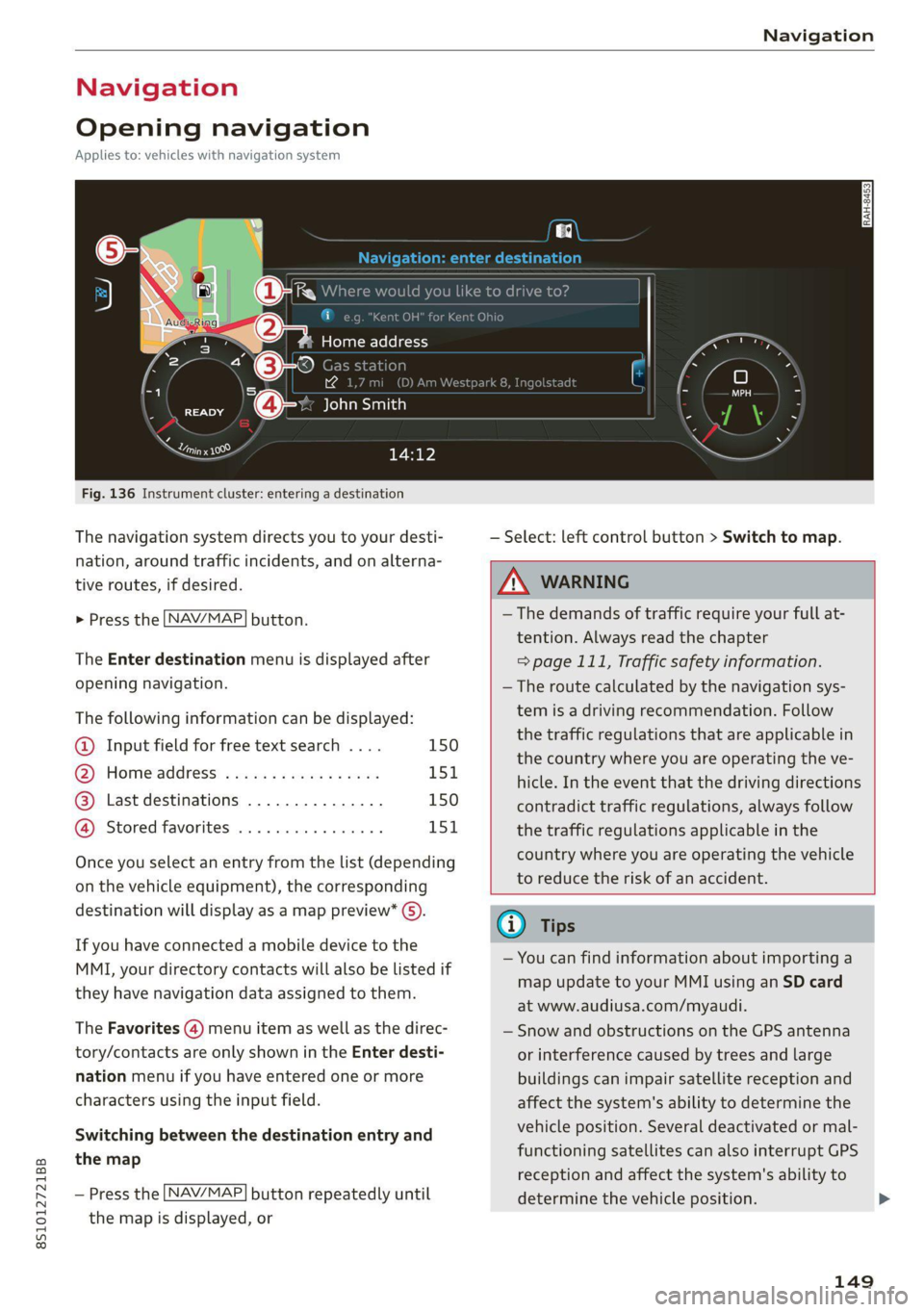
Fig. 136 Instrument cluster: entering a destination
The navigation system directs you to your desti-
nation, around traffic incidents, and on alterna-
tive routes, if desired.
> Press the [NAV/MAP| button.
The Enter destination menu is displayed after
opening navigation.
The following information can be displayed:
@ Input field for free text search .... 150
@ Home address ................. 151
@® Last destinations ............... 150
@ Stored favorites ................ 151
Once you select an entry from the list (depending
on the vehicle equipment), the corresponding
destination will display as a map preview* ().
If you have connected a mobile device to the
MMI, your directory contacts will also be listed if
they have navigation data assigned to them.
The Favorites (4) menu item as well as the direc-
tory/contacts are only shown in the Enter desti-
nation menu if you have entered one or more
characters using the input field.
Switching between the destination entry and
the map
— Press the [NAV/MAP] button repeatedly until
the map is displayed, or
— Select: left control button > Switch to map.
Z\ WARNING
— The demands of traffic require your full at-
tention. Always read the chapter
=> page 111, Traffic safety information.
—The route calculated by the navigation sys-
tem is a driving recommendation. Follow
the traffic regulations that are applicable in
the country where you are operating the ve-
hicle. In the event that the driving directions
contradict traffic regulations, always follow
the traffic regulations applicable in the
country where you are operating the vehicle
to reduce the risk of an accident.
(i) Tips
— You can find information about importing a
map update to your MMI using an SD card
at www.audiusa.com/myaudi.
— Snow and obstructions on the GPS antenna
or interference caused by trees and large
buildings can impair satellite reception and
affect the system's ability to determine the
vehicle position. Several deactivated or mal-
functioning satellites can also interrupt GPS
reception and affect the system's ability to
determine the vehicle position.
149
Page 152 of 280
Navigation
— Because street names sometimes change,
the names stored in the MMI may in rare
cases differ from the actual street name.
Entering a destination
aia eees media e lary
Applies to: vehicles with navigation system
Using the MMI touch control pad, you can enter
the data for a navigation destination all at once
in any order (for example, Los Angeles,
20 Main St.). Likewise, you can search for points
of interest, contacts, previous destinations or fa-
vorites to navigate to the desired address.
Free text search
> Press the LNAV/MAP] button repeatedly until
the Enter destination menu is displayed
=> page 149, fig. 136.
> Keep turning the control knob to the left until
the input field appears.
> Enter one or more search terms into the input
field.
> If available, confirm the input suggestion* to
complete the entry or a word suggestion*
=> page 117, Letter/number speller.
> Turn the control knob to the right to change the
results list.
>» Select and confirm a destination from the re-
sults list.
The route displays as an overview in the map.
Route guidance is already active.
Narrowing the search area
All countries/states are selected at the factory
for the free text search.
» Select the right control button > Country/state
selection in the input field @ > page 149,
fig. 136.
> Select the country or state (@) that should be
searched using the free text search in order to
narrow the number of results and increase the
search speed. The selected entry in the coun-
try/state selection is stored, or:
> Select All countries/states.
150
G) Tips
— The MMI input suggestions depend on the
last navigated destinations.
— Up to 50 entries can be stored in the last
destinations list.
— Additional information on free text searches
can be found under > page 119.
Loading previous destinations
Applies to: vehicles with navigation system
Your last destinations are automatically stored
and can be loaded directly as a destination.
Opening a menu
Requirement: a destination was already navigat-
ed to.
> Press the LNAV/MAP] button repeatedly until
the Enter destination menu is displayed
=> page 149, fig. 136.
Your last destinations will be listed directly in the
Enter destination menu and are marked with the
symbol 3) > page 149, fig. 136.
> Select and confirm one of the last destinations
from the list.
Deleting previous destinations
> Select one of the last destinations from the list.
> Select: right control button > Delete destina-
tion > Delete this last destination or Delete all
last destinations.
The selected destination or all last destinations
is/are deleted and no longer displayed in the En-
ter destination menu.
Entering an address
Applies to: vehicles with navigation system
As an alternative to free text search, you can also
enter an address in stages.
> Press the [NAV/MAP] button repeatedly until
the Enter destination menu is displayed
=> page 149, fig. 136.
> Select: left control button > Enter address.
>
Page 153 of 280

8S1012721BB
Navigation
> Select and confirm a line (such as Street, House
number or Country/state) and enter the de-
sired information.
> Select and confirm Start route guidance.
Setting a destination from the map
Applies to: vehicles with navigation system
A point on the map can be used as the destina-
tion.
Opening the map
> Press the [NAV/MAP] button repeatedly until
the map is displayed.
Adjusting the scale
> Turn the control knob to the left or to the right.
Activating the crosshairs
> Press the control knob. The crosshairs are
shown on the map.
Moving the crosshairs
> Move the crosshairs to the destination using
the MMI touch control pad > page 115.
Selecting the destination
> Press the control knob when the crosshairs are
shown.
> Select and confirm Start route guidance.
Hiding the crosshairs
> Press the [BACK] button.
Additional information about the location of
the crosshairs: if you select map content with
crosshairs, the available information is displayed
(such as the name of the city or points of inter-
est) © > page 158, fig. 141.
Setting a home address/favorite as
Cdr ace)
Applies to: vehicles with navigation system
You can quickly and easily start route guidance to
your home address using the home address func-
tion. Favorites allow easier access to frequently
used destinations.
Opening a menu
> Press the [NAV/MAP] button repeatedly until
the Enter destination menu is displayed
=> page 149, fig. 136.
Setting a home address as the destination
Requirement: a home address must be stored
=>page 155.
> Select: Home address.
Setting a favorite as the destination
Requirement: a favorite must be stored as a des-
tination > page 155.
> Enter one or more letters into the free text
search input field. The favorites that are found
are shown in the Infotainment system display
and marked with the symbol @) > page 149,
fig. 136.
> Select and confirm the desired entry.
@ Tips
— Additional settings for the home address
can be found under > page 155.
— Additional settings for the favorites can be
found under > page 155.
sferring a destination
rectory
Applies to: vehicles with navigation system
Options — Show contact details
John Smith
a
Audi Beverly Hills
Hawthorn Ave, Los Angeles, CA
UUM =i hee etl 0 Van CoO
a PY WO ea ad Sa eT
Fig. 137 Infotainment system: contact info
You can navigate directly to destinations in the
directory.
Requirement: an address with navigation data or
a navigation destination must already be as-
signed to a contact > page 155.
151
Page 154 of 280
![AUDI TT COUPE 2020 Owners Manual Navigation
> Press the LNAV/MAP] button repeatedly until
the Enter destination menu is displayed
=> page 149, fig. 136.
> Select: left control button > Directory > a con-
tact.
The](/manual-img/6/57658/w960_57658-153.png "AUDI TT COUPE 2020 Owners Manual Navigation
> Press the LNAV/MAP] button repeatedly until
the Enter destination menu is displayed
=> page 149, fig. 136.
> Select: left control button > Directory > a con-
tact.
The")
Navigation
> Press the LNAV/MAP] button repeatedly until
the Enter destination menu is displayed
=> page 149, fig. 136.
> Select: left control button > Directory > a con-
tact.
The directory/contacts are shown in alphabetical
order and are marked with symbols to indicate
the storage location:
@ Business address
@ Private address
@® Business destination
@ Private destination
— Select and confirm an address or a destination.
When you have selected a destination, the
route guidance can be started directly.
— Check the address input again when selecting
an address.
— Then select and confirm Start route guidance.
Additional directory functions in the navigation
system can be found under > page 155.
@) Tips
— Addresses that have been imported from
your mobile device into the MMI can also be
used as a destination.
— If a contact is grayed out in the directory,
this contact does not have a destination or
an address assigned to it.
el elm eas -T- La)
Applies to: vehicles with navigation system
Opening the POI search
> Press the LNAV/MAP] button repeatedly until
the Enter destination menu is displayed
=> page 149, fig. 136.
> Select: left control button > Points of interest.
Change search area
> Select and confirm: Search area > a search area
from the list.
The following search categories are available:
Nearby: points of interest can be selected from
different categories. The points of interest are
listed starting from the immediate vicinity of the
152
vehicle up to a radius of approximately 124 miles
(200 km).
Along the route: points of interest along the
route can only be selected during active route
guidance. The points of interest are located di-
rectly along or in the immediate vicinity of the
calculated route.
Near destination/Near stopover: points of inter-
est near a destination or a stopover can only be
selected during active route guidance. The points
of interest can likewise be selected from various
categories. For example, you can search for a ho-
tel or parking lot at the destination.
In new city: enter the name of the desired city.
Points of interest can be selected from various
categories. This function allows you to search for
points of interest in any city regardless of the ac-
tive route guidance or the vehicle position.
Searching for the name of a point of interest
in the selected search area
> Select: Find entry > Enter point of interest.
> Enter the name of the point of interest.
Searching for a point of interest in a specific
category
> Select Select category.
> Select and confirm a category, such as Restau-
rants.
G) Tips
— Distances to points of interest are displayed
as a straight-line distance from your current
location. The actual distance from your cur-
rent location to the point of interest is up-
dated automatically. The list of points of in-
terest that were found is not resorted when
this happens.
— There may be entries in the list that cannot
be displayed completely due to their length.
Select the corresponding entry from the list.
Select: right control button > Show destina-
tion details. Detailed information for the se-
lected entry in the list is then displayed.