2019 MERCEDES-BENZ SPRINTER warning
[x] Cancel search: warningPage 188 of 354
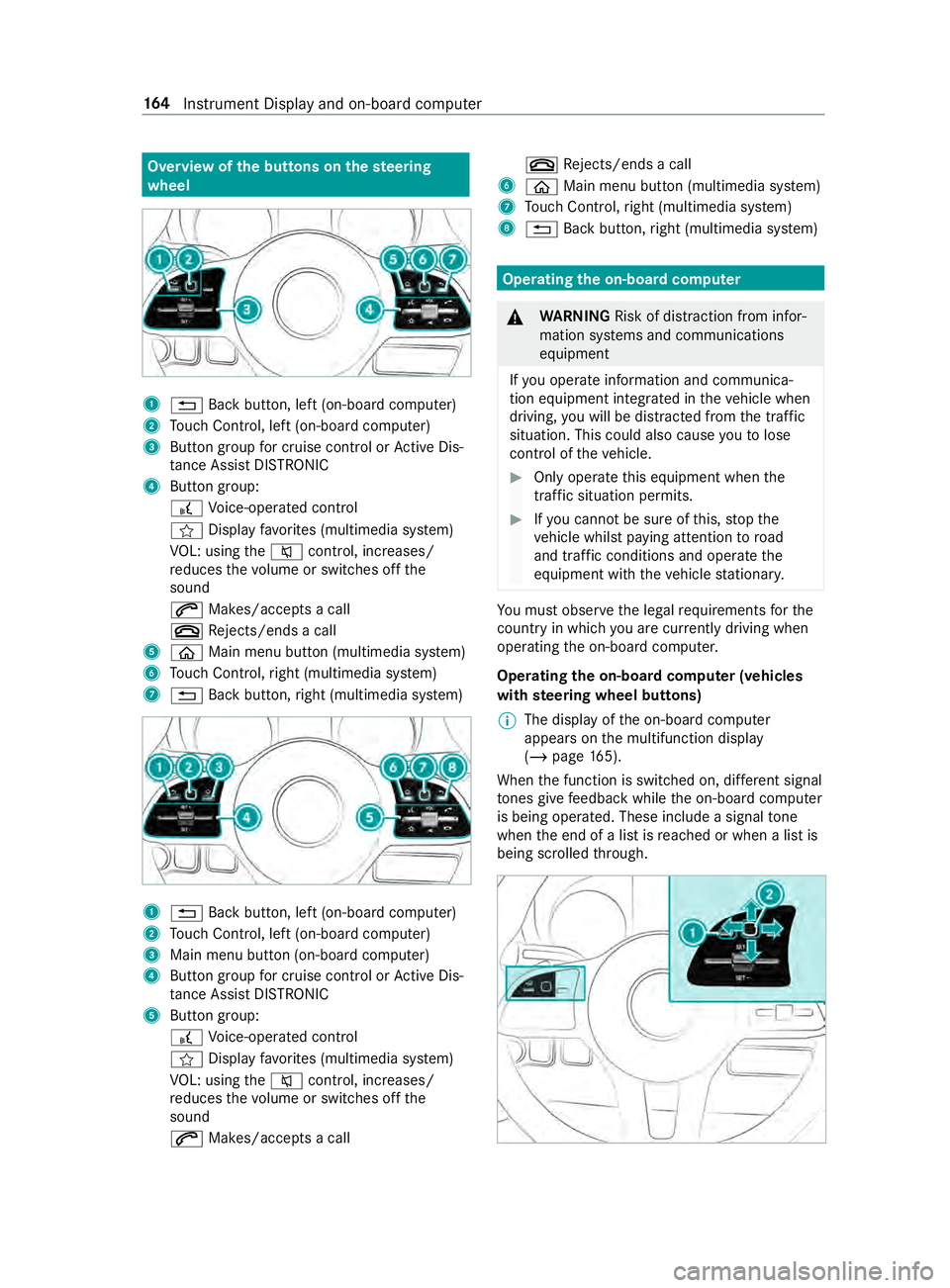
Overview of
the but tons on thest eering
wheel 1
0038 Back button, left (on-board computer)
2 Touch Control, left (on-board computer)
3 Button group for cruise control or Active Dis‐
ta nce Assi stDISTRONIC
4 Button group:
£ Voice-opera ted control
004B Display favo rite s (multimedia sy stem)
VO L: using the0063 control, inc reases/
re duces thevo lume or switches off the
sound
0061 Makes/accepts a call
0076 Rejects/ends a call
5 00E2 Main menu button (multimedia sy stem)
6 Touch Control, right (multimedia sy stem)
7 0038 Back button, right (multimedia sy stem) 1
0038 Back button, left (on-board computer)
2 Touch Control, left (on-board computer)
3 Main menu button (on-board computer)
4 Button group for cruise control or Active Dis‐
ta nce Assi stDISTRONIC
5 Button group:
£ Voice-opera ted control
004B Display favo rite s (multimedia sy stem)
VO L: using the0063 control, inc reases/
re duces thevo lume or switches off the
sound
0061 Makes/accepts a call 0076
Rejects/ends a call
6 00E2 Main menu button (multimedia sy stem)
7 Touch Control, right (multimedia sy stem)
8 0038 Back button, right (multimedia sy stem) Operating
the on-boa rdcompu ter &
WARNING Risk of distraction from infor‐
mation sy stems and communications
equipment
If yo u operate information and communica‐
tion equipment integ rated in theve hicle when
driving, you will be distracted from the tra ffic
situation. This could also cause youto lose
control of theve hicle. #
Only operate this equipment when the
traf fic situation permits. #
Ifyo u cannot be sure of this, stop the
ve hicle whilst paying attention toroad
and traf fic conditions and ope rate the
equipment with theve hicle stationar y. Yo
u must obse rveth e legal requirements forthe
country in whi chyou are cur rently driving when
ope rating the on-board computer.
Operating the on-boa rdcompu ter (vehicles
with steering wheel but tons)
% The display of
the on-board computer
appears on the multifunction display
(/ page 165).
When the function is switched on, dif fere nt signal
to nes gi vefeedback while the on-board computer
is being operated. These include a signal tone
when the end of a list is reached or when a list is
being scrolled thro ugh. 16 4
Instrument Display and on-board computer
Page 191 of 354

Instrument Display with color display
The
following status displa ysare available on the
assis tant displ ay:
R 00D7 :AT TENTION ASSIST switched off
R Displa ysoftheAc tive Dis tance Assi st
DISTRONIC (/ page 143) In
stru ment Display with black and white display
The following status displa ysare available on the
assis tant displ ay:
R Lane markings dotted: Lane Keeping Assist
switched off
R Lane markings solid and thin: Lane Keeping
Assist switched on, not ready toissue warn‐
ings
R Lane markings solid and thick: Lane Keeping
Assist ready toissue warnings Calling up displa
yson the trip menu On-board computer:
4 Trip #
Select the desired display and confirm.
The following displa ysare available on the trip
menu:
R Standard display R
Range and cur rent fuel consu mption
Wi th cer tain engines a recuperation display is
also shown. If only a small amount of fuel is
left in the fuel tank, a vehicle being refueled
appears ins tead of the appr oximate range.
R ECO displ ay (/page 113)
R Trip computer:
- From Start
- From Reset
R Digital speedom eter Instrument Display with color display
Standard display (e xamp le)
1 Trip dis tance
2 Total dis tance Instrument Display wi
thblack and white display
St andard display (e xamp le)
1 Trip dis tance
2 Total dis tance Instrument Display and on-board compu
ter167
Page 193 of 354

Operating media playback with
the on-boa rd
compu ter On-board computer:
4 Media 1
Media source
2 Current track and track number
3 Artist's name
4 Name of the album
The following displa ysare available on the media
menu:
R Media source selection list
R Current pl ayback #
Select and con firm the media source. #
Select and confirm there qu ired playbac k.
% This is how
toselect a station when TVisthe
media source. Dialing a
telephone number using the on-
board compu ter &
WARNING Risk of distraction from infor‐
mation sy stems and communications
equipment
If yo u operate information and communica‐
tion equipment integ rated in theve hicle when
driving, you will be distracted from the tra ffic
situation. This could also cause youto lose
control of theve hicle. #
Only operate this equipment when the
traf fic situation permits. #
Ifyo u cannot be sure of this, stop the
ve hicle whilst paying attention toroad
and traf fic conditions and ope rate the
equipment with theve hicle stationar y. When using
the phone, you must obse rvethe
legal requirements forth e count ryin which you
are cur rently driving. Re
quirements:
R The mobile phone is connec tedto the multi‐
media sy stem.
On-board computer: 4 Phone
Select one of thefo llowing options:
R Prev ious calls
R Phone book
R Call status
Ve hicles with MBUX multimedia sy stem: the
most recent telephone calls (dialed numbe rs,
accep ted and missed calls) are displa yed on the
Phone menu. #
Select and confirm a telephone numbe r.
If only one telephone number has been
sa ve dfo r the entr y:thete lephone number
is dialed. #
If se veralte lephone numbers ha vebeen
sa ve dfo r the entr y:select and confirm a
te lephone numbe r.
The telephone number is dialed.
Ins tead of the selected telephone numbe rs,the
fo llowing displa ysmay appear:
R Please Wait : The application is cur rently start‐
ing. If no Blue tooth®
connection tothe mobile
phone is es tablished, the menu for authoriz‐
ing and connecting a mobile phone will be
displa yed in the multimedia sy stem
(/ page 182).
R Updating Data…: The call list is being upda‐
ted.
R Importing Contacts: The mobile phone's con‐
ta cts, or a memo rymedium's contacts are
being impor ted.
Ac cepting/rejecting a call
When you are called, theIncoming Call message
appears on the displa y. #
Press 0061toaccept the call or 0076to
re ject it.
Yo u can also accept or reject the call using the
0061 or0076 buttons on thesteering wheel. Instrument Display and on-board computer
16 9
Page 197 of 354
Overview and operation
Overview of
the MBUX multimedia sy stem &
WARNING Risk of distraction from infor‐
mation sy stems and communications
equipment
If yo u operate information and communica‐
tion equipment integ rated in theve hicle when
driving, you will be distracted from the tra ffic
situation. This could also cause youto lose
control of theve hicle. #
Only operate this equipment when the
traf fic situation permits. #
Ifyo u cannot be sure of this, stop the
ve hicle whilst paying attention toroad
and traf fic conditions and ope rate the
equipment with theve hicle stationar y. Yo
u must obse rveth e legal requirements forthe
country in whi chyou are cur rently driving when
ope rating the multimedia sy stem.
MBUX stands for Mercedes-Benz User Experi‐
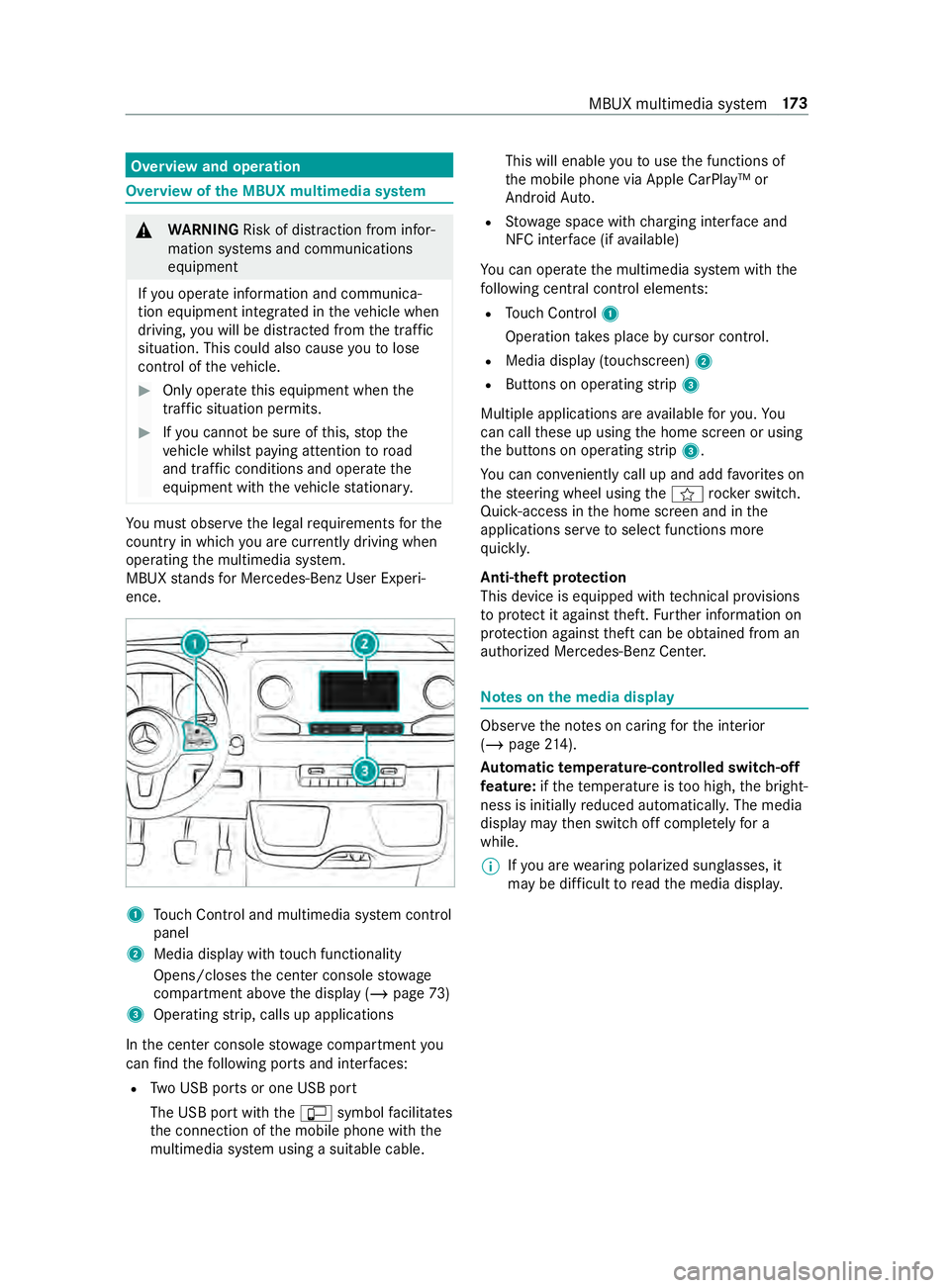
ence. 1
Touch Control and multimedia sy stem cont rol
panel
2 Media display with touch functionality
Opens/closes the center console stowage
compartment abo vethe display (/ page73)
3 Operating strip, calls up applications
In the center console stowage compartment you
can find thefo llowing ports and inter faces:
R Two USB ports or one USB port
The USB port with the00C2 symbol facilitates
th e connection of the mobile phone with the
multimedia sy stem using a suitable cable. This will enable
youto use the functions of
th e mobile phone via Apple CarPlay™ or
Android Auto.
R Stow age space with charging inter face and
NFC inter face (if available)
Yo u can operate the multimedia sy stem with the
fo llowing central control elements:
R Touch Control 1
Operation takes place bycursor control.
R Media display (tou chscreen) 2
R Buttons on operating strip 3
Multiple applications are available foryo u. Yo u
can call these up using the home screen or using
th e buttons on operating strip 3.
Yo u can con veniently call up and add favo rite s on
th esteering wheel using the004B rock er switch.
Quic k-access in the home screen and in the
applications ser vetoselect functions more
qu ickl y.
Anti-theft pr otection
This device is equipped with tech nical pr ovisions
to protect it against theft. Further information on
pr otection against theft can be obtained from an
authorized Mercedes-Benz Center. Note
s onthe media display Obser
vethe no tes on caring forth e interior
(/ page 214).
Au tomatic temperature-cont rolled switch-off
fe ature: ifth ete mp erature is too high, the bright‐
ness is initially reduced automaticall y.The media
display may then switch off comple tely for a
while.
% If
yo u are wearing polarized sun glasses, it
may be dif ficult toread the media displa y. MBUX multimedia sy
stem 17 3
Page 202 of 354
#
Press on a phone number until theOPTIONS
menu is shown. #
Select Save as Favorite.
The contact is added as a favo rite. #
Tosto reara dio station as a global favo r‐
ite: set a radio station (/ page193). #
Press on thera dio station until theOPTIONS
menu is shown. #
Select Save as Favorite.
The radio station is added as a favo rite.
Re naming favo rites #
Tap on © inthe media displa y.
The home screen is shown. #
Swipe up until FAVORITESis shown. #
Press on a favo rite until theOPTIONS menu is
shown. #
Select Rename . #
Ente rth e name. #
Select OK.
Moving favo rites
Moving favo rite s in thefa vo rite s menu #
Tap on © inthe media displa y.
The home screen is shown. #
Swipe up until FAVORITESis shown. #
Press on a favo rite until theOPTIONS menu is
shown. #
Select Move. #
Movethefa vo rite to the new position. #
Tap on 00FB.
Deleting favo rites #
Tap on © inthe media displa y.
The home screen is shown. #
Swipe up until FAVORITESis shown. #
Press on a favo rite until theOPTIONS menu is
shown. #
Select Delete. #
Select Yes. Entering
characters Using
thech aracter input function &
WARNING Risk of distraction from infor‐
mation sy stems and communications
equipment
If yo u operate information and communica‐
tion equipment integ rated in theve hicle when
driving, you will be distracted from the tra ffic
situation. This could also cause youto lose
control of theve hicle. #
Only operate this equipment when the
traf fic situation permits. #
Ifyo u cannot be sure of this, stop the
ve hicle whilst paying attention toroad
and traf fic conditions and ope rate the
equipment with theve hicle stationar y. Yo
u must obse rveth e legal requirements forthe
country in whi chyou are cur rently driving when
ope rating the multimedia sy stem.
Character entry can be carried out with these
cont rol elements:
R Touch Control
R Touchsc reen (media display)
Character entry take s place bycursor control
when using theTo uch Control.
Character input can be star ted with a control ele‐
ment and resumed with ano ther. #
When theke yboard is shown, en terth ech ar‐
acters on the cont rol element byswiping and
pressing or bytapping (touchscreen).
or #
Write thech aracter on theto uchsc reen.
Examples of character ent ry:
R Renaming a favo rite
R Enter a telephone number 17 8
MBUX multimedia sy stem
Page 206 of 354
Te
lephone Te
lephony Te
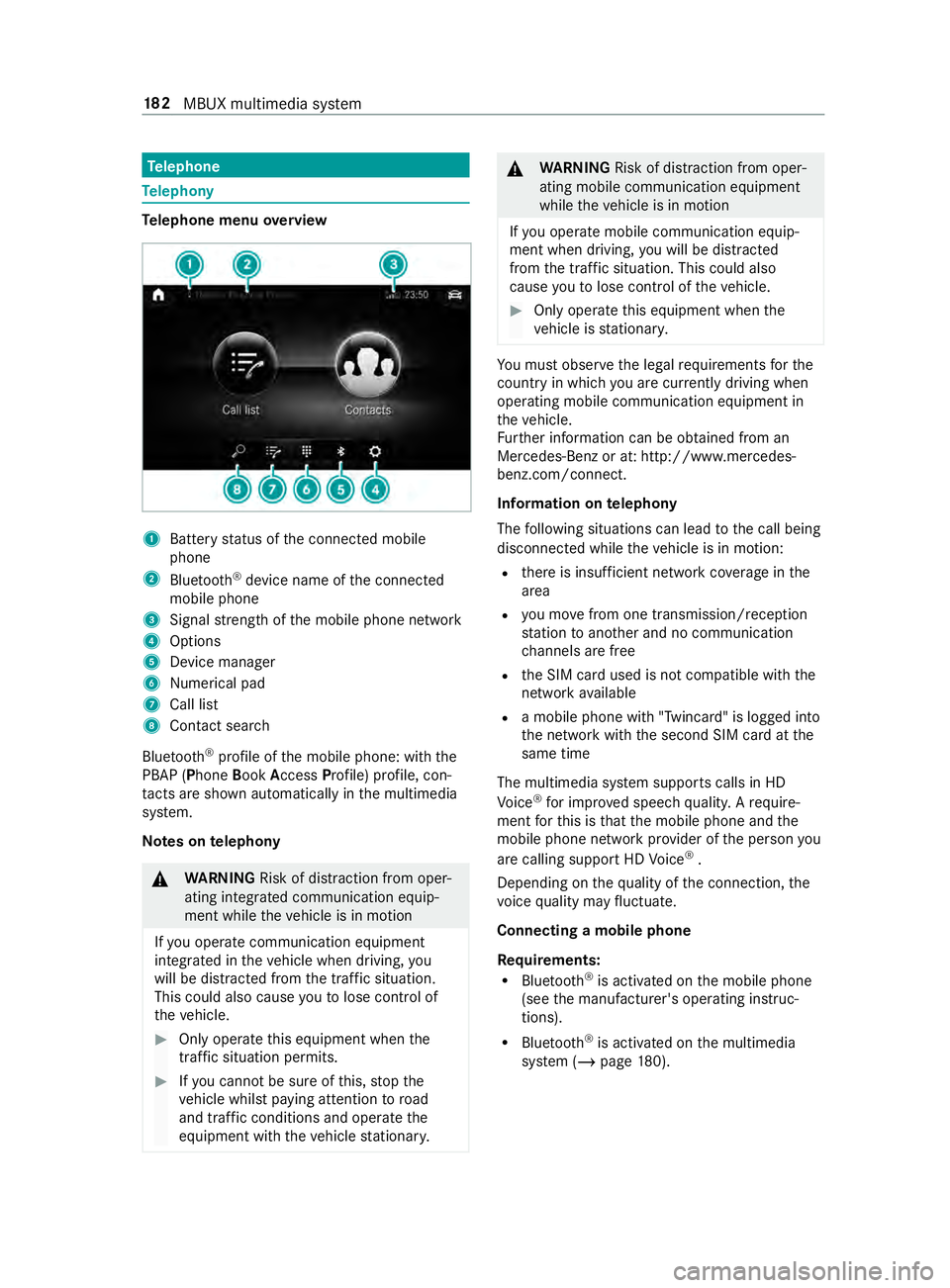
lephone menu overview 1
Battery status of the connected mobile
phone
2 Blue tooth ®
device name of the connected
mobile phone
3 Signal stre ngth of the mobile phone network
4 Options
5 Device manager
6 Nume rical pad
7 Call li st
8 Contact sea rch
Blu etoo th®
profile of the mobile phone: with the
PBAP (Phone BookAccess Profile) profile, con‐
ta cts are shown au tomatically in the multimedia
sy stem.
Note s ontelephony &
WARNING Risk of distraction from oper‐
ating integrated communication equip‐
ment while theve hicle is in motion
If yo u operate communication equipment
integ rated in theve hicle when driving, you
will be distracted from the tra ffic situation.
This could also cause youto lose control of
th eve hicle. #
Only operate this equipment when the
traf fic situation permits. #
Ifyo u cannot be sure of this, stop the
ve hicle whilst paying attention toroad
and traf fic conditions and ope rate the
equipment with theve hicle stationar y. &
WARNING Risk of distraction from oper‐
ating mobile communication equipment
while theve hicle is in motion
If yo u operate mobile communication equip‐
ment when driving, you will be distracted
from the traf fic situation. This could also
cause youto lose control of theve hicle. #
Only operate this equipment when the
ve hicle is stationar y. Yo
u must obse rveth e legal requirements forthe
country in whi chyou are cur rently driving when
ope rating mobile communication equipment in
th eve hicle.
Fu rther information can be obtained from an
Mercedes-Benz or at: http://www.mercedes-
benz.com/connect.
Information on telephony
The following situations can lead tothe call being
disconnected while theve hicle is in motion:
R there is insuf ficient network co verage inthe
area
R you mo vefrom one transmission/reception
st ation toano ther and no communication
ch annels are free
R the SIM card used is not compatible with the
network available
R a mobile phone with "Twincard" is logged into
the network with the second SIM card at the
same time
The multimedia sy stem supports calls in HD
Vo ice ®
for impr oved speech quality. A require‐
ment forth is is that the mobile phone and the
mobile phone network pr ovider of the person you
are calling support HD Voice ®
.
Depending on thequ ality of the connection, the
vo ice quality may fluctuate.
Connecting a mobile phone
Re quirements:
R Blue tooth ®
is activated on the mobile phone
(see the manufacturer's operating instruc‐
tions).
R Blue tooth ®
is activated on the multimedia
sy stem (/ page180). 18 2
MBUX multimedia sy stem
Page 210 of 354
Making a call from
the call list
Multimedia sy stem:
4 © 5
Phone #
Select +Recent Calls. #
Select an entry.
The call is made.
Calling up additional options in the call list
Multimedia sy stem:
4 © 5
Phone #
Select +Recent Calls. #
For pr eviously stored contacts: select 0048in
th e line of an entry.
The sear chresults are displa yed. Apple CarPlay™
Overview of Apple CarPlay™
&
WARNING Risk of distraction from infor‐
mation sy stems and communications
equipment
If yo u operate information and communica‐
tion equipment integ rated in theve hicle when
driving, you will be distracted from the tra ffic
situation. This could also cause youto lose
control of theve hicle. #
Only operate this equipment when the
traf fic situation permits. #
Ifyo u cannot be sure of this, stop the
ve hicle whilst paying attention toroad
and traf fic conditions and ope rate the
equipment with theve hicle stationar y. Yo
u must obse rveth e legal requirements forthe
country in whi chyou are cur rently driving when
ope rating the multimedia sy stem.
iPhone ®
functions can be used via the multime‐
dia sy stem using Apple CarPlay™. They are oper‐
ated using theto uchsc reen, Touch Control or the
Siri ®
vo ice-operated control sy stem. You can acti‐
va te thevo ice-opera ted control sy stem bypress‐
ing and holding the£ button on the multifunc‐
tion steering wheel.
Only one mobile phone at a time can be connec‐
te d via Apple CarPlay™ tothe multimedia sy stem.
The availability of Apple CarPlay™ may vary
according tothe count ry.
The service pr ovider is responsible forth is appli‐
cation and the services and content connected to
it. Information on Apple CarPlay™
When Apple CarPlay™ is being used,
the iPod ®
media source is not available forth ere spective
iPhone ®
.
Connecting an iPhone ®
via Apple CarPlay™
(with cable)
Re quirements:
R The multimedia sy stem is equipped with the
function.
R The cur rent version of your device's operating
sy stem is being used (see the manufacturer's
operating instructions).
R The full range of functions for Apple CarPlay™
is only available with an In tern et connection. #
Connect the iPhone ®
to the00C2 USB port
on the multimedia sy stem using a suitable
cable (/ page190). #
Ifno other device is connected with the sys‐
te m via Blue tooth®
: confirm the data pr otec‐
tion pr ovisions. #
If ano ther device is connected via Blue tooth®
or Apple CarPlay™ (wireless) with the sy stem:
ta p on theTap here to start Apple CarPlay
for:
or #
Select the iPhone ®
in the device list
under the application.
The pr evious connection via Blue tooth®
or
Apple CarPlay™ (wireless) is disconnected.
The device newly connected via cable is
active.
Ac cepting/rejecting the data pr otection pro‐
visions
A message with the data pr otection pr ovisions
appears. #
Select Accept & Start.
Exiting Apple CarPlay™ #
Press 00E2button.
% If Apple CarPlay™
was not displa yed full-
screen before disconnecting, the application
st arts in the bac kground when reconnected.
Yo u can call up Apple CarPlay™ in the main
menu. 18 6
MBUX multimedia sy stem
Page 211 of 354

Connecting an iPhone
®
via Apple CarPlay™
(wireless)
Requ irements:
R The multimedia sy stem is equipped with the
function.
R The cur rent version of your device's operating
sy stem is being used (see the manufacturer's
operating instructions).
R Blue tooth ®
is activated on the device (see the
manufacturer's operating instructions).
R The device is "visible" forot her devices.
R There is an Internet connection forth e full
ra nge of functions for Apple CarPlay™.
Multimedia sy stem:
4 © 5
Phone 5
00A5
Sear ching for a mobile phone #
Select Connect New Device.
The available iPhone ®
is shown.
Connecting a mobile phone #
Select the iPhone ®
. #
Select Start Apple CarPlay.
% It is possible at any time
toswitch between
connection via Blue tooth®
or via Apple Car‐
Play™ (wireless) in the device list.
Ac cepting/rejecting the data pr otection pro‐
visions
A message with the data pr otection pr ovisions
appears. #
Select Accept & Start.
% When
the Apple CarPlay™ connection is
active, you can swit chStart Automatically on
or off.
Exiting Apple CarPlay™ #
Press the00E2 button.
% If Apple CarPlay™
was not displa yed in the
fo re ground before disconnecting, the applica‐
tion starts in the bac kground when reconnec‐
te d. You can call up Apple CarPlay™ in the
main menu.
Calling up Apple CarPlay™ sound settings
Multimedia sy stem:
4 © 5
Smartphone 5
Apple CarPlay
5 Z #
Select sound settings. Ending Apple CarPlay™ #
Toend the connection of Apple Carplay™
(cable): disconnect the connection via the
connecting cable between the iPhone ®
and
multimedia sy stem. #
Toend the connection of Apple Carplay™
(wireless): de-authorize the iPhone ®
in the device list under
the application.
% Re
gardless of whe ther the connection is via
cable or wireless, Mercedes-Benz recom‐
mends disconnection only when theve hicle
is stationar y. Android
Auto Android
Autoove rview &
WARNING Risk of distraction from infor‐
mation sy stems and communications
equipment
If yo u operate information and communica‐
tion equipment integ rated in theve hicle when
driving, you will be distracted from the tra ffic
situation. This could also cause youto lose
control of theve hicle. #
Only operate this equipment when the
traf fic situation permits. #
Ifyo u cannot be sure of this, stop the
ve hicle whilst paying attention toroad
and traf fic conditions and ope rate the
equipment with theve hicle stationar y. Yo
u must obse rveth e legal requirements forthe
country in whi chyou are cur rently driving when
ope rating the multimedia sy stem.
Mobile phone functions can be used with Android
Au tousing the Android operating sy stem on the
multimedia sy stem. It is operated using the
to uchsc reen or thevo ice-operated control sys‐
te m. You can activate thevo ice-opera ted control
sy stem bypressing and holding the£ button
on the multifunction steering wheel.
Only one mobile phone at a time can be connec‐
te d via Android Auto to the multimedia sy stem.
The availability of Android Autoand Android Auto
apps may vary according tothe count ry.
The service pr ovider is responsible forth is appli‐
cation and the services and content connected to
it. MBUX multimedia sy
stem 187