2019 MERCEDES-BENZ S CLASS ESP
[x] Cancel search: ESPPage 324 of 578
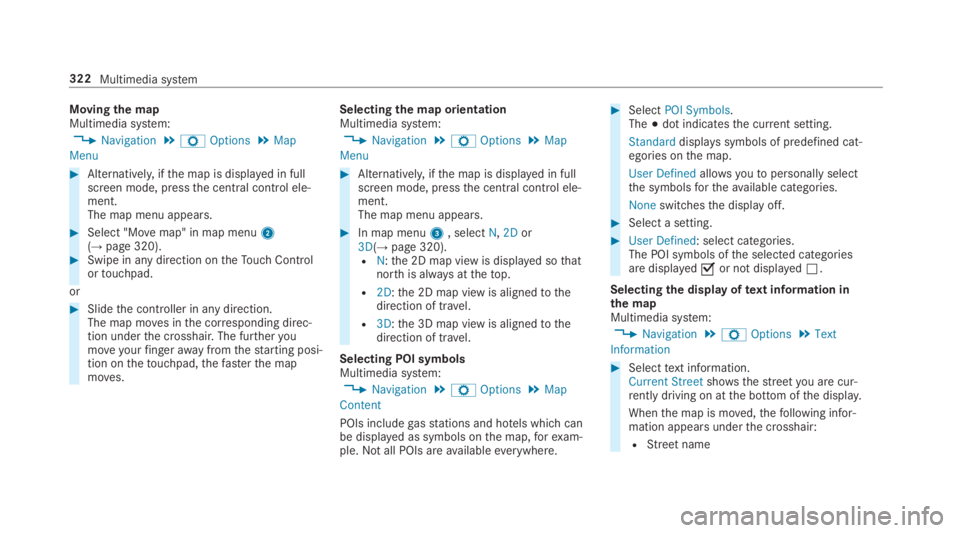
Movingthe mapMultimedia system:
,Navigation.ZOptions.Map
Menu
#Alternatively, ifthe map is displayed in fullscreen mode, pressthe central control ele‐ment.The map menu appears.
#Select "Movemap" in map menu2(→page 320).#Swipe in any direction ontheTouch Controlortouchpad.
or
#Slidethe controller in any direction.The map moves inthe corresponding direc‐tion underthe crosshair. The furtheryoumoveyourfingerawayfromthestarting posi‐tion onthetouchpad,thefasterthe mapmoves.
Selectingthe map orientationMultimedia system:
,Navigation.ZOptions.Map
Menu
#Alternatively, ifthe map is displayed in fullscreen mode, pressthe central control ele‐ment.The map menu appears.
#In map menu3, selectN,2Dor3D(→page 320).RN:the 2D map view is displayed sothatnorth is always atthetop.
R2D:the 2D map view is alignedtothedirection of travel.
R3D:the 3D map view is alignedtothedirection of travel.
Selecting POI symbolsMultimedia system:
,Navigation.ZOptions.Map
Content
POIs includegasstations and hotels which canbe displayed as symbols onthe map,forexam‐ple.Notall POIs areavailableeverywhere.
#SelectPOI Symbols.The;dot indicatesthe current setting.
Standarddisplays symbols of predefined cat‐egories onthe map.
User Definedallowsyoutopersonally selectthe symbolsfortheavailable categories.
Noneswitchesthe display off.
#Select a setting.
#User Defined: select categories.The POI symbols ofthe selected categoriesare displayedsor not displayedS.
Selectingthe display oftext information inthe mapMultimedia system:
,Navigation.ZOptions.Text
Information
#Selecttext information.Current Streetshowsthestreetyou are cur‐rently driving on atthe bottom ofthe display.
Whenthe map is moved,thefollowing infor‐mation appears underthe crosshair:
RStreetname
322Multimedia system
Page 337 of 578
#SelectSynchronize Contacts.
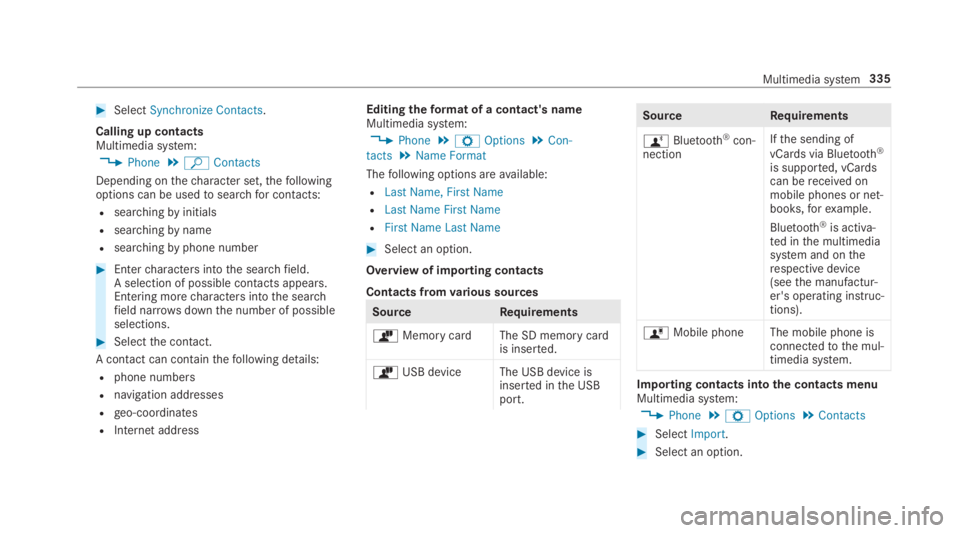
Calling up contactsMultimedia system:
,Phone.ªContacts
Depending onthecharacter set,thefollowingoptions can be usedtosearchfor contacts:
Rsearchingbyinitials
Rsearchingbyname
Rsearchingbyphone number
#Entercharacters intothe searchfield.A selection of possible contacts appears.Entering morecharacters intothe searchfield narrowsdownthe number of possibleselections.
#Selectthe contact.
A contact can containthefollowing details:
Rphone numbers
Rnavigation addresses
Rgeo-coordinates
RInternet address
Editingtheformat of a contact's nameMultimedia system:
,Phone.ZOptions.Con-
tacts.Name Format
Thefollowing options areavailable:
RLast Name, First Name
RLast Name First Name
RFirst Name Last Name
#Select an option.
Overview of importing contacts
Contacts fromvarious sources
SourceRequirements
òMemory cardThe SD memory cardis inserted.
òUSB device The USB device isinserted inthe USBport.
SourceRequirements
ñBluetooth®con‐nection
Ifthe sending of
vCards via Bluetooth®
is supported, vCardscan bereceived onmobile phones or net‐books,forexample.
Bluetooth®is activa‐ted inthe multimediasystem and ontherespective device(seethe manufactur‐er's operating instruc‐tions).
óMobile phone The mobile phone isconnectedtothe mul‐timedia system.
Importing contacts intothe contacts menuMultimedia system:
,Phone.ZOptions.Contacts
#SelectImport.
#Select an option.
Multimedia system335
Page 341 of 578
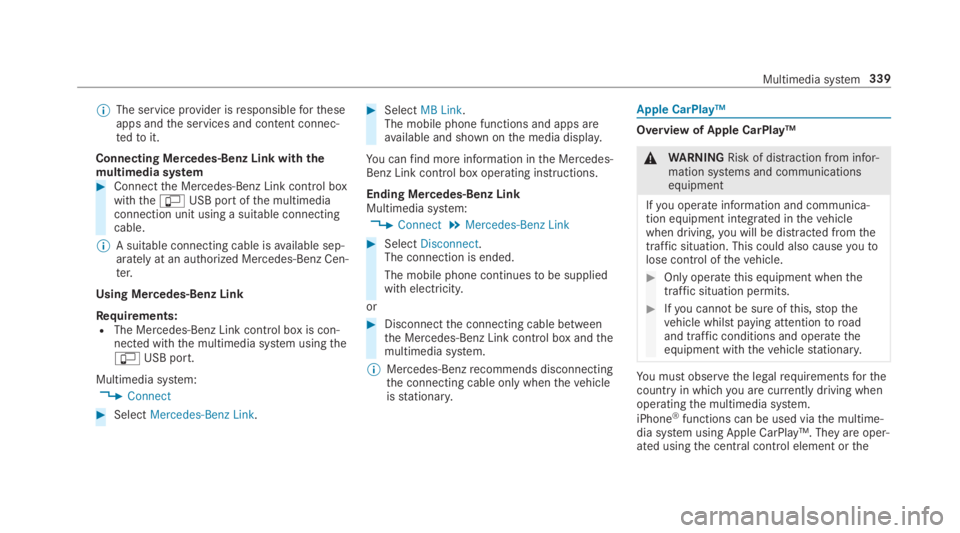
%The service provider isresponsiblefortheseapps andthe services and content connec‐tedtoit.
Connecting Mercedes-Benz Link withthemultimedia system#Connectthe Mercedes-Benz Link control boxwiththe
Page 345 of 578

Thefollowing system information is transmitted:
RSoftwarerelease ofthe multimedia system
RSystem ID (anonymized)
The transfer ofthis data is usedtooptimize com‐munication betweenthevehicle andthe mobilephone.
Todothis, andtoassign severalvehiclestothemobile phone, avehicle identifier israndomlygenerated.
This has no connectiontothevehicle identifica‐tion number (VIN) and is deleted whenthe multi‐media system isreset (→page 298).
Thefollowing drivingstatus data is transmitted:
RTransmission position engaged
RDistinction between parking,standstill,roll‐ing and driving
RDay/night mode ofthe instrument cluster
The transfer ofthis data is usedtoalter howcontent is displayedtocorrespondtothe drivingsituation.
Thefollowing position data is transmitted:
RCoordinates
RSpeed
RCompass direction
RAcceleration direction
This datais only transferred whilethe navigationsystem is active in ordertoimproveit (e.g. so itcan continue functioning when in a tunnel).
Mercedes me connect
Notes on Mercedes me connect
Mercedes me connect providesthefollowingservices:
RAccident and breakdown management (mebutton)
RConcierge Service (whenthe service is acti‐vated), appointmentrequests or similar (mebutton)
RMercedes-Benz emergency call system (auto‐matic emergency call or SOS button)
The Mercedes-Benz Customer Center andtheMercedes-Benz emergency call center areavaila‐bleforyou aroundthe clock.
The me button andthe SOS button can befoundonthevehicle'soverhead control panel(→page 344).
You can also callthe Mercedes-Benz CustomerCenter usingthe multimedia system(→page 344).
Please notethat Mercedes me connect is aMercedes-Benz service. In emergencies, alwayscallthe national emergency servicesfirst usingthestandard national emergency service phonenumbers. In emergencies,you can also usetheMercedes-Benz emergency call system(→page 346).
Observethe conditions of usefor Mercedes meconnect andother services. These can beobtained inthe Mercedes me portal: https://me.secure.mercedes-benz.com
Multimedia system343
Page 346 of 578
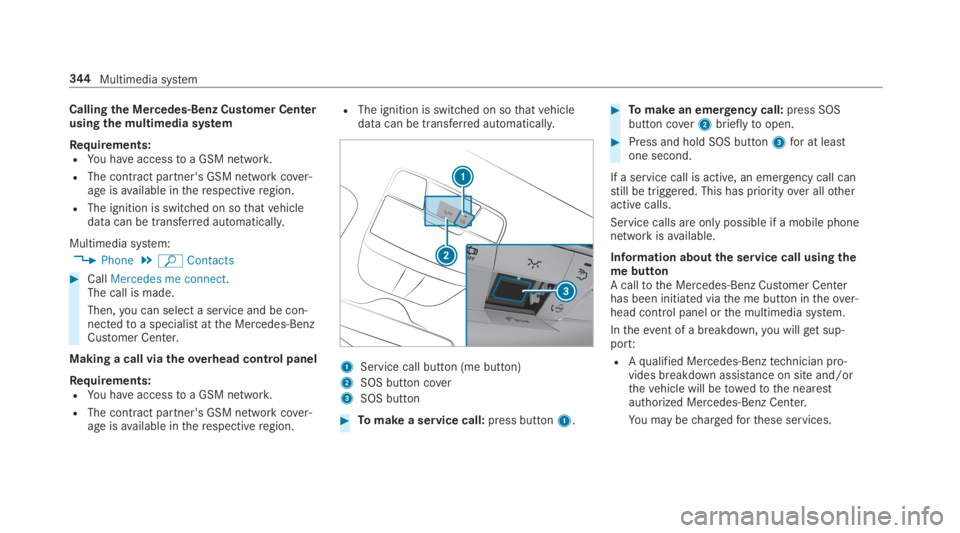
Callingthe Mercedes-Benz Customer Centerusing the multimedia system
Requirements:RYou haveaccesstoa GSM network.
RThe contract partner's GSM network cover‐age isavailable intherespectiveregion.
RThe ignition is switched on sothatvehicledata can be transferred automatically.
Multimedia system:
,Phone.ªContacts
#CallMercedes me connect.The call is made.
Then,you can select a service and be con‐nectedtoa specialist atthe Mercedes-BenzCustomer Center.
Making a call viatheoverhead control panel
Requirements:RYou haveaccesstoa GSM network.
RThe contract partner's GSM network cover‐age isavailable intherespectiveregion.
RThe ignition is switched on sothatvehicledata can be transferred automatically.
1Service call button (me button)
2SOS button cover
3SOS button
#Tomake a service call:press button1.
#Tomake an emergency call:press SOSbutton cover2brieflytoopen.
#Press and hold SOS button3for at leastone second.
If a service call is active, an emergency call canstill be triggered. This has priorityover allotheractive calls.
Service calls are only possible if a mobile phonenetwork isavailable.
Information aboutthe service call usingthemebuttonA calltothe Mercedes-Benz Customer Centerhas been initiated viathe me button intheover‐head control panel orthe multimedia system.
Intheevent of a breakdown,you willget sup‐port:
RAqualified Mercedes-Benztechnician pro‐vides breakdown assistance on site and/orthevehicle will betowedtothe nearestauthorized Mercedes-Benz Center.
You may bechargedforthese services.
344Multimedia system
Page 349 of 578
%Ifthere is a malfunction inthe emergencycall system (e.g. a malfunction withthespeaker, microphone, airbag, SOS button), acorresponding message appearsinthe mul‐tifunction display ofthe instrument cluster.
Triggering an automatic emergency call
RequirementsRThe ignition is switched on.
RThestarter battery is sufficientlycharged.
Ifrestraint systems such as airbags or Emer‐gencyTensioning Devices havebeen activatedafter an accident,the Mercedes-Benz emer‐gency call system may automatically initiate anemergency call.
The emergency call has been made:
RAvoice connection is madetothe Mercedes-Benz emergency call center.
RA messagewith accident data is transmittedtothe Mercedes-Benz emergency call center.
The Mercedes-Benz emergency call centercan transmitthevehicle position datatooneofthe emergency call centers.
The SOS button intheoverhead control panelflashes untilthe emergency call isfinished.
It is not possibletoimmediately end an auto‐matic emergency call.
If no connection can be madetothe emergencyservices either, a corresponding messageappearsinthe media display.
#Dialthe local emergency number onyourmobile phone.
If an emergency call has been initiated:
RRemain inthevehicle iftheroad and trafficconditions permityoutodo so until avoiceconnection is established withthe emer‐gency call center operator.
RBased onthe call,the operator decideswhether it is necessarytocallrescueteamsand/orthe policetothe accident site.
RIf novehicle occupant answers, an ambu‐lance is senttothevehicle immediately.
Triggering a manual emergency call#Press and holdthe SOS button intheover‐head control panelfor at leastone second.
The emergency call has been made:
RAvoice connection is madetothe Mercedes-Benz emergency call center.
RA messagewith accident data is transmittedtothe Mercedes-Benz emergency call center.
The Mercedes-Benz emergency call centercan transmitthevehicle position datatooneofthe emergency call centers.
RRemain inthevehicle iftheroad and trafficconditions permityoutodo so until avoiceconnection is established withthe emer‐gency call center service provider.
ROnthe basis ofthe call,the service providerdecides whether it is necessarytocallres‐cueteams and/orthe policetothe accidentsite.
If no connection can be madetothe emergencyservices either, a corresponding messageappearsinthe media display.
#Dialthe local emergency number onyourmobile phone.
Multimedia system347
Page 360 of 578
Connecting USB devices
*NOTEDamagecausedbyhightempera‐tures
Hightemperatures can damage USB devices.
#Removethe USB device after use andtakeit out ofthevehicle.
The multimedia connection unit isfound inthestowage compartment underthe armrest andhas two USB ports.
Depending onthevehicle's equipment, addi‐tional USB ports can befound inthestowagecompartment ofthe center console and intherear passenger compartment.
#Connectthe USB devicetothe USB port.Playable musicfiles are played back only ifthe corresponding media display is activated.
%Usethe USB port identifiedby
Page 368 of 578
Activating Bluetooth®audioMultimedia system:
,Media.àMedia Sources
#SelectáBluetooth Audio.The multimedia system activatesthe connec‐
ted Bluetooth®audio equipment.
Selectingthe media player on the Bluetooth®
audio deviceMultimedia system:
,Media.ª
#SelecttheBluetooth Audio Playerscategory.If multiple media playersare present onthe
Bluetooth®audio equipment a list appears.
#Select a media player.Playbackstarts.
%The function is not supportedbyeverymobile phone.
Searchingfor a music track on the Blue‐
tooth®audio deviceMultimedia system:
,Media.àMedia Sour-
ces.áBluetooth Audio
#Selectª.
#Select a category.A track listappears.
#Select a track.
%The function is onlyavailable whenthemobile phone andthe media player selectedonthe mobile phone supportthis function.
Switching Bluetooth®audio equipment viaNFC
Requirements:RObservethe notes on using NFC(→page 332).
RThe Bluetooth®audiooverview is displayed(→page 364).
#Lightly pressthe NFC area onthe mobilephone (seethe manufacturer's operatinginstructions).Ifthe mobile phone has already been author‐
ized onthe multimedia system as Bluetooth®
audio equipment, it is now connected.
Ifthe mobile phone is authorized onthe mul‐
timedia system as Bluetooth®audio equip‐mentforthefirst time, it is connected afterconfirmingthe instructionsforthe mobilephone (seethe manufacturer's operatinginstructions).
Disconnecting Bluetooth®audio equipmentMultimedia system:
,Phone.áMedia Sources
#Selecttheisymbol inthe line ofthemobile phone.The disconnection ofthe mobile phonetakesplace without a confirmation prompt. Themobile phoneremains authorized inthe sys‐tem.
366Multimedia system