2019 LINCOLN MKZ settings
[x] Cancel search: settingsPage 431 of 595

Troubleshooting tips
ActionCauseMessage
Contact SiriusXM at 1-888-539-7474 to subscribeto the channel, or tune to another channel.Your subscription does not include this channel.Unsubscribed Channel
The signal is blocked. When you move into anopen area, the signal should return.The signal is lost from the SiriusXM satellite orSiriusXM tower to your vehicle antenna.Satellite acquiring signal…
No action required. The process may take up tothree minutes.Update of channel programming in progress.Updating…
Contact SiriusXM at 1-888-539-7474 to resolvesubscription issues.Your satellite service is no longer available.Questions? Call 1-888-539-7474
Use the channel guide to turn off the Lock or Skipfunction on that station.All the channels in the selected category are eitherskipped or locked.None found. Check channel guide.
No action required.SiriusXM has updated the channels available foryour vehicle.SIRIUS Subscription updated
HD Radio™ Information (If Available)
Note: This feature may not be available inall markets.
To activate HD radio, please see the RadioSettings in the Settings Chapter. SeeSettings (page 461).
Note:HD Radio broadcasts are not availablein all markets.
428
MKZ (CC9) Canada/United States of America, enUSA, Edition date: 201805, First-Printing
SYNC™ 3
Page 438 of 595
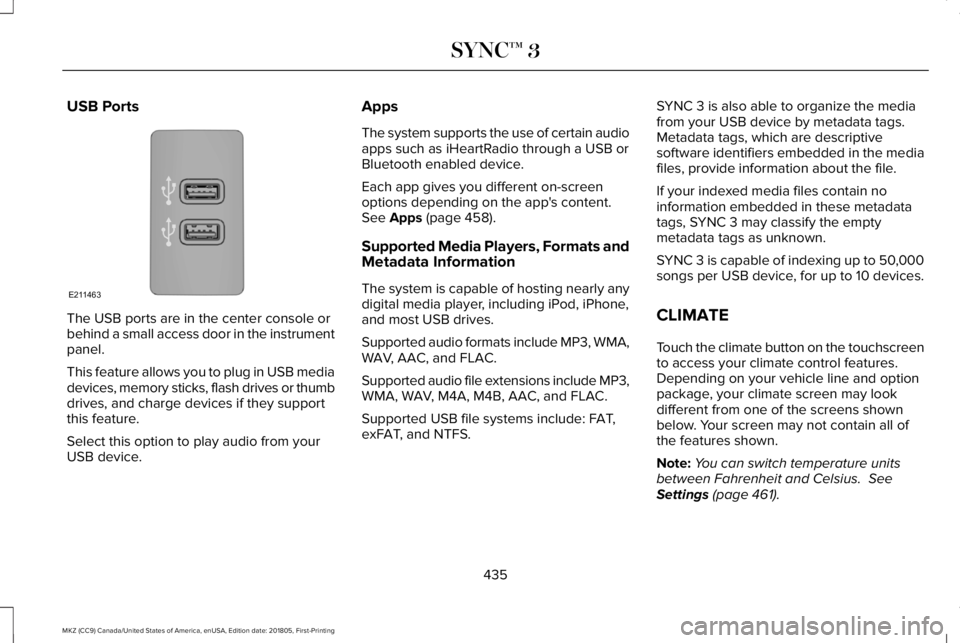
USB Ports
The USB ports are in the center console orbehind a small access door in the instrumentpanel.
This feature allows you to plug in USB mediadevices, memory sticks, flash drives or thumbdrives, and charge devices if they supportthis feature.
Select this option to play audio from yourUSB device.
Apps
The system supports the use of certain audioapps such as iHeartRadio through a USB orBluetooth enabled device.
Each app gives you different on-screenoptions depending on the app's content.See Apps (page 458).
Supported Media Players, Formats andMetadata Information
The system is capable of hosting nearly anydigital media player, including iPod, iPhone,and most USB drives.
Supported audio formats include MP3, WMA,WAV, AAC, and FLAC.
Supported audio file extensions include MP3,WMA, WAV, M4A, M4B, AAC, and FLAC.
Supported USB file systems include: FAT,exFAT, and NTFS.
SYNC 3 is also able to organize the mediafrom your USB device by metadata tags.Metadata tags, which are descriptivesoftware identifiers embedded in the mediafiles, provide information about the file.
If your indexed media files contain noinformation embedded in these metadatatags, SYNC 3 may classify the emptymetadata tags as unknown.
SYNC 3 is capable of indexing up to 50,000songs per USB device, for up to 10 devices.
CLIMATE
Touch the climate button on the touchscreento access your climate control features.Depending on your vehicle line and optionpackage, your climate screen may lookdifferent from one of the screens shownbelow. Your screen may not contain all ofthe features shown.
Note:You can switch temperature unitsbetween Fahrenheit and Celsius. SeeSettings (page 461).
435
MKZ (CC9) Canada/United States of America, enUSA, Edition date: 201805, First-Printing
SYNC™ 3E211463
Page 445 of 595

Action and DescriptionMenu ItemItem
You can place a call by selecting an entry from this list.You can also sort the calls by selecting the drop down menu at the top of the screen. Youcan choose:
MissedOutgoingIncomingAll
All of your contacts from your phone display in alphabetical order.ContactsB
Selecting this button allows you to choose aspecific letter to view.A-Z Jump
Displays the name of your phone and takes you to the phone settings options.Phone SettingsCFrom this menu, you can pair subsequent devices, set ring tones and alerts.
Gives you access to the list of paired or connected Bluetooth devices allowing you to changeor select a device.Change DeviceD
Displays all recent text messages.Text MessagesE
Use this keypad to dial in a phone number.Phone KeypadFUse the backspace button to delete numbers.
Press this button to begin a call.Call
Touch this button to reject all incoming calls automatically. Text message notifications donot display on the screen. All ringtones and alerts are set to silent.Do Not DisturbG
442
MKZ (CC9) Canada/United States of America, enUSA, Edition date: 201805, First-Printing
SYNC™ 3
Page 449 of 595

Smartphone Connectivity (If Equipped)
SYNC 3 allows you to use Apple CarPlay andAndroid Auto to access your phone.
When you use Apple CarPlay or AndroidAuto, you can:
•Make calls.
•Send and receive messages.
•Listen to music.
•Use your phone's voice assistant.
Apple CarPlay and Android Auto disablesome SYNC 3 features.
Most Apple CarPlay and Android Autofeatures use mobile data.
Apple CarPlay
Apple CarPlay requires an iPhone 5 or newerwith iOS 7.1 or newer. Updating to the latestiOS version is recommended.
1. Plug your phone into a USB port. SeeUSB Port (page 392).
2. Follow the prompts on the touchscreen.
3. Follow the prompts that appear on yourphone to allow access to Apple CarPlay.
After completing the setup, your phoneconnects to CarPlay automatically whenplugged into a USB port.
To disable this feature from the Settingsscreen, select:
Menu Item
Apple CarPlay Preferences
Your device is listed if SYNC detects AppleCarPlay. Select the name of your deviceand set the Apple CarPlay switch to off.
To return to SYNC 3, go to the Apple CarPlayhome screen and select the SYNC app.
Note:Contact Apple for Apple CarPlaysupport.
Android Auto
Android Auto is compatible with mostdevices with Android 5.0 or newer.
1.Download the Android Auto app to yourdevice from Google Play to prepare yourdevice (this may require mobile datausage).
Note:The Android Auto App may not beavailable within your current market.
2. Plug your device into a USB port. SeeUSB Port (page 392).
3. Follow the prompt on the touchscreen.
4. Follow the prompts that appear on yourdevice.
Note:You may be prompted to updateadditional apps on your device (this mayrequire mobile data usage).
To disable this feature from the Settingsscreen, select:
Menu Item
Android Auto Preferences
Your device is listed if SYNC detectsAndroid Auto. Select the name of yourdevice and set the Android Auto switch tooff.
Note:You may need to slide your Settingsscreen to the left to select Apple CarPlayPreferences or Android Auto Preferences.
446
MKZ (CC9) Canada/United States of America, enUSA, Edition date: 201805, First-Printing
SYNC™ 3
Page 451 of 595

Mute: Press to mute the audionavigation guidance. Press thebutton again to un-mute theguidance.
Points of Interest (POI) groupingicon: You can choose up to threePOI icons to display on the map. Ifthe chosen POIs are located closetogether or are at the same location a box isused to display a single category icon
instead of repeating the same icon, in orderto reduce clutter. When you select the boxon the map, a pop-up appears indicating howmany POIs are in this location. Select the popup to see a list of the available POIs. You canscroll through and select POIs from this list.
If your vehicle is low on charge or fuel,station icons automatically display on themap.
If you have subscribed to SiriusXM Trafficand Travel Link (where available), traffic flowwill be indicated on the map by green (clear),yellow (slowing), and red (stopped) roadhighlights. Traffic flow is indicated where theinformation is available and varies across theUS.
You can choose to display traffic icons onthe map representing twelve different typesof incidents. See Settings (page 461).
You can set a destination by hovering abovea location and selecting:
Button
Start
Destination Mode
To set a destination, press:
DescriptionMenu Item
Destination
Enter a navigation destination in any of the following formats:
Street AddressSearch
448
MKZ (CC9) Canada/United States of America, enUSA, Edition date: 201805, First-Printing
SYNC™ 3E251780 E251779 E207754
Page 457 of 595

Button
Highway exit information displays on the right hand side of the screen during navigation.Highway Exit InfoPoints of interest icons display for restaurants, hotels, fuel stations and ATMs when theyare present at the exit. You can select the POI icons to receive a listing of specific locations.You can select the POI location as a waypoint or destination if desired.
Only available during an active route. Displays all of the turns on the current route.Turn ListYou can choose to avoid any road on the turn list by selecting the road from the list. Ascreen then appears and you can press:
Avoid
The system calculates a new route and displays a new turn list.
You can find the SiriusXM Traffic and Travel Link information by pressing this button. This information requiresan active subscription to SiriusXM Traffic and Travel Link.Traffic List
When a route is not active, a list of nearby traffic incidents displays (if any are present).When a route is active, you can choose to display a list of traffic nearby or on the route.
Press this button to adjust your preferences. See Settings (page 461).Navigation Settings
Provides your current location city and the nearest road.Where Am I?
The following are only available on the menu during an active navigation route:
The system asks for confirmation and then returns you to the map mode screen.Cancel Route
Press this to see a map of the full route.View Route
An alternate route displays in comparison with the current route.Detour
454
MKZ (CC9) Canada/United States of America, enUSA, Edition date: 201805, First-Printing
SYNC™ 3
Page 461 of 595

HERE is the digital map provider for thenavigation application. If you find map dataerrors, you may report them directly to HEREby going to www.here.com/mapcreator.HERE evaluates all reported map errors andresponds with the result of their investigationby e-mail.
Map coverage includes the USA (includingPuerto Rico and the US Virgin Islands),Canada and Mexico.
APPS
The system enables voice, steering wheel,and touch screen control of SYNC 3 AppLinkenabled smartphone apps. When an app isrunning through AppLink, you can controlmain features of the app through voicecommands and steering wheel controls.
Note:Available AppLink enabled apps willvary by market.
Note:You must pair and connect yoursmartphone via Bluetooth to SYNC 3 toaccess AppLink.
Note:iPhone users need to connect thephone to the USB port.
Note:For information on available apps,supported smartphone devices andtroubleshooting tips please visit:
Websites
owner.lincoln.comwww.syncmyride.cawww.syncmaroute.ca
Note:Make sure you have an active accountfor the app that you have downloaded. Someapps will work with no setup. Other apps willwant you to configure your personal settingsand personalize your experience by creatingstations or favorites. We recommend you dothis at home or outside of your vehicle.
Note:We encourage you to review thesmartphone app’s terms of service andprivacy policies because Lincoln is notresponsible for your app or its use of data.
Note:AppLink is a native SYNC systemfeature. Accessing mobile apps throughAppLink is only possible when Android Autoor Apple CarPlay are disabled. Some appsmay only be accessible in the car throughAppLink and others only through AndroidAuto or Apple CarPlay. Please refer to theSmartphone Connectivity information todisable Android Auto or Apple CarPlay.
Note:In order to use an app with SYNC 3,the app needs to be running in thebackground of your phone. If you shut downthe app on your phone, it shuts down theapp on SYNC 3 as well.
Note:If a SYNC 3 AppLink compatible appis not shown in the Apps Domain, make surethe required app is running on the mobiledevice.
458
MKZ (CC9) Canada/United States of America, enUSA, Edition date: 201805, First-Printing
SYNC™ 3
Page 462 of 595

Action and Descrip-tionMenu Item
SYNC 3 will searchand connect tocompatible app(s)running on yourmobile device.
Find Mobile Apps
Enabling SYNC 3 Mobile Apps
In order to enable mobile apps, SYNC 3requires user consent to send and receiveapp authorization information and updatesusing the data plan associated with theconnected device.
The connected device sends data to Lincolnin the United States. The information isencrypted and includes your VIN, SYNC 3module number, odometer, usage statisticsand debugging information. We retain thisdata for only as long as necessary to providethis service, troubleshoot, and improveproducts and services and to offer youproducts and services that may interest youwhere allowed by law.
Note:You must enable mobile apps for eachconnected device the first time you select amobile app using the system.
Note:Lincoln reserves the right to limitfunctionality or deactivate mobile apps atany time.
Note: Standard data rates apply. Lincoln isnot responsible for any additional chargesyou may receive from your service provider,when your vehicle sends or receives datathrough the connected device. This includesany additional charges incurred due todriving in areas when roaming out of a homenetwork.
You can enable and disable apps throughsettings. See Settings (page 461).
App Permissions
The system organizes the app permissionsinto groups. You can individually grant thesegroup permissions.You can change apermission group status any time when notdriving, by using the settings menu. Whilein the settings menu, you can also see thedata included in each group.
When you launch an app using SYNC 3, thesystem may ask you to grant certainpermissions, for example Vehicle information,Driving characteristics, GPS and Speed,and/or Push notifications. You can enable allgroups or none of them during the initial apppermissions prompts. The settings menuoffers individual group permission control.
Note:You are only prompted to grantpermissions the first time you use an appwith SYNC 3.
Note:If you disable group permissions, appswill still be enabled to work with SYNC 3unless you deactivate All Apps in the settingsmenu.
SiriusXM Traffic and Travel Link (If
Equipped)
WARNING: Driving while distractedcan result in loss of vehicle control, crashand injury. We strongly recommend that youuse extreme caution when using any devicethat may take your focus off the road. Yourprimary responsibility is the safe operation
459
MKZ (CC9) Canada/United States of America, enUSA, Edition date: 201805, First-Printing
SYNC™ 3