Page 489 of 627
Sound Settings
Adjusts the amount the audio system volume increases with speed, or turn\
s the feature off.
Speed Compensated Vol.
Optimizes the sound based on the location of the listeners.
Occupancy Mode
Stereo
Sound Settings
Surround
Your vehicle might not have all of these features.
Media Player
This button is available when a media device
such as a Bluetooth Stereo or USB device is
the active audio source. Pressing the button
allows you to access the following options
for active devices only. Action and Description
Menu Item
For some USB devices, SYNC 3 can adjust the playback speed of podcasts. When a podcast is playi\
ng, you
can choose:
Podcast Speed
Faster
Normal
Slower
For some USB devices, SYNC 3 can adjust the playback speed of audiobooks. When an audiobook is \
playing,
you can choose:
Audiobook Speed
486
Continental (CPL) Canada/United States of America, enUSA, Edition date: 201807, Second-Printing SYNC™ 3
Page 491 of 627

Action and Description
Menu Item
Select how time displays.
Clock Format
When active, the clock adjusts to time zone changes.
Auto Time Zone Update
This feature is only available in vehicles with navigation.
When selected, the vehicle clock resets to GPS satellite time.
Reset Clock to GPS Time
The system automatically saves any updates
you make to the settings. Bluetooth
Pressing this button allows you to access the
following: Action
Menu Item
On
Bluetooth
Off
You must activate Bluetooth to pair a
Bluetooth enabled device.
The processes of pairing a Bluetooth device
is the same as pairing a phone. See Pairing
a Device in Phone settings for how to pair a
device and the available options. Phone
Pair your Bluetooth enabled phone with the
system before using the functions in
hands-free mode.
Switch on Bluetooth on your device to begin
pairing. See your phone
’s manual if
necessary.
488
Continental (CPL) Canada/United States of America, enUSA, Edition date: 201807, Second-Printing SYNC™ 3
Page 492 of 627
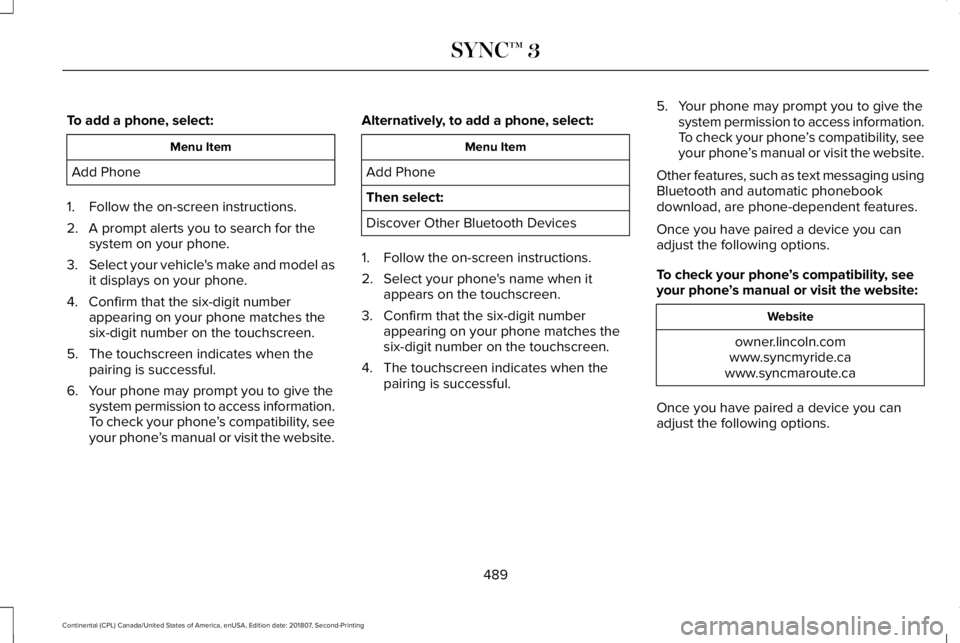
To add a phone, select:
Menu Item
Add Phone
1. Follow the on-screen instructions.
2. A prompt alerts you to search for the system on your phone.
3. Select your vehicle's make and model as
it displays on your phone.
4. Confirm that the six-digit number appearing on your phone matches the
six-digit number on the touchscreen.
5. The touchscreen indicates when the pairing is successful.
6. Your phone may prompt you to give the system permission to access information.
To check your phone ’s compatibility, see
your phone ’s manual or visit the website. Alternatively, to add a phone, select: Menu Item
Add Phone
Then select:
Discover Other Bluetooth Devices
1. Follow the on-screen instructions.
2. Select your phone's name when it appears on the touchscreen.
3. Confirm that the six-digit number appearing on your phone matches the
six-digit number on the touchscreen.
4. The touchscreen indicates when the pairing is successful. 5. Your phone may prompt you to give the
system permission to access information.
To check your phone ’s compatibility, see
your phone ’s manual or visit the website.
Other features, such as text messaging using
Bluetooth and automatic phonebook
download, are phone-dependent features.
Once you have paired a device you can
adjust the following options.
To check your phone ’s compatibility, see
your phone ’s manual or visit the website: Website
owner.lincoln.com
www.syncmyride.ca
www.syncmaroute.ca
Once you have paired a device you can
adjust the following options.
489
Continental (CPL) Canada/United States of America, enUSA, Edition date: 201807, Second-Printing SYNC™ 3
Page 493 of 627
Action and Description
Menu Item
View Devices
You can then select: You can add a Bluetooth enabled device by following the steps in the prev\
ious table.
Add a Bluetooth Device
You can select a phone by touching the name of the phone on the screen. Y\
ou then have the following options:
Depending on the status of the device, you can select either of these options to interact with the selected
device.
Connect
Disconnect
Allows you to select this device to be your preferred device.
Make Primary
Removes the selected device from the system.
Delete
Press the info icon next to the device name
to see phone and device information. Action and Description
Menu Item
Manage Contacts
You can then select: Enable this option to have SYNC 3 periodically re-download your phonebook to keep your contact list up to
date.
Auto-Download Contacts
490
Continental (CPL) Canada/United States of America, enUSA, Edition date: 201807, Second-Printing SYNC™ 3
Page 496 of 627
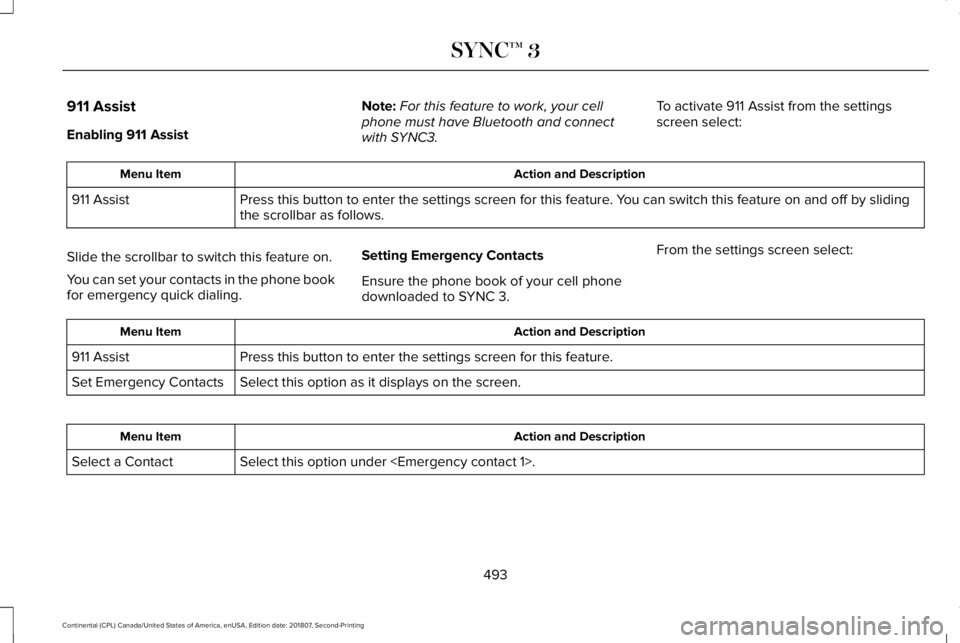
911 Assist
Enabling 911 Assist
Note:
For this feature to work, your cell
phone must have Bluetooth and connect
with SYNC3. To activate 911 Assist from the settings
screen select: Action and Description
Menu Item
Press this button to enter the settings screen for this feature. You can switch this feature on and off by sliding
the scrollbar as follows.
911 Assist
Slide the scrollbar to switch this feature on.
You can set your contacts in the phone book
for emergency quick dialing. Setting Emergency Contacts
Ensure the phone book of your cell phone
downloaded to SYNC 3.From the settings screen select: Action and Description
Menu Item
Press this button to enter the settings screen for this feature.
911 Assist
Select this option as it displays on the screen.
Set Emergency Contacts Action and Description
Menu Item
Select this option under .
Select a Contact
493
Continental (CPL) Canada/United States of America, enUSA, Edition date: 201807, Second-Printing SYNC™ 3
Page 497 of 627
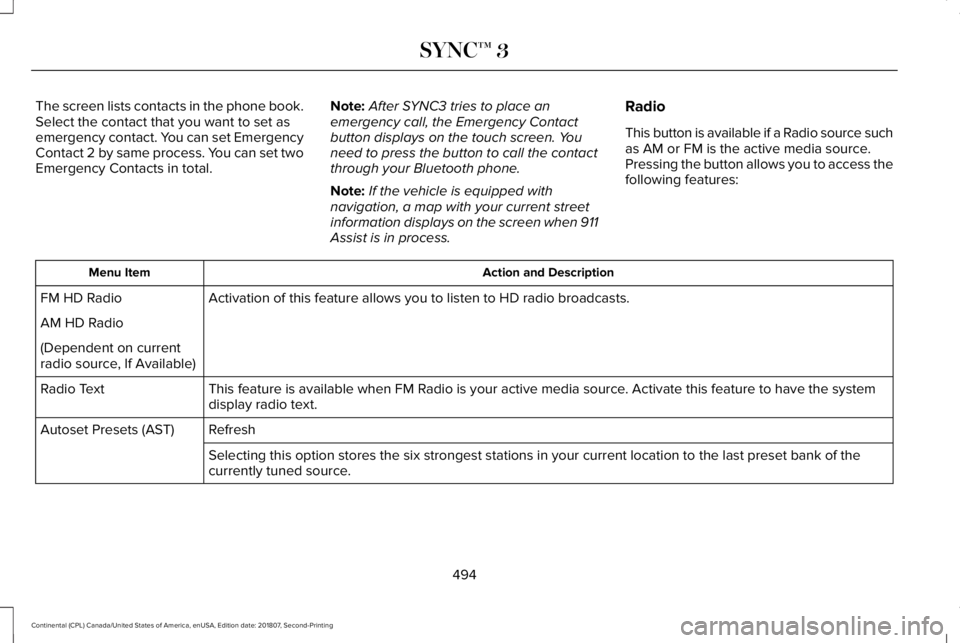
The screen lists contacts in the phone book.
Select the contact that you want to set as
emergency contact. You can set Emergency
Contact 2 by same process. You can set two
Emergency Contacts in total.
Note:
After SYNC3 tries to place an
emergency call, the Emergency Contact
button displays on the touch screen. You
need to press the button to call the contact
through your Bluetooth phone.
Note: If the vehicle is equipped with
navigation, a map with your current street
information displays on the screen when 911
Assist is in process. Radio
This button is available if a Radio source such
as AM or FM is the active media source.
Pressing the button allows you to access the
following features: Action and Description
Menu Item
Activation of this feature allows you to listen to HD radio broadcasts.
FM HD Radio
AM HD Radio
(Dependent on current
radio source, If Available)
This feature is available when FM Radio is your active media source. Activate this feature to have the system
display radio text.
Radio Text
Refresh
Autoset Presets (AST)
Selecting this option stores the six strongest stations in your current \
location to the last preset bank of the
currently tuned source.
494
Continental (CPL) Canada/United States of America, enUSA, Edition date: 201807, Second-Printing SYNC™ 3
Page 501 of 627

Navigation Source Selection
The screen lists available alternative
navigation sources using Applink.
Mobile Apps
You can enable the control of compatible
mobile apps running on your Bluetooth or
USB device on SYNC 3. In order to enable
mobile apps, SYNC 3 requires user consent
to send and receive app authorization
information and updates using the data plan
associated with the connected device.The connected devices send data to us in
the United States. The encrypted information
includes your VIN, SYNC 3 module number,
anonymous usage statistics and debugging
information. Updates may take place.
Note:
Not all Mobile Apps are compatible
with the system.
Note: Standard data rates apply. We are not
responsible for any additional charges you
may receive from your service provider,
when your vehicle sends or receives data
through the connected device. Action and Description
Menu Item
Enable or disable the use of mobile apps on
SYNC 3.
On
Mobile Apps
Off Disabling mobile apps in the settings menu
disables automatic updates and the use of
mobile apps on SYNC 3.
You can view the status of mobile app permissions in the settings menu.
Once Mobile Apps is enabled, you have the following options: This provides information on the current state of available app updates.\
Update Mobile Apps
There are three possible statuses:
498
Continental (CPL) Canada/United States of America, enUSA, Edition date: 201807, Second-Printing SYNC™ 3
Page 510 of 627
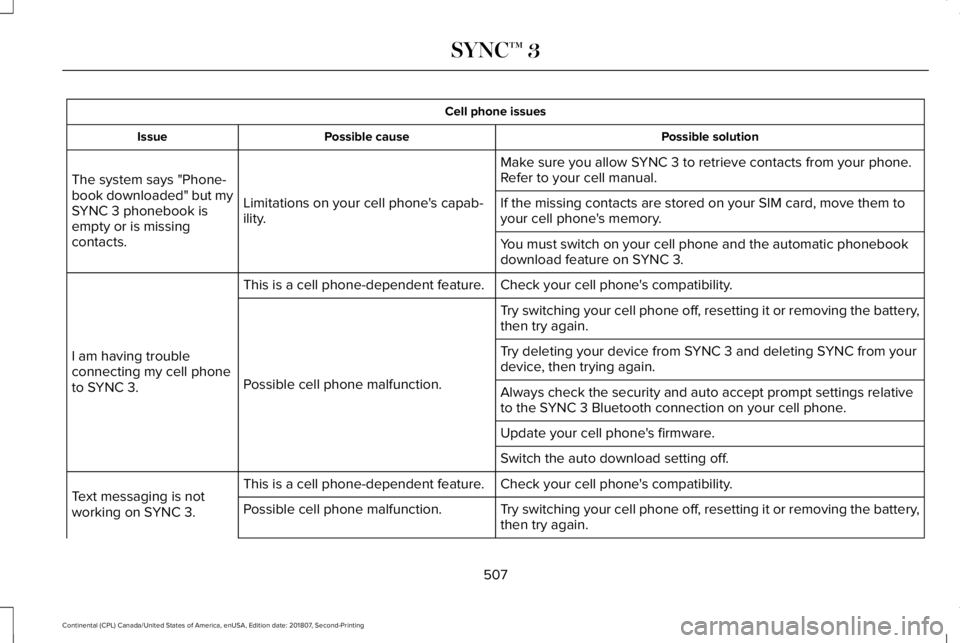
Cell phone issues
Possible solution
Possible cause
Issue
Make sure you allow SYNC 3 to retrieve contacts from your phone.
Refer to your cell manual.
Limitations on your cell phone's capab-
ility.
The system says "Phone-
book downloaded" but my
SYNC 3 phonebook is
empty or is missing
contacts. If the missing contacts are stored on your SIM card, move them to
your cell phone's memory.
You must switch on your cell phone and the automatic phonebook
download feature on SYNC 3.
Check your cell phone's compatibility.
This is a cell phone-dependent feature.
I am having trouble
connecting my cell phone
to SYNC 3. Try switching your cell phone off, resetting it or removing the battery,
then try again.
Possible cell phone malfunction. Try deleting your device from SYNC 3 and deleting SYNC from your
device, then trying again.
Always check the security and auto accept prompt settings relative
to the SYNC 3 Bluetooth connection on your cell phone.
Update your cell phone's firmware.
Switch the auto download setting off.
Check your cell phone's compatibility.
This is a cell phone-dependent feature.
Text messaging is not
working on SYNC 3. Try switching your cell phone off, resetting it or removing the battery,
then try again.
Possible cell phone malfunction.
507
Continental (CPL) Canada/United States of America, enUSA, Edition date: 201807, Second-Printing SYNC™ 3