2019 LINCOLN CONTINENTAL bluetooth
[x] Cancel search: bluetoothPage 450 of 627
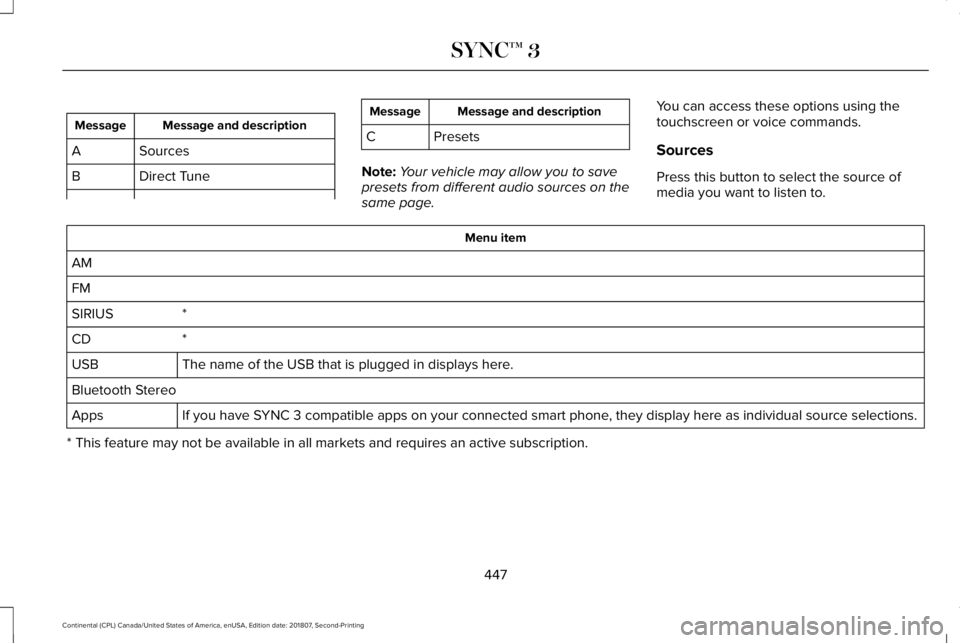
Message and description
Message
Sources
A
Direct Tune
B Message and description
Message
C Presets
Note: Your vehicle may allow you to save
presets from different audio sources on the
same page. You can access these options using the
touchscreen or voice commands.
Sources
Press this button to select the source of
media you want to listen to. Menu item
AM
FM *
SIRIUS
*
CD
The name of the USB that is plugged in displays here.
USB
Bluetooth Stereo
If you have SYNC 3 compatible apps on your connected smart phone, they display here as individual source selections.
Apps
* This feature may not be available in all markets and requires an active subscription.
447
Continental (CPL) Canada/United States of America, enUSA, Edition date: 201807, Second-Printing SYNC™ 3
Page 460 of 627
Bluetooth Stereo or USB
Bluetooth Stereo and USB allow you to
access media that you store on your
Bluetooth device or USB device such as
music, audio books or podcasts.
The following buttons are available for Bluetooth and USB: Function
Button
Pressing the repeat button toggles the repeat setting through three mode\
s: repeat off (button not
highlighted), repeat all (button highlighted) and repeat track (butt\
on highlighted with a small number
one).
Repeat
Play the tracks in random order.
Shuffle
You can use the forward, reverse, pause or
play buttons to control the audio playback.
To get more information about the currently
playing track, press the cover art or Info
button. For some devices, SYNC 3 is able to provide
30-second skip buttons when you listen to
audio books or podcasts. These buttons
allow you to skip forward or backward within
a track.
While playing audio from a USB device you
can look for certain music by selecting the
following: Function
Button
If available, displays the list of tracks in the Now Playing playlist.
Browse
This option, which is available under browse, allows you to play all
tracks or to filter the available media into one of the below categories\
.
New Search
Play All
457
Continental (CPL) Canada/United States of America, enUSA, Edition date: 201807, Second-Printing SYNC™ 3
Page 462 of 627
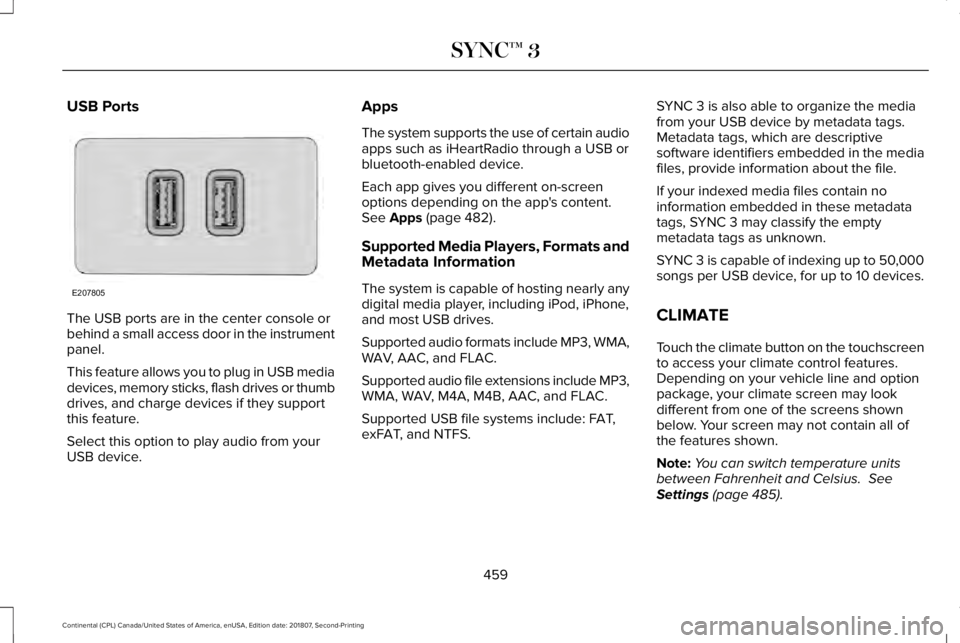
USB Ports
The USB ports are in the center console or
behind a small access door in the instrument
panel.
This feature allows you to plug in USB media
devices, memory sticks, flash drives or thumb
drives, and charge devices if they support
this feature.
Select this option to play audio from your
USB device. Apps
The system supports the use of certain audio
apps such as iHeartRadio through a USB or
bluetooth-enabled device.
Each app gives you different on-screen
options depending on the app's content.
See Apps (page 482).
Supported Media Players, Formats and
Metadata Information
The system is capable of hosting nearly any
digital media player, including iPod, iPhone,
and most USB drives.
Supported audio formats include MP3, WMA,
WAV, AAC, and FLAC.
Supported audio file extensions include MP3,
WMA, WAV, M4A, M4B, AAC, and FLAC.
Supported USB file systems include: FAT,
exFAT, and NTFS. SYNC 3 is also able to organize the media
from your USB device by metadata tags.
Metadata tags, which are descriptive
software identifiers embedded in the media
files, provide information about the file.
If your indexed media files contain no
information embedded in these metadata
tags, SYNC 3 may classify the empty
metadata tags as unknown.
SYNC 3 is capable of indexing up to 50,000
songs per USB device, for up to 10 devices.
CLIMATE
Touch the climate button on the touchscreen
to access your climate control features.
Depending on your vehicle line and option
package, your climate screen may look
different from one of the screens shown
below. Your screen may not contain all of
the features shown.
Note:
You can switch temperature units
between Fahrenheit and Celsius.
See
Settings (page 485).
459
Continental (CPL) Canada/United States of America, enUSA, Edition date: 201807, Second-Printing SYNC™ 3E207805
Page 466 of 627

Manual airflow distribution controls:
H
Defrost: A pop-up appears on the screen to display the defrost options.
MAX Defrost: Touch the button to maximize defrosting. Air flows through the windshield\
vents, the fan automatically adjusts to the
highest speed and the driver and passenger temperatures are set to HI. Y\
ou can use this setting to defog or clear a thin covering
of ice from the windshield. The heated rear window also automatically tu\
rns on when you select MAX Defrost.
Defrost:
Distributes air through the windshield defroster vents and demister vent\
s.
Heated rear window:
Turns the heated rear window on and off. See Heated Rear Window (page 147).
Panel:
Distributes air through the instrument panel vents.
Floor:
Distributes air through the demister vents, floor vents and rear seat f\
loor vents.
Driver temperature:
Touch up or down to adjust the temperature.
I
PHONE WARNING:
Driving while distracted
can result in loss of vehicle control, crash
and injury. We strongly recommend that
you use extreme caution when using any
device that may take your focus off the
road. Your primary responsibility is the safe
operation of your vehicle. We recommend against the use of any hand-held device
while driving and encourage the use of
voice-operated systems when possible.
Make sure you are aware of all applicable
local laws that may affect the use of
electronic devices while driving.
Hands-free calling is one of the main features
of the system. Once you pair your cell phone,
you can access many options using the
touchscreen or voice commands. While the
system supports a variety of features, many
are dependent on your cell phone
’s
functionality.
Pairing Your Cell Phone for the First
Time
Pair your Bluetooth enabled phone with the
system before using the functions in
hands-free mode.
463
Continental (CPL) Canada/United States of America, enUSA, Edition date: 201807, Second-Printing SYNC™ 3
Page 467 of 627
Switch on Bluetooth on your device to begin
pairing. See your phone
’s manual if
necessary.
To add a phone, select: Menu Item
Add Phone
1. Follow the on-screen instructions.
2. A prompt alerts you to search for the system on your phone.
3. Select your vehicle's make and model as
it displays on your phone.
4. Confirm that the six-digit number appearing on your phone matches the
six-digit number on the touchscreen.
5. The touchscreen indicates when the pairing is successful.
6. Your phone may prompt you to give the system permission to access information.
To check your phone ’s compatibility, see
your phone ’s manual or visit the website. Alternatively, to add a phone, select: Menu Item
Add Phone
Then select:
Discover Other Bluetooth Devices
1. Follow the on-screen instructions.
2. Select your phone's name when it appears on the touchscreen.
3. Confirm that the six-digit number appearing on your phone matches the
six-digit number on the touchscreen.
4. The touchscreen indicates when the pairing is successful.
5. Your phone may prompt you to give the system permission to access information.
To check your phone ’s compatibility, see
your phone ’s manual or visit the website. At a minimum, most cell phones with
Bluetooth wireless technology support the
following functions:
•
Answering an incoming call.
• Ending a call.
• Dialing a number.
• Call waiting notification.
• Caller identification.
Other features, such as text messaging using
Bluetooth and automatic phonebook
download, are phone-dependent features.
To check your phone ’s compatibility, see
your phone ’s manual or visit the website: Websites
owner.lincoln.com
www.syncmyride.ca
www.syncmaroute.ca
Phone Menu
This menu becomes available after pairing
a phone.
464
Continental (CPL) Canada/United States of America, enUSA, Edition date: 201807, Second-Printing SYNC™ 3
Page 469 of 627

Action and Description
Menu Item
Item
You can place a call by selecting an entry from this list.
You can also sort the calls by selecting the drop down menu at the top of\
the screen. You
can choose: Missed
Outgoing
Incoming
All
All of your contacts from your phone display in alphabetical order.
Contacts
B
Selecting this button allows you to choose a
specific letter to view.
A-Z Jump
Displays the name of your phone and takes you to the phone settings options.
Phone Settings
C
From this menu, you can pair subsequent devices, set ring tones and aler\
ts.
Gives you access to the list of paired or connected Bluetooth devices al\
lowing you to change
or select a device.
Change Device
D
Displays all recent text messages.
Text Messages
E
Use this keypad to dial in a phone number.
Phone Keypad
F
Use the backspace button to delete numbers.
Press this button to begin a call.
Call
Touch this button to reject all incoming calls automatically. Text message notifications do
not display on the screen. All ringtones and alerts are set to silent.
Do Not Disturb
G
466
Continental (CPL) Canada/United States of America, enUSA, Edition date: 201807, Second-Printing SYNC™ 3
Page 472 of 627
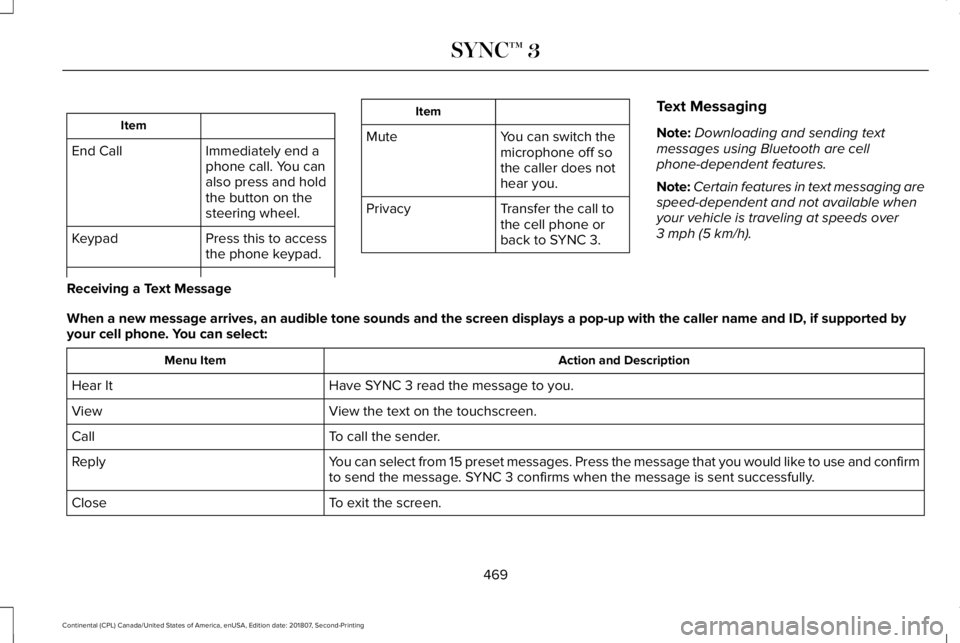
Item
Immediately end a
phone call. You can
also press and hold
the button on the
steering wheel.
End Call
Press this to access
the phone keypad.
Keypad Item
Mute You can switch the
microphone off so
the caller does not
hear you.
Transfer the call to
the cell phone or
back to SYNC 3.
Privacy Text Messaging
Note:
Downloading and sending text
messages using Bluetooth are cell
phone-dependent features.
Note: Certain features in text messaging are
speed-dependent and not available when
your vehicle is traveling at speeds over
3 mph (5 km/h).
Receiving a Text Message
When a new message arrives, an audible tone sounds and the screen displa\
ys a pop-up with the caller name and ID, if supported by
your cell phone. You can select: Action and Description
Menu Item
Have SYNC 3 read the message to you.
Hear It
View the text on the touchscreen.
View
To call the sender.
Call
You can select from 15 preset messages. Press the message that you would \
like to use and confirm
to send the message. SYNC 3 confirms when the message is sent successfully.
Reply
To exit the screen.
Close
469
Continental (CPL) Canada/United States of America, enUSA, Edition date: 201807, Second-Printing SYNC™ 3
Page 485 of 627

HERE is the digital map provider for the
navigation application. If you find map data
errors, you may report them directly to HERE
by going to www.here.com/mapcreator.
HERE evaluates all reported map errors and
responds with the result of their investigation
by e-mail.
Map coverage includes the USA (including
Puerto Rico and the US Virgin Islands),
Canada and Mexico.
APPS
The system enables voice, steering wheel,
and touch screen control of SYNC 3 AppLink
enabled smartphone apps. When an app is
running through AppLink, you can control
main features of the app through voice
commands and steering wheel controls.
Note:
Available AppLink enabled apps will
vary by market.
Note: You must pair and connect your
smartphone via Bluetooth to SYNC 3 to
access AppLink. Note:
iPhone users need to connect the
phone to the USB port.
Note: For information on available apps,
supported smartphone devices and
troubleshooting tips please visit: Websites
owner.lincoln.com
www.syncmyride.ca
www.syncmaroute.ca
Note: Make sure you have an active account
for the app that you have downloaded. Some
apps will work with no setup. Other apps will
want you to configure your personal settings
and personalize your experience by creating
stations or favorites. We recommend you do
this at home or outside of your vehicle.
Note: We encourage you to review the
smartphone app ’s terms of service and
privacy policies because Lincoln is not
responsible for your app or its use of data. Note:
AppLink is a native SYNC system
feature. Accessing mobile apps through
AppLink is only possible when Android Auto
or Apple CarPlay are disabled. Some apps
may only be accessible in the car through
AppLink and others only through Android
Auto or Apple CarPlay. Please refer to the
Smartphone Connectivity information to
disable Android Auto or Apple CarPlay.
Note: In order to use an app with SYNC 3,
the app needs to be running in the
background of your phone. If you shut down
the app on your phone, it shuts down the
app on SYNC 3 as well.
Note: If a SYNC 3 AppLink compatible app
is not shown in the Apps Domain, make sure
the required app is running on the mobile
device.
482
Continental (CPL) Canada/United States of America, enUSA, Edition date: 201807, Second-Printing SYNC™ 3