2017 VOLVO V90 change time
[x] Cancel search: change timePage 393 of 594
STARTING AND DRIVING
* Option/accessory.391
Drive position - D
D is the normal driving position. Shifting up and
down takes place automatically based on the level of acceleration and speed. The car must be stationary when changing gear from R position to
D position.
Manual gearshift mode - M
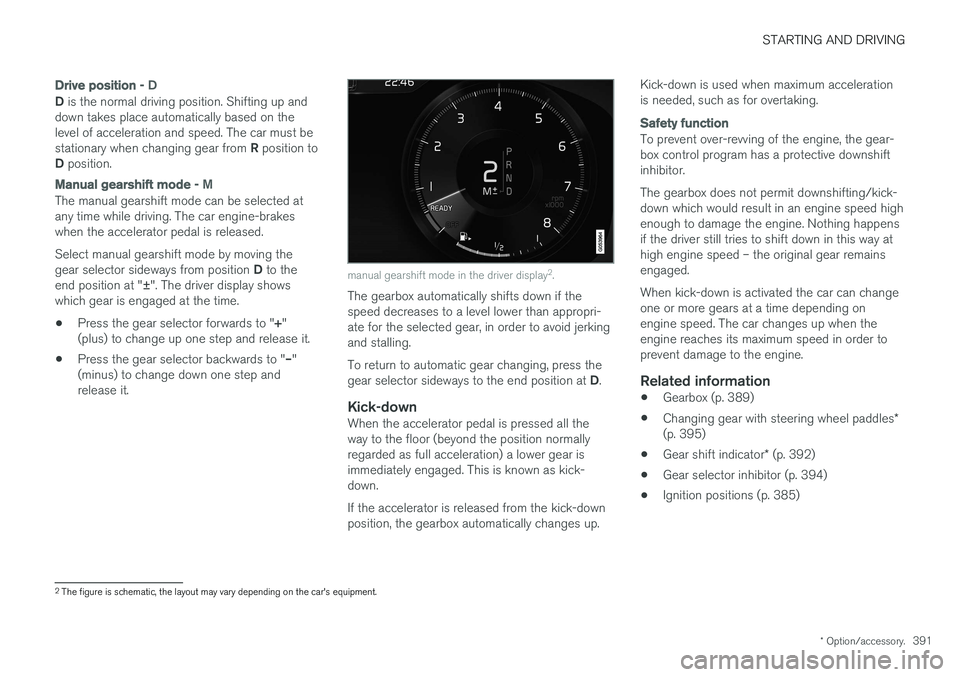
The manual gearshift mode can be selected at any time while driving. The car engine-brakeswhen the accelerator pedal is released. Select manual gearshift mode by moving the gear selector sideways from position D to the
end position at " ±". The driver display shows
which gear is engaged at the time.
• Press the gear selector forwards to "
+"
(plus) to change up one step and release it.
• Press the gear selector backwards to "
–"
(minus) to change down one step and release it.
manual gearshift mode in the driver display 2
.
The gearbox automatically shifts down if the speed decreases to a level lower than appropri-ate for the selected gear, in order to avoid jerkingand stalling. To return to automatic gear changing, press the gear selector sideways to the end position at D.
Kick-downWhen the accelerator pedal is pressed all the way to the floor (beyond the position normallyregarded as full acceleration) a lower gear isimmediately engaged. This is known as kick-down. If the accelerator is released from the kick-down position, the gearbox automatically changes up. Kick-down is used when maximum accelerationis needed, such as for overtaking.
Safety function
To prevent over-revving of the engine, the gear- box control program has a protective downshiftinhibitor. The gearbox does not permit downshifting/kick- down which would result in an engine speed highenough to damage the engine. Nothing happensif the driver still tries to shift down in this way athigh engine speed – the original gear remainsengaged. When kick-down is activated the car can change one or more gears at a time depending onengine speed. The car changes up when theengine reaches its maximum speed in order toprevent damage to the engine.
Related information
•
Gearbox (p. 389)
• Changing gear with steering wheel paddles
*
(p. 395)
• Gear shift indicator
* (p. 392)
• Gear selector inhibitor (p. 394)
• Ignition positions (p. 385)
2
The figure is schematic, the layout may vary depending on the car's equipment.
Page 394 of 594

STARTING AND DRIVING
* Option/accessory.
392
Manual gearbox
With a manual gearbox, the driver selects a suit- able gear manually, according to speed andpower requirements at the time.
Changing gearThe manual gearbox has six gears, the shifting pattern is imprinted on the gear lever.
Gearing pattern.
• Depress the clutch pedal fully during each gear change.
• Take your foot off the clutch pedal betweengear changes.
Reverse gear inhibitorThe reverse gear inhibitor hinders the possibilityof mistakenly attempting to engage reverse gearduring normal forward travel. •
Follow the gearing pattern printed on the gear lever and start from neutral position,
N
before moving it to R position.
• Engage reverse gear only when the car is stationary.
During parking
WARNING
Always apply the parking brake when parking on a slope - leaving the car in gear is not suf-ficient to hold the car in all situations.
Related information
• Gearbox (p. 389)
• Gear shift indicator
* (p. 392)
Gear shift indicator *
The gear shift indicator in the driver display shows the current gear during manual gearshift-ing and when it is appropriate to engage thenext gear for optimum fuel economy.
For eco-driving during manual gear changing, it is important to drive in the right gear and to changegear in good time.
Page 400 of 594

||
STARTING AND DRIVING
* Option/accessory.
398
With 8-inch driver display
The symbol is shown in the lower edge of the speedometer.
Symbol Specification
White symbol: The function is avail- able.
Beige symbol: The function is active and the engine is auto-stop-ped.
The function is not available, the conditions are not fulfilled. No symbol is shown when the function is deactivated.
Deactivating the functionIn certain situations it may be desirable to tempo- rarily deactivate the function.
Deactivate using the
Start/
Stop function button in the
centre display's function view. The indication in the button isswitched off when the functionis deactivated.
The function is deactivated until •
it is reactivated
• the drive mode is changed to
Eco orComfort
• the next time the car is started.
Related information
•
Start/Stop (p. 396)
• Conditions for the Start/Stop function (p. 398)
• Hill start assist (p. 412)
• Automatic braking when stationary (p. 412)
• Adaptive cruise control
* (p. 290)
• Activating and starting the Pilot Assist
*
(p. 307)
Conditions for the Start/Stop function For the Start/Stop function to work requires that a number of conditions are met.
If any condition is not met, this will be indicated in the driver display. See the section "Using theStart/Stop function".
The engine does not auto-stopThe engine does not auto-stop in the followingcases: • The car has not reached approx. 10 km/h (6 mph) after starting.
• After a number of repeated auto stops,speed must again exceed approx. 10 km/h(6 mph) before the next auto stop.
• The driver has unfastened the seatbelt.
• The capacity of the starter battery is belowthe minimum permissible level.
• The engine is not at normal operating tem-perature.
• The ambient temperature is under -5 °C orabove approx. 30 °C.
• the windscreen's electric heating is activated.
• The environment in the passenger compart-ment deviates from the set values.
• the car is reversed.
• The starter battery's temperature is below orabove the permitted limit values.
Page 407 of 594

STARTING AND DRIVING
* Option/accessory.405
Level control * and shock absorption
Level control and shock absorption are regula- ted automatically in the car.
With rear level control, the car maintains the same height at the rear regardless of load. Levelcontrol can also occur even after the car hasbeen parked.
Shock absorption (Four-C)The shock absorption is adapted according to theselected drive mode and according to the speedof the car. Shock absorption is normally set forthe best possible comfort and is regulated con-tinuously depending on the road surface, thecar's acceleration, braking and cornering.
Settings for level control
Deactivation of air suspension and level control
In certain cases, the function must be deacti- vated, e.g. before the car is raised with a jack *.
The difference in level created by raising the car with a jack can otherwise cause problems for theair suspension. Deactivating the function via the centre display:1. Press
Settings in the top view.
2. Press
My CarSuspension .
3. Select
Disable Leveling Control.
Change the damping level 11
Cars with active chassis (Four-C) and without the drive mode function
* can adjust the shock
absorption level via the centre display: 1. Press
Settings in the top view.
2. Tap on
My CarDrive ModeSuspension Control and select the level.
During transportDuring transport of the car on a ferry, train or truck, the car must be lashed around the tyresand not around other parts of the chassis.Changes in the air suspension may occur duringtransport, which could affect the lashing nega-tively.
Related information
• Drive modes
* (p. 400)
• Loading (p. 227)
All-wheel drive
*
All-wheel drive, AWD (All Wheel Drive), means that the car is driving all four wheels at the sametime, which improves traction.
To achieve the best possible traction and prevent wheel spin the motive force is distributed auto-matically to the wheels with the best grip. Thesystem continuously calculates the need for tor-que to the rear wheels, and can immediatelyredistribute up to half of the motor's torque to therear wheels. All-wheel drive also has a stabilising effect at higher speeds. Under normal driving conditions,the majority of power is transmitted to the frontwheels. When stationary, the all-wheel drive isalways engaged in preparation for maximum trac-tion during acceleration. All-wheel drive characteristics vary depending on the selected drive mode *.
Related information
• Drive modes
* (p. 400)
11
Depends on the car's equipment.
Page 446 of 594

||
AUDIO AND MEDIA
* Option/accessory.
444
Volume - turn the control knob under the centre display or press
on the steering wheel's
right-hand keypad in order to increase or decrease the volume. Play/pause - tap on the image belonging to the song being played, the button under the centre display or
on the steering wheel's right-hand
keypad. Change track/song - tap on the desired track in the centre display, press on
under the cen- tre display or on the steering wheel's right-hand keypad. Fast forward/move in time - tap on the time axis in the centre display and drag sideways, or press and hold
depressed under the centre dis-
play or on the steering wheel's right-hand key- pad. Changing media - select under
Recent sourcesin the app, and in the app view, tap on the desired app, or select using the steering wheel's right-hand keypad via the app menu
.
Library - tap on the button to play back from the
library.
Shuffle - tap on the button to shuffle the play-
back order.
Similar - tap on the button in order to use
Gracenote to search for similar music on the USB device and to create a playlist from it. Theplaylist can contain a maximum of 50 songs.
Change device - tap on the button in order to
switch between USB devices when several are connected.
Settings for video
With the video player in full screen mode, or by opening the top view and pressing
SettingsVideo, the following can be adjusted: Audio
Language, Off and Subtitle Language.
Playing back DivX®
This DivX Certified ®
device must be registered in
order to play back purchased DivX Video-on- Demand (VOD) films. 1. Press
Settings in top view.
2. Tap
VideoDivX ® VOD and retrieve the
registration code.
3. Go to vod.divx.com for more information and to complete the registration.
Related information
• Using the application menu in the driver dis- play (p. 105)
• Voice recognition control of radio and media(p. 118)
• Connecting the car (p. 464)
• Apps (p. 434)
• Searching media (p. 446)
• Connecting media via Bluetooth (p. 447)
• Connecting media via AUX/USB input(p. 448)
• CD player
* (p. 446)
• Radio (p. 436)
• Gracenote ®
(p. 445)
• video (p. 448)
• Audio settings for media (p. 448)
• TV
* (p. 449)
Page 452 of 594

||
AUDIO AND MEDIA
* Option/accessory.
450
TV guide
A programme guide is available with information about TV programmes for up to 48 hours.
–Tap on Guide to show information about TV
programmes.
NOTE
If the car is moved within the country, e.g. from city to city, it is not certain that
Favourites are available since the frequency
may have changed.
Change the format of the TV picture
Tapping on Picture format enables you to
choose which format the TV picture should be shown in. 1.
Auto - The TV picture is shown in the image
format being transmitted.
2.
Auto fill - The TV picture is maximised with-
out cropping.
Settings for TVThe option to make certain settings is available, both in the top view or when TV-viewing takesplace in full screen mode. With the video player in full screen mode, or by opening the top view and pressing
Settings
MediaTV, the following can be adjusted: •
Subtitle Language
•Audio Language
Related information
•
TV
* (p. 449)
• Voice recognition control of radio and media (p. 118)
• Media playback (p. 443)
• Navigating in the centre display's views(p. 40)
• License agreement for audio and media(p. 470)
Apple CarPlay
*
Apple CarPlay gives you the option to listen to music, make phone calls, get directions, send/receive messages and use Siri, all while you stayfocused on your driving. Apple CarPlay workswith selected Apple devices.
If the car is not already equipped with Apple CarPlay then it is possible to install it after-wards. Contact a Volvo dealer to installApple CarPlay. Information about which apps are supported and which phones are compatible is available onApple's website: www.apple.com/ios/carplay/.Using apps that are not compatible withApple CarPlay may sometimes mean that theconnection between an iPhone and the car isbroken. Please note that Volvo is not responsiblefor the content in Apple CarPlay.
Page 466 of 594

||
AUDIO AND MEDIA
* Option/accessory.
464
Related information
• Connecting the car (p. 464)
• Apps (p. 434)
• Book service and repair (p. 506)
• System updates (p. 510)
• Volvo ID (p. 23)
• Symbols in the centre display's status bar (p. 45)
• Sharing Internet via Wi-Fi hotspot (p. 465)
Connecting the car Connect the car to the phone via Bluetooth, Wi-Fi or with the car's built-in modem
*.
The mobile phone and network operator must support tethering (sharing the Internet connec-tion) and the plan must include data.
NOTE
Data is transferred when using the internet (data traffic), which can have a cost. Activation of data roaming can result in fur- ther charges. Contact your network operator about the cost for data traffic.
NOTE
When using Apple CarPlay, it is only possible to connect the car to the Internet using Wi-Fi or car modem *.
NOTE
When using Android Auto, it is possible to connect the car to the Internet using Wi-Fi, Bluetooth or car modem *.
Read Terms and Conditions for Services and
Customer Privacy Policy at
support.volvocars.com before connecting.
Connecting with BluetoothSee Connecting a phone.
Connecting with Wi-Fi
1. Activate tethering (portable/personal hot- spot) on the mobile phone.
2. Press
Settings in top view.
3. Press
CommunicationWi-Fi.
4. Activate/deactivate by ticking/unticking the box for Wi-Fi.
5. Tap on the network name of the network to be connected.
6. Enter the network password.
7. If another connection source has been used in the past - confirm the option to change connection.
> The car connects to the network.
Note that certain phones switch off tethering after the contact with the car has been discon-nected, e.g. when leaving the car and until thenext time it is used. The tethering in the phonetherefore needs to be reactivated the next time itis used.
Page 473 of 594
AUDIO AND MEDIA
}}
471
Parts of the content are copyright
© of
Gracenote or its suppliers. Gracenote,Gracenote logo and logotype, "Powered by Gracenote" and Gracenote MusicIDare either registered trademarks or trademarks ofGracenote, Inc. in the USA and/or other coun-tries.
Gracenote ®
End User License Agreement
This program or device contains software from Gracenote, Inc. of Emeryville, California, USA("Gracenote"). The software from Gracenote("Gracenote software") activates this program toperform disc and/or file identification and obtainmusic-related information, including name, artist,track and title ("Gracenote data") from onlineservers or embedded databases (together called"Gracenote servers") and in order to performother actions. You may only use Gracenote datain accordance with the intended end-user func-tions for this program or this device. You agree to only use Gracenote data, Gracenote software and Gracenote servers for your ownpersonal non-commercial use. You agree not toassign, copy, transfer or transmit this Gracenotesoftware or any Gracenote data to any third party.YOU AGREE NOT TO USE OR EXPLOITGRACENOTE DATA, GRACENOTE SOFTWAREOR GRACENOTE SERVERS, EXCEPT ASEXPRESSLY PERMITTED IN THIS AGREEMENT. You agree that your non-exclusive right to use Gracenote data, Gracenote software and Grace- note servers will be terminated if you violatethese restrictions. If your license is terminatedyou agree to cease all use of Gracenote data,Gracenote software and Gracenote servers.Gracenote holds exclusive rights to all Gracenotedata, all Gracenote software and all Gracenoteservers, including all ownership rights. Gracenotewill under no circumstances have any obligationto pay you for any information you provide. Youagree that Gracenote, Inc. may enforce the com-pany's rights under this agreement against youdirectly in its own name. The Gracenote service uses a unique identifier to track enquiries for statistical purposes. The pur-pose of a randomly assigned numeric identifier isto enable the Gracenote service to count enqui-ries without knowing anything about who you are.Additional information is available on the webpage for Gracenote's privacy policy for the Grace-note service. The Gracenote software and everything included in Gracenote data are licensed to you "as is".Gracenote provides no undertakings or warran-ties, express or implied, as to the accuracy of theGracenote data contained in the Gracenote serv-ers. Gracenote reserves the right to delete datafrom the Gracenote servers or to change datacategories for any reason that Gracenote deemssufficient. No warranty is provided that the Grace-note software or Gracenote servers are fault-freeor that the Gracenote software or Gracenoteservers will operate without interruption. Grace-
note has no obligation to provide you with new,improved or additional data types or categoriesthat Gracenote may provide in the future, and thecompany reserves the right to discontinue itsservices at any time. GRACENOTE DISCLAIMS ALL WARRANTIES, EITHER EXPRESS OR IMPLIED, INCLUDING,BUT NOT LIMITED TO, THE IMPLIED WARRAN-TIES OF MERCHANTABILITY, FITNESS FOR APARTICULAR PURPOSE, TITLE AND NON-INFRINGEMENT OF INTELLECTUAL PROP-ERTY RIGHTS. GRACENOTE DOES NOT GUAR-ANTEE THE RESULTS OBTAINED THROUGHYOUR USE OF THE GRACENOTE SOFTWAREOR A GRACENOTE SERVER. GRACENOTEWILL IN NO EVENT BE LIABLE FOR ANY CON-SEQUENTIAL DAMAGE OR FOR ANY LOSTPROFITS OR REVENUES.
©
Gracenote, Inc. 2009
Sensus software
This software uses parts of sources from clib2 and Prex Embedded Real-time OS - Source(Copyright (c) 1982, 1986, 1991, 1993, 1994),and Quercus Robusta (Copyright (c) 1990,1993), The Regents of the University ofCalifornia. All or some portions are derived frommaterial licensed to the University of California byAmerican Telephone and Telegraph Co. or UnixSystem Laboratories, Inc. and are reproducedherein with the permission of UNIX SystemLaboratories, Inc. Redistribution and use in